



Backup iPhone Contacts without iCloud: 3 Best Ways
iCloud storage full? Here are 3 ways to backup iPhone contacts without iCloud - selective, full, and email backups. Pick the one that fits you. Keep reading.

By Ivy Updated on July 9, 2026


Your iPhone contacts are more than just names and numbers - they're your connection to friends, family, colleagues, and clients. Losing them can be a real headache. And if you've ever run into iCloud's 5GB storage limit or dealt with contacts failing to sync, you already know why backing up without iCloud matters.
The good news? You have options. This guide covers three reliable ways to back up iPhone contacts without iCloud, from a free, selective tool to built‑in iTunes and a simple email backup. Here's how to choose.
Which Method Should You Use?
Here's a quick guide to help you decide:
| Your Situation | Best Method | 👍 Best For |
|---|---|---|
| Want selective backup, view contacts anytime | Method 1: AOMEI FoneBackup | Selective, free, previewable - most flexible |
| Already use iTunes, want a complete device backup | Method 2: iTunes | Full backup, not just contacts |
| No computer available, need a quick, simple backup | Method 3: Email Backup | Direct from iPhone - no PC, no sync |
Method 1: Backup iPhone Contacts with AOMEI FoneBackup (Selective & Free)
📌Best for: Anyone who wants to choose exactly which contacts to back up and view them anytime, without restoring the whole device.
AOMEI FoneBackup is a free Windows tool built specifically for managing iPhone data. Unlike iTunes, it lets you back up only your contacts (or photos, messages, and more) and restore without wiping your phone. It's the most flexible way to back up iPhone contacts without iCloud.
 AOMEI FoneBackup
-
Selective backup: Choose only the contacts you need, not everything - No Wi‑Fi or iCloud required.
-
Preview anytime: Browse backup files whenever you want.
-
Safe restore: Never erases existing data on your device during restore.
-
Cross‑device: Restore backup files to another iDevice as needed.
-
Free: No hidden costs for basic backup needs
 100% Secure
How to backup iPhone contacts with AOMEI FoneBackup:
Step 1. Download and install AOMEI FoneBackup on your Windows PC. Connect your iPhone to the computer via a USB cable, then tap Trust on your iPhone to grant full access.
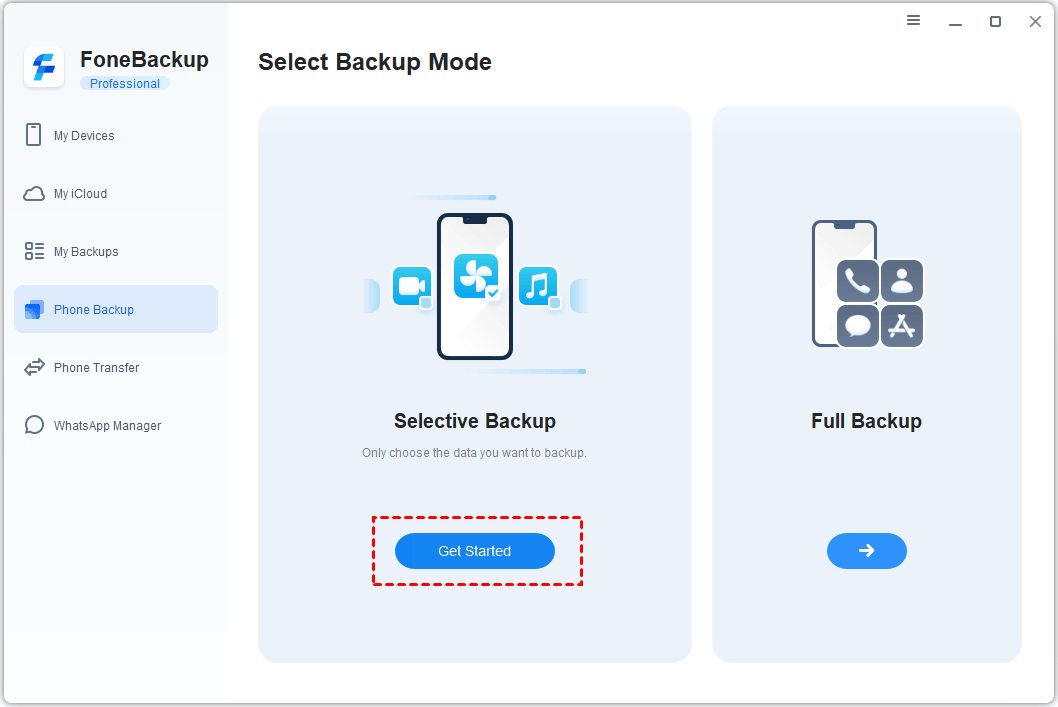
Step 2. Under the Phone Backup tab, click Selective Backup and Get Started.
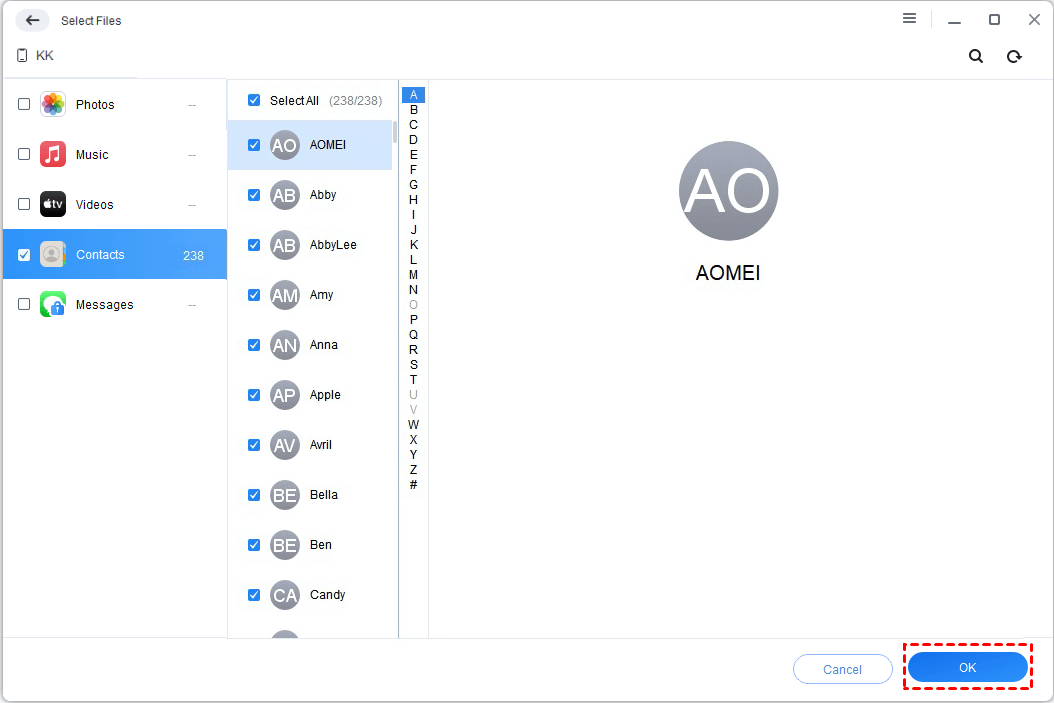
Step 3. Choose Contacts to preview and select the contacts you want to backup. Then, click OK.
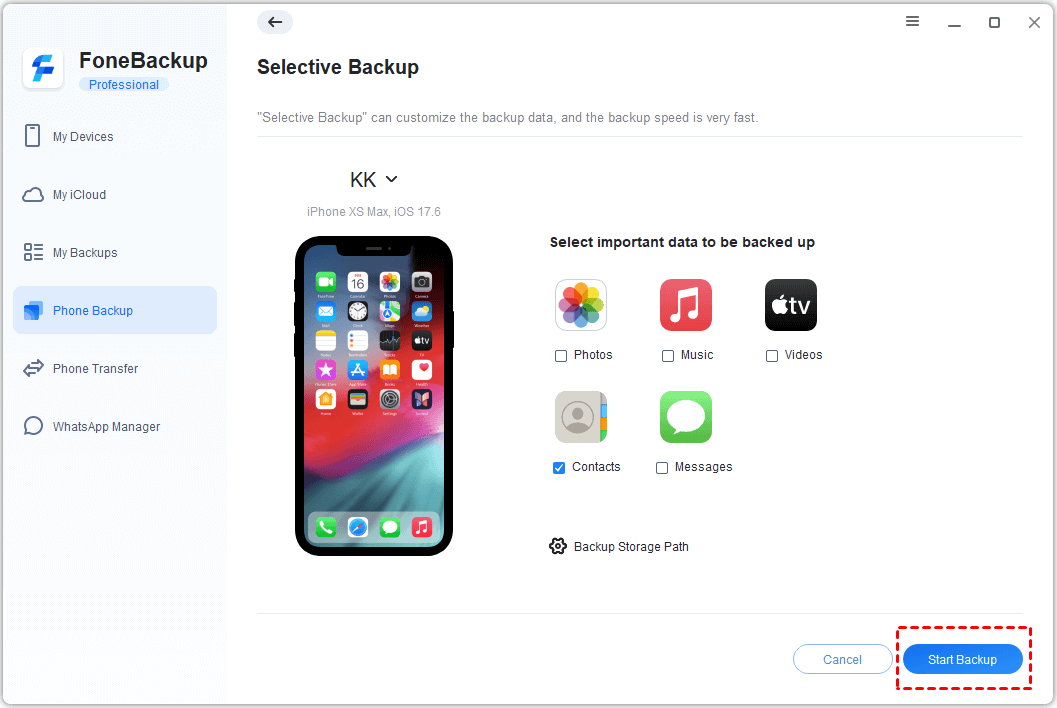
Step 4. Click Backup Storage Path to select a destination.
Step 5. Back to the main screen, click Start Backup.
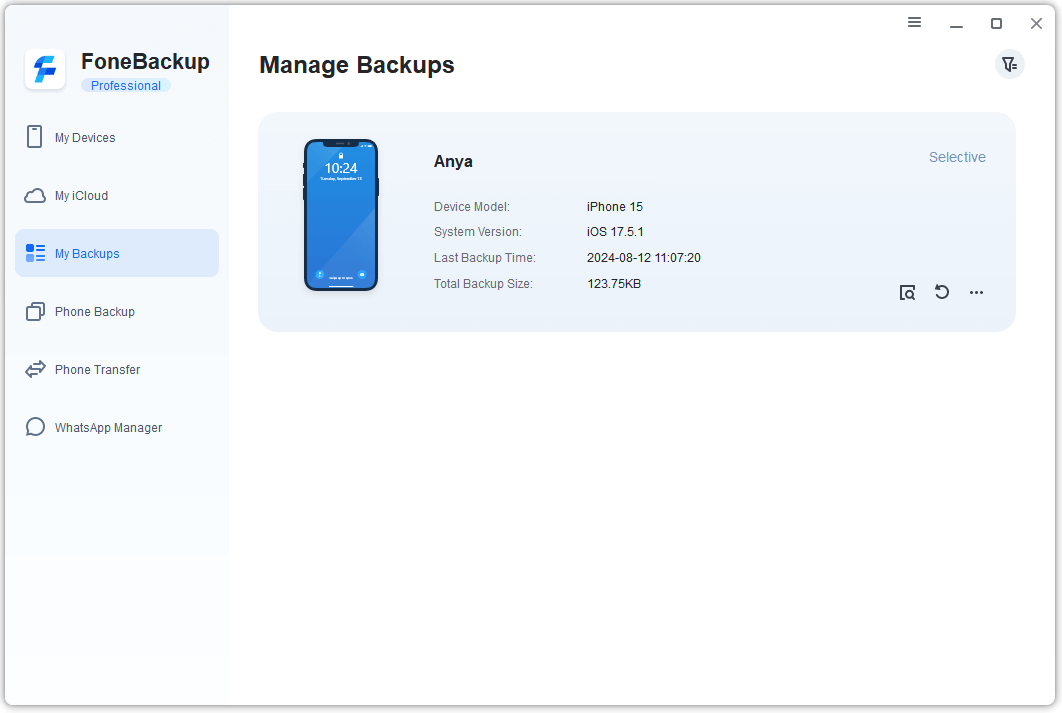
Once the backup is complete, you can view your backup files on the My Backups screen, where you can locate, browse, restore, or delete them anytime.
Method 2: Backup iPhone Contacts with iTunes (Full Backup)
📌Best for: Users who already use iTunes and want a complete backup of everything on their iPhone, not just contacts.
iTunes can back up your entire iPhone content, including contacts. It's a reliable, free option that doesn't require third‑party software. The backup files are also readable, so you can access your contacts separately.
How to back up contacts via iTunes:
Step 1. Connect your iPhone to your computer. Then, launch iTunes, click the Device tab, then Info.
Step 2. Check the box Sync Contacts with and select either Windows Contacts or Outlook. Then, click Sync to back up iPhone contacts.
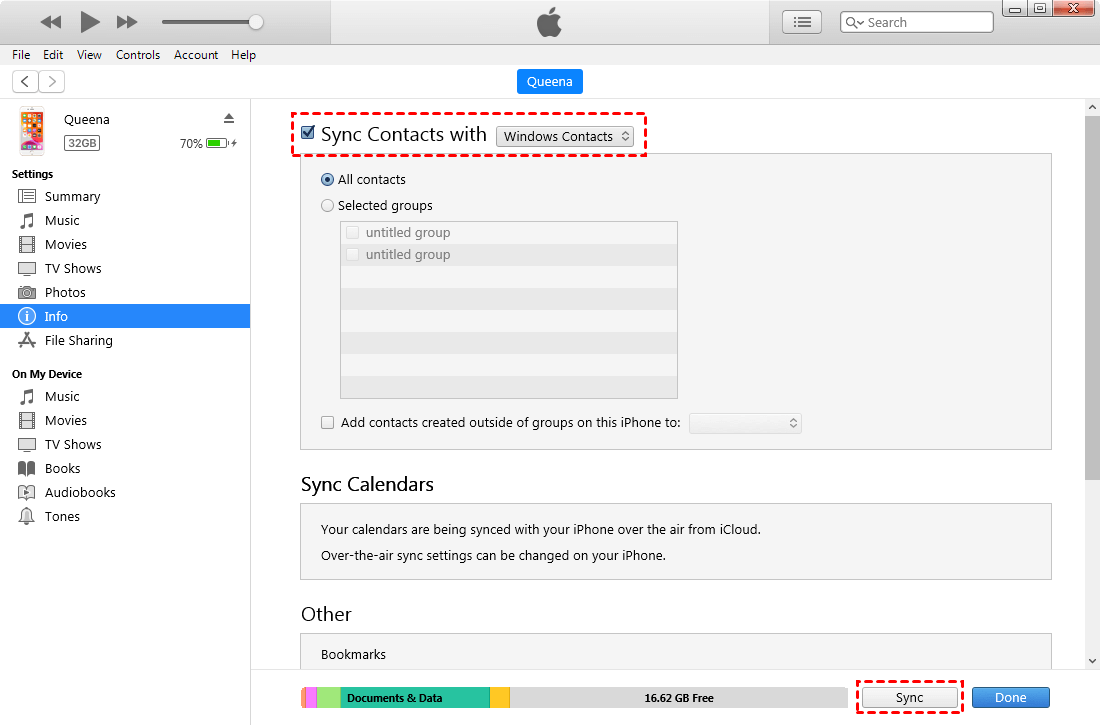
✅ Pros: Free, built‑in, works without installing extra software. ❌ Cons: Cannot selectively back up individual contacts; full sync only; complex interface; risk of overwriting existing data.
Method 3: Backup iPhone Contacts with Email (No PC Needed)
📌Best for: Users without a computer - a quick way to save contacts directly from your iPhone.
If you don't have a computer handy, you can back up your contacts directly from your iPhone using a free contacts backup app. These apps export your entire contact list as a .vcf (vCard) file and send it to you via email.
How to backup contacts via email:
Step 1. Download a free contacts backup app from the App Store (e.g., Simple Backup Contacts, MCBackup, or Easy Contacts Backup).
Step 2. Open the app and tap the Backup or Export button.
Step 3. Share the backup file as a .vcf attachment via email.
Step 4. Open the email on your computer and save the .vcf file for safekeeping.
✅ Pros: No computer required; no iCloud or sync needed; completely offline; free. ❌Cons: Requires app download; manual backup process (not automatic).
Which Method Should You Choose?
| If you want... | Choose... |
|---|---|
| Selective backup, previewable, and free | Method 1: AOMEI FoneBackup |
| A complete device backup with iTunes | Method 2: iTunes |
| A quick offline backup from your phone | Method 3: Email Backup |
Final Words
If you're not sure how to backup iPhone contacts without iCloud, this guide covers three reliable ways and shows you why Method 1 is the most flexible option.
Here's the simple rule:
-
Start with Method 1 (AOMEI FoneBackup) if you want selective, previewable backups that you can access anytime without overwriting your device during restore.
-
Use Method 2 (iTunes) if you already use iTunes and need a complete device backup.
-
Use Method 3 (Email Backup) if you don't have a computer and need a quick, simple backup.
The bottom line: Your contacts are too important to lose. Pick the method that fits your situation and back them up today - no iCloud required.

 as a preferred
source on Google
as a preferred
source on Google