




How to Transfer Contacts from iPhone to PC with iTunes (2 Ways)
Need to transfer contacts from iPhone to PC with iTunes? This guide covers iTunes sync, CSV export, and a selective alternative when iTunes won't sync. Keep reading to find the right fix.

By Ivy Updated on July 20, 2026


You just got a new Windows PC and need to move your iPhone contacts over. You open iTunes, expecting to find a simple "Export Contacts" button, but it's not there. The sync options are grayed out. Or maybe the Info tab is missing entirely.
Here's the thing: iTunes doesn't export contacts directly. It syncs them to a Windows address book or Outlook, and then you export from there. We'll show you a complete guide, plus a selective alternative when iTunes won't cooperate. You'll find the right method for your situation.
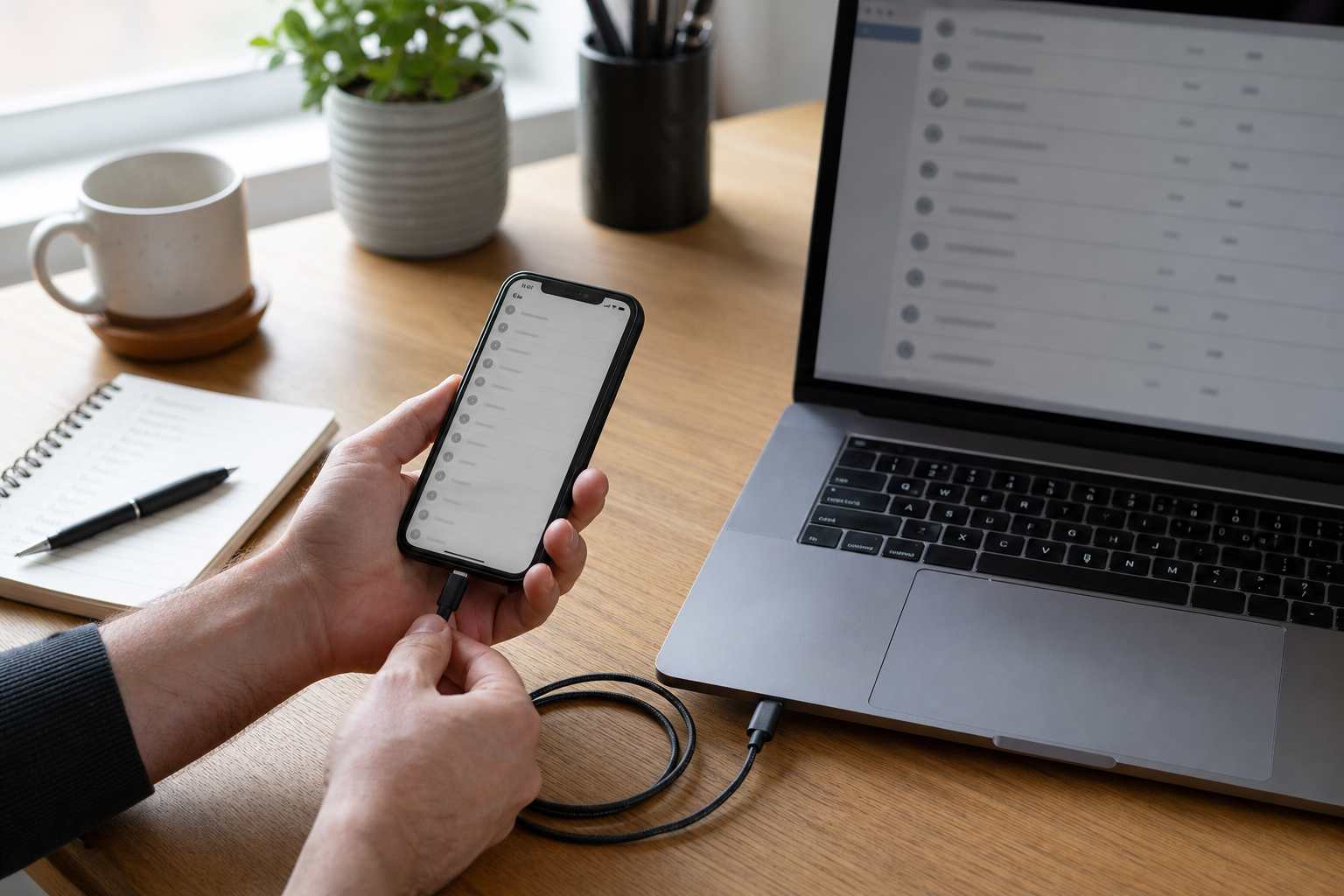
Quick Guide: Which Method Should You Use?
| ❓ Your Situation | 🛠️ Best Method | 💡 Why |
|---|---|---|
| iTunes Info tab is available and you use Windows Contacts | iTunes Sync | Official route works with Windows Contacts or Outlook |
| You only need selected contacts, not your whole address book | AOMEI FoneBackup | Preview and choose specific contacts; export to CSV or VCF |
| iTunes Info tab is missing or grayed out | AOMEI FoneBackup |
Bypasses iTunes entire |
If you're still unsure, start with iTunes Sync if iTunes shows the Info page. If not, skip to AOMEI FoneBackup.
Can iTunes Transfer iPhone Contacts to a PC?
Yes, iTunes for Windows can sync contacts and other information between an iPhone and a computer. In a compatible setup, connect the phone, open the device page, choose Info, select the contact destination offered by iTunes, and apply the sync.
If your goal is a portable file, complete the sync and then export the contacts from the Windows destination. CSV is convenient for review in a spreadsheet, while VCF is usually better for importing contacts into another address-book service.
Before You Sync: A Short Safety Checklist
- Update iTunes for Windows and use a data-capable USB or USB-C cable.
- Unlock the iPhone, tap Trust when prompted, and enter the device passcode.
- Confirm where your contacts currently live by opening Settings > Apps > Contacts > Contacts Accounts on the iPhone.
- Make a current backup before changing sync settings, especially if the iPhone was previously paired with another iTunes library.
- Do not approve "Remove and Sync" until you understand which content type will be replaced on the iPhone.
How to Sync iPhone Contacts to PC with iTunes
Use this method when iTunes displays an Info page and a suitable contact destination on your Windows PC. The names can vary, so read the options shown in your installation instead of assuming that every PC will display Windows Contacts.
Step 1. Connect the unlocked iPhone to the PC. Open iTunes, select the Device button, then Info in the left sidebar.
Step 2. Select Sync Contacts with > Windows Contacts.
Step 3. Then, select All contacts or the selected group. Click Sync.

Keep the phone connected until iTunes reports that the process is complete, then use the Eject button before unplugging it
Before relying on this method, keep these 3 limits in mind:
-
Sync is not the same as export: Syncing can update information in both directions, so it is not the same as copying a read-only archive.
-
iCloud Contacts hides iTunes sync options: If iCloud Contacts is enabled, computer-sync options may not appear.
-
Available features vary: Newer Windows workflows increasingly use iCloud for Windows, Outlook, or the Apple Devices app, so the exact list shown under Info may differ from older tutorials.
If you encounter any of these limits, skip to AOMEI FoneBackup - an easy alternative.
How to Export Synced Contacts to a CSV File
Once your contacts are in the Windows Contacts folder, you can export them to a CSV file. Keep in mind that this option may not be available on all Windows versions.
Step 1. Open the Windows Contacts folder for your user account and choose Export.
Step 2. In the pop-up window, select CSV (Comma Separated Values). Click Export again.
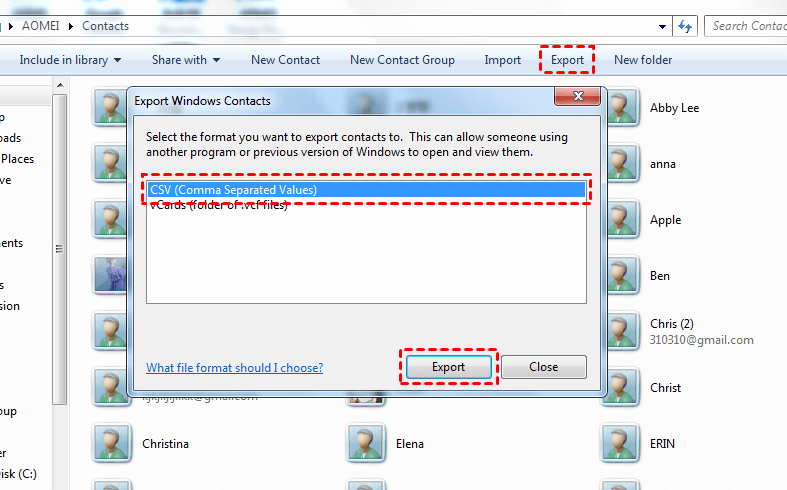
Step 3. Enter a descriptive file name for this task. Click Browse to choose a safe destination and click Next.
Step 4. Select the contact fields you need, click Finish, and acknowledge the completion message. Open the CSV in a spreadsheet to verify the header row and a few records before treating it as your working copy.
iTunes Not Syncing? Transfer Contacts to PC without iTunes
🔥 Best for: Users who want to preview and export specific contacts directly to CSV or VCF without relying on iTunes sync.
AOMEI FoneBackup is a iPhone backup and transfer tool. For this task, it may be useful because it is designed to provide a direct computer workflow instead of routing the contacts through an iTunes sync target.
-
Transfer contacts from iPhone to PC, PC to iPhone, or between two iPhones. No iTunes required.
-
Preview contacts before choosing what to export.
-
Select individual contacts rather than the entire address book.
-
Choose CSV for spreadsheet use or VCF for contact-app import.
-
Save contacts to a folder on your computer, USB drives, external drives, etc.
Step 1. Install and open AOMEI FoneBackup on the Windows PC. Connect the iPhone, unlock it, tap Trust, and enter the passcode if requested.
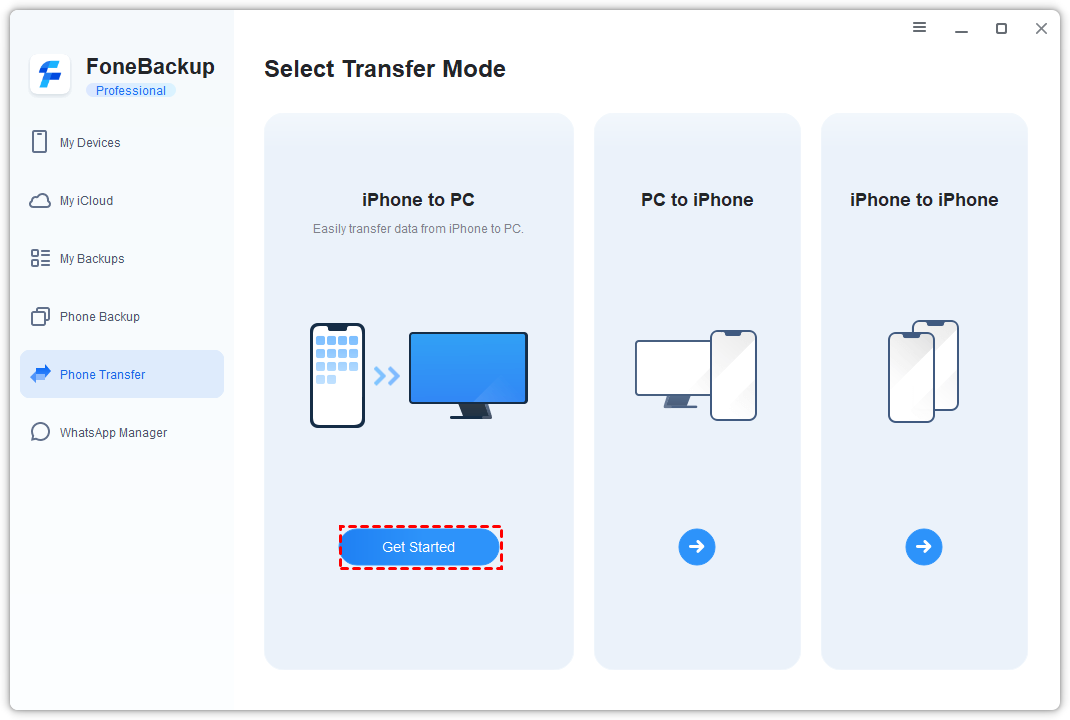
Step 2. Open Phone Transfer, locate iPhone to PC, and click Get Started.
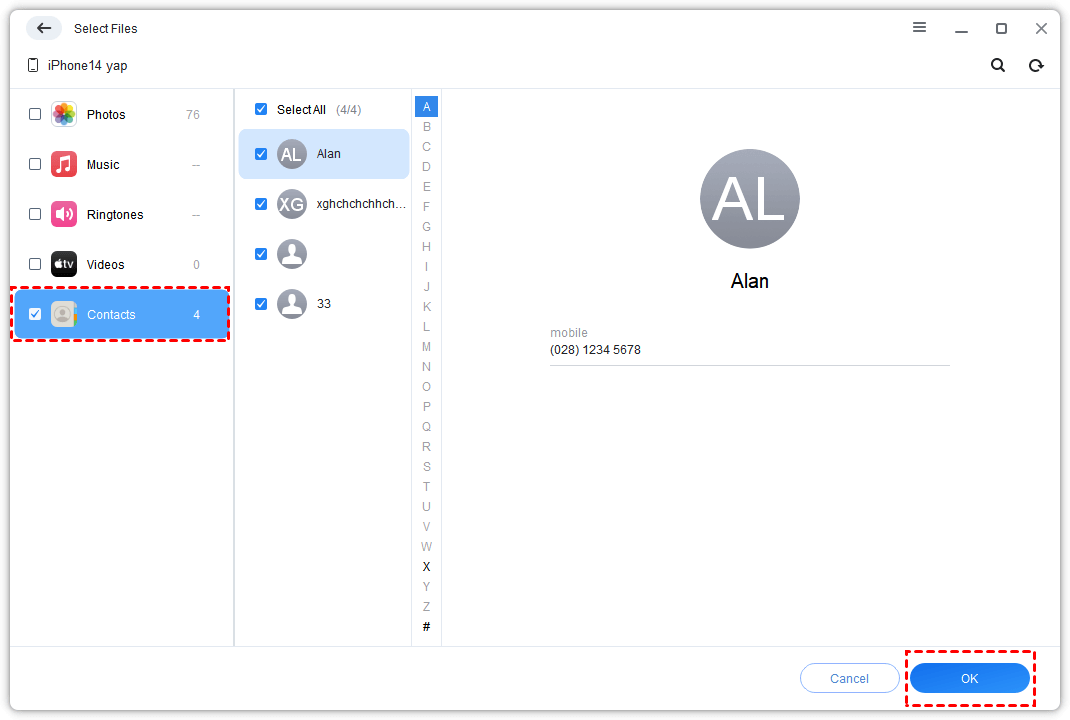
Step 3. Choose Contacts, preview the address book, and select the required entries. Click OK.
Step 4. Open Transfer Settings, choose the storage path and the available CSV or VCF format, then click Start Transfer.
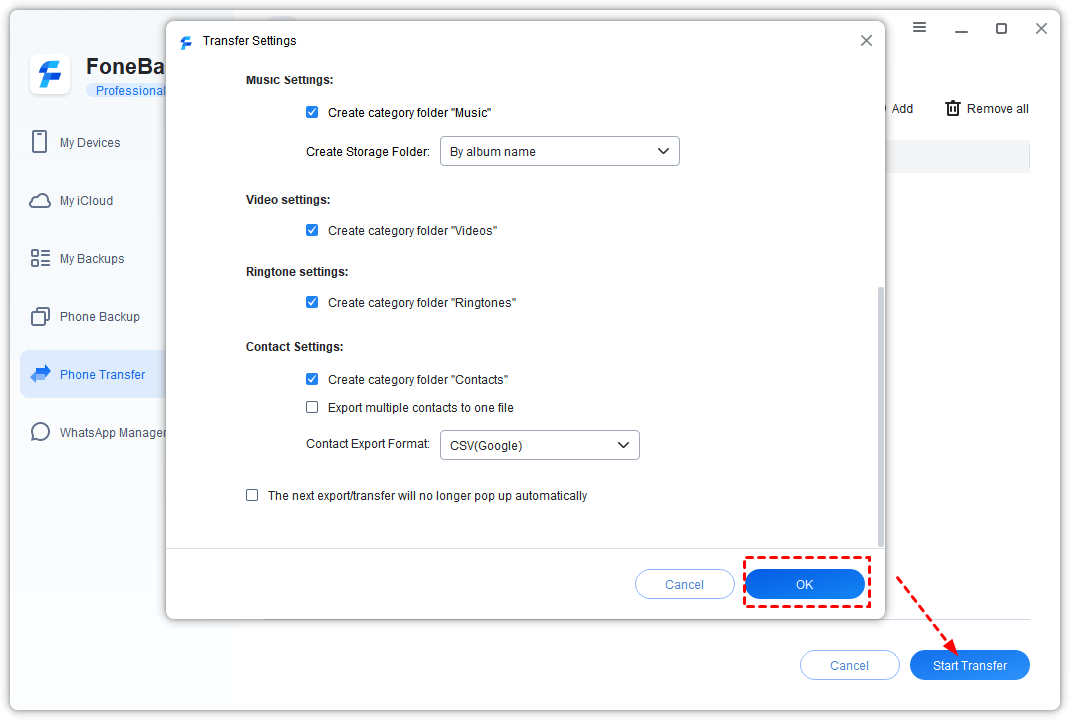
When the operation finishes, open the output folder and inspect the files.
What to Do If iTunes Does Not Show Contacts
The iPhone does not appear in iTunes. Reconnect the cable, try another USB port, keep the phone unlocked, and respond to the Trust This Computer prompt. Restart both devices if the trust prompt or device button still fails.
The Info page or Sync Contacts option is missing. Check whether iCloud Contacts is enabled. Apple states that computer-sync options do not appear when contacts are managed through iCloud. Decide whether to continue with iCloud instead of switching it off merely to reproduce an older iTunes workflow.
iTunes warns that contact and calendar syncing is deprecated. Do not force the old workflow. Use the Windows/iCloud path recommended by Apple, or export selected contacts with a verified computer tool.
The sync finishes, but records are incomplete. Confirm the source account for the missing contacts on the iPhone. Contacts stored under Google, Exchange, or another account may follow that account's own sync rules.
FAQs
1. Does an iTunes device backup give me a readable contact list?
No. An iTunes backup can include contact data, but it is not designed as a simple CSV or VCF export that you can browse directly.
2. Why is Sync Contacts unavailable when iCloud Contacts is on?
iCloud is already managing the address book across devices, so Apple hides the computer-sync options. Use iCloud for Windows or iCloud.com if that matches your existing setup.
3. Should I choose CSV or VCF?
Choose CSV when you need to inspect, sort, or process rows in a spreadsheet. Choose VCF when the main goal is to import contacts into another address-book application.
Final Words
You can transfer contacts from iPhone to PC with iTunes when the Info sync page and a compatible Windows destination are available. Verify the results before exporting them to CSV, and treat sync warnings carefully. If you need a more selective file-based workflow, AOMEI FoneBackup provides an alternative route with contact preview, destination, and format controls.
Here's the simple rule:
-
If iTunes shows the Info page, Use Method 1 (iTunes sync + CSV export). It's free and built-in.
-
If iTunes doesn't show the Info page, Use Method 2 (AOMEI FoneBackup). It bypasses iTunes entirely.
-
If you only need specific contacts, Use Method 2 (AOMEI FoneBackup). Preview and select before exporting.
Once you have your contacts in CSV or VCF format, you can import them into Google Contacts, Outlook, or any other address-book service. Your contacts are worth protecting - choose the method that fits your situation and start exporting today.

 as a preferred
source on Google
as a preferred
source on Google