



Best SSD RepairTool Download: Fix Corrupted SSD Easily
How to perform SSD repair when encountering SSD errors? Please refer to this guide to get several troubleshooting methods as well as a professional tool to make the process easier.

By Hedy Updated on May 29, 2026


How to tell if your SSD is failing?
Before choosing an SSD repair tool, it is essential to first verify whether the drive is truly beginning to fail. In most cases, a deteriorating SSD does not stop working suddenly; instead, it shows early warning signs that gradually worsen over time. Once these issues appear, data accessibility can quickly become unreliable.
A damaged or failing SSD may present several common problems, including:
◆ Corrupted or completely inaccessible files
◆ Development of bad sectors or damaged storage regions
◆ MBR corruption affecting boot data integrity
◆ File system errors that disrupt proper data structure
◆ Read-only mode prevents any write operations
Key indicators of a failing SSD:
✎ Slower startup and system instability: Boot times may increase noticeably, and the system can freeze unexpectedly during routine usage. These symptoms often point to weak memory cells or deteriorating storage blocks.
✎ Frequent BSOD crashes: Repeated blue screen errors, particularly those related to storage, often suggest underlying SSD controller issues or corrupted system data.
✎ File corruption and access failures: Files may refuse to open, go missing, or fail during transfer. This usually indicates that certain sectors of the drive are no longer reliable.
✎ Drive switching to read-only mode: When serious internal faults are detected, some SSDs automatically restrict write functions to prevent further data loss.
✎ SMART health alerts: Warning messages such as “SMART Status Bad” typically signal that the drive’s overall condition is declining and may soon fail.
✎ Intermittent drive disconnection: The SSD may randomly disappear from File Explorer or Disk Management, often caused by controller instability or flash memory degradation.
When several of these symptoms occur together, immediate data backup becomes critical, as the risk of permanent data loss increases significantly. At this stage, using a professional SSD diagnostic or repair solution is strongly advised.
How to fix corrupted SSD on Windows easily
If you are experiencing any of the symptoms mentioned earlier, it is recommended to try a few basic troubleshooting methods before turning to a professional SSD repair software.
★ Important notice: If the data stored on the affected SSD is valuable, prioritize recovery first. Use reliable data recovery software whenever possible. If the drive cannot be accessed on your current computer, try connecting it to another system to check whether the data can still be retrieved.
Fix 1. Update firmware of not working SSD
First, identify the exact model of your SSD. Open File Explorer, right-click the problematic drive, and select “Properties”.Navigate to the “Hardware” tab, where the manufacturer and model details of the SSD will be displayed.
Next, once the SSD brand and model are confirmed, search for the official firmware update utility provided by the manufacturer. Download and install the correct tool on your computer to ensure compatibility and safety.
Finally, launch the firmware update utility and check the current firmware version of your SSD. Follow the on-screen instructions carefully to complete the update process. This helps ensure your drive is running with the latest stability and performance improvements.
Fix 2. Update drivers to repair SSD
First, open the Start menu, type “Device Manager” into the search bar, and press Enter to launch it.
Next, expand the “Disk Drives” section. Locate your SSD from the list, right-click on it, and choose “Update driver”.
Once the update process is completed, restart your computer to apply the changes.
Alternatively, instead of updating, you may select “Uninstall device” in the same step. After rebooting, Windows will automatically reinstall the appropriate disk driver, which can help resolve driver-related issues.
Fix 3. Run CHKDSK to check and repair SSD bad sectors
First, open the Command Prompt with administrative privileges. Click the Start button, type “cmd” in the search bar, then right-click Command Prompt and select “Run as administrator”.
Next, in the elevated Command Prompt window, enter the following command and press Enter:
chkdsk g: /f /r /x
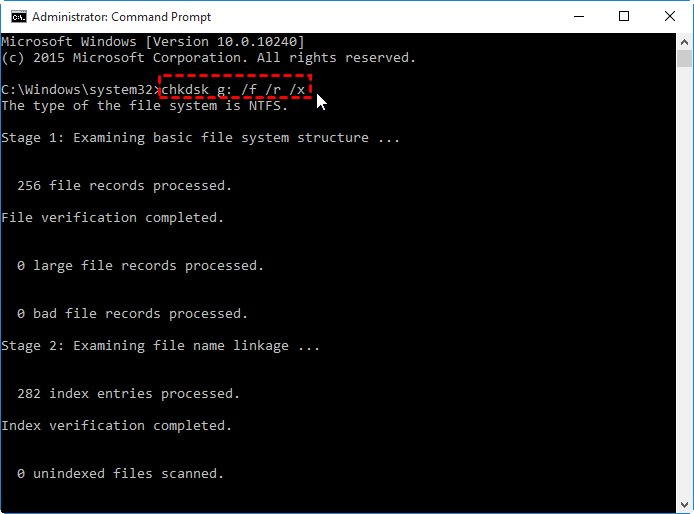
(Replace “g” with the actual drive letter assigned to your SSD.)
This command will scan the selected SSD for file system errors, locate bad sectors, and attempt to repair any detected issues.
Best SSD repair tool free download
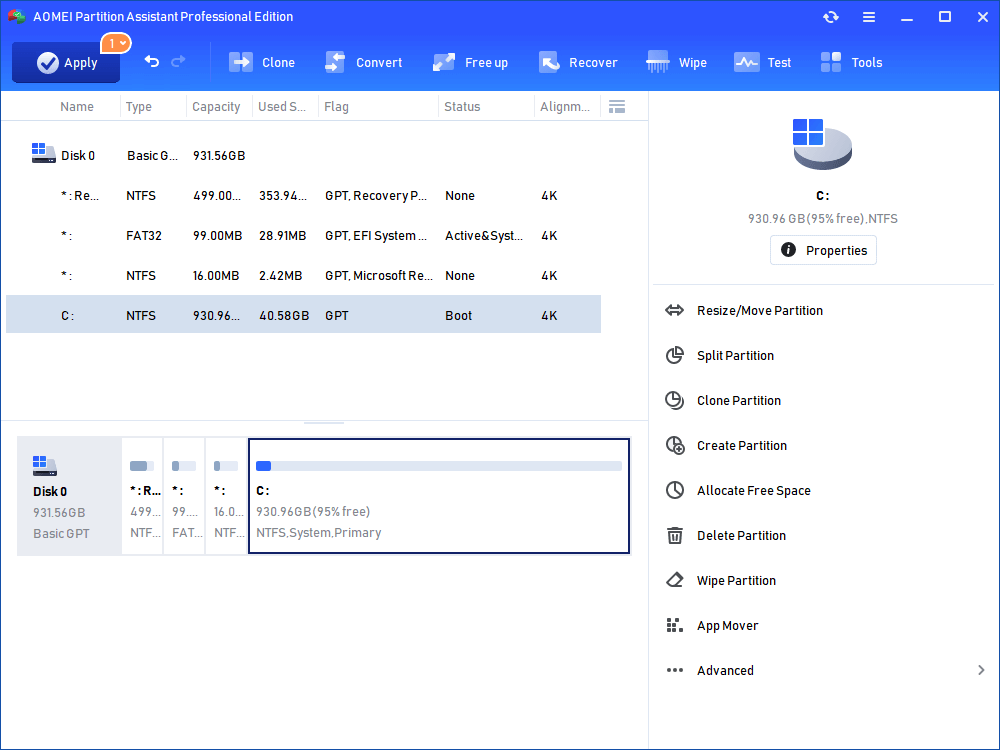
Among the available solutions, AOMEI Partition Software stands out as one of the most dependable SSD repair utilities. It features an intuitive interface that simplifies the repair process, making it accessible even for users with limited technical experience. Compatible with all major Windows versions, it delivers a complete set of tools designed to diagnose and resolve SSD-related issues effectively. The software can scan for bad sectors on a solid-state drive and provide corrective measures to reduce further deterioration.
Beyond basic repair functions, it also helps resolve the common “Read-only” issue on external storage devices by allowing users to disable write protection. In addition, it offers powerful formatting capabilities that can thoroughly clean a drive, eliminate existing errors, and restore it for future use. Another valuable function is its ability to recover lost partitions and data, which can often disappear after system updates or unexpected errors.
✍ Key features:
🚩 File system repair: Detects and fixes file system errors that may block proper access to stored data or disrupt file organization.
🚩 Partition recovery protection: Restores partitions to a previous stable state when errors occur during resizing partition or modification.
🚩 Bootable partition manager: Creates a bootable environment for troubleshooting system startup issues and performing advanced disk recovery operations.
🚩 Quick partition management: Enables fast creation and management of disk partitions, along with efficient scanning to detect and remove errors.
🚩 RAW drive repair support: Repairs RAW drives and converts them into usable file systems such as NTFS, exFAT, or FAT32 with minimal effort.
Overall, AOMEI Partition Software serves as a comprehensive all-in-one solution for SSD repair bad sectors. With its strong recovery capabilities and optimization tools, it remains a valuable utility for maintaining system stability and improving overall disk performance.
 AOMEI Partition Software
A safe and reliable disk partition management tool that helps you migrate OS to SSD or HDD, reorganize disk space, and improve overall PC performance.
How to use SSD repair tool on Windows 11/10/8/7?
Before applying specific repair methods, it is helpful to understand how simple it is to operate AOMEI Partition Softwareacross various Windows versions. Whether you are on Windows 11 or an earlier system, the software offers an intuitive way to scan for bad sectors, repair file system issues, and even fix corrupted MBR structures.
The step-by-step instructions below will guide you through using this SSD repair tool effectively.
Way 1. Check bad sectors
One of the most effective ways to maintain your drive’s health and performance is by scanning it for bad sectors that may be affecting critical areas of stored data. These faulty regions can slow down operations and lead to data instability if left unresolved.
AOMEI Partition Software streamlines this process by quickly detecting and helping address bad sectors, allowing users to restore stability and improve overall SSD performance with minimal effort.
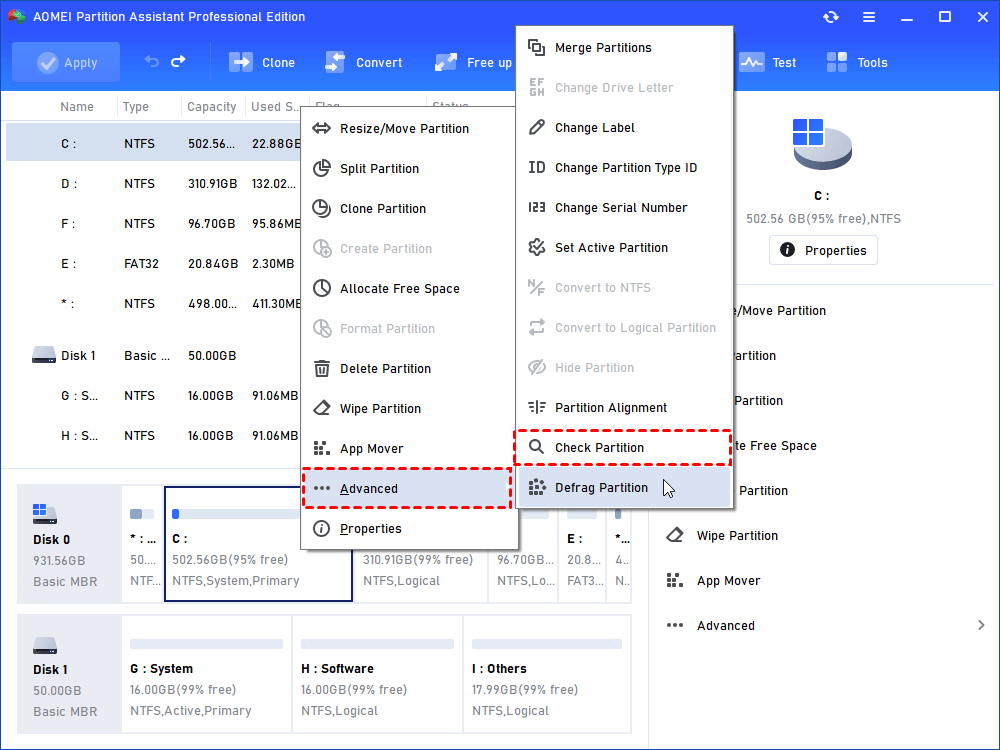
Step 1. In the main interface of AOMEI Partition Software, right-click the target drive and then click "Check Partition".
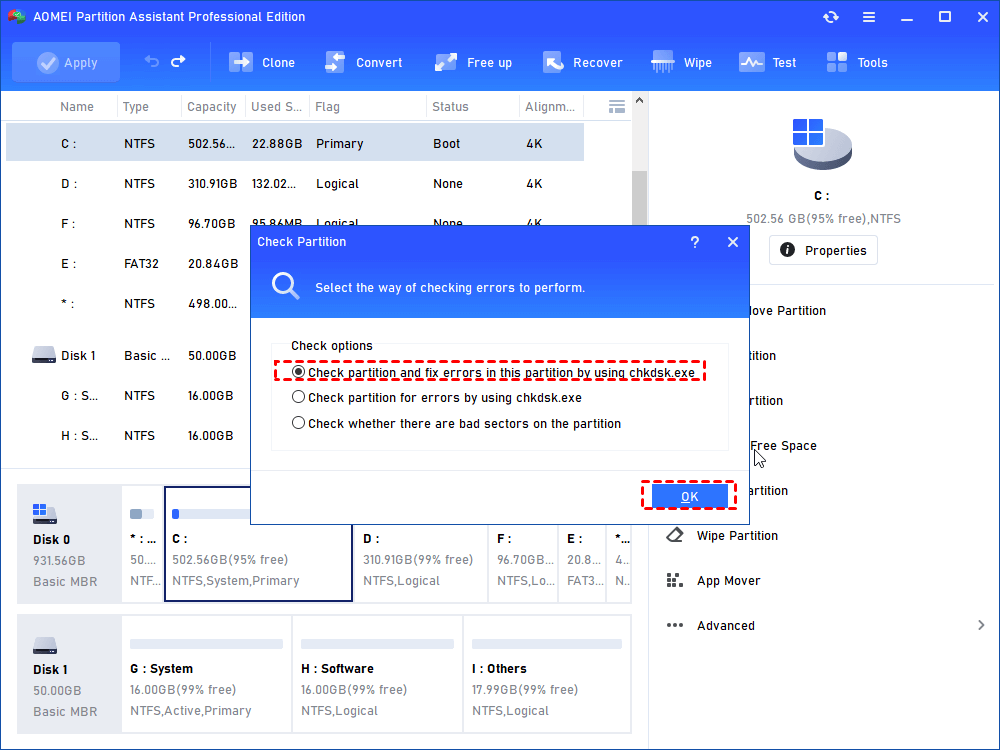
Step 2. Choose the "Check partition and fix errors in this partition by using chkdsk.exe" option, then click "OK".
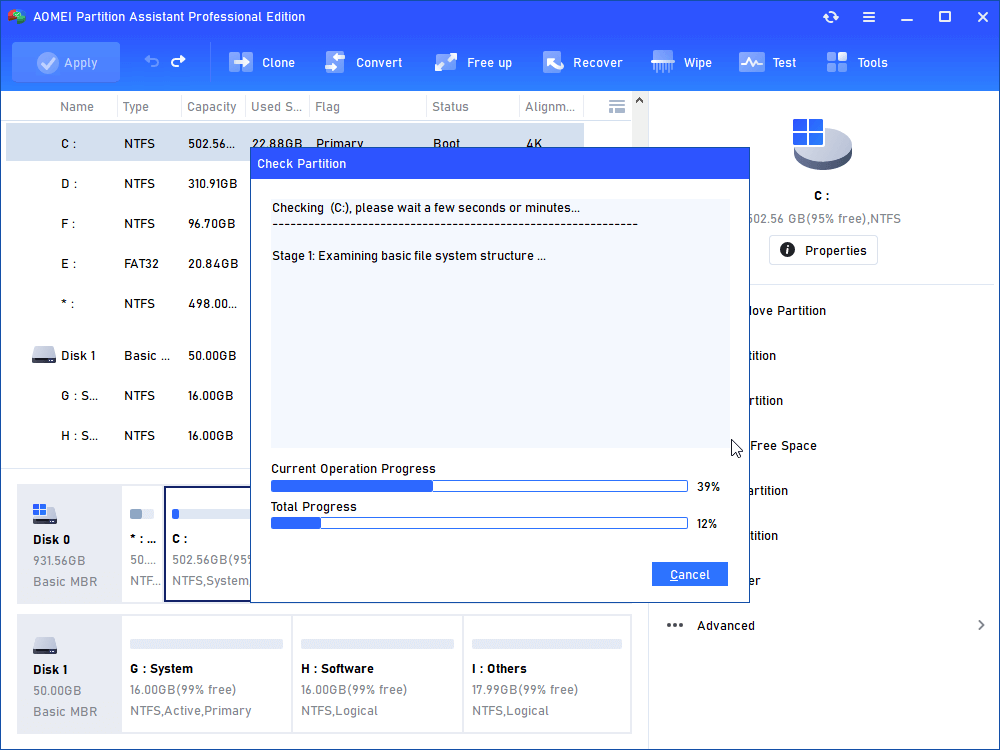
Step 3. Wait for a while and click "OK" when it's finished.
Way 2. Fix damaged MBR on SSD
The Master Boot Record (MBR) plays a crucial role in starting your system, as it contains the essential information required to load the operating system from a storage device. When the MBR becomes corrupted or damaged, the computer may fail to boot properly, making the SSD and its data inaccessible.
To resolve this issue, you can use an SSD repair tool to rebuild the MBR. The following steps will guide you through the process of restoring your system’s boot functionality and regaining access to your drive.
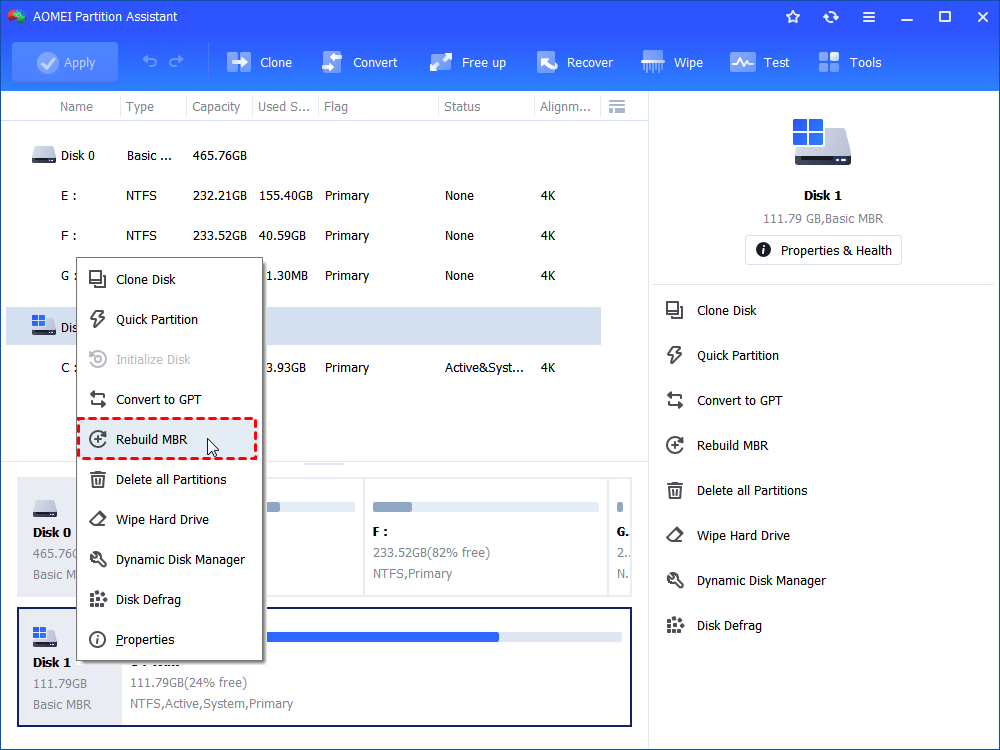
Step 1. Install and launch AOMEI Partition Software. Select the SSD and right-click it to choose “Rebuild MBR”.
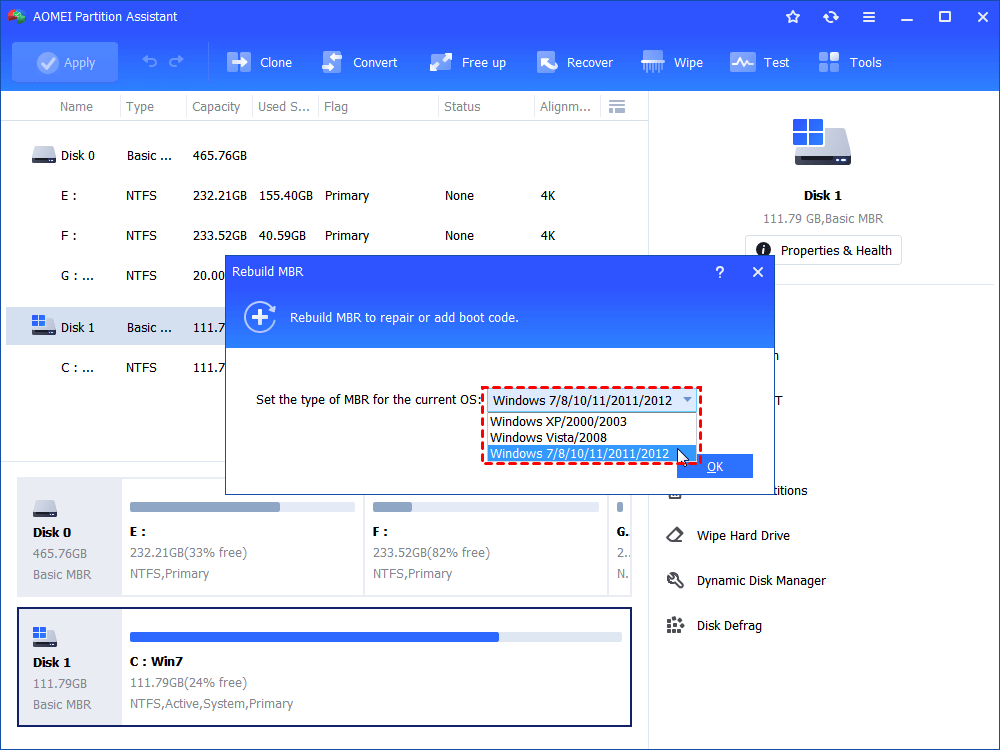
Step 2. Set the type of MBR in the pop-up window. (Choose a proper MBR type according to your operating system.)
Step 3. Click “Apply” on the toolbar to commit the Rebuild MBR operation.
Way 3. Format SSD
Formatting an SSD can resolve many persistent issues and effectively give the drive a fresh start, often improving overall performance and stability. It helps eliminate file system errors, corruption, and other underlying problems that may affect normal operation.
Rather than relying on the default Windows formatting tool, AOMEI Partition Software is recommended for a faster and more reliable process. It provides a smoother experience and reduces the chances of errors during formatting. However, it is essential to back up all important data beforehand, as formatting will completely erase the contents of the drive.
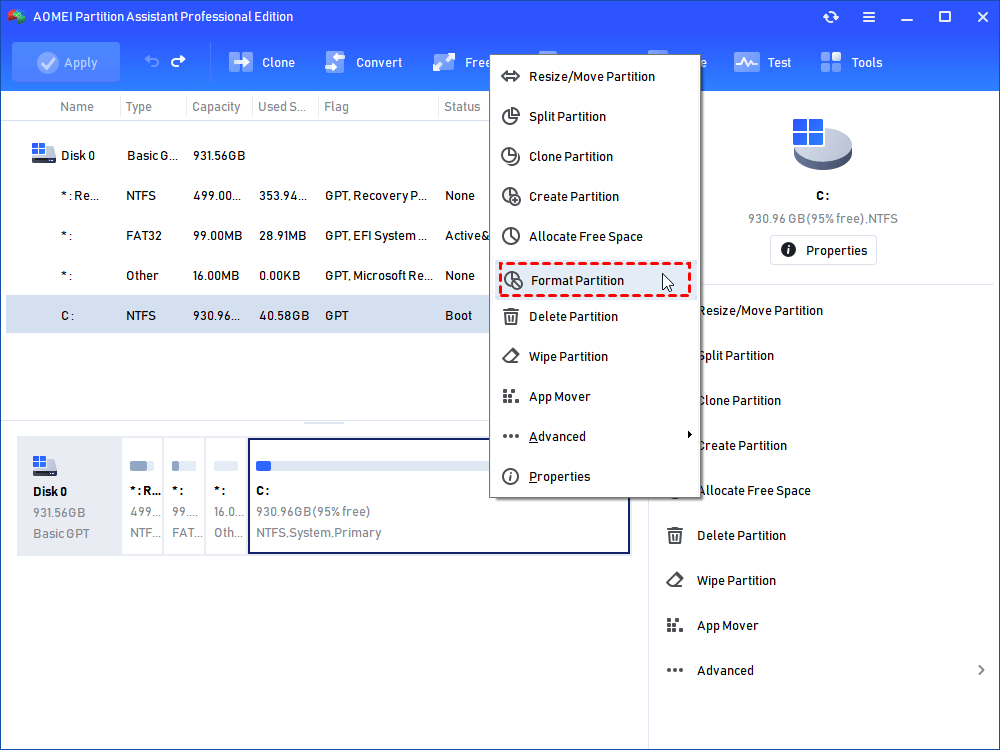
Step1. Install and launch the software, and you can see the main interface of your disk(s). Select the partition you want to format, right-click on it, select "Format Partition" in the pop-up menu.
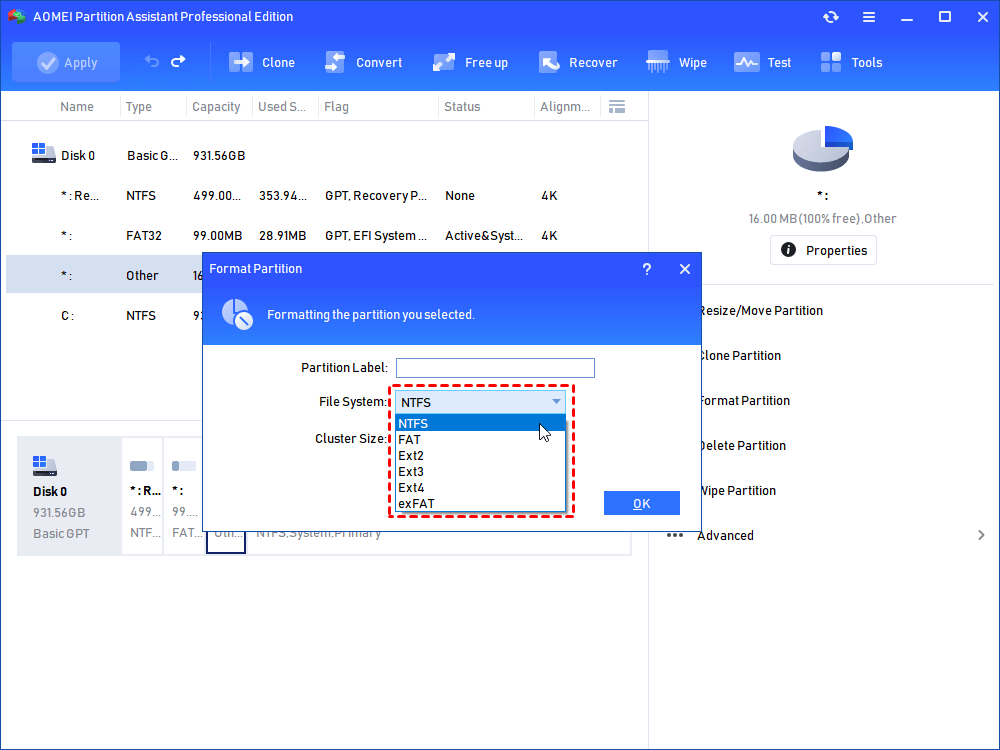
Step2. Here you can give a partition label and format the partition to what kind of file systems. Click OK.
Step3. Finally, click Apply at the toolbar to execute all operations.
FAQs
1. Is there any SSD repair tool available?
Yes, there are several tools designed to repair and maintain storage devices, such as DiskGenius and HDDScan. However, among the available options, EaseUS Partition Master is often recommended due to its user-friendly interface and wide range of disk management and repair features.
2. How to repair a corrupted SSD?
A corrupted SSD can sometimes be repaired using the Command Prompt in Windows. To do this, open Command Prompt with administrator privileges and run the command chkdsk /f c:. After pressing Enter, the system will scan the drive and attempt to fix detected errors automatically.
3. How do I know if my SSD is failing or dying?
A failing SSD typically shows warning signs such as frequent system crashes, slow performance, and file corruption. In more severe cases, the drive may become unrecognized by the operating system or fail to appear consistently, indicating potential hardware degradation.
Conclusion
In summary, AOMEI Partition Software stands out as a dependable and user-friendly solution for those seeking an effective SSD repair tool. It is designed to address a wide range of storage issues, including bad sectors and corrupted MBRs, helping restore normal drive functionality with ease.
With its intuitive interface and compatibility across all Windows versions, it offers a practical way to manage and maintain SSD health. Overall, this best SSD repair tool serves as a valuable utility for keeping your SSD running smoothly and efficiently.

 as a preferred
source on Google
as a preferred
source on Google