




How to Speed Up Computer Windows 10 | 6 Ways
If your Windows 10 PC is running slowly, this guide can help. We’ve compiled six simple yet effective methods to boost your system’s performance. Keep reading to discover how to speed up computer on Windows 10, 8, and 7.

By Hedy Updated on March 20, 2026


Help! Windows 10 computer runs quite slow!
Your Windows 10 computer is running noticeably slow, affecting productivity and everyday use. Tasks that once completed quickly now take much longer. For example, booting up the system or shutting it down may take several minutes, far longer than usual. Opening applications or switching between programs often feels sluggish, with noticeable delays. Even basic operations like opening folders, browsing files, or launching web browsers are slower than expected. Programs may freeze temporarily or respond sluggishly to clicks and keyboard inputs, creating frustration during routine work.
Several underlying factors could contribute to this slowdown. Over time, accumulated temporary files, fragmented hard drives, and background processes can consume system resources. Insufficient RAM or high CPU usage from multiple programs running simultaneously can exacerbate lag. Malware or unwanted software may also compromise performance, along with outdated device drivers or Windows updates that haven’t been installed properly. In some cases, hardware aging, such as a slow HDD, limited SSD performance, or overheating components, can further reduce efficiency.
Overall, this situation leaves the computer feeling unresponsive and inefficient, making even simple tasks take longer than necessary. Immediate steps may be needed to optimize performance, clean up system clutter, and restore the computer to a faster, smoother operating state.
How to speed up computer Windows 10- 6 ways
To boost your Windows 10, 8, or 7 performance and enhance hard drive speed, start by removing programs you no longer use, switch your power plan to “High Performance”, disabling Windows tips, and minimizing visual effects. If these steps don’t deliver the results you want, explore the following techniques to accelerate your computer even more.
Way 1. Disable unnecessary startup programs
Many applications are set to launch automatically when your computer starts, running quietly in the background and consuming precious memory. This can drag down your system’s speed. Disabling these programs can noticeably improve Windows 10 performance.
Step 1. Press Ctrl + Shift + Esc to open Task Manager.
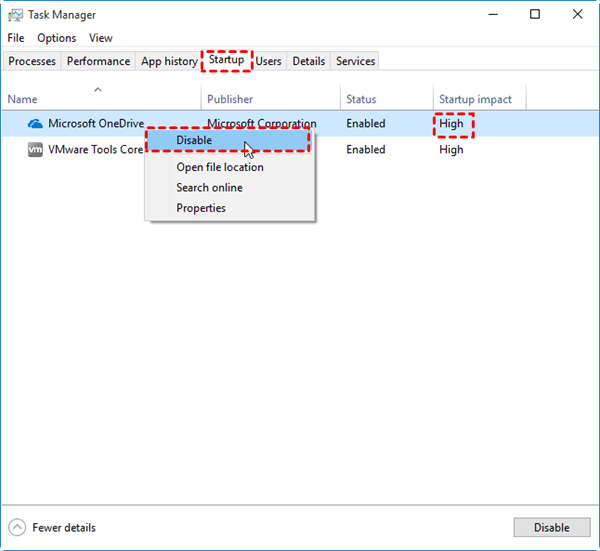
Step 2. Navigate to the Startup tab.
Step 3. Go through the list of enabled startup programs.
Step 4. Identify applications you don’t need to launch automatically.
Step 5. Right-click those programs and choose Disable to stop them from running at startup.
Way 2. Uninstall unnecessary software
Unused or rarely used programs not only take up valuable disk space but can also run background services that slow down your computer. Removing them helps free up resources and improves overall performance.
Step 1. Press Windows + I to open Settings.
Step 2. Navigate to Apps > Apps & features.
Step 3. Select the application you want to remove; the Uninstall option will appear.
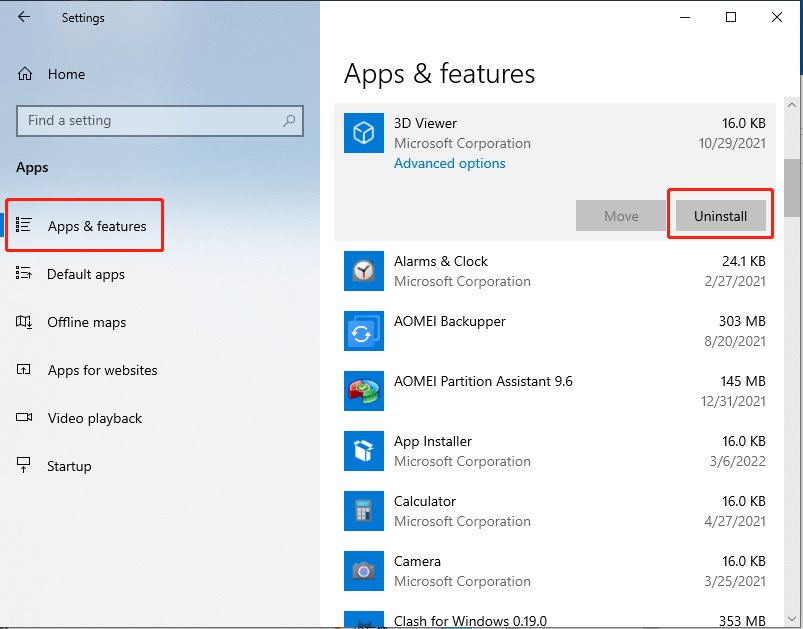
Step 4. Click Uninstall, then confirm your choice if prompted to complete the removal process.
For better results, consider removing large or resource-intensive programs that you haven’t used in a long time.
Way 3. Clean up your hard disk
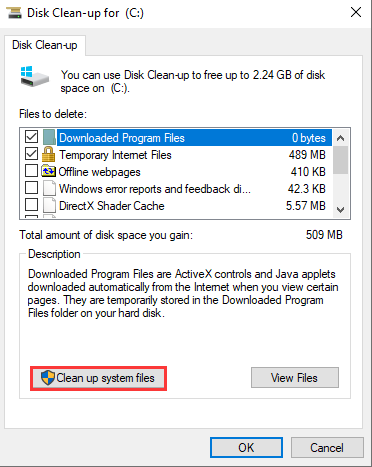
To free up space on your hard drive, use Windows’ built-in Disk Cleanup tool to delete temporary files, leftover installer files, and other unnecessary items, and make sure to empty the Recycle Bin completely.
Step 1. Open the Start menu, type “Disk Cleanup” in the search box, and select the tool from the results.
Step 2. Choose the drive you want to clean (for example, C:) and click OK.
Step 3. Wait while the system scans the drive and calculates how much space can be freed.
Step 4. Select the files you no longer need, then confirm to remove them and reclaim storage space.
Way 4. Add more RAM
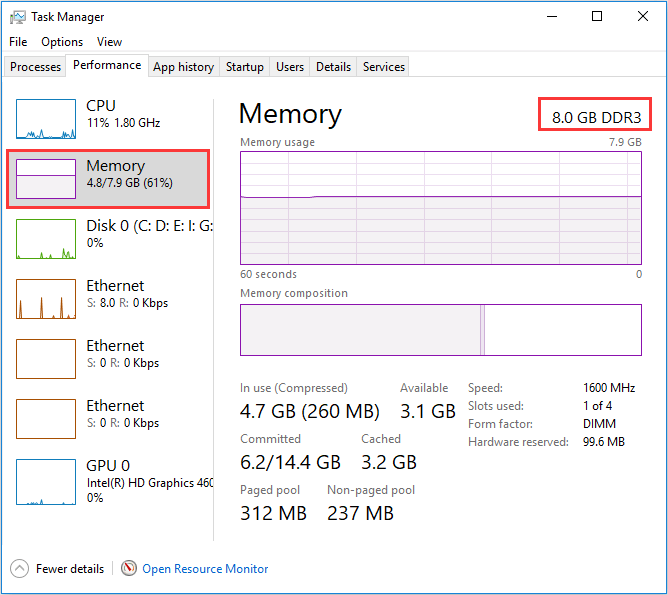
A sluggish Windows 10 system is often a sign of insufficient RAM (Random Access Memory). Upgrading your memory can significantly improve performance. Start by checking your current setup: open Task Manager and go to the Performance tab. Here, you’ll see the type of RAM installed and how many slots are in use. Once you know the specifications, purchase compatible RAM modules and install them to give your computer a noticeable speed boost.
Way 5. Change the size of virtual memory
Virtual memory allows your operating system to use a portion of your hard drive as temporary RAM, helping to compensate when physical memory runs low. If virtual memory is insufficient, your computer’s performance can suffer. Adjusting its size can help speed up Windows 10.
Step 1. Right-click My Computer or This PC and select Properties.
Step 2. In the left panel, click Advanced system settings.
Step 3. On the Advanced tab, click Settings under Performance.
Step 4. Go to the Advanced tab again and click Change under Virtual memory.
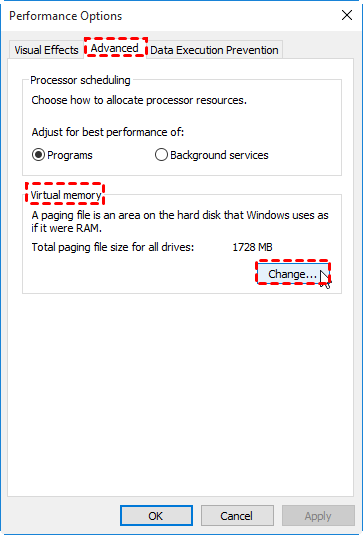
Step 5. Uncheck Automatically manage paging file size for all drives. Select the drive containing the paging file you want to modify.
Step 6. Choose Custom size, enter new values in megabytes for Initial size and Maximum size, then click Set and OK to apply the changes.
Way 6. Defrag the hard drive correctly
When files on your hard drive become fragmented, Windows 10 can slow down noticeably. Fragmentation scatters pieces of data across the disk, making it harder for your system to access or write information efficiently. Defragmenting reorganizes these fragments, allowing your drive to read and write data more quickly.
The Disk Defragmentation feature in AOMEI Partition Software makes this process simple and even allows you to schedule automatic defrags. You can set it to run daily, weekly, monthly, at startup, or upon logon. Here’s how to get started:
 AOMEI Partition Software
A free and reliable disk partition software that helps you resize partitions, migrate OS, convert disks, and optimize PC efficiently.
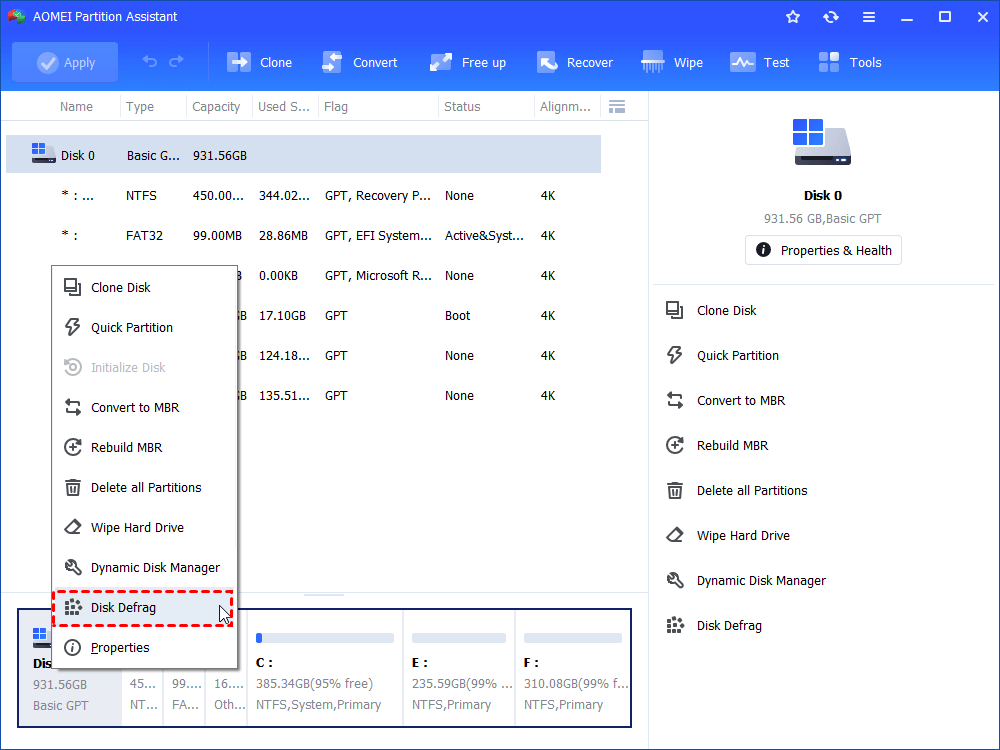
Step 1. Install and launch AOMEI Partition Software, right-click on the disk and select the "Disk Defrag" function.
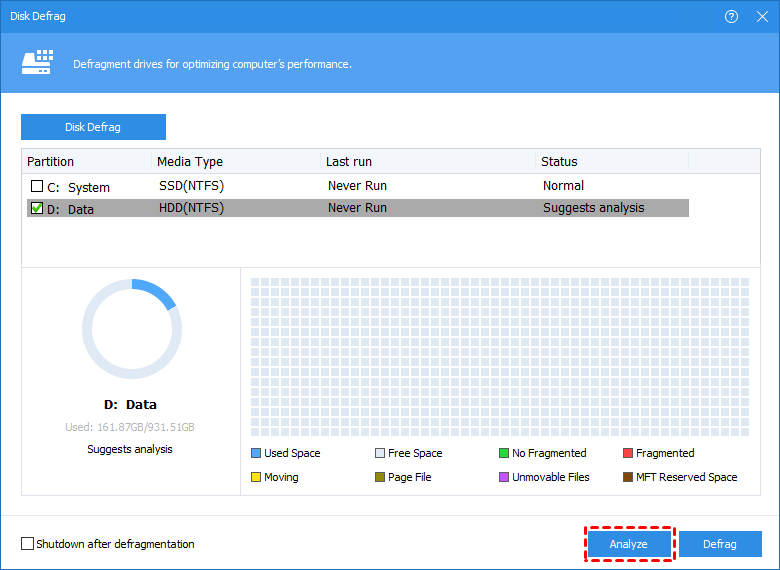
Step 2. Check the partition needed to be analyzed, and click "Analyze". You need to check the partition, not select it. This function currently only supports NTFS partitions, so it will only list NTFS partitions on SSD, HDD, and USB drives.
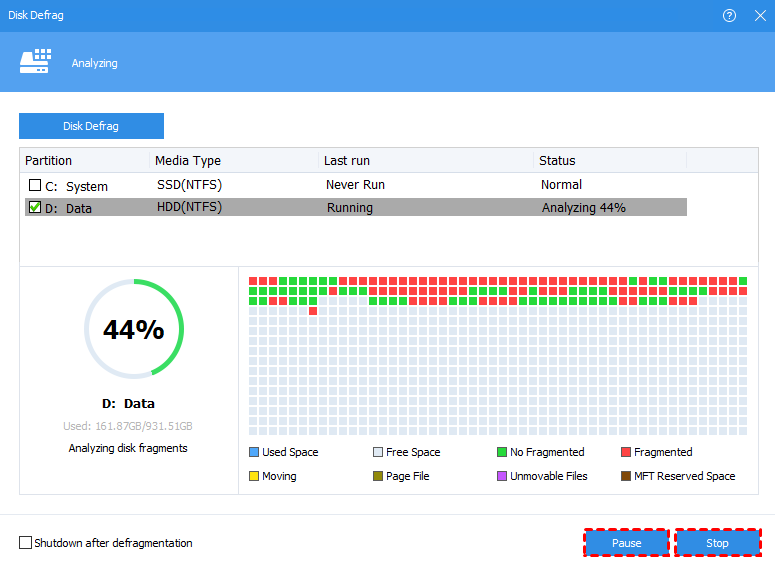
Tip: You can click "Pause" to halt the process and resume later, or click "Stop" to end the analysis process completely.
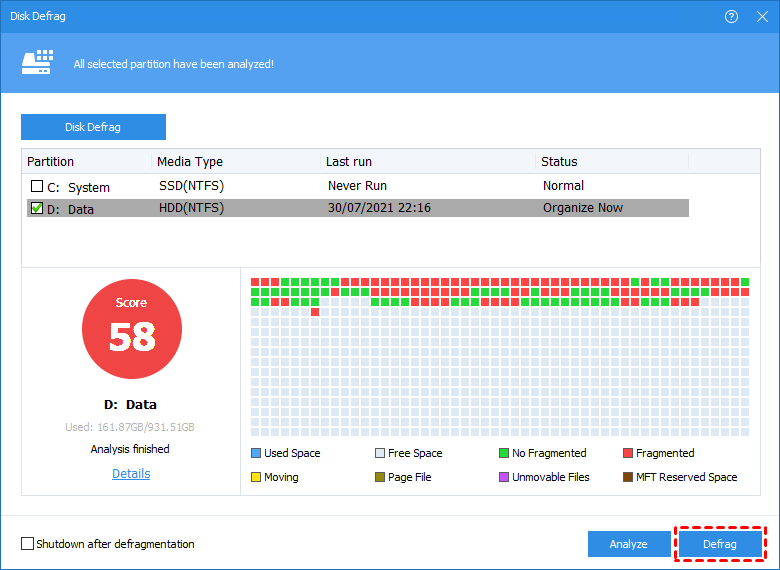
Step 3: The program will score the partition based on the fragmentation rate when the analysis is over.
There are 3 statuses according to the score:
• Normal: Score≥90. The partition is in good condition, with no need for defragmentation.
• Suggest defragmenting: 60≤Score<90. The current partition has some fragments, which suggest running defragmentation.
• Defragment now: Score<60. There are many fragments in the current partition, suggest running the defragmentation immediately.
You can check the distribution of fragments through the Tetris view.
Step 4. After the analysis is finished, you can click on "Details" to see more information about the analysis results:
•Total files and directories•Fragmented files•Fragments•Fragmentation Rate
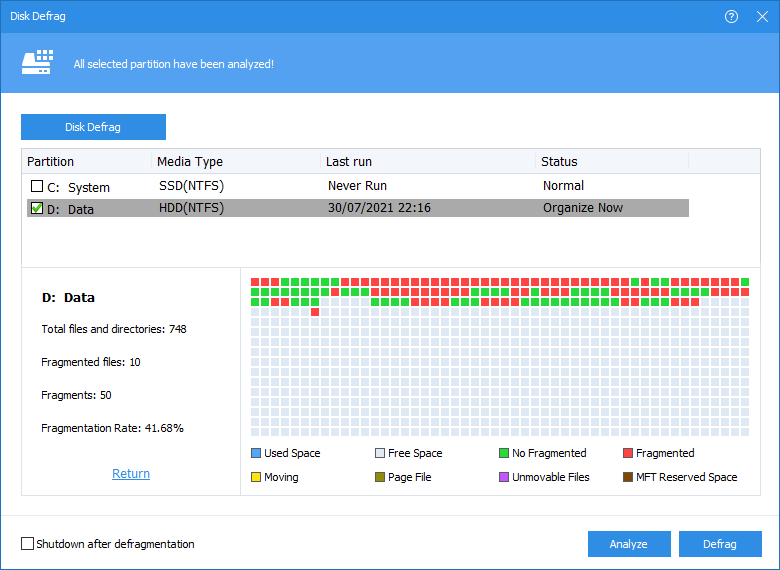
Step 5. Click the "Defrag" button to start the defragmentation.
Tip: You could click "Pause" to halt the procedure and resume later, or click "Stop" to terminate the process completely.
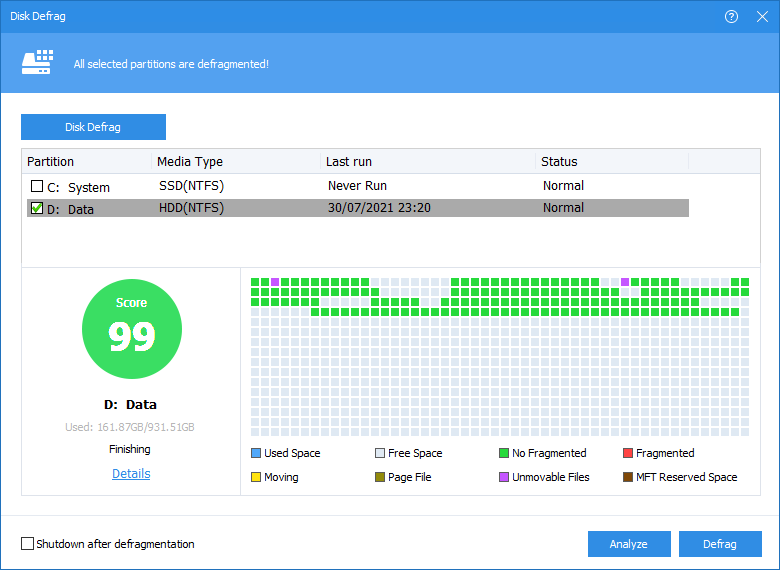
After the defragmentation is completed, the partition will be scored according to the defragmentation result.
Conclusion
By now, you should have a clear idea of how to speed up a Windows 10 computer. Most of these methods also apply to Windows 7, 8, and 11, helping boost hard drive performance across versions. Additionally, AOMEI Partition Software offers advanced tools such as reallocating free space to extend the system C drive, securely erasing an SSD, or wiping an HDD to perform a fresh system reinstall—all of which can significantly improve boot times and overall system responsiveness.

 as a preferred
source on Google
as a preferred
source on Google