




How to Perform Samsung Laptop Factory Reset Without Password
Wondering how to perform Samsung laptop factory reset without password? In this post, you will learn the step-by-step guide on factory reset Samsung laptop.

By Hedy Updated on June 3, 2026


Some Samsung laptop users may need to reset their computers when the system becomes slow, unstable, or unable to boot properly. A factory reset is also useful for removing personal data before selling or giving the laptop to someone else. However, the process can become challenging if you forget the login password and are locked out of the device.
If you are facing this issue, there is no need to worry. This guide introduces several simple and effective methods to reset a Samsung laptop without knowing the password, helping you regain access and restore the system successfully.
How to perform Samsung laptop factory reset without password
Are you trying to reset your Samsung laptop but cannot access the system because you forgot the password? This problem is more common than many users expect. Fortunately, there are several practical methods available to help you regain access and reset the device successfully.
In the following sections, we will guide you through different solutions step by step, allowing you to reset your Samsung laptop even when you are locked out of the account.
Fix 1. Turn to a password reset tool
If you need to perform a Samsung laptop factory reset but cannot access the system because you've forgotten the password, AOMEI Partition Software can help by creating a bootable recovery environment and resetting or removing the Windows login password before starting the factory reset process.
AOMEI Partition Software is a comprehensive disk management and system utility tool designed for Windows PCs. Besides partition management, it includes a useful Reset Windows Password feature that allows users to create a bootable USB drive, access a locked computer, and remove or reset local account passwords without reinstalling Windows.
 AOMEI Partition Software
A safe and reliable disk partition management tool that helps you migrate OS to SSD or HDD, reorganize disk space, and improve overall PC performance.
Step 1. Insert the USB drive you want to use into your working PC. Launch AOMEI Partition Software, navigate to the “Tools” menu, and select “Reset Windows Password”.
.png)
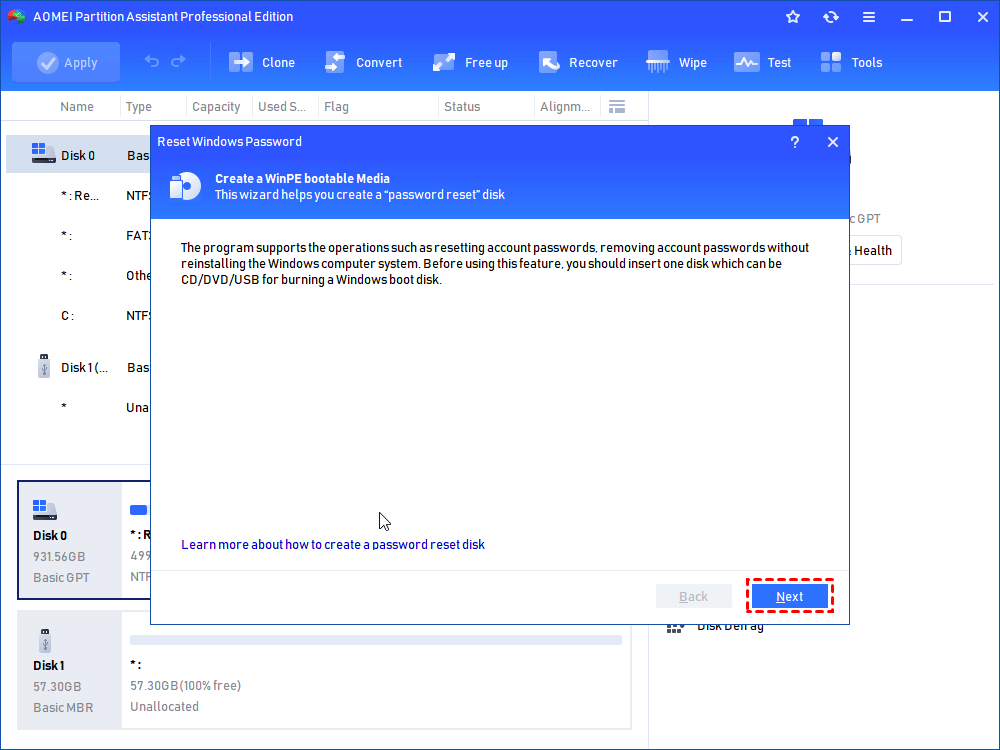
Step 2. A small pop-up window will appear. Click “Next” to continue.
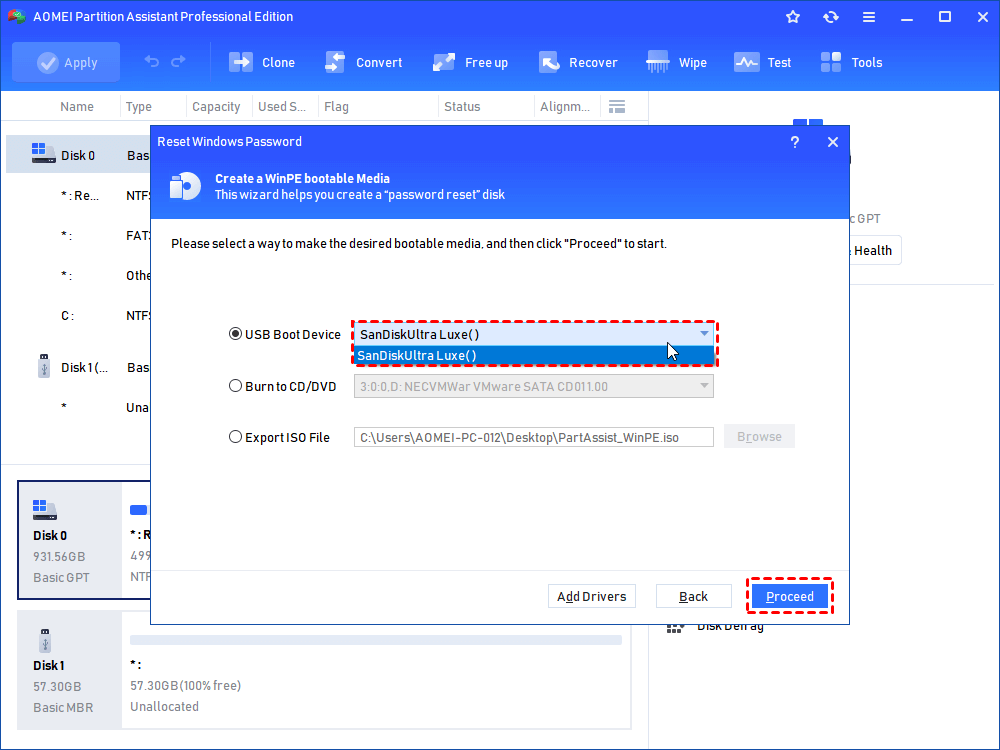
Step 3. Choose “General USB Flash Disk” and click “Proceed”. Note that this will format the USB, erasing all data, so ensure any important files are backed up beforehand.
Step 4. Read the warning message carefully, then click “Yes” to confirm.
Step 5. Wait patiently while the password reset USB is being created. Once finished, click “Finish”.
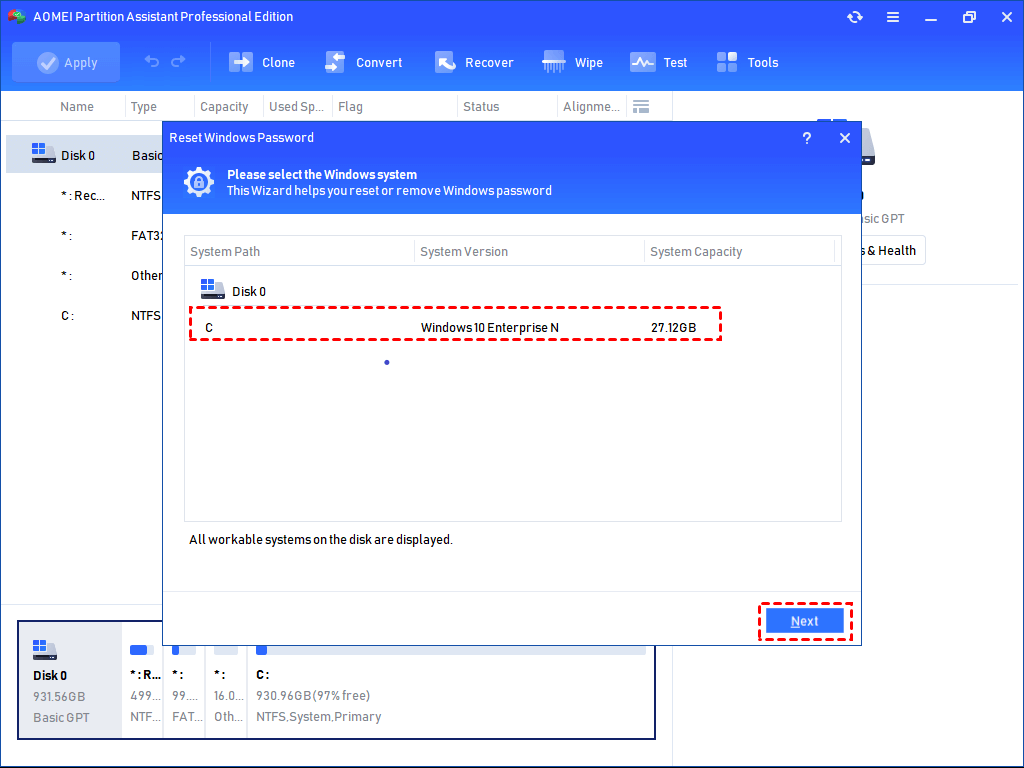
Step 6. Remove the USB and insert it into the locked Surface Pro. Restart the device. When prompted to select a boot device, choose the USB drive. Then, select the Windows system you want to unlock and click “Next”.
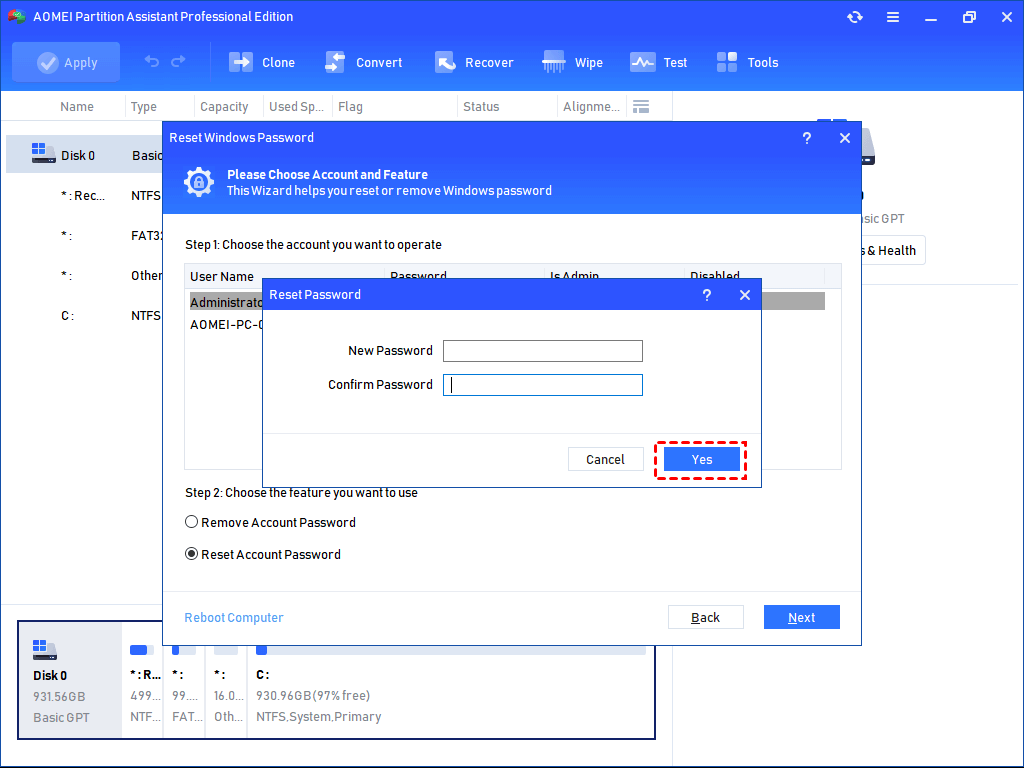
Step 7. The interface will display all accounts on the PC. Select the account you wish to reset, then choose either “Remove Account Password” or “Reset Account Password”, and click “Next”.
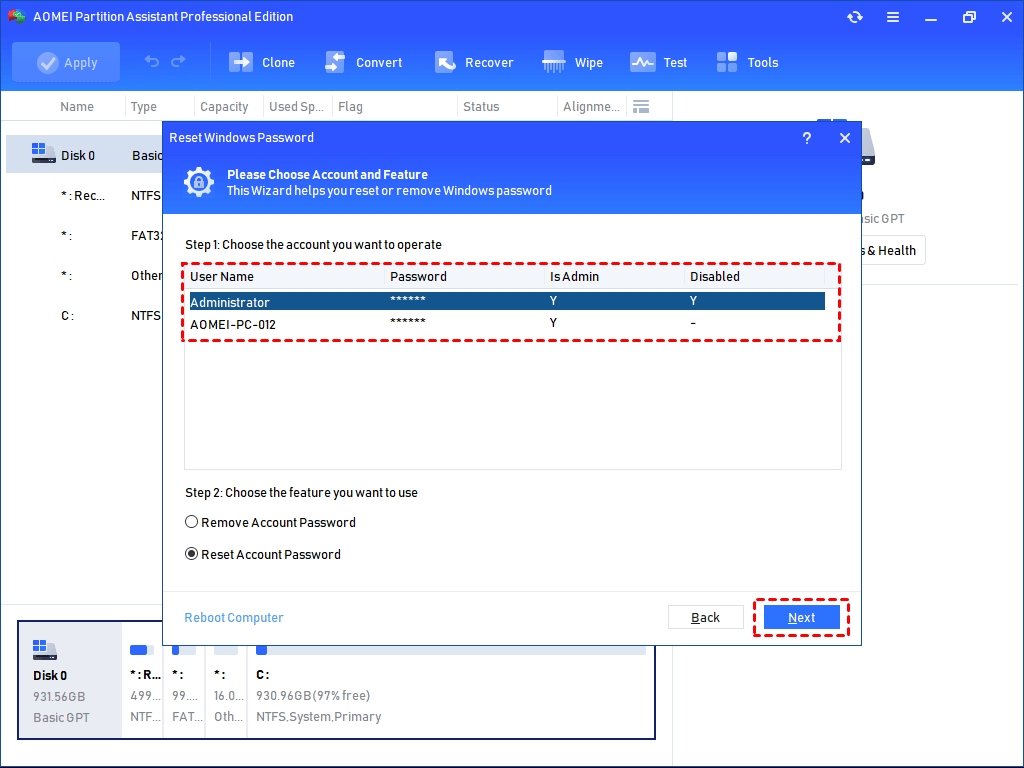
Step 8. If you chose “Reset Account Password”, enter a new password and confirm by clicking “Yes”. If you selected “Remove Account Password”, follow the on-screen instructions to complete the process.
Fix 2. Reset your Samsung laptop from the login screen
This method allows you to reset your Samsung laptop directly from the login screen without entering the account password. By accessing the Advanced Startup options, you can restore the system even if you are locked out of the device.
Follow these steps carefully:
Step 1. Turn on your Samsung laptop and stay on the login screen.
Step 2. Press and hold the “Shift” key, then click “Restart”. Your laptop will boot into the Advanced Startup environment.
Step 3. In the recovery window, select “Troubleshoot”.
Step 4. Click “Reset this PC” from the available options.
Step 5. Choose either “Keep my files” to preserve personal data or “Remove everything” to completely erase the laptop, depending on your needs.
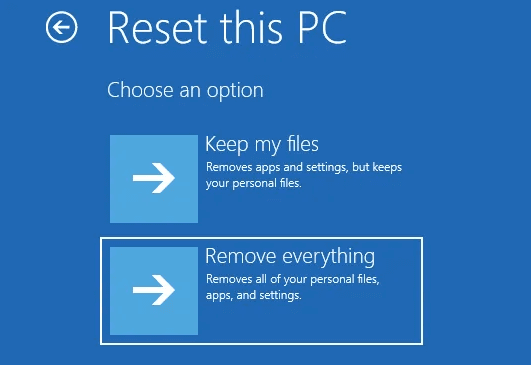
Once the reset process is complete, your Samsung laptop will restart and allow you to set up the system again. This method is simple, effective, and useful when you cannot log in because of a forgotten password.
Fix 3. Factory reset Samsung laptop with Samsung recovery
Most Samsung laptops come with a built-in recovery utility called Samsung Recovery, which allows users to restore the computer to factory settings easily. This feature can help you reset the laptop even if you cannot access the system normally.
Follow these steps to perform a factory reset using Samsung Recovery:
Step 1. Turn on the Samsung laptop and repeatedly press the “F4” key until the Samsung Recovery screen appears.
Step 2. From the recovery menu, select “Computer Factory Reset”.
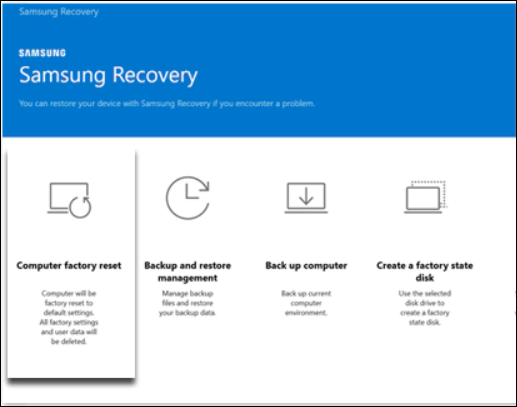
Step 3. A warning message will appear, informing you that personal data may be removed during the reset process. Click “Start Factory Reset” to continue.
Step 4. Select “OK” when the confirmation window appears, then wait patiently while the reset process completes.
After the factory reset finishes, the Samsung laptop will restart automatically. You can then set up the system again and create a new login password if needed.
FAQs
1. Can I factory reset a Samsung laptop if I forgot the administrator password?
Yes. Samsung Recovery and Windows Recovery Environment allow factory resets without requiring the administrator password.
2. Does a factory reset remove viruses from a Samsung laptop?
In most cases, yes. A full factory reset removes installed software and restores Windows, eliminating most malware infections.
3. How long does a Samsung laptop factory reset take?
The process typically takes between 15 minutes and one hour, depending on hardware specifications and selected options.
4. Will I lose all my files during a factory reset?
It depends on the option selected. "Keep My Files" preserves personal data, while "Remove Everything" erases all content.
5. What should I do if F4 does not open Samsung Recovery?
Use Windows Recovery Environment through advanced startup options or Reset This PC if Samsung Recovery is unavailable.
Conclusion
In conclusion, performing a Samsung laptop factory reset without a password is entirely possible using several built-in and third-party solutions. Whether you choose AOMEI Partition Software to reset the password first, use Windows Recovery from the login screen, or rely on Samsung Recovery, each method can help restore your device successfully. Select the approach that best fits your situation and remember to back up important data whenever possible before resetting your laptop.

 as a preferred
source on Google
as a preferred
source on Google