




Fixed: Windows 11 Password Not Working or Not Showing After Update
This article provides easy troubleshooting steps when your Windows 11 password not working or the password box disappears from your screen following a system update.

By Irene Updated on June 3, 2026


🌟 Quick Overview:
This article explains why a Windows 11 password may stop working and how to regain access without reinstalling the system. It covers common causes such as update errors, keyboard layout problems, corrupted login files, and account synchronization issues. The guide also introduces AOMEI Partition Software as a simple tool for creating a bootable USB to reset or remove passwords on a locked computer. In addition, it provides step by step instructions, explains possible reasons behind login failures, and answers common questions about Windows 11 password problems and recovery methods.
How to fix Windows 11 password not working?
Sometimes, Windows 11 may reject your password even when you are sure it is correct. This problem can happen after a Windows update, due to damaged login files, account synchronization issues, keyboard layout changes, or temporary system bugs. In other cases, you may simply remember the password incorrectly, especially if they recently changed it or use multiple accounts across different devices. No matter the reason, being locked out of your computer can be stressful because you cannot access your files, applications, or important work.
When standard password recovery methods fail, many users worry that reinstalling Windows is the only option. However, reinstalling the operating system may take a long time and could risk data loss if files are not backed up properly. A simpler solution is to use a professional recovery tool.
AOMEI Partition Software allows users to create a bootable USB drive that can help bypass the login screen and regain access to the Windows system. After creating the USB on another working computer, you can boot the locked PC from the USB device and enter the recovery environment. This method allows you to access the computer without typing the old password and reset the account more easily. It is especially useful when Windows login problems are caused by update errors or unexpected system issues.
 AOMEI Partition Software
- Advanced Partition Management: Go beyond basic disk tools with more flexible partition operations. Resize, move, split, merge, and align partitions with greater flexibility.
- OS Migration & Disk Cloning: Migrate Windows OS to SSD or HDD without reinstalling, or clone entire disks and partitions for seamless system upgrades.
- Flexible Disk Converter: Convert disks between MBR and GPT without deleting partitions, switch between basic and dynamic disks, and convert NTFS and FAT32 file systems.
- Smart Space Allocation: Allocate free space directly from one partition to another and extend system drives without creating unallocated space.
- Partition Recovery & Dynamic Disk Support: Recover lost or deleted partitions and manage dynamic volumes with advanced disk management tools.
 100% Secure
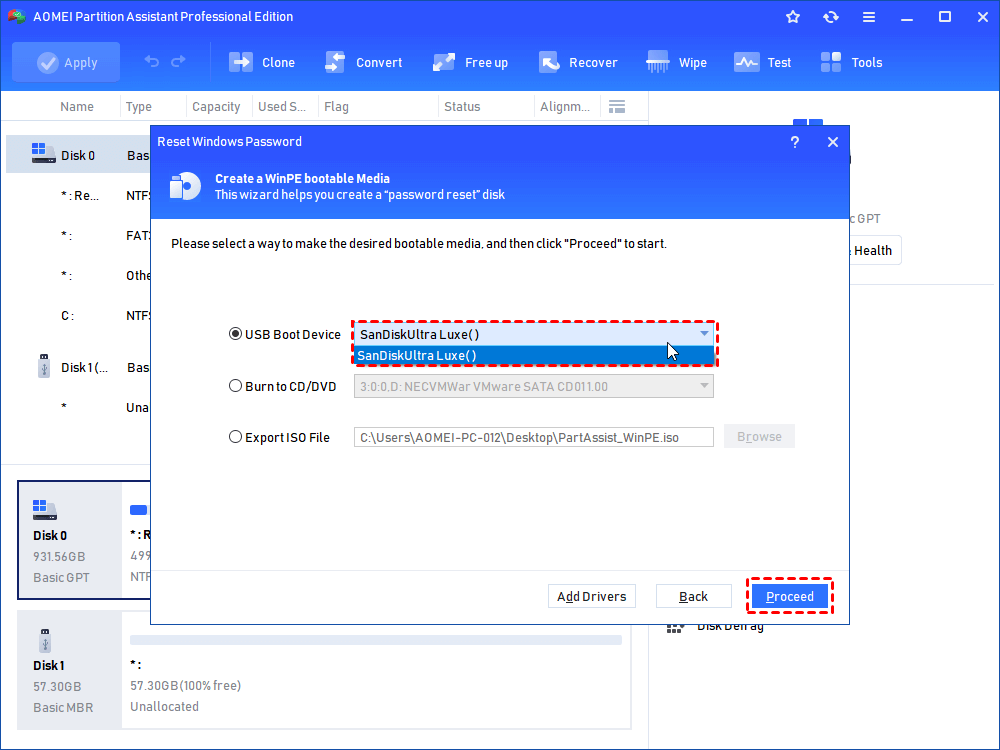
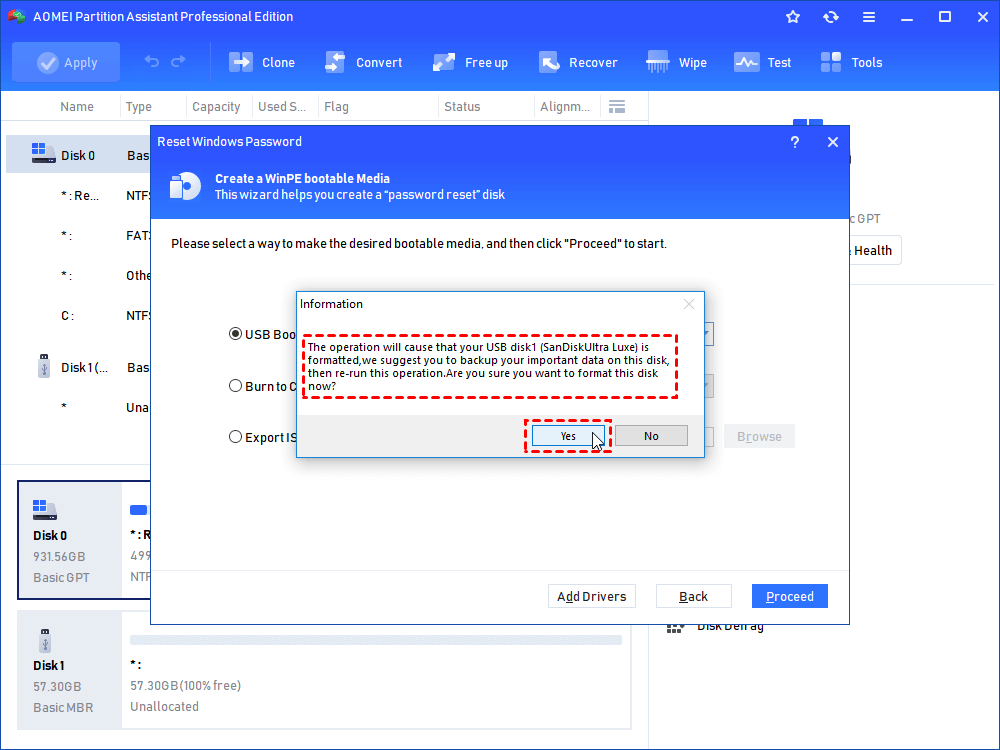
Step 1. On a working Windows computer, connect an empty USB drive, install and open AOMEI Partition Software, go to Tools > Reset Windows Password, then follow the prompts to create a WinPE bootable USB device, which will erase all data on the flash drive.
.png)
Step 2. Click "Proceed". Once the process is finished, unplug the USB drive.
Step 3. Insert the newly created AOMEI USB drive into your locked computer. Turn the computer on and immediately press your BIOS/Boot Menu key repeatedly (usually F9, F10, F12, or DEL, depending on your PC manufacturer).
Step 4. Change the boot order so the computer boots directly from the USB drive.
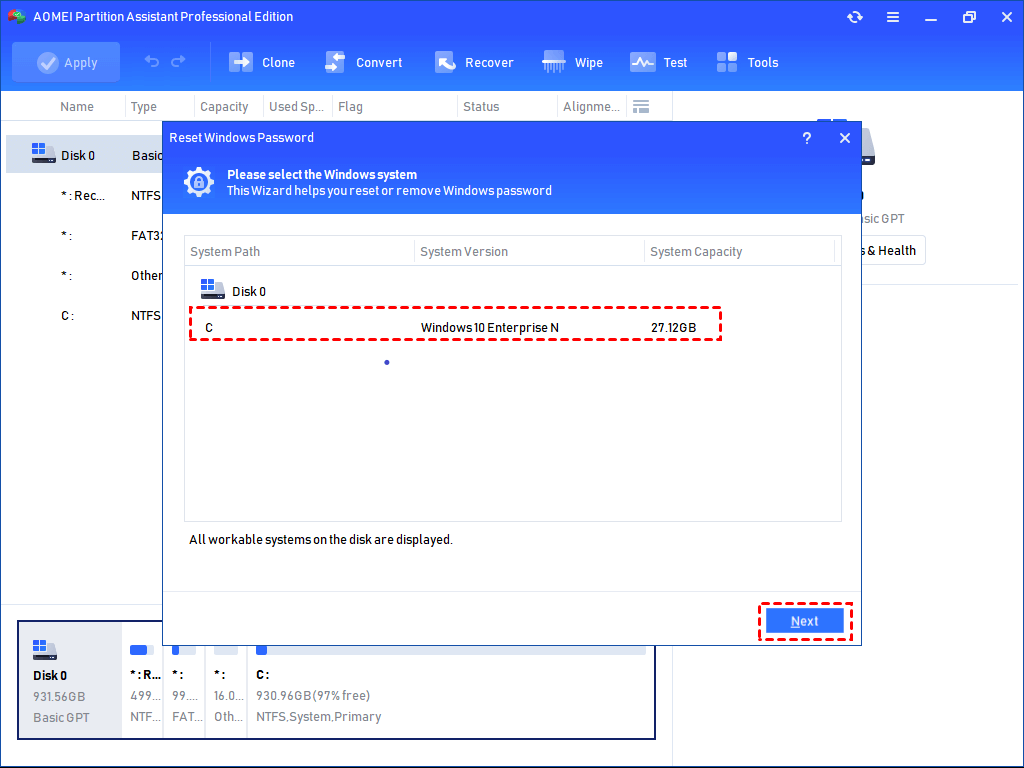
Step 5. The AOMEI interface will load on your screen. A window will pop up asking you to select the Windows operating system. Select your Windows OS and click Next.
Step 6. Select the locked Administrator Account from the list.
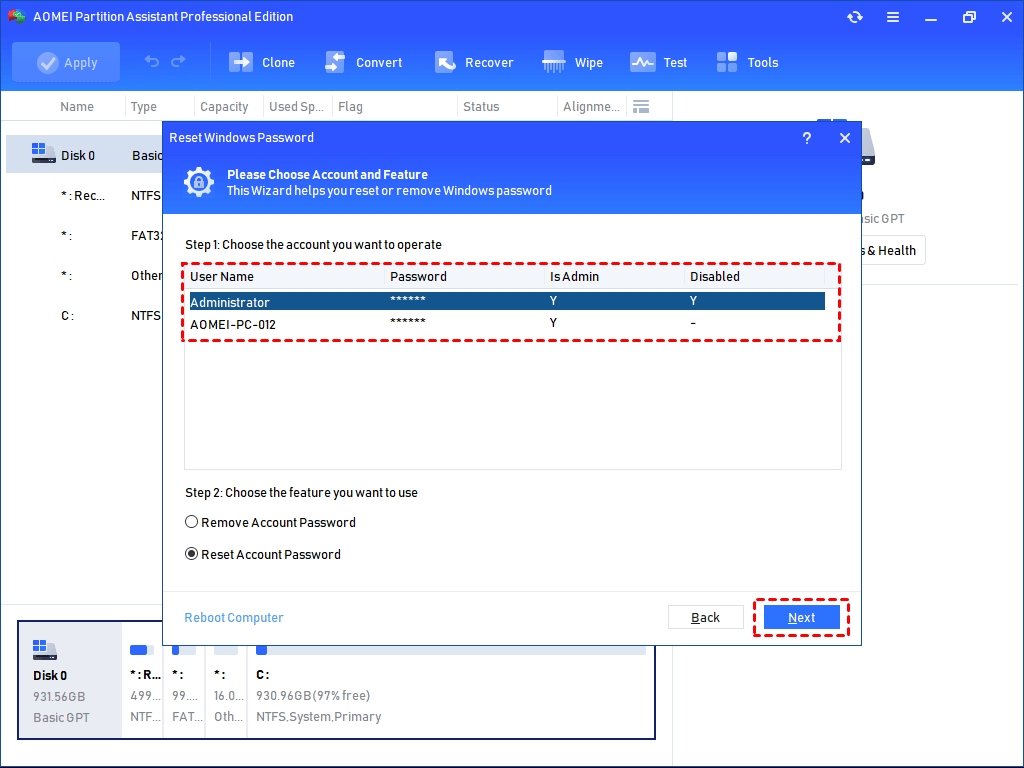
Step 7. Check the box next to Remove Account Password (or choose Reset Account Password to type a new one) and click Next.
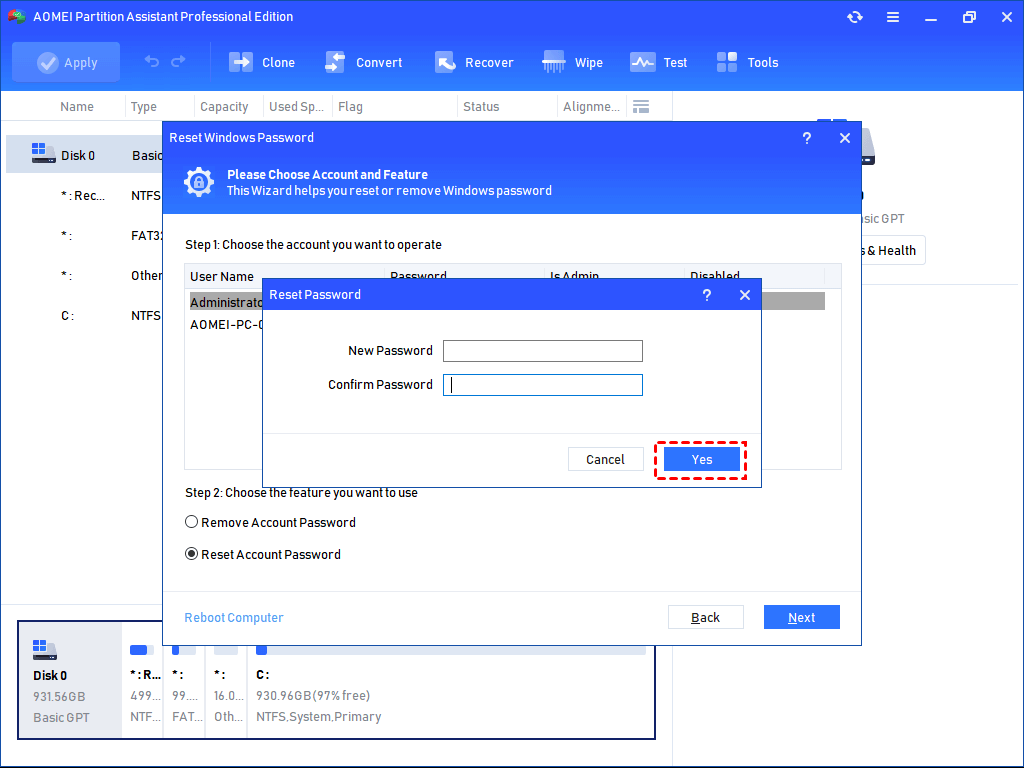
Step 8. Click OK to confirm the operation. Then click Reboot, remove the USB drive, and wait for your computer to start directly on the desktop without asking for a password.
Why is password not working in Windows 11?
Windows 11 password problems can happen for many different reasons. Sometimes the issue is simple, such as entering the wrong password or using the wrong keyboard layout. In other situations, the problem may be caused by Windows updates, damaged system files, Microsoft account synchronization errors, or corrupted login settings. Understanding the possible causes can help you choose the correct solution more quickly.
| Cause | Description |
|---|---|
| Incorrect password | The password may have been typed incorrectly or changed recently |
| Keyboard layout issue | Different language or keyboard settings can cause incorrect character input |
| Windows update failure or bug | Some updates may temporarily affect login services or account verification |
| Corrupted user profile | Damaged account files can prevent normal sign in |
| Microsoft account sync issue | Internet or synchronization problems may stop account authentication |
| PIN or credential errors | Saved login credentials or PIN data may become corrupted |
| System file corruption | Missing or damaged Windows files can interfere with the login process |
If your Windows 11 password is not working and standard recovery methods do not help, using a professional recovery tool may save time and reduce frustration. AOMEI Partition Software allows users to create a bootable USB drive and regain access to the system without relying on the original password, making it useful when login problems are caused by system errors or update-related issues.
Conclusion
If your Windows 11 password is not working, there is no need to panic or reinstall the entire operating system immediately. With the right tool, you can regain access to your computer safely and quickly. AOMEI Partition Software provides an easy way to create a bootable USB and reset or remove passwords when normal login methods fail.
Besides password recovery, it also includes many useful disk management features such as partition resizing, disk cloning, boot repair like BOOTMGR missing errors, system migration, file cleanup, and freeing up storage space. These tools can help improve computer performance and solve many common Windows problems more efficiently.
FAQs
FAQ 1: Why does Windows 11 say my password is incorrect even when it is correct?
This can happen because of keyboard layout changes, Caps Lock, damaged login files, or Windows update issues. In some cases, Windows may fail to verify your credentials properly after a system update.
FAQ 2: Why is the password box missing on the Windows 11 login screen?
This problem is usually caused by a temporary system or display bug. You can try pressing Ctrl + Alt + Delete, tapping the Spacebar, restarting the computer, or entering Advanced Startup mode to restore the sign in options.
FAQ 3: What should I do if my password stops working after a Windows 11 update?
You can boot into Safe Mode and uninstall the recent update from Settings > Windows Update > Update History. Some updates may cause login or Windows Hello problems until Microsoft releases a fix.
FAQ 4: Can I reset a Windows 11 password without losing files?
Yes. Microsoft accounts can be reset online through the official recovery page. For local accounts, you can use security questions, Command Prompt tools, or a bootable password reset tool like AOMEI Partition Software to regain access without deleting personal data.
FAQ 5: Why does Windows 11 ask for a PIN instead of a password?
Windows 11 enables Windows Hello sign in by default for better security. You can switch back to password login from Settings > Accounts > Sign in options by disabling passwordless sign in.

 as a preferred
source on Google
as a preferred
source on Google