




Windows Boot Manager Missing? Here Are Causes and Easy Fixes
BOOTMGR missing errors may prevent Windows from starting normally. This article covers common causes, effective fixes, and helpful methods to repair missing Windows Boot Manager issues in Windows 11 and 10.

By Irene Updated on June 3, 2026


📢 Here is a quick, easy-to-read overview of the article to help you grasp the key points in seconds:
🔶 What is BOOTMGR? BOOTMGR (Windows Boot Manager) is a crucial system file that loads your Windows operating system after you turn on your PC. If it is damaged, missing, or inaccessible, your computer will be stuck on a black screen and fail to boot.
🔶 Why Does the Error Happen? The "BOOTMGR is missing" error is usually caused by:
-
Corrupted Boot Files: Often due to crashes or interrupted Windows updates.
-
Incorrect Boot Order: The PC is trying to boot from a device that doesn't have Windows on it.
-
Hardware Issues: A failing hard drive/SSD or loose cables.
-
Malware or Viruses: Damaged boot records due to an infection.
🔶 How to Fix It (6 Solutions)
-
Disconnect External Devices: Unplug USBs and external drives so your PC doesn't accidentally try to boot from them.
-
Check the Boot Order: Go into your BIOS/UEFI settings and ensure your main internal hard drive or SSD is set as the #1 boot device.
-
Update the BIOS: Download the latest BIOS version from your manufacturer's website to fix system incompatibilities.
-
Repair Boot Files (Easiest Method): Instead of typing complex manual commands, you can use a tool like AOMEI Partition Software to automatically detect and repair damaged boot files and configurations safely.
-
Create a New Boot Sector: Use Command Prompt. Run it as an administrator, type
bootrec /fixboot, and hit Enter to fix a corrupted Windows partition. -
Run System Restore: Boot into the Windows Recovery Environment (WinRE) and use System Restore to roll your computer back to a previous point in time before the error occurred.
🔶 Key Takeaway: Start with the simplest fixes first (unplugging USBs and checking BIOS boot order). If the issue involves corrupted files and you aren't comfortable typing command lines, a third-party boot repair tool is the safest and most user-friendly way to get your PC running again.
How to fix the BOOTMGR is missing error?
Solution 1. Disconnect all external devices
Disconnect all external devices can help fix the “bootmgr is missing” issue. External USB drives, external hard disks, or SD cards may interfere with the startup process. When the system mistakenly tries to boot from a device without a valid operating system or boot manager, it can trigger the “Windows boot manager missing” error. Removing all external devices ensures the computer only reads the internal drive where Windows is installed. This helps the BIOS or UEFI correctly detect the proper boot sequence, reduces confusion during startup, and improves the chances of a successful boot without errors like “boot missing bootmgr.”

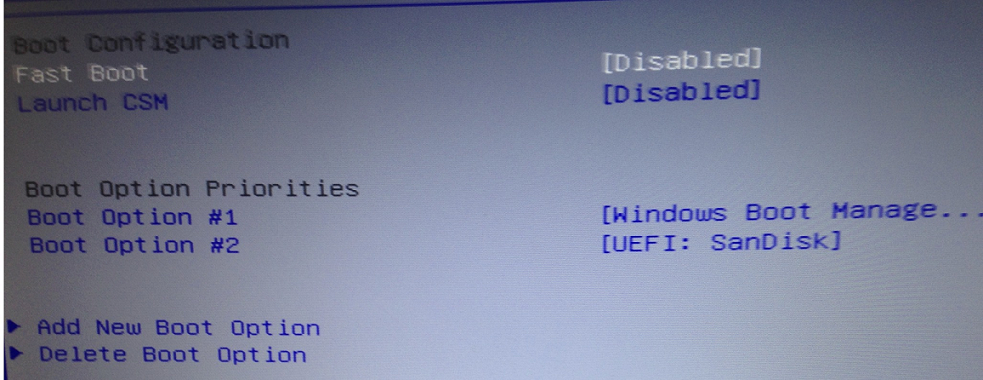
Solution 2. Check the first boot device
Check the first boot device is a key step to fix the “bootmgr is missing” problem. The “boot missing bootmgr” error often occurs when the system cannot find the Windows Boot Manager during startup. This usually happens because the computer is trying to boot from the wrong drive or an unbootable device. The BIOS or UEFI firmware is responsible for controlling the boot sequence and deciding the order of devices checked for startup files.
If a USB drive, external disk, or empty partition is placed before the system drive, the computer may fail to locate the required boot files. By entering BIOS settings and setting the internal hard drive or SSD as the first boot device, you ensure the system reads the correct Windows boot manager files first. This helps prevent startup confusion, avoids boot errors, and ensures Windows loads normally without showing the “boot manager missing” issue.
Solution 3. Upgrade BIOS version
If the BIOS is out of date, you are likely to receive the error because of incompatibility. Therefore, the first thing you need to do is to make sure it is the latest version. If not, upgrade to the latest one. You can download a newer version from the manufacture website or consult the Support if you have any problem.
Solution 4. Repair boot files
When the “BOOTMGR is missing” error appears in Windows, the computer usually cannot load the operating system normally. This problem may happen after a failed update, incorrect boot settings, damaged system files, corrupted boot records, or disk errors. In many cases, fixing the issue manually requires professional techniques such as rebuilding the BCD, repairing the MBR, or running complicated Command Prompt commands in the Windows Recovery Environment. These operations can be difficult for users without technical or PC repair knowledge, and an incorrect command may even cause additional startup problems.
A simpler solution is using the boot repair feature in AOMEI Partition Software. It provides an easier and more user friendly way to repair Windows boot issues without manually typing complex commands. Even users with little or no computer experience can follow the guided steps to repair startup problems safely. AOMEI Partition Software includes a professional boot repair tool that can automatically detect and fix common startup issues, including damaged boot files and invalid boot configurations. It supports Windows 11, Windows 10, Windows 8, and Windows 7, making it a practical choice for both home users and beginners who want a simpler way to fix the BOOTMGR is missing error.
 AOMEI Partition Software
- Advanced Partition Management: Go beyond basic disk tools with more flexible partition operations. Resize, move, split, merge, and align partitions with greater flexibility.
- OS Migration & Disk Cloning: Migrate Windows OS to SSD or HDD without reinstalling, or clone entire disks and partitions for seamless system upgrades.
- Flexible Disk Converter: Convert disks between MBR and GPT without deleting partitions, switch between basic and dynamic disks, and convert NTFS and FAT32 file systems.
- Smart Space Allocation: Allocate free space directly from one partition to another and extend system drives without creating unallocated space.
- Partition Recovery & Dynamic Disk Support: Recover lost or deleted partitions and manage dynamic volumes with advanced disk management tools.
 100% Secure
Step 1. Install and open AOMEI Partition Software on a working computer, and then select Recover and choose Boot Repair.
.png)
Step 2. Then click the "create a bootable disk" option to create a WinPE "Boot Repair" disk.
.png)
Step 3. When your Windows BOOTMGR is missing, you can boot the computer into a WinPE environment. After that, the Windows repair tool will automatically load the Boot Repair feature, scan for boot entries, and display all available entries for you to fix.
.png)
Step 4. Choose the boot entries that can be repaired, then click the Repair button to begin the process.
.png)
Step 5. Once the repair is successful, you can remove the bootable disk and boot the PC from the original system drive.
.png)
Solution 5. Create a new boot sector
Create a new boot sector is an effective way to fix the “boot manager missing” or “bootmgr is missing fix” issue. This error can occur when the boot sector becomes corrupted or damaged, especially on the Windows system partition. Such problems may result from an aging hard drive, unexpected power failures, virus infections, or malware attacks that damage boot files. When the boot sector is broken, the system cannot properly load Windows during startup. Rebuilding or creating a new boot sector restores the necessary boot information, allowing the computer to correctly locate the operating system and start normally again.
Step 1. To begin, access the start menu and search for "Command Prompt."
Step 2. Right-click on the Command Prompt option and select "Run as administrator." This step is essential to enable developer configurations.
Step 3. Once the Command Prompt opens, input the command "bootrec /fixboot" and press enter.
Step 4. After executing the command, you will see the message "Operation completed successfully."
Step 5. Now, restart your computer using the "Ctrl + Alt + Del" keys, and then selecting the restart option.
Note: Before restarting your computer, ensure that all removable devices, such as USB drives or external hard drives, are disconnected from your system.
Solution 6. Run System Restore from Windows Recovery Environment (WinRE)
Run System Restore from Windows Recovery Environment (WinRE) is a useful way to fix the “bootmgr is missing” or “Windows boot manager missing” error. The system automatically creates restore points at regular intervals, saving stable configurations of Windows. If a recent change, update, or system error caused the issue, System Restore can roll the computer back to a previous working state.
This helps recover lost or damaged boot settings without affecting personal files. By accessing WinRE, you can choose a restore point before the error occurred. This method is helpful when boot files are not severely damaged and can quickly resolve startup problems safely.
Step 1. After entering Windows RE, then select Troubleshoot -> Advanced options -> System Restore.
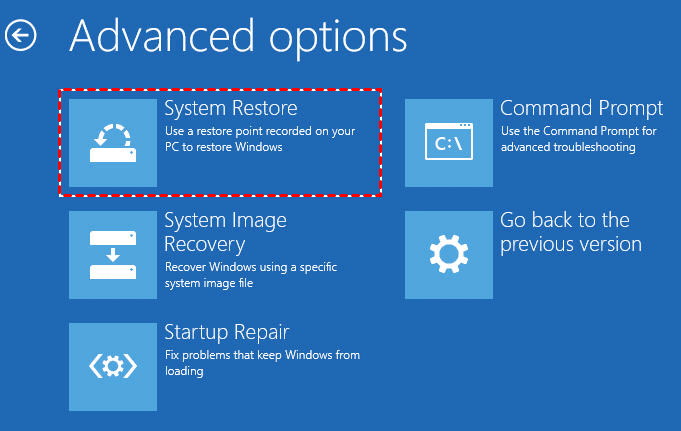
Step 2. Follow the instructions of the System Restore to restore Windows 11 to a working state.
What is BOOTMGR?
BOOTMGR stands for Windows Boot Manager. It is an important system file that helps Windows start correctly when you turn on the computer. After the BIOS or UEFI finishes checking the hardware, BOOTMGR loads the Windows boot files and starts the operating system.
In modern Windows systems, BOOTMGR works together with the Boot Configuration Data (BCD) to locate the installed Windows system and continue the startup process. If BOOTMGR becomes damaged, missing, or inaccessible, the computer may stop at a black screen with messages such as “BOOTMGR is missing” or “Windows Boot Manager missing.”
BOOTMGR is usually stored in the system reserved partition or EFI system partition. Since it controls the startup process, even small problems with the boot files or disk structure can prevent Windows from loading normally.
What causes Windows boot manager missing?
The “Windows Boot Manager is missing” error is a common startup issue that prevents Windows from loading properly. It usually appears when the system cannot locate the required boot files or when the boot configuration is damaged. As a result, the computer may stop at a black screen or display a message saying the boot manager cannot be found. This problem can be caused by both software and hardware factors, including incorrect system settings, corrupted system files, or issues with the storage drive. Understanding the main causes of this error is important because it helps users quickly identify the source of the problem and choose the right method to fix it without unnecessary trial and error.
Why is Windows Boot Manager missing?
| Cause | Explanation |
|---|---|
| Corrupted boot files | Essential system files are damaged or missing due to crashes or failed updates |
| Incorrect BIOS/UEFI settings | Wrong boot order or disabled system drive prevents Windows from loading |
| Hard drive/SSD issues | Bad sectors or disk failure stop the boot data from being read |
| Failed Windows update or installation | Interrupted setup may break boot configuration |
| Loose or disconnected cables | Drive is not properly detected by the system |
| Malware infection | Viruses may damage or modify boot records |
Each cause affects the system’s ability to locate and load Windows during startup. Corrupted boot files and failed updates directly damage the startup process, making the system unable to complete loading. BIOS or UEFI misconfiguration may cause the computer to attempt booting from the wrong device. Hardware issues such as a failing SSD or loose cables can prevent the storage drive from being detected entirely. In some cases, malware may attack system partitions or boot records, leading to startup failure. By identifying the exact cause, users can apply targeted solutions and restore normal system booting more efficiently.
Conclusion
In conclusion, the “BOOTMGR is missing” error usually happens due to incorrect boot settings, damaged system files, or problems with the storage drive. In many cases, simple checks such as removing external devices and adjusting the boot order in BIOS or UEFI can quickly solve the issue. If the problem continues, repairing boot files or using System Restore can help restore normal startup. For users who prefer an easier method, using a boot repair tool like AOMEI Partition Software can simplify the process and reduce the need for complex commands. By following the right steps, most users can fix this error and get their system working normally again.
FAQs
🗨️ How do I fix “BOOTMGR is missing”?
You can fix this by repairing the Windows boot files. The most common methods include restarting the PC, checking boot order in BIOS, and using Windows Recovery Environment. From Advanced options, you can run Startup Repair or use Command Prompt commands such as bootrec /fixmbr, bootrec /fixboot, and bootrec /rebuildbcd. If the system partition is damaged, marking the correct partition as active or using a boot repair tool can also help.
🗨️ Can a virus cause “BOOTMGR is missing”?
Yes, but it is not very common. A virus can damage or overwrite boot files, including BOOTMGR or the boot configuration data. However, most cases are caused by system errors, failed updates, disk issues, or incorrect BIOS settings rather than malware.
🗨️ Why is BOOTMGR missing in Windows 11?
In Windows 11, this error usually happens because the system cannot find the boot manager file during startup. Common reasons include incorrect boot order, corrupted system files, damaged hard drive, failed Windows update, or improper shutdown. It can also occur if the system partition is deleted or becomes unreadable.
🗨️ How to fix corrupt BOOTMGR?
To fix a corrupted BOOTMGR file, you can use Windows Recovery Environment. Start with Startup Repair, which automatically fixes boot issues. If that does not work, use Command Prompt and run bootrec commands to rebuild the boot configuration. In severe cases, repairing disk errors or reinstalling Windows may be required.
🗨️ Where is the BOOTMGR file located?
The BOOTMGR file is stored in different locations depending on the system type. On legacy BIOS systems, it is usually in the root of the system drive, often the C drive. On newer Windows UEFI systems, it is located in the EFI System Partition under EFI\Microsoft\Boot\bootmgfw.efi.

 as a preferred
source on Google
as a preferred
source on Google