




How to Fix Bootrec /Fixboot Access Is Denied in Windows 11
bootrec /fixboot access is denied in Windows 11 is often linked to EFI partition or boot record issues. This article discusses possible causes and several practical ways to restore normal startup.

By Irene Updated on June 3, 2026


📢 Key Takeaways
• The “bootrec /fixboot access is denied” error in Windows 11 is usually caused by damaged EFI partitions, corrupted boot files, permission issues, or incorrect boot configuration settings.
• Command Prompt fixes often require multiple advanced commands, and incorrect operations may lead to more serious boot problems.
• AOMEI Partition Software provides a simpler and more visual way to repair boot issues, rebuild boot records, and manage EFI partitions without relying heavily on CMD.
• Other effective fixes include repairing the bootloader, running Startup Repair, rebuilding BCD, using CHKDSK, and checking SSD or HDD hardware connections.
• Rebuilding BCD or repairing boot files usually does not delete personal files, but backing up important data before making system repairs is still recommended.
• If software methods fail, the issue may be related to hardware problems such as damaged SSDs, loose SATA cables, or failing NVMe drives.
How to fix bootrec /fixboot access is denied in Windows 11
Way 1. Run a handy tool
When trying to repair Windows 11 boot problems with the Bootrec /FixBoot command, many users may receive the “Access is denied” error. This issue is often related to damaged EFI boot files, incorrect partition settings, or problems inside the system boot environment. Although Command Prompt is a built in recovery tool, the repair process usually requires multiple commands and accurate operations. A small mistake, such as selecting the wrong partition or entering an incorrect command, may lead to boot failure or make the system harder to recover.
For users who prefer a simpler and safer method, AOMEI Partition Software can be a practical solution. It is a professional disk and partition management tool that helps repair boot-related problems with a more visual and user-friendly interface. Compared with complicated CMD operations, it allows users to rebuild boot records, manage EFI partitions, and fix complicated startup issues like Green Screen of Death more conveniently. This method is especially useful for users who want to repair Windows boot problems without relying heavily on manual command-line operations.
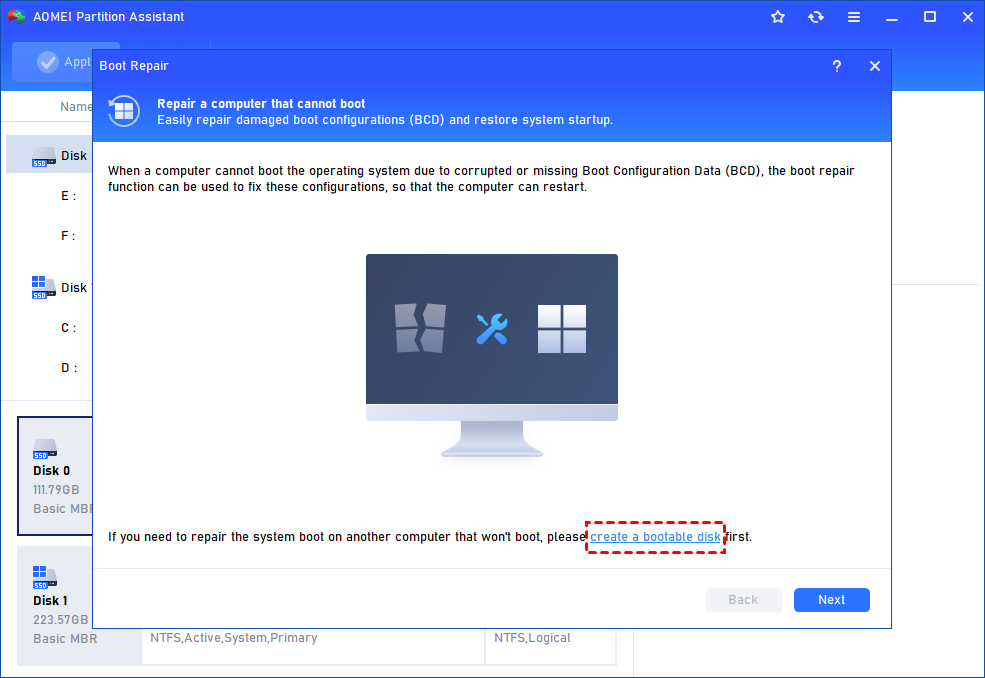
Step 1. Install and open AOMEI Partition Software on a functioning computer. Navigate to “Recover” > “Boot Repair”, then select “Create a bootable disk” to generate a WinPE-based Boot Repair media.
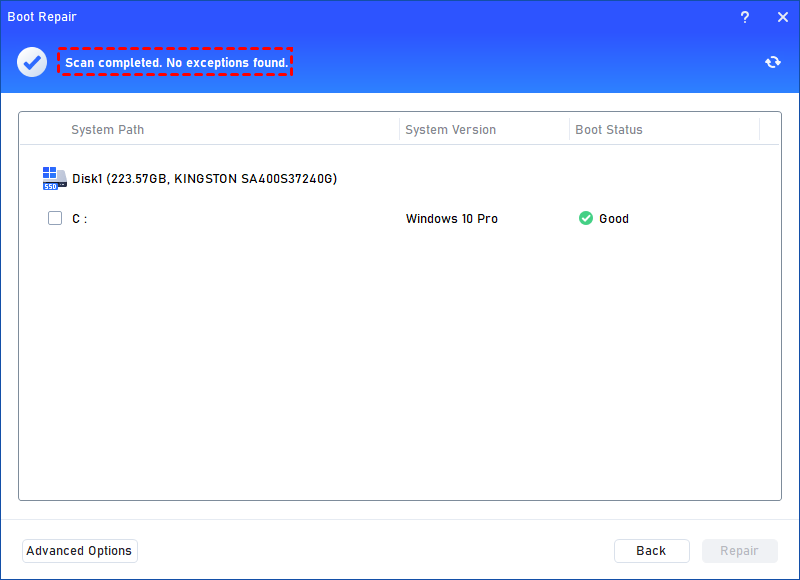
Step 2. Insert the created bootable disk into the unbootable PC and start it from the WinPE environment. The Boot Repair tool will launch automatically and begin scanning for existing boot entries, displaying all detected results.
✍ Advanced Settings (Choose where to store the repaired boot entry):
♦ Repair to the current disk: Ensures the system boots from the existing disk by fixing and completing necessary boot files (default option).
♦ Repair to another disk: Repairs or creates a new boot entry on a selected disk, allowing the system to boot from that location.
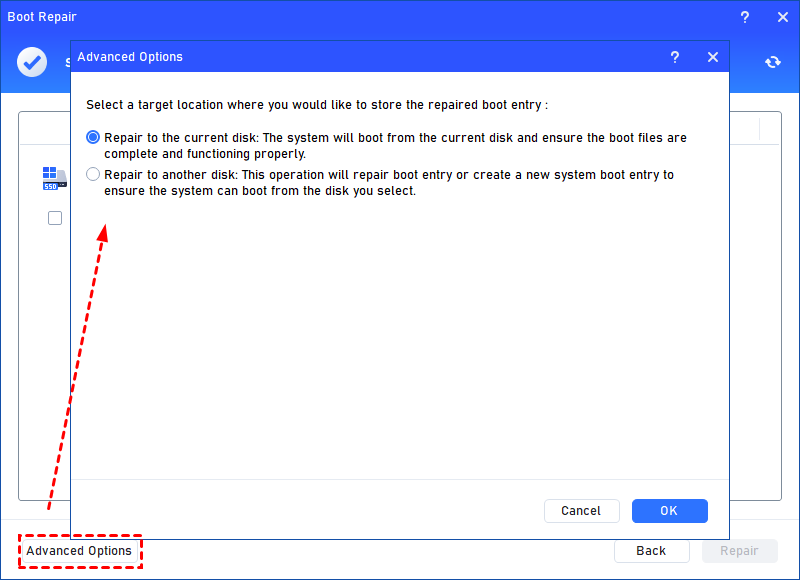
For most users, repairing to the current disk is the recommended choice.
Step 3. Select one or more boot entries that can be repaired, then click “Repair” to begin the process.
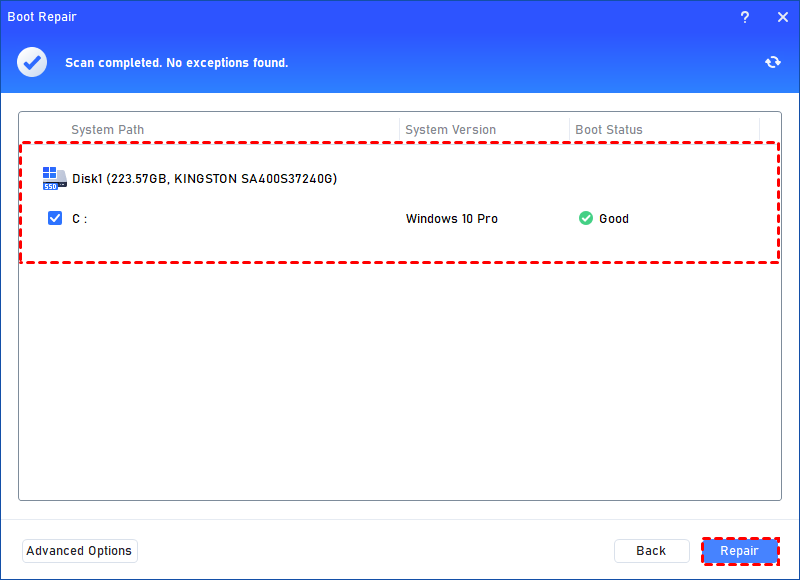
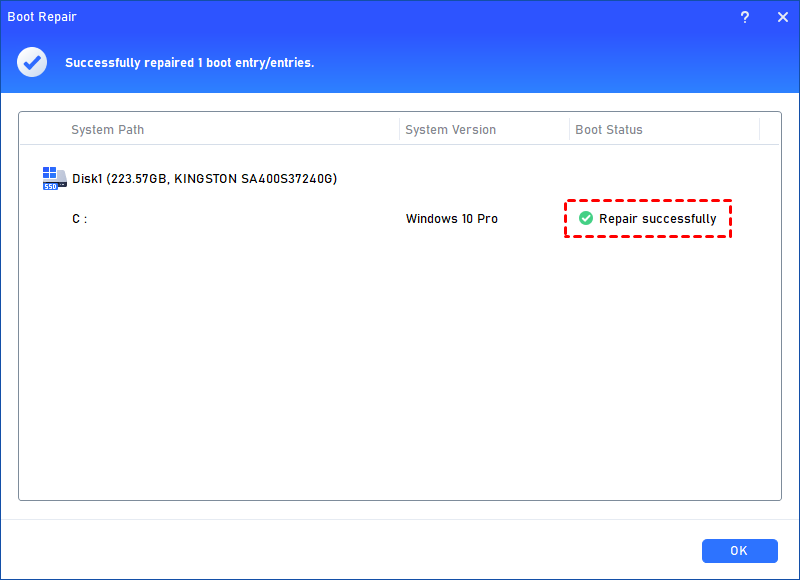
Step 4. Wait for the operation to complete. Once finished, review the results. A successful repair will display a “Repair Successfully” confirmation message.
Way 2. Repair Bootloader
If you receive the “bootrec /fixboot access is denied Windows 11” error, repairing the Windows bootloader can help rebuild damaged boot information and restore normal startup. Before starting, you need to prepare a Windows 11 installation disc, because the repair process must be completed from the Windows Recovery Environment.
Step 1. Boot from Windows 11 installation disc and press any key to continue.
Step 2. Then navigate to Repair your computer->Troubleshoot->Advanced options->Command Prompt.
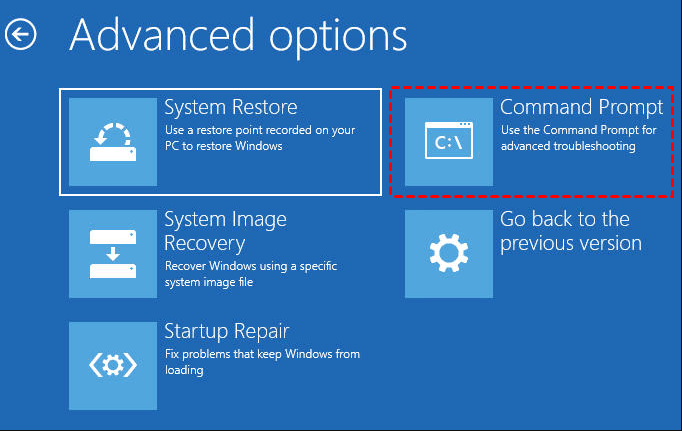
Step 3. Type diskpart in the command prompt.
Step 4. Type the following command and press Enter after each command.
•list disk
•sel disk 0(where 0 stands for the boot drive)
•list vol(note which volume is the EFI partition, mine is 4)
•sel vol 4
•assign letter=N:
•exit
Step 5. Type N: (the drive letter you just assigned and hit Enter.)
Step 6. After assigned a drive letter, you can format the EFI partition by typing format N: /FS:FAT32.
Step 7. Now, type bcdboot C:\windows /s N: /f UEFI and hit Enter. This command will repair your Bootloader.
Then try the bootrec /fixboot command again, fixboot access denied in Windows 11 could be solved.
Way 3. Run Startup Repair
Running Startup Repair is another effective way to fix the “bootrec fixboot access denied” problem. This Windows recovery feature can automatically detect and repair corrupted boot files, missing system files, or startup configuration errors that may prevent the Bootrec command from working properly in Windows 11.
Step 1. Boot from Windows 11 installation disc and press any key to continue.
Step 2. Then navigate to Repair your computer->Troubleshoot->Advanced options->Startup Repair.
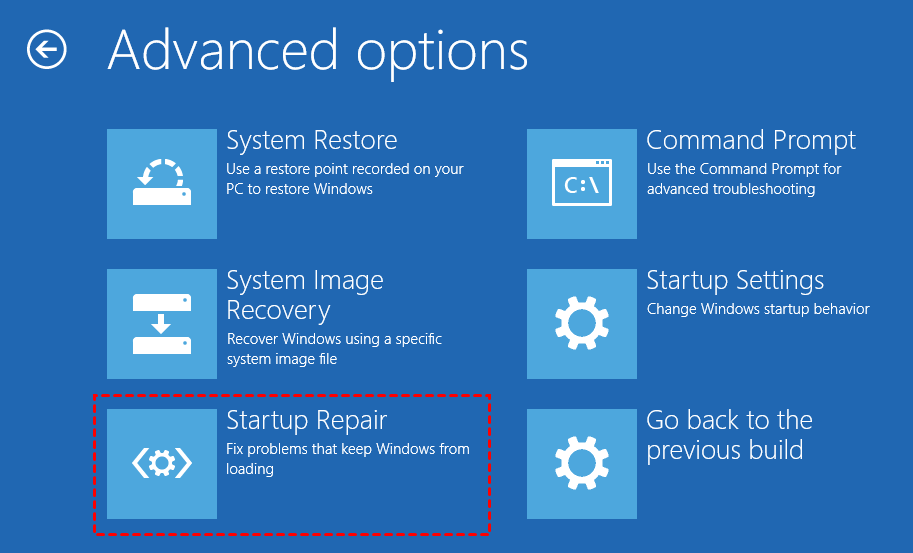
Step 3. Wait for the result of the automatic repair and follow the instructions to solve problems.
Way 4. Repair your boot sector or rebuild BCD
When the “fixboot access denied Windows 11” error appears, the boot sector or BCD store may already be corrupted. Repairing the boot sector or rebuilding BCD can recreate important boot configuration data and restore the connection between Windows and the system boot files, helping the computer start normally again.
Step 1. Still, boot from the installation disc.
Step 2. Navigate to Repair your computer->Troubleshoot->Advanced options->Command Prompt.
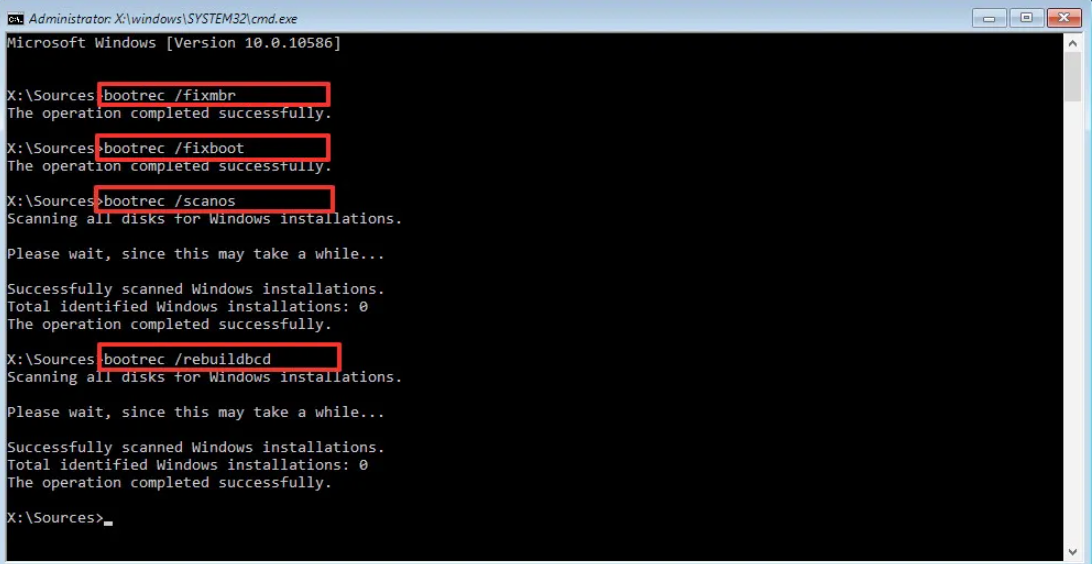
Step 3. Type the following command and press Enter after each command.
- bootrec /fixmbr
- bootrec /fixboot
- bootrec /scanos
- bootrec /rebuildbcd
Way 5. Run CHKDSK
If you encounter the bootrec /fixboot access is denied error, running CHKDSK can help check and repair file system errors or bad sectors on the disk. In some cases, damaged drive structures may prevent Windows boot files from being accessed correctly, which is why this method is useful for troubleshooting boot-related issues in Windows 11.
Step 1. After booting the computer from the Windows installation disk, skip the first-screen language selection and choose to Repair your computer.
Step 2. Select Troubleshoot and then Command Prompt.
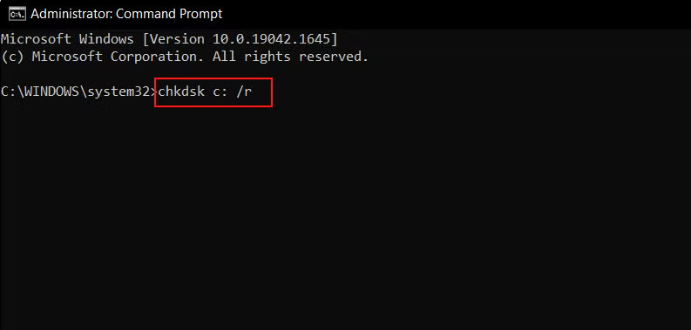
Step 3. In command prompt type chkdsk c: /f /r and hit Enter. This assumes Windows is installed on your C: drive. If the drive letter for your system partition is different, type the real one. (You can run diskpart > list volume to check.)
Way 6. Check the hardware
If all software solutions fail to resolve the bootrec fixboot access is denied windows 11 issue, the problem may be related to the storage device or hardware connection itself. Loose cables, an improperly installed SSD, or a failing drive can stop Windows from reading boot files correctly and lead to boot repair errors.
Step 1. If you are on a desktop, ensure the SATA and power cables to your SSD/HDD are securely plugged in.
Step 2. If you use an M.2 NVMe drive, try unscrewing it and re-inserting it into the slot.
Step 3. If possible, connect the drive to another computer to see if it is recognized. If the drive doesn't show up at all, it may have reached its end of life.
Why does bootrec /fixboot access is denied in Windows 11?
The “bootrec /fixboot access is denied” error in Windows 11 usually appears when the Command Prompt cannot properly access or repair the EFI system partition during the boot recovery process. Although the bootrec command is designed to fix boot related issues, modern Windows configurations sometimes prevent it from working normally.
Here are the most common reasons behind this problem:
| Cause | Explanation |
|---|---|
| Damaged EFI partition | The EFI System Partition may be corrupted, missing, or inaccessible, so the command cannot write boot files correctly. |
| Incorrect drive letter assignment | In Windows Recovery Environment, the EFI partition may not have a drive letter, which prevents bootrec /fixboot from accessing it. |
| Permission restrictions | Windows 11 uses stricter security permissions, and the recovery environment may deny access to certain boot sectors. |
| Corrupted boot configuration data | If the BCD store becomes damaged, the command may fail before rebuilding the boot records. |
| Mismatch between boot mode and disk style | Using UEFI with MBR disks or Legacy BIOS with GPT disks can create conflicts during boot repair. |
| System file corruption | Broken or missing system files can interrupt the boot repair process and trigger the access denied message. |
In many cases, fixing the issue requires additional commands such as diskpart, bootsect, or rebuilding the EFI partition manually. However, these operations can be complicated because they involve partition structures and boot configuration files. A small mistake may even make the system unbootable.
That is why many users prefer using professional disk management tools like AOMEI Partition Software. It provides graphical tools to rebuild MBR, repair boot problems, manage EFI partitions, and create bootable media without relying entirely on complicated command lines.
Conclusion
The “bootrec /fixboot access is denied” error in Windows 11 is commonly caused by damaged EFI partitions, corrupted boot files, incorrect boot configuration, or permission related issues inside the recovery environment. Although Windows provides several built in repair tools, many fixes require advanced Command Prompt operations that can be difficult for ordinary users.
In this guide, we introduced multiple practical solutions, including repairing the bootloader, rebuilding BCD, running CHKDSK, using Startup Repair, and checking hardware connections. If you want a simpler and more user friendly method, AOMEI Partition Software can help repair boot issues with visual operations instead of complicated command lines. By choosing the method that best fits your situation, you can improve the chance of restoring Windows 11 to a normal boot state successfully.
FAQs
🗨️ Why does bootrec /fixboot say access is denied?
This error usually appears when Windows Recovery Environment cannot access the EFI System Partition correctly. It may also happen because of corrupted boot files, damaged BCD data, or incorrect partition settings.
🗨️ Can I fix bootrec /fixboot access is denied without reinstalling Windows?
Yes. In many cases, you can repair the problem by rebuilding the bootloader, repairing the EFI partition, running Startup Repair, or using tools like AOMEI Partition Software to simplify the repair process.
🗨️ Does rebuilding BCD delete files?
No. Rebuilding BCD mainly repairs boot configuration data and does not normally affect personal files or installed programs. However, it is still recommended to back up important data before making system repairs.
🗨️ What is the EFI partition in Windows 11?
The EFI System Partition is a special boot partition used by UEFI based computers. It stores important boot files required for Windows 11 to start properly.
🗨️ Can a damaged SSD cause bootrec /fixboot access is denied?
Yes. If the SSD or HDD has bad sectors, file system corruption, or hardware failure, Windows may not be able to access boot files correctly, which can trigger the error.

 as a preferred
source on Google
as a preferred
source on Google