




How to Repair MBR in Windows 11 Easily?
You might need to repair MBR in Windows 11 if your system fails to start. This section offers you practical solutions at how to perform an MBR repair in Windows 11.

By Irene Updated on June 3, 2026


🌟 TL;DR
If your Windows 11 PC shows errors like operating system not found, keeps restarting, or gets stuck on a black screen, the MBR may be damaged. You can fix this by rebuilding the MBR using either Command Prompt in the recovery environment or a professional tool. The command method works but requires technical skills. A tool like AOMEI Partition Software is easier to use, safer for beginners, and can repair the MBR even when the system cannot boot by using a bootable USB. In most cases, using a reliable tool is the fastest and lowest risk way to restore normal boot.
How to repair MBR in Windows 11
Way 1. Use a professional tool
When your computer fails to boot properly, the problem is often related to a damaged MBR. You may see errors like “Operating System not found”, “Missing operating system”, or “Invalid partition table”. In some cases, the system keeps restarting, or a black screen appears after BIOS. These issues can happen after a failed Windows update, virus attack, disk corruption, or incorrect disk operations. At this point, rebuilding the MBR becomes necessary to restore normal boot. While Windows tools can fix it, the process is not always simple or reliable. Using a professional tool can make the repair easier and safer, especially for users without strong technical experience.
AOMEI Partition Software stands out because it provides several practical advantages:
• Simple graphical interface that avoids complex command input and reduces user errors
• Supports multiple MBR types, making it easier to match different Windows versions
• Allows rebuilding MBR even when the system cannot boot by using a bootable USB
• Integrates disk management features like partition control and disk checking in one place
• Offers a guided and stable process that lowers the risk of data loss during repair
In summary, rebuilding the MBR is an important step when facing serious boot errors, but the method you choose matters. Compared with manual commands or standard Windows recovery tools, AOMEI Partition Software offers a more straightforward and reliable experience. It reduces technical barriers, improves safety, and provides extra flexibility for different system environments. For users who want an efficient and low risk solution, it is a practical choice that helps restore system access with less stress and confusion.
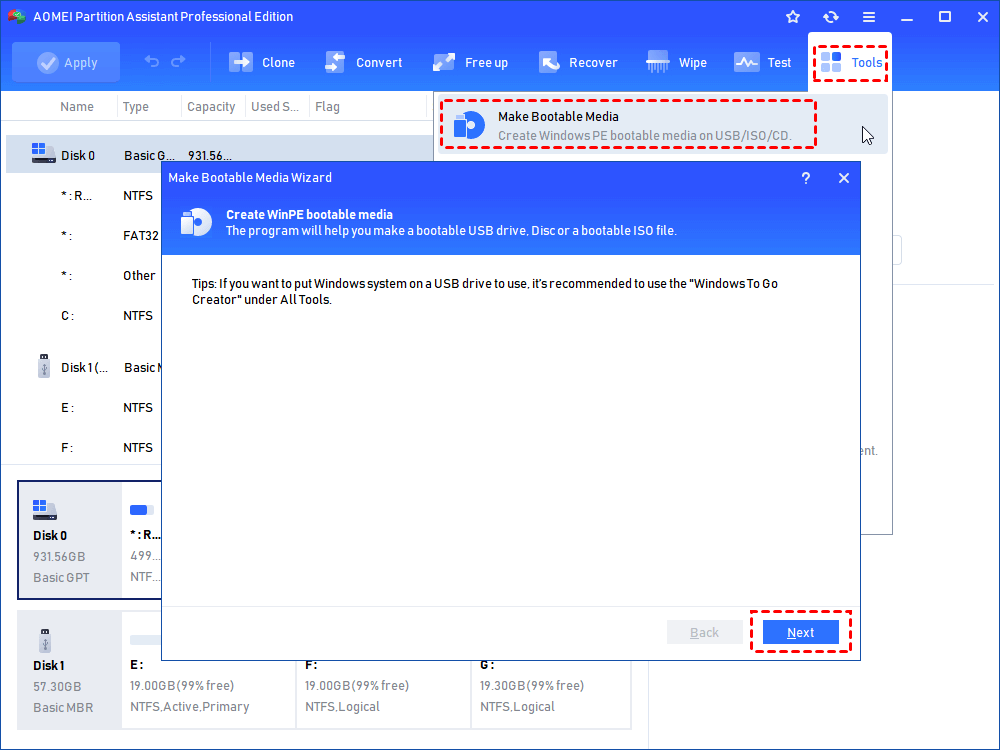
Step 1. On a functioning Windows computer, plug in a USB drive. Launch AOMEI Partition Software, go to Tools, and choose “Make Bootable Media”, then click Next to proceed with repair MBR Windows 11.
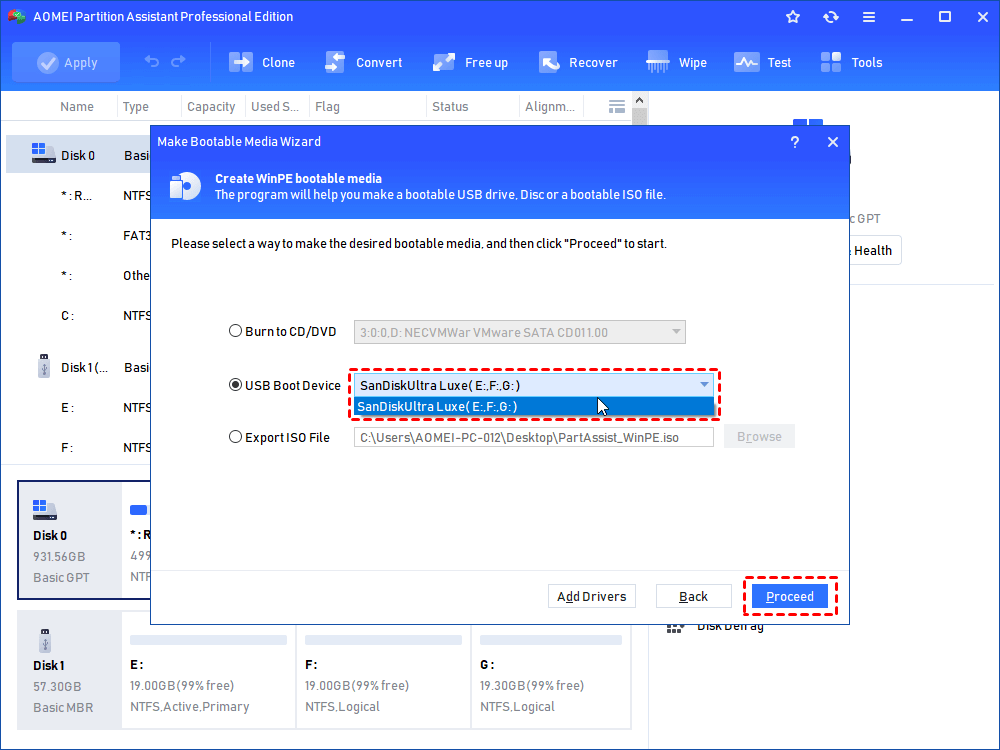
Step 2. Select your USB drive and check “USB Boot Device”, then click Proceed.
Step 3. A warning will appear indicating that the USB will be formatted. Back up any important data before clicking Yes to continue.
Step 4. Wait for the bootable media creation process to complete.
Step 5. Insert the bootable USB into the affected PC. Access the BIOS and change the boot order to start from the USB. You can then use the tool to repair the MBR on the system’s primary hard drive.
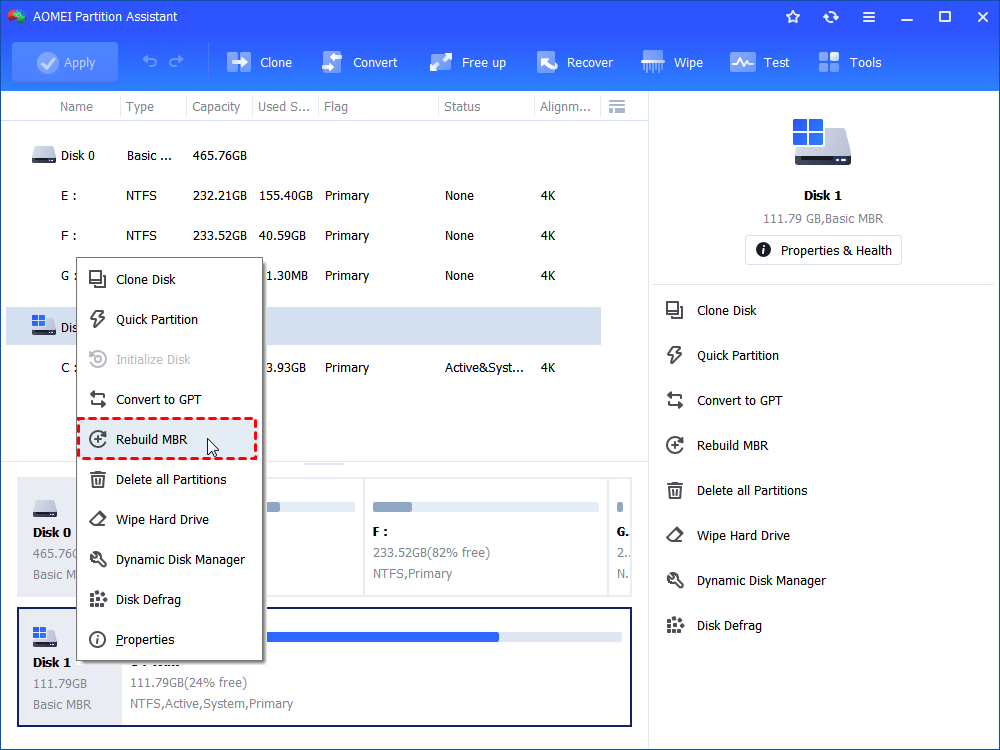
Step 6. In the pop-up window, select the correct MBR type for your version of Windows.
Step 7. Click Apply to execute the pending operations. Once completed, shut down the computer, remove the USB, and restart the system from the original disk. The MBR repair should resolve the black screen and restart issues.
Fix 2. Fix MBR via Command Prompt
Fixing the MBR with Command Prompt is a built in method provided by Windows to deal with boot related problems. It is often used when the system cannot start normally and shows errors such as missing operating system or invalid partition table. This approach relies on command line tools that can repair key boot information on the disk.
It is a practical solution since it does not require any additional software. However, it is more suitable for users who are familiar with technical operations, as it involves typing specific commands and understanding how the boot process works. For beginners, this method may feel less intuitive and carries a higher risk of mistakes if used incorrectly.
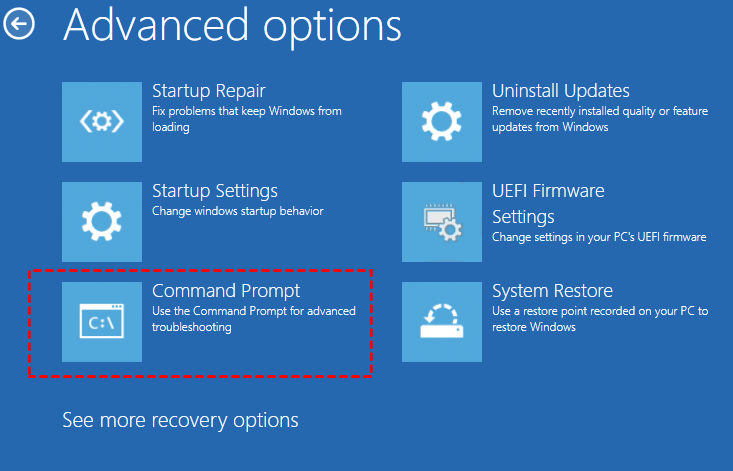
Step 1. Boot from Windows installation DVD or CD. At the Welcome screen, click “Repair your computer”. Then choose “Troubleshoot”> “Advanced options.” From here in WinRE, select "Command Prompt."
Step 2. You might need to find which drive letter contains your Windows installation. It's often C:, but in the recovery environment, it might be different (e.g., D:). You can try running dir C:\ or dir D:\ etc., to see if the Windows folder is present.
Step 3. Type the following commands one by one, pressing Enter after each:
- bootrec /fixmbr (Writes a compatible MBR to the system partition)
- bootrec /fixboot (Writes a new boot sector to the system partition)
- bootrec /scanos (Scans for Windows installations)
- bootrec /rebuildbcd (Adds Windows installations to the BCD)
Step 4. After running the commands, type exit and press Enter. Then click "Continue" to exit WinRE and attempt to boot Windows normally.
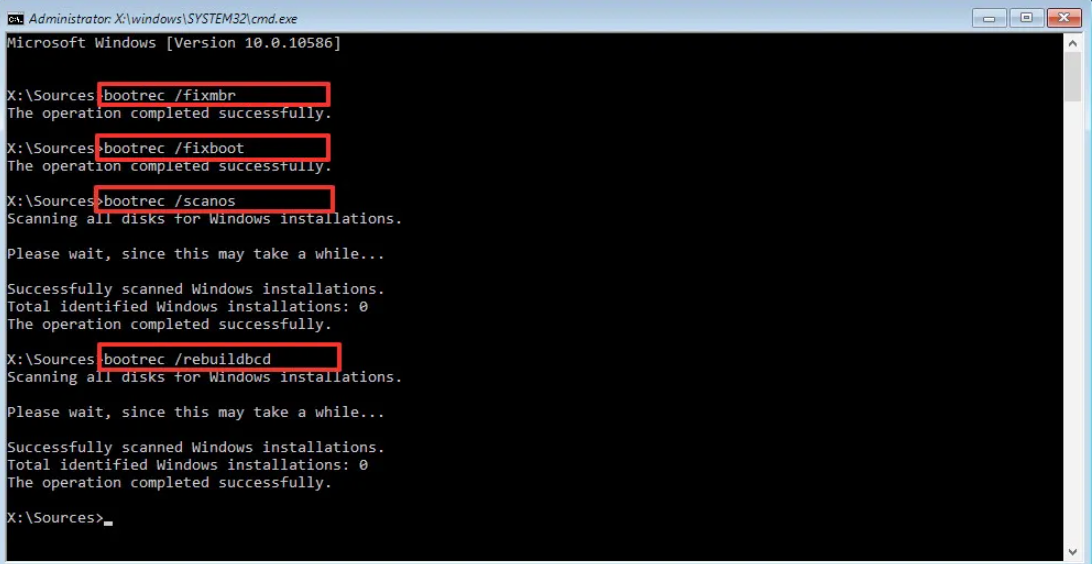
These commands can repair and rebuild key boot components, often resolving issues when Startup Repair fails and displays the “how to fix recovery your PC needs to be repaired” error, making them useful for fix MBR Windows 11 Command Prompt.
What is MBR
MBR stands for Master Boot Record. It is a small but important part of your hard drive that helps your computer start up. When you turn on your PC, the system looks at the MBR first. The MBR contains basic instructions that tell the computer where your operating system is stored and how to load it. Without this information, the computer does not know how to start Windows.
You can think of the MBR as a guide or map. It points the system to the correct partition where Windows is installed, so the boot process can continue normally.
If the MBR becomes damaged or missing, your computer may fail to boot and show errors like operating system not found or a black screen. This is why the MBR is a key part of the startup process.
When do you need to repair MBR in Windows 11?
The Master Boot Record (MBR) is a key part of your disk that helps Windows 11 start correctly. When it becomes damaged or misconfigured, your computer may fail to boot or show unexpected errors. Repairing the MBR is often necessary when the system cannot locate the operating system or when the boot process is interrupted. These problems can be caused by disk corruption, malware, improper shutdowns, or incorrect partition changes. Knowing when to repair the MBR can save time and prevent further system issues. The table below outlines common situations where rebuilding the MBR is needed, along with simple explanations to help you identify the problem.
| Situation | What You May See | Explanation |
|---|---|---|
| Boot error messages | “Operating System not found”, "Boot device not found" or “Missing operating system” | The MBR cannot locate the system partition, so Windows fails to load |
| System stuck at black screen | Blank screen after BIOS | The boot code in MBR is damaged or missing |
| Disk shows as not bootable | Disk not recognized as boot disk | The partition table in MBR may be corrupted |
| Virus or malware attack | Sudden boot failure after infection | Malicious software can overwrite or damage the MBR |
| Improper shutdown or power loss | System fails to start after crash | Abrupt interruption can corrupt boot records |
| Disk partition errors | Changes made via disk tools cause boot issues | Incorrect partition operations may break MBR structure |
| Dual boot or OS changes | Cannot boot after installing another OS | New system may overwrite or conflict with existing MBR |
Repairing the MBR in Windows 11 becomes necessary when the system cannot boot normally or fails to recognize the operating system. These issues often appear after disk errors, malware attacks, or incorrect partition operations. By identifying the warning signs, such as boot errors or a Windows 11 black screen, you can quickly determine whether the MBR is the root cause. Acting early helps reduce the risk of data loss and system downtime. In most cases, using reliable repair methods or professional tools can restore the MBR safely and get your computer running again without needing a full system reinstall.
What causes a corrupted MBR in Windows 11
The Master Boot Record (MBR) plays a critical role in starting Windows 11, as it contains the information needed to locate and load the operating system. When the MBR becomes corrupted, your computer may fail to boot or display serious errors. Understanding what causes MBR corruption can help you avoid these problems and protect your system. In many cases, the damage does not happen randomly but is triggered by specific actions or system events. These can include hardware issues, software conflicts, or unexpected interruptions. The following points explain the most common causes of a corrupted MBR in Windows 11 and how they affect your system.
System crashes or improper shutdowns
If your computer shuts down suddenly due to a crash or power failure, the MBR may not be written or updated correctly. This can damage the boot code and make the system unable to start.
Malware or virus attacks
Some malware targets the boot sector directly. It can overwrite or change the MBR, which prevents Windows from loading or causes repeated boot errors.
Disk write errors or bad sectors
Physical problems on the hard drive, such as bad sectors, can affect the area where the MBR is stored. As a result, the MBR data may become unreadable or incomplete.
Incorrect disk partition operations
Improper use of disk tools, such as deleting or modifying system partitions, can break the MBR structure. This often happens during disk resizing, converting, or cloning.
Operating system installation conflicts
Installing or reinstalling another operating system may overwrite the existing MBR. This can cause boot conflicts, especially in dual-boot environments.
File system corruption
When the file system is damaged due to errors or forced shutdowns, it can indirectly affect the MBR and interrupt the boot process.
Outdated or faulty disk drivers
In some cases, incompatible or outdated disk drivers can cause disk access issues, which may lead to errors when reading or writing the MBR.
MBR corruption in Windows 11 is usually caused by a combination of system interruptions, disk problems, or external threats like malware. Common triggers include sudden shutdowns, partition mistakes, and operating system conflicts. These issues can damage the boot code or make it unreadable, leading to startup failures. By understanding these causes, you can take steps to prevent them, such as shutting down your system properly, avoiding unsafe disk operations, and keeping your system protected from viruses. When MBR corruption does occur, identifying the root cause is the first step toward choosing the right repair method and restoring normal system operation.
Conclusion
In conclusion, repairing the MBR in Windows 11 is a key step when your computer cannot boot or shows serious startup errors. Problems like missing operating system messages, black screens, or restart loops are often linked to a damaged MBR caused by system crashes, malware, or disk issues. Choosing the right repair method can make a big difference in both success rate and safety.
While Command Prompt offers a built-in solution, it requires technical knowledge and careful operation. In comparison, using a professional tool provides a simpler and more reliable way to rebuild the MBR with less risk. By understanding the causes and acting quickly with the appropriate method, you can restore system access, protect your data, and avoid unnecessary reinstallations.
FAQs
🗨️ How to rebuild MBR in Windows 11?
You can rebuild the MBR in two main ways. One option is to use a professional tool like AOMEI Partition Software, which provides a simple interface and can repair the MBR even when the system cannot boot by using a bootable USB. This method is easier and safer for most users. Another option is to use Command Prompt in the Windows Recovery Environment and run boot repair commands such as bootrec /fixmbr, bootrec /fixboot, and bootrec /rebuildbcd. This method is effective but requires more technical knowledge.
🗨️ Does Windows 11 have a built in repair tool?
Yes, Windows 11 provides built in repair options. You can access them through the Windows Recovery Environment. Tools like Startup Repair and Command Prompt can help fix boot related problems, including issues caused by a damaged MBR. However, these tools may not always be easy to use for beginners.
🗨️ How to fix corrupt system files in Windows 11?
Corrupt system files can be repaired using built in tools like SFC and DISM. These tools scan your system and fix damaged or missing files. They are useful when Windows can still boot or after you have fixed startup issues and regained access to the system.
🗨️ Should I run SFC or DISM when the MBR is corrupted?
SFC and DISM are not designed to repair the MBR. When the MBR is corrupted, you should first rebuild it using a professional tool or Command Prompt. After the system can boot normally again, you can run SFC or DISM to check and repair any system file issues if needed.

 as a preferred
source on Google
as a preferred
source on Google