



How to Repair Windows 11 Bootloader [4 Ways]
What to do when you are not able to enable UEFI after upgrading to Windows 11? Here is the full guide on how to repair Windows 11 bootloader without data loss.

By Hedy Updated on May 29, 2026


When Windows 11 fails to start, the culprit is often a corrupted Unified Extensible Firmware Interface (UEFI) boot loader. As the critical link between your hardware's firmware and the operating system, any damage to this loader prevents Windows from initializing.
If your system is stuck, you can restore functionality using these primary strategies:
|
Windows Recovery Environment (WinRE) |
Access the built-in repair suite to run Startup Repair. This automated tool scans for and replaces missing or damaged boot files. |
|
Command line repairs |
Use the Command Prompt to run the System File Checker (SFC). This utility verifies the integrity of protected system files and repairs them if necessary. |
|
Manual EFI restoration |
For more technical failures, you must manually point the system to the correct EFI boot file and copy it into the EFI/Microsoft/Boot directory to re-establish the boot path. |
|
Installation media |
If the onboard recovery fails, boot from a Windows 11 USB or DVD. From here, you can trigger an Automatic Repair or, as a last resort, perform a System Reset to refresh the OS files. |
By targeting the EFI partition and ensuring the boot loader is properly configured, you can resolve most startup errors without losing personal data.
How to rebuild boot partition on Windows 11
Below are four primary solutions for repairing your boot partition. Before proceeding with these technical fixes, please review the following essential precautions:
🔹 Verify boot priority: Check your BIOS/UEFI settings to ensure the computer is attempting to start from the correct system drive.
🔹 Prepare installation media: Some repairs require a Windows installation USB or DVD to access the Advanced Options menu.
🔹 Secure your data: Advanced system repairs carry risks; it is highly recommended to back up your critical files before starting.
🔹 Rule out hardware failure: If software-based methods fail, the root cause may be a physical hardware malfunction, such as a failing HDD or SSD.
Fix 1. Use Diskpart to fix UEFI boot error in Windows 11
Since your system cannot reach the desktop, you must use Advanced Recovery to perform manual repairs.
Phase 1: Prepare the recovery environment
Step 1. On a functional PC, download the Windows Media Creation Tool to create a bootable USB drive.
Step 2. Plug the USB into the malfunctioning PC. Enter the BIOS/UEFI settings and set the USB drive as the primary boot device.
Step 3. At the Windows setup screen, click Repair your computer (bottom-left). Navigate to Troubleshoot > Advanced Options > Command Prompt.
Phase 2: Identify and mount the EFI partition
The EFI partition is usually hidden and lacks a drive letter. Use the Diskpart utility to make it accessible:
Step 1. Type diskpart and press Enter.
Step 2. Type select disk 0 (this is typically your primary drive).
Step 3. Type list vol to display all partitions. Locate the volume labeled EFI (usually formatted as FAT32).
Step 4. Type select vol (replace with your EFI volume number).
Step 5. Type assign letter=V (or any unused letter like Q or R).
Step 6. Type exit to return to the standard command prompt.
Phase 3: Repair the boot record
Now, navigate to the newly assigned drive letter to replace corrupted files with these commands:
bootrec /FixBoot
ren BCD BCD.bak (renames the corrupted Boot Configuration Data).
bcdboot C:\Windows /l en-us /s V: /f ALL (re-links Windows to the EFI partition).
bootrec /rebuildbcd
Once the process is complete, restart your computer and remove the USB drive. Windows should now initialize normally. If you found this manual process helpful, consider sharing it to help others navigate these complex recovery steps!
Fix 2. Repair the computer with Windows install disk/USB
Windows 11 includes a built-in Automatic Repair feature within the Advanced Recovery environment. This tool is designed to autonomously diagnose and resolve startup issues, including corrupted UEFI bootloaders.
Step 1. Download the Windows Media Creation Tool on a working computer. Follow the prompts to create a bootable USB drive.
Step 2. Insert the USB into the crashed PC and boot from it (you may need to adjust your BIOS/UEFI settings to prioritize the USB drive).
Step 3. Once the system boots from the USB, the Windows installation screen will appear.
Step 4. Click Repair your computer in the bottom-left corner.
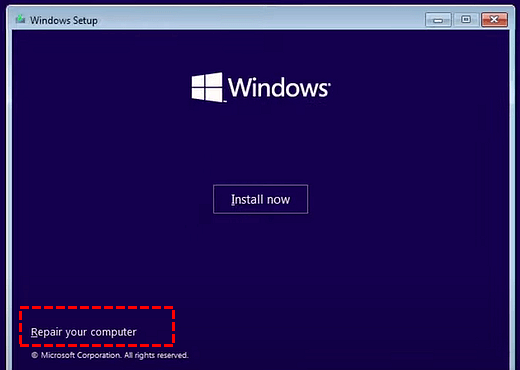
Step 5. Select Troubleshoot from the main menu. Navigate to Advanced options and select Startup Repair (or Automatic Repair).
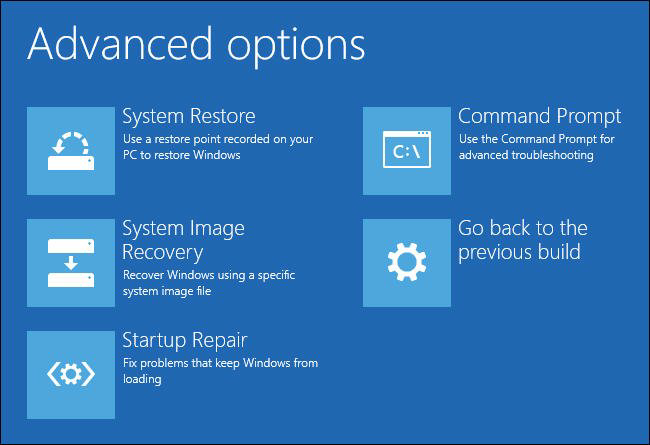
The system will then scan for configuration errors and missing boot files, attempting to restore your EFI bootloader automatically without further manual input.
Fix 3. How to change boot mode to UEFI for Windows 11
Even if your motherboard supports modern hardware, your system may be stuck in Legacy BIOS mode. Since Windows 11 requires UEFI to function correctly, you must switch modes to resolve boot failures.
Follow these steps to update your firmware settings:
Step 1. Open Settings (Win + I) and navigate to System > Recovery. Locate the Advanced startup section and click the Restart now button.
Step 2. Once the computer reboots into the blue recovery menu, select Troubleshoot > Advanced options > UEFI Firmware Settings.
Step 3. Click the Restart button to enter your motherboard's interface directly. Ensure the boot mode is set to UEFI (rather than Legacy or CSM), save your changes, and exit.
Your computer will now restart using the modern UEFI architecture required for Windows 11.
Fix 4. Convert from MBR to GPT with AOMEI Partition Software
Windows 11 requires the GPT (GUID Partition Table) architecture to function. If your drive currently uses the older MBR (Master Boot Record) style, you must convert it to ensure system stability and support.
While Windows includes native conversion tools, they typically require you to format the entire drive, resulting in total data loss. To bypass this, you can use professional third-party software like AOMEI Partition Software. This utility allows you to transition your partition style from MBR to GPT seamlessly while keeping all your files intact.
 AOMEI Partition Software
A safe and reliable disk partition management tool that helps you migrate OS to SSD or HDD, reorganize disk space, and improve overall PC performance.
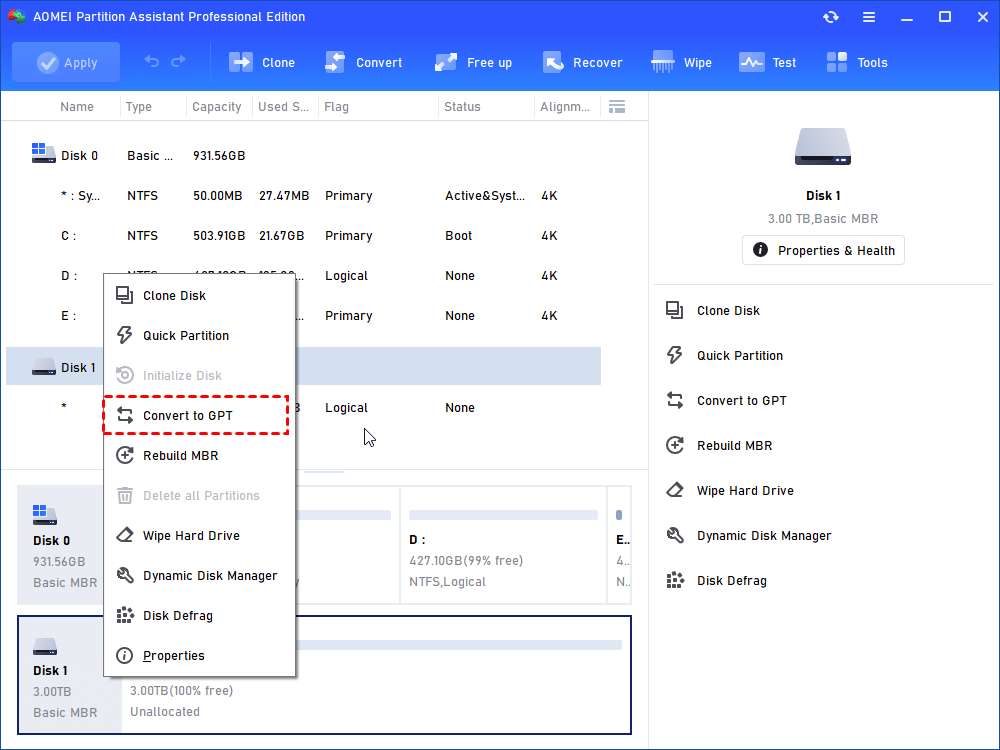
Step 1. Install and launch AOMEI Partition Software, it will show you the main interface containing the basic situation of your disk(s). Select the MBR disk you need to convert, right-click it, and select Convert to GPT in the pop-up menu.
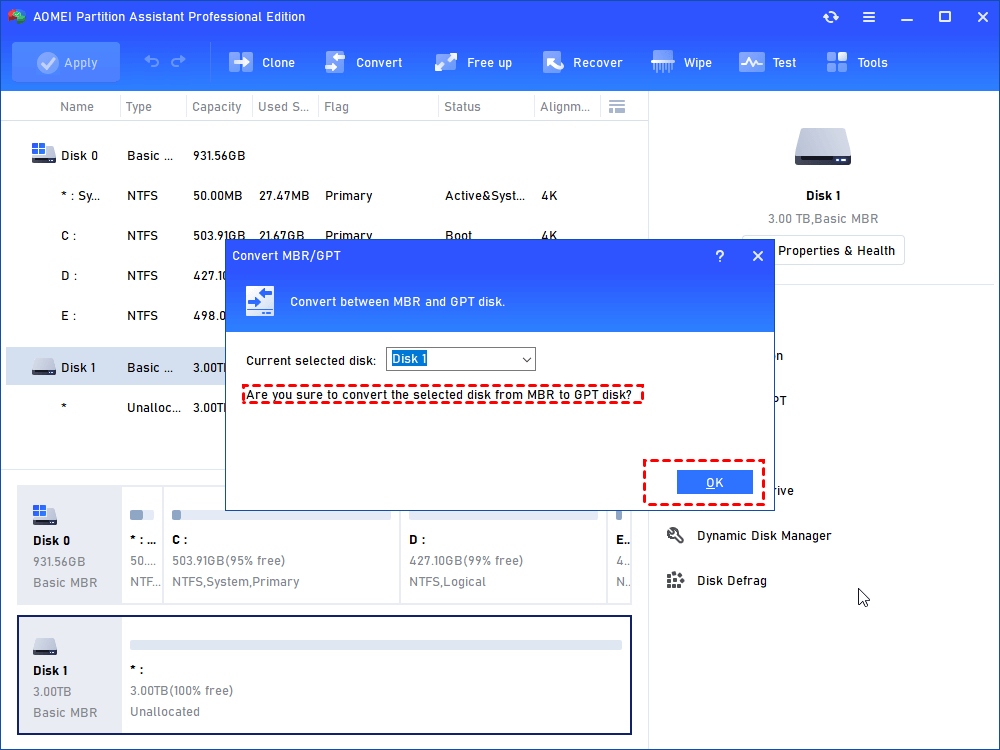
Step 2. It will confirm if you are sure to convert the MBR disk to a GPT disk. Click OK.
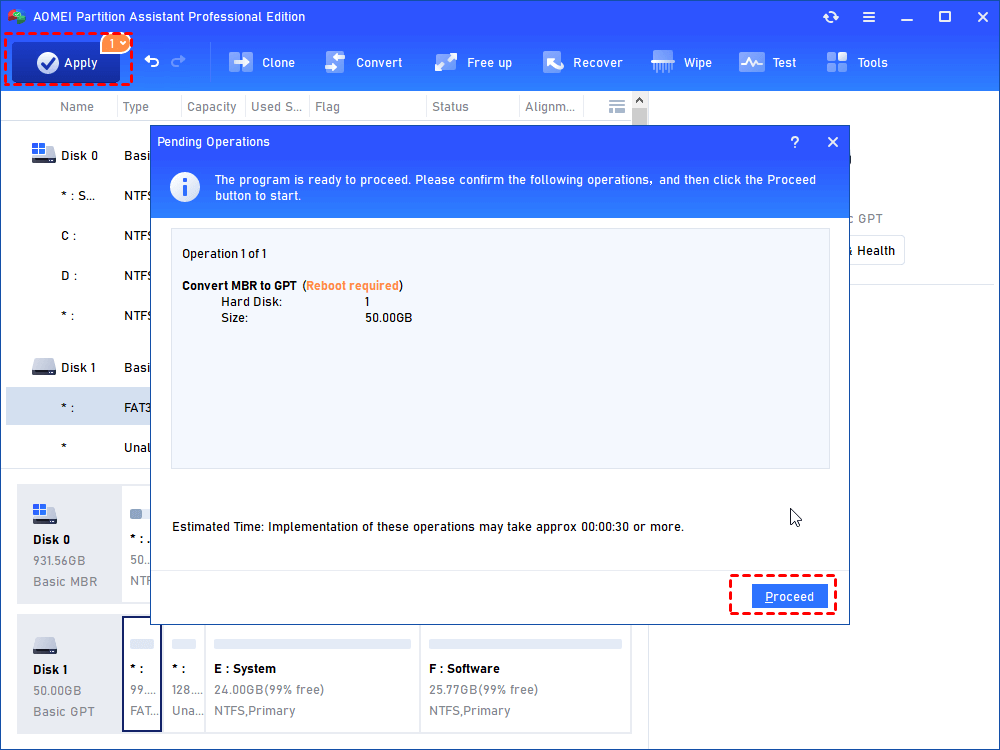
Step 3. You will go back to the main interface, and you can see that the disk has already changed into the GPT partition table, click Apply at the toolbar.
FAQs
🟠 What is the recovery environment?
The Recovery Environment is a dedicated companion OS that loads when Windows fails to start. It provides diagnostic and repair tools like Startup Repair, Command Prompt, and System Restore to fix underlying boot or system issues.
🟠 What is the boot partition on Windows?
The boot partition (often the EFI System Partition on modern PCs) contains the bootloader and files necessary to start Windows. It is distinct from the "system partition" where the actual Windows OS files reside.
🟠 How do I know if my bootloader in Windows 11 is corrupted?
You likely have a corrupted bootloader if your PC fails to reach the login screen, instead displaying errors like "BOOTMGR is missing", "0xc000000e", or if it continuously loops into the Automatic Repair screen.
🟠 Can I repair the bootloader in Windows 11 without reinstalling the operating system?
Yes, you can repair the bootloader without a full reinstall. By using a bootable USB and the Command Prompt, you can run commands like bootrec /fixmbr or bcdboot to rebuild the boot configuration data.
Conclusion
To resolve Windows 11 startup failures caused by corrupted UEFI bootloaders, you can utilize the Windows Recovery Environment for automated Startup Repair or manual Command Prompt fixes using diskpart and bcdboot. For persistent issues, ensure your firmware is set to UEFI mode and your drive uses the GPT partition style. These methods effectively restore system functionality and protect your personal data without requiring a full reinstallation.

 as a preferred
source on Google
as a preferred
source on Google