



Download Best Data Shredder Software for PC [Windows]
Need to remove sensitive files for safety? Want to destroy all data before selling your old laptop? Download the best data shredder software for Windows PCs on this page.

By Hedy Updated on May 29, 2026


Why need data shredder software?
When you delete a file on your computer or empty the Recycle Bin, the data isn't actually gone. Windows simply marks the space that file occupied as "available", essentially telling the system it’s okay to write new information over it. Until that new information is written, the old data remains physically on the drive and can be easily retrieved with basic recovery software.
A data shredder software for PC acts as a digital version of a physical paper shredder, ensuring that "deleted" truly means "unrecoverable".
Standard deletion removes the "pointer" to the file, but data shredding targets the actual binary code. It uses various algorithms to overwrite the file's sectors with random patterns of ones and zeros.
✍ Common sanitization methods include:
◆ Single pass: Overwrites the data once with zeros or random characters. This is usually sufficient for modern hard drives.
◆ DoD 5220.22-M: A standard used by the U.S. Department of Defense that involves three passes (zeros, ones, and a random pattern).
◆ Gutmann method: An intensive process that overwrites data 35 times, though this is generally considered overkill for modern hardware.
Reliable and powerful data shredder software for Windows PCs
When it comes to permanent data destruction, standard deletion or formatting simply isn't enough to protect your privacy. AOMEI Partition Software stands out as a reliable and powerful data erasing software for Windows, offering specialized tools to ensure that sensitive information is rendered completely unrecoverable.
Unlike basic Windows tools, AOMEI provides a comprehensive suite for both file-level shredding and full-drive wiping, catering to the distinct technical needs of HDDs and SSDs.
AOMEI Partition Software offers several layers of data destruction, ranging from quick wipes to military-grade sanitization:
📍 Shred files & folders: Target specific sensitive documents or folders and destroy them individually. This is ideal for cleaning up private data without affecting the rest of your drive.
📍 Wipe hard drive (HDD): For those disposing of or selling a computer, this feature overwrites every sector of the disk. It supports four industry-recognized wiping methods:
♦️ Fill with 0: A fast, standard overwrite with zeros.
♦️ Random data: Fills sectors with random bit patterns for higher security.
♦️ DoD 5220.22-M: A Department of Defense standard that overwrites data multiple times.
♦️ Gutmann: The most secure method, utilizing 35 passes to prevent any hope of recovery.
📍 SSD secure erase: Because SSDs use flash memory, traditional overwriting can reduce their lifespan. AOMEI includes a dedicated Secure Erase function that clears data without damaging the drive, even restoring the SSD to its peak factory performance.
Why choose AOMEI for data destruction?
✔️ Unrecoverable results: By utilizing advanced overwriting algorithms, AOMEI ensures that even the most sophisticated data recovery software cannot retrieve your shredded files.
✔️ User-friendly interface: Whether you are a technical professional or a home user, the software features intuitive "Wizards" that guide you through the wiping process step-by-step.
✔️ Broad compatibility: It fully supports Windows 11, 10, 8, and 7, and handles various partition styles including MBR and GPT.
✔️ All-in-one utility: Beyond shredding, it remains a powerhouse for partition management, allowing you to re-partition or format the drive immediately after it has been wiped clean.
How to use the data shredder software
After having a basic understanding of the great file/data shredder software, free download it and check out the detailed steps about how to use the software under different situations, including how to wipe a hard drive for reuse.
 AOMEI Partition Software
A safe and reliable disk partition management tool that helps you migrate OS to SSD or HDD, reorganize disk space, and improve overall PC performance.
Part 1. Use the software to shred a single file (individual multiple files)
This part is about how to erase only one file or individual multiple files without recovery from your hard disk drive, SD card, or USB pend drive on PC.
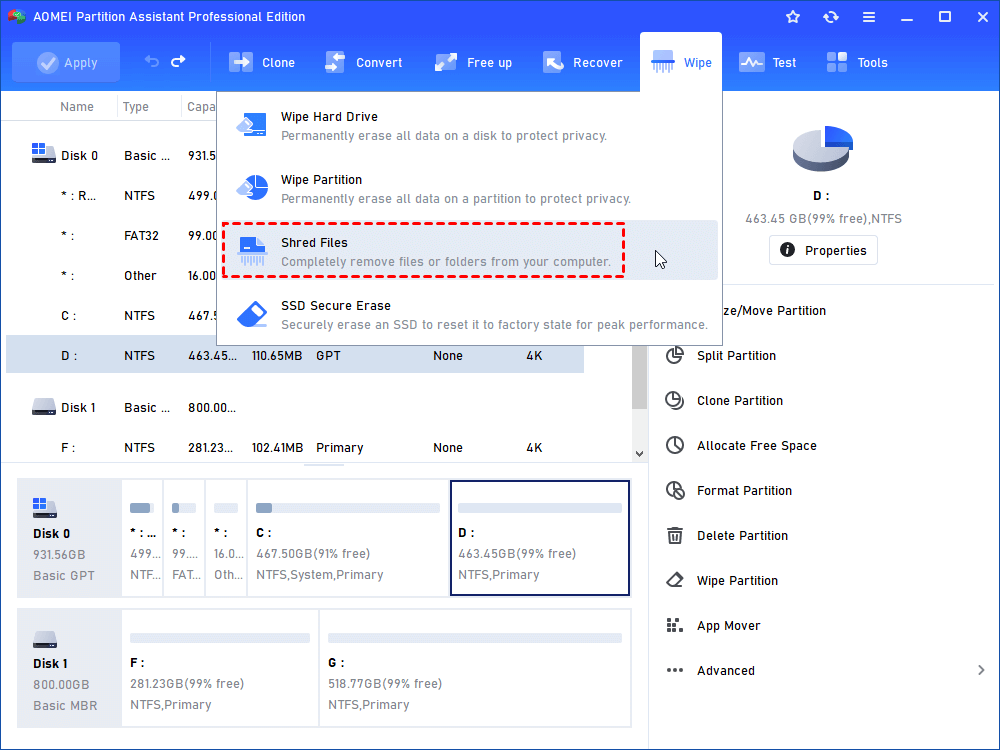
Step 1. Install and fire up the tool. In the home interface, go to “Wipe” > “Shred Files”.
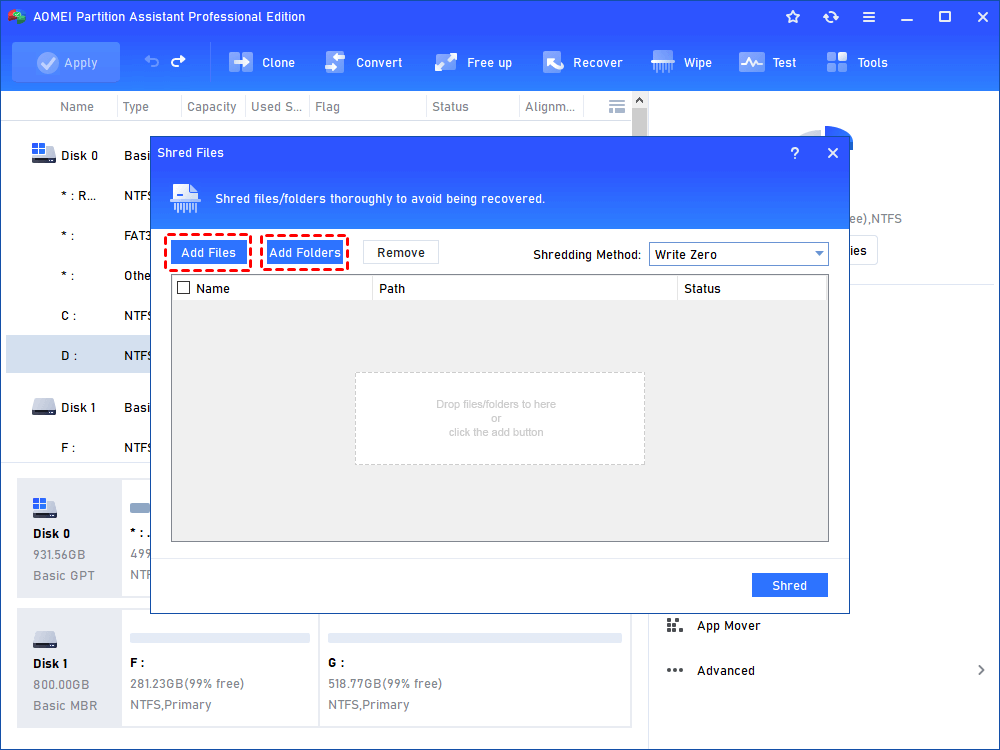
Step 2. In the pop-up window, add a file/ files or a folder (folders) that you want to shred.
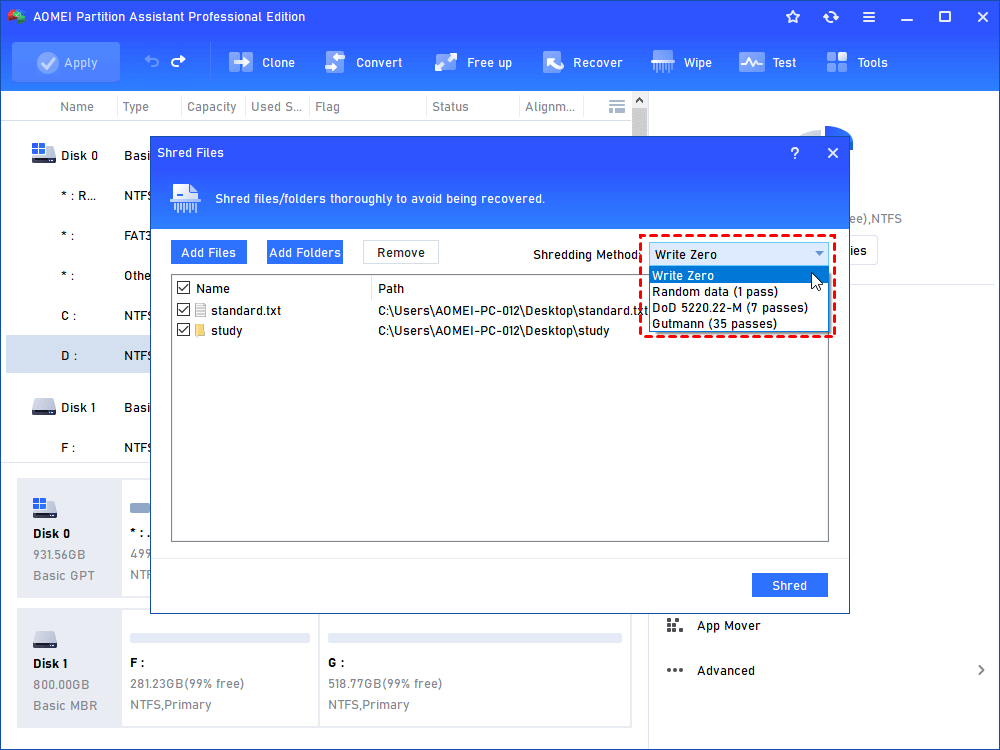
Step 3. Confirm all chosen files or folders. If there is a file that you don’t want to shred, untick it. Then, select “Write Zero” as the shredding method and click “Shred”.
Step 4. Click Yes to start the file shredding operation.
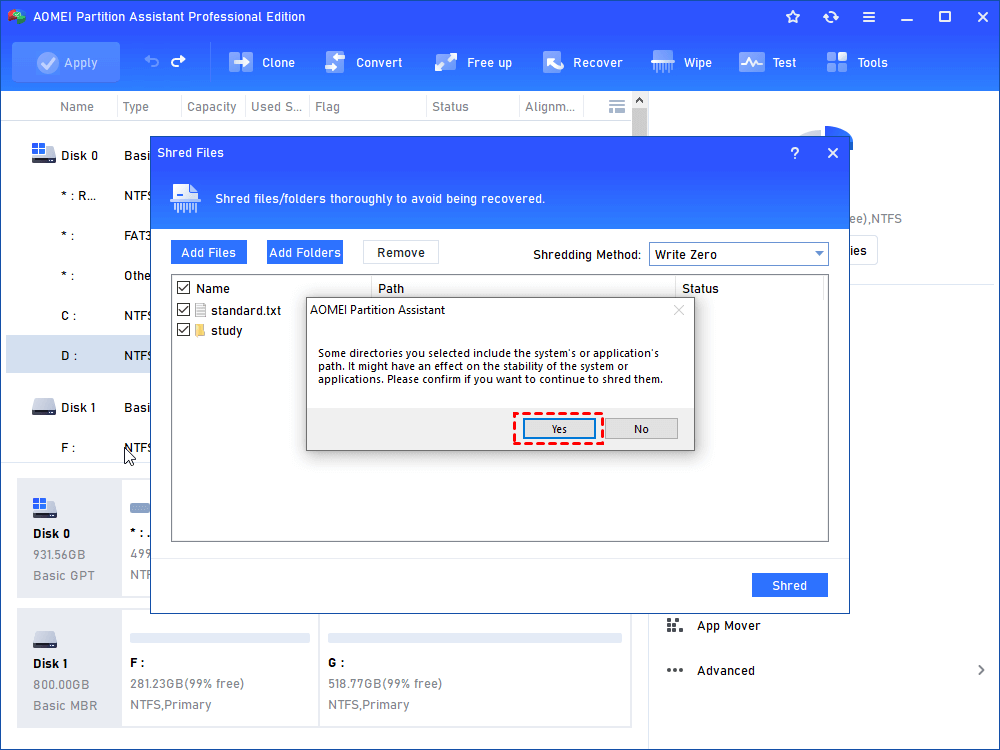
To delete a system file or file that is in use, you need to enter PreOS mode or WinPE mode to execute such an operation.
Part 2. Employ the application to erase all files and folders on a partition
This part tells how to permanently remove all data stored on a partition.
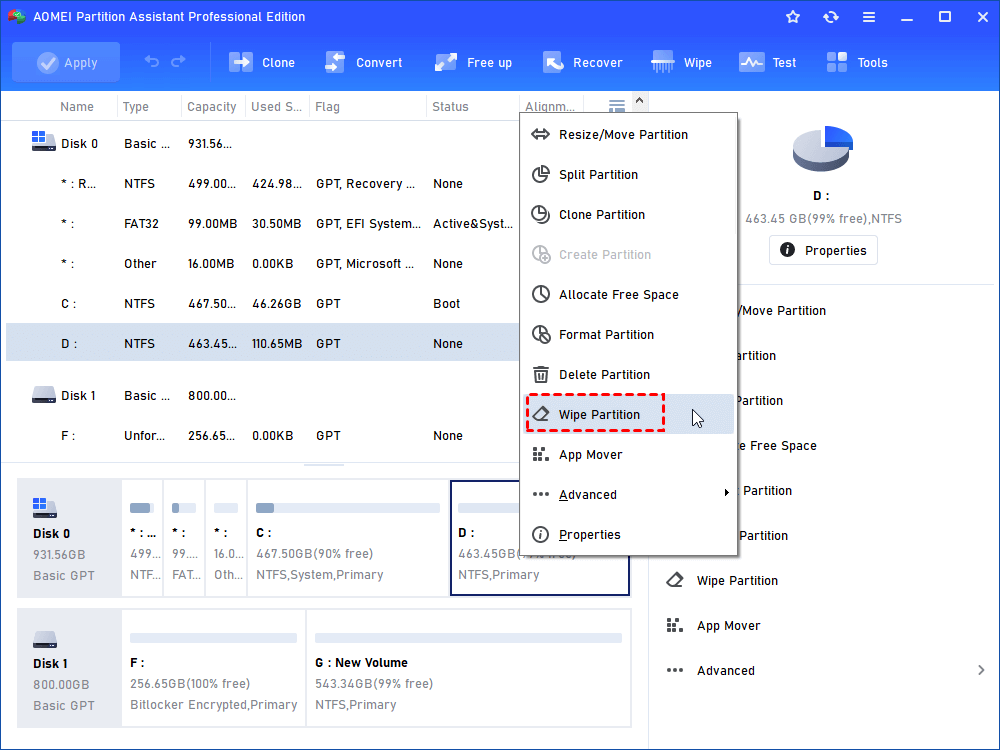
Step 1. Run the tool, click the “Wipe” main tab, and select the “Wipe Partition” option.
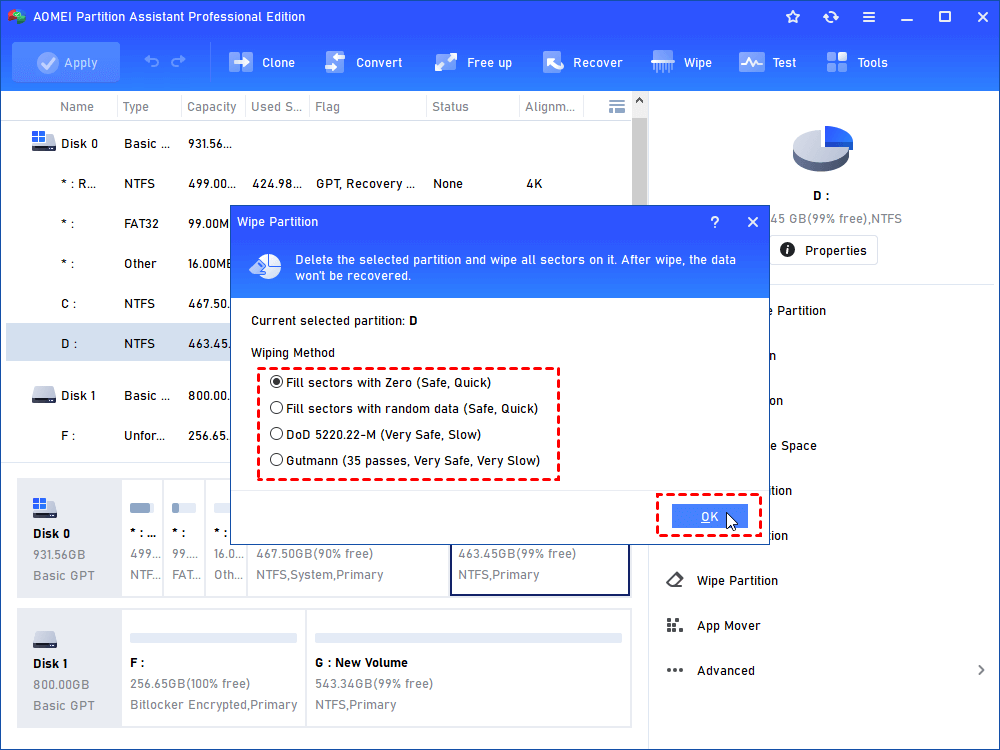
Step 2. Choose “Fill in 0” to overwrite the partition with zeros.
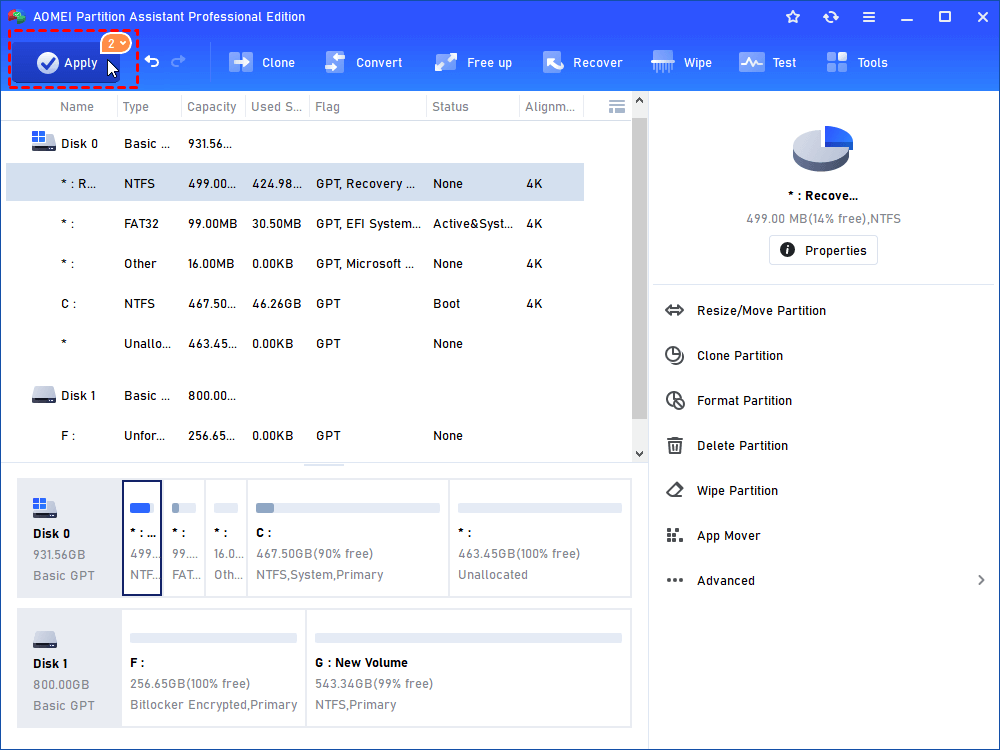
Step 3. Click "Apply" and “Proceed” to execute the operation.
Part 3. Use the program to wipe all files and folders on a hard disk drive
This part shows how to wipe all data on a hard disk drive.
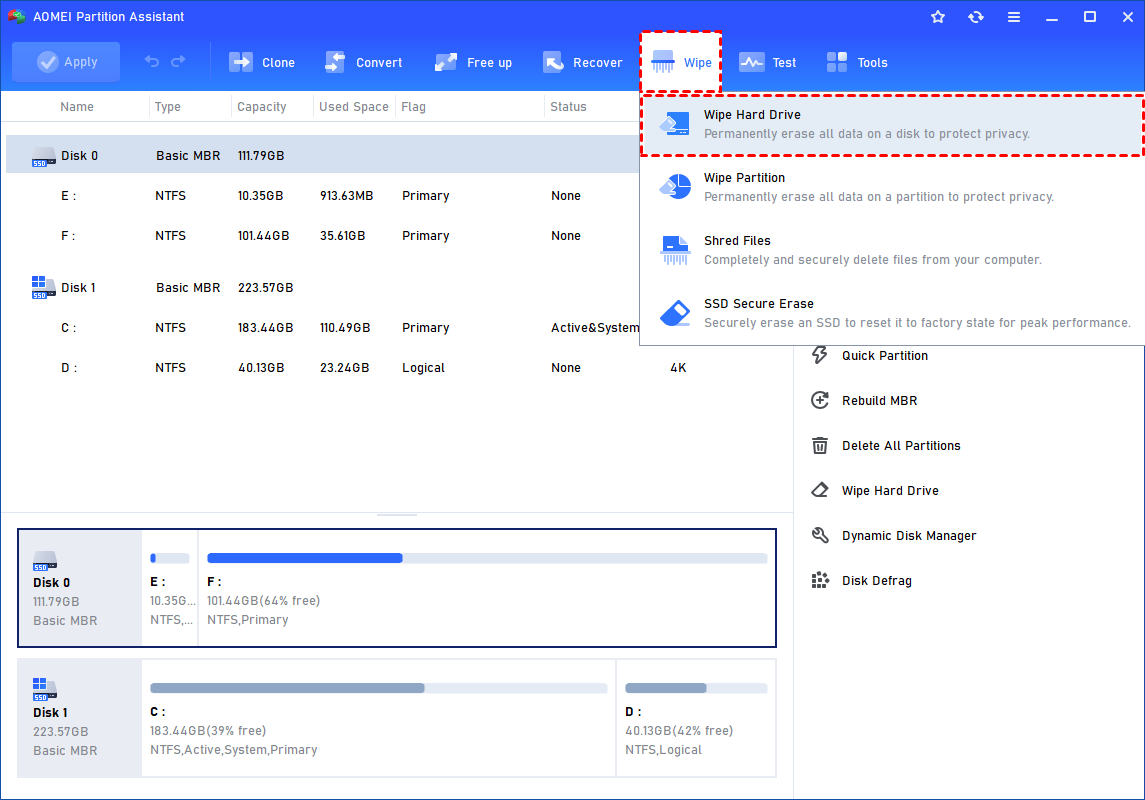
Step 1. Run the program. Choose the hard disk drive that you need to wipe and choose “Wipe Hard Drive”.
Step 2. Select the disk you want to wipe and click “OK“ to continue. By default, the wiping method is “Fill in 0“.
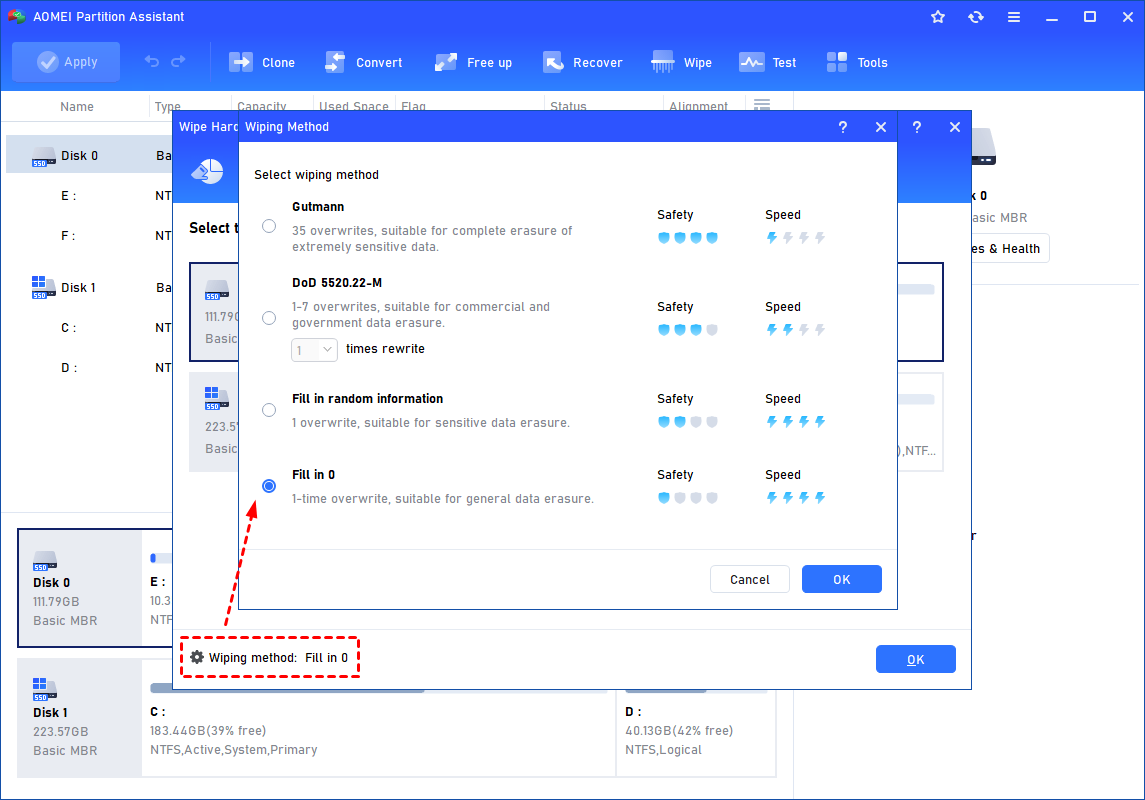
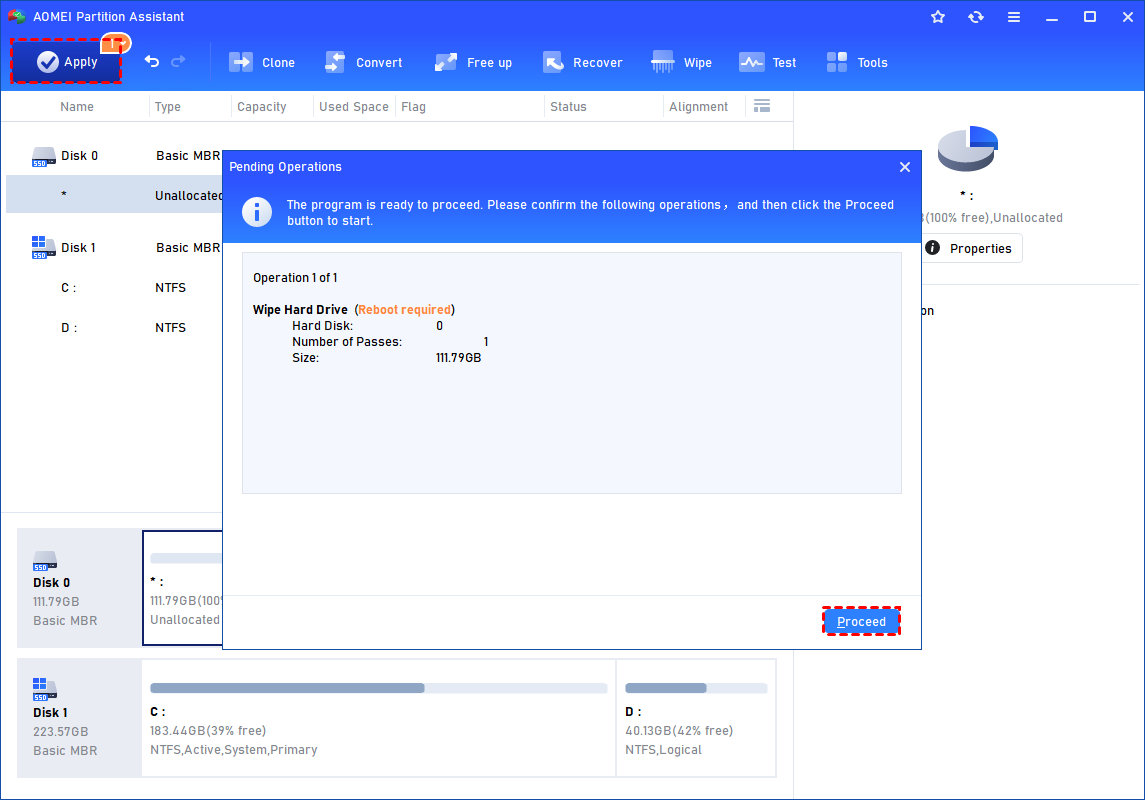
Step 3. Click "Apply" and “Proceed” to commit the operation.
FAQs
💡 Why isn't emptying the Recycle Bin enough to permanently delete my files?
When you empty the bin, Windows simply marks the file's space as "available" rather than erasing it. The actual data remains on the platter until new information overwrites it.
💡 What is the difference between "Fill with 0" and the "Gutmann" method?
"Fill with 0" (Single Pass) replaces data with zeros once, making it fast. The "Gutmann" method is an exhaustive 35-pass process designed to thwart sophisticated forensic recovery on older hardware.
💡 Can I use the same shredding method for both HDDs and SSDs?
No. HDDs use physical overwriting, while SSDs use flash memory with "wear leveling." Standard shredding is ineffective and shortens SSD life; use the manufacturer's ATA Secure Erase command instead.
💡 How do I shred a file that is currently being used by the system?
Files in use are locked by the kernel. To shred them, you must close the associated process via Task Manager, boot into Safe Mode, or use a "bootable" shredding tool.
Conclusion
Standard deletion only removes file pointers, leaving data recoverable. To ensure privacy, AOMEI Partition Software offers professional data shredding by overwriting binary code using various algorithms like DoD 5220.22-M or Gutmann. It provides specialized tools for file-level shredding, full-drive wiping for HDDs, and Secure Erase for SSDs, providing a user-friendly way to make sensitive information permanently unrecoverable on Windows PCs.

 as a preferred
source on Google
as a preferred
source on Google