




How to Fix a Computer Stuck on Restarting: 6 Simple Solutions
A computer stuck in a restart loop is a common problem. This article explains the causes, like software updates or hardware conflicts, and offers polite, straightforward solutions to help resolve the problem.

By Irene Updated on June 3, 2026


📢 Quick Overview: Fix Windows Stuck Restarting
This guide provides a structured approach to resolving a PC stuck on the "Restarting" screen, covering everything from basic software fixes to advanced disk recovery.
✔️ Troubleshooting Steps
-
Access Safe Mode: Instructions on entering the Windows Recovery Environment (WinRE) when the PC cannot boot normally.
-
System Repairs: How to run SFC scans to fix corrupted files and use Windows Memory Diagnostic to test for RAM failure.
-
Driver & Storage Management: Steps to update hardware drivers and clear disk space to prevent system freezes.
-
Advanced Boot Recovery: Using AOMEI Partition Software to create bootable media, run boot repair, and fix partitions when standard recovery fails.
🧐 Common Causes
The article identifies key triggers such as failed Windows updates, driver conflicts, corrupted system files, and faulty external hardware. By following this manual, users can identify the root cause and restore their system to a stable state.
How to fix computer stuck on restarting?
Because your PC can’t boot as usual, we need to enable Safe Mode to enter the Windows. So in this part, we’ll show how to enable Safe Mode first, then you can learn some solutions that need Safe Mode. After these, we’ll show methods that don’t require Safe Mode.
Prerequisite: Enable Safe Mode
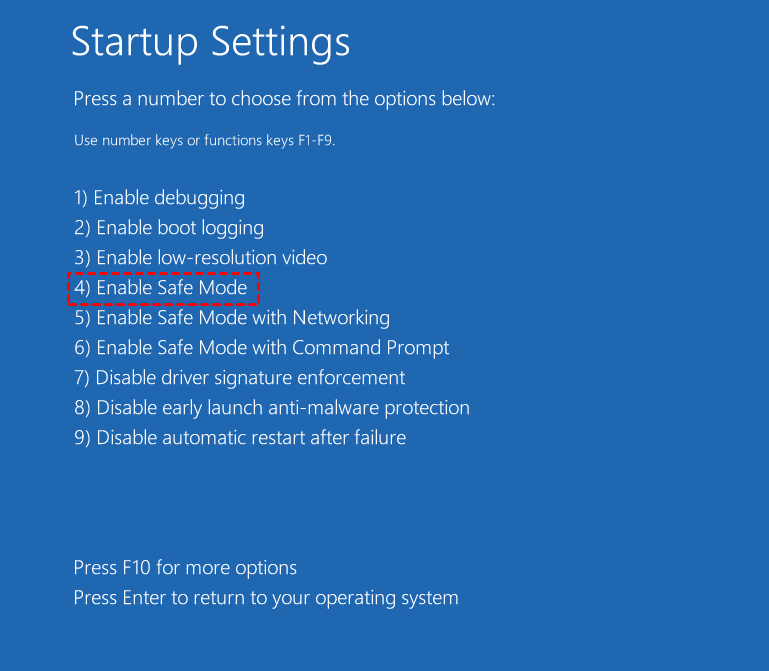
If your computer stuck on restarting cannot boot normally, forcing several shutdowns helps Windows enter the Recovery Environment automatically. This is necessary because WinRE provides access to Safe Mode and repair tools that can diagnose startup problems, corrupted system files, or faulty drivers causing the endless restart loop. So before fixing, please enable Safe Mode with the following steps first.
Step 1. Press the power button for 10 seconds to turn off Windows computer.
Step 2. Re-press the power button to start the PC and hold the power button for 10 seconds to turn off it.
Step 3. Press the power button again to turn on the computer, once Windows starts, hold the Power button again for 10 seconds to turn it off.
Step 4. Retry to power on your computer until Windows fully restarts and enters WinRE (Windows Recovery Environment).
Step 5. Click "Troubleshoot">"Advanced options">"Startup Settings">"Restart”
Way 1. Run SFC scan
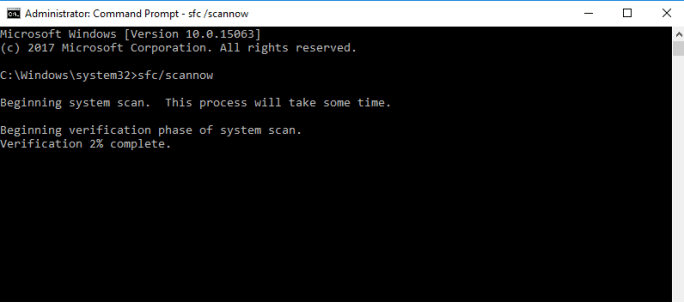
If your PC stuck on restart screen is caused by damaged or missing system files, running the SFC scan can help repair them automatically. Since Windows relies on these files to boot and restart correctly, fixing corrupted files may stop the endless restarting issue and restore normal system performance.
Step 1. Type Command Prompt in the Windows search box, then right-click on Command Prompt, then select Run as administrator.
Step 2. Enter “sfc /scannow” in the Command Prompt window, and hit Enter.
Step 3. The SFC scan will start now and may take some time to complete. Once the SFC scan is finished, restart your computer to check if Windows keeps freezing on the startup problem that has been solved.
Way 2. Test RAM
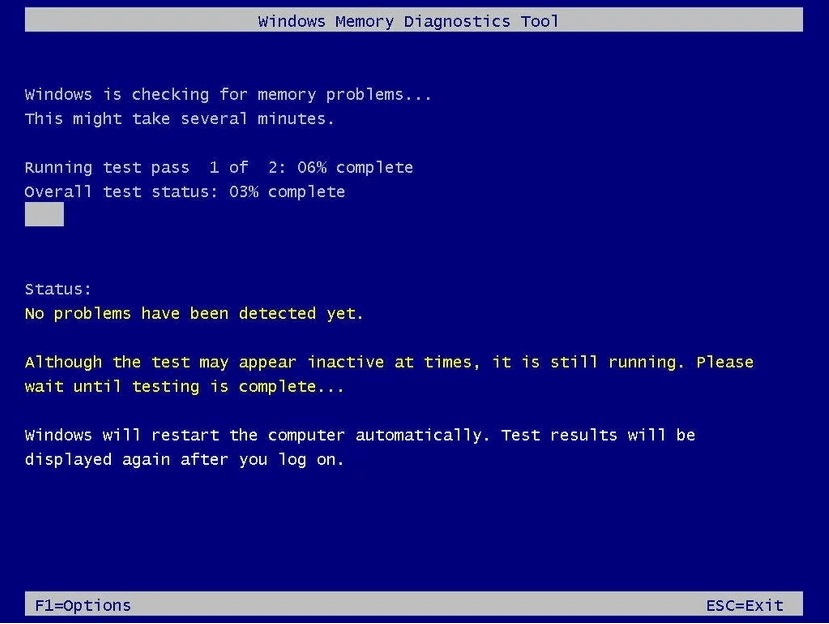
To check whether insufficient or faulty memory is causing the computer stuck restarting problem, you can use Windows Memory Diagnostic. This built in tool scans the RAM for errors because damaged memory can interrupt system processes, trigger crashes, and prevent Windows from completing the restart process normally.
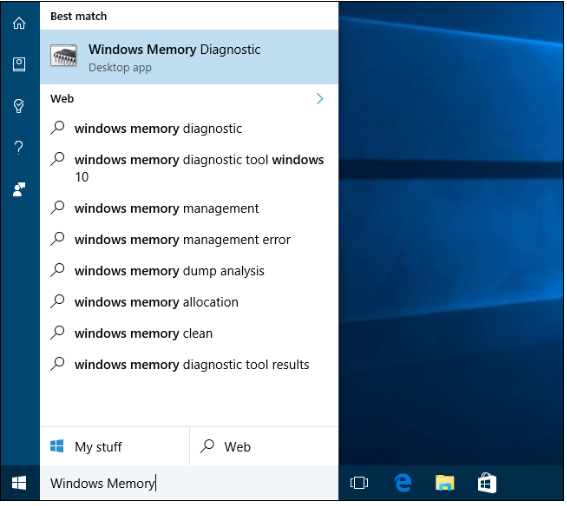
Step 1. Type Memory in the Windows search box and select Windows Memory Diagnostic from the list of results.
Step 2. In the Windows Memory Diagnostic window, select Restart now and check for problems (Recommended).
Step 3. PC will restart and start testing RAM automatically. The test may take some time to finish.
Way 3. Free up disk space
If your computer stuck in restart issue is caused by insufficient disk space, simply deleting files may not always solve the problem. In many cases, the system partition does not have enough free capacity for Windows updates, temporary files, or startup processes, which can prevent the computer from restarting normally. When the built in cleanup methods fail to release enough storage, using a professional partition management tool can be a more effective solution.
AOMEI Partition Software provides an easier way to manage disk space and repair boot related issues. One useful feature is the ability to create a bootable repair USB drive, allowing you to access the software even when Windows cannot load successfully. This is especially helpful when the PC is trapped in a continuous restart loop.
After booting into the AOMEI environment, you can extend the C drive without reinstalling Windows. The “Allocate Free Space” feature lets you transfer unused space from another partition directly to the system drive. By increasing available storage on the C drive, Windows can regain enough working space to complete updates, load system files correctly, and exit the restarting problem more smoothly.
First, we make a bootable media. The steps are very easy. You need to download this tool on a working PC, and finish the steps.
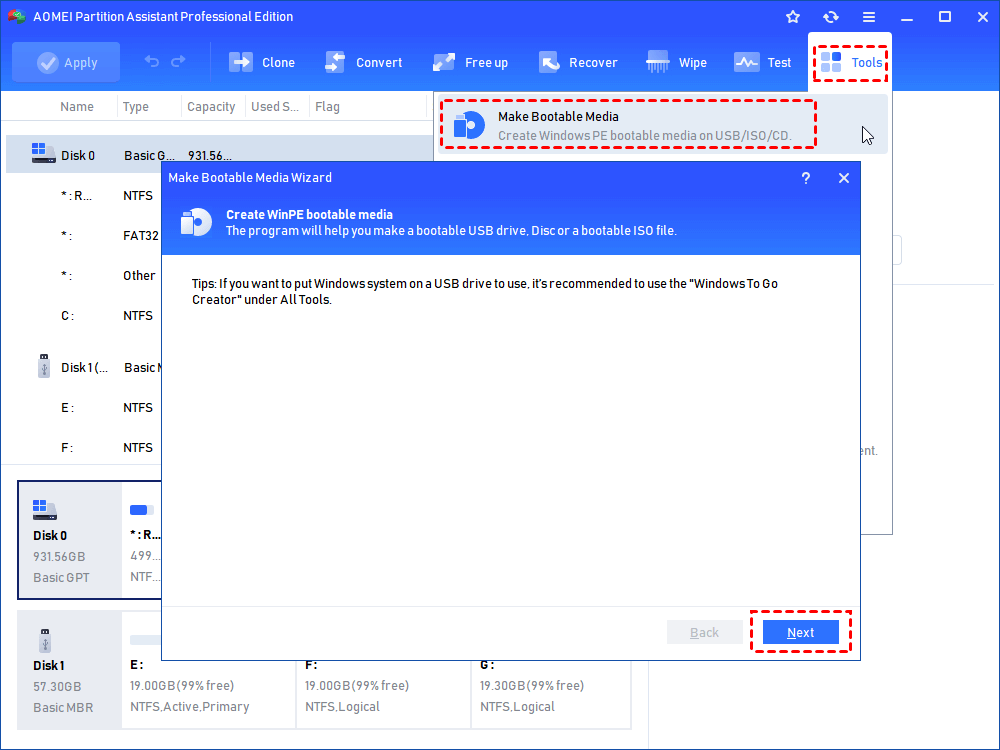
Step 1. Open AOMEI Partition Software on a working PC. On the main interface, click "Make Bootable Media" under "Tools". And click "Next".
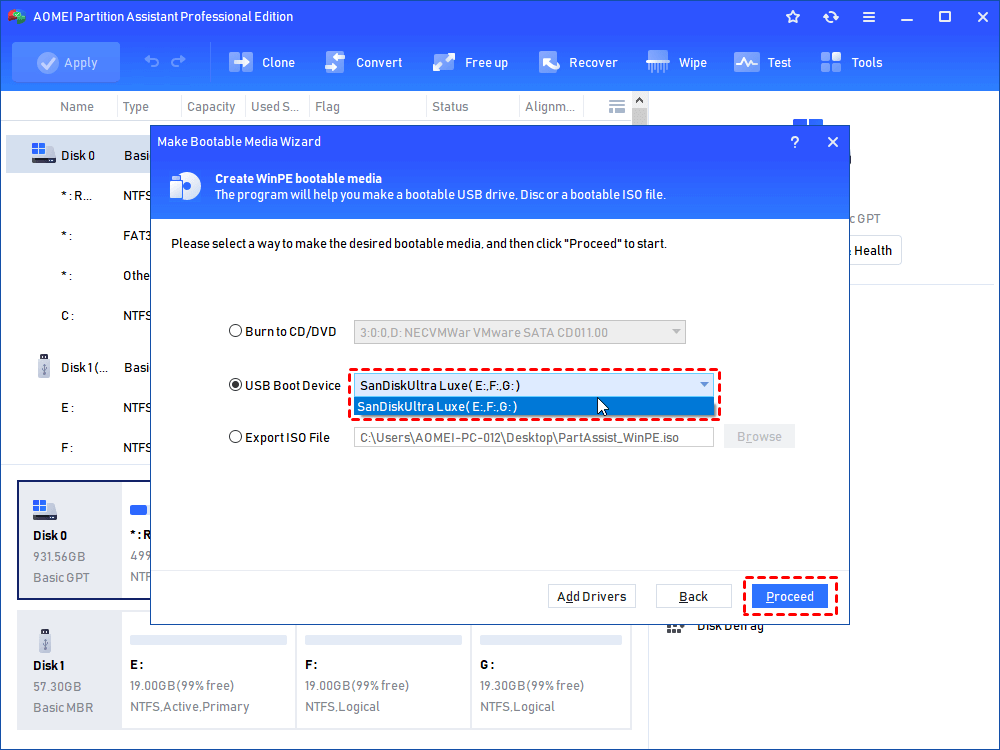
Step 2. Select "Burn to CD/DVD" or "USB Boot Device" according to the media you inserted. Then click "Proceed".
Step 3. There is a message that your USB drive will be formatted. Back up the information you need, and click "Yes" to continue.
Now we can use this tool. Plug this USB into the problem PC, boot your PC, and enter BIOS to change the boot order to this USB. After your PC boot from this USB, you’ll see the main window of this tool.
Here we use “Allocate Free Space” as an example. This function can directly add free space from one partition to another.
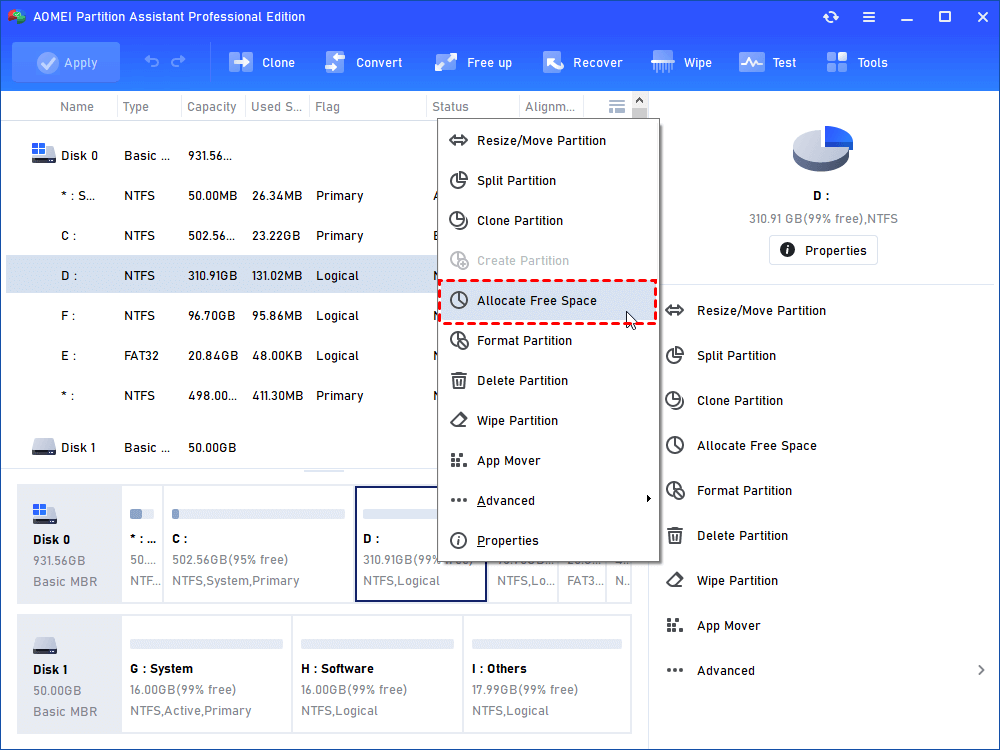
Step 1. Choose a partition that has enough free space. Right-click it and select the button "Allocate Free Space".
Step 2. Choose the size and destination drive you want.
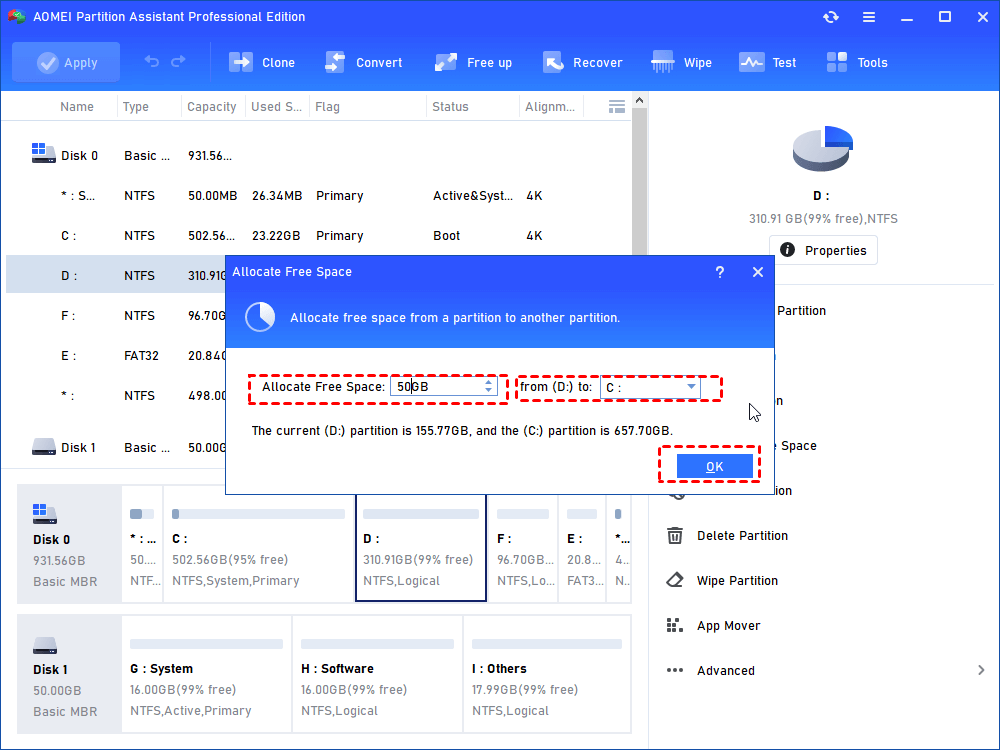
Step 3. Please select “Apply” and "Proceed" to commit.
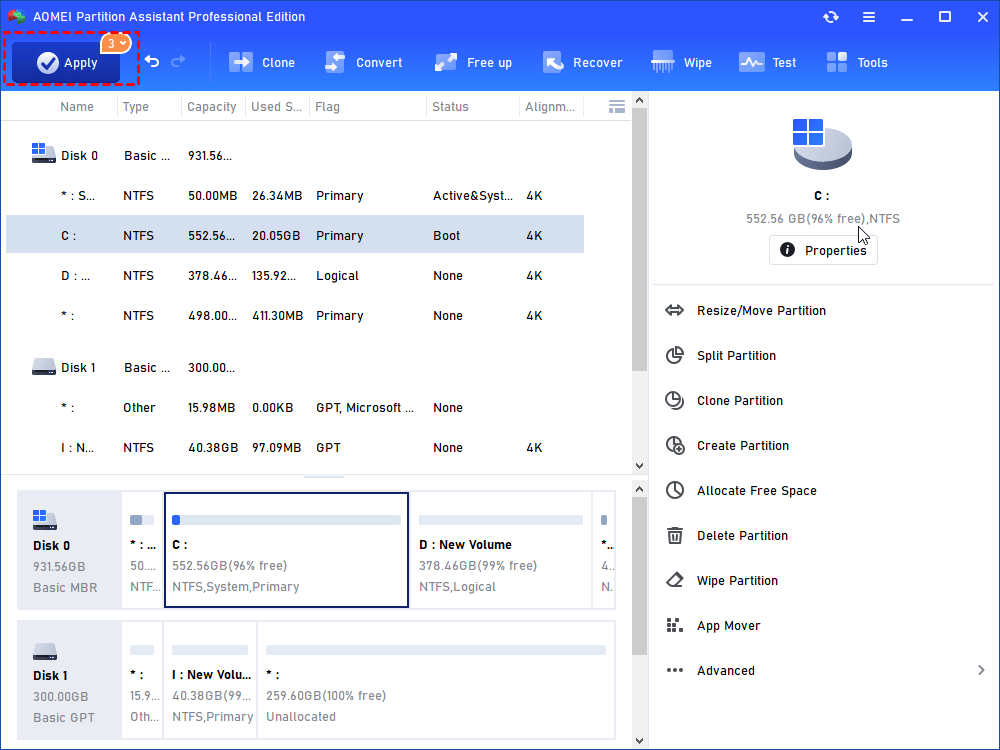
Just in a few minutes, you can allocate free space without data loss on your C drive.
Way 5. Update the drivers
To update outdated or incompatible drivers that may cause the computer stuck on restarting problem, you can use Device Manager. This built in Windows utility allows you to check hardware status and install newer drivers. Updating drivers is important because corrupted or incompatible drivers can interrupt system communication and prevent Windows from restarting properly.
Step 1. Type Device Manager in the Windows search box and select it from the list of results.
Step 2. In the Device Manager window, expand the device category you want to update the driver for.
Step 3. Right-click on the device, and select “Update Driver Software” from the menu.
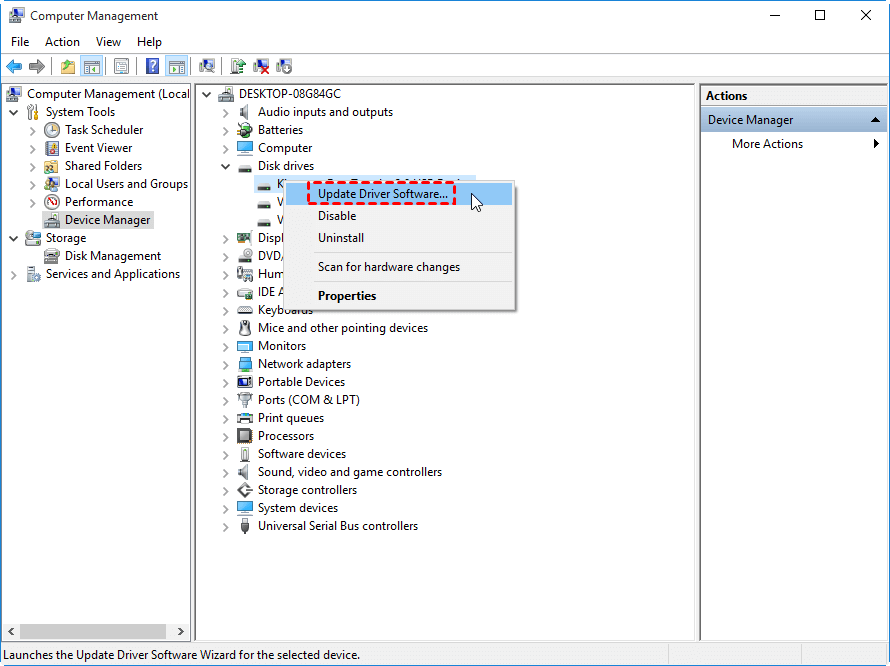
Step 4. In the next window, select Search automatically for updated driver software to let Windows download and install the latest drivers automatically.
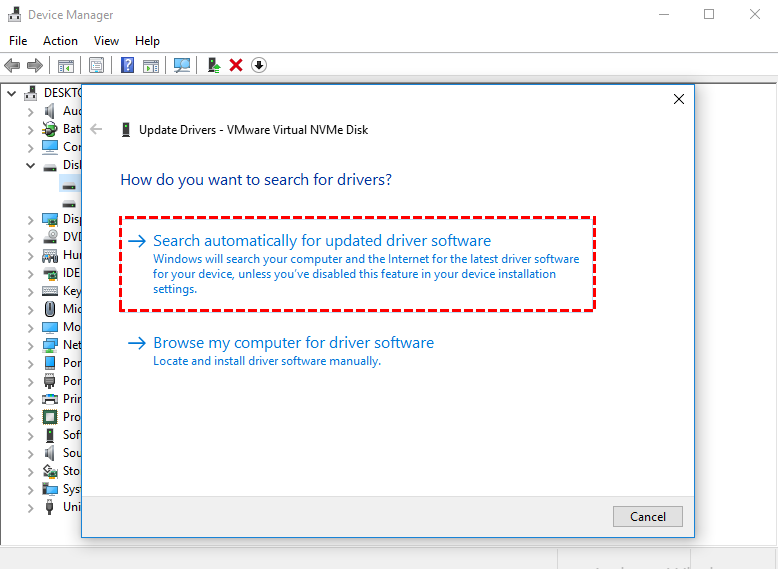
Now, the methods that need you to operate in the Safe Mode are finished. From here, we’ll use other ways to fix the computer keeping freezing issue.
Way 6. Perform a boot repair
For severe startup problems, especially when the MBR or BCD is corrupted, using a professional repair tool can be very effective. This is helpful when a computer stuck restarting issue cannot be fixed through normal recovery methods.
AOMEI Partition Software is an advanced disk and partition management tool for Windows. Besides partition management, it also supports OS migration, disk cloning, and boot recovery. The software allows users to create a bootable USB drive, which is useful when the system cannot enter Windows normally.
Its “Boot Repair” feature can scan and repair damaged boot records, missing boot files, and other startup errors. By rebuilding critical boot information, it helps Windows load correctly and resolves endless restarting loops more effectively.
Preparation: You will need access to another working Windows computer and a blank USB drive.
Step 1. Launch the software, click "Recover" and choose "Boot Repair".
.png)
You can click the "create a bootable disk" option to create a WinPE "Boot Repair" disk. If you have created one before, you can directly use it.
.png)
Step 2. Boot the PC that cannot boot into WinPE. It will automatically load the Boot Repair tool and start the boot entries scan process. All boot entries will be displayed.
.png)
Step 3. Select the repairable boot entries you want to repair and click the "Repair" button to start the repair.
.png)
Step 4. Once the repair is repaired successfully, you can remove the bootable disk and boot the PC from the original system drive.
.png)
Once the process is complete, remove the USB drive, restart your laptop, and it should now boot past the restarting screen and load into Windows successfully.
Why is my PC stuck on restarting PC?
If your computer gets stuck on the “Restarting” screen and never finishes rebooting, it usually means Windows cannot properly complete the shutdown and startup process. This issue may happen after a Windows update, driver installation, BIOS change, or system crash. In some cases, corrupted system files, faulty hardware, or connected external devices can also interrupt the restart process. When this happens, your PC may keep looping on the restarting screen for minutes or even hours without loading the desktop.
| Possible Cause | Explanation |
|---|---|
| Corrupted system files | Damaged Windows files can stop the restart process from completing normally. |
| Windows update errors | Incomplete or failed Windows updates may cause Windows to freeze during reboot. |
| Faulty drivers | Outdated or incompatible drivers can interfere with startup services. |
| Connected external devices | USB drives, printers, or external disks may create boot conflicts. |
| Fast Startup problems | The Fast Startup feature can sometimes prevent Windows from restarting correctly. |
| Disk errors or bad sectors | Problems on the hard drive or SSD may block system files from loading. |
| BIOS or firmware issues | Incorrect BIOS settings or outdated firmware can affect restarting behavior. |
| Hardware failures | Faulty RAM, overheating, or failing storage devices may freeze the system. |
In many situations, the problem can be fixed by force restarting the computer, disconnecting peripherals, entering Safe Mode, running Startup Repair, or checking the disk for errors. If the issue is related to partition problems or damaged boot files, tools like AOMEI Partition Software can also help repair disks, rebuild MBR, and manage partitions more easily.
Conclusion
In conclusion, a computer stuck on restarting is usually caused by system file corruption, update failures, driver conflicts, disk errors, or hardware problems. Fortunately, you can often fix the issue by entering Safe Mode, running tools like SFC and Windows Memory Diagnostic, updating drivers, freeing up disk space, or performing Startup Repair. For more serious boot problems, professional tools such as AOMEI Partition Software can help repair boot files, repair MBR, and manage partitions even when Windows cannot start normally. By following the methods above step by step, you can restore your PC to a stable working condition and prevent future restarting loops.
FAQs
🗨️ Why is my PC stuck on the restarting screen?
Your PC may get stuck on the restarting screen because of corrupted system files, failed Windows updates, faulty drivers, disk errors, or hardware issues. External devices and incorrect BIOS settings can also interrupt the normal restart process and cause Windows to freeze during boot.
🗨️ What to do if stuck on restarting screen?
First, force shut down the computer by holding the power button for several seconds. Disconnect unnecessary external devices and restart the PC again. If the issue continues, enter Safe Mode to run tools like SFC, Startup Repair, or Windows Memory Diagnostic. You can also use AOMEI Partition Software to repair boot issues and manage partitions when Windows cannot boot normally.
🗨️ Can a virus cause a restart loop?
Yes, malware or viruses can damage system files, interfere with Windows startup services, and trigger continuous restart loops. Running a full antivirus scan in Safe Mode can help detect and remove malicious software.
🗨️ Can bad RAM cause restarts?
Yes, faulty RAM can cause random crashes, freezing, and restart loops because Windows relies on memory to load system processes correctly. You can test RAM using the built in Windows Memory Diagnostic tool.
🗨️ Should I turn off my PC if it's stuck restarting?
If your computer has been stuck restarting for a long time with no progress, it is generally safe to force shut it down by holding the power button. However, avoid interrupting the process repeatedly because it may increase the risk of file corruption or update failures.

 as a preferred
source on Google
as a preferred
source on Google