



Full Guide: Green Screen of Death Solved Here!
Green Screen of Death (GSOD) is a stop error that causes the system to crash and display a green screen. Follow this guide to get six effective methods to resolve this annoying issue.

By Hedy Updated on May 29, 2026


If your PC has suddenly decided to go "emerald" on you, you’re likely dealing with anything from a minor driver hiccup to a physical hardware breakdown. Whether it's a cracked display, a dying GPU, or just a cable that’s lost its grip, hardware issues usually require a physical replacement.
However, if the problem is rooted in your software or settings, there's a good chance you can fix it yourself. This guide explores the common culprits behind the Green Screen of Death (GSoD) on Windows 10 and 11, offering six proven, step-by-step solutions to get your display back to normal.
How to fix green screen of death error
Fix 1. Use boot repair tool
The most efficient solution for resolving the Windows Green Screen of Death is AOMEI Partition Software. Its dedicated Boot Repair feature is engineered to fix a wide array of startup failures, providing a streamlined, user-friendly experience for Windows recovery.
🚩 The Boot Repair module effectively resolves:
✔️ Startup failures: Revives systems that refuse to boot.
✔️ Display errors: Fixes Green, Blue, Black, and White screens.
✔️ System stability: Resolves persistent freezes and boot loops.
 AOMEI Partition Software
A safe and reliable disk partition management tool that helps you migrate OS to SSD or HDD, reorganize disk space, and improve overall PC performance.
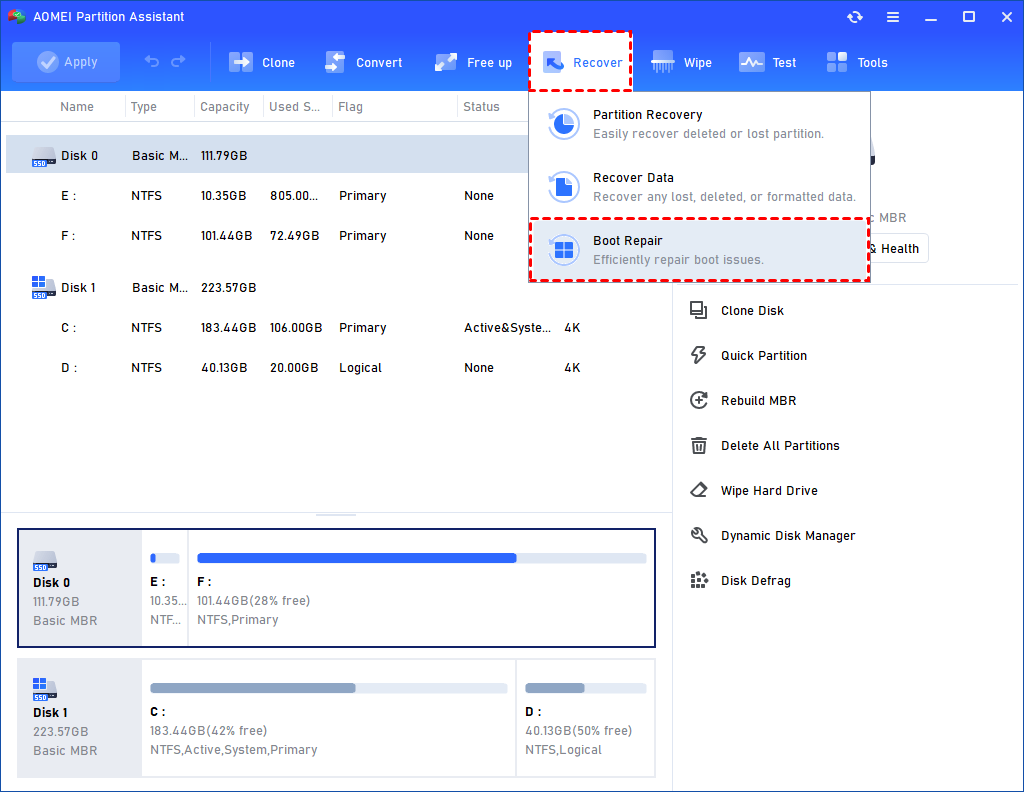
Step 1. Install and launch AOMEI Partition Software. In the Main Tab, please click the "Recover" tab and select "Boot Repair".
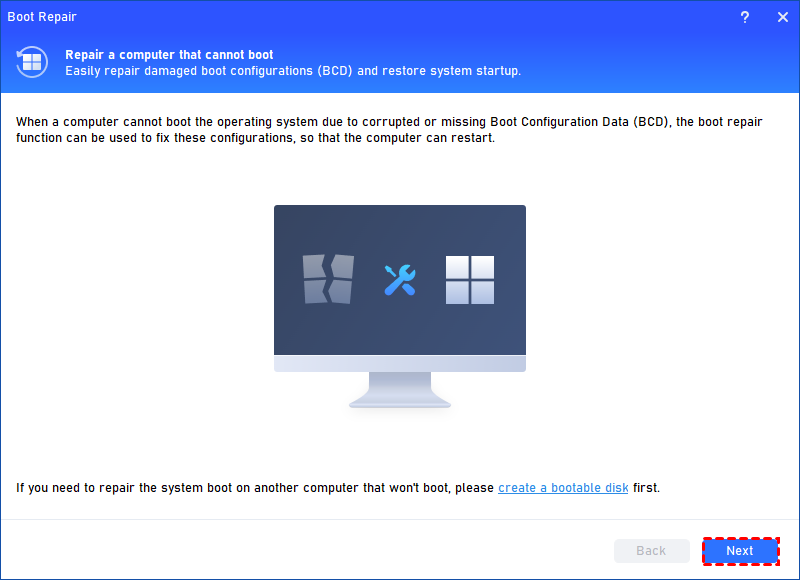
Step 2. The Boot Repair tool will pop up. Please click "Next" to start the system’s boot entries scan process.
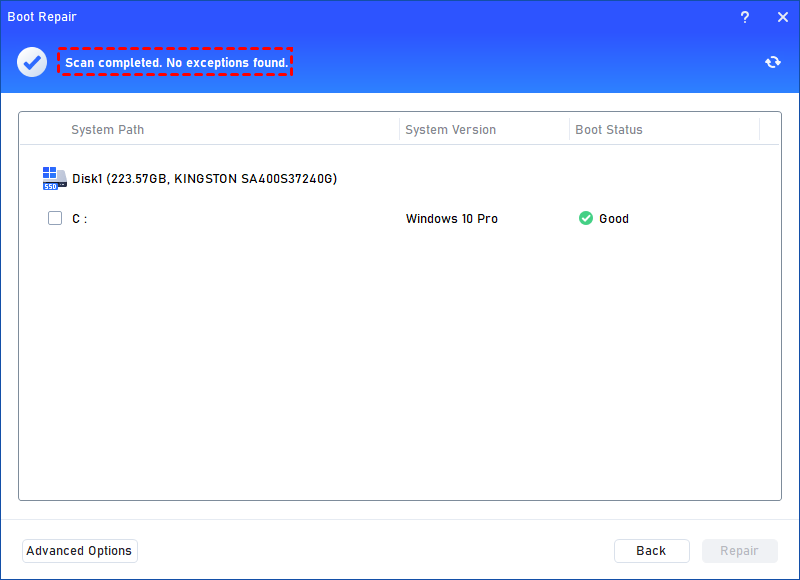
Step 3. After the process is completed, it will display the scan result: system paths, system versions, and boot status. And, all repairable boot entries will be available to select.
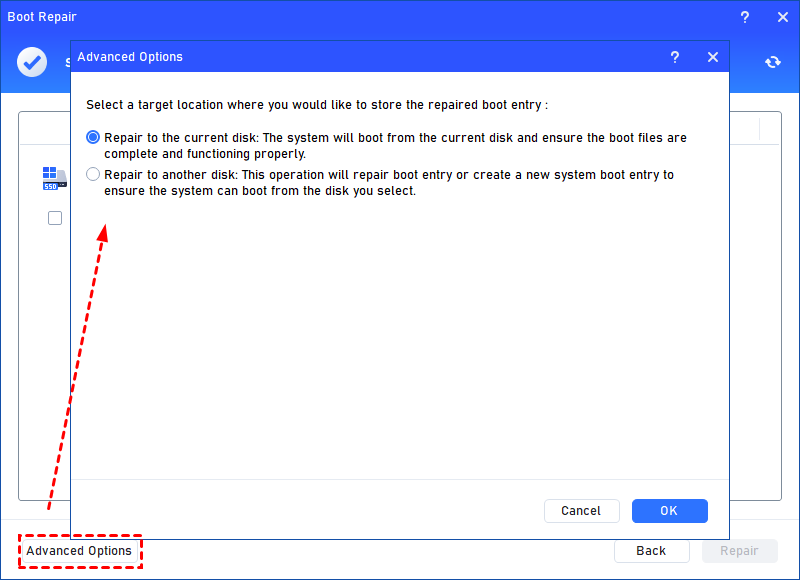
Advanced Settings: Select a location to store the repaired boot entry.
◆ Repair to the current disk: The system will boot from the current disk and ensure the boot files are complete and functioning properly. (By default)
◆ Repair to another disk: This operation will repair the boot entry or create a new system boot entry to ensure the system can boot from the disk you select.
Step 4. Select one/multiple repairable boot entries you want to repair and click the "Repair" button to start the boot repair.
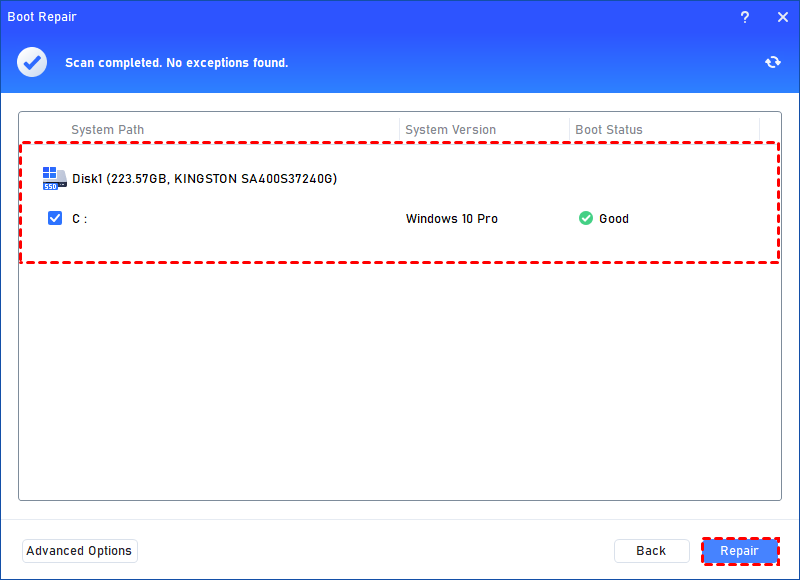
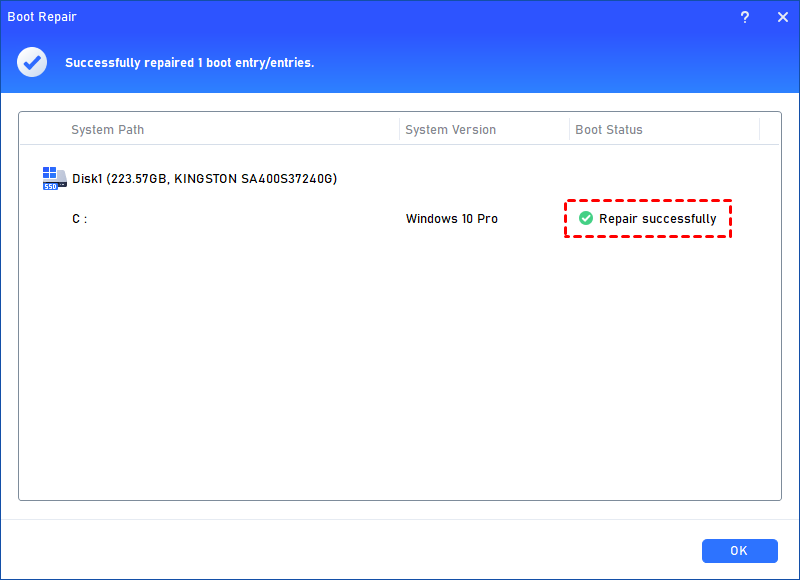
Step 5. Wait for the repair process to finish. Once it is finished, you can check the repair result. If it succeeds, you will get a "Repair Successfully" result.
Fix 2. Update graphics driver
Outdated or corrupted graphics drivers are a frequent culprit behind the Windows Green Screen of Death (GSOD). To resolve this, you can manually update your drivers through the following steps:
Step 1. Press Windows + X and select Device Manager from the list.
Step 2. Expand the Display adapters section, right-click your graphics card, and choose Update driver.
Step 3. Click Search automatically for drivers. Windows will then locate and install the most compatible software for your system.
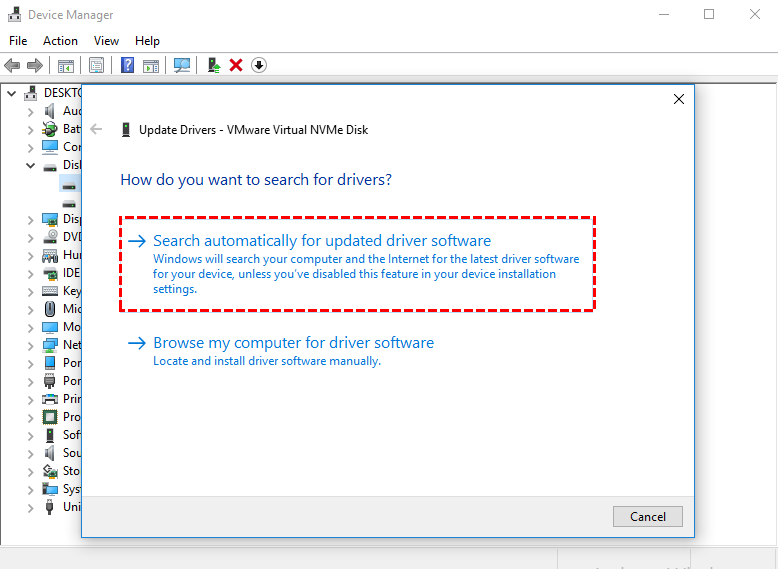
Step 4. Restart your PC to apply the changes and verify if the green screen PC issue has been resolved.
Fix 3. Remove the peripheral devices
External peripherals can occasionally interfere with your system, triggering a Windows Green Screen error. To rule this out, disconnect all non-essential hardware—including your USB keyboard, mouse, and webcam—and observe your computer’s performance.
If the system stabilizes, reconnect each device individually. This "one-at-a-time" approach will help you isolate the specific hardware causing the malfunction.
Fix 4. Disable third-party antivirus software
Third-party antivirus software can sometimes conflict with system processes, leading to a Green Screen of Death. To troubleshoot this, try temporarily disabling your security software.
You can usually do this by right-clicking the antivirus icon in your system tray (near the clock) and selecting Disable until restart or a similar option. If the error disappears, you may need to update or replace your antivirus program.
Fix 5. Delete or remove recently installed apps and programs
If disabling your antivirus didn't do the trick, a recently installed application might be the real culprit. Software conflicts often trigger computer green screen crash, so removing your most recent downloads can help stabilize Windows.
Step 1. Press Win + I on your keyboard to launch the Settings menu.
Step 2. Select Apps, then click on Installed apps.
Step 3. Click the Sort by dropdown menu and choose Date installed. This brings your most recent additions to the top of the list.
Step 4. Locate the suspicious or newest application, click the three-dot menu (...) next to it, and select Uninstall.
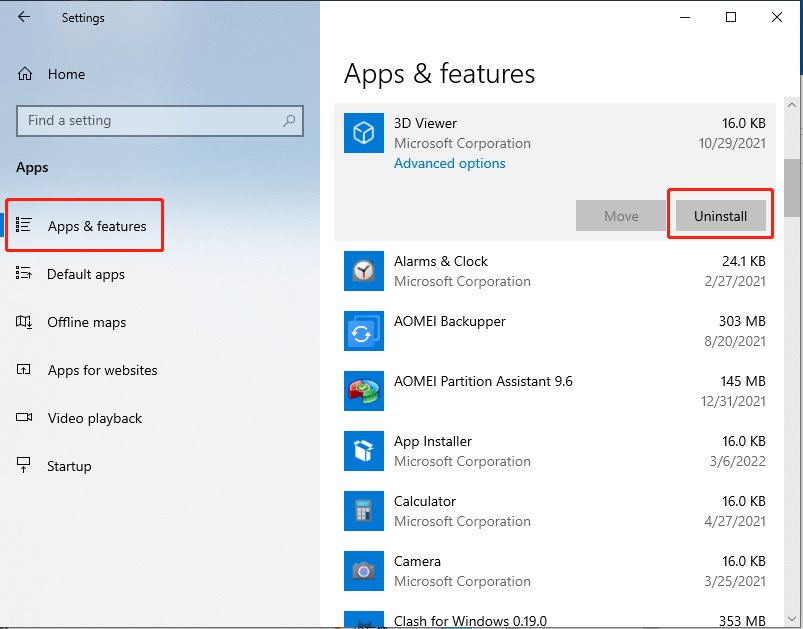
Fix 6. Reinstall Windows
Performing a clean installation or a system reset can resolve deep-seated system errors, including a persistent Green Screen of Death. However, this is a last resort because it wipes your files and settings.
Critical note: Before you begin, ensure you have backed up all important data to an external drive or cloud storage. This process will delete your personal files and installed applications.
Step 1. Press Windows + I to open the Settings menu, then navigate to Update & Security > Recovery.
Step 2. Under the Reset this PC section, click the Get started button.
Step 3. Select Remove everything to ensure a completely clean installation that clears out any corrupt data.
Step 4. Wait a few moments for the system to "Prepare to reset this PC".
Step 5. Review the final summary and click Reset. Your computer will restart and begin the reinstallation process.
What causes green screen of death error?
While the Blue Screen of Death (BSOD) is the famous "crash" screen for most Windows users, the Green Screen of Death (GSOD) is a specific variant that typically signals you are running a Windows Insider Preview build.
Essentially, Microsoft changed the color to green for these builds to make it easier for support teams to distinguish between crashes occurring on stable retail versions versus experimental development versions.
The underlying technical reasons for a green screen Windows 10are largely the same as those for a BSOD, focusing on system-level failures:
🔻 Faulty hardware: Failing RAM modules or a struggling hard drive/SSD are the most frequent physical culprits. If the system cannot read or write vital data, it halts immediately.
🔻 Outdated or incompatible drivers: Since Insider builds often feature new system architectures, older drivers (especially for graphics cards or network adapters) may conflict with the new OS code.
🔻 Corrupted system files: Interrupted updates or malware can damage core Windows files. Because Insider builds are inherently less stable, they are more prone to file corruption during the update process.
🔻 Overheating: If your CPU or GPU exceeds safe thermal limits, the motherboard may trigger a system halt to prevent permanent hardware damage.
🔻 Third-party security software: High-level system tools like antivirus programs or firewalls often struggle with the experimental nature of Insider builds, leading to kernel-level conflicts.
Conclusion
The Green Screen of Death typically affects Windows Insider Preview builds, signaling hardware failures, driver conflicts, or corrupted files. To resolve this Windows green screen of death, users should try updating graphics drivers, removing peripherals, or disabling antivirus software. For persistent issues, specialized boot repair tools or a clean Windows reinstallation can restore stability. Always back up data before performing a system reset to prevent permanent file loss.

 as a preferred
source on Google
as a preferred
source on Google