



7 Ways to Fix SSD Not Initialize Error [Full Guide]
SSD not initialize on your PC? This issue can prevent you from accessing or using your drive properly. In this post, you’ll discover several practical and effective methods to resolve the problem and restore your SSD to normal working condition.

By Hedy Updated on May 29, 2026


When an SSD cannot be used and repeatedly shows the “Disk 1 Unknown, Not Initialized” status in Disk Management, it usually indicates a serious recognition issue. In many cases, the system is unable to access the drive properly, making it appear as an uninitialized disk.
This problem can be triggered by several underlying causes. One common reason is damage or corruption of the MBR (Master Boot Record). In other situations, a missing or lost partition may prevent the drive from being detected correctly. Physical issues such as bad sectors on the SSD can also lead to initialization failures.
Software-related problems are just as common. A corrupted file system may block proper communication with Windows. Virus or malware infections can further damage disk structure and cause it to become unreadable. In addition, outdated, incompatible, or corrupted drivers may prevent the operating system from recognizing the SSD correctly.
Any of these factors can result in the SSD being displayed as “Disk Unknown, Not Initialized”.Therefore, identifying the root cause is important before applying fixes, as Windows will not be able to access or use the drive in its current state.
How to fix SSD unknown not initialized error
To begin with a practical solution, one of the most reliable ways to resolve the “SSD not initialized and unable to initialize” issue is by using a dedicated disk management tool. A utility like AOMEI Partition Software provides a straightforward and safe approach, especially for users who are not familiar with advanced disk operations.
With its simple interface, it allows you to diagnose and repair common disk problems in just a few steps. You can scan the SSD for bad sectors, fix file system corruption, and even rebuild the MBR when it has been damaged. These functions work together to address typical causes behind the “Disk Unknown, Not Initialized” error and help restore normal drive recognition in Windows.
Way 1. Check bad sectors
Excessive bad sectors on an SSD can also trigger the “Disk Unknown, Not Initialized” error, making the drive inaccessible in Windows. When this happens, the system struggles to read or communicate with the affected storage areas.
To identify this issue, AOMEI Partition Software offers a built-in “Disk Surface Test” feature. This tool is designed to scan an uninitialized SSD and detect any bad sectors that may be causing instability or failure. The process is simple and helps users quickly evaluate the health of their drive before applying further repairs or recovery steps.
 AOMEI Partition Software
A safe and reliable disk partition management tool that helps you migrate OS to SSD or HDD, reorganize disk space, and improve overall PC performance.
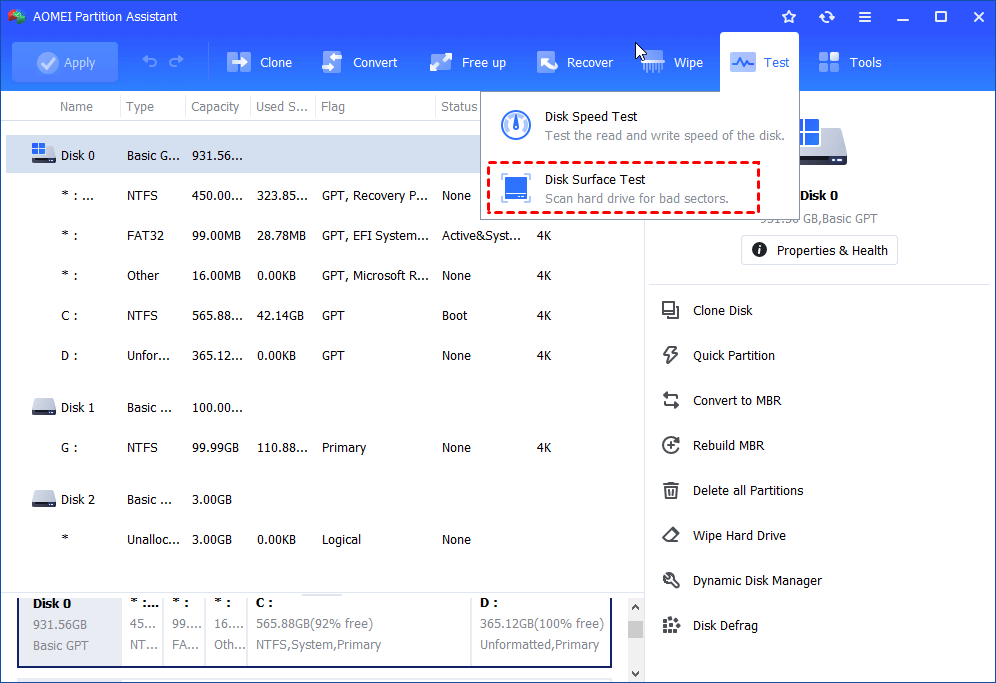
Step 1. Open AOMEI Partition Software. On the main interface, select Test > Disk Surface Test. It will mostly check the bad sectors of the selected disk.
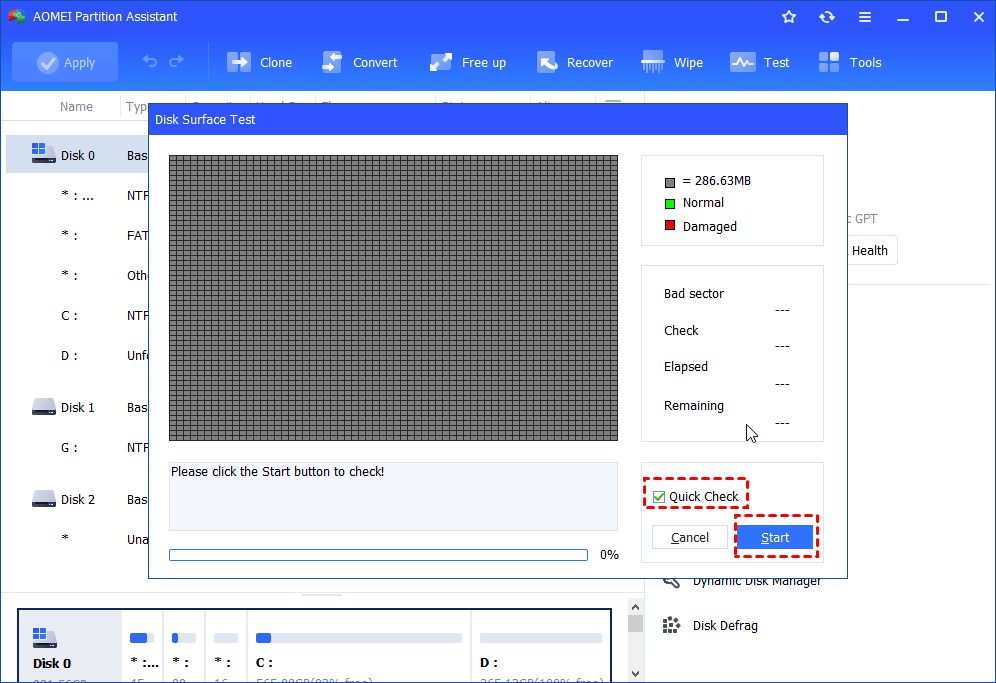
Step 2. Click Start to do the surface test. You may want to tick Quick Check to perform a fast test.
Way 2. Repair corrupted file system
A corrupted file system is another major factor that can cause an SSD to appear as “Not Initialized”. When the file system becomes damaged, Windows may fail to read the drive correctly, leading to detection issues and loss of access.
AOMEI Partition Software provides a built-in function to scan the file system and repair any detected errors. This feature helps restore the integrity of the SSD’s structure and improves its chances of being recognized properly by the system. The process is straightforward and designed to resolve file system-related issues efficiently before they develop into more serious disk problems.
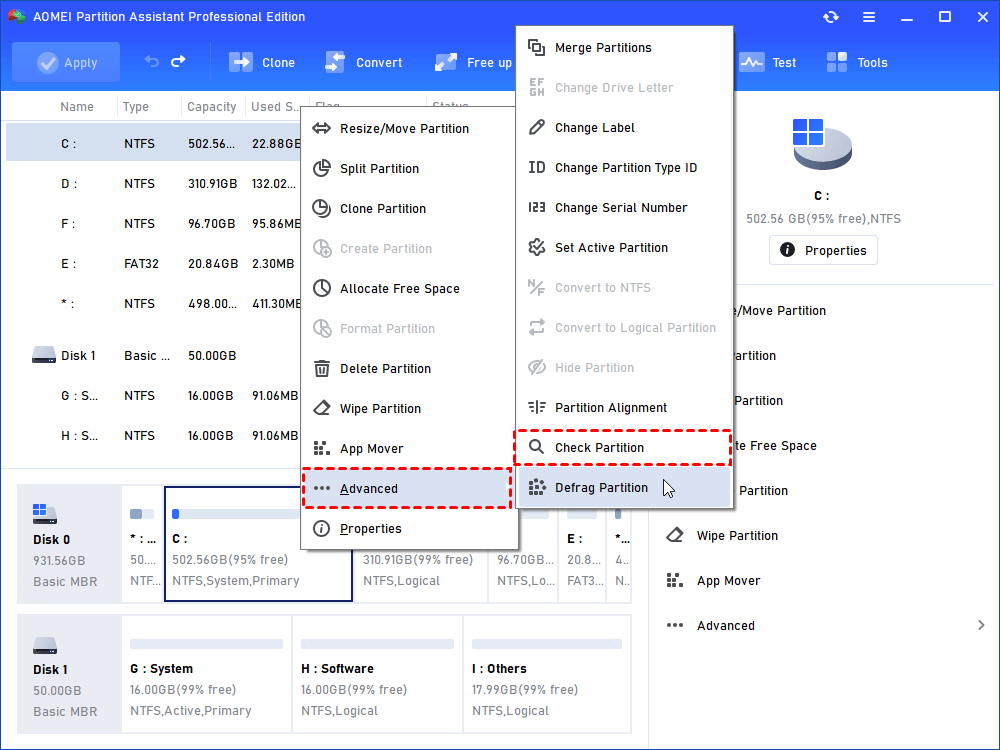
Step 1. Open AOMEI Partition Software. Select the partition that you want to check for, right-click it, and select Advanced > Check Partition.
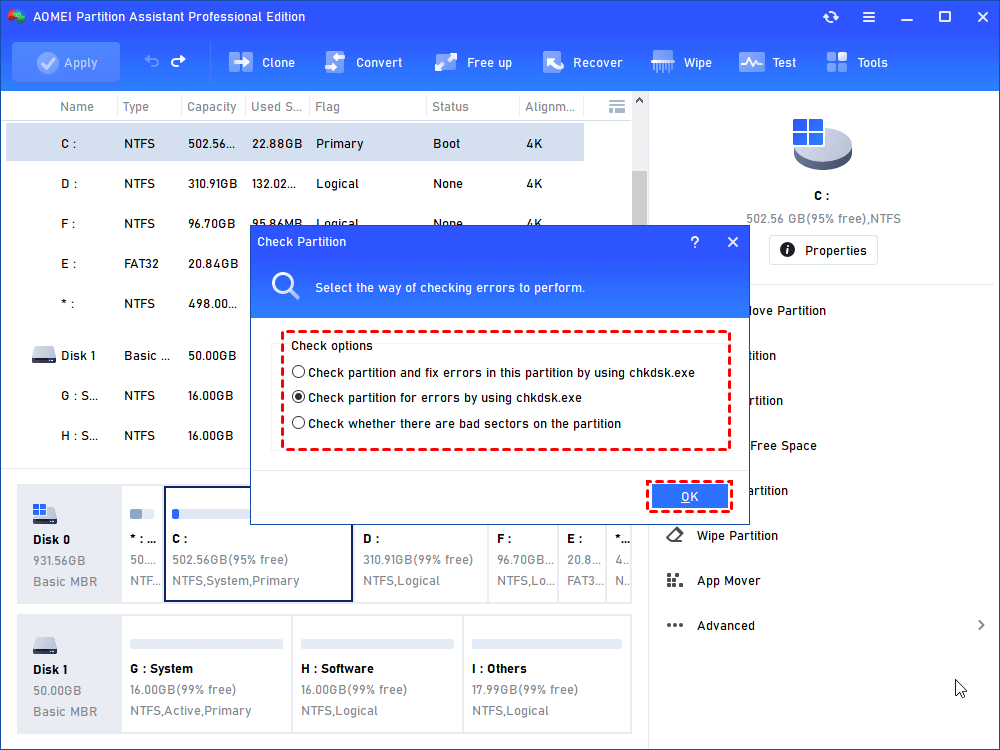
Step 2. It will pop up a small window where you can select the way of checking errors to perform. Choose one according to your needs and click OK. It will proceed immediately.
Way 3. Initialize the SSD
In some cases, attempts to initialize the SSD using Disk Management or Command Prompt may fail, leaving the issue unresolved. When SSD wont initialize happens, a third-party utility can provide a more effective alternative for handling drives marked as “Unknown” and “Not Initialized”.
AOMEI Partition Software can be used to initialize the SSD and restore it to a usable state. The tool offers a guided process that simplifies disk initialization, making it easier to manage even when Windows cannot complete the task on its own. This approach is especially helpful when built-in system tools are unable to repair the underlying disk issue.
Step 1. Open AOMEI Partition Software and right-click on the uninitialized disk. Then select “Initialize Disk”.

Step 2. In the pop-up windows, you can choose MBR or GPT to initialize. You choose it according to the disk.

Step 3. Click “Apply” on the top left of the Window, and wait for the process to complete.

Way 4. Rebuild MBR
AOMEI Partition Software also provides a “Rebuild MBR” function that can help resolve a range of boot-related problems, including the “SSD not initialized” issue. This feature works by rewriting the Master Boot Record on the selected drive, restoring the essential boot structure.
Once the MBR is repaired, the system can properly detect the SSD again and, in many cases, regain normal boot functionality. This makes the drive recognizable to Windows and helps eliminate errors caused by damaged or missing boot records.
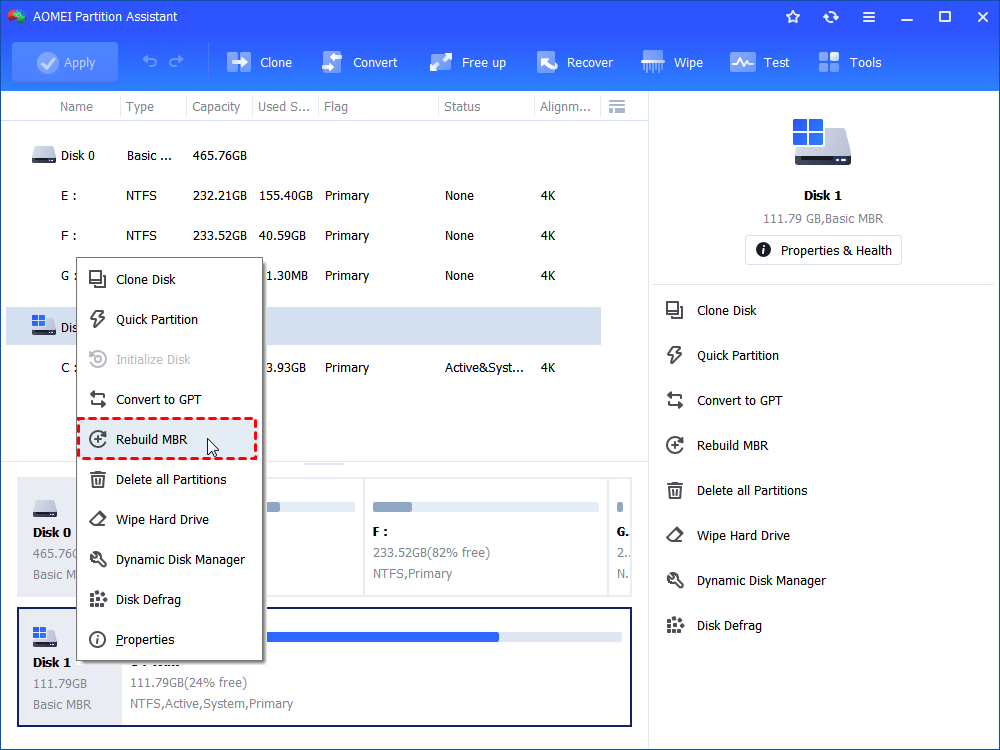
Step 1. In AOMEI Partition Software, right-click the disk you want to repair and select Rebuild MBR.
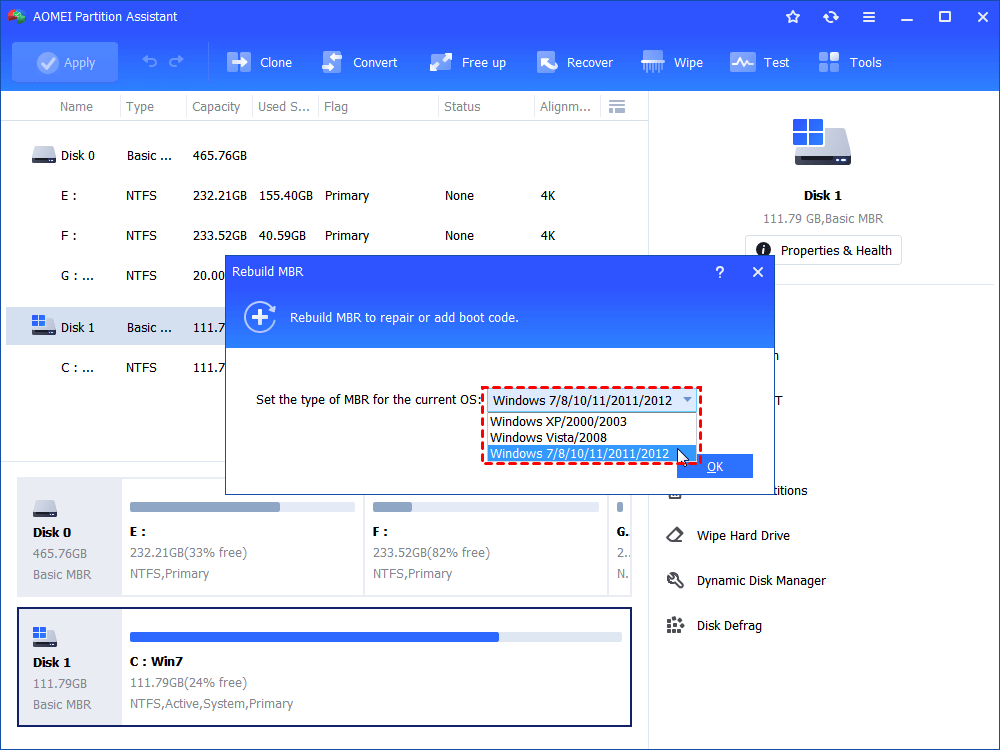
Step 2. Choose a proper MBR type according to your operating system.
Step 3. Click Apply button to execute pending operation. Wait for it to complete.
How to fix SSD not initialized error manually
When attempting to initialize an SSD, you may encounter the SSD not initialized in Disk Management or DiskPart.In such cases, the drive becomes inaccessible, and any stored data cannot be reached through normal system tools.
To address this issue, there are several manual troubleshooting methods that can be applied to resolve the SSD initialization failure and restore access to the drive.
Fix 1. Check the connection
If your SSD appears as “Disk 1 Unknown, Not Initialized” in Disk Management and shows no available capacity, the first step is to rule out a poor or unstable connection.
Step 1. Start by removing the SSD or disconnecting it from the computer.
Step 2. Then reconnect it carefully, ensuring it is properly seated or securely attached using a USB cable or adapter.
Step 3. A loose or faulty connection can often prevent the system from detecting the drive correctly.
If the issue persists, try connecting the SSD to another computer. This helps determine whether the problem lies with the drive itself or with the original system configuration.
Fix 2. Run CHKDSK
You can also use the CHKDSK command to scan your SSD for errors and repair bad sectors. Compared to tools like AOMEI Partition Software, this method is more technical and requires careful execution.
Step 1. Start by opening the Run dialog with Win + R, then type cmd and press Enter. Next, launch Command Prompt with administrator privileges by pressing Ctrl + Shift + Enter.
Step 2. Once the command window opens, enter the following command:
chkdsk g: /f /r /x
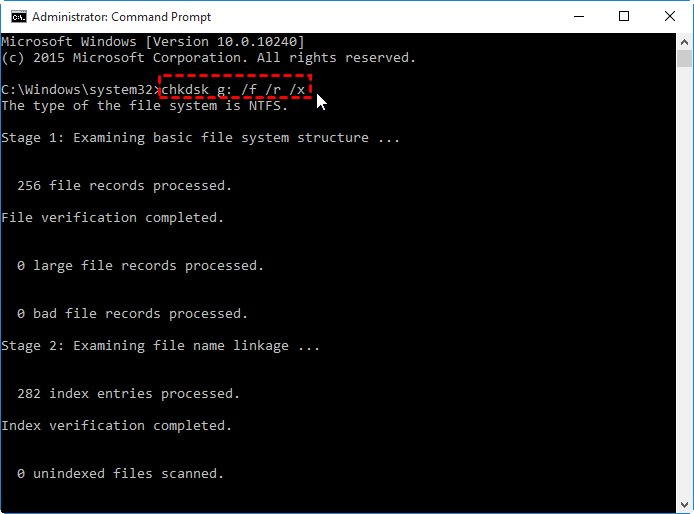
(Be sure to replace “g” with the correct drive letter assigned to your SSD.)
Step 3. Press Enter to begin the scan and repair process. This command checks the disk for file system errors and attempts to recover readable information from bad sectors.
If you found this guide helpful, consider sharing it so more users can learn how to fix the “Disk Unknown, Not Initialized” SSD error.
Fix 3. Update disk driver
If the SSD is properly connected but still fails to initialize, the issue may be related to an outdated or incompatible driver. In such cases, updating the driver can often help restore normal detection.
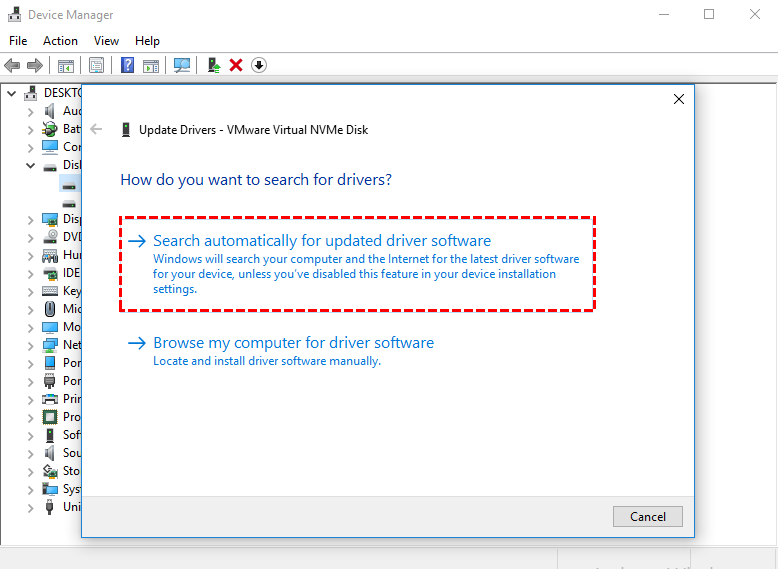
Step 1. To do this, open the Start menu and search for Device Manager, then launch it. Locate the target SSD under the disk drives section, right-click it, and choose Update driver.
Step 2. Next, select Search automatically for updated driver software and follow the on-screen instructions to complete the update process. After the update is finished, restart your computer and check whether the SSD is now recognized and displayed correctly in the system.
FAQs
1. How do you initialize an SSD in BIOS?
An SSD cannot be initialized through BIOS because BIOS is designed primarily for hardware configuration and system boot control, not disk management. To initialize an SSD, you need to use Windows tools such as Disk Management or specialized third-party partition software that supports disk initialization.
2. Why is my SSD marked “Unknown Not Initialized” in Disk Management?
There are multiple reasons for SSDwill not initialize in Disk Management. Common causes include corrupted or outdated drivers, damage to the MBR structure, or the presence of bad sectors on the drive. In some cases, virus infections or corrupted system files can also prevent proper initialization and recognition of the SSD.
3. How do I initialize my SSD again?
To reinitialize an SSD, using a dedicated tool like AOMEI Partition Software is often recommended. It provides a guided process that allows users to initialize the drive easily, even without technical expertise, helping restore normal disk recognition and usability through simple step-by-step operations.
Conclusion
The "Disk Unknown, Not Initialized" error on an SSD stems from MBR corruption, bad sectors, or driver issues. To resolve this, users can employ professional tools like AOMEI Partition Software to rebuild the MBR, repair file systems, or initialize the drive. Manual fixes include checking physical connections, running CHKDSK, and updating drivers. Identifying the root cause is essential to restoring drive access and preventing data loss.

 as a preferred
source on Google
as a preferred
source on Google