



3 Ways to Bypass Password Windows 7 [Full Guide]
Can you bypass password Windows 7? This article will introduce three practical methods to help you resolve this issue.

By Hedy Updated on May 29, 2026


Can you bypass password Windows 7?
Yes, it is possible to bypass or reset a Windows 7 password. Because the operating system is older and lacks the modern security integrations found in Windows 10 or 11 (such as mandatory Microsoft account encryption or refined Secure Boot protocols), it is significantly more vulnerable to local access exploits.
Common methods involve using the System Recovery Options to access the Command Prompt, utilizing the "Sticky Keys" accessibility shortcut to launch a privileged console, or booting from third-party password reset tools. These techniques allow a user with physical access to the machine to modify the Security Accounts Manager (SAM) file or create a new administrator account to regain entry.
While these methods are helpful for users who are locked out of their own legacy hardware, they also highlight why Windows 7 is considered insecure by modern standards. Without full-disk encryption like BitLocker, the data on the drive remains accessible to anyone with the right tools and physical proximity.
3 ways to bypass password Windows 7
If you're locked out of your computer, don't panic—it happens to the best of us. Whether you've forgotten a complex string of characters or inherited an old machine, there are several reliable ways to regain access.
The most effective methods for bypassing a Windows 7 password involve using Windows Installation Media, a pre-created Password Reset Disk, or specialized software like AOMEI Partition Assistant.
Below, we’ll dive into the step-by-step details for each of these solutions so you can get back to work (or play) in no time.
Way 1. Bypass Windows 7 password via Windows Installation Media
Getting locked out of Windows 7 can be a major headache, but you can regain access by using a Windows 7 installation disk to "trick" the system into opening a Command Prompt at the login screen.
Here is the step-by-step process to show you how bypass Windows 7 password:
Phase 1: Accessing the command line
Step 1. Insert your Windows 7 installation CD/DVD and restart your PC. When prompted with "Press any key to boot from CD or DVD",press any key.
Step 2. Once the "Install Windows" screen appears, do not click "install now". Instead, press Shift + F10 to launch the Command Prompt.
Phase 2: The "Sticky Keys" workaround
In this phase, you are temporarily replacing the "Sticky Keys" feature with the Command Prompt.
Step 1. Type the following command and press Enter:
move c:\windows\system32\sethc.exe c:\windows\system32\sethc.exe.bak
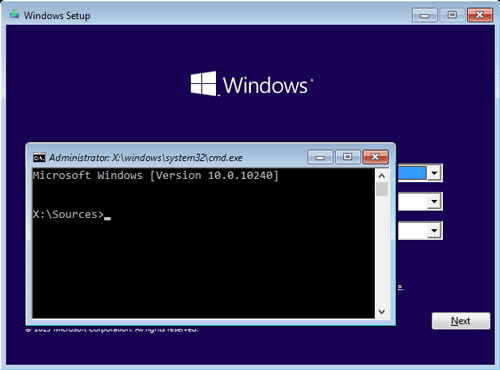
Step 2. Type the following command and press Enter:
copy c:\windows\system32\cmd.exe c:\windows\system32\sethc.exe
Step 3. Type wpeutil reboot and hit Enter. Remove the installation disk so the computer boots normally to the login screen.
Phase 3: Resetting the password
Step 1. At the Windows 7 login screen, tap the Shift key five times rapidly. This will open a Command Prompt window with administrative privileges.
Step 2. Type the following command, replacing the placeholders with your actual details, and press Enter:
net user [username] [newpassword]
Step 3. If your username is ABC and you want your new password to be 123456, you would type:
net user ABC 123456
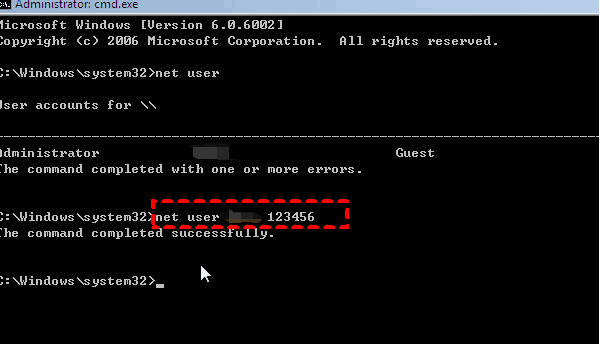
Success! You can now close the Command Prompt and log in to your Windows 7 PC using your brand-new password.
Way 2. Reset the password on Windows 7 with a password reset disk
Using a password reset disk is a reliable way to regain access to Windows 7. However, keep in mind that this disk must have been created before you were locked out, and it only works for the specific computer and account it was originally made for.
If you have your disk ready, follow these steps to reset your password:
Step 1. Insert your password reset disk (USB or floppy) into the PC. On the login screen, attempt to sign in; when it fails, click the "Reset password" link that appears below the password field.
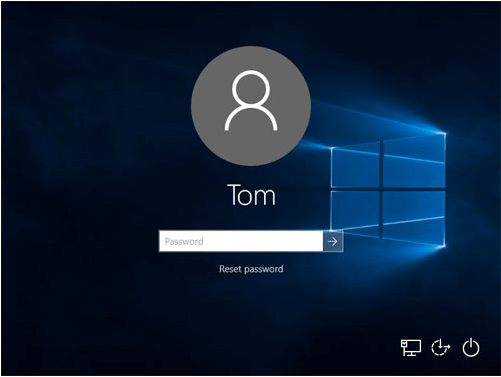
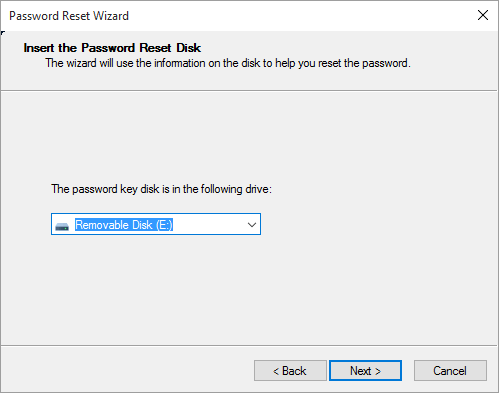
Step 2. When the Password Reset Wizard pops up, click Next. Choose the drive where your reset disk is located from the dropdown menu, then click Next again.
Step 3. Enter your new password and a helpful hint to remind you of it later. Click Next to confirm the change.
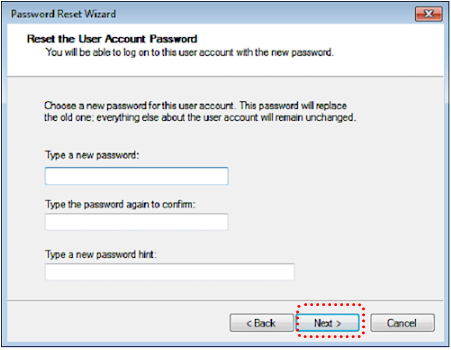
Step 4. Click Finish to close the wizard. You can now log into your Windows 7 account immediately using your new credentials.
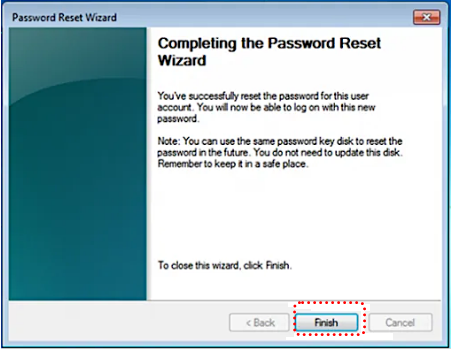
Note: You don't need to create a new reset disk after doing this. The original disk will continue to work for future resets even though you've changed the password!
Way 3. Use AOMEI Partition Software to easily bypass password Windows 7
Troubleshooting a lost Windows 7 password can be a headache. Traditional methods usually require a pre-made reset disk or the use of installation media, which often involves complex command-line steps that are intimidating for beginners.
If you’re looking for a simpler, more efficient alternative, AOMEI Partition Software is an excellent solution. It allows you to bypass or reset Windows passwords with just a few clicks, saving you time and technical frustration.
Unlike standard Windows tools, this software provides a flexible and user-friendly approach:
✔️ Universal compatibility: While it works perfectly for Windows 7, it also supports Windows 11, 10, 8, and 7.
✔️ Create anywhere: You don't need to have made a disk beforehand. You can create a WinPE bootable USB on any working Windows computer and use it to unlock your inaccessible PC.
✔️ User-friendly: The interface is designed for "green hands" (beginners), replacing manual coding with a simple, guided process.
✔️ Comprehensive reset: It gives you the option to either remove the forgotten password entirely or reset it to a new one instantly.
Here we display the complete operations about how to bypass password in Windows 7 by using AOMEI Partition Software.
 AOMEI Partition Software
A safe and reliable disk partition management tool that helps you migrate OS to SSD or HDD, reorganize disk space, and improve overall PC performance.
Part 1. Create a Windows password reset USB
Step 1. Launch AOMEI Partition Assistant. On the top navigation bar, click the “Tools” button and then choose “Reset Windows Password”.
.png)
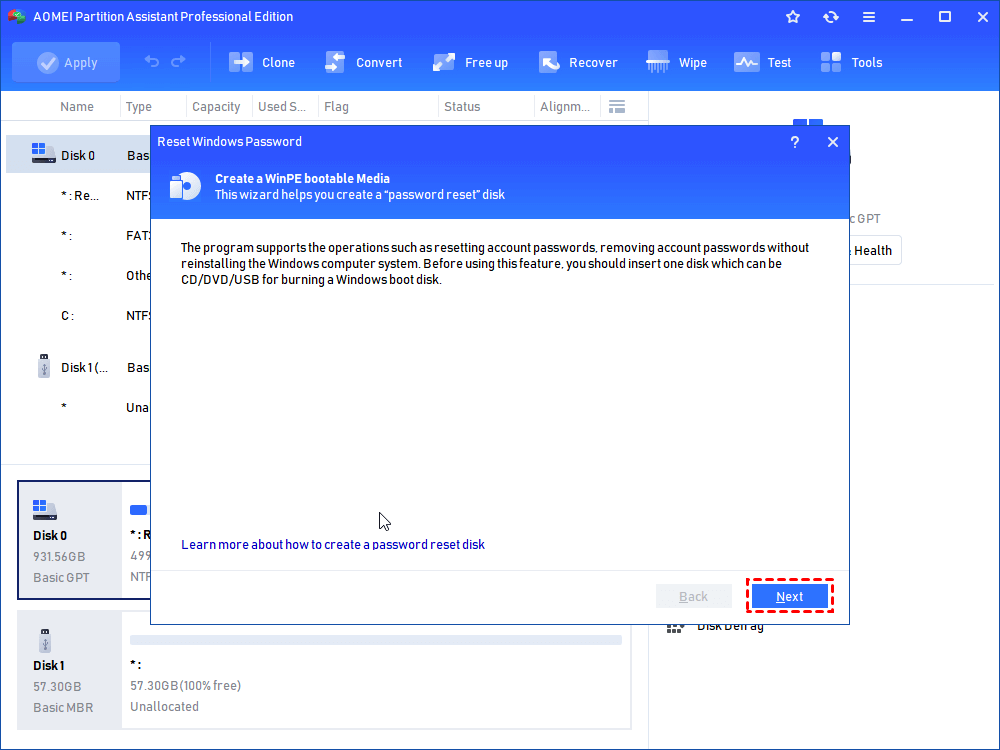
Step 2. Select “Next” after reading to create a bootabale USB.
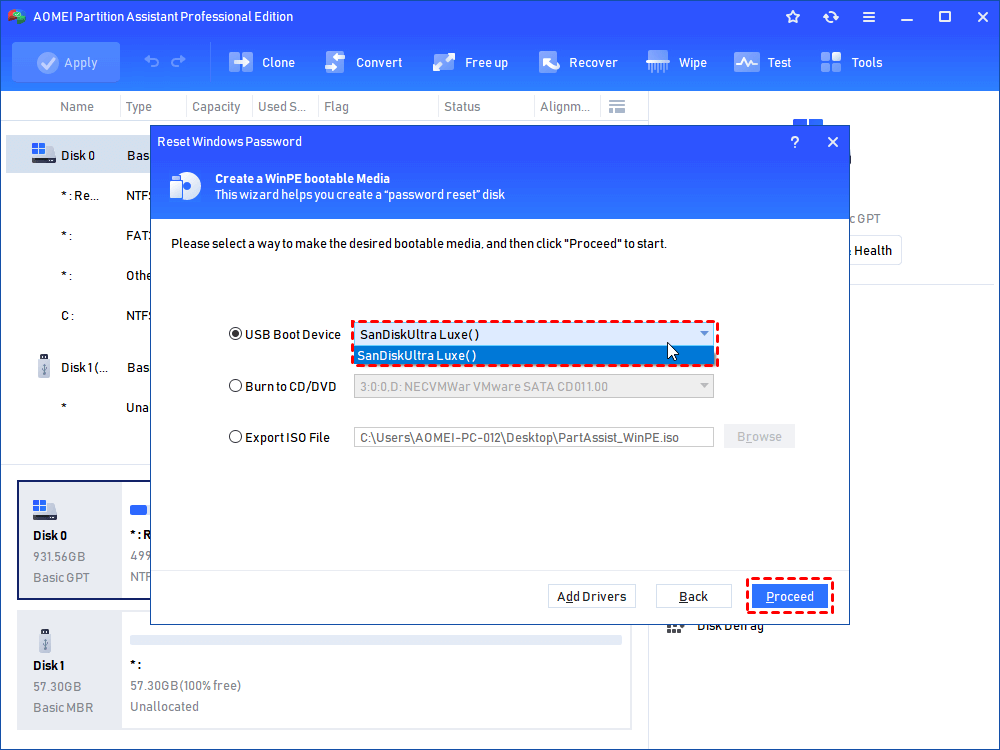
Step 3. Choose one of the three available choices according to your needs and click “Proceed”.
Step 4. The USB flash drive needs to be formatted in this step, and all the data will be erased. Please make a backup on all your important files.
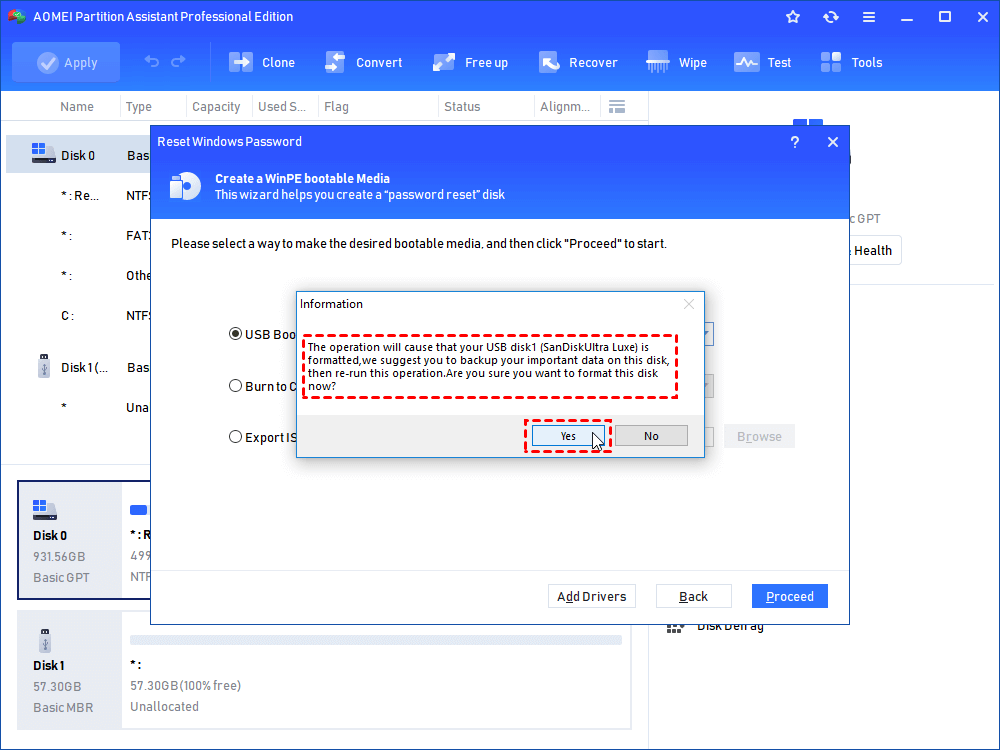
Step 5. Wait for creating WinPE bootable USB drive. Then plug the USB into the computer that you hope to reset or remove the password.
Part 2. Reset the Password
Step 1. Change the boot order to make the PC boot from the USB after inserting the created reset USB.
Step 2. Choose “Reset Password” and select the OS with clicking "Next".
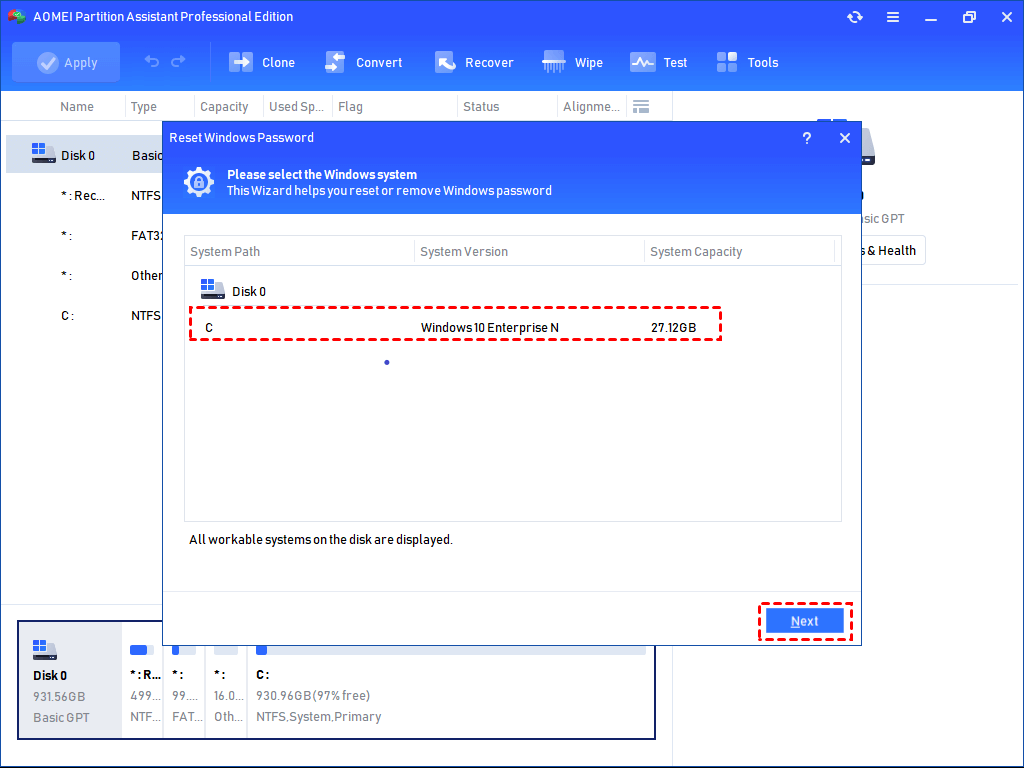
Step 3. Select the target account and the feature you need. Click “Next”.
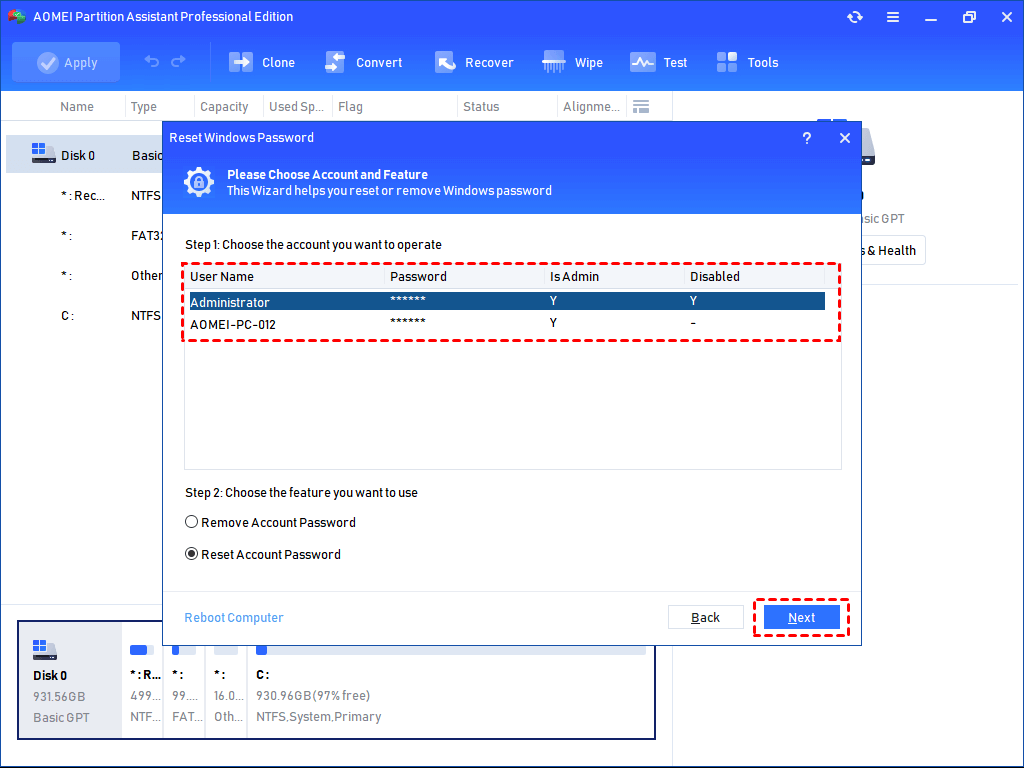
Notice: You can choose Remove Account Password or Reset Account Password from the two options under the window.
Step 4. Input the new password in the window and click “Yes”.
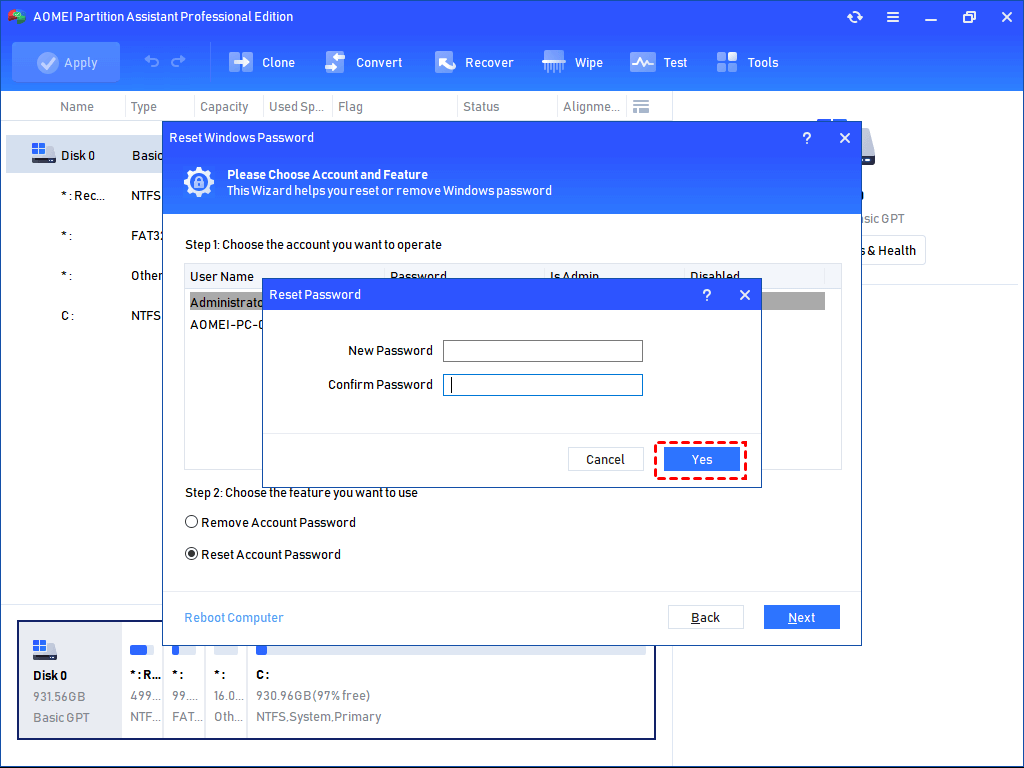
Step 5. Click “Reboot Computer” to restart your PC after the operations.
What if locked out of computer Windows 7 forgot password?
Getting locked out of a Windows 7 machine can feel like a digital dead end, but since the OS doesn't have the same cloud-syncing complexities as modern versions, you actually have several ways back in.
Here are the most effective methods to regain access, ranging from the "official" route to technical workarounds.
1. Use a Password Reset Disk
If you were proactive and created a Password Reset Disk (USB or floppy) before you forgot the password, this is the intended solution.
Step 1. On the login screen, type any incorrect password.
Step 2. Click the Reset password link that appears below the password box.
Step 3. Insert your reset disk and follow the Password Reset Wizard to create a new password.
2. The "Hidden" administrator account
Windows 7 has a built-in account named Administrator that often has no password by default. This account is usually hidden unless you’re in Safe Mode.
Step 1. Restart your computer and tap the F8 key repeatedly until the Advanced Boot Options menu appears.
Step 2. Select Safe Mode and press Enter.
Step 3. On the login screen, look for an account named Administrator. Click it (leave the password blank).
Step 4. Once logged in, go to Control Panel > User Accounts > Manage another account.
Step 5. Select your main account and click Change the password.
3. The "Sticky Keys" trick (system repair)
If you don't have a reset disk and Safe Mode doesn't work, you can use a loophole involving the accessibility tools to launch a Command Prompt from the login screen.
Step 1. Restart your PC and, as it’s booting, pull the power plug or hold the power button to force an improper shutdown.
Step 2. Turn it back on and select Launch Startup Repair (recommended).
Step 3. If it asks to restore the system, click Cancel. Let the tool run until it says it cannot fix the computer automatically.
Step 4. Click View problem details, scroll to the bottom, and click the link to the privacy statement text file.
Step 5. In Notepad, go to File > Open. Change "Files of type" to All Files.
Step 6. Navigate to C:\Windows\System32.
🔸 Find sethc (Sticky Keys) and rename it to sethc-bak.
🔸 Find cmd, copy it, and rename the copy to sethc.
Step 7. Close everything and restart. At the login screen, tap the Shift key 5 times. A Command Prompt will open.
Step 8. Type the following command and press Enter:
net user [username] [newpassword]
(Replace [username] with your account name and [newpassword] with what you want it to be.)
Conclusion
Bypassing a Windows 7 password is possible due to the OS's lack of modern encryption. You can regain access using Windows Installation Media to trigger a "Sticky Keys" command prompt exploit, utilizing a pre-created Reset Disk, or employing third-party tools like AOMEI Partition Software to create a bootable reset USB. Alternatively, booting into Safe Mode may grant access via the hidden default Administrator account.

 as a preferred
source on Google
as a preferred
source on Google