




11 Ways to Reset Password in Windows 10/11 Computer
Forgot your password and cannot use your Windows 10 computer? Take it easy! In this tutorial, we’ll show you several ways to reset password Windows 10 to help you out. Besides, if you just want to change your password, the detailed steps are also provided.

By Lucas Updated on March 11, 2026


How do I reset my computer password if I forgot it?
When you set up a new Windows 10 computer, one of the essential things you should do is to set a password to enhance the protection of your data. However, you may forget your Windows 10 password for various reasons.
If you are able to log into Windows 10 with PIN, picture password, or authentication methods, congratulations, just jump to the last part to learn how to reset password Windows 10 easily. If not, the solution will be much more complicated but still addressable. Simply scroll down to find the methods.
Whether you are currently logged into your PC and just want to update your security credentials, or you are staring blankly at the login screen, unable to remember your password, you have come to the right place. This comprehensive guide merges the best strategies for both scenarios. We will walk you through the most effective, safest, and fastest methods to change or reset your Windows 10 and laptop passwords, regardless of your computer skill level.
How to Change Your Password in Windows 10/Laptop (When You Can Log In)
If you still remember your current password and can successfully boot into your Windows 10 desktop or laptop, the process of updating your security key is straightforward. Windows offers several built-in utilities to help you change your laptop password in just a few clicks. Here are the five most effective methods.
Method 1: Change Password via Windows Settings
The "Settings" app is the modern, user-friendly hub for customizing your Windows 10 experience. This is the most recommended method for standard users.
Step 1. Press the Windows + I keys simultaneously on your keyboard to open the Windows Settings menu.
Step 2. Navigate to and click on the Accounts section.

Step 3. On the left-hand pane, click on Sign-in options.
Step 4. Scroll down to the Password section and click on it to expand the menu. Then, click the Change button.
Step 5. A new window will pop up prompting you to enter your Current password. Type it in and click Next.
Step 6. Now, type your New password, re-enter it to confirm, and create a helpful Password hint to remind you just in case you forget it later.
Step 7. Click Next and then Finish. Your laptop password has been successfully updated.
Method 2: Use the Classic Control Panel
For users who migrated from Windows 7 and prefer the legacy interface, the Control Panel remains a reliable way to manage user credentials.
Step 1. Click on the Start menu or the Search bar on your taskbar, type Control Panel, and hit Enter.
Step 2. In the top right corner, change the "View by" setting to Large icons or Small icons.
Step 3. Locate and click on User Accounts.
Step 4. Click on the Manage another account link. (Note: You may need administrator privileges to do this).
Step 5. Select the specific user account for which you want to change the password.
Step 6. Click on the Change the password option.
Step 7. Fill in your current password, your desired new password, and a password hint. Finally, click the Change password button to save your changes.
Method 3: The "Ctrl + Alt + Delete" Shortcut Route
If you want the absolute fastest way to change your laptop password without digging through multiple menus, this keyboard shortcut is your best friend.
Step 1. While on your Windows 10 desktop/laptop, press the Ctrl + Alt + Delete keys at the same time.
Step 2. A secure screen will appear with several options. Click on Change a password.
Step 3. You will be prompted to type in your old password, followed by your new password, and then confirm the new password.
Step 4. Press Enter or click the right-pointing arrow next to the confirmation box. A message will appear stating, "Your password has been changed." Click OK.
Method 4: Utilize Command Prompt (CMD)
If you are comfortable with text-based commands, you can change your laptop password in a matter of seconds using the Command Prompt.
Step 1. Type cmd in the Windows search box.
Step 2. Right-click on Command Prompt from the search results and select Run as administrator. Click "Yes" if the User Account Control (UAC) prompts you.
Step 3. To see a list of all user accounts on your PC, type net user and press Enter. Note the exact spelling of your username.
Step 4. Type the following command: net user "YourUsername" "YourNewPassword"
(For example, if your username is John and you want the password to be 123456, you would type: net user "John" "123456")
Step 5. Press Enter. You should see a message saying, "The command completed successfully."
How to Reset a Forgotten Windows 10 / Laptop Password
Changing a password when you know it is easy. But what if you are staring at the login screen, totally locked out because you forgot your Windows 10 password? Panic often sets in, but you don't need to resort to a factory reset just yet. Depending on how your account is set up, here are the best ways to bypass or reset your forgotten password.
Method 1: Reset Microsoft Account Password Online
When setting up Windows 10, Microsoft strongly encourages users to link their PC to a Microsoft Account (an email address like @outlook.com, @hotmail.com, or linked third-party emails). If your locked laptop uses a Microsoft account, resetting it is incredibly simple.
Step 1. Grab your smartphone, tablet, or another working computer and open a web browser. Go to the official Microsoft password reset page (account.live.com/password/reset).
Step 2. Enter the email address, phone number, or Skype name associated with your Microsoft account and click Next.
Step 3. Microsoft needs to verify your identity. Choose to receive a security code via your alternate email address or via SMS to your linked phone number.
Step 4. Enter the security code you received. Once verified, you will be prompted to create a new password.
Step 5. Go back to your locked Windows 10 laptop, ensure it is connected to the Wi-Fi, and log in using your newly created Microsoft account password.
Method 2: Answer Security Questions (For Local Accounts)
If you use a traditional Local Account (offline account) and your PC is running Windows 10 version 1803 or later, you may have set up security questions during the account creation process.
Step 1. On the Windows 10 login screen, type an incorrect password and hit Enter.
Step 2. A Reset password link will appear below the password box. Click on it.
Step 3. The screen will display the three security questions you previously selected (e.g., "What was the name of your first pet?").
Step 4. Type the correct answers for all three questions and press Enter.
Step 5. You will immediately be prompted to type in a new password. Set your new password, and you will be logged right into your laptop.
Method 3: Use a Pre-created Password Reset Disk
Windows has a legacy feature called the "Forgotten Password Wizard." If you were proactive and created a password reset USB drive before you forgot your password, this is the time to use it.
Step 1. Insert your Password Reset USB flash drive into the locked laptop.
Step 2. Type a wrong password on the login screen and click the Reset password link.
Step 3. The Password Reset Wizard will pop up. Click Next.
Step 4. Select the USB drive from the drop-down menu and click Next.
Step 5. Type your new password and a new password hint. Click Next, and then Finish. You can now log in. (Note: This method is useless if you didn't create the disk beforehand).
Method 4: Advanced CMD Trick via Windows Installation Media
If you use a local account, didn't set security questions, and don't have a reset disk, you can force a password reset by tricking the system using a Windows 10 Installation USB.
Warning: This method requires technical comfort with command lines.
Step 1. Create a Windows 10 Installation Media on a USB drive using another working PC. Insert the USB into the locked laptop and boot from the USB drive (you may need to change the boot order in your BIOS/UEFI settings).
Step 2. When the Windows Setup screen appears, press Shift + F10 to open the Command Prompt. Find your system drive (usually C: or D:). Type C: and press Enter. Then type dir to see if the Windows folder is there.
Step 3. Navigate to the System32 folder by typing: cd windows\system32 and pressing Enter.
Step 4. You will now replace the Utility Manager (Ease of Access icon) with the Command Prompt. Type these two commands, pressing Enter after each:
ren utilman.exe utilman.exe.bak
copy cmd.exe utilman.exe
Step 5. Close the CMD window, cancel the Windows installation, and reboot your PC normally without the USB drive.
Step 6. At the Windows login screen, click the Ease of Access icon in the bottom right corner. Because of your swap, a Command Prompt window will open with administrator privileges.
Step 7. Type net user "YourUserName" "NewPassword" and press Enter to reset your password.
Step 8. Close the CMD window and log in with your new password. (Remember to reverse the utilman.exe process later for security reasons).
Step 9. If the forgotten password is for a local account user, you have to reset Windows 10 password with USBkey. Three ways are available for you.
Method 5: Via AOMEI bootable USB
Although there are different ways to reset a Windows 10, not all users have created a password reset disk beforehand or are familiar with the command lines. So, the best method for all levels of computer users would be resorting to a third-party utility with a graphical user interface. Here's where AOMEI Partition Software comes in!
AOMEI Partition Software is an all-in-one disk manager for Windows 11/10/8/7. With this software, you can easily create a password reset USB and reset your password effortlessly.
Attractive features:
◤ Easy to use and simple steps to perform.
◤ User-friendly interface.
◤ No data loss.
◤ Able to make a password reset USB on any running Windows PC.
Now let's see the simple steps to reset password Windows 10 USB key.
 AOMEI Partition Software
A free and reliable disk partition software that helps you resize partitions, migrate OS, convert disks, and optimize PC efficiently.
Part 1. Create Windows 10 reset USB
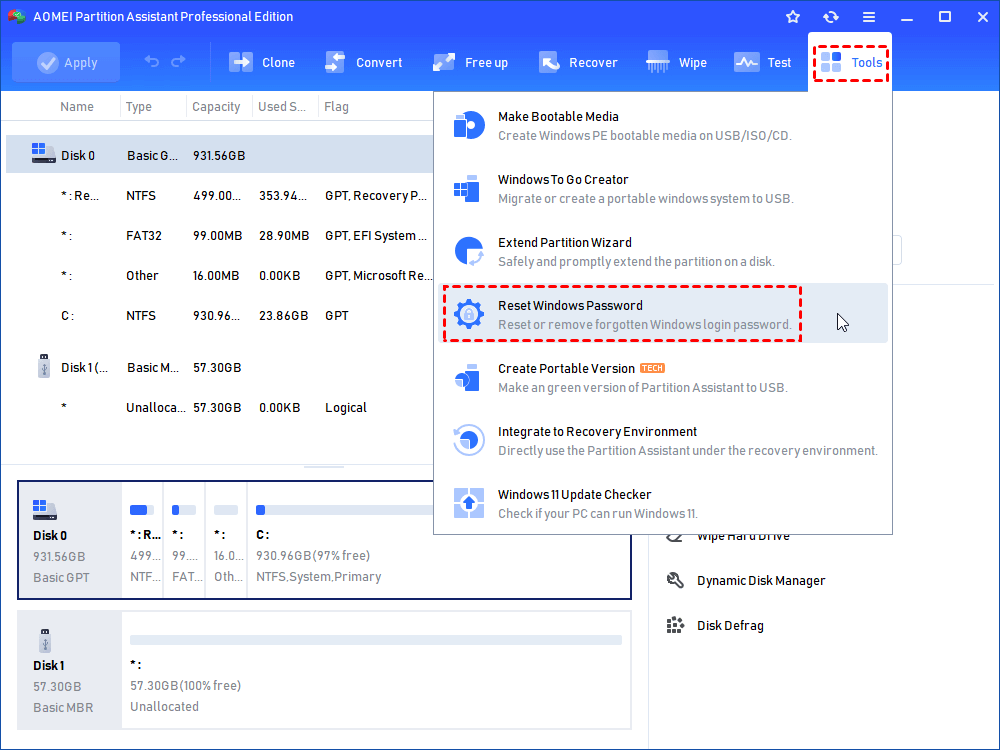
Step 1. Connect aprepared USB to any runningcomputer. Install and launch AOMEI Partition Software. In the taskbar, click "Tools" and "Reset Windows Password".
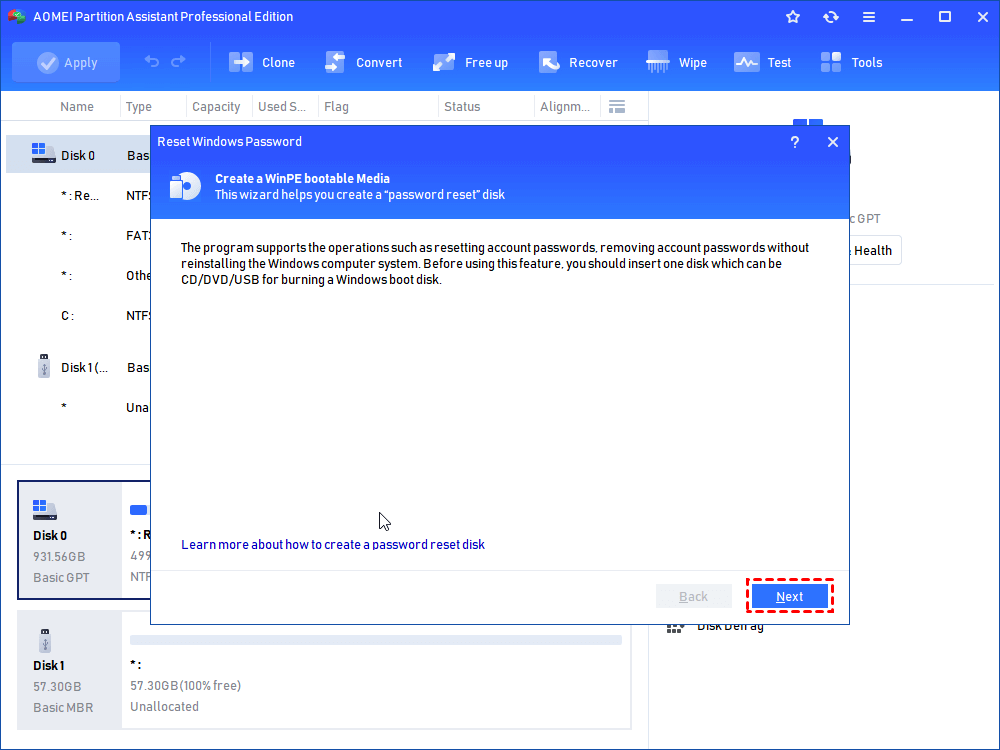
Step 2. In the pop-up window, you'll be noted tocreatea WinPE bootable media. Click "Next"to move on.
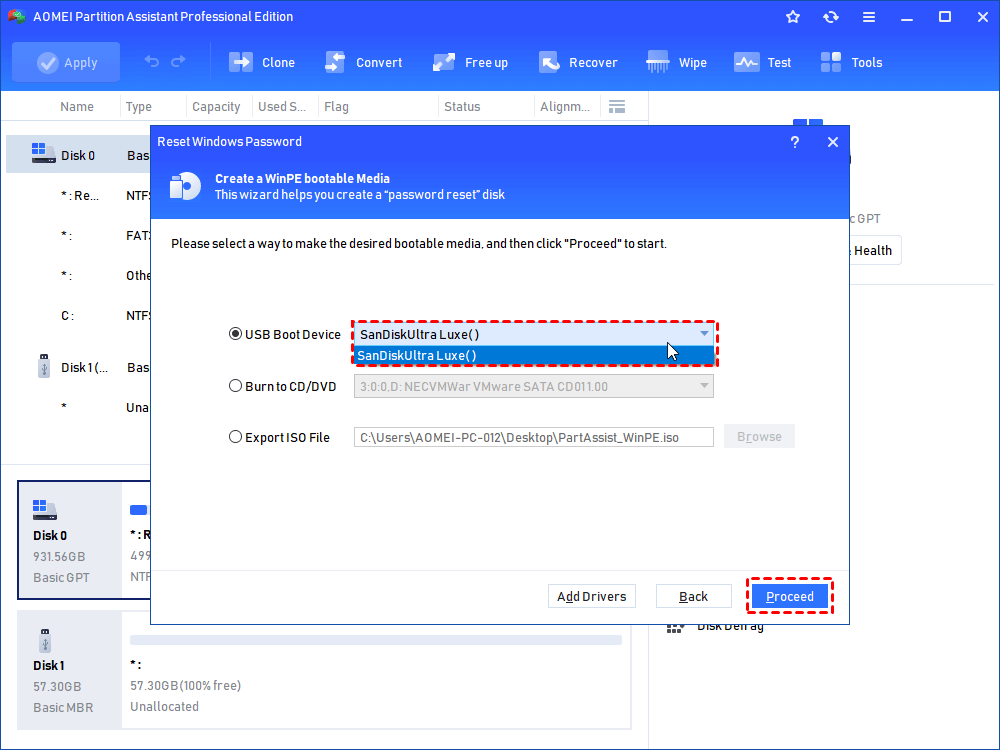
Step 3. Here we tick "USB Boot Device",choose your prepared USB forbootable USB creation, and click "Proceed".
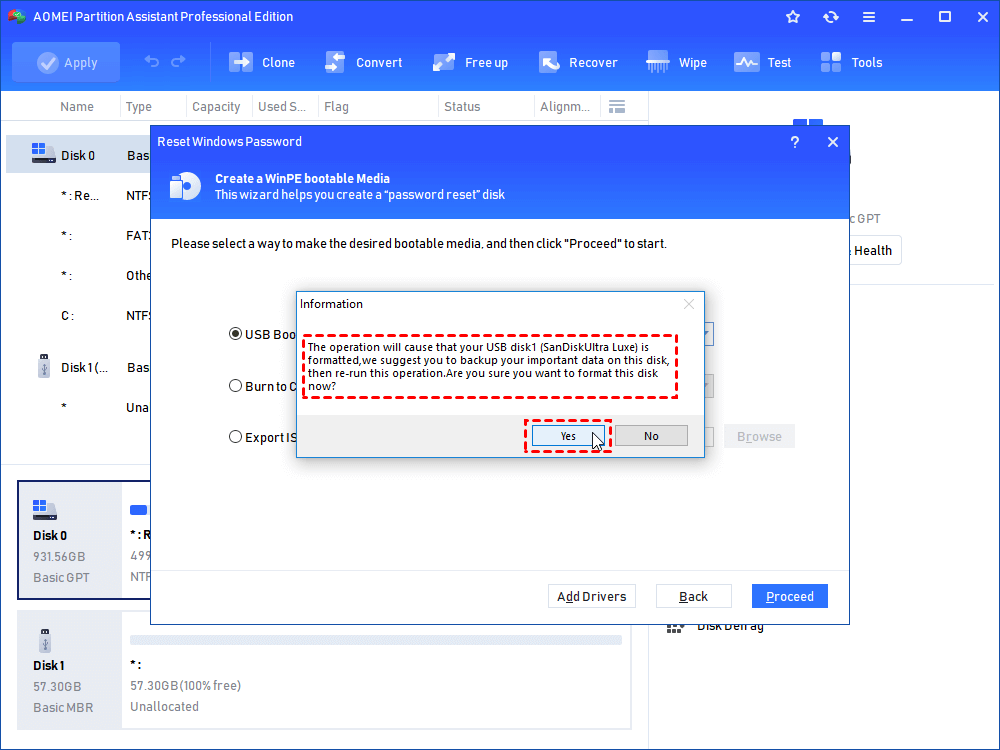
Step 4. Note that the USB flash drive needs to be formatted and all data on it will be wiped. Please back up anything important on itand redo.
The progress will take a few minutes.When the bootable USB is created successfully, unplug the USB and connect it to the Windows 10computer you want to reset password.
Part 2. Start to reset Windows 10 password
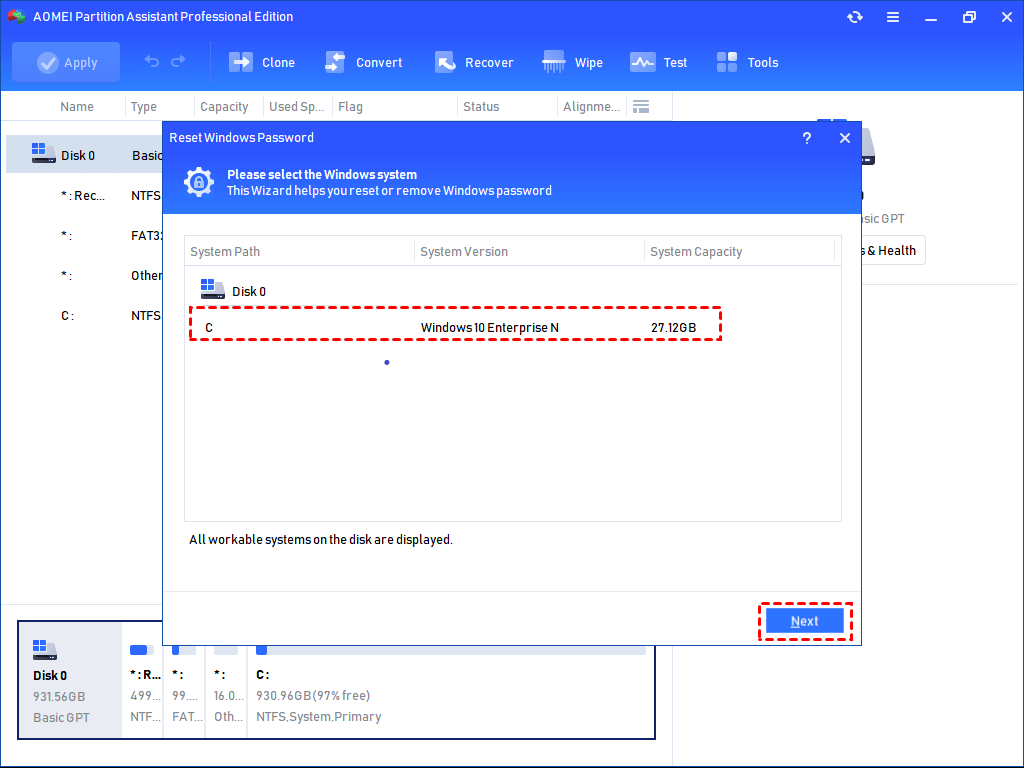
Step 1.Boot the computer from this bootable USB, and you will see AOMEI Partition Software on the screen. Click "Reset Password", select the Windows system you would like to operate,and click "Next".
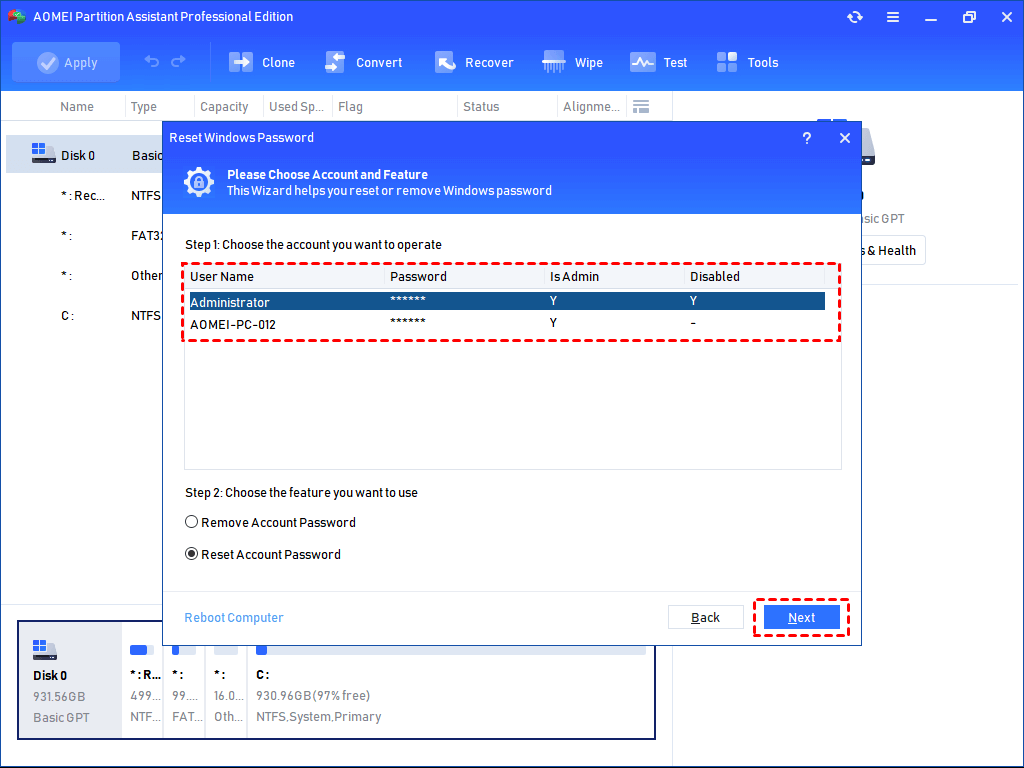
Step 2. Then, select the account you would like to operate,choose a feature: "Remove Account Password"or "Reset Account Password", and click "Next".
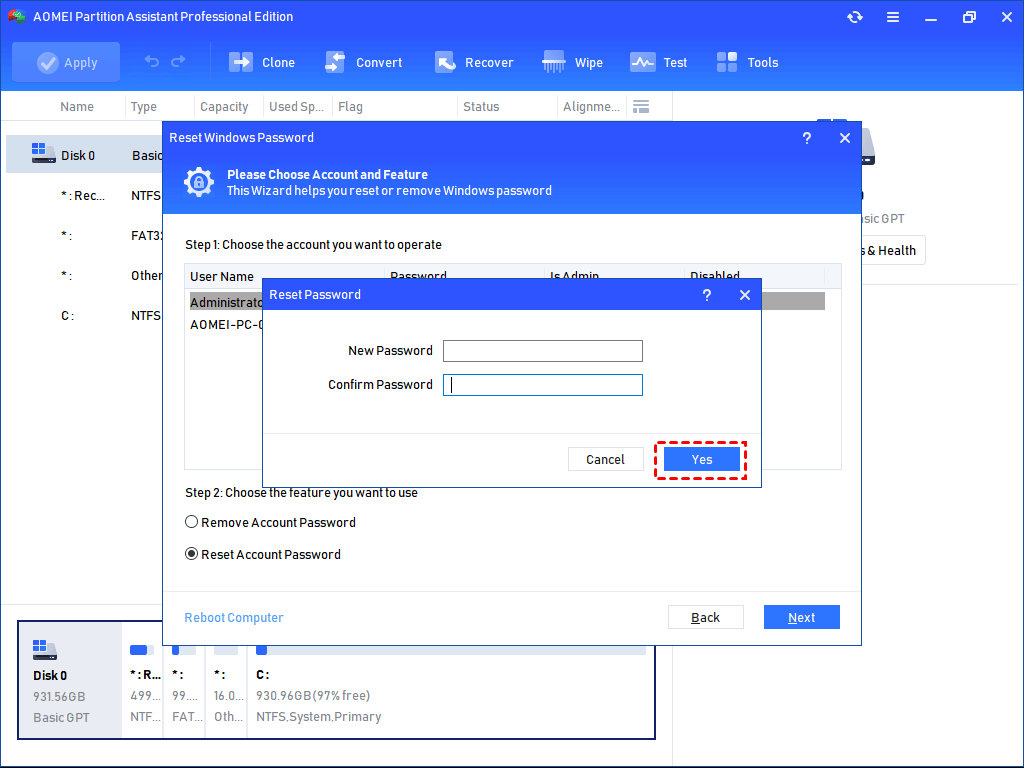
Step 3. Next, a pop-out window lets youset a new password. After you confirm the new password, please click"Yes"to start the password reset.
Step 4. Finally, restart your computer and begin to use the new password.
Method 6: Do a factory reset(data loss)
If you don't want to apply any Windows 10 password reset USB tool, you can give a try to this method: Reset your Windows 10 to its factory and choose a new password. Note that this will certainly cause data loss because it deletes your data, programs, and settings completely during the process.
Step 1. Press the "Shift"key whenyou clickthe "Power"button > "Restart"in the lower-right corner of the screen.
Step 2. On the "Choose an option"screen, select "Troubleshoot"> "Reset this PC".
Step 3. Select "Remove everything" and finish the next steps.
How to reset password Windows 10 if you just want to change it?
If you can log inyour Windows 10 computer and just plan to change a new one, things will be much easier.
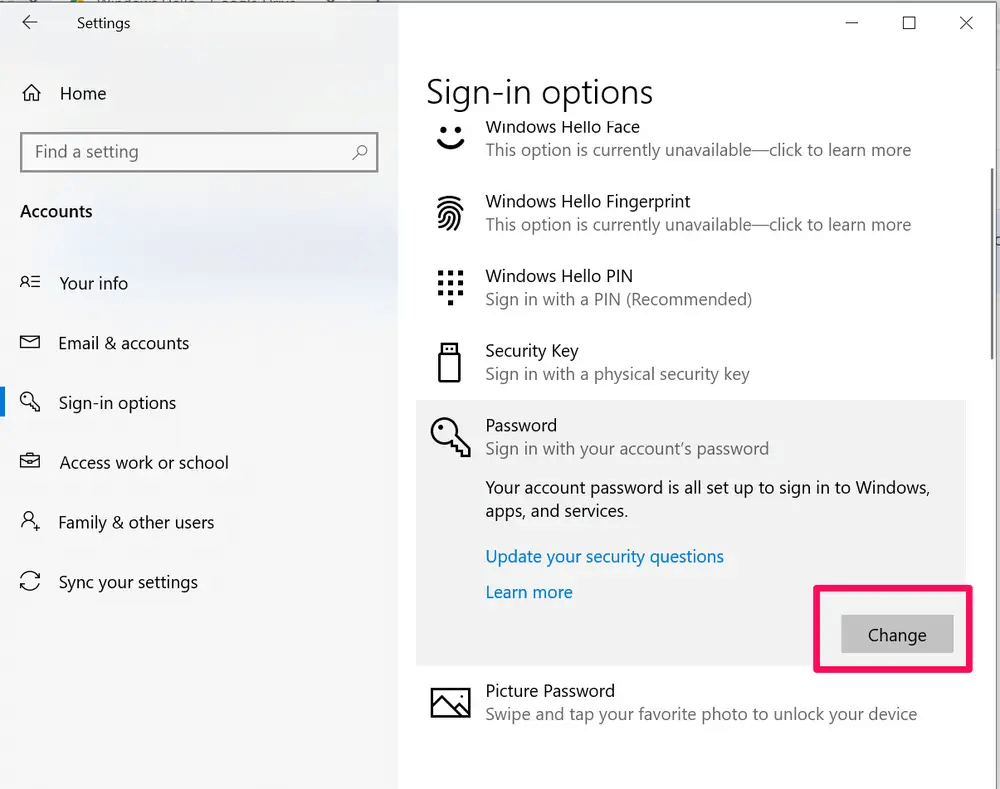
Step 1. Click "Start"> "Settings"> "Accounts"> "Sign-in".
Step 2. Under the "Password"section, select the "Change" button, and follow the introduction to reset a new password.
Conclusion
In this article, we have covered several methods to reset password Windows 10 with ease. You can employ anyone according to your situation. By comparison, the best way is to use AOMEI Partition Software which can create a Windows 10 password reset USB even after you forgetthe password and help reset your Windows 10 password without using complicated command lines.
AOMEI Partition SoftwareA free and reliable disk partition software that helps you resize partitions, migrate OS, convert disks, and optimize PC efficiently.
FAQs About Windows 10 Passwords
Q1: Will resetting my Windows 10 password delete my personal files or programs?
Answer: No. If you use the methods described in this article—such as the Microsoft account online reset, Command Prompt tricks, or a professional tool like AOMEI Partition Software—your data is 100% safe. The only time you lose data is if you choose to "Reset this PC" and select the "Remove everything" option to wipe the entire laptop back to factory settings.
Q2: Can I remove the login screen entirely so my laptop boots straight to the desktop?
Answer: Yes, if you are currently logged in. You can press Windows + R, type netplwiz, uncheck the box that says "Users must enter a user name and password to use this computer," and click Apply. However, for security reasons, especially on portable laptops, this is not recommended.
Q3: Is there a difference between resetting a Local Account and a Microsoft Account?
Answer: Yes. A Local Account is strictly tied to the physical hardware of your laptop; its credentials exist only on your hard drive. A Microsoft Account is cloud-based. Changing a Microsoft Account password will change the password for your Outlook email, Xbox Live, and OneDrive across all your devices.
Q4: Can I use AOMEI Partition Software to unlock a Windows 11 PC?
Answer: Absolutely! AOMEI Partition Software is fully optimized for Windows 11, Windows 10, Windows 8.1, and Windows 7. The steps remain exactly the same regardless of your Windows OS version.

 as a preferred
source on Google
as a preferred
source on Google