




How to Reset Windows 7 Password with a USB Flash Drive
If you forget the password, how to reset Windows 7 password with USB flash drive? In this step-by-step guide, we'll walk you through the process of resetting your Windows 7 password using a USB flash drive.

By Lucas Updated on March 31, 2026


Forgot the Windows 7 PC password
Hello, I accidentally locked my computer and now it’s asking for the username and password (Windows 7). Unfortunately I have forgotten both. Is there any way to reset this? Most people said it can be reset by USB reset disk, I do have 8 GB USB flash drive, but I don’t know how to reset my Windows 7 password with USB drive?
- Question from forums.sandisk.com
You can reset the Windows 7 password using a password USB drive, which is easy to create with tools. Windows 7 passwords play a crucial role in securing your personal information and files. They act as a barrier against unauthorized access, protecting your data from prying eyes.
However, if you forget the password, it can seem like an insurmountable problem. Fear not, as we'll guide you how to reset Windows 7 password with USB flash drive.
How to prepare a Windows 7 password reset disk
Preparing a Windows7password reset disk involves a straightforward process that any computer user, including those with technical expertise, can accomplish without difficulty.
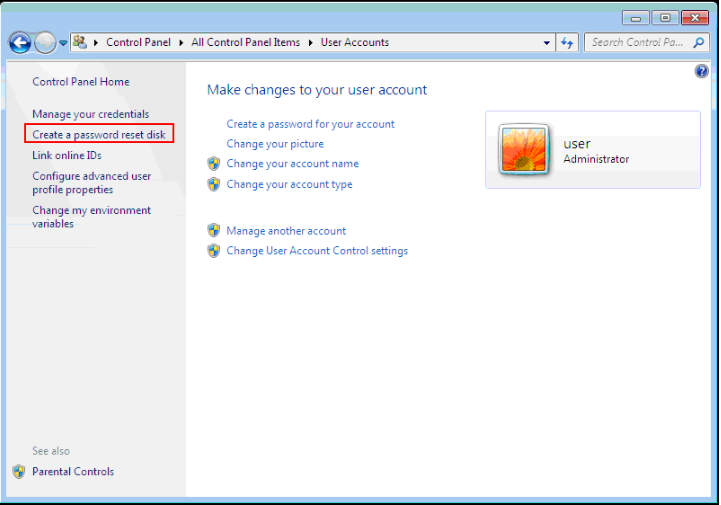
Step 1.Insert the USB drive into your computer and open the Control Panel. Then locate and click on "User Accounts", select "Create a password reset disk".
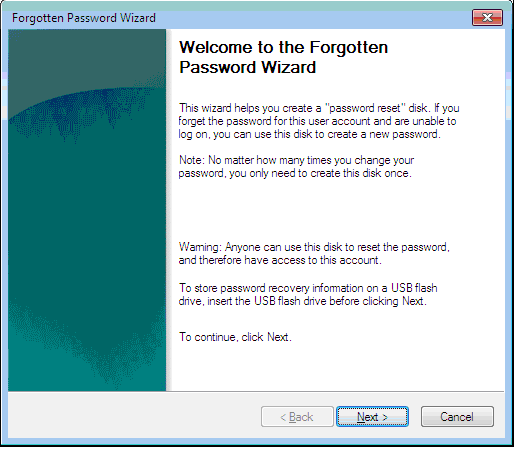
Step 2.The Forgotten Password Wizard will appear, please read the accompanying notes. After that, click"Next".
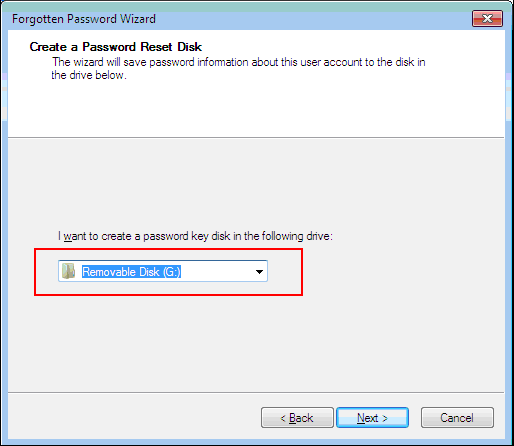
Step 3.You can seea list of available USB drives. Choose the USB drive you want to use as the password reset disk and click on "Next".
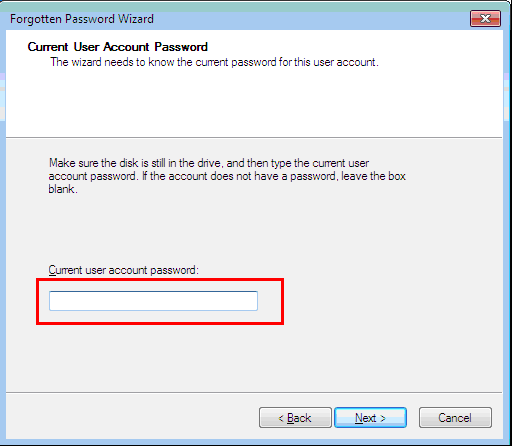
Step 4.Enter the password of your current account and click on "Next".
Step 5.Wait for the system to create the password reset disk on the selected USB drive. Once the process is finished, click"Next".
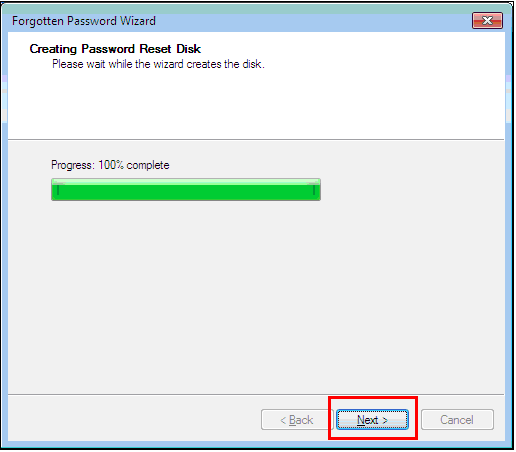
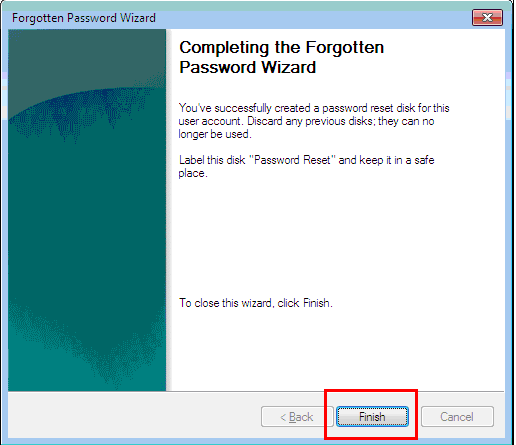
Step 6.Click"Finish" to finish the process of creating a new password reset disk. You'll find a file named "userkey.psw" stored on your USB drive.
How to reset Windows 7 password with USB flash drive
How to reset Windows 7 password without logging in? If you have prepared a Windows 7 password reset USB in advance, you can easily reset the password with it. The steps are as follows.
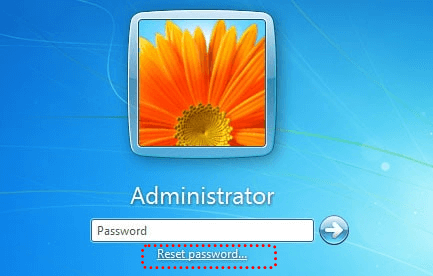
Step 1. Get to the Windows login interface and intentionally enter an incorrect password. This will trigger the appearance of the "Reset password" option. Insert the created password reset disk for Windows 7 and select the option.
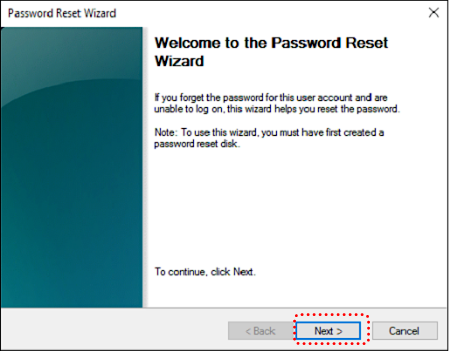
Step 2.You can see the Password Reset Wizard appears,read it and click"Next".
Step 3.A new window will pop up, displaying a list of USB devices containing the userkey.psw file. Choose the target USB device and click on "Next". Then, enter a new password along with a password hint, and click "Next" to proceed.
Step 4.After successfully resetting the password, click"Finish".
The best tool to reset Windows 7 password with USB
However, not all users anticipate the possibility of losing the Windows 7 password, so they may not have a password reset USB readily available. Fear not, AOMEI Partition Software for Windows 11/10/8/7 - a highly regarded application, offers a simple and effective method to reset or remove the Windows 7 password.
By creating a bootable USB, this utility provides the same functionality as a Windows 7 password reset disk. It can be created even after you've forgotten your Windows 7 password. Besides, this USB can be used to reset Windows passwords on other computers as well.
 AOMEI Partition Software
A free and reliable disk partition software that helps you resize partitions, migrate OS, convert disks, and optimize PC efficiently.
Here is the process on how to reset Windows 7 password with USB flash drive.
Step 1. Connectthe target USB to a functional Windows PC. Downloadand runthis Windows 7 password reset tool.Click"Tools"and"Reset Windows Password" from the menu.
.png)
Step 2. In the following window, click "Next" tomake a WinPE bootable media.
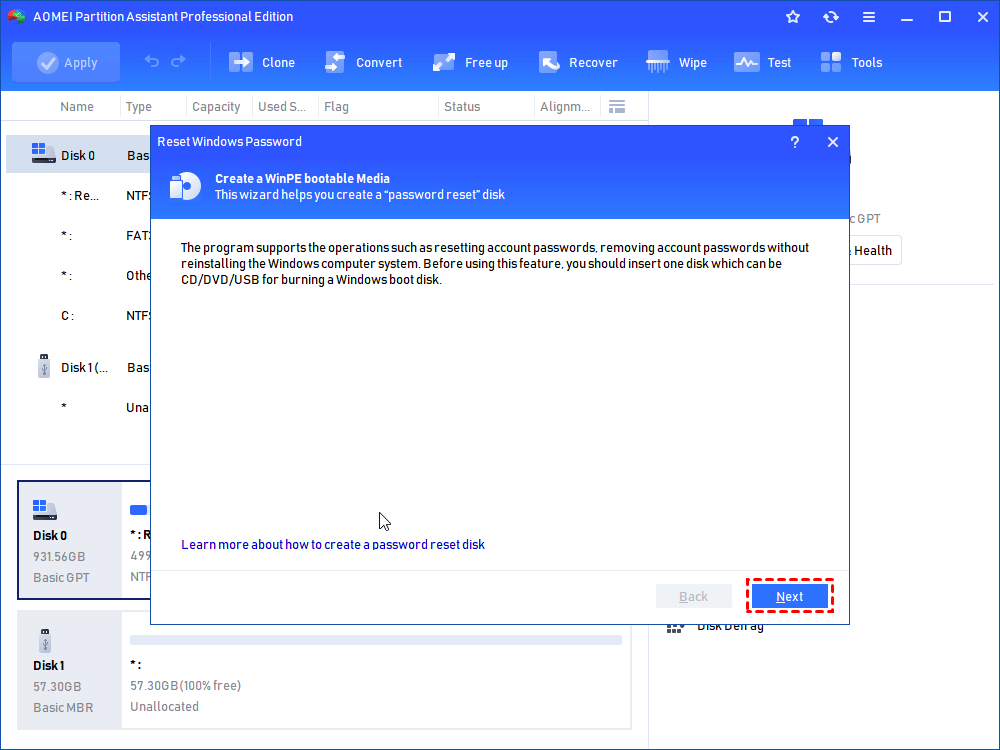
Step 3.Opt for "USB Boot Device" andchoose the connected USB drive. Click "Proceed".
Step 4.Confirm that you have read and understood the instructions, and then click "Yes" to proceed.
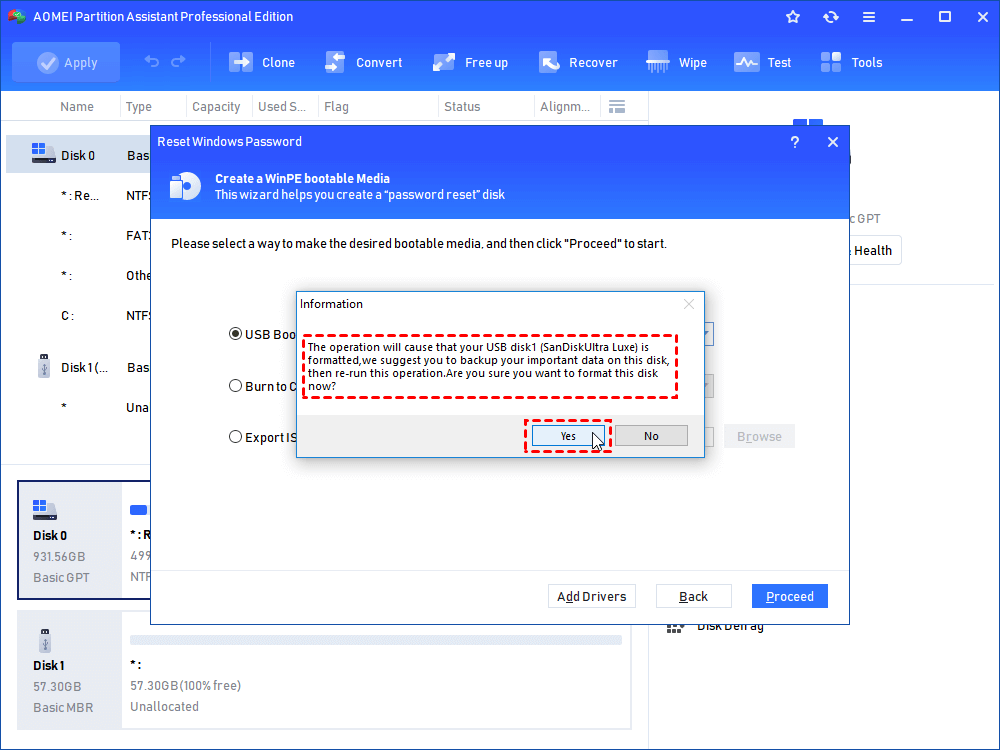
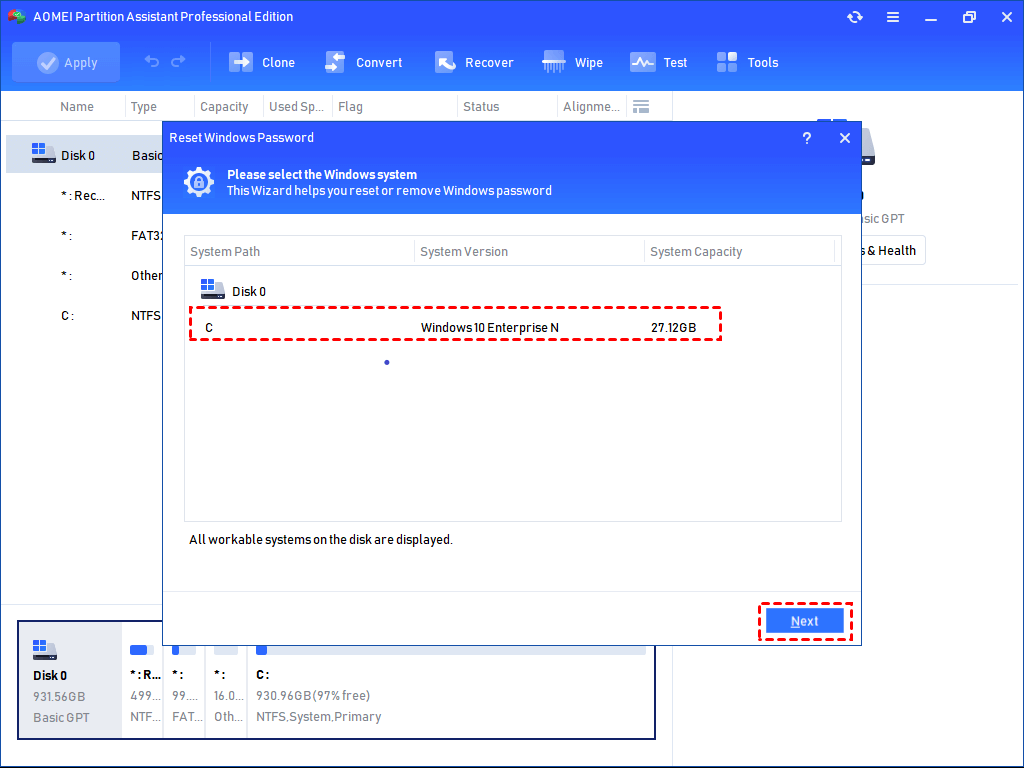
Step 5. Once the password reset USB has been created, connect the USB to the computer with the forgotten password. Change the boot order to boot the PC using this USB, and the AOMEI interface will appear. Click"Reset Password", select the desired Windows system, and click "Next".
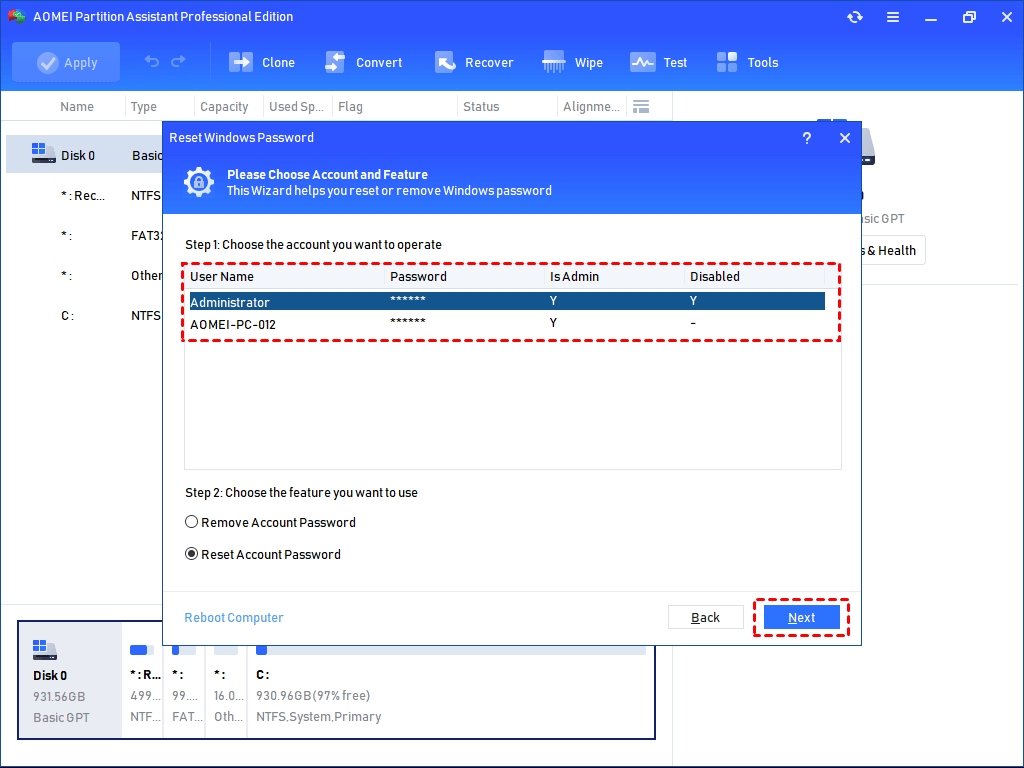
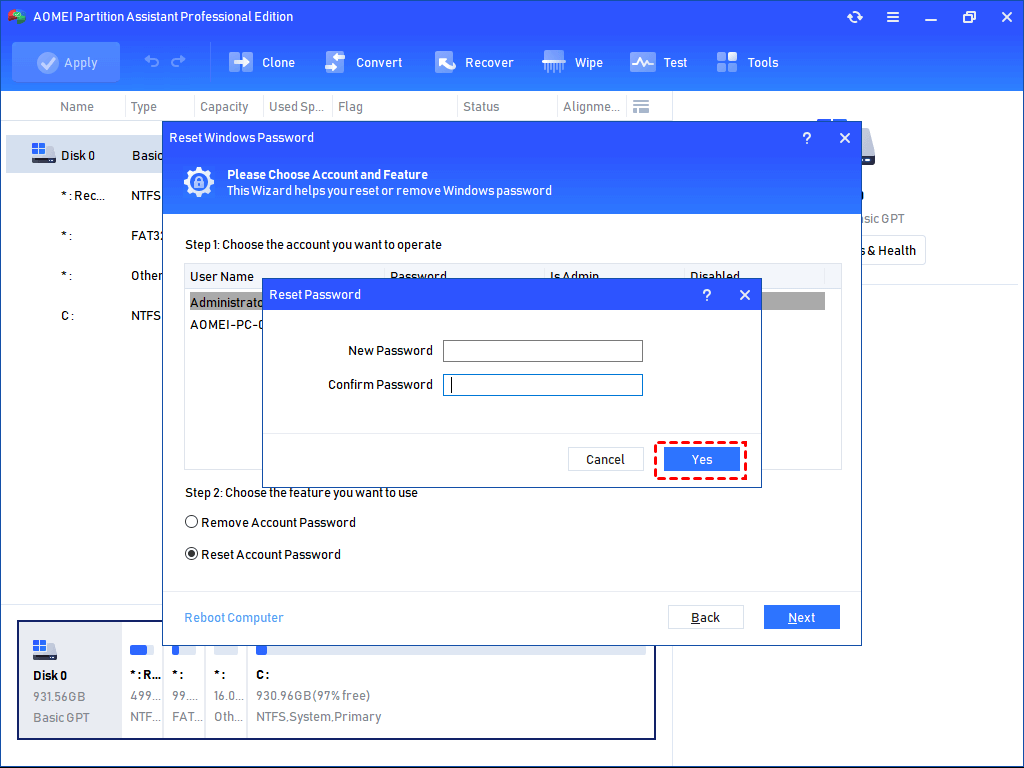
Step 6. Choose the account you wish to modify and tick the action you want to perform: "Remove Account Password" or "Reset Account Password", and click "Next".
Step 7.Enter the new password, confirm it, and click "Yes".
Tip: To unlock the Windows Server devices when you forget the password, the Server Version can help you.
Verdict
How to reset Windows 7 password with USB flash drive? Resetting your Windows 7 password using a password reset USB flash drive is a straightforward process that allows you to regain access to your computer without losing any data. However, when you forget to create it before, you cannot use this USB. Then you can try the shared AOMEI Partition Software.
FAQs: Resetting Windows 7 Password with a USB
Q1: Can I create a Windows 7 password reset USB after I have forgotten my password?
Answer: If you are trying to use the built-in Windows 7 "Create a password reset disk" feature, the answer is no; that native tool must be used before you forget your password. However, if you use a third-party tool like AOMEI Partition Software, the answer is yes. You can download the software on any other working computer, create a bootable WinPE USB drive, and then use it to unlock your inaccessible Windows 7 PC.
Q2: Will resetting my Windows 7 password using a USB drive delete my personal files?
Answer: No. Resetting your password using a reliable bootable USB tool (like AOMEI Partition Assistant or the Command Prompt installation disk method) only modifies the system files associated with your login credentials. Your personal documents, photos, videos, and installed software will remain completely safe and untouched.
Q3: How do I force my Windows 7 computer to boot from the USB drive instead of the hard drive?
Answer: To boot from a USB, you need to change your computer's boot order in the BIOS/UEFI settings. Restart your computer and immediately start pressing the designated BIOS key (commonly F2, F12, Delete, or Esc, depending on your computer's manufacturer) before the Windows logo appears. Once in the BIOS menu, navigate to the "Boot" tab, move your USB flash drive to the top of the boot sequence, save the changes (usually by pressing F10), and restart.
Q4: Can I use a USB flash drive created on a Windows 10 PC to unlock a Windows 7 PC?
Answer: Yes, absolutely. If you are using professional password reset software, the bootable USB is based on a universal Windows PE (Preinstallation Environment). This means you can create the password reset USB on a modern Windows 11 or Windows 10 computer and seamlessly use it to reset the password on an older Windows 7 machine.
Q5: What size USB flash drive do I need to create a password reset disk?
Answer: Password reset tools take up very little space. A USB flash drive with a capacity of 2GB or 4GB is more than enough. However, please note that the process of making the USB bootable will format the drive, erasing any existing data on it. Always make sure to back up any important files on the USB before turning it into a reset disk.

 as a preferred
source on Google
as a preferred
source on Google