




How to Perform Windows 10 Disable Password on Startup
How can Windows 10 disable password on startup? In this article, we will guide you through the process of disabling the password on startup in Windows 10, allowing you to bypass the login screen and access your computer directly.

By Lucas Updated on March 11, 2026


How can I disable Windows 10 password on startup?
Disable Windows 10 password on startup
I’ve unmarked the option of "require password on startup" from netplwiz, but whenever I'm trying to turn on my laptop its asking forpassword.Help me!
- Question from answers.microsoft.com
If your desktop never leaves your secure home office, typing a password every time you turn it on can feel like an unnecessary hassle. In this case, you might want to disable the password on startup in Windows 10 to boot straight to your desktop. Conversely, if you frequently take your laptop to cafes or share a PC with roommates, you must require a password on startup to protect your privacy.
How can Windows 10 disable password on startup? If you have no answer, go straight, we’ll share the ways to disable the Windows startup password.
How to disable password on startup Windows 10
Disabling the password prompt on Windows 10 startup can be accomplished through a few straightforward steps. By following the methods below, users can eliminate the requirement of entering a password during the boot process.
Part 1. Disable Password on Startup in Windows 10 (For Convenience)
If you are tired of typing your PIN or password every time you turn on your PC or wake it from sleep, you can configure Windows 10 to bypass the login screen entirely. Here are the top three ways to do it.
Method 1: Use "netplwiz" to Bypass the Login Screen
The Advanced User Accounts Control panel (known as netplwiz) is the most popular tool to disable the Windows 10 startup password without actually deleting your password.
Step 1. Press the Windows Key + R simultaneously to open the Run dialog box.
Step 2. Type netplwiz and press Enter.

Step 3. In the User Accounts window, select your user name from the list.
Step 4. Uncheck the box that says: "Users must enter a user name and password to use this computer."
Step 5. Click Apply. A new window will pop up asking you to enter your current password twice to confirm.
Step 6. Click OK to save the changes. Next time you restart, Windows will log you in automatically.
Note: If you do not see the checkbox in Step 4, go to Settings > Accounts > Sign-in options and turn off the toggle for "Require Windows Hello sign-in for Microsoft accounts", then try again.
Method 2: Disable Password Prompt After Sleep
Sometimes, you don't mind logging in when the PC turns on, but you hate entering the password every time it wakes up from sleep mode. You can disable this specific prompt in Settings.
Step 1. Press Windows + I to open Settings.
Step 2. Navigate to Accounts > Sign-in options.
Step 3. Scroll down to the Require sign-in section.
Step 4. Click the drop-down menu and change it from "When PC wakes up from sleep" to "Never".
Method 3: Switch to a Local Account with a Blank Password
If you are using a Microsoft account, Windows forces you to have a password. By switching to a local account, you can simply leave the password field blank.
Step 1. Go to Settings > Accounts > Your info.
Step 2. Click on "Sign in with a local account instead."
Step 3. Verify your current Microsoft account password.
Step 4. When prompted to set up the new local account, type in a Username, but leave the Password and Confirm Password fields completely blank.
Step 5. Click Next and then Sign out and finish. Your PC will now boot straight to the desktop without a password prompt.
Method 4: Disable login password using Local Group Policy Editor
Todisable the login password, Windows provides a powerful administrative tool for making system-wide configuration changes- Local Group Policy Editor.Byfollowing the steps outlined below, users can adjust the policy settings to eliminate the requirement of entering a password during login.
Step 1. Open the Local Group Policy Editor by typing "gpedit.msc" into the Run box.
Step 2. Navigate to "Computer Configuration" > "Administrative Templates" > "System" > "Logon". Locate the setting "Don't display the Getting Started welcome screen at logon" in the right-hand list and double-click on it.
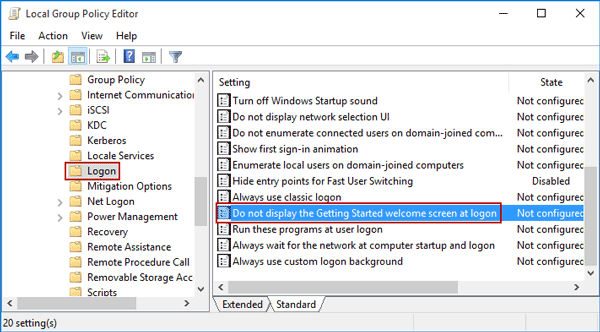
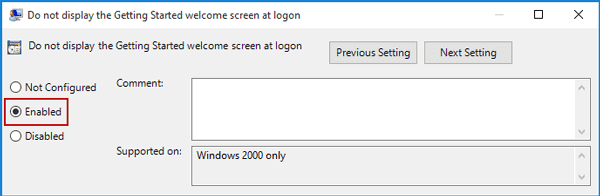
Step 3. In the new window, select the "Enabled" option to bypass the welcome screen during login.
How can Windows 10 to disable password on startup when lose it
In the event of losing the password, the mentioned method may be ineffective. When encountering difficulties with the Windows 10 login screen, there is a solution to bypass it without the need for the admin password. A recommended option for this task is the AOMEI Partition Software.
This professional tool is compatible with various Windows versions, including Windows 11/10/8/8.1/7. It specializes in unlocking Windows systems by creating a password reset USB.
Considering that you will be unable to access the system, the software's developer has made it possible to create a bootable USB from another Windows 10 PC to be used on the affected computer. To proceed, you can download a demo version of the software and learn how to eliminate the password on Windows 10, thus enabling access without the need for authentication.
 AOMEI Partition Software
A free and reliable disk partition software that helps you resize partitions, migrate OS, convert disks, and optimize PC efficiently.
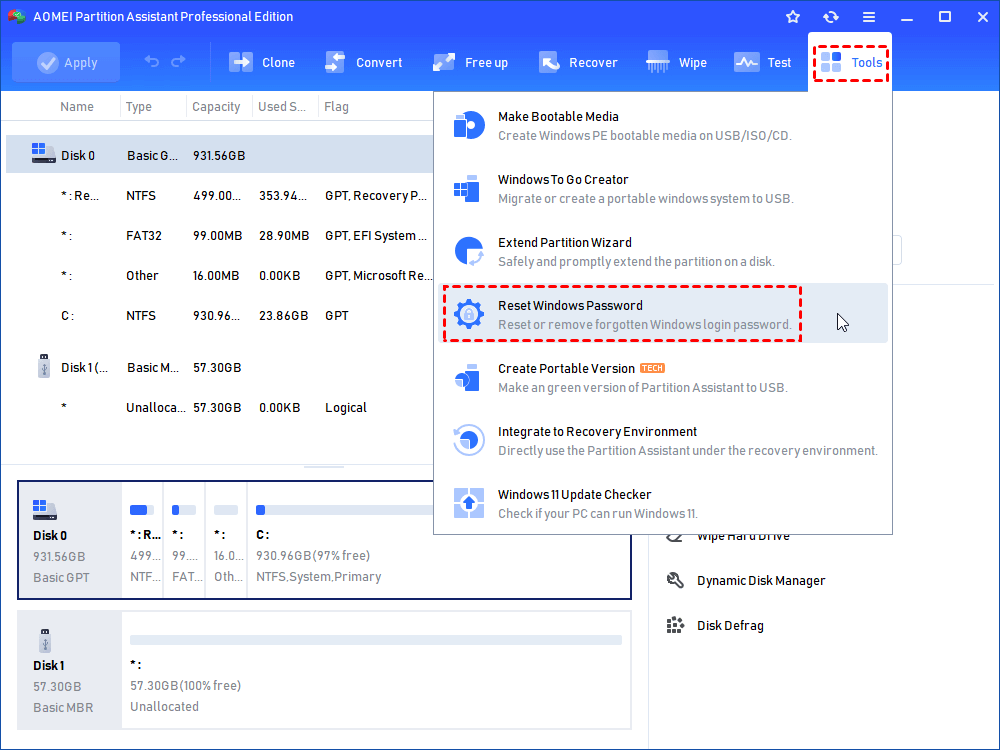
Step 1. Connect a USB to a functional Windows PC and download this tool. Launch the software and navigate to "Tools" > "Reset Windows Password" on the main interface.
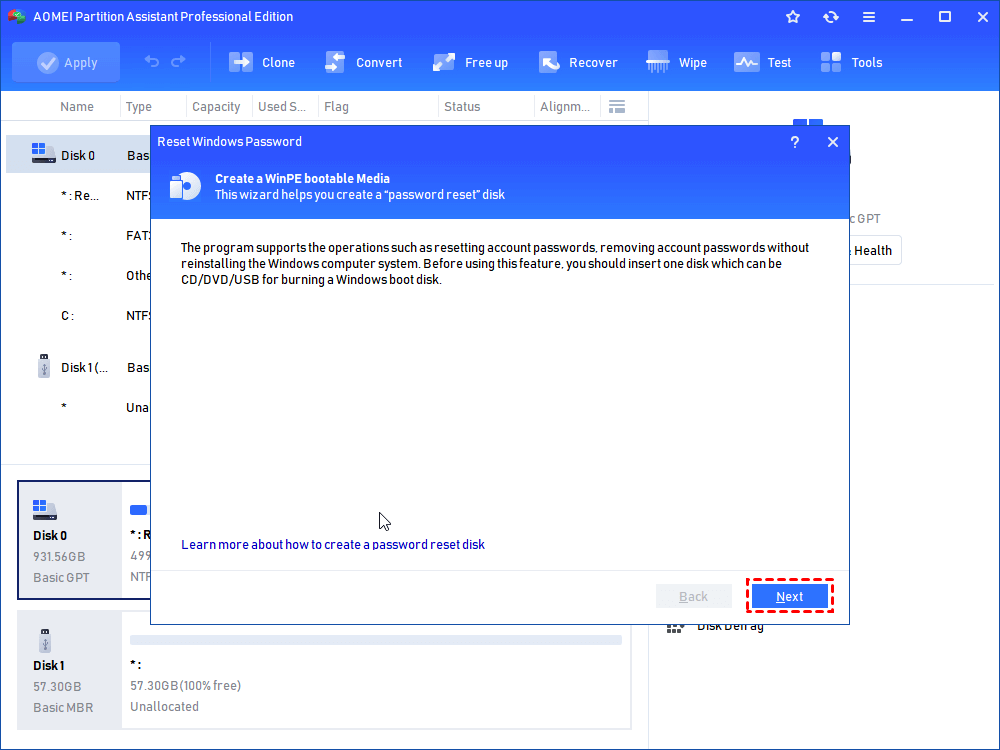
Step 2. Proceed by clicking "Next" in the newly opened window.
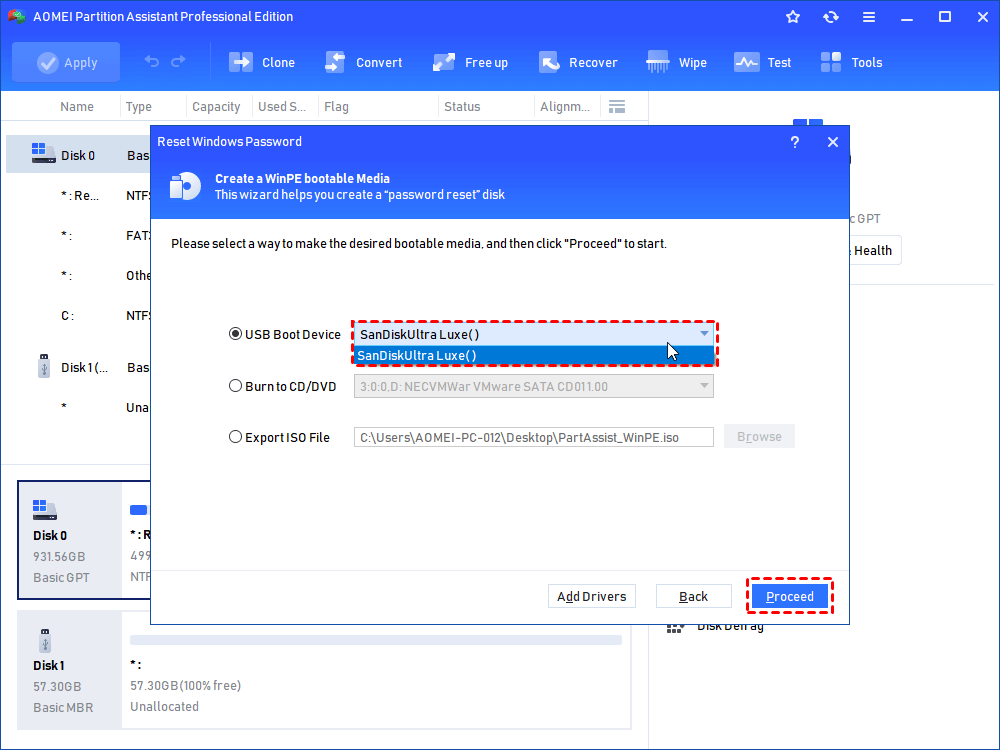
Step 3. In the following window, select the desired USB device as the target boot device and click "Proceed".
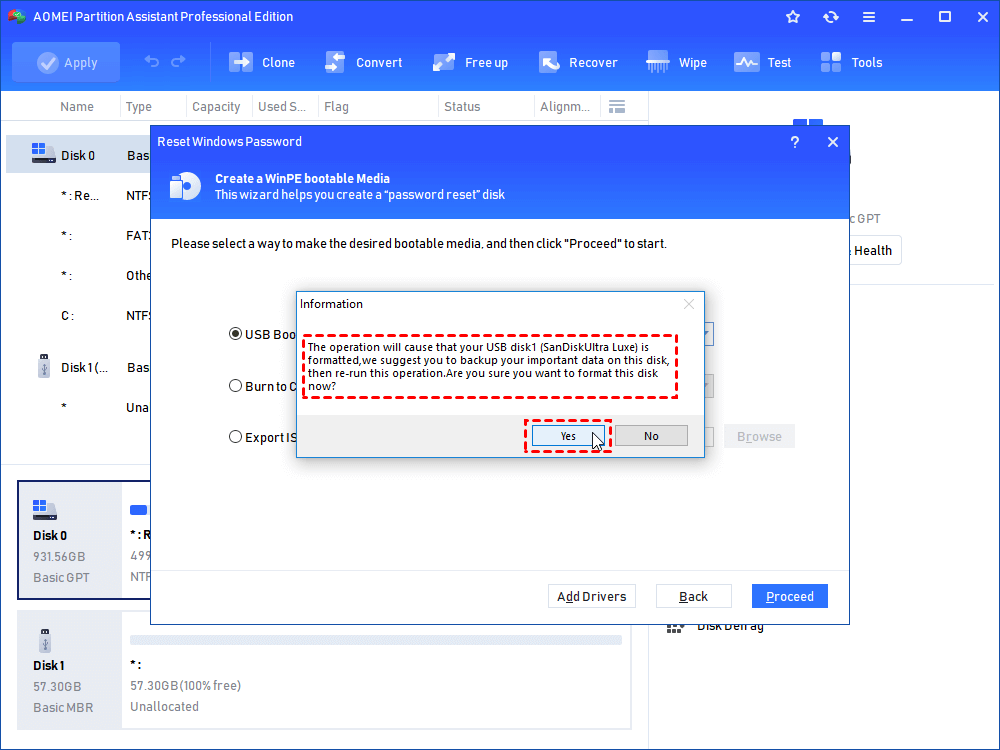
Step 4. Familiarize yourself with the notes regarding the creation of the bootable USB. If you have no further questions, click "Yes" to continue.
Step 5. Wait for the bootable USB to be successfully created, then click "Finish".
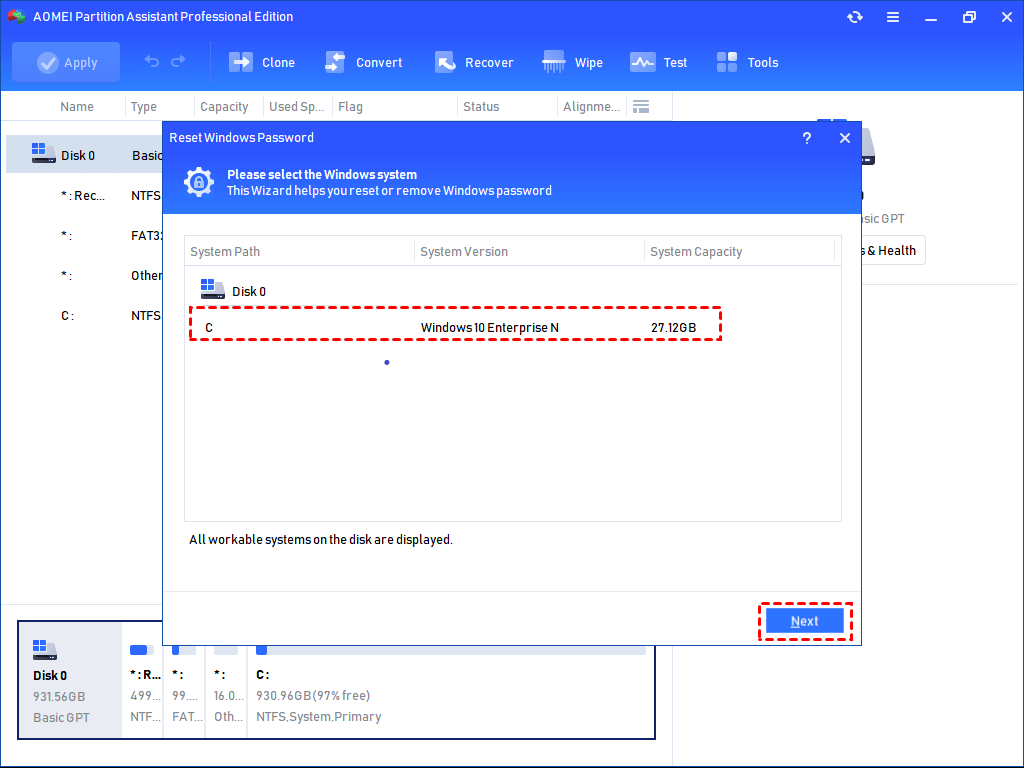
Step 6. Connect the bootable USB to the target computer from which you wish to log in without a password. Change the boot drive settings to boot the PC from the USB. Select the desired Windows system to operate and click "Next".
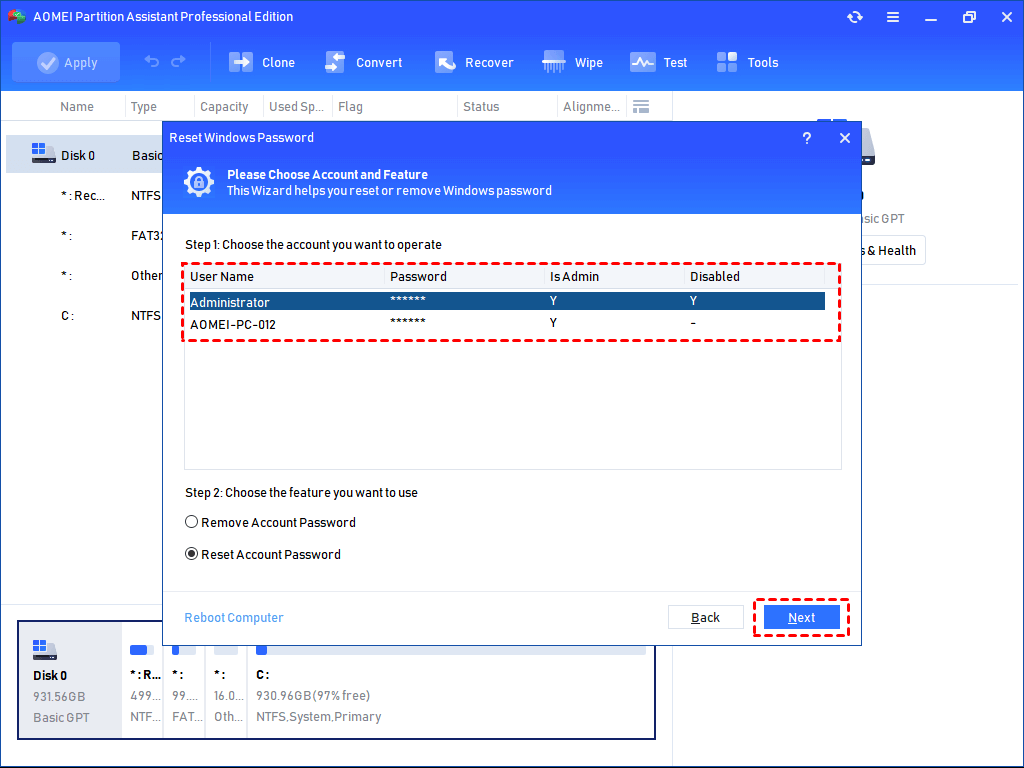
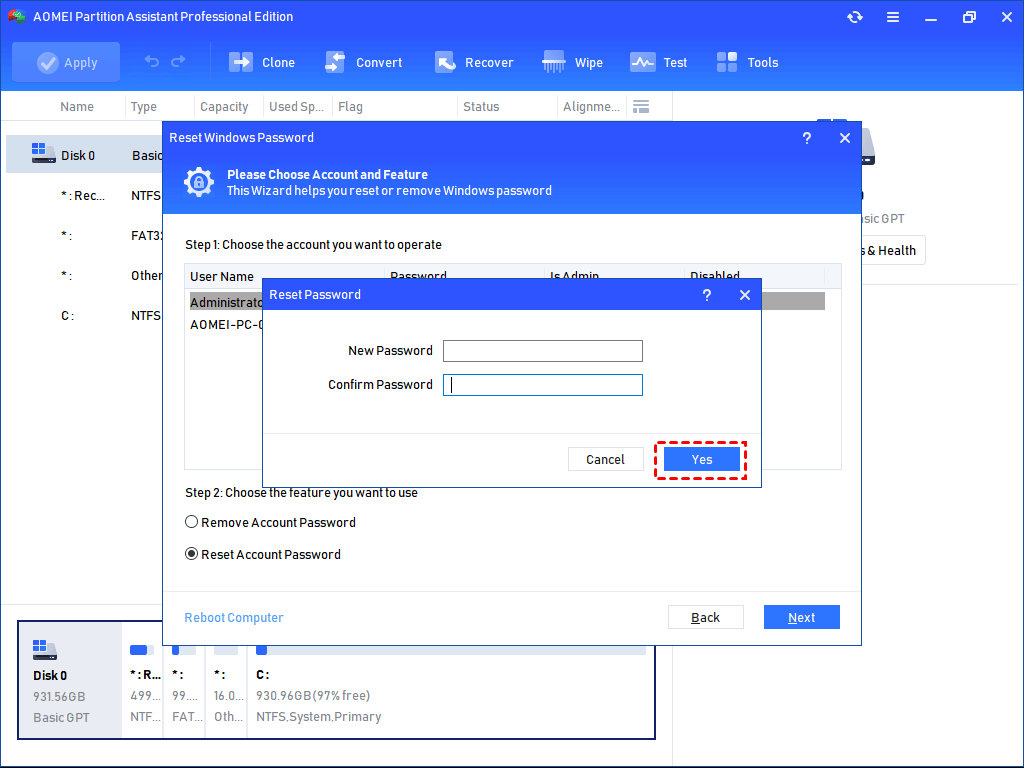
Step 7. From the list, select the target account, tick the "Remove Account Password" option, and click "Next".
Step 8. Enter and confirm the new password, then click "Yes". This will allow Windows 10 to successfully skip the password prompt during startup.
Note: The Server Version of the software extends its functionality to cater specifically to Windows Server environments, allowing users to reset or change the password accordingly.
To sum up
WhenWindows 10 to disable password on startup, you can enjoy the inconvenience to directly enter the computer without password. By following the steps outlined in this article, you can easily disable the password requirement and log in automatically.
Besides, when you lose the password, you can also try AOMEI Partition Software to do it. Apart from password recovering/removing function, you can try other functions, like Partition Alignment, Defrag disk/partition, Convert disk between MBR and GPT, Allocate free space, etc.
FAQs
Q1: Why is the "Users must enter a user name and password" checkbox missing in netplwiz?
Answer: This is a very common issue in newer versions of Windows 10. Microsoft hides this checkbox if you have Windows Hello enabled. To bring it back, go to Settings > Accounts > Sign-in options. Scroll down and turn off the toggle switch that says, "For improved security, only allow Windows Hello sign-in for Microsoft accounts on this device." Once turned off, close the Settings app, reopen netplwiz, and the checkbox will reappear.
Q2: Is it safe to disable the startup password on my Windows 10 computer?
Answer: It is only safe if your desktop computer is located in a physically secure environment, such as a private home office. If you are using a laptop that travels with you, or if you live in a shared space, disabling the startup password is highly discouraged. Anyone who turns on your device will have instant access to your private files, emails, and saved browser passwords.
Q3: How do I remove a Windows Hello PIN instead of a password?
Answer: If you simply want to stop using a PIN but want to keep your traditional password prompt on startup, go to Settings > Accounts > Sign-in options. Click on Windows Hello PIN to expand the menu, and click Remove. You will be prompted to enter your account password to verify your identity before the PIN is deleted.
Q4: Will disabling the startup password also bypass the password prompt when my PC wakes from sleep?
Answer: Not automatically. Using netplwiz only disables the password prompt for a fresh boot or a system restart. If you also want to bypass the login screen when waking your computer from sleep or hibernation, you must go to Settings > Accounts > Sign-in options and change the "Require sign-in" setting to "Never."

 as a preferred
source on Google
as a preferred
source on Google