




How to Use Windows 11 Password Reset Tool for Account Recovery?
This passage explains how Windows 11 password reset tool can help you when you cannot log in. You can follow simple methods to recover access and update your password without data loss.

By Irene Updated on June 3, 2026


🌟 Quick Overview:
This article details how to regain access to a locked Windows 11 PC without data loss or complex command lines, positioning third party utility AOMEI Partition Software as a pratical solution.
✔️ Core Recovery Process
-
Create Media: Use a working computer to write a bootable WinPE environment onto an empty USB drive.
-
Reset Password: Boot the locked PC from the USB, access the graphical interface, and remove or change the account password.
✔️ Key Alternatives & Prevention
-
Native Recovery: Windows allows password resets via Microsoft accounts, security questions, or pre-created reset disks, but these require setup before a lockout occurs.
-
Risks of Factory Resets: Reinstalling Windows resolves login issues but risks deleting personal files and applications.
-
Future Prevention: Secure access moving forward by enabling Windows Hello (PIN, fingerprint, face recognition), using password managers, and keeping recovery details updated.
What is the best Windows 11 password reset tool?
If you are looking for the best Windows 11 password reset tool, AOMEI Partition Software is a reliable and user-friendly option that helps you regain access to your computer without using command lines or advanced technical skills. Unlike the CMD method, which can be confusing for beginners and may cause errors if commands are entered incorrectly, this software provides a safer and simpler solution.
AOMEI Partition Software is a powerful all-in-one disk and system management tool. It includes a dedicated “Reset Windows Password” feature that allows users to reset or change forgotten passwords in just a few steps. You only need to create a bootable USB drive, then follow the clear on-screen instructions in a graphical interface.
🏅 Key advantages include:
• Easy password reset without using command prompt
• Step-by-step wizard suitable for all skill levels
• Support for Windows 11, 10, 8.1, 8, and 7(32-bit and 64-bit)
• Ability to reset both local and Administrator passwords
• Fast recovery using a bootable WinPE USB drive
Beyond password recovery, the software also offers useful disk management functions such as OS migration, MBR and GPT conversion, disk wiping, partition resizing, and system optimization. This makes it more than just a password reset tool. It is also a complete PC management solution.
Overall, AOMEI Partition Software is a practical choice for users who want an easy, efficient, and dependable way to reset Windows passwords while also managing their system with confidence.
 AOMEI Partition Software
- Advanced Partition Management: Go beyond basic disk tools with more flexible partition operations. Resize, move, split, merge, and align partitions with greater flexibility.
- OS Migration & Disk Cloning: Migrate Windows OS to SSD or HDD without reinstalling, or clone entire disks and partitions for seamless system upgrades.
- Flexible Disk Converter: Convert disks between MBR and GPT without deleting partitions, switch between basic and dynamic disks, and convert NTFS and FAT32 file systems.
- Smart Space Allocation: Allocate free space directly from one partition to another and extend system drives without creating unallocated space.
- Partition Recovery & Dynamic Disk Support: Recover lost or deleted partitions and manage dynamic volumes with advanced disk management tools.
 100% Secure
Part 1. Create the Password Reset USB
Windows includes a built-in feature that allows users to create a password reset disk for local accounts using a USB flash drive. This official method is free, safe, and effective for resetting passwords on Windows 10 and Windows 11. However, it has a clear limitation because the USB must be created in advance before any login issue happens.
Compared with this traditional approach, AOMEI Partition Software is more flexible and handy, especially when users did not prepare a reset disk earlier. By the way, the bootable USB can also help you repair corrupted system files once you encounter any boot errors like computer stuck restarting, blue screen of death, and others.
Step 1. Find a working Windows computer and plug in an empty USB flash drive.
Step 2. Download, install, and launch AOMEI Partition Software.
Step 3. Open the software, navigate to the Tools menu at the top, and click Reset Windows Password.
.png)
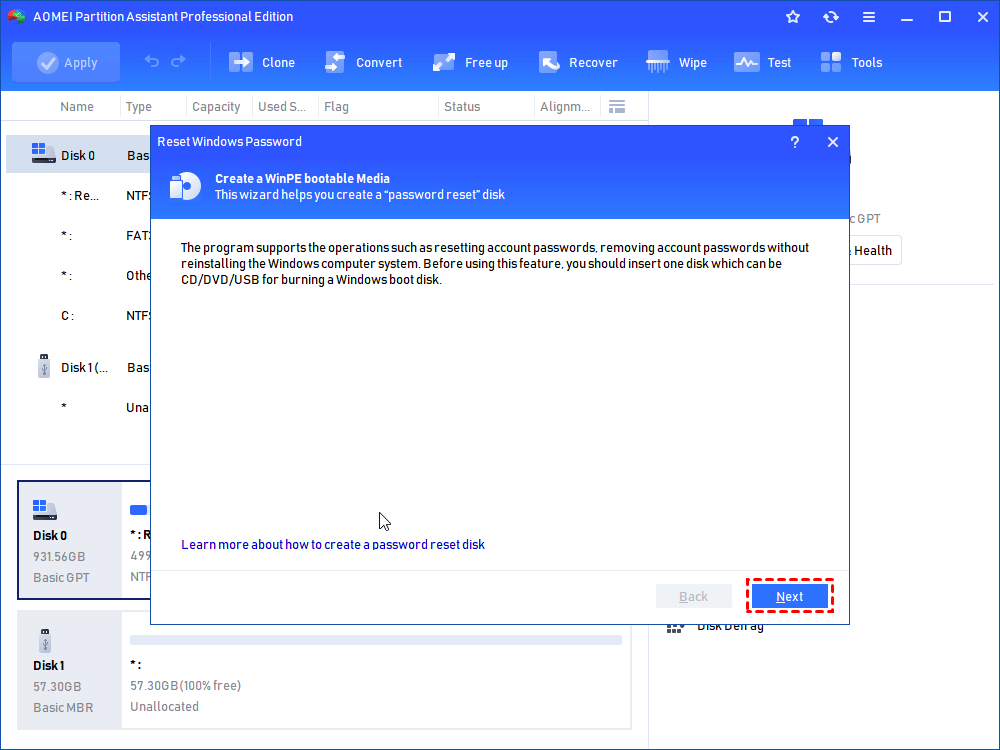
Step 4. Click Next to confirm you want to create a WinPE bootable media.
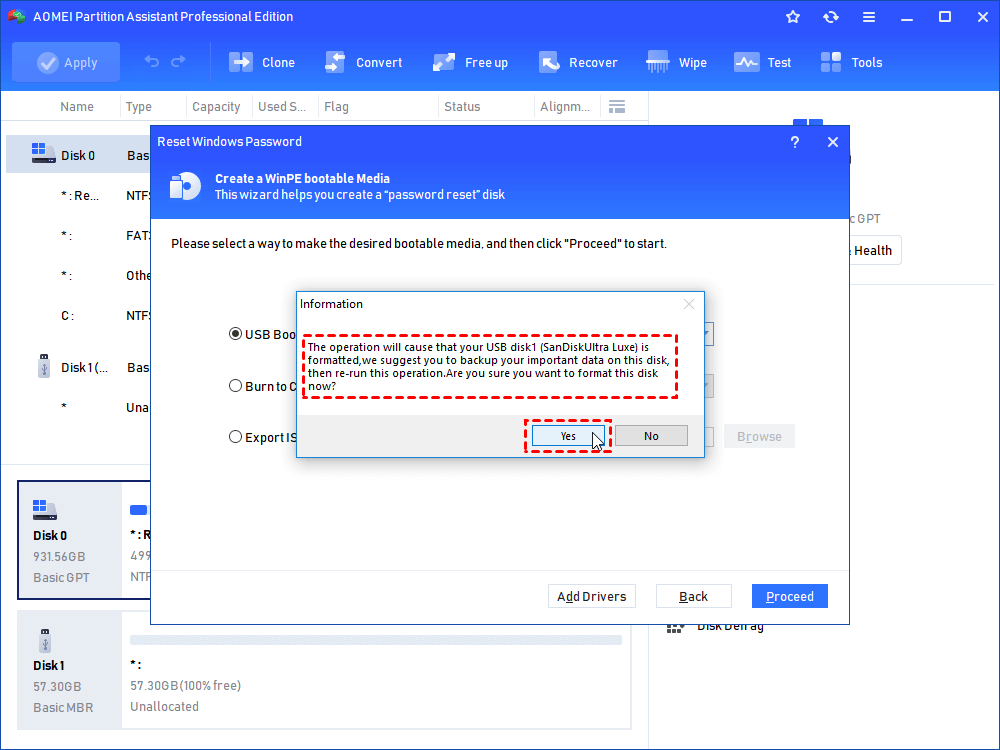
Step 5. Select USB Boot Device, choose your connected flash drive, and click Proceed. (This will format the USB, so ensure it is empty).
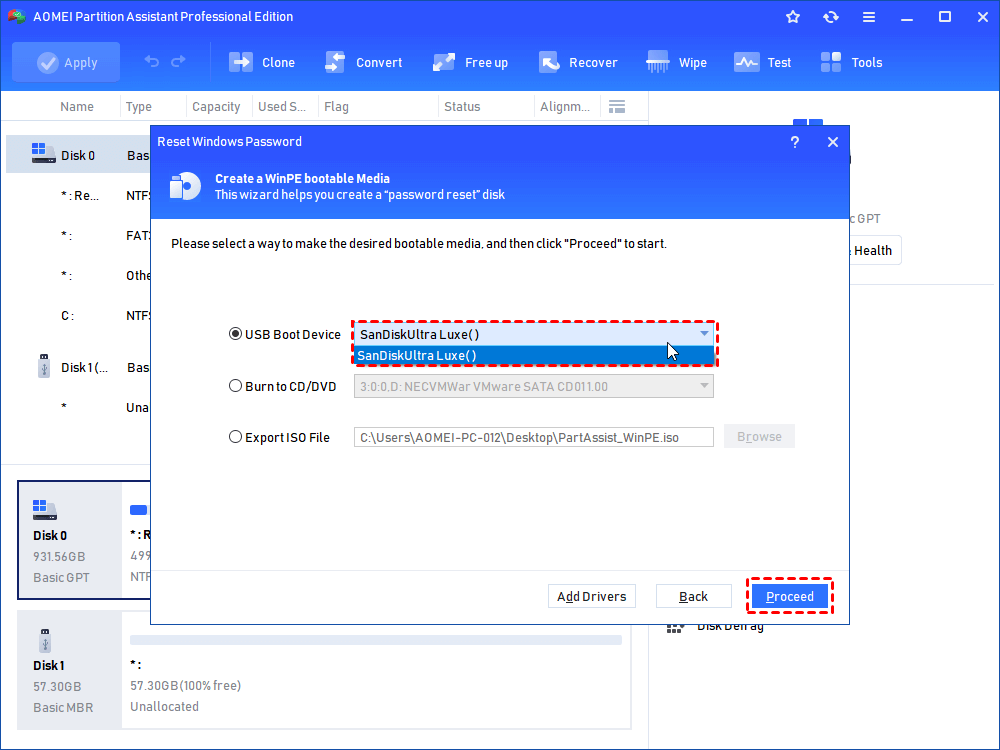
Once the process is finished, unplug the USB drive.
Part 2. Run the password reset program
After creating the bootable USB drive with AOMEI Partition Software, the next step is to use it on your locked computer. This process is simple and does not require any command line operations. Just make sure the USB is inserted correctly and follow the startup steps to access the recovery environment.
Step 1. Insert the newly created AOMEI USB drive into your locked computer. Turn the computer on and immediately press your BIOS/Boot Menu key repeatedly (usually F9, F10, F12, or DEL, depending on your PC manufacturer).
Step 2. Change the boot order so the computer boots directly from the USB drive.
Step 3. The AOMEI interface will load on your screen. A window will pop up asking you to select the Windows operating system. Select your Windows OS and click Next.
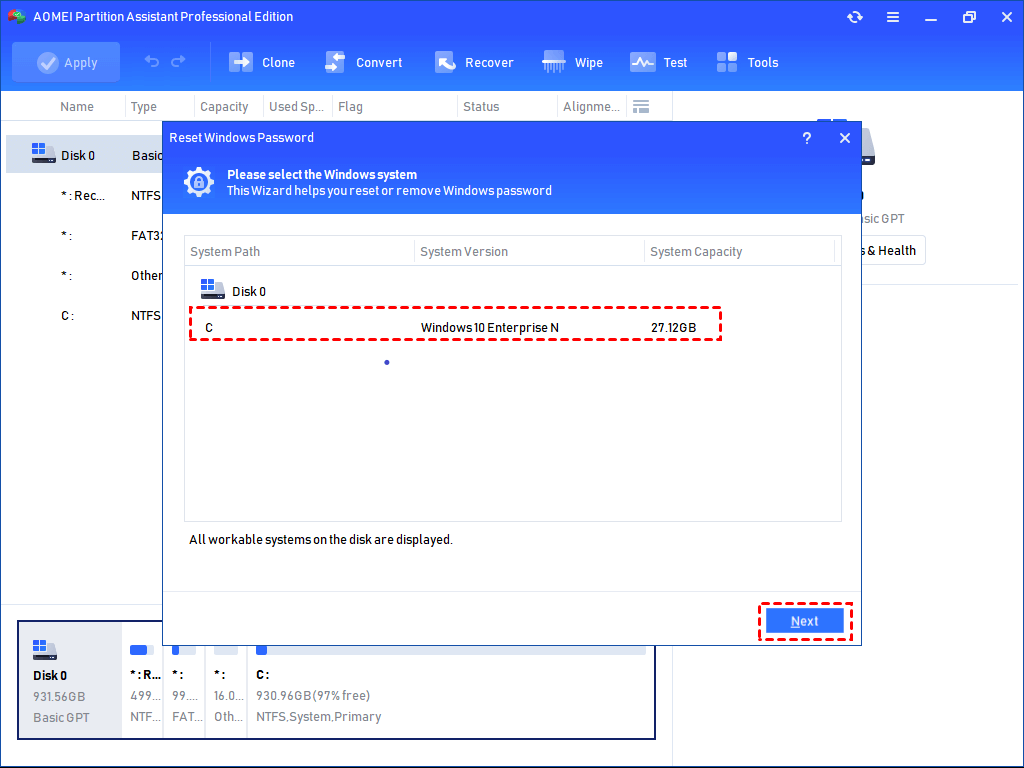
Step 4. Select the locked Administrator Account from the list.
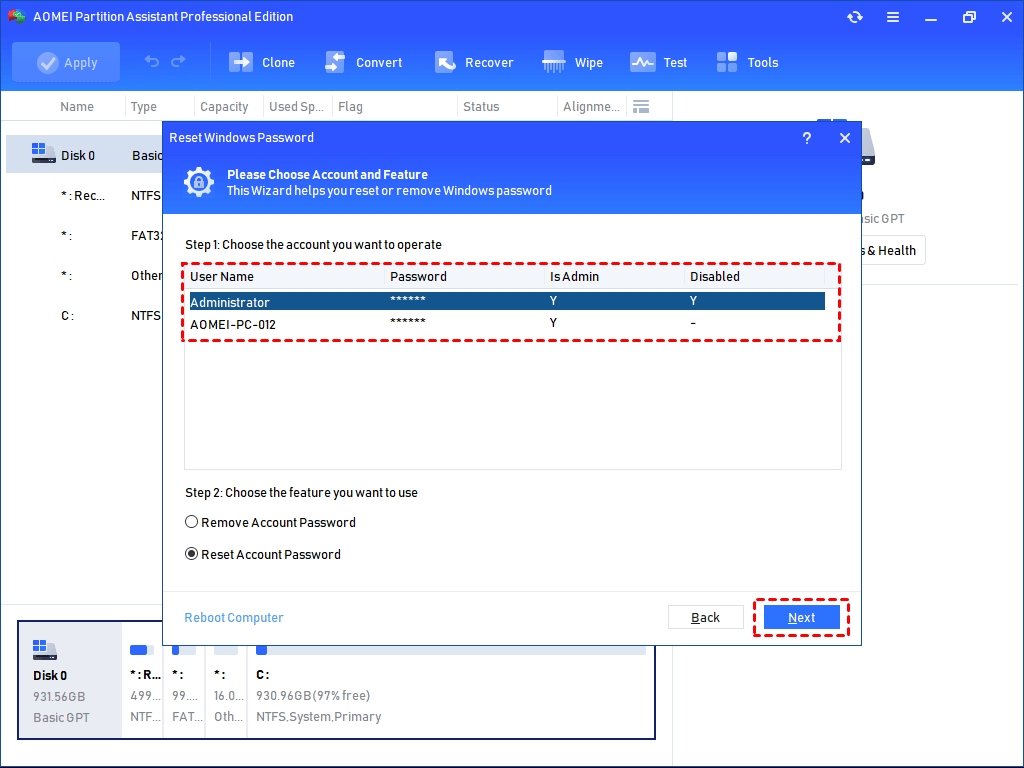
Step 5. Check the box next to Remove Account Password (or choose Reset Account Password to type a new one) and click Next.
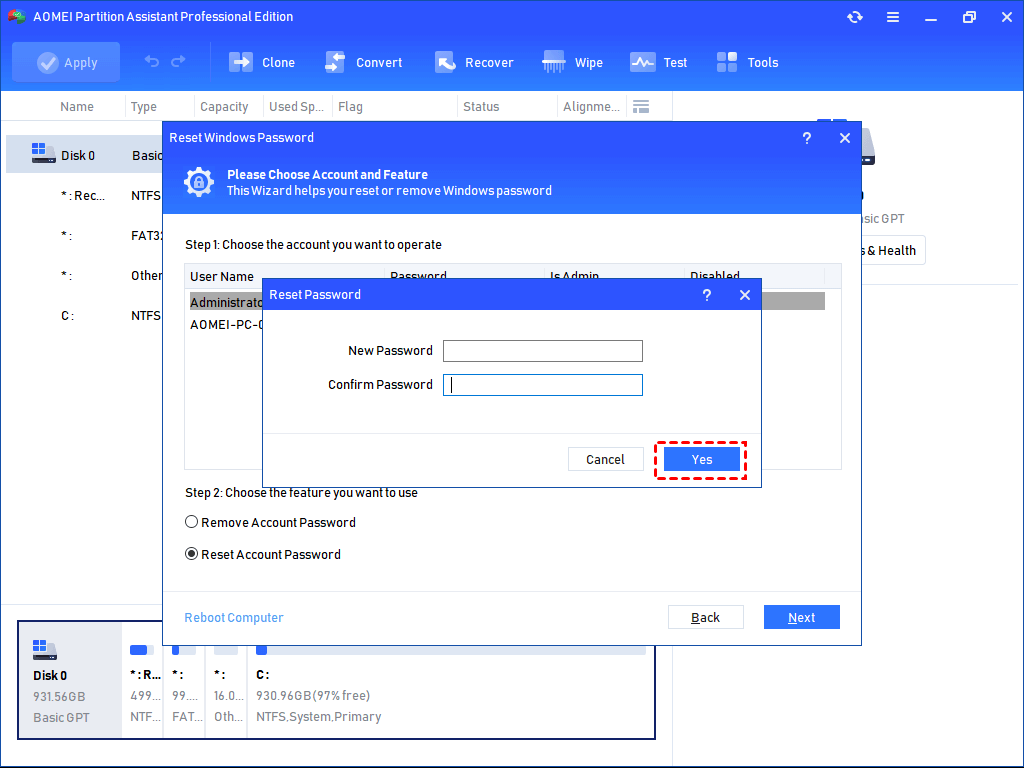
Step 6. Click OK to confirm the operation. Then click Reboot, remove the USB drive, and wait for your computer to start directly on the desktop without asking for a password.
How to prevent getting locked out of Windows 11 in the future without password
Getting locked out of a computer can interrupt work, delay access to important files, and create unnecessary stress. After regaining access to your PC, it is a good idea to prepare a few backup sign in methods in advance. This can reduce the chance of needing a Windows 11 password reset tool later.
Here are several practical ways to avoid future lockouts.
| Method | Why it helps |
|---|---|
| Create a password reset disk | Gives you another way to reset your password if you forget it |
| Add security questions | Helps recover a local account more easily |
| Use a Microsoft account | Allows online password recovery through Microsoft |
| Save passwords securely | Prevents forgotten passwords caused by poor password management |
| Prepare a Windows password reset utility | Provides emergency access when normal recovery options fail |
1. Create a password reset disk
Windows 11 still allows local account users to create a password reset disk with a USB drive. Once created, the disk can help unlock your account even if the password is forgotten later.
This method is simple and can save a lot of time during emergencies.
Add multiple sign in options
Using only one password increases the risk of being locked out. Windows 11 supports additional sign in methods such as:
• PIN
• Fingerprint
• Face recognition
• Security key
If one method fails, another option may still work.
2. Keep a reliable Windows password reset tool ready
Many users only search for a solution after they lose access to Windows. Preparing a trusted Windows password reset tool in advance is safer and more convenient.
A professional password reset program can help you:
• Reset forgotten passwords
• Remove login restrictions
• Unlock local or administrator accounts
• Recover access without reinstalling Windows
3. Store passwords safely
Writing passwords on paper or using weak passwords often causes future problems. A password manager can securely save account details and reduce the chance of forgetting them.
4. Update recovery information regularly
If you use a Microsoft account, make sure your recovery email address and phone number are still active. This allows Microsoft to verify your identity quickly if you cannot log in.
Why do you need a Windows 11 password tool
A forgotten password is one of the most common Windows problems. In many cases, users cannot access files, applications, or even important work documents. A Windows password change tool or Windows password reset utility can help restore access quickly without complicated technical steps.
Common situations where a password tool is useful
| Situation | How the tool helps |
|---|---|
| Forgotten Windows password | Resets or removes the password |
| Locked administrator account | Restores administrator access |
| PIN or sign in issues | Allows account recovery when PIN login fails |
| Second hand computer login problem | Helps access the system legally after ownership transfer |
| No password reset disk available | Offers another recovery solution |
Without a Windows password reset tool, many users may choose to reinstall Windows completely after forgetting their password. However, this process can take a long time and may even cause data loss if important files are not backed up properly beforehand.
In comparison, a password reset program is usually faster and more practical because it focuses directly on restoring account access instead of reinstalling the entire operating system. In many cases, users can regain access to their computers while keeping personal files, applications, and system settings unchanged.
Another advantage is that a reliable Windows password change tool often supports multiple account types, such as:
• Local accounts
• Administrator accounts
• Standard user accounts
This flexibility makes the tool especially useful for families, shared computers, and office environments where several users may have different account permissions.
At the same time, reinstalling Windows or formatting the drive always carries the risk of losing valuable documents, photos, or work files. A trusted Windows password reset utility can often solve login problems safely without affecting existing data.
Unexpected sign in issues can also appear for many reasons, including:
• System updates
• Password changes
• Hardware replacement
• Account corruption
• Long periods without using the computer
Because these situations can happen without warning, preparing a Windows 11 password reset tool in advance can help you recover access more quickly and avoid unnecessary stress.
Conclusion
In conclusion, a Windows 11 password reset tool can save time and help users recover access to their computers more safely and easily. Compared with reinstalling Windows or using complicated command line methods, tools like AOMEI Partition Software provide a simpler solution for resetting forgotten passwords without affecting personal files. Besides password recovery, the software also offers useful disk and system management features, making it a practical choice for both home and office users. Preparing a reliable password reset utility in advance can also help reduce stress and avoid future login problems.
FAQs
🗨️ How do I unlock my Windows 11 if I forgot my password?
If you forgot your Windows 11 password, you can unlock your computer by using a password reset tool, a password reset USB drive, or your Microsoft account recovery options. For local accounts, professional tools such as AOMEI Partition Software can help remove or reset the password without reinstalling Windows. If you use a Microsoft account, you can also reset the password online through Microsoft’s official recovery page.
🗨️ What are the Windows 11 password reset tools?
Windows 11 password reset tools are programs designed to help users regain access to locked computers after forgetting a password. Some tools are built into Windows, such as password reset disks, while others are third party utilities that provide more advanced recovery options.
🗨️ Can I factory reset my PC if I forgot my password?
Yes, Windows 11 allows users to factory reset a PC even if the password is forgotten. You can access the recovery environment from the login screen by clicking the Power icon, holding the Shift key, and selecting Restart. However, a factory reset may remove installed programs and personal files depending on the option selected. Because of this, many users prefer using a password reset tool first to avoid possible data loss.
🗨️ How do I reset my Windows 11 login password?
You can reset your Windows 11 login password in several ways. If you use a Microsoft account, visit Microsoft’s password recovery website and follow the verification steps. For local accounts, you can use security questions, a password reset disk, or a Windows password reset utility.
🗨️ Can I reset my Windows 11 password with a USB drive?
Yes, you can reset a Windows 11 password with a USB drive. Windows includes a built in password reset disk feature for local accounts, but the disk must be created before the password is forgotten. Another option is to use a bootable password reset USB created with software.

 as a preferred
source on Google
as a preferred
source on Google