



Forgot Password on Surface Pro: Reset Password Now!
Forgot password on Surface Pro? Don’t worry. No matter whether you are using a Microsoft account or a local account, you can find the relevant methods on this page to regain access.

By Hedy Updated on May 29, 2026


If you forgot your password on a Microsoft Surface Pro, the recovery method depends on whether you use a Microsoft account or a local account. Here are the safest and most effective ways to regain access.
|
Microsoft account |
Unlock Surface Pro using Microsoft account |
Most Surface Pro devices use a Microsoft account for login. If that’s your case, you can reset it online. |
|
Local account |
Way 1. Use a password reset disk |
If you created a password reset disk earlier, this is the fastest offline method. |
|
Way 2. Use specialized password reset tool |
If you’re locked out of a local account and don’t have a reset disk, third-party tools can help regain access. |
Identify what type of password you forgot
Before trying random fixes, stop and determine exactly what credential is missing. This step saves enormous amounts of time. Many people confuse their PIN with their Microsoft password, and that confusion leads them down the wrong recovery path.
Forgotten Microsoft account password
If your Surface login uses an email address, you are likely using a Microsoft account. This is the easiest type of password to recover because Microsoft provides official online recovery tools.
Typical signs include:
◾ Login screen displays an email address
◾ You use OneDrive syncing
◾ Microsoft Store purchases are linked
◾ Outlook or Xbox account shares same credentials
Forgotten local account password
Local account lockouts are trickier because there is no online recovery system. Recovery depends entirely on:
◾ Security questions
◾ Another administrator account
◾ Password reset disk
◾ Full Windows reset
This is why Microsoft strongly encourages users to connect Surface devices to Microsoft accounts instead of standalone local accounts.
How to unlock Surface Pro when you forgot password
When you forgot my Surface Pro password, you may find yourself unable to access important files and system features. In situations like this, it is important to approach the issue using practical technical solutions. Fortunately, there are several reliable methods available that can help you regain access to your Surface Pro and restore normal device functionality without unnecessary complications.
Method 1. Resetting the Microsoft account password
If you use a Microsoft account to sign in to your Surface Pro, resetting your account password is often the most effective way to regain access. The process is straightforward and can be completed online through Microsoft’s official recovery system.
Step 1. Go to the Microsoft password reset page and select the “Forgot password” option.
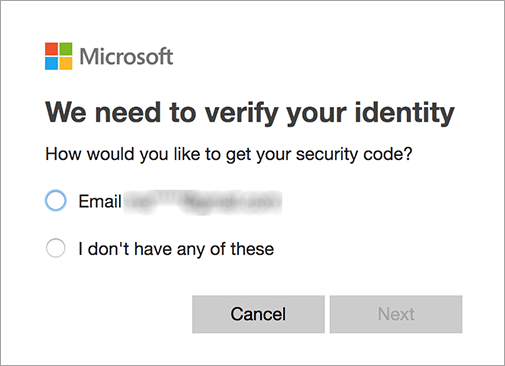
Step 2. Enter the username associated with your Microsoft account. In most cases, you will need access to a registered email address for verification. Click “Next” to continue.

If email verification is not available, you may use an alternative verification method only if it was previously configured. Without a pre-set recovery option or verification code method, this recovery process cannot proceed.
Step 3. Microsoft will send a security code to your email or phone number. Enter the received code in the required field and click “Next.” After verification, you can create a new password and use it to sign back into your Surface Pro.
Method 2. Utilizing a password reset disk
If you’ve forgotten your Surface Pro password, a password reset disk can be a lifesaver, letting you regain access quickly. Keep in mind, this tool only works if the disk was created beforehand. If you already have one, follow these steps to see how to unlock Surface Pro forgot password effortlessly.
Step 1. Insert the password reset disk into your Surface Pro and select the “Reset password” option.
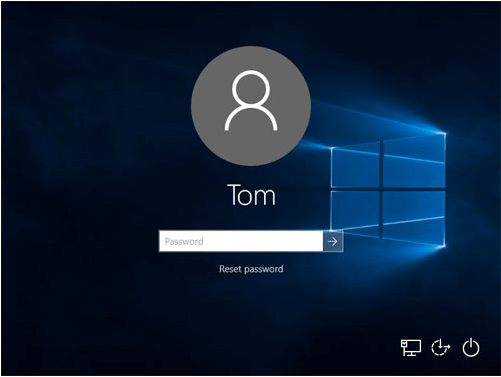
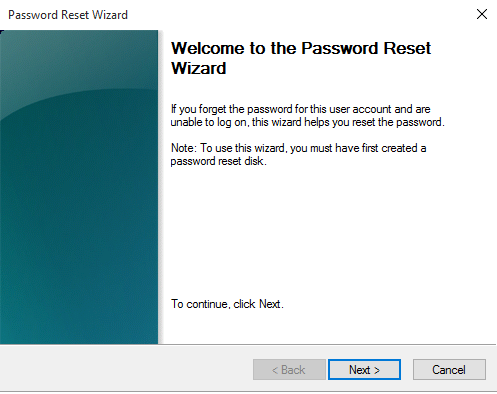
Step 2. When the pop-up window appears, click “Next”.
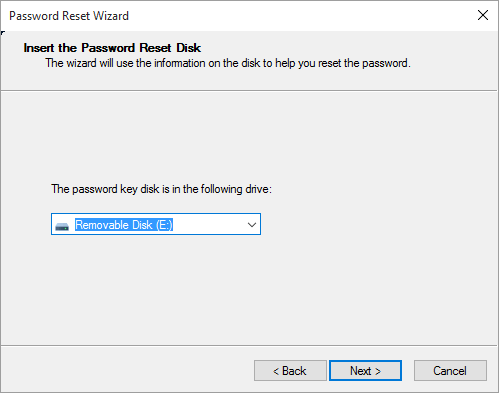
Step 3. Choose your password reset disk as the target and click “Next” again.
Step 4. Enter your new password along with a hint to help you remember it, then click “Next”.
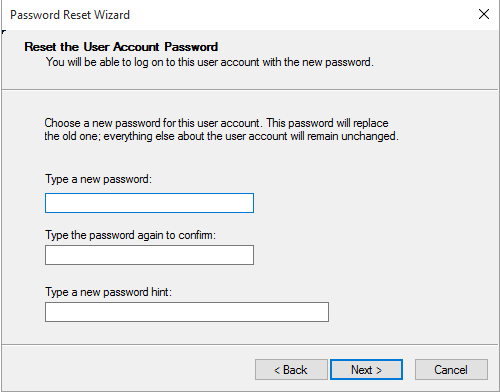
Step 5. Click “Finish” to complete the process. Your Surface Pro can now be accessed with the new password.
Method 3. Using specialized password reset tool
If you can’t log into Surface Pro forgot password,a specialized password reset tool can help you regain access quickly. One of the most reliable options is AOMEI Partition Software. This robust tool simplifies the process of recovering or resetting a lost password with just a few straightforward steps.
Its intuitive graphical interface makes it easy to use the “Reset Windows Password” feature, which allows you to create a password reset USB. This USB can then be used to reset or remove a forgotten password on a wide range of Windows systems, including Windows 11, 10, 8.1, 8, and 7. Each function comes with clear, step-by-step instructions, ensuring a smooth experience without complicated procedures.
The tool is also completely safe, free from viruses or bundled software, giving you peace of mind during the password recovery process. With this powerful USB-based password manager, resetting your Surface Pro password becomes simple, fast, and secure.
 AOMEI Partition Software
A safe and reliable disk partition management tool that helps you migrate OS to SSD or HDD, reorganize disk space, and improve overall PC performance.
Step 1. Insert the USB drive you want to use into your Surface Pro. Launch AOMEI Partition Software, navigate to the “Tools” menu, and select “Reset Windows Password”.
.png)
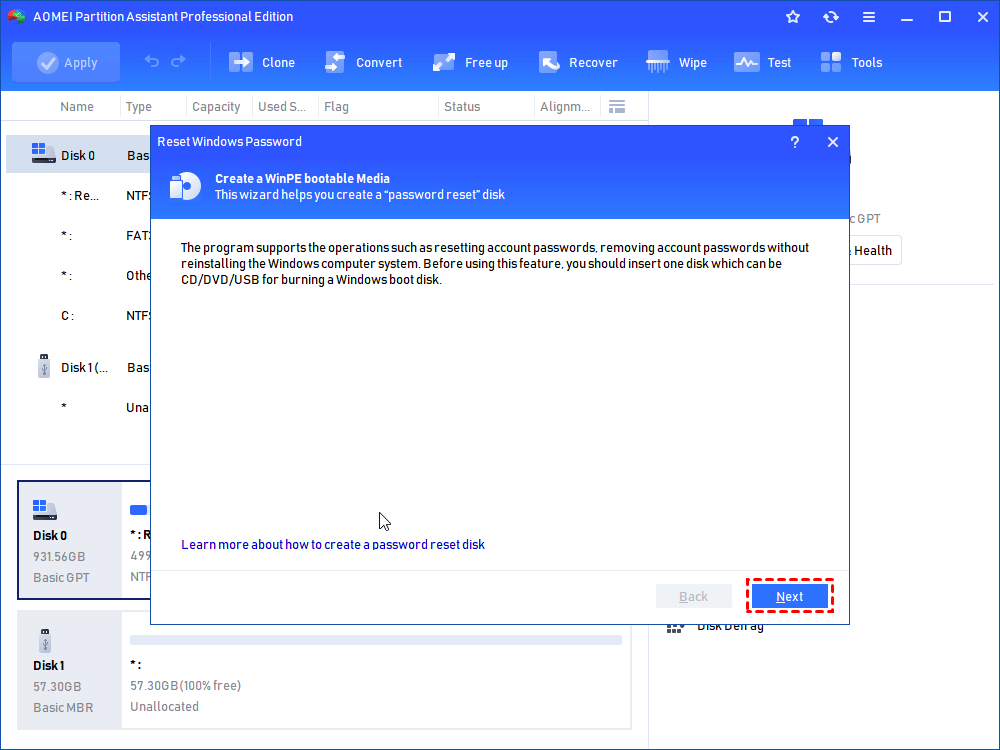
Step 2. A small pop-up window will appear. Click “Next” to continue.
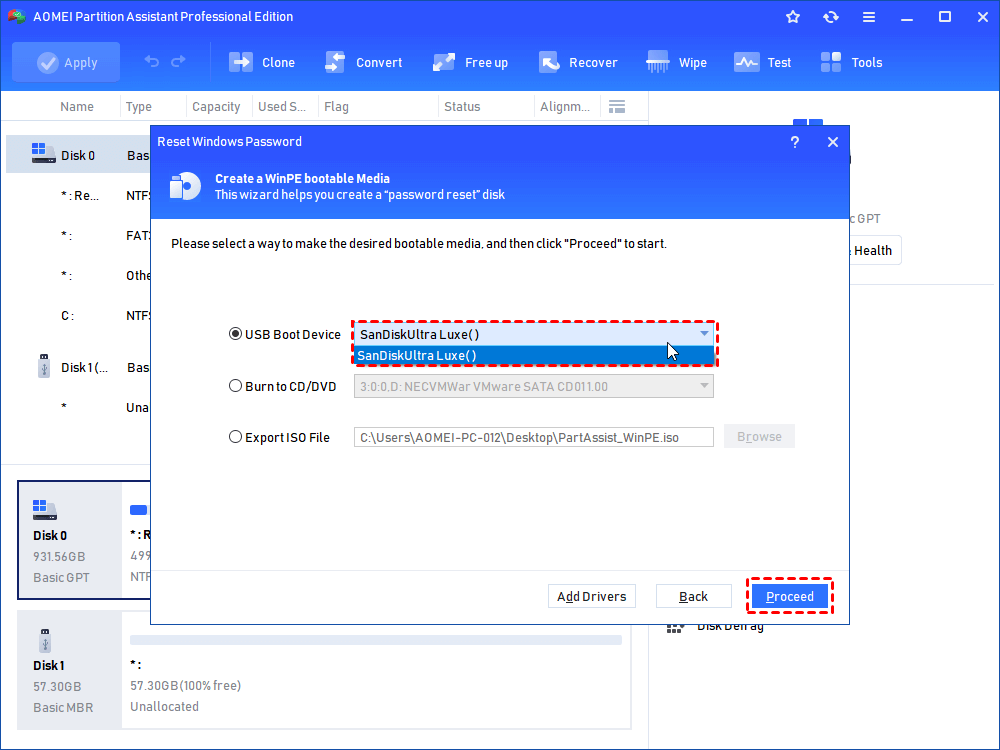
Step 3. Choose “General USB Flash Disk” and click “Proceed”. Note that this will format the USB, erasing all data, so ensure any important files are backed up beforehand.
Step 4. Read the warning message carefully, then click “Yes” to confirm.
Step 5. Wait patiently while the password reset USB is being created. Once finished, click “Finish”.
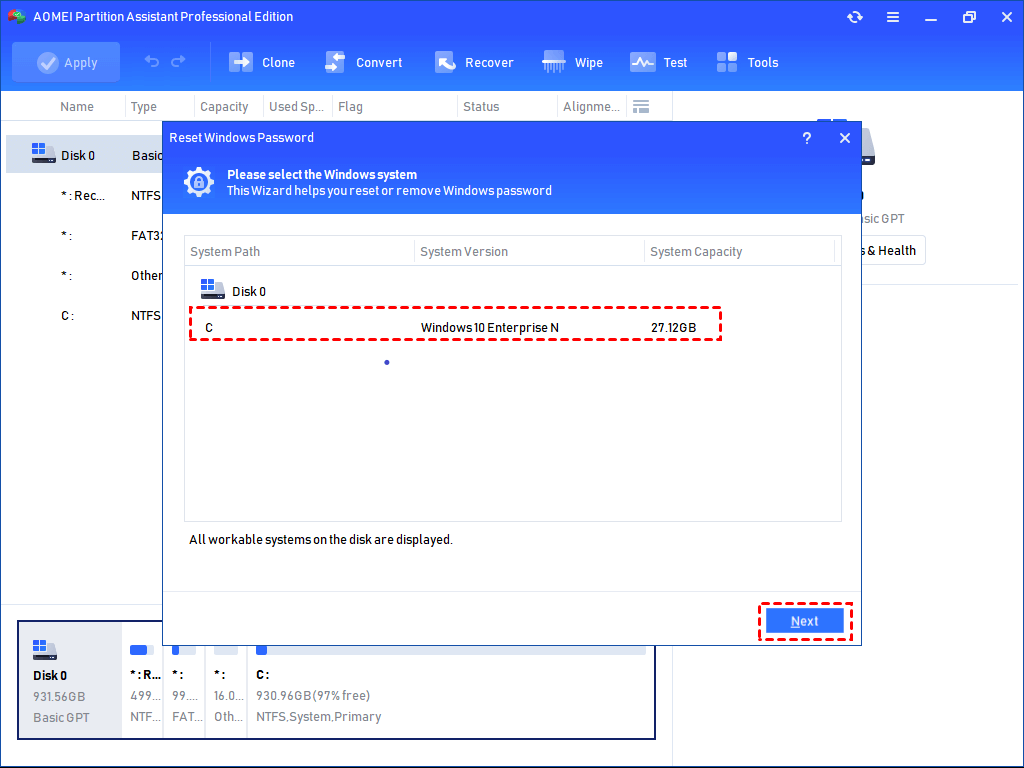
Step 6. Remove the USB and insert it into the locked Surface Pro. Restart the device. When prompted to select a boot device, choose the USB drive. Then, select the Windows system you want to unlock and click “Next”.
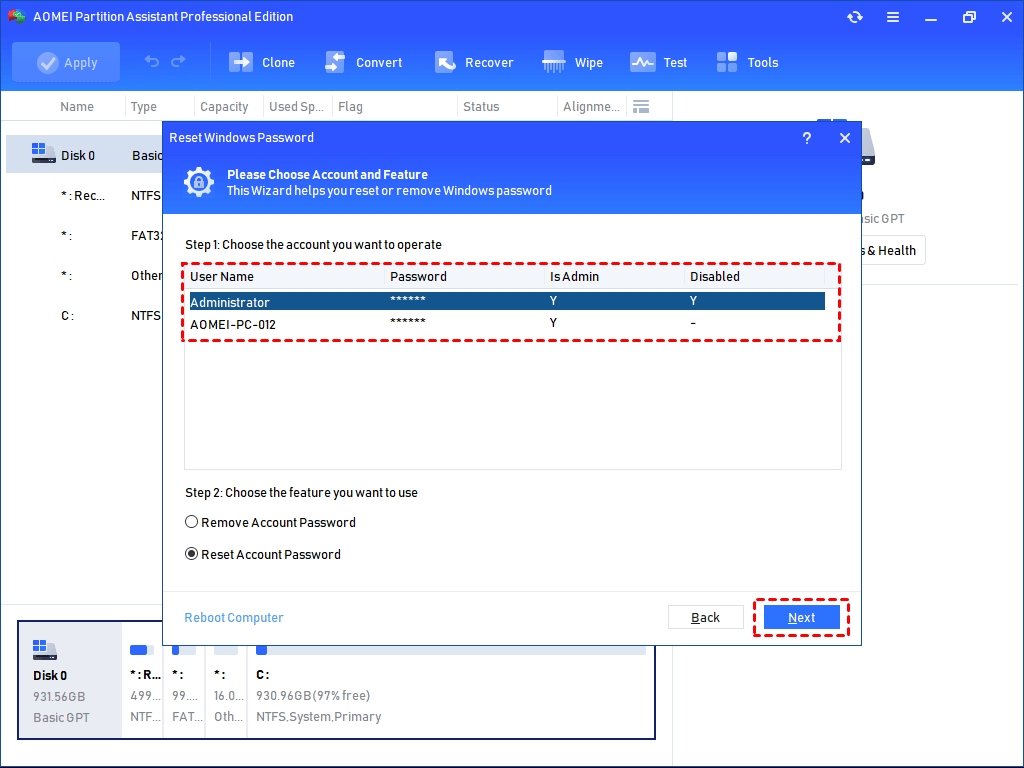
Step 7. The interface will display all accounts on the PC. Select the account you wish to reset, then choose either “Remove Account Password” or “Reset Account Password”, and click “Next”.
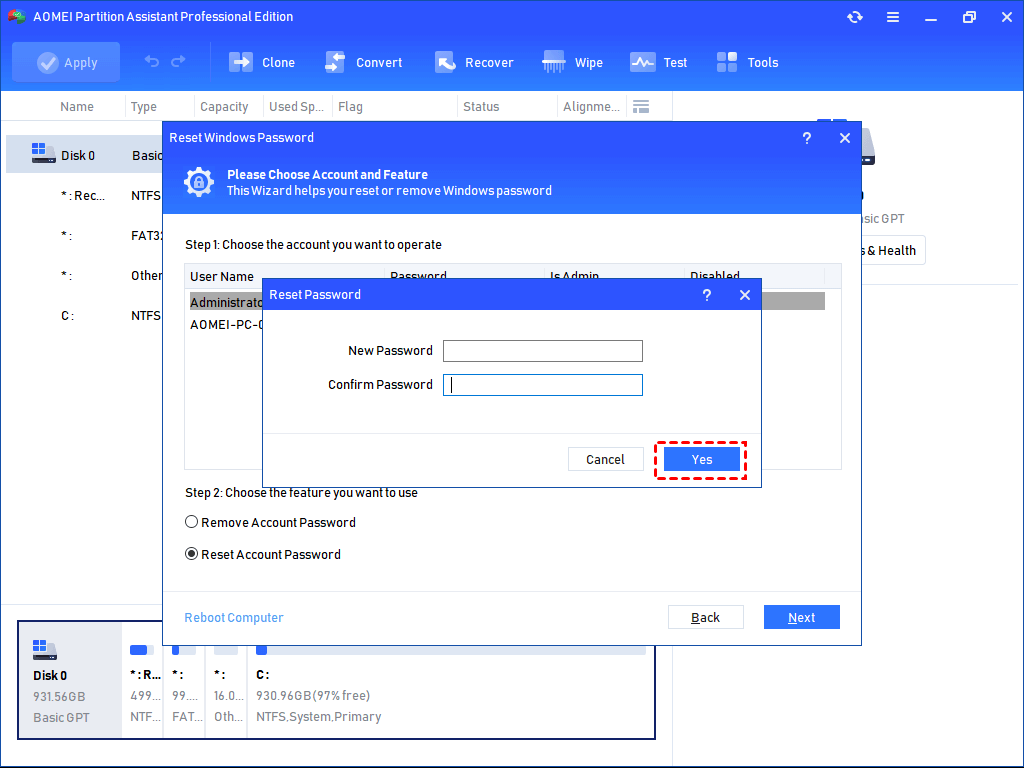
Step 8. If you chose “Reset Account Password”, enter a new password and confirm by clicking “Yes”. If you selected “Remove Account Password”, follow the on-screen instructions to complete the process.
FAQs
1. Can I unlock a Surface Pro without losing files?
Yes. If you reset your Microsoft account password or use PIN recovery successfully, your files remain untouched. Even Windows “Keep my files” reset options may preserve personal data.
2. What happens if I forgot both my PIN and password?
You can still recover access through Microsoft account recovery tools, verification codes, or Windows recovery methods. If all else fails, factory reset remains available.
3. How do I reset a Surface Pro without logging in?
Hold the Shift key while selecting Restart from the login screen. Then open Troubleshoot options and choose Reset This PC or advanced recovery tools.
4. Can Microsoft Support unlock my Surface Pro directly?
No. Microsoft states that support agents cannot bypass or retrieve forgotten passwords due to security and privacy policies.
5. Is a Surface Recovery USB better than Reset This PC?
A recovery USB is usually more reliable for severely corrupted systems because it installs a fresh Surface-specific Windows image directly from external media.
Conclusion
Forgetting your Surface Pro password can be frustrating, but there are reliable ways to regain access. Whether using Microsoft account recovery, a password reset disk, or specialized tools like AOMEI Partition Software, you can unlock your device safely. Each method ensures your files remain secure while restoring functionality, making it possible to continue using your Surface Pro without unnecessary delays or complications.

 as a preferred
source on Google
as a preferred
source on Google