



Full Steps to Get Around Windows 10 Password
How to get around Windows 10 password? No matter you can still remember your password but want to bypass it next time or you have already forgotten/lost your Windows 10 password, you can always find ways here.

By Hedy Updated on May 29, 2026


Can you get around Windows 10 password?
Yes, it is possible to bypass or reset a Windows 10 password. There are several legitimate methods to regain access to a system if you have been locked out, ranging from official recovery tools to more technical workarounds.
If the account is linked to a Microsoft account, the process is relatively straightforward using their online password reset portal from another device. For local accounts, Windows 10 includes built-in features like security questions or a password reset disk, provided these were set up in advance.
In more critical situations where recovery options weren't configured, technicians often use the Windows Installation Media to access the Command Prompt or utilize third-party bootable recovery environments. These methods can allow for the manipulation of system files to reset account credentials or create a new administrative user.
While these avenues exist, they generally require physical access to the machine. The complexity of the bypass depends heavily on whether the drive is encrypted with BitLocker; if encryption is active and the recovery key is missing, getting around the password becomes exponentially more difficult, as the data remains protected even if the login screen is bypassed.
How to get around Windows 10 password
This section explores how to bypass a Windows 10 password in two distinct scenarios: whether you currently have access to the desktop or are locked out entirely.
Feel free to jump directly to the section that matches your current situation:
Case 1. Get around Windows 10 password after logging in
If you already have access to Windows 10 through a secondary account, bypassing the password for another user is a straightforward process.
Whether the target user is using a local account or a Microsoft account, you can disable or remove the password requirements using built-in system tools—no third-party software required.
Method 1. Disable Windows 10 password with netplwiz
Step 1. Press the "Windows + R" keys to launch the Run box. Type "netplwiz" in the box and then click hit "OK".
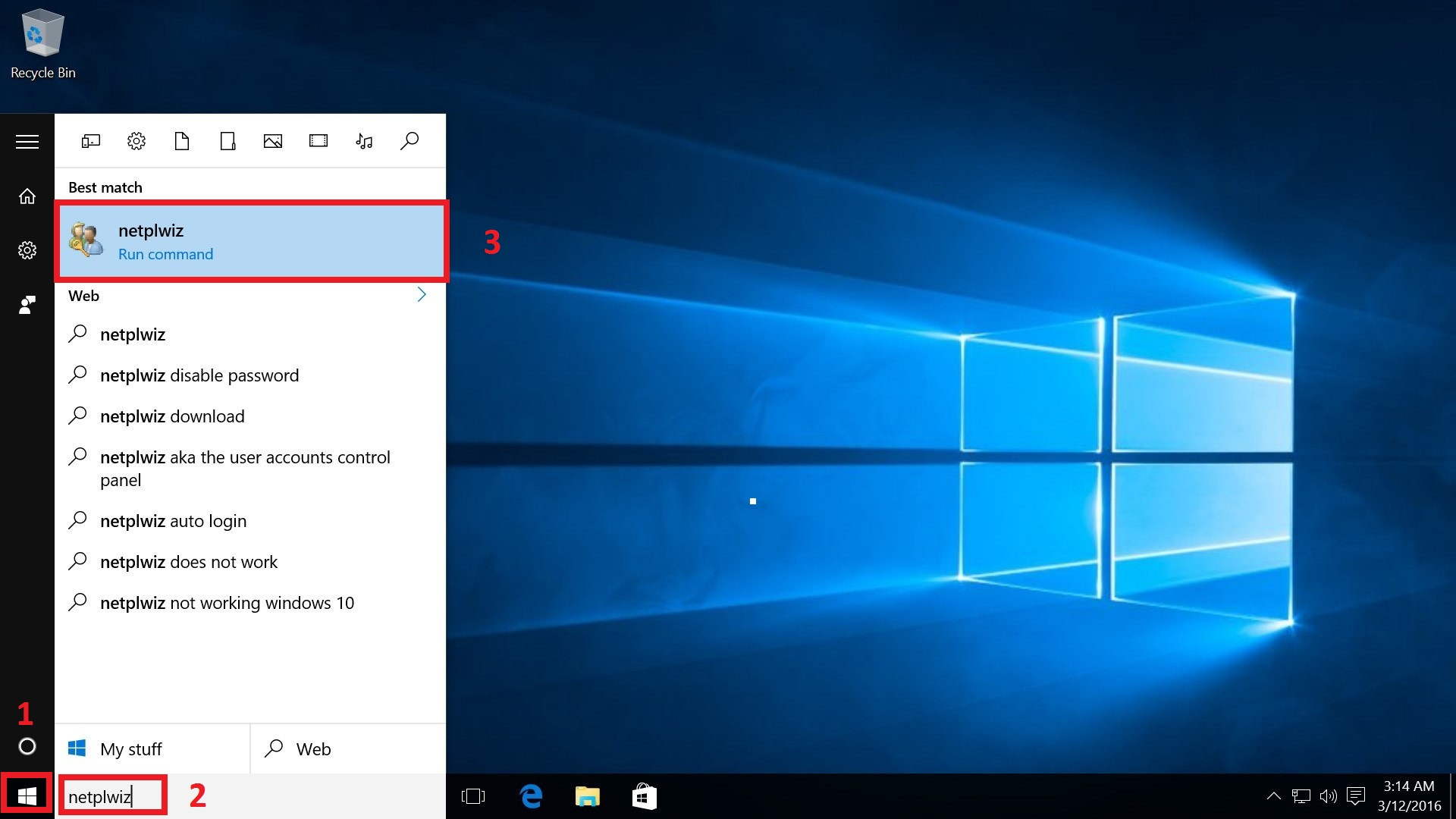
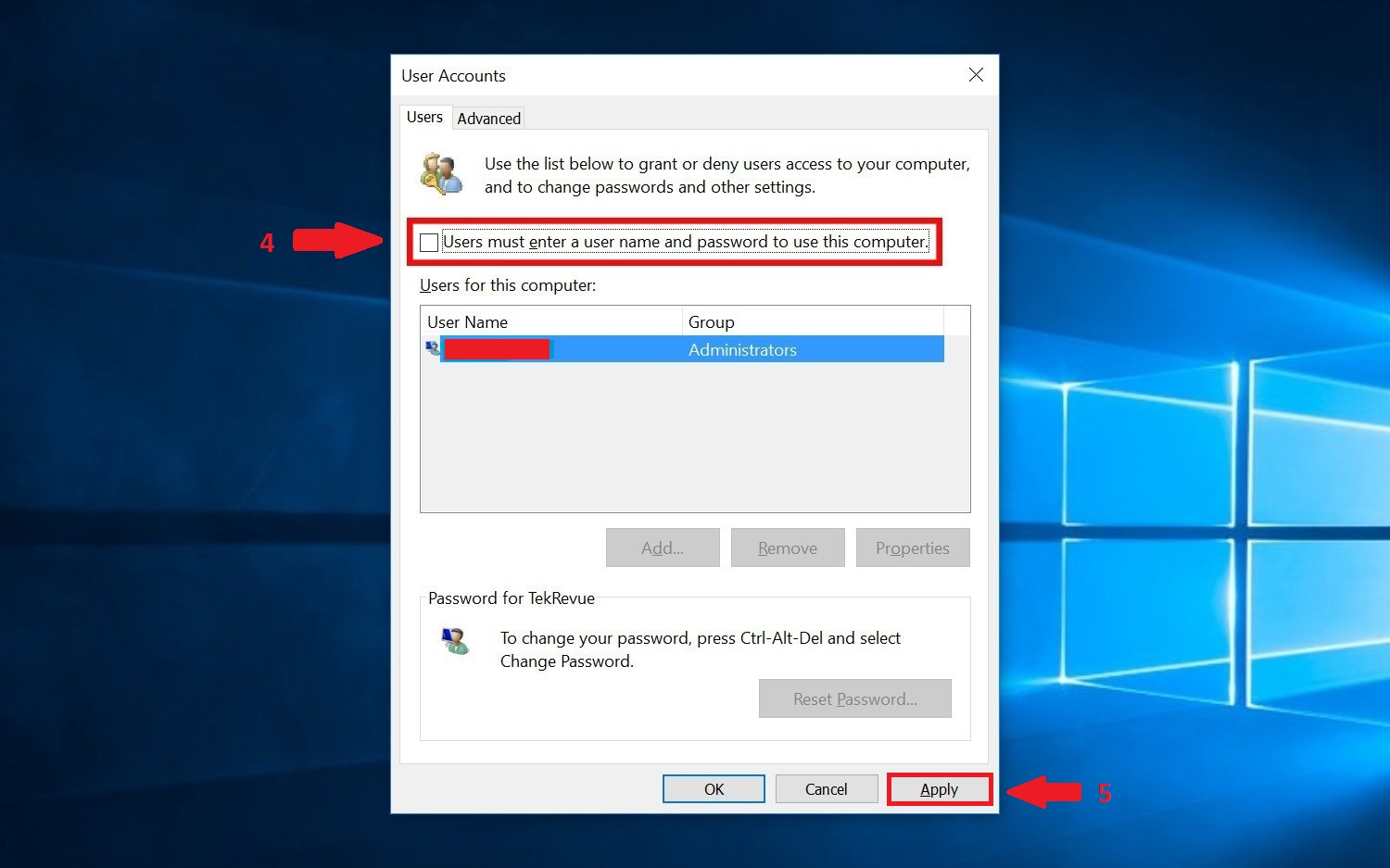
Step 2. In the "User Accounts" window, select an account and uncheck the checkbox above the "Users must enter a user name and password to use this computer" option, and click "Apply".
Step 3. In pop-up dialog, enter the chosen user password and click on the "OK" button to save the changes. Next time when you boot up the computer, you can get around Windows 10 password and directly access the system.
Method 2. Remove Windows 10 password from settings
Step 1. Press the "Windows + I" keys at the same time to open Windows Settings and click "Accounts" from the options.
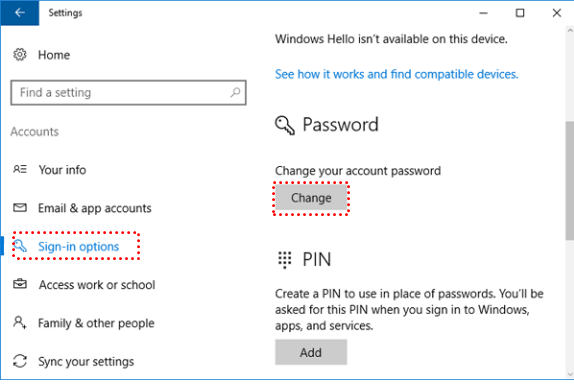
Step 2. Choose "Sign-in options" from the left panel and click the "Change" button under the "Password" section.
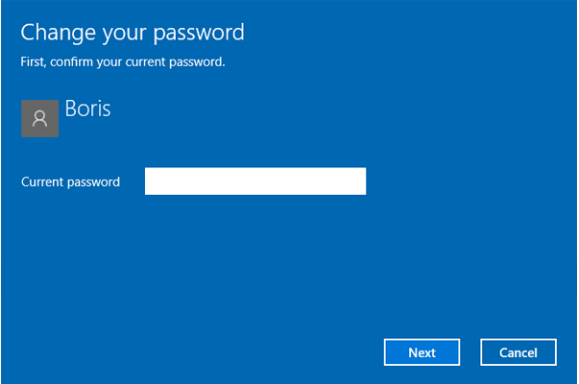
Step 3. Type your current password and click the "Next" button.
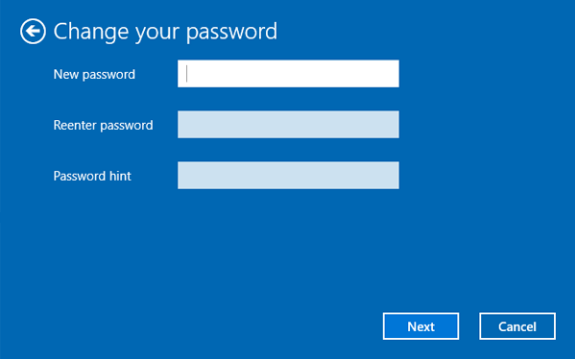
Step 4. To remove the existing password, just leave the "New password", "Reenter password", and "Password hint" empty and then click "Next". After that, you can bypass Windows 10 login password successfully.
Case 2. Get around Windows 10 password without logging in
Losing or forgetting your Windows 10 password adds a layer of complexity to the situation, but it is far from a dead end. While regaining access requires a bit more effort, it is entirely manageable with the right approach.
To help you get back into your system, we will walk you through two proven methods to bypass the login screen and restore your access:
Way 1. Remove Windows 10 Password with password removal tool
AOMEI Partition Software is a reliable Windows unlock tool which creates a bootable USB to reset or remove the password. It is applicable for both admin account and local user account. Most importantly, since you are not allowed to access your system after the password is forgotten or lost, you can created the password reset disk on another running computer for your target PC. After that, you can bypass the login password without losing any data.
Now, let's see how to get around a password on Windows 10 via such a password reset USB created by AOMEI software.
 AOMEI Partition Software
A safe and reliable disk partition management tool that helps you migrate OS to SSD or HDD, reorganize disk space, and improve overall PC performance.
Step 1. Connect the prepared USB to Windows 10 computer that can be accessed normally, launch AOMEI software and click "Reset Password" on the main interface.
.png)
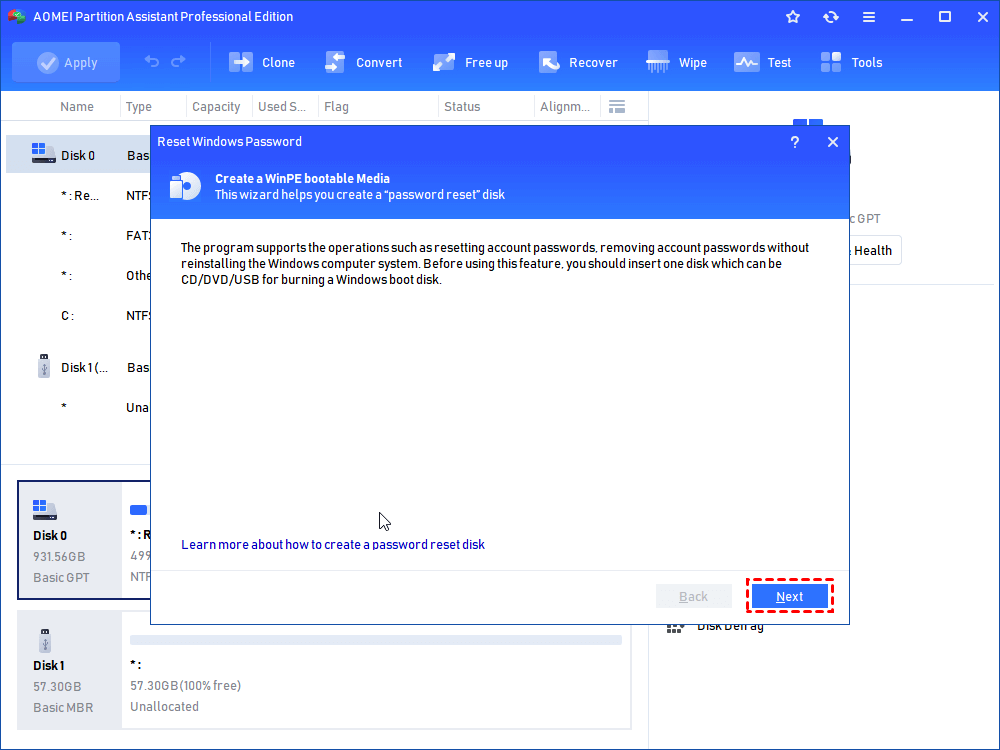
Step 2. Click "Next" in "Create a WinPE bootable media" window.
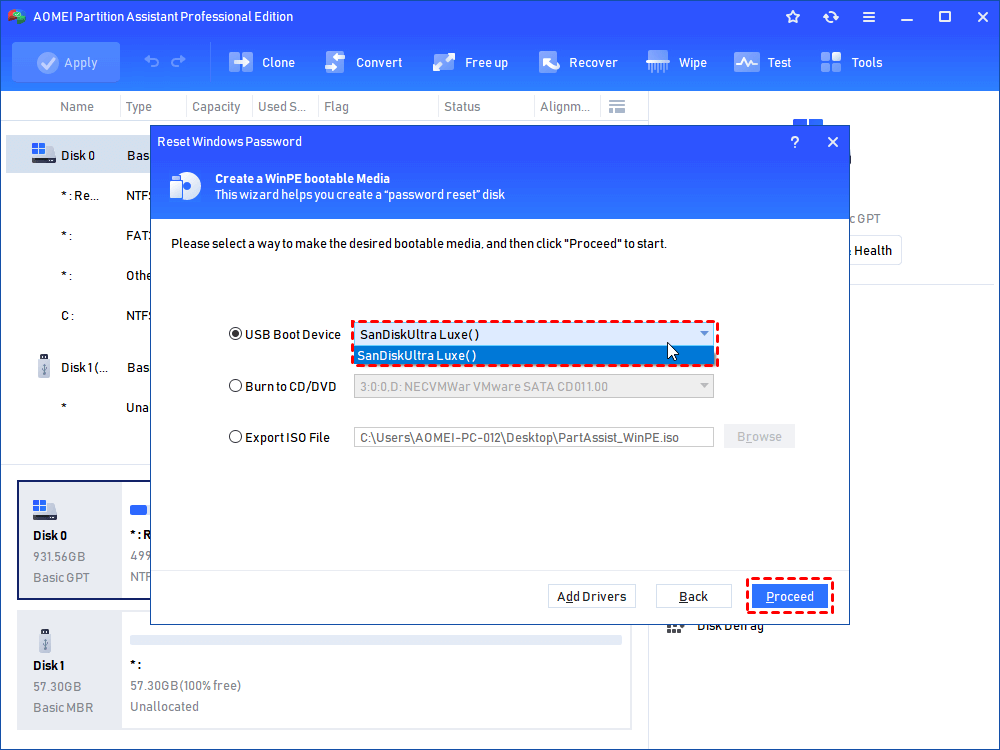
Step 3. Then, choose the target USB drive and click "Proceed".
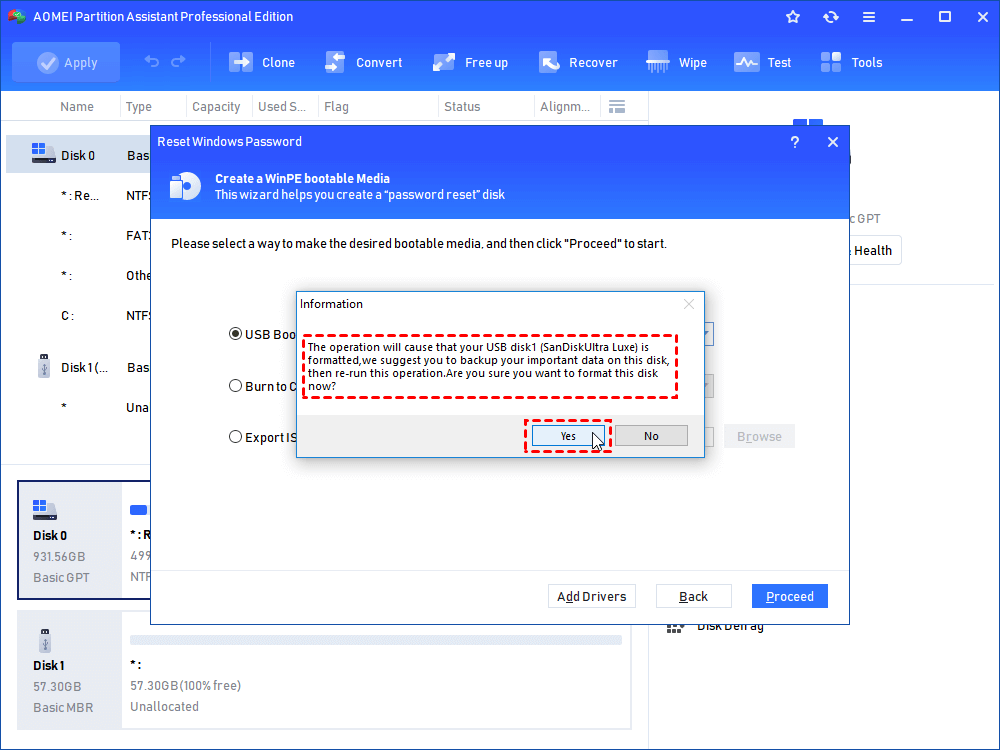
Step 4. Read a note and click "Yes" to go on.
Step 5. When the bootable USB is created successfully, insert it into the computer on which you want to get around Windows 10 password on and change the boot order to boot your PC from the USB.
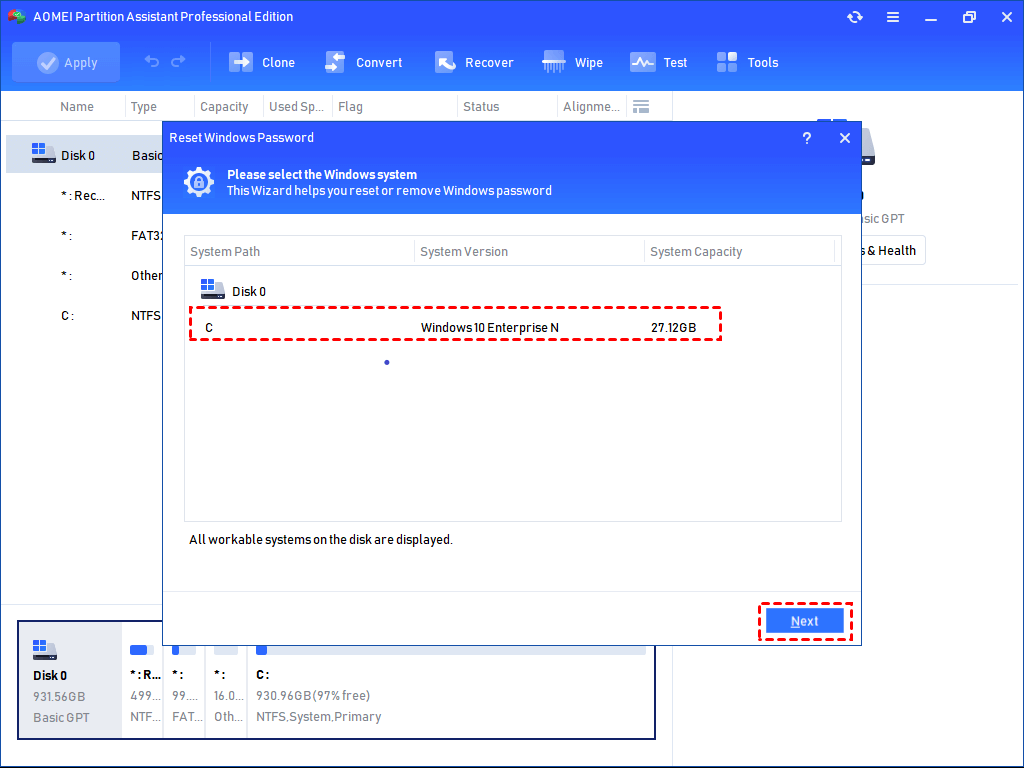
Step 6. When you boot into your PC, AOMEI Partition Assistant will open automatically. Click "Reset Password" again and select the Windows system. Then click "Next".
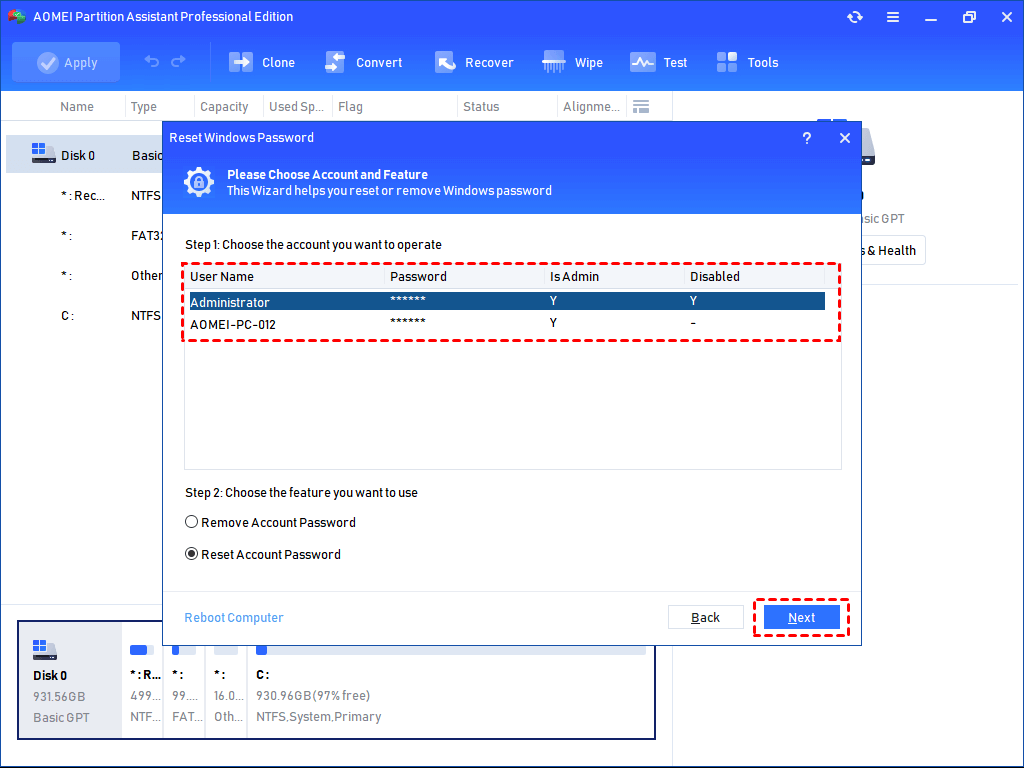
Step 7. Select the account and decide which one you want to perform: Remove Account Password or Reset Account Password. Here we choose "Remove Account Password" and click "Next".
Step 8. In the new window, you will be asked to confirm that you want to remove the password, click "OK" to confirm your operation.
Way 2. Bypass Windows 10 Password with Windows installation disk
Aside from using a Windows password reset disk, experienced Windows users tend to remove the password via a Windows installation disk. It makes you open Command Prompt without logging in to the computer so that you can realize the password removal with command lines.
Let's see how to get around admin password Windows 100 via installation disk.
Step 1. Boot your Windows 10 from this installation disk.
Step 2. When the Windows installing screen appears, press the Shift + F10 keys to launch the Command Prompt.
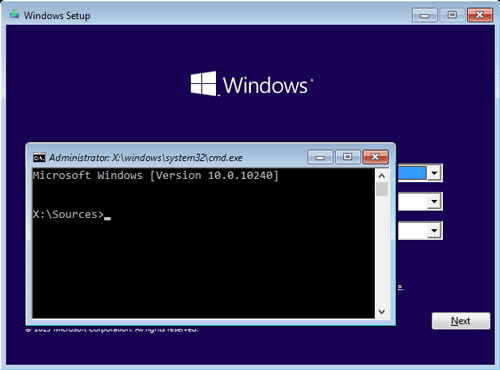
Step 3. Then, type the following commands and hit "Enter":
copy c:\windows\system32\sethc.exe c:\
copy c:\windows\system32\cmd.exe c:\windows\system32\sethc.exe
Step 4. Disconnect the disk from your Windows 10 computer and reboot the PC. Hit Shift key 5 times when the login screen shows up.
Step 5. In the new Command Prompt window, input the command: net user username "" to remove your current password.
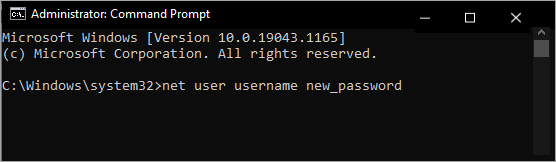
Step 6. Then, you can get into your Windows 10 computer without typing any password next time.
What if my password doesn’t work when logging in?
It is incredibly frustrating to be locked out of your own system, especially when you are certain you’re typing the right password. Before assuming the worst, there are a few quick physical and software-level checks that usually resolve the issue.
1. The "Quick fix" checklist
🔸 Check the caps Lock: It sounds simple, but Windows passwords are case-sensitive. Ensure the Caps Lock light on your keyboard is off.
🔸 Use the "eye" icon: Click the eye icon in the password field to see exactly what you’ve typed. This helps catch typos or "sticky" keys.
🔸 Verify keyboard layout: If you have multiple languages installed (e.g., US vs. UK English), your keyboard might be mapping symbols differently. Check the language abbreviation in the bottom-right corner of the login screen.
🔸 Try the on-screen keyboard: If a specific key on your physical keyboard is failing, click the Accessibility icon (the person icon) and select On-Screen Keyboard to type using your mouse.
2. Reset options
The method for resetting depends on how your account was set up:
|
Account Type |
Reset Method |
|
Microsoft Account |
Click “I forgot my password”on the login screen or visit the official site from another device. |
|
Local Account |
If you set up Security Questions, click “Reset password”after an incorrect attempt to answer them. |
|
PIN Login |
If your PIN fails but you remember your password, click Sign-in options to switch back to the password field. |
3. Advanced recovery
If you are completely locked out of a local account and have no security questions, you may need to use a Password Reset Disk if you created one previously.
If that isn't an option, you might need to enter the Windows Recovery Environment (WinRE):
Step 1. Hold the Shift key while clicking Restart on the login screen.
Step 2. Navigate to Troubleshoot > Advanced options > System Restore.
Step 3. Choose a restore point from a date when you know the password worked.
Note: As a last resort, you can reset the PC entirely via the Recovery Environment, though you should choose the "Keep my files" option to avoid data loss.
Conclusion
You can bypass Windows 10 login password using several methods. If logged in, use netplwiz or Settings to remove credentials. If locked out, reset Microsoft accounts online or use security questions for local accounts. Advanced users can utilize AOMEI Partition Assistant to create a bootable reset USB or use Windows Installation Media with Command Prompt. Drive encryption like BitLocker may complicate these workarounds.

 as a preferred
source on Google
as a preferred
source on Google