




Cannot Merge Partitions? Try AOMEI Partition Assistant!
This guide explains how AOMEI Partition Assistant helps fix cannot merge partitions issues with sharing practical solutions that make disk partition management easier.

By Irene Updated on June 3, 2026


Why does Windows say you cannot merge partitions?
Windows often says you cannot merge partitions because of how Disk Management and Diskpart handle unallocated space. When one partition becomes too small, you may try to extend it with Diskpart by running basic commands, but this only works when the unallocated space is directly behind the partition. If the unallocated space is not adjacent, Diskpart shows the message that the volume cannot be extended.
This happens for several reasons. The unallocated space may not be next to the partition. The partition type or disk structure may limit how the space can be used, especially on MBR disks. The file system may also not support flexible resizing. In some cases, the disk layout is fragmented, and the unallocated space is not in a usable position. As a result, Windows does not allow merging non-adjacent partitions. Even if you delete another partition to create unallocated space, the location must be exact, which is often impossible. For example, if C and E are separated by D, you cannot merge C and E unless you delete both D and E to make all the space adjacent, and then extend C step by step. This is clearly not ideal.
Because of these limits, Windows Disk Management cannot merge partitions unless the unallocated space is directly behind the target partition. This is why Windows says you cannot merge partitions. If you cannot merge partitions with Disk Management or Diskpart, the most effective method is to use AOMEI Partition Assistant as a reliable alternative.
How to fix cannot merge partitions issue?
Sometimes, when you try to merge two partitions, the “merge partition” option is grayed out, or the partition you want to select is unavailable. This usually happens due to specific limitations of Windows Disk Management or partition structures. The common situations include as below:
Case 1. Partitions are on different disks
Two partitions you want to merge are located on separate disks. In this situation, merging is not possible because partitions can only be combined on the same physical disk. A workaround is to create a larger partition on a single disk and then move or copy the data from the original partitions to this new partition. Or you can use AOMEI Partition Assistant's Clone Partition feature. This is also a reliable solution for fixing Clone Failed Error Code 6 on Macrium Reflect.
 AOMEI Partition Software
A comprehensive and reliable disk partition software that helps you resize partitions, migrate OS, convert disks, and optimize PC efficiently.
Case 2. Partition is a system partition
If the partition you want to merge is a system or boot-related partition (like the System Reserved partition), merging is not supported. This is because system partitions contain essential files required for booting Windows. Modifying or merging them could make the system unbootable, which is why AOMEI Partition Assistant or Windows Disk Management restricts this operation.
Case 3. Partition has less than 1GB of free space
A partition must have at least 1GB of free space to allow a safe merge. If the target partition has less free space, merging cannot proceed. To fix this, you can:
1. Delete unnecessary files to free up space.
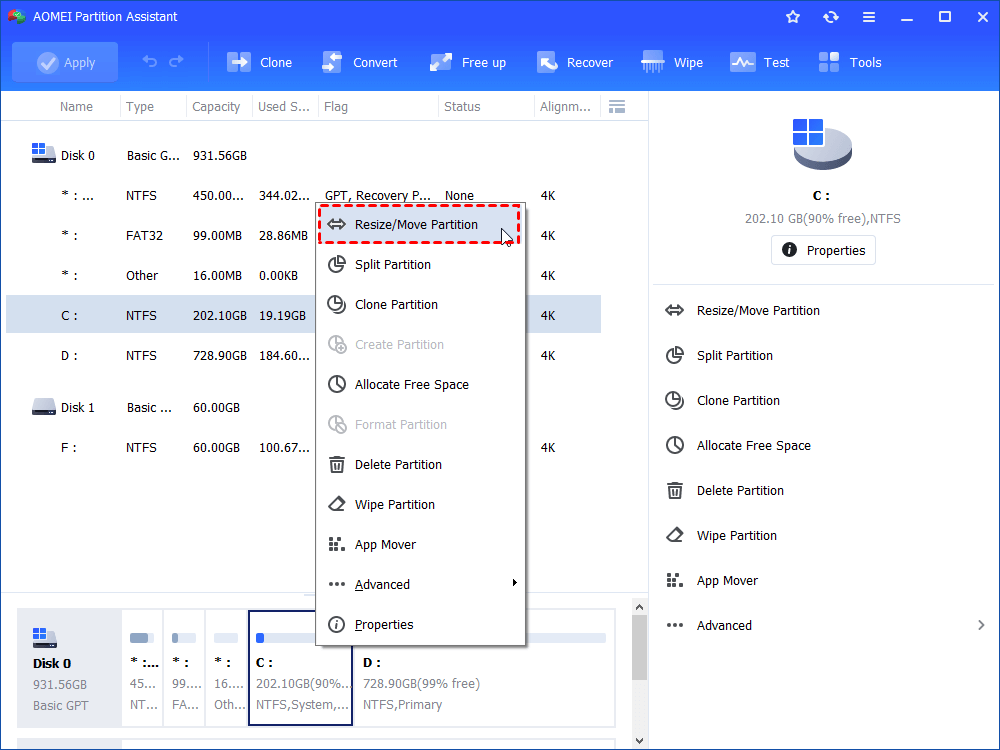
2. Shrink another partition from the front to create unallocated space, then use the “Resize/Move Partition” feature to add this space to the host partition. This ensures enough room to merge data without risking data loss.
Case 4. Partitions are not adjacent (D and F)
Merging only works for adjacent partitions. If the partitions are separated by another partition (like F and H separated by G), direct merging is not possible. In this case, you can:
Step 1. Ensure the host partition has enough free space to store data from the second partition.
Step 2. Manually copy the data from the second partition to the host partition.
Step 3. Delete the second partition to turn it into unallocated space.
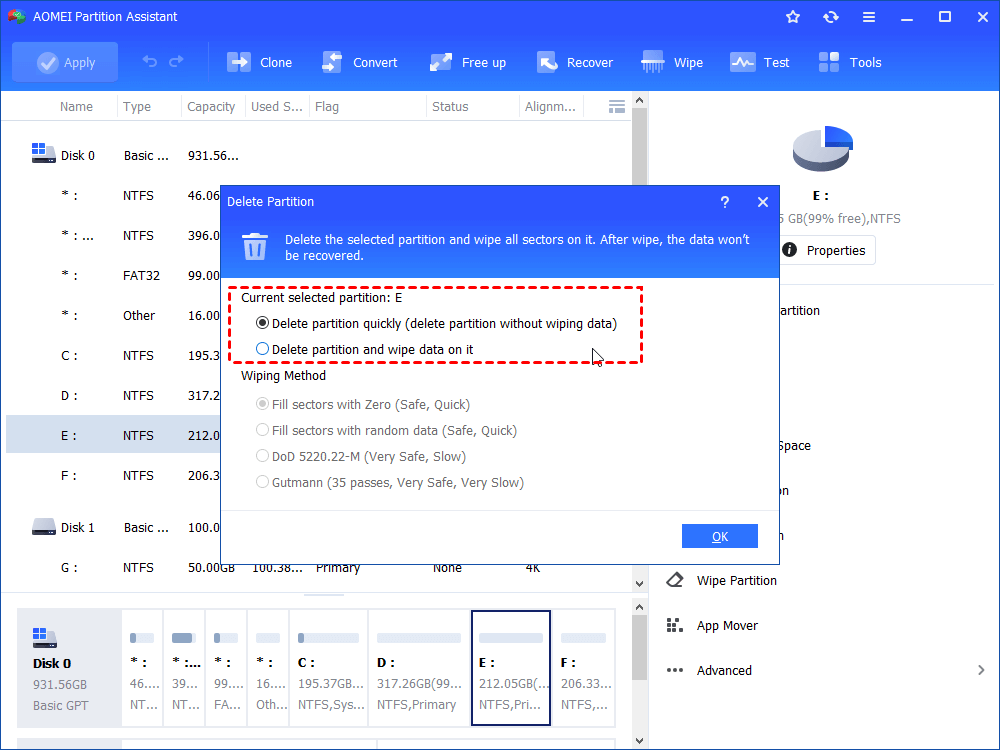
Step 4. Merge the host partition with the newly created unallocated space.
This method respects partition adjacency rules while allowing the data to be consolidated safely.
How to merge two adjacent partitions or non-adjacent unallocated space?
AOMEI Partition Assistant is a popular and easy-to-use disk management tool. It helps you handle many complex disk issues with clear and simple steps. One of its key advantages is that it can merge two adjacent partitions or combine non-adjacent unallocated space without deleting any existing partition. This is something Windows Disk Management cannot do.
Disk Management only works when the target partition has unallocated space directly on its right; otherwise, you must delete a partition to create new unallocated space. If you want to merge partitions safely and keep all your data, AOMEI Partition Assistant is a reliable and convenient choice.
AOMEI Partition SoftwareThe Best Windows Disk Partition Manager and PC Optimizer
Step 1. Install and run the software. Click the drive and then move on to the right pane. Click “Advanced” > “Merge Partitions”.
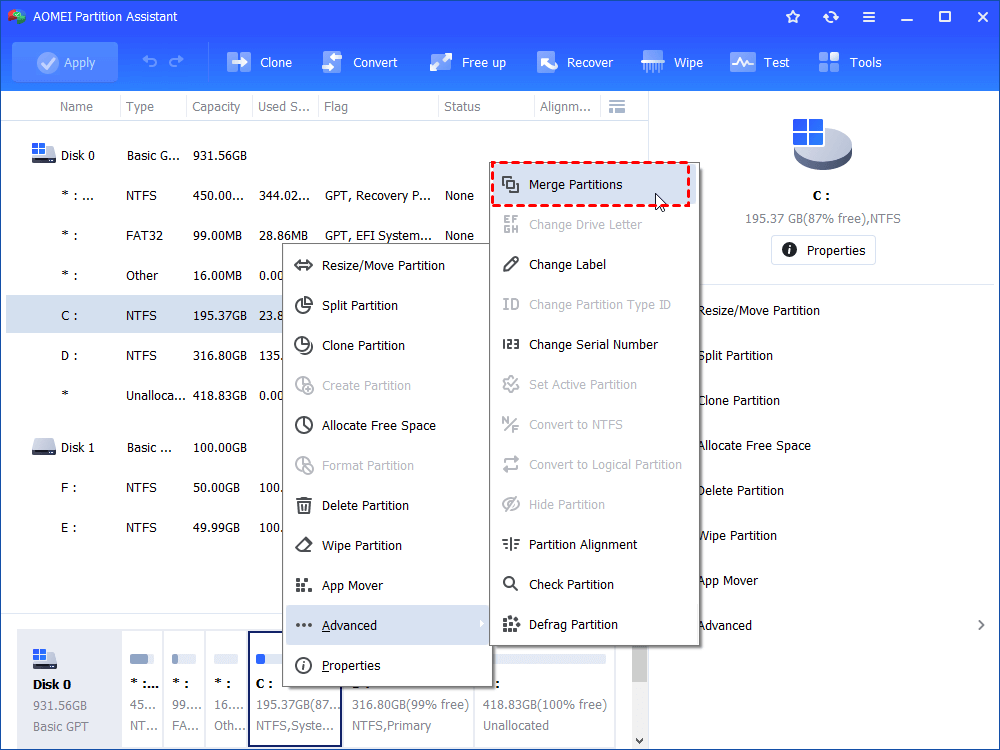
Step 2. Select the adjacent partition or any unallocated space on the disk, then click OK.
Step 3. Click Apply to ensure you want to merge with the selected partition.
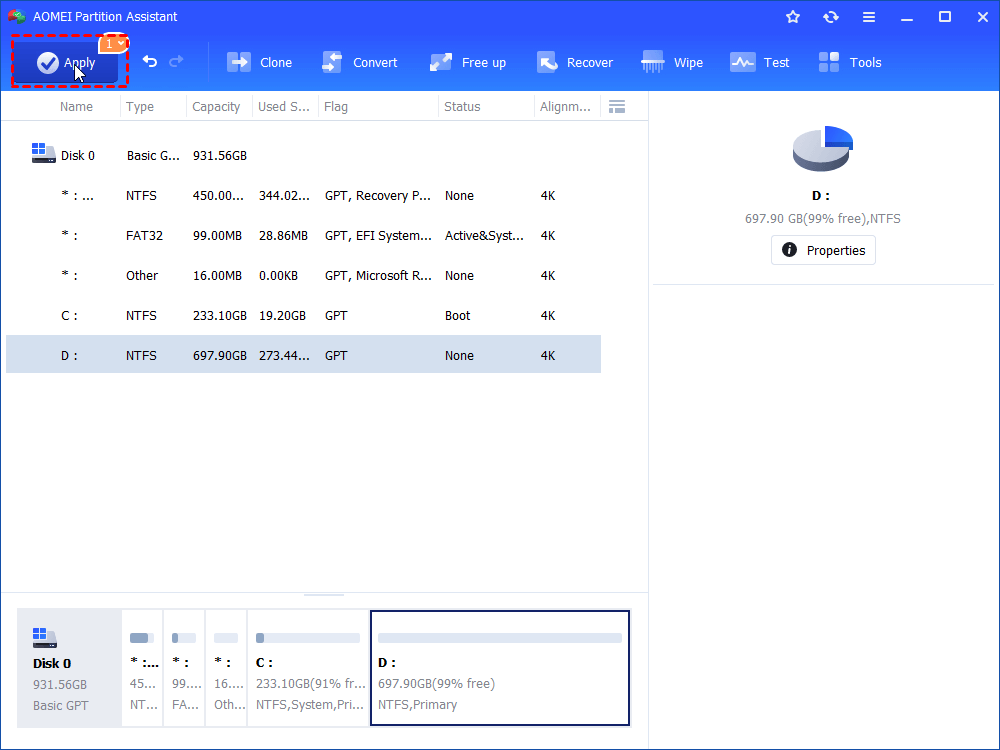
Step 4. Click Proceed to continue the operation and wait. After all the operation finishes, you will receive a message like “Congratulation! All operations have been completed successfully” and click OK.
Conclusion
Windows cannot always merge partitions because its tools only work when the unallocated space is in the correct place and the partition type is supported. When partitions are separated, on different disks, too small, or related to system startup, Windows will not allow the merge.
If you want an easier way to merge partitions and keep your data safe, AOMEI Partition Assistant offers a simple and reliable solution. It can handle both adjacent partitions and non adjacent unallocated space, which Windows tools cannot do. You can get upgrades of AOMEI products to get more advanced feature.

 as a preferred
source on Google
as a preferred
source on Google