




How to Fix Error Code 45: Failed to Initialize This Disk?
Error Code 45 occurs when Windows cannot detect a connected device. This guide explains what a Code 45 error is and shows easy ways to fix hardware devices not recognized.

By Irene Updated on June 3, 2026


What is an Error Code 45?
You may find a message "Currently, this hardware device is not connected to the computer. (Code 45)." Error Code 45 occurs when a disk fails to initialize, which prevents you from performing partition operations. This error usually happens in the following situations.
| Situation | Cause | Solution |
|---|---|---|
| New disk added | The disk is not initialized. Normally, Partition Assistant initializes new disks automatically, but sometimes unknown issues prevent this. | Manually initialize the disk using Windows Disk Management: Right-click “My Computer” → “Manage” → “Storage” → “Disk Management.” Right-click the disk and choose “Initialize.” Retry the partition operation. |
| Corrupted MBR | The Master Boot Record on the disk is damaged due to system errors, improper shutdowns, or software issues. | Use AOMEI Partition Assistant to Rebuild MBR. Then restart the computer. |
Error Code 45 usually occurs due to either an uninitialized new disk or a GPT disk on an older Windows system. The solutions involve either manually initializing the disk or using AOMEI Partition Assistant on a compatible system or WinPE environment.
How to fix Error Code 45 in Windows PCs?
Fix 1. Run professional anti-virus software
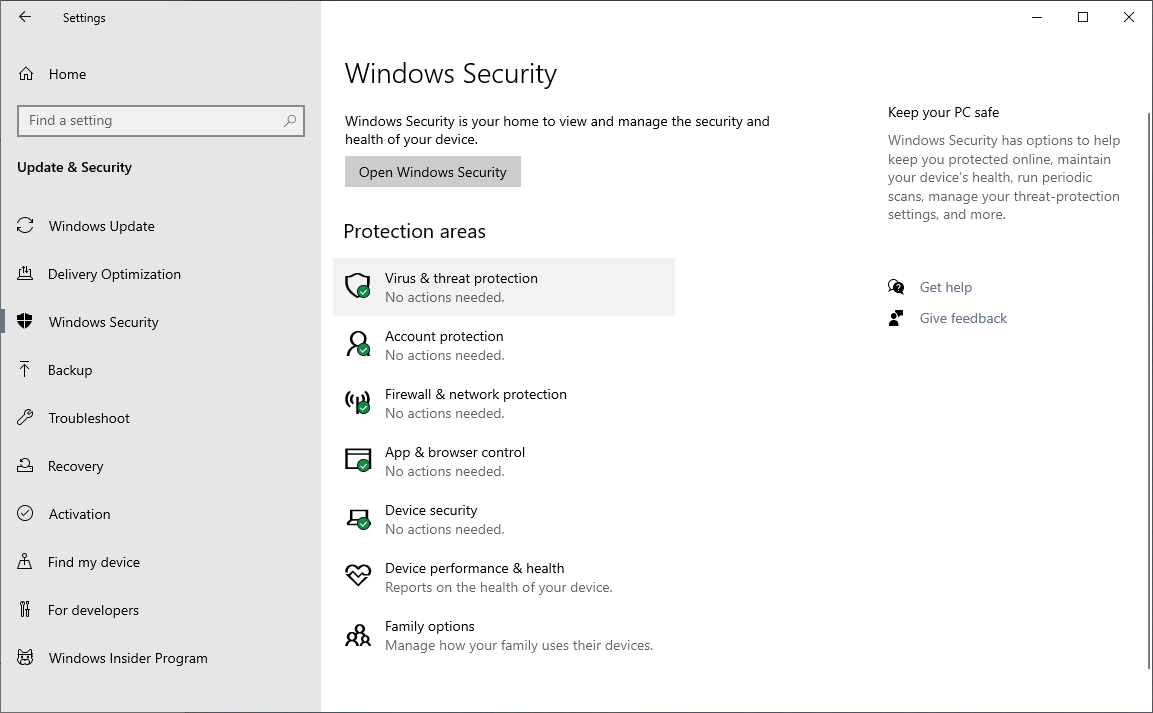
If you have connected your hard drive to a compromised computer and it now shows up as disk unknown and can’t be initialized in Disk Management, then it may have been infected with a virus. In this case, we recommend that you run Virus & threat protection in Windows Security or anti-virus software such as Windows Defender or Emsisoft Anti-Malware to scan your hard drive and protect your computer against viruses. After you have scanned your drive and removed the viruses, you should be able to initialize it.
Fix 2. Rebuild MBR
Error Code 45 often occurs when a disk is detected by Windows but cannot be used because the MBR is corrupted. For example, your SSD may also appear as “Disk 1 Unknown, Not Initialized, Unallocated Space.”
There are many programs that can help rebuild the MBR, but we recommend AOMEI Partition Assistant because it is powerful and easy to use. Besides the Rebuild MBR feature, it also offers tools like Disk Clone and Partition Clone to help you manage your disks. If you are using GPT, converting it to MBR may also be helpful to fix Error Code 45.
You can use AOMEI Partition Assistant to fix or rebuild the MBR and repair boot issues. Follow the steps below to resolve Error Code 45 quickly and safely.
 AOMEI Partition Software
A safe and reliable disk partition management tool that helps you migrate OS to SSD or HDD, reorganize disk space, and improve overall PC performance.
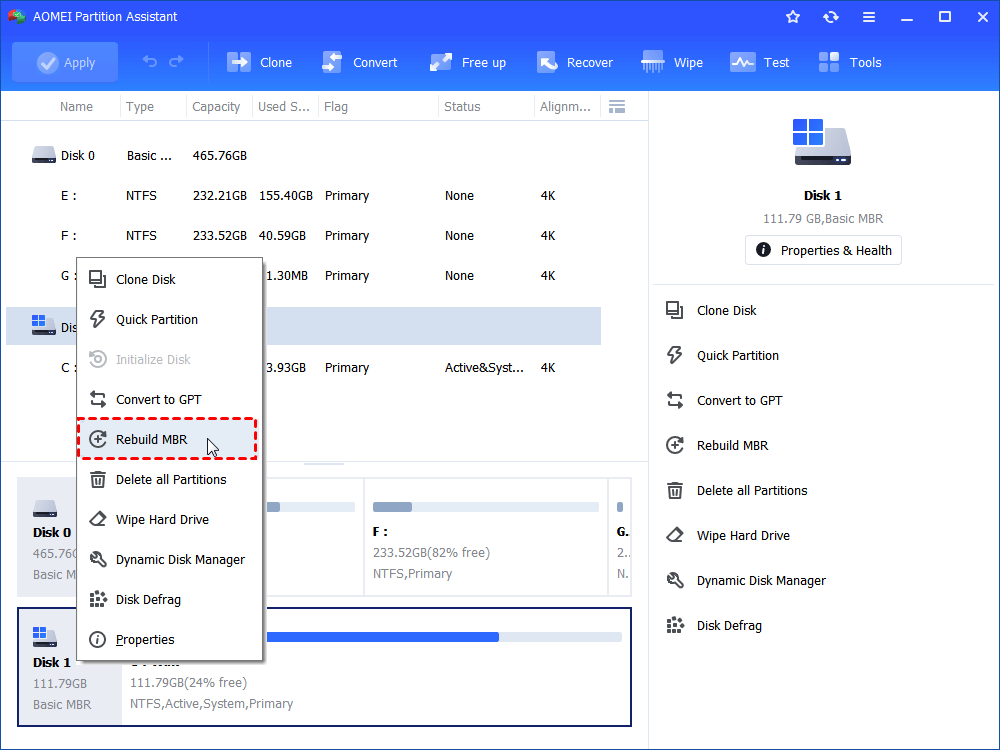
Step 1. Open AOMEI Partition Assistant, right-click the hard drive, and select “Rebuild MBR”.
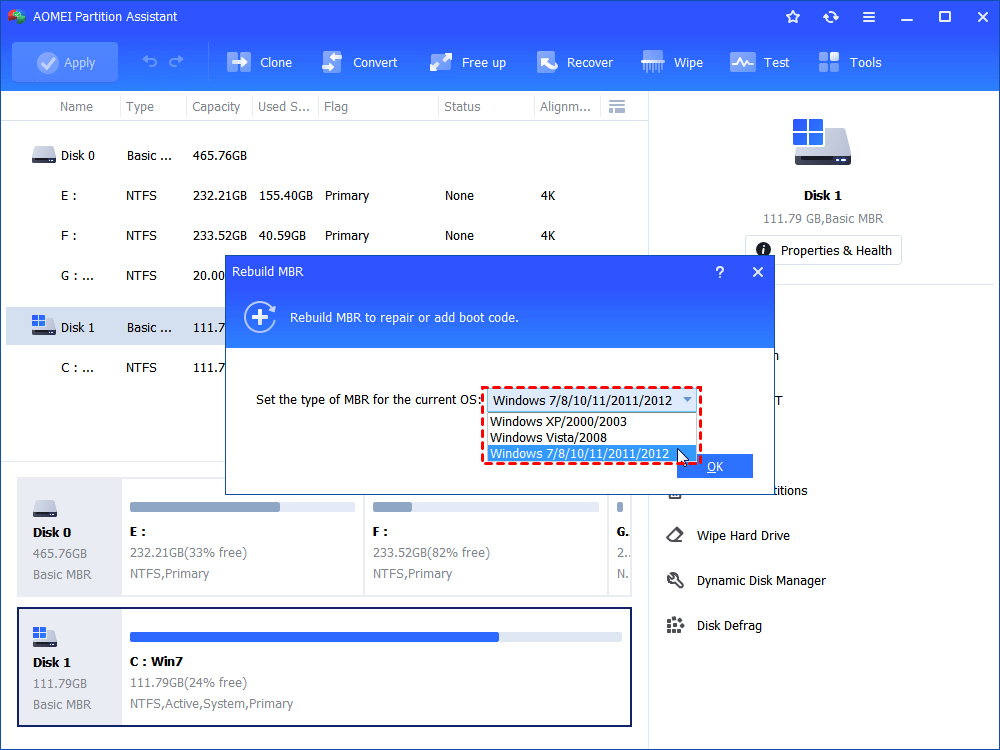
Step 2. In the small pop-out window, you can set the type of MBR for the current OS and click "OK".
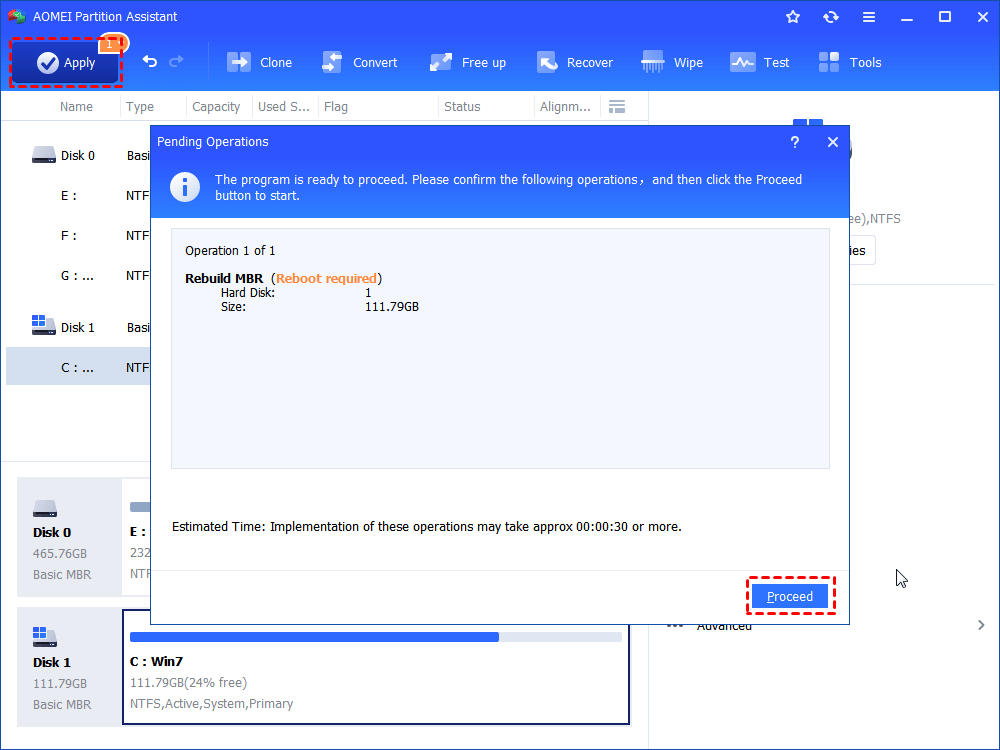
Step 3.Then, you’ll back to the main interface, click "Apply" on the toolbar to launch the progress.
Fix 3. Update the device driver
If there is no problem with the device connection but you are still unable to initialize disk, you can check if your driver is outdated, corrupted, or incompatible. In such a case, formatting the SSD or upgrading the outdated driver as follows may work out.
Step 1. Type "Device Manager" in the search box, and select Device Manager from the list of results.
Step 2. Right-click the solid-state hard drive and select "Update Driver".
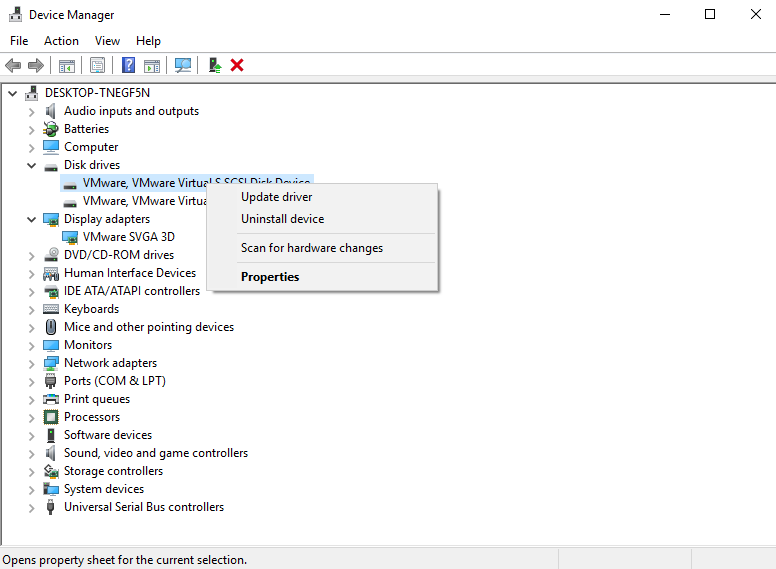
Step 3. Select "Search automatically for updated driver software" and follow the instructions to complete the driver update.
Conclusion
Error Code 45 can prevent your disk from initializing and performing partition operations, but it can be resolved by taking simple steps. You can scan your disk for viruses, rebuild the MBR using AOMEI Partition Assistant, or update the device driver. Following these methods carefully will help you restore your disk’s functionality and ensure smooth operation on your Windows PC.
AOMEI Partition SoftwareA safe and reliable disk partition management tool that helps you migrate OS to SSD or HDD, reorganize disk space, and improve overall PC performance.

 as a preferred
source on Google
as a preferred
source on Google