




How to Fix [Cannot Convert the Value Null to Type Logical]
The cannot convert the value null to type logical error often appears during partition operations. The article describes primary and logical partitions and discusses the situations for converting between them safely.

By Irene Updated on June 3, 2026


Should I use primary or logical partition?
A Primary partition is a main partition that can host an operating system and can be used to boot your computer, while an MBR disk can have up to four Primary partitions. A Logical partition is created inside an extended partition and is mainly used to store data. Logical partitions allow you to have more than four partitions on an MBR disk and help organize your files without affecting the system partition.
However, when converting a partition to Logical, for example when you want to create more partitions on an MBR disk, organize data more easily, avoid changing system partitions, support certain software setups, or fix partition limit problems, you may see the message “Cannot convert the value null to type logical.” This error often appears when the system cannot read the partition type correctly or when certain disk conditions block the operation. Sometimes, the option to convert a partition between Primary and Logical also becomes greyed out, which makes the situation more confusing. In most cases, the system is simply protecting important boot files or following standard disk rules. To help you understand what is happening, we have listed the most common reasons why this error appears and why the conversion cannot be completed.
Why you cannot convert partition between Primary and Logical
When you try to convert a partition to Primary or Logical, you may find the option greyed out. This usually happens because the partition or the disk does not meet the basic rules required for this type of change. Understanding these causes can help explain why the conversion fails.
| Situation | Explanation |
|---|---|
| The partition is a system partition | System partitions store important boot files, so the system will not allow converting them to Logical. |
| The disk uses GPT | A GPT disk only supports Primary partitions, which means converting to Logical is impossible. |
| The disk uses MBR and has reached its limit | MBR supports four Primary partitions or three Primary partitions plus one extended partition. If it already has three Primary partitions and Logical partitions inside the extended area, you cannot convert another partition to Primary. |
In most cases, the convert option is greyed out because the system is simply following standard disk rules or protecting key system data. Once you understand these limits, it becomes easier to see why the operation cannot continue.
How to convert partition between Primary and Logical?
Case 1. Convert Primary to Logical partition
In some cases, you may want to convert a Primary partition to a Logical partition to create more partitions on an MBR disk or better organize your data. Logical partitions are created inside an extended partition and are mainly used for storing data without affecting the system partition. If you cannot convert a primary partition to logical, first check whether the disk is GPT, because GPT disks only support primary partitions. Converting a GPT disk to MBR may be required before creating logical partitions. This conversion is useful when the primary partition limit on an MBR disk is reached or when you want to keep the system partition safe. AOMEI Partition Assistant allows both conversion like GPT to MBR and Primary to Logical without data loss and provides an easy-to-use interface for beginners.
 AOMEI Partition Software
A safe and reliable disk partition management tool that helps you migrate OS to SSD or HDD, reorganize disk space, and improve overall PC performance.
Step 1. Install and launch AOMEI Partition Assistant. Then, all disks and partitions will be listed on the main interface.
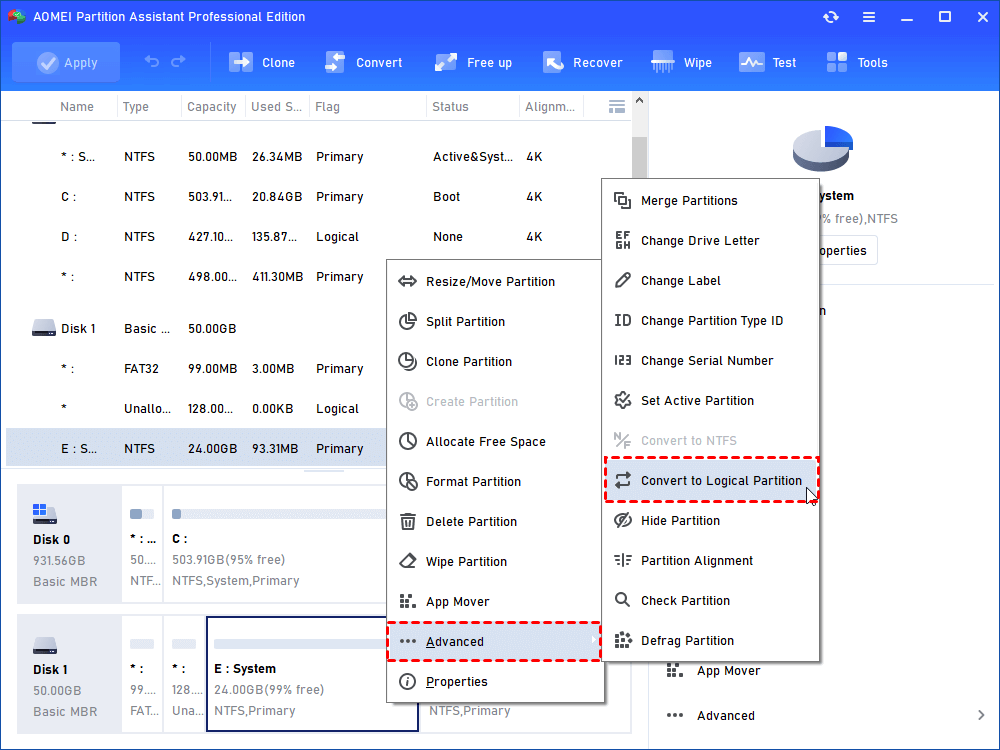
Step 2. Right-click on the primary partition you want to convert, select “Advanced” > “Convert to Logical Partition”.
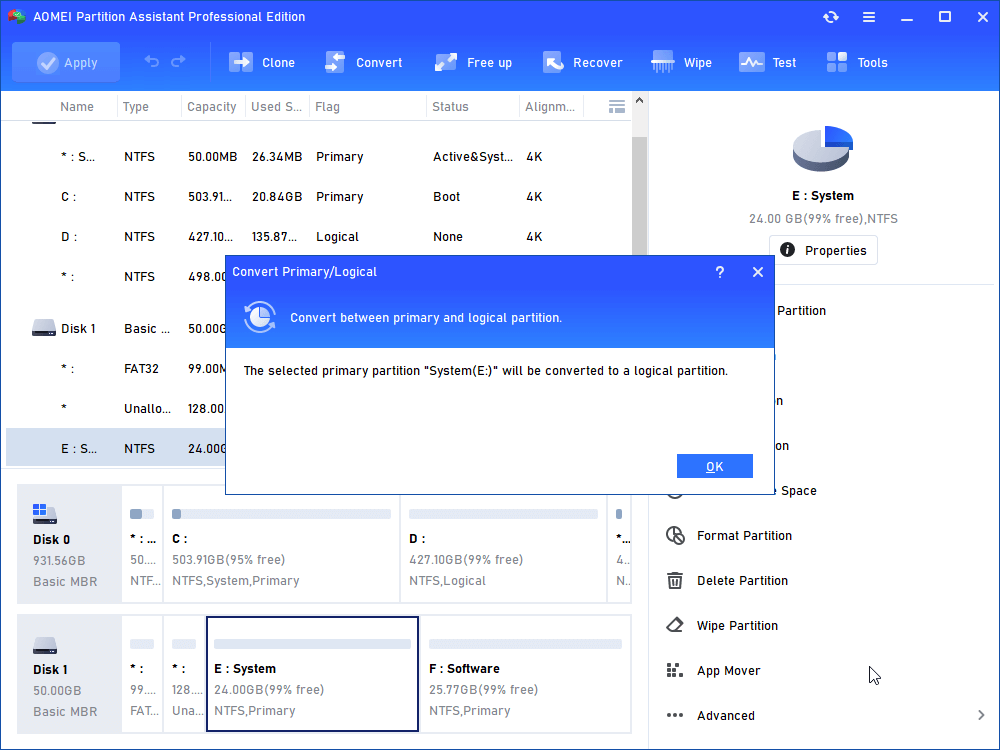
Step 3. Then, you’ll be asked to confirm the operation and just hit "OK" to continue.
Step 4. Click on "Apply" on the upper left and hit "Proceed" in the pop-up window to start the process.
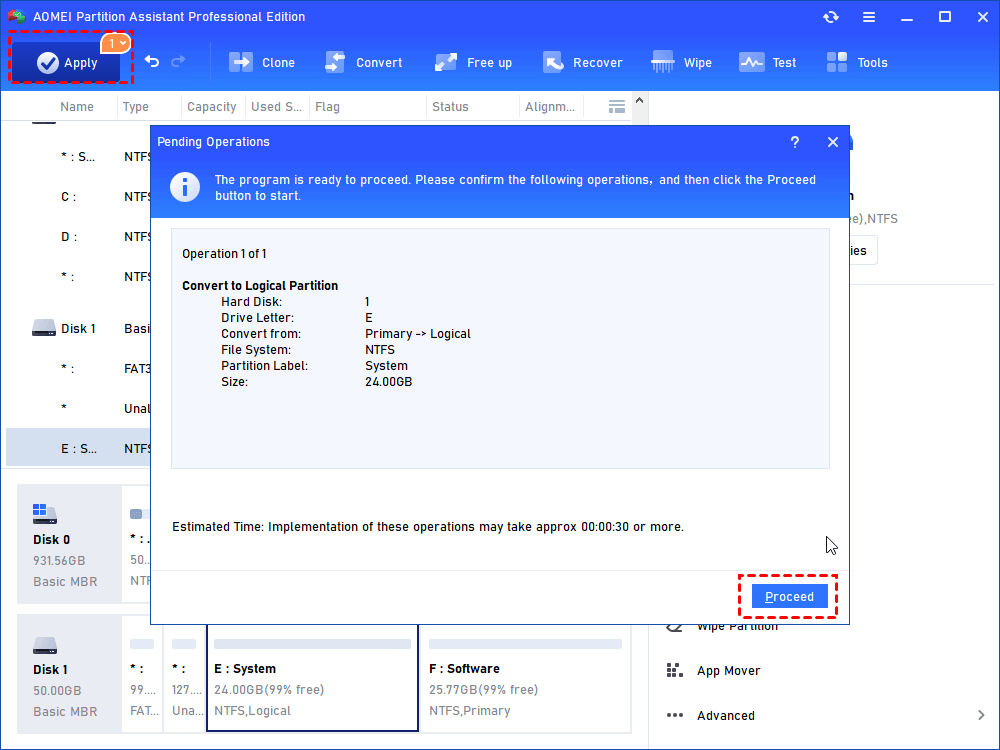
Now, on your Windows 10 PC, the primary partition has been converted to a logical one without losing any data inside.
Case 2. Convert Logical to Primary partition
Sometimes you need to prepare a partition for installing a system or booting the computer. In this case, converting a Logical partition to a Primary partition becomes necessary. On an MBR disk, primary partitions are required for the system, and there is a limit of four primary partitions or three primary partitions plus one extended partition. If the disk already has three primary partitions along with logical partitions inside the extended area, you cannot convert another partition to primary or you may encounter Windows stuck on operations issue.
On a GPT disk, all partitions are already primary, so converting a partition to logical is not possible. Using tools like DiskPart to perform this conversion can delete data, so a safer solution like AOMEI Partition Assistant is recommended.
AOMEI Partition SoftwareA safe and reliable disk partition management tool that helps you migrate OS to SSD or HDD, reorganize disk space, and improve overall PC performance.
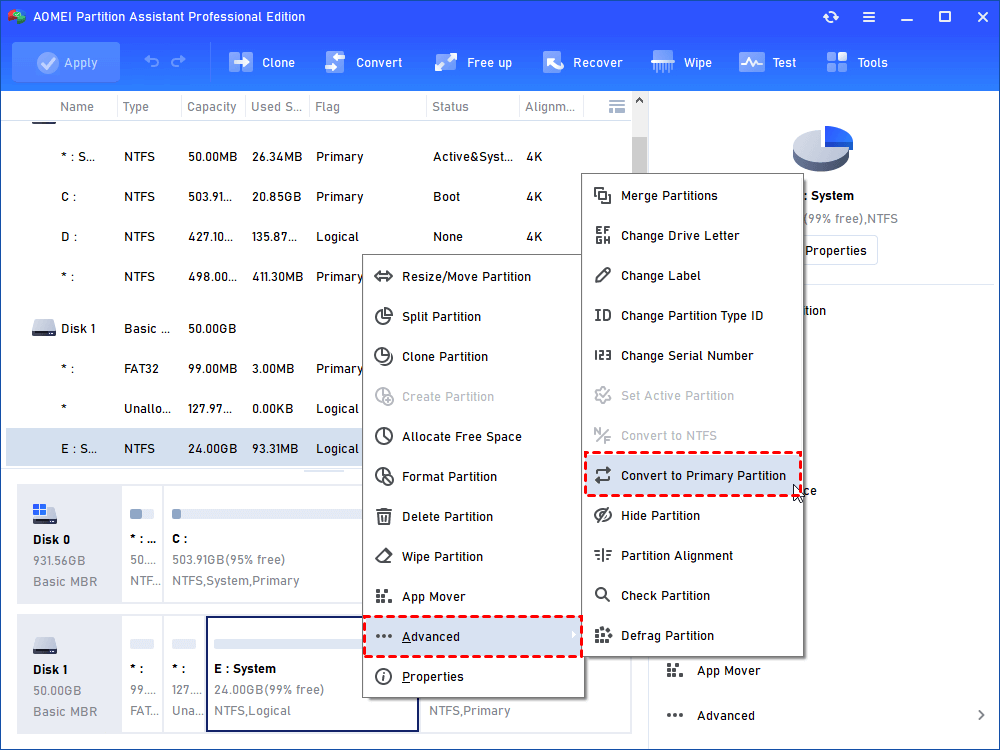
Step 1. Install and run AOMEI Partition Assistant. Right-click the logical partition you want to convert and select “Advanced” > “Convert to Primary”.
Step 2. In the pop-up window, click “OK” to continue.
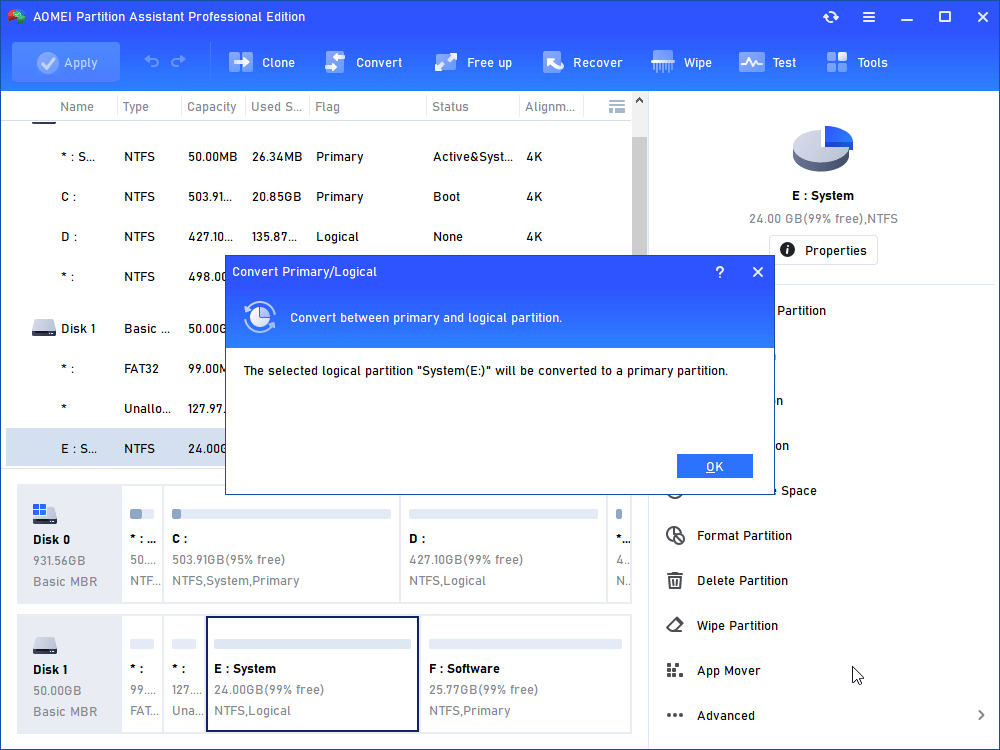
Step 3.After that, it will back up to the main interface, preview the changes and click “Apply” > “Proceed” to complete this operation.
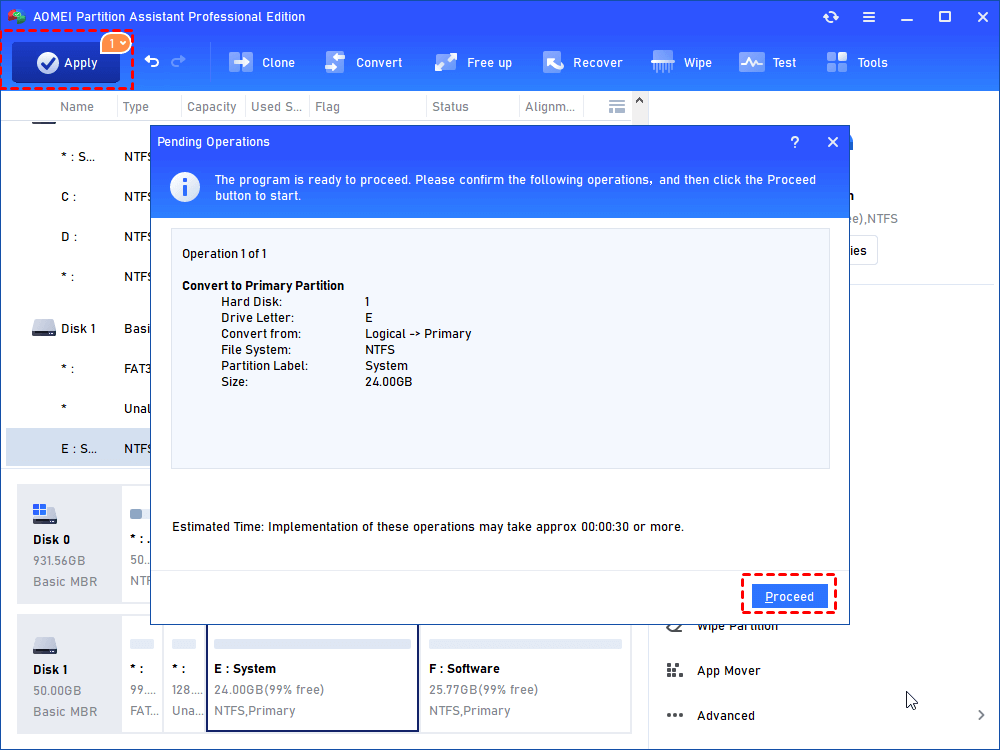
Wait for a while, and you will see the logical partition has been converted to primary partition successfully.
Conclusion
Managing your hard drive partitions helps keep your computer organized and efficient. Primary partitions are needed for your operating system, while Logical partitions provide flexible storage for personal data. Greyed out options are usually safety measures to protect system files or ensure your disk follows MBR or GPT rules.
You do not need to be an expert to handle these tasks. AOMEI Partition Assistant allows you to safely convert partition types, extend drives, or prepare a partition for a new system without losing data. Following the steps in this guide will help you get the best results and make full use of your disk space. This powerful tool also offers solutions to partition changes not saved after reboot.
AOMEI Partition SoftwareA safe and reliable disk partition management tool that helps you migrate OS to SSD or HDD, reorganize disk space, and improve overall PC performance.
If you still have questions or face unexpected issues, the AOMEI Support Team is always available to provide guidance and help you complete your tasks smoothly.

 as a preferred
source on Google
as a preferred
source on Google