




How to Recover Unformatted Partition on Windows | 2 Solutions
Is your partition showing as unformatted in Windows? This page shows you how to recover it with the best partition recovery software – including two solutions.

By Lily Updated on October 27, 2026


Why Does a Partition Become Unformatted?
A partition may become inaccessible or appear as RAW when Windows cannot recognize its file system. This does not necessarily mean that all the files have disappeared. Several problems can cause this situation:
- File system corruption: Damage to file system metadata may prevent Windows from reading an NTFS, FAT32, or exFAT partition.
- Improper disconnection: Removing an external drive while files are being transferred can interrupt write operations and potentially corrupt the file system.
- Unexpected power loss: A sudden shutdown or system crash during disk activity may leave the file system in an inconsistent state.
- Disk errors: Bad sectors, connection problems, or other storage issues can make a partition inaccessible.
- Partition table damage: Corruption or incorrect changes to partition information may prevent Windows from recognizing the original partition.
- Interrupted partition operations: An unsuccessful resizing, cloning, or formatting operation can leave a partition in an unexpected state.
Best Partition Recovery Software for Windows PC & Server
When a partition becomes inaccessible, dedicated recovery software may help locate a lost partition or retrieve files that Windows cannot open. AOMEI FastRecovery is one option for Windows users who need to recover files or attempt to restore a lost or deleted partition.
 AOMEI FastRecovery
- Quick Scan and Deep Scan: Perform an initial scan quickly and use a deeper scan when more extensive searching is needed.
- Search and Filter: Narrow results by file name, extension, file type, size, and other available criteria.
- Selective recovery: Recover only the files or folders you need instead of restoring everything.
- Partition recovery: Recover partition table entries along with data stored on it.
- Multiple storage devices: Scan internal and external HDDs, SSDs, USB drives, SD cards, and other supported storage media.
- File-system support: Supports common file systems such as NTFS, FAT32, exFAT, and ReFS.
 100% Secure
Before you start, please download and install AOMEI FastRecovery on a different drive from the one containing the affected partition. Then choose one way offered below to recover the unformatted partition.
Solution 1: Recover Unformatted Partition Along with Data
If you want to recover the partition structure along with data on it, follow these steps:
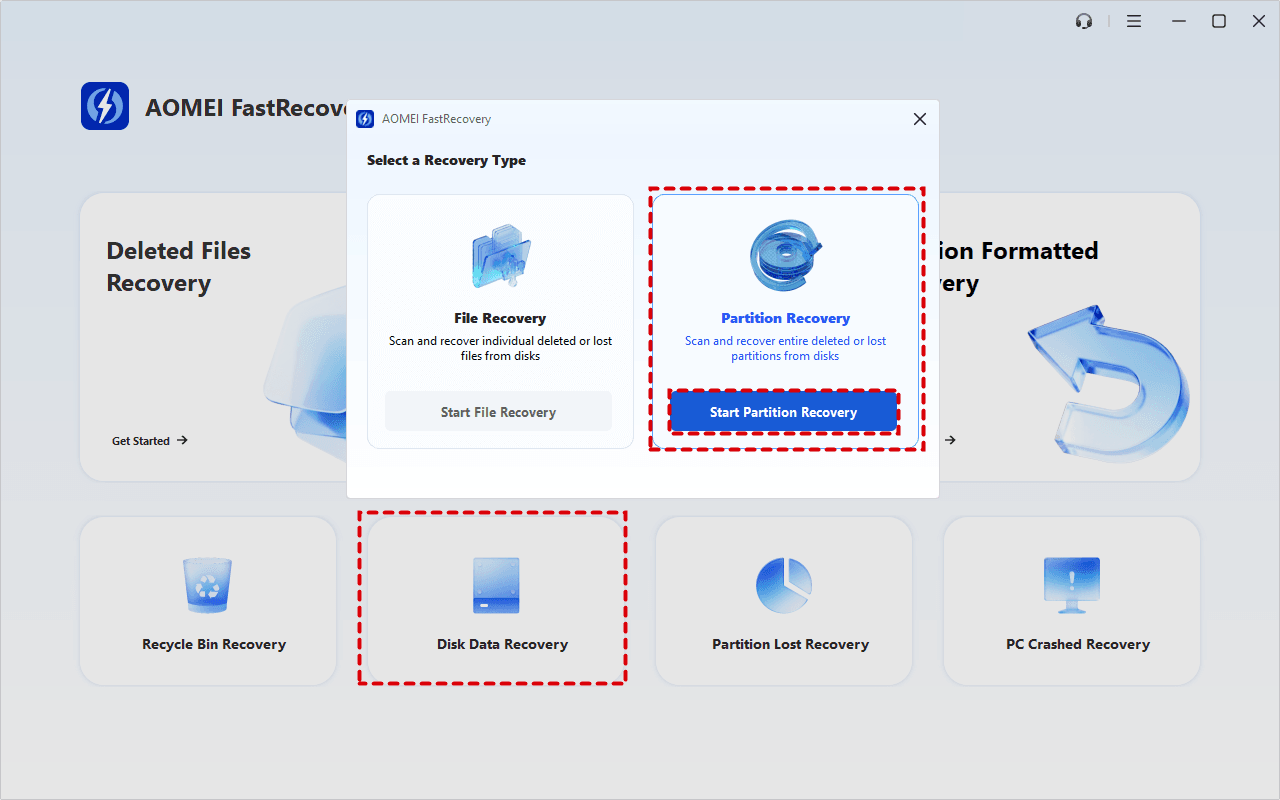
Step 1. Launch AOMEI FastRecovery, select Disk Data Recovery, and click Start Partition Recovery.
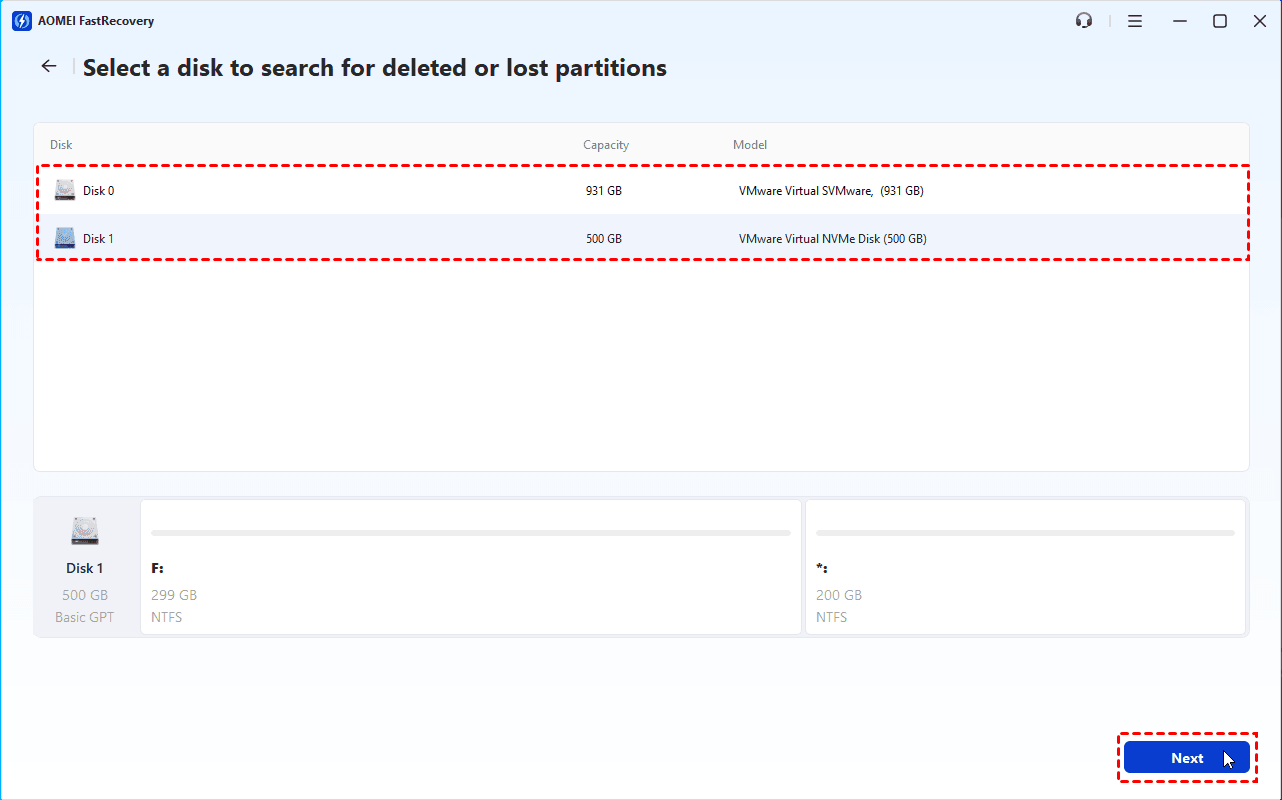
Step 2. Identify the disk that contained the lost partition. Check its disk number, capacity, model, and partition layout to make sure you select the correct disk. Click Next.
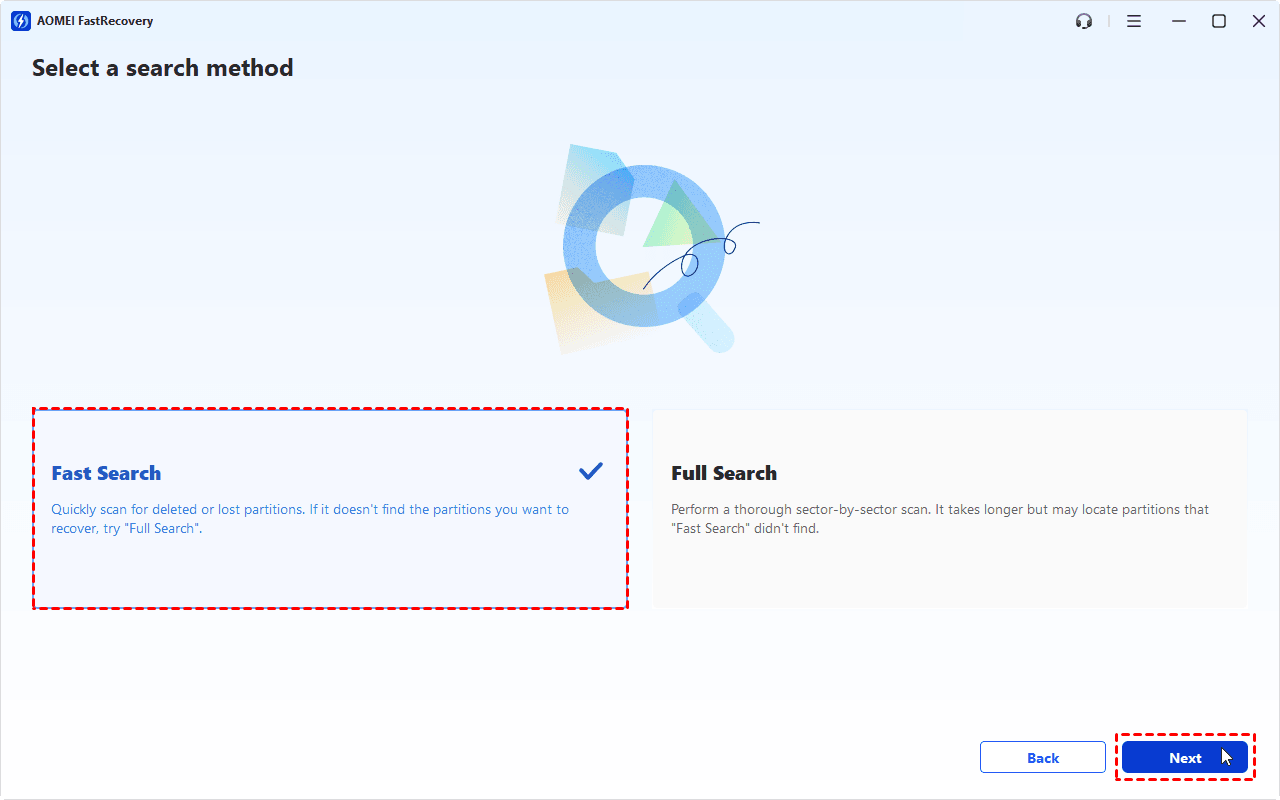
Step 3. Choose a search method and click Next to begin scanning. Start with Fast Search to quickly locate deleted or lost partitions.
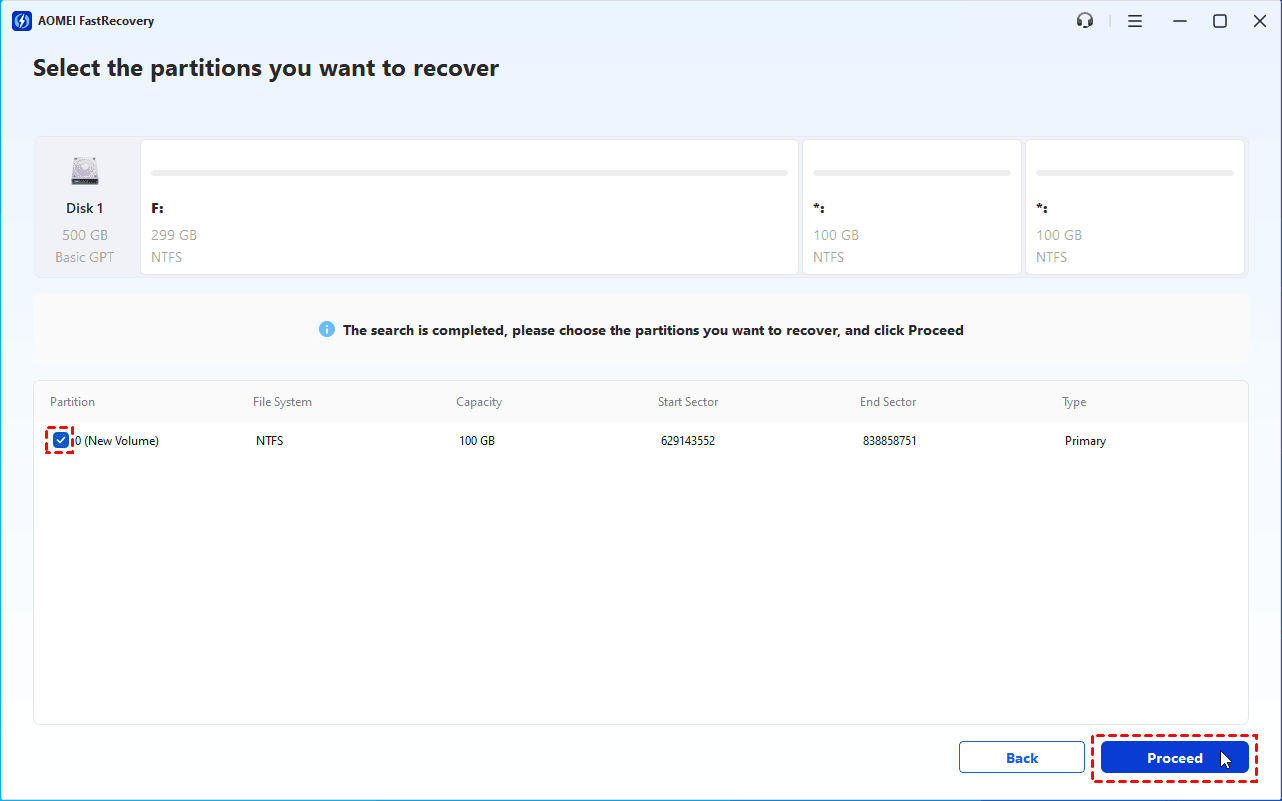
Step 4. After the scan finishes, review the detected partitions and their details. Select the partition you want to recover and click Proceed.
💡 Note: If the expected partition is not listed, go back and try Full Search for a more thorough scan.
Step 5. Wait for the recovery process to finish. Open File Explorer and check whether the partition is accessible. If it does not appear, open Disk Management to check its status and determine whether assigning a drive letter is appropriate.
Solution 2: Only Recover Data from Unformatted Partition
If you only want to recover files from unformatted hard drive, follow these instructions:
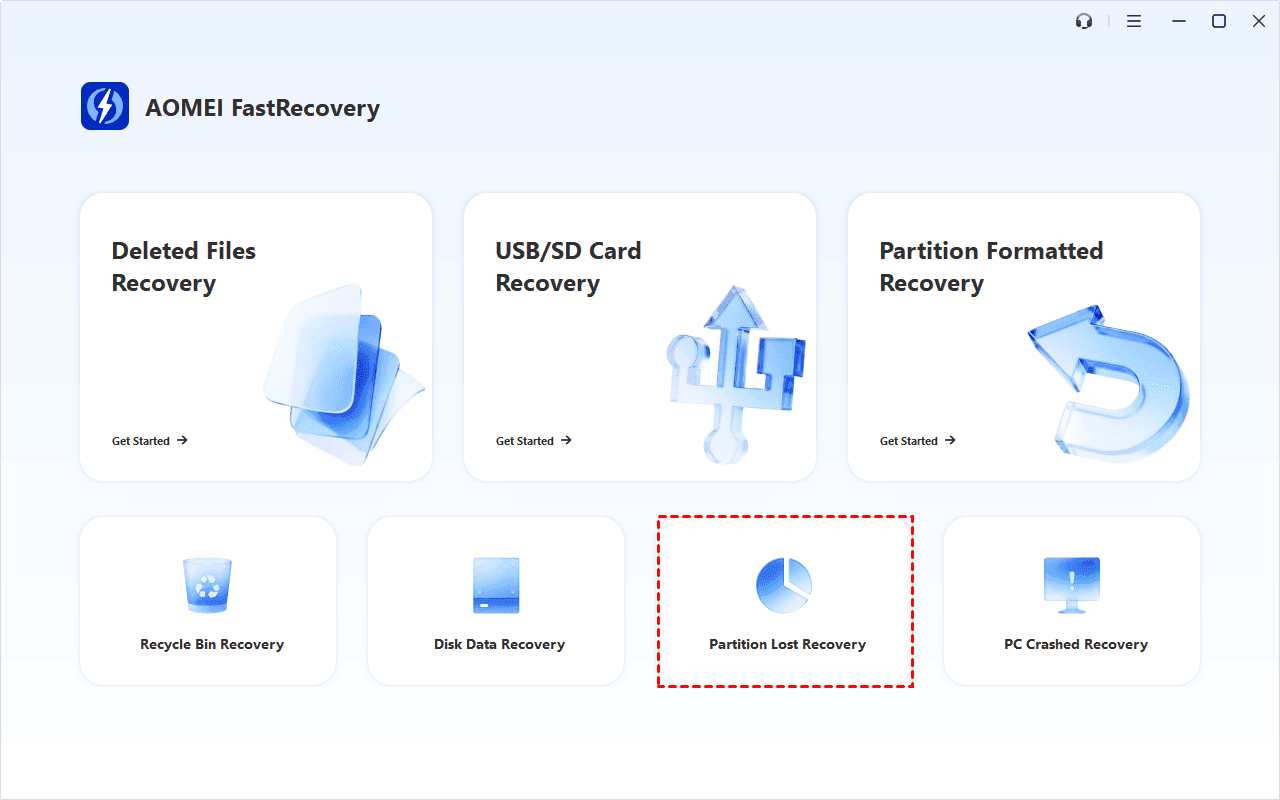
Step 1. Launch AOMEI FastRecovery and select Partition Lost Recovery.
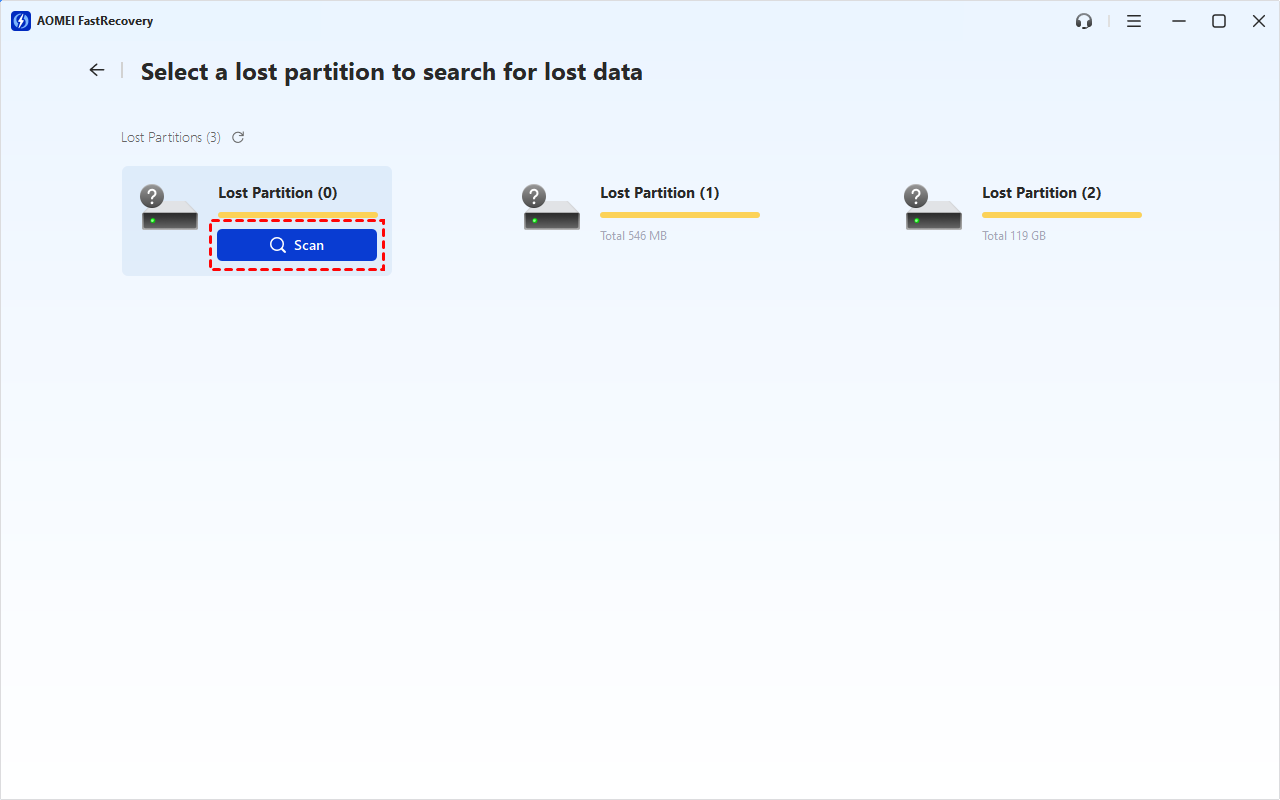
Step 2. Locate the unformatted partition from the list and click Scan. AOMEI FastRecovery will perform a deep scan to look for recoverable files, which takes a relatively long time.
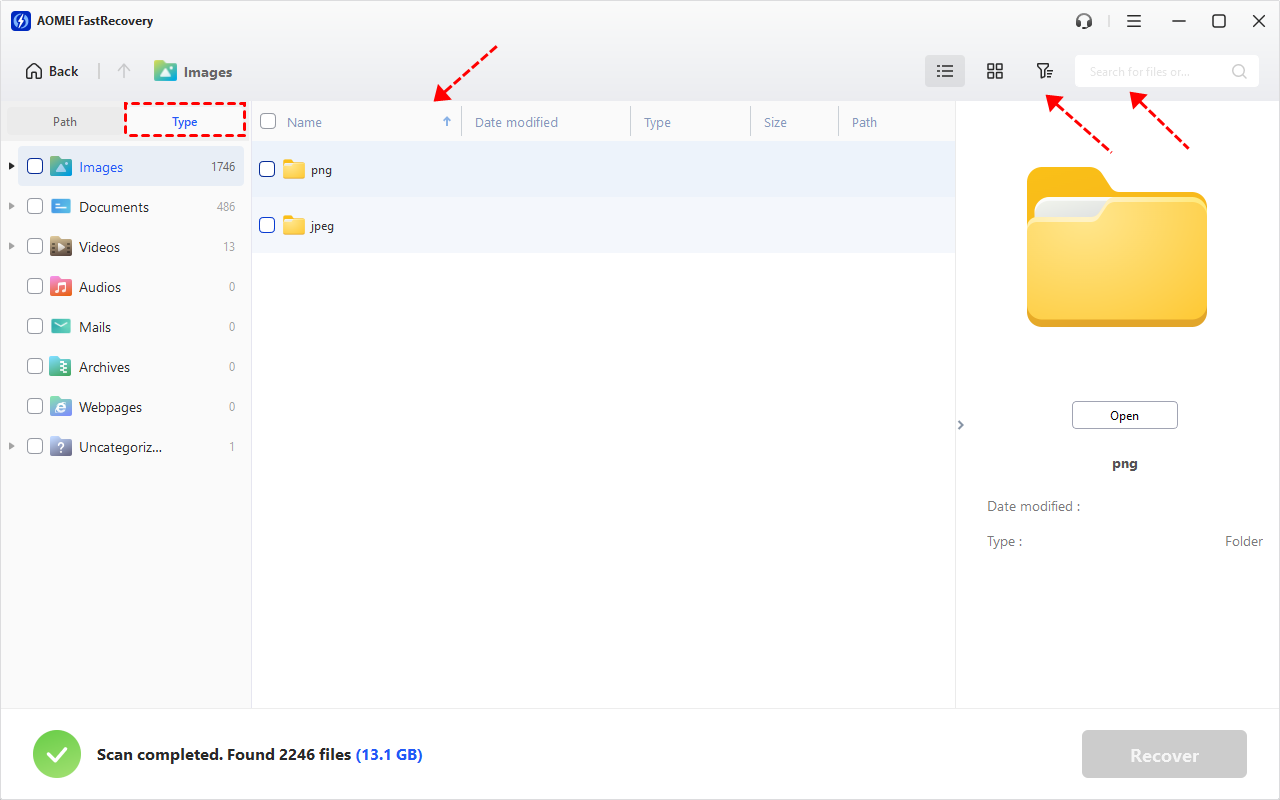
Step 3. Browse the results by Type or Path. Use the search, filter, or sorting options to locate files by name, extension, or other available criteria.
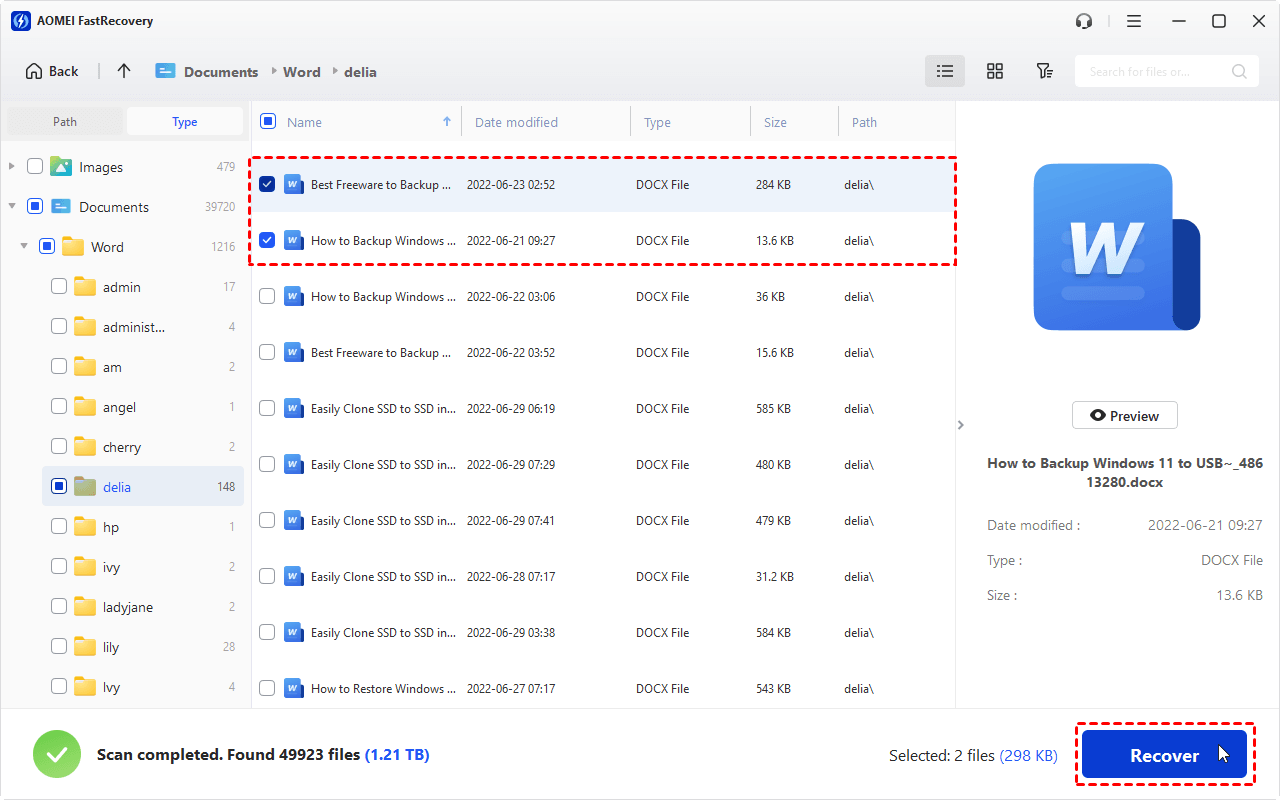
Step 4. Select the files you want to recover. Then click Recover and choose a destination on a different healthy drive.
💡Notes:
- Before recovering a file, you can use the preview function to check whether the file is usable. Please upgrade to enjoy this feature.
- AOMEI FastRecovery allows up to 500 MB of data recovery for free. If you need to recover more data, try paid editions for additional recovery capacity.
Step 5. Once the process finishes, open the recovered files to verify that they are accessible.
Bonus: How to Repair an Unformatted Disk/Partition via Disk Management
If you no longer need the original files or have already recovered and verified them, you can use Disk Management to reformat the RAW partition.
❗ Warning: Formatting can overwrite file system information and make data recovery more difficult. Confirm that you have selected the correct disk and no longer need its original data before proceeding.
Step 1. Press Win + X and select Disk Management.
Step 2. Locate the unformatted partition, right-click it and select Format.
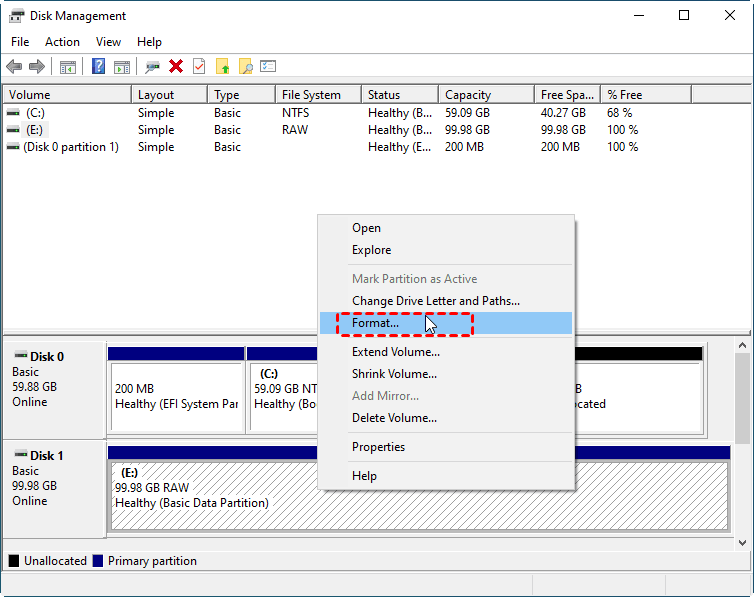
Step 3. Set the following:
- Volume Label: Enter a name for the drive.
- File System: Choose NTFS for Windows-only use, or exFAT for use across Windows and Mac.
- Allocation Unit Size: Leave it as default.
- Perform a quick format: Check it for a fast wipe, or uncheck it for a full format with bad sector checks.
Step 4. Click OK and confirm the operation when prompted. Wait for formatting to finish, then check whether the volume appears in File Explorer.
FAQs About Partition Unformatted Recovery
1. Can CHKDSK repair an unformatted partition?
CHKDSK generally cannot perform a normal file system repair when Windows identifies the partition as RAW. If the partition contains important files, recover the data before attempting repairs or formatting. If Windows recognizes a supported file system, CHKDSK may be appropriate for checking certain file system errors.
2. Can I recover files from a RAW partition without formatting it?
Yes, in some cases. Recovery software may be able to scan the RAW partition for recoverable files without requiring you to format it first. Save recovered files to a different physical drive and avoid writing new data to the affected partition.
3. Why does Windows ask me to format a partition before I can use it?
Windows may display this message when it cannot recognize the partition's file system or when file system information is damaged. The message does not necessarily mean that the partition contains no data. If you need the files, cancel the formatting prompt and attempt data recovery first.
Summary
AOMEI FastRecovery offers different solutions for recovering an unformatted partition on Windows – recover the entire partition or only lost files. Pick one way that best fits your needs.
If you no longer need the original data or have already recovered it, Disk Management can format a RAW volume to make it usable again. Keeping regular backups will also help protect your data if partition problems occur again.

 as a preferred
source on Google
as a preferred
source on Google