




[Top 3] Ways to Recover Deleted Files from SSD in Windows
Accidentally deleted files from your SSD? This guide shows you how to recover data from M.2 or SATA SSD with 3 effective ways – plus tips to improve your recovery chances.

By Lily Updated on October 26, 2026


Can You Recover Deleted Files from an SSD?
Yes, you can sometimes recover deleted files from an SSD, but success depends on how the files were deleted, whether new data has overwritten them, and whether the SSD's TRIM feature has made the data permanently unavailable.
When you delete a file, Windows usually removes its reference from the file system and marks the storage space as available. However, the original data may remain recoverable for a time.
SSDs use flash memory and support TRIM, a feature that allows the operating system to notify the drive when data blocks are no longer needed. The SSD may then erase those blocks through its garbage collection process, making the deleted files difficult or impossible to recover.
🚩 Important: Disabling TRIM after files have been deleted does not restore data that the SSD has already erased. Avoid changing system settings in the hope of reversing data loss. Focus on stopping further writes and checking available recovery options.
How to Recover Deleted Files from an SSD
Try the following methods in order, starting with the simplest option to recover data from M.2 SSD or SATA SSD.
Way 1. Restore Deleted Files from SSD via Recycle Bin
When you delete files from an SSD through File Explorer, Windows may move them to the Recycle Bin instead of removing them permanently. This is the easiest recovery method if the files are still there.
Step 1. Double-click the Recycle Bin icon on your desktop.
Step 2. Browse the list of deleted items and locate the files you want to restore. You can sort the list or search for a particular filename if needed.
Step 3. Select the desired files, right-click them, and choose Restore. Windows will return them to their original locations.
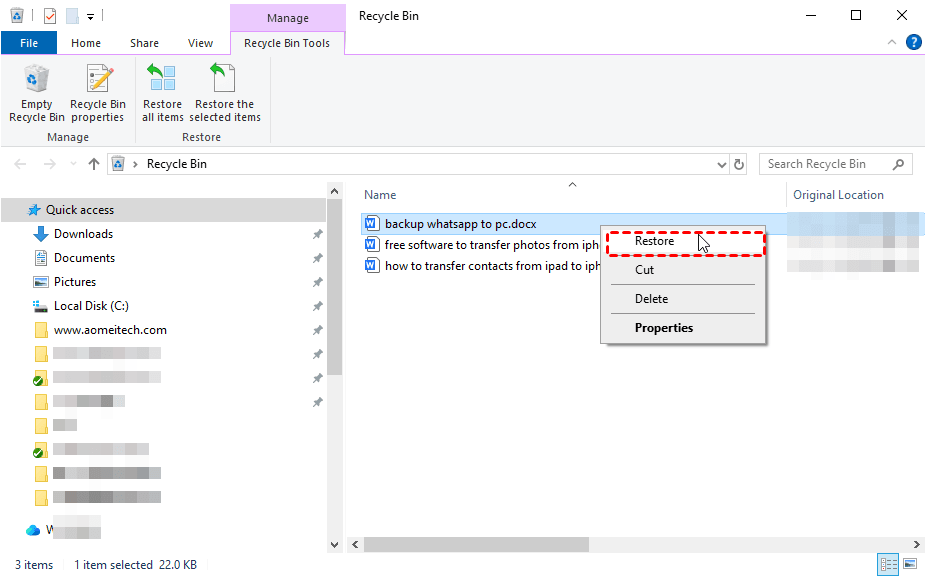
💡 Note: If the files are not in the Recycle Bin, they may have been permanently deleted, removed using Shift+Delete, or deleted from a location that bypasses the Recycle Bin. Continue with the next method.
Way 2. Recover Deleted Files Using Windows File Recovery
Windows File Recovery is a Microsoft command-line utility that can attempt to recover deleted files from supported local storage devices. It is useful if you are comfortable entering commands and want to try a built-in Microsoft recovery tool.
The utility is available for supported Windows 10 and Windows 11 systems through the Microsoft Store. Its recovery modes and supported file systems depend on the current version and the source drive. The main recovery modes include:
|
Mode |
Purpose |
|
/regular |
Attempts recovery from a healthy NTFS drive, particularly for recently deleted files. |
|
/extensive |
Performs a more thorough recovery attempt and is useful for other supported scenarios. |
Before starting, prepare a destination drive that is different from the SSD containing the deleted files. Avoid writing new data to the source SSD.
Step 1. Open the Microsoft Store, search for Windows File Recovery, and install the utility.
Step 2. Search for Windows File Recovery in the Start menu and open it. Then prepare a command using this format:
winfr source-drive: destination-drive: /mode /n filter
For example, to recover DOCX files in the Documents folder from D: drive to E: drive, you can try:
winfr D: E: /regular /n \Documents\*.docx
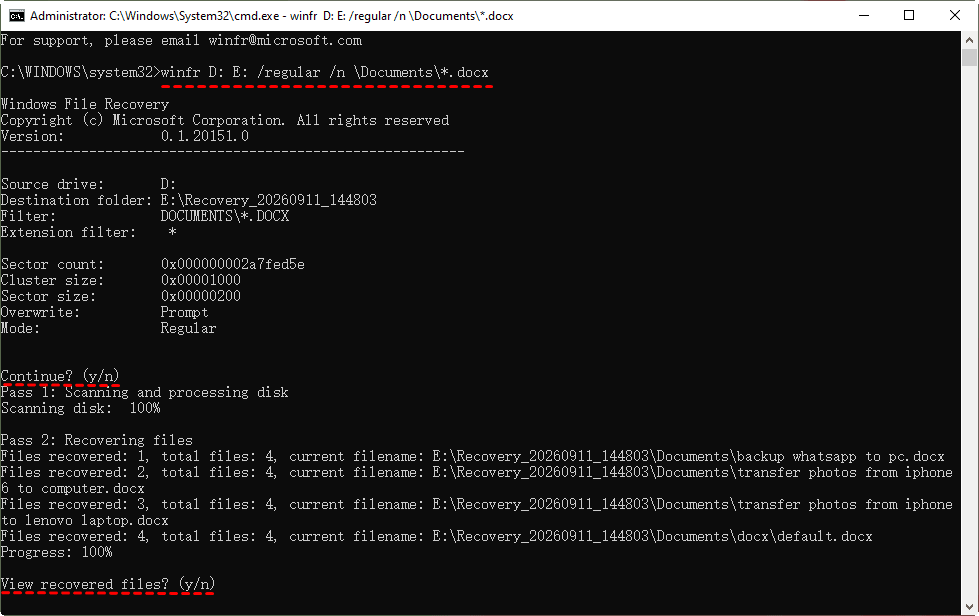
Step 3. Follow the prompts, including entering Y if requested, and wait for the recovery attempt to finish. Recovered files will be saved to the destination location specified by the utility.
💡 Notes:
- The source and destination drives must be different.
- Command-line recovery may require experimentation with filters or modes. If your files are not recovered with the Regular mode, try again in Extensive mode.
- Windows File Recovery does not guarantee recovery, especially when TRIM has made the deleted data unavailable.
Way 3. Recover Deleted Files with SSD Data Recovery Software
If you prefer a graphical interface, AOMEI FastRecovery provides a way to scan supported storage devices for deleted or missing files. It can help with certain data-loss scenarios involving SSDs, HDDs, USB drives, and other supported devices.
 AOMEI FastRecovery
- Simple interface: A graphical interface helps users perform recovery without relying entirely on command-line instructions.
- File scanning: Run Quick Scan or Deep Scan to look for deleted or missing files on a supported drive.
- File organization: Browse detected files by type or path and use available search, filter, sort, and preview options.
- Varied recovery scenarios: Supports deleted file recovery, Recycle Bin recovery, formatted partition recovery, and recovery from SD cards or USB drives.
- Support for 500+ storage devices: HDD/SSD (Seagate, Toshiba, WD), USB flash drives (Samsung, SanDisk, Kingston), SD cards (PNY, Panasonic, Crucial), cameras (Nikon, Canon, Sony), and more.
 100% Secure
Follow these steps to attempt SSD deleted file recovery.
Step 1. Install AOMEI FastRecovery on a drive different from the SSD drive where your data is lost. Launch the software and select Deleted Files Recovery from the main interface.

Step 2. Locate the SSD partition that contained the deleted files. Check the drive letter, capacity, and other displayed details, then select it and click Scan.
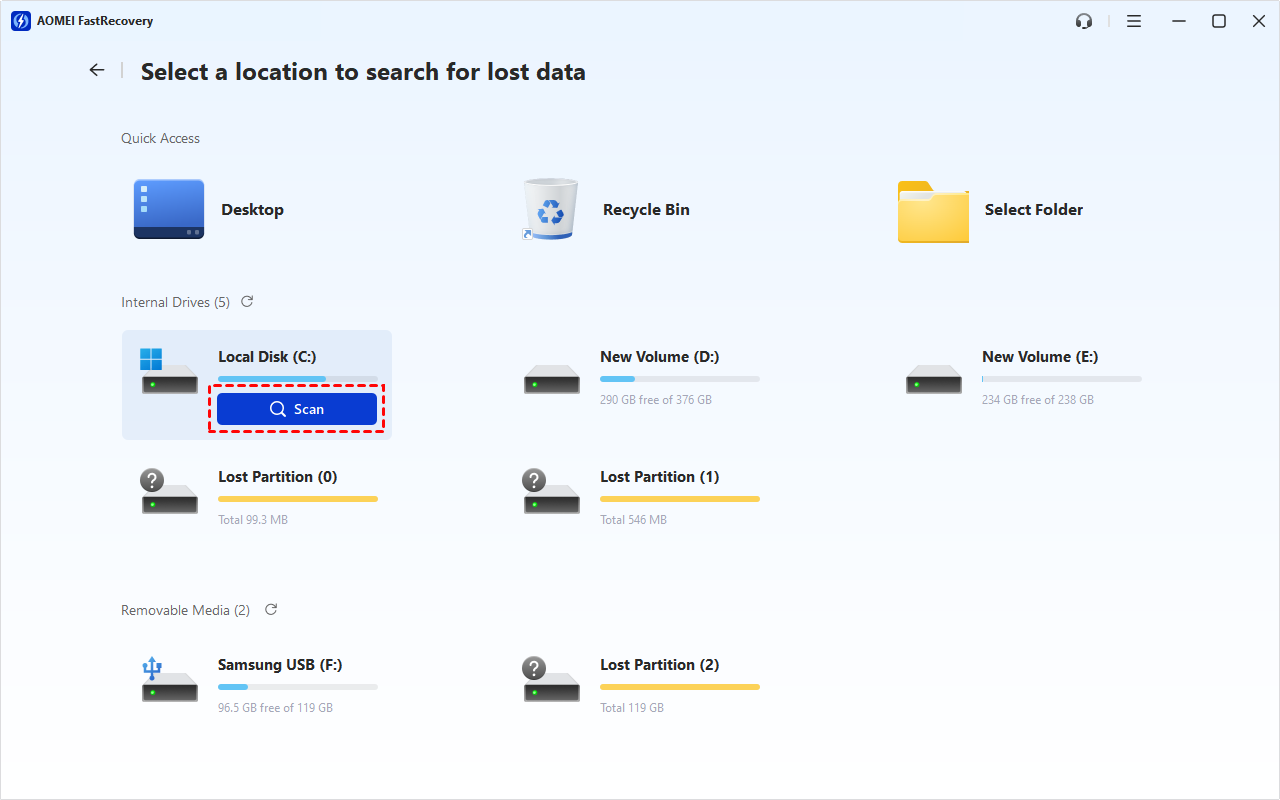
Step 3. Allow the automatic Quick Scan to search for deleted files. Avoid disconnecting the SSD during the scan.
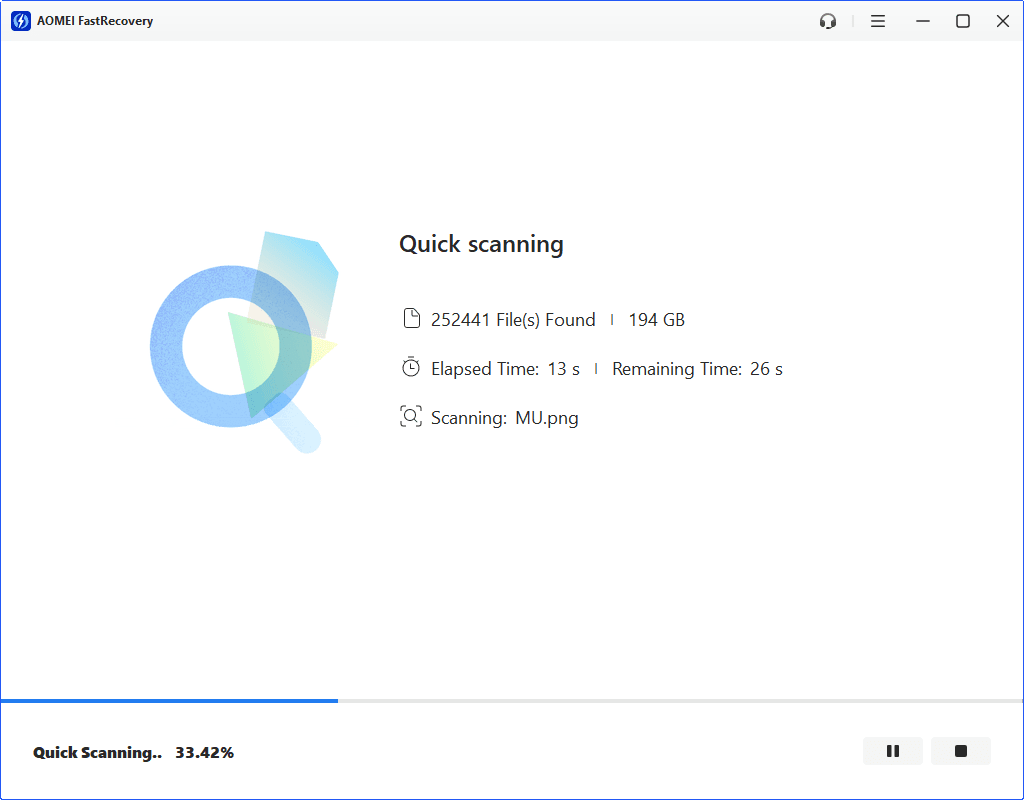
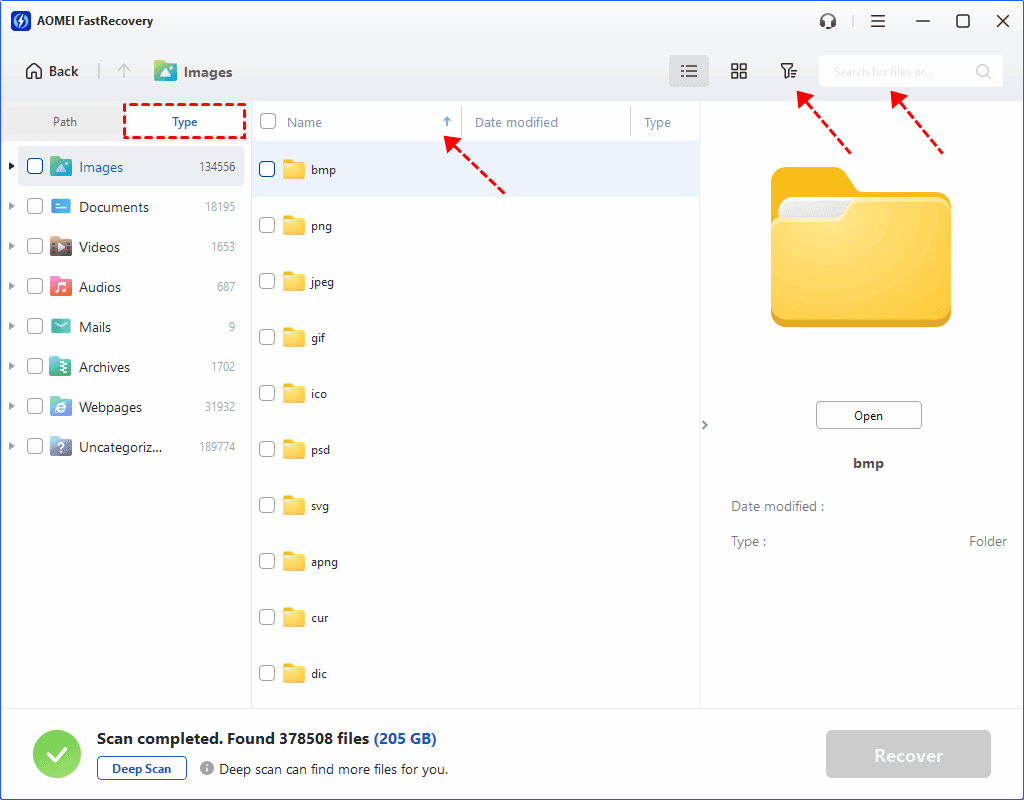
Step 4. Review the scan results using Type or Path. You can also use the available search, filter, and sort features to narrow the results.
💡Notes:
- If the desired files do not appear in the initial results, click the Deep Scan button at the bottom left to search for more files.
- You can double-click a supported file to preview it before recovery. This is a paid feature.
Step 5. Select the files you want to restore and click Recover. Choose a destination on a different drive instead of the original SSD.
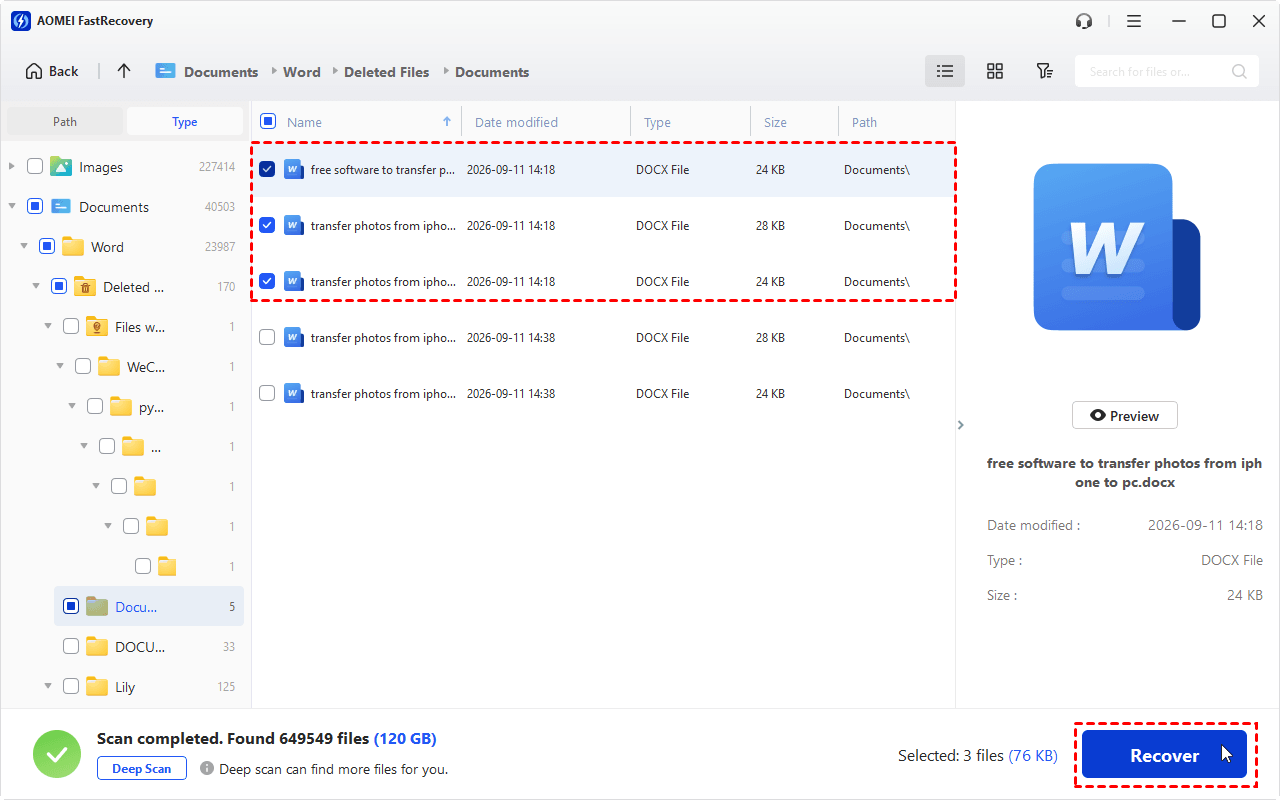
Step 6. After recovery, open several files to verify that their contents are intact. If the files are important, keep an additional copy on another storage device.
Tips to Improve SSD Data Recovery Chances
Although successful recovery is not always possible, the following precautions can help prevent further data loss.
- Stop writing to the affected SSD: Avoid downloading files, installing applications, or saving recovered data to the source drive.
- Do not format the SSD: Formatting can complicate recovery and should not be used as a first response to missing files.
- Do not rely on disabling TRIM: Changing TRIM settings after deletion cannot reverse data erasure that has already occurred.
- Save recovered files elsewhere: Use a separate internal drive, external drive, or other storage device as the recovery destination.
- Watch for hardware problems: If the SSD is not detected, frequently disconnects, or causes system errors, avoid repeated recovery attempts and seek professional help if the data is valuable.
- Create regular backups: Maintain copies of important files on a separate storage device or backup destination.
FAQs About Recovering Deleted Files from an SSD
1. Can I recover permanently deleted files from an SSD?
Yes, in some cases. You may be able to recover permanently deleted files using Windows File Recovery or AOMEI FastRecovery if the data remains accessible.
However, SSD TRIM, garbage collection, and overwriting can make deleted files unrecoverable. Stop using the affected SSD as soon as possible to avoid further data loss.
2. Can I recover SSD RAW partition?
Yes, you can often recover an SSD RAW partition, especially if it became RAW because of file system corruption or partition errors. The success rate depends on the cause and whether the data has been overwritten.
3. Should I run CHKDSK on an SSD after losing files?
Not as a first step if recovering the missing files is your priority. CHKDSK can modify file-system structures, potentially complicating recovery. First, stop writing to the drive and check for backups or attempt an appropriate recovery method. If the SSD shows signs of physical failure, avoid repair utilities and consult a professional.
Summary
To recover deleted files from SSD, first check the Recycle Bin and any available backups. If those options do not help, try Windows File Recovery or AOMEI FastRecovery, saving restored files to a different drive.
Keep in mind that SSD data recovery differs from HDD recovery because TRIM and garbage collection can make deleted data permanently unavailable. Stop using the affected SSD as soon as possible, avoid formatting it, and seek professional assistance if the drive appears physically damaged. Going forward, regular backups remain the most dependable way to protect important files.

 as a preferred
source on Google
as a preferred
source on Google