




How to Recover Deleted or Lost Files from Samsung Portable SSD T3
To recover deleted or lost files from Samsung portable drive SSD T3, first check whether you can access the drive. Choose a recovery scan or an existing backup, with guidance for locked or unrecognized devices.

By Ivy Updated on September 18, 2026


A folder of photos has disappeared from your Samsung T3, or you've deleted work files you still need. Stop saving anything to the SSD while you decide how to retrieve them.
You may still be able to recover deleted or lost files from a Samsung Portable SSD T3, it depends on the drive's condition and whether the data is still there. If Windows can recognize the drive, AOMEI FastRecovery can scan for recoverable files. If you have a backup, that's another option.
First, figure out what you're dealing with: are files missing from a drive you can still access, or is the drive itself not showing up? Then, choose a methd based on your situation - These methods also work for Samsung T5, T7, X5, and more. Just note that the X5 has a specific connection requirement.
Which Samsung SSD Recovery Method Fits Best?
Avoid formatting, initializing, or running repair commands on the SSD before recovering files. Use the situation that matches what you see:
| 🧩 Your situation | 👉 Where to start |
|---|---|
| The drive opens normally, but files were deleted | Check whether the files remain in the Recycle Bin; otherwise, consider Method 1 |
| A backup contains the missing files | Restore files from backup, go straight to Method 2 |
| Only a small security volume appears, or the drive requests a password | Unlock the drive before deciding whether files are missing |
| Windows asks you to format the drive | Cancel the prompt and assess the drive before making changes |
| The SSD repeatedly disconnects or remains undetected | Stop repeated attempts and consider professional assessment |
If you didn't delete anything, take a quick look in the folder where the file should be and search for its filename. Still can't find it? Check out our guide on files disappearing from an external hard drive.
Method 1: Recover Deleted or Lost Files from Samsung Portable SSD T3 with AOMEI FastRecovery
👍 Best for: Deleted files on a readable Samsung SSD, such as portable SSD T3, T5, T7, X5, etc.
AOMEI FastRecovery is easy-to-use SSD data recovery software that can scan Samsung Portable SSD T3 for deleted photos, videos, documents, and other files. It also works for SamsungT5, T7,X5, and more.
 AOMEI FastRecovery
- 🔎 Dual Scan Mode: Quick Scan for fast results; Deep Scan for a deeper search - each fits a different scenario.
- 🎯 Selective Scenarios: Disk Data Recovery for entire disk, including multiple partitions, while Deleted Files Recovery for quick, targeted recovery.
- 📚 1000+ Data Types: Recover deleted files, from documents to images, videos, audios, archive files, and more.
- 📂 Pinpoint What You Need: Browse by type or path, then search, sort, and filter results, with thumbnail previews so you know exactly what you're recovering. Save only what you want, wherever you want.
- 💰 Free Tier: Recover data up to 500MB for free. Need more? Upgrade for unlimited recovery.
 100% Secure
Step 1. Connect your Samsung SSD to the PC and unlock it if password protection is enabled. Download and install AOMEI FastRecovery on your computer, not the Samsung SSD. Then, open it and select Deleted Files Recovery.

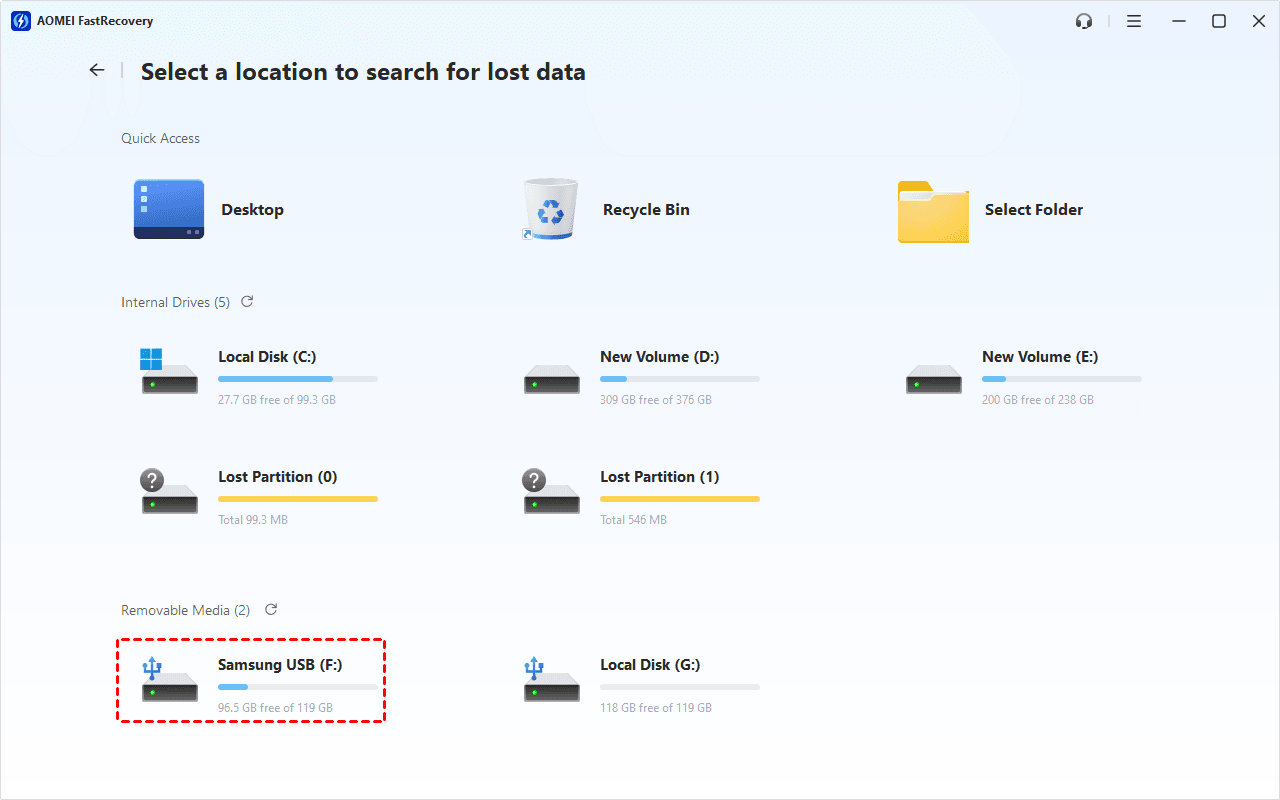
Step 2. Find your Samsung SSD by drive letter or capacity, then click Scan. Check carefully if several external drives are connected.
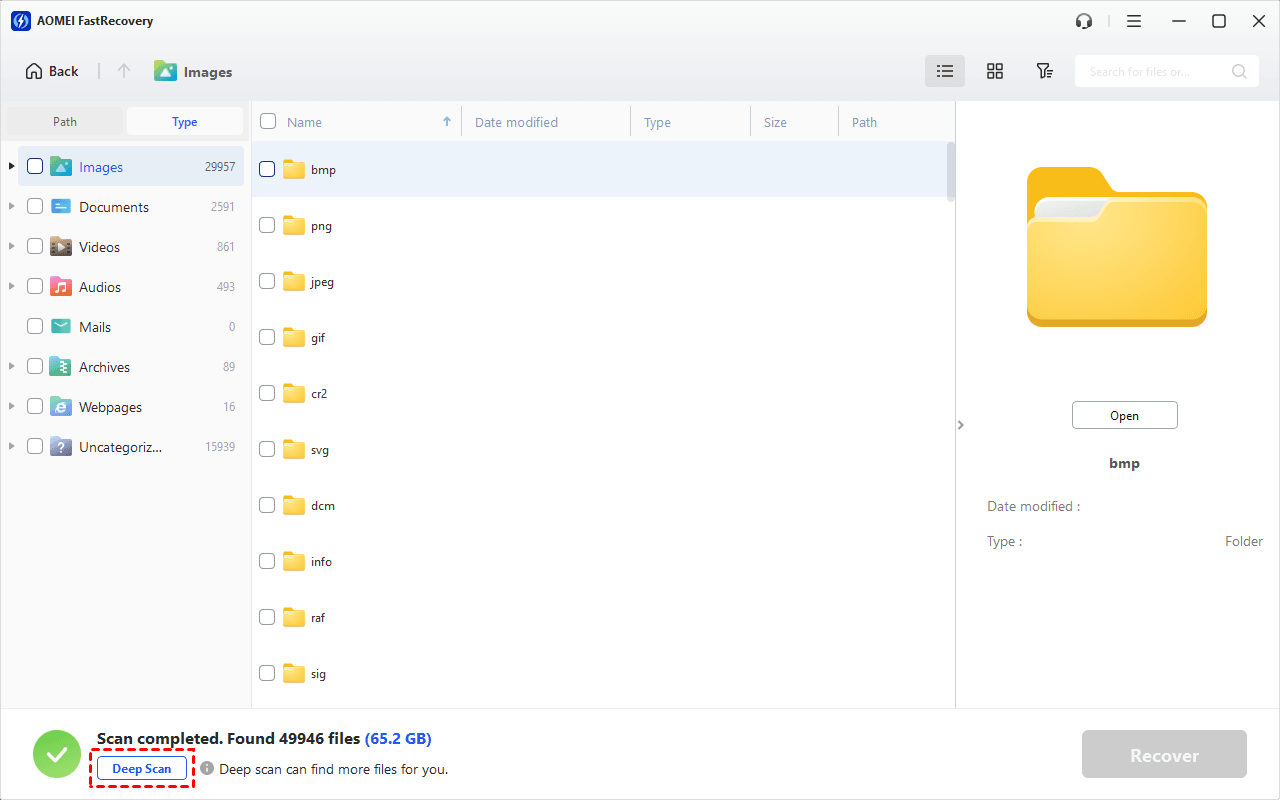
Step 3. Let the default Quick Scan finish. Browse results by Path if you remember the original folder, or use Type to focus on documents, photos, videos, and more. Search by filename or extension when you know what you need.

Step 4. If you can find delete or lost files, click Deep Scan. This searches more thoroughly and can take longer. Review the scanned results again.
Step 5. Select files you want to recover and click Recover to continue. Choose another drive with enough free space as destination.
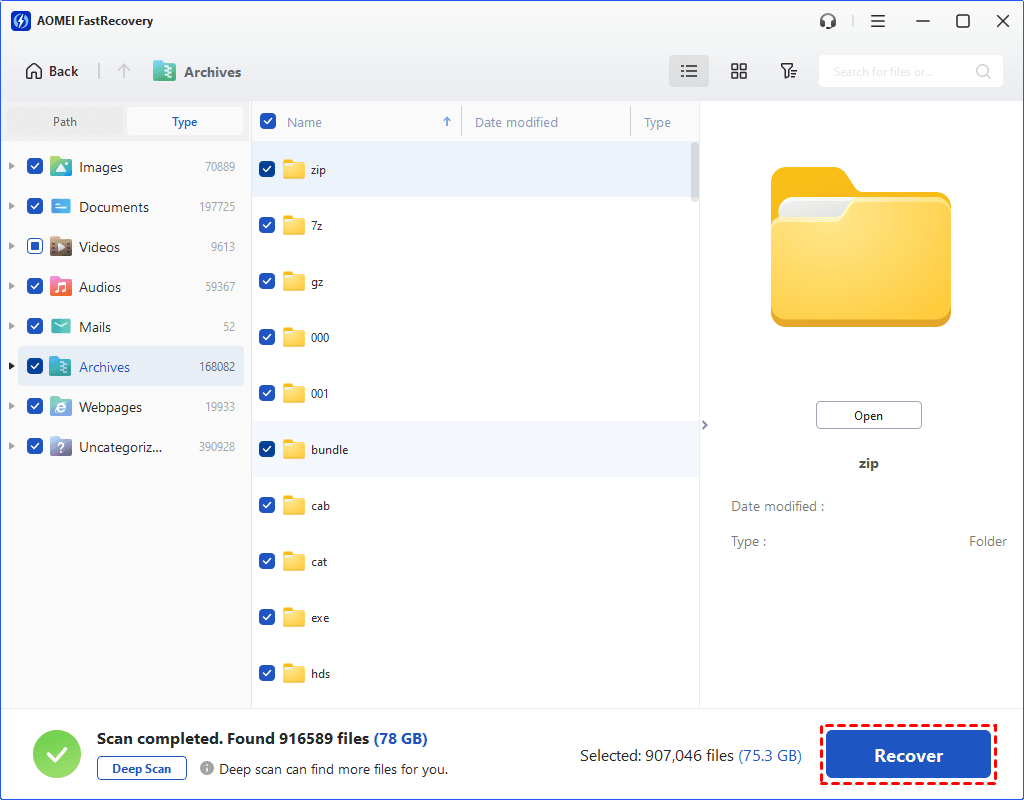
After recovery, open important documents, play recovered videos from, etc., to check whether they are usable.
- The free edition can scanand recover data up to 500MB. Recovery beyond that allowance requires an upgraded edition.
- This method also works for deleted files too big for Recycle Bin, recover data WD external hard disk, etc.
Method 2: Restore Missing Files from an Existing Backup
👍 Best for: Files that were backed up before they disappeared.
File History only works if you previously backed up your files. It stores copies of user data like Documents, Pictures, Downloads, etc., provided your files are in those folders. Just browse your backup drive and confirm.
Step 1. Connect the drive holding your File History backup. In File Explorer, right-click the folder containing deleted files and select Restore previous versions.
Step 2. Choose a folder version from before the loss. Expand Open and select Open in File History to check your files.
Step 3. Expand Restore, choose Restore to..., and select a folder on another drive. Check the restored files before replacing any current copies.
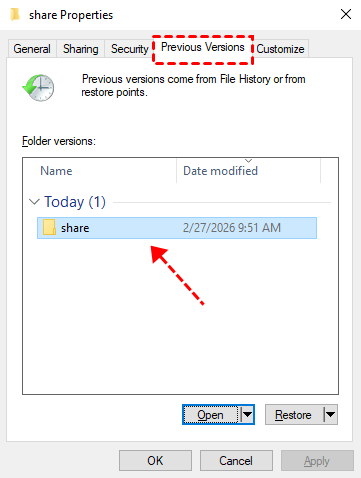
If no suitable folder version appears, File History does not provide the backup you need.
When Your Samsung SSD Won’t Open Normally
Check password protection
A locked SSD can look different from a drive with deleted files. Samsung’s T3 user manual explains that password protection can initially expose only a small security partition. Entering the password restores access to the data area.
Use the Samsung software applicable to your model to unlock it. Do not reset the drive to factory settings to regain access to existing files: the T3 manual warns that this erases user data.
Check the connection, especially for X5
For a USB-connected model, check the cable and try a compatible port directly on the computer. If the connection becomes stable, reassess whether the files are actually missing.
The X5 requires a compatible Thunderbolt connection. Its USB-C-shaped connector does not mean it works through an ordinary USB-only port, as specified in the Samsung X5 manual.
Stop when the drive is unstable
Repeated disconnections, physical damage, or continued failure to detect the device call for a different method from ordinary deletion recovery. Avoid repeated scans and seek professional advice if the files are important.
A missing partition also needs separate assessment. See the guidance on recovering lost partition on external hard drive before creating or formatting a replacement volume.
FAQs About Samsung Portable SSD Recovery
Will disabling TRIM bring deleted files back?
No. Changing a setting cannot bring back data already erased. Microsoft describes TRIM as a notification that storage space has been freed; it also states that changing the setting does not affect existing in-flight operations. Don’t treat disabling TRIM as a recovery method.
Can I recover files after formatting a Samsung SSD?
Possibly, but formatting can reduce recovery chances, and SSD TRIM adds another limitation. Stop using the drive and check existing backups. A software scan may find recoverable files, but neither a quick format nor the absence of later writes guarantees success.
Why do recovered files fail to open?
Some file information may remain while the contents are incomplete, overwritten, or otherwise unavailable. A filename in scan results does not establish that the complete file can be restored. Check recovered copies and look for another version in backups.
In the End
To recover deleted or lost files from Samsung portable drive SSD T3, start with its current state. Scan a stable, unlocked drive for deleted files, or restore an existing backup that contains them. If the SSD remains inaccessible or unstable, get advice before attempting repairs.
Once your files are usable again, keep a separate backup so the portable SSD is no longer their only home.

 as a preferred
source on Google
as a preferred
source on Google