




How to Recover Corrupted Hard Drive and Its Data
Hard drive corrupted? Learn 5 effective methods to recover it – plus a reliable tool to rescue files from a damaged drive.

By Lily Updated on October 27, 2026


A corrupted hard drive can cause serious problems, from missing files and inaccessible folders to a drive that Windows cannot recognize. Whether you're dealing with an internal HDD, an external hard drive, or another storage device, the right solution depends on the cause of the corruption. File system errors may be repairable with Windows tools, while physical damage may require professional assistance.
This guide explains how to recover data from a corrupted hard drive, troubleshoot common disk problems, and reduce the risk of future data loss.
Priority: Recover Data from Corrupted Hard Drive
If your priority is recovering important files, recover the data before attempting repairs that could change the drive's contents.
AOMEI FastRecovery can help retrieve files that remain recoverable if your hard drive has become corrupted and you cannot access its files.
 AOMEI FastRecovery
- Quick Scan and Deep Scan: Perform an initial scan quickly and use a deeper scan when more extensive searching is needed.
- Wide file support: Recover more than 1,000 supported file types. You can use it to recover pictures, Word documents, Excel spreadsheets, presentations, videos, and compressed files.
- Search and Filter: Narrow results by file name, extension, file type, size, and other available criteria.
- Selective recovery: Recover only the files or folders you need instead of restoring everything.
- Multiple storage devices: Scan internal and external HDDs, SSDs, USB drives, SD cards, and other supported storage media.
- File-system support: Supports common file systems such as NTFS, FAT32, exFAT, and ReFS.
 100% Secure
Follow these steps to recover files from damaged hard drive using AOMEI FastRecovery:
Step 1. Download and install AOMEI FastRecovery on a different healthy drive, not the corrupted drive containing the files you need. If the affected drive is an external disk, connect it to your computer only if it appears safe to do so.
Step 2. Launch AOMEI FastRecovery and select Disk Data Recovery > Start File Recovery.
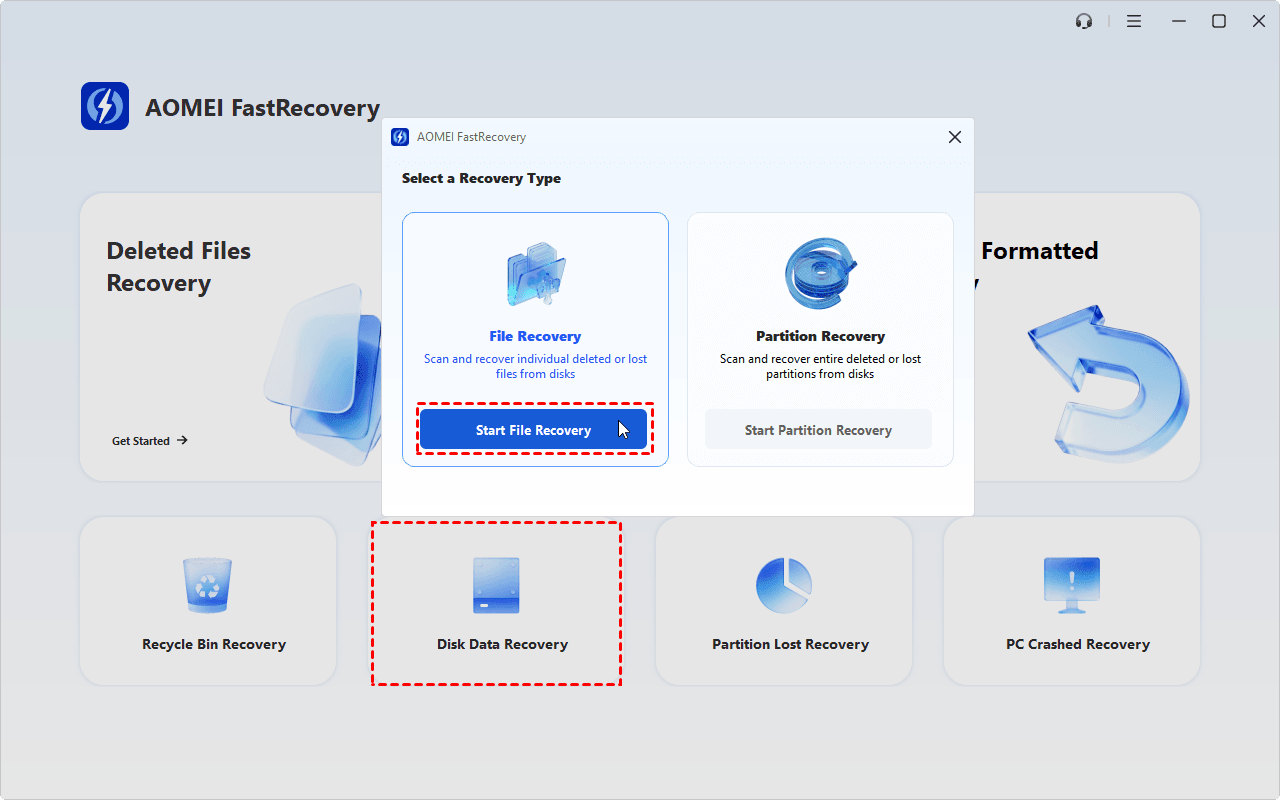
💡 Note: If you want to perform hard disk partition recovery, choose Start Partition Recovery instead. This will recover not only files but also the partition structure.
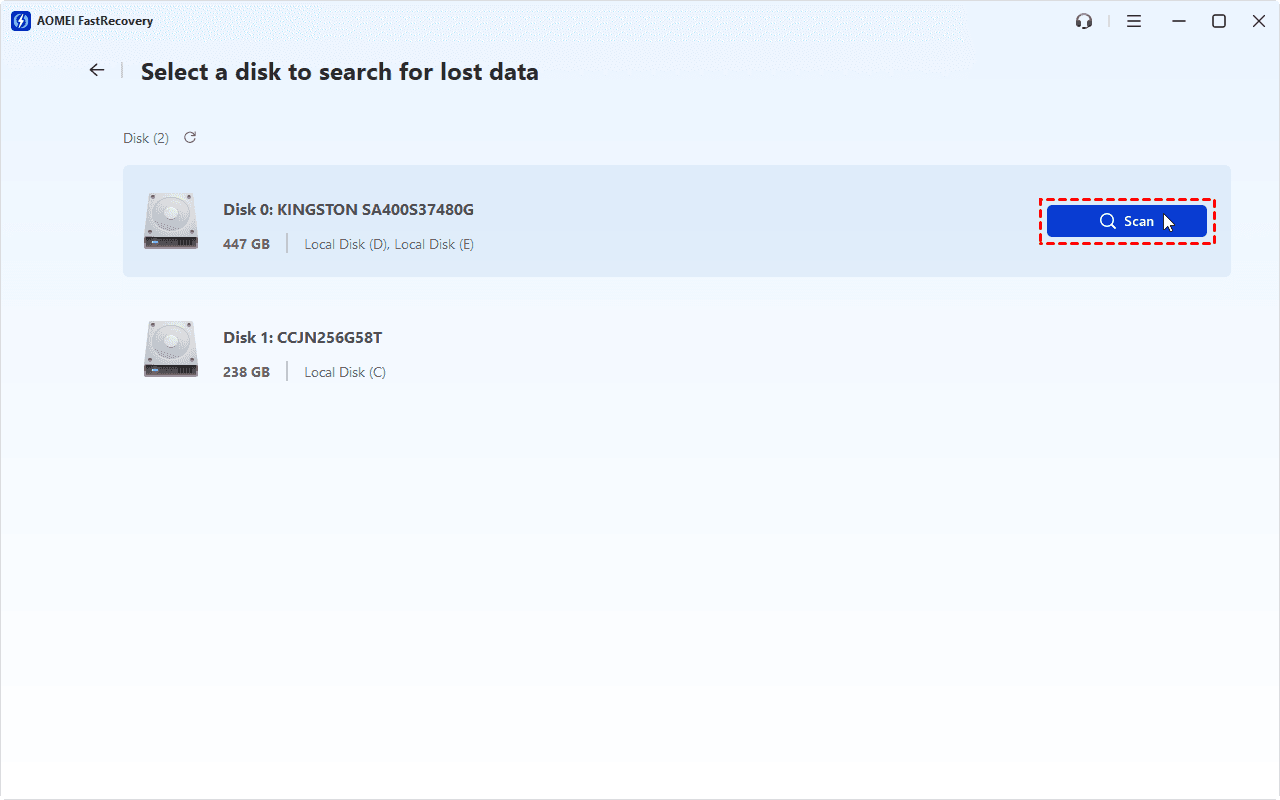
Step 3. Locate the corrupted drive and click Scan. AOMEI FastRecovery will perform a deep scan to look for recoverable files, which takes a relatively long time.
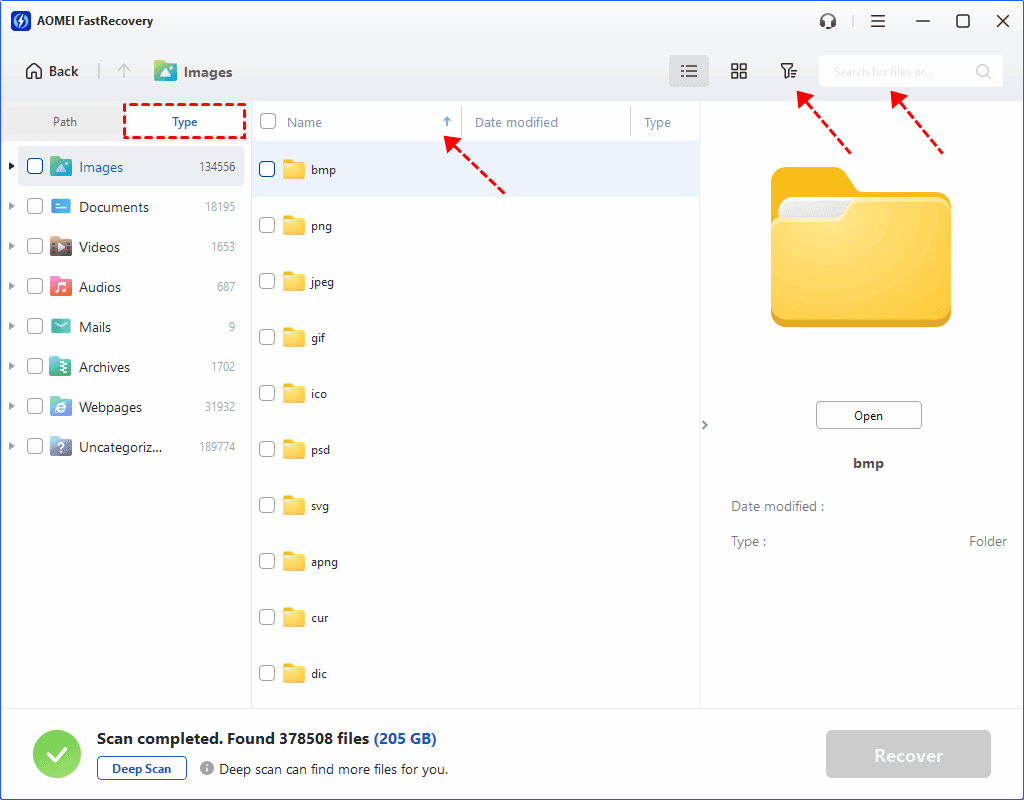
Step 4. Browse the results by Type or Path. Use the search, filter, or sorting options to locate files by name, extension, or other available criteria.
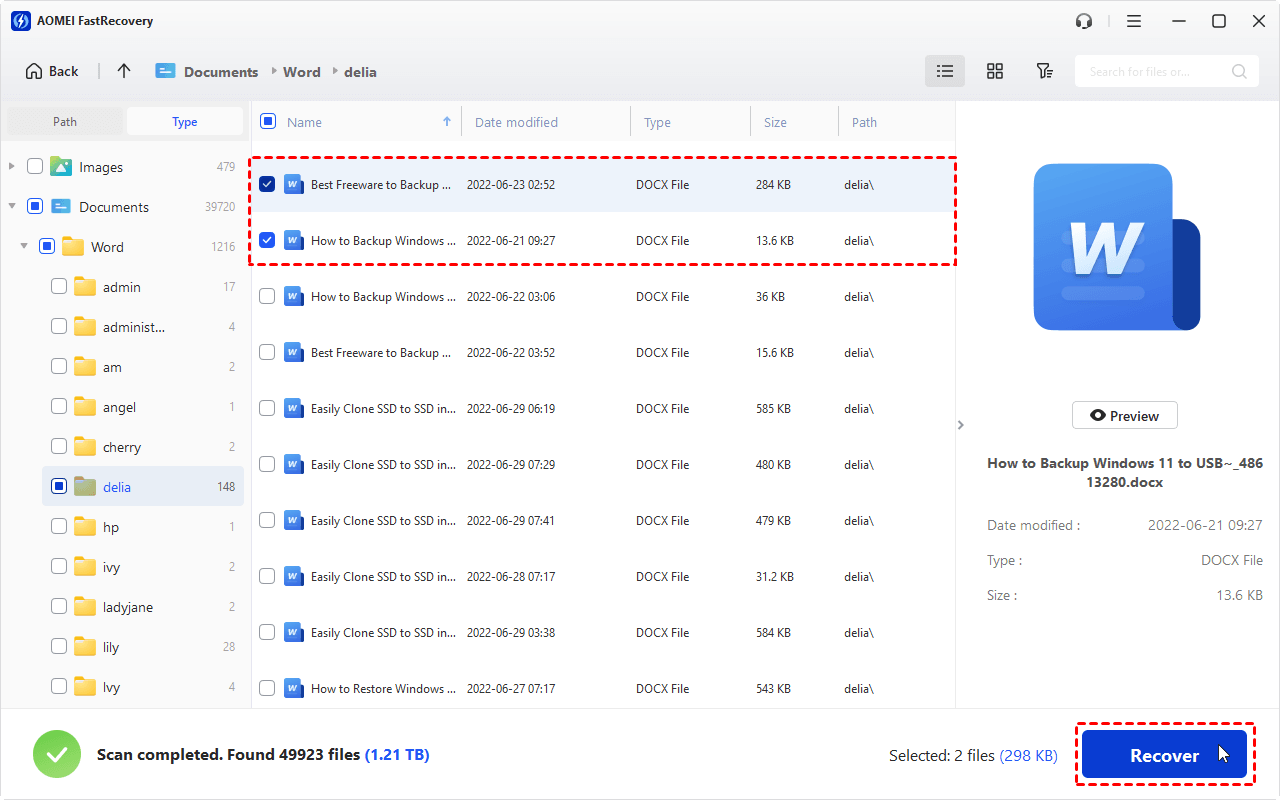
Step 5. Select the files you want to recover. Then click Recover and choose a destination on a different healthy drive.
💡Notes:
- Before recovering a file, you can use the preview function to check whether the file is usable. Please upgrade to enjoy this feature.
- AOMEI FastRecovery allows up to 500 MB of data recovery for free. If you need to recover more data, try paid editions for additional recovery capacity.
Step 6. Once the process finishes, open the recovered files to verify that they are accessible.
How to Repair Corrupted Hard Drive in Windows
After recovering data from corrupted hard drive, you can try the following methods to fix corrupted internal/external hard drives.
Method 1. Check the Drive for File System Errors
To repair a drive that remains accessible, Windows' built-in error-checking feature may help identify file system problems.
Step 1. Open File Explorer and select This PC.
Step 2. Right-click the affected drive and select Properties.
Step 3. Open the Tools tab and find the Error checking section. Then click Check and follow the on-screen instructions if Windows offers to scan the drive.
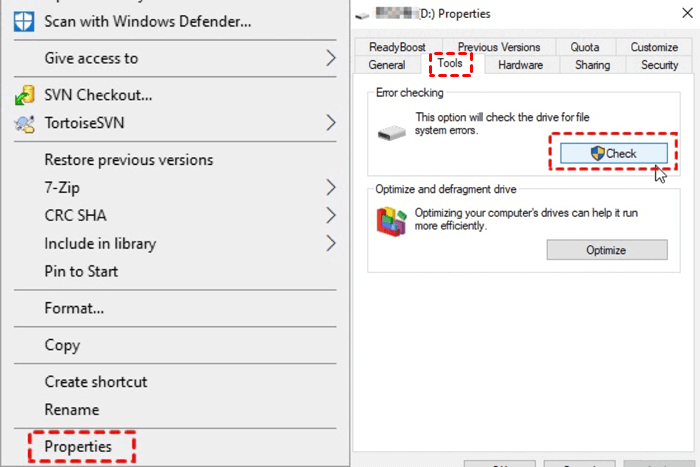
Step 4. After the scan or repair finishes, check whether the drive is accessible. If the problem persists, avoid repeating repairs without understanding the underlying cause.
Method 2. Use CHKDSK to Check Disk Errors
CHKDSK is a Windows command-line utility that checks a file system and, when requested, attempts to repair certain disk errors. It can be useful for logical file system problems, but it is not a universal data recovery tool.
CHKDSK with repair parameters can modify file system structures and may make some damaged files harder to recover. Avoid running it on a drive showing signs of physical failure.
Step 1. Open the Windows search box, type “cmd”, and select Run as administrator for Command Prompt.
Step 2. Type chkdsk G: /f /r /x and press Enter, replacing G: with the affected drive letter:
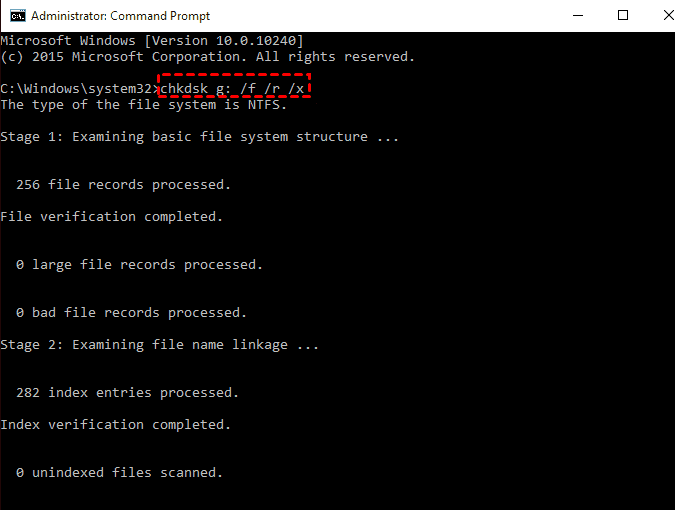
💡Notes:
- /f: Fixes logical errors on the disk. It requires the disk to be locked; if it cannot be locked, it will prompt you to schedule a check upon the next restart.
- /r: Locates bad sectors on the disk and attempts to recover readable information. This parameter includes the functionality of /f, while additionally performing a physical disk error analysis.
- /x: Forces the volume to dismount first (if necessary), invalidating all open handles to the drive.
Step 3. Follow any prompts and wait for the command to finish. Check the drive afterward to see whether the reported file system problem has been resolved.
Method 3. Scan the Computer for Malware
Malware can sometimes interfere with access to files or cause system problems. If you suspect that a virus or other malicious software is involved, scan the computer using a trusted security tool. Task Windows Security as an example:
Step 1. If possible, disconnect the corrupted external drive until you are ready to scan it safely. Do not reconnect a suspect drive to multiple computers unnecessarily.
Step 2. Open Windows Security from the Windows search box.
Step 3. Select Virus & threat protection and click Quick scan to perform a fast check of the most common locations where malware hides.
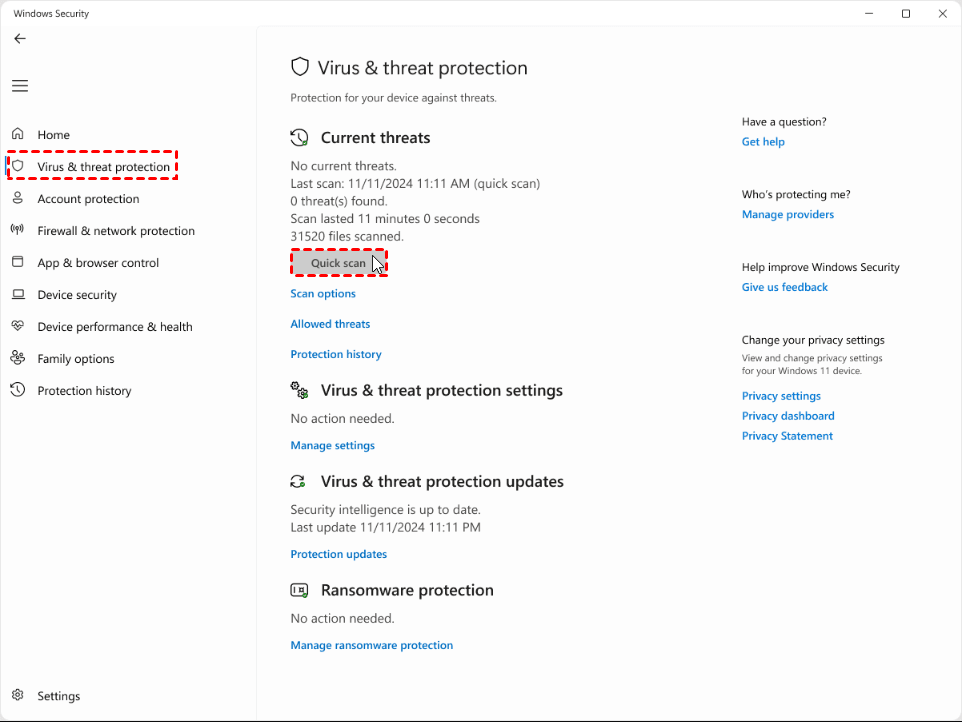
💡 Note: If Windows Security recommends that you run one of the other types of scans, you'll be notified when the quick scan is done.
Step 4. If there are viruses and threats detected on your system, you will get a Threats Found notification. You can click on the notification to open the scan results, and then take one of these actions on the threat:
- Quarantine: Isolates the threat in a locked folder so it cannot run or spread. (Recommended if you are unsure).
- Remove: Permanently deletes the malicious file from your computer.
- Clean: Tries to remove malicious code while keeping the original file intact.
- Allow: Only select this option if you are 100% sure the file is safe (a false positive).
💡 Note: A malware scan cannot repair physical damage or guarantee that corrupted files will be restored. If the drive itself is failing, stop using it and seek appropriate assistance.
Method 4. Update or Reinstall the Disk Driver
An outdated or malfunctioning storage controller driver can sometimes prevent Windows from recognizing or communicating correctly with a drive. This method is more relevant when the disk appears to be physically healthy but Windows has a device or driver problem.
Step 1. Press Windows + R, type devmgmt.msc, and press Enter to open Device Manager.
Step 2. Expand Disk drives and locate the affected device. Right-click the device and select Update driver.
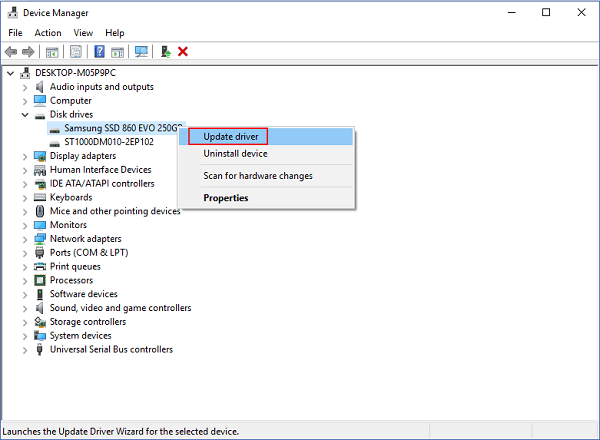
💡 Note: To reinstall the disk drivers, click Uninstall device and complete the rest of the steps. Then restart your system to get new available drivers.
Step 3. Choose Search automatically for drivers and follow the instructions.
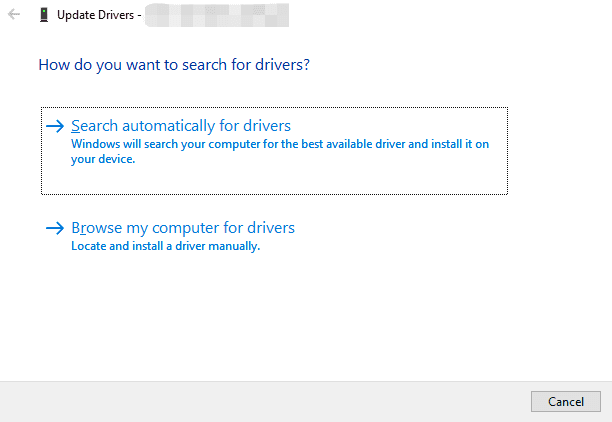
Step 4. If the issue persists, check the computer or drive manufacturer's support site for an appropriate driver or firmware update. Do not update firmware on an unstable drive without guidance.
Method 5. Format the Hard Drive as a Last Resort
Formatting can sometimes make a logically corrupted drive usable again, but it is not a data recovery method. Only consider formatting after you have recovered or backed up the data you need, and after ruling out physical drive failure.
Step 1. Open Disk Management by right-clicking the Start button and selecting Disk Management.
Step 2. Identify the correct drive carefully by its capacity, partition layout, and disk number. Then right-click the drive and select Format.
Step 3. Do the following settings:
- Volume Label: Enter a name for the drive.
- File System: Choose NTFS for Windows-only use, or exFAT for use across Windows and Mac.
- Allocation Unit Size: Leave it as default.
- Perform a quick format: Check it for a fast wipe, or uncheck it for a full format with bad sector checks.

Step 4. Click OK, then confirm the data deletion warning. After formatting, check whether Windows can access the drive.
💡 Note: Do not format a drive simply because Windows prompts you to do so. If you still need the files, cancel the prompt and focus on recovery first.
Bonus: Back Up Your Disk with AOMEI Backupper
A disk backup can help you recover from future corruption, drive failure, or other data-loss incidents. The best free backup software - AOMEI Backupper Standard comes to help.
- Disk backup: Create an image backup of an entire hard drive, including its partitions and data.
- System backup: Backup Windows 11/10/8/7 and the system-related partitions needed for recovery.
- File and partition backup: Protect selected folders, files, or individual partitions instead of backing up the whole drive.
- Automatic scheduled backups: Set up recurring backups to help keep important data protected.
- Flexible backup destinations: Save backup images to an external hard drive, USB drive, NAS, or other supported storage locations.
Follow the guidance below to backup a hard drive with AOMEI Backupper:
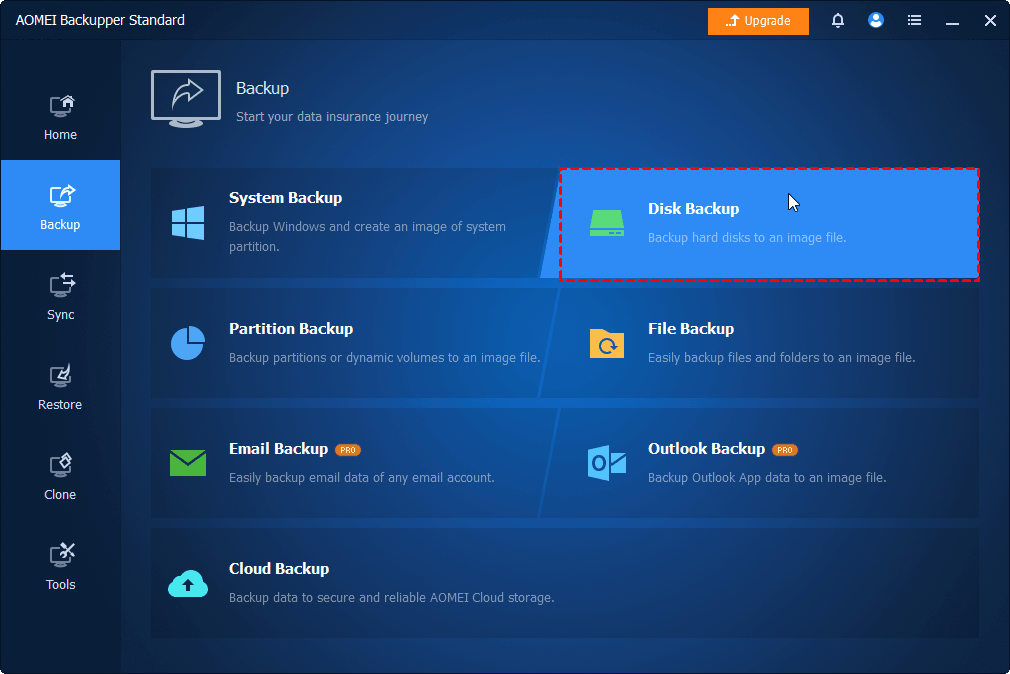
Step 1. Download, install and launch AOMEI Backupper on your computer. Then open Backup > Disk Backup.
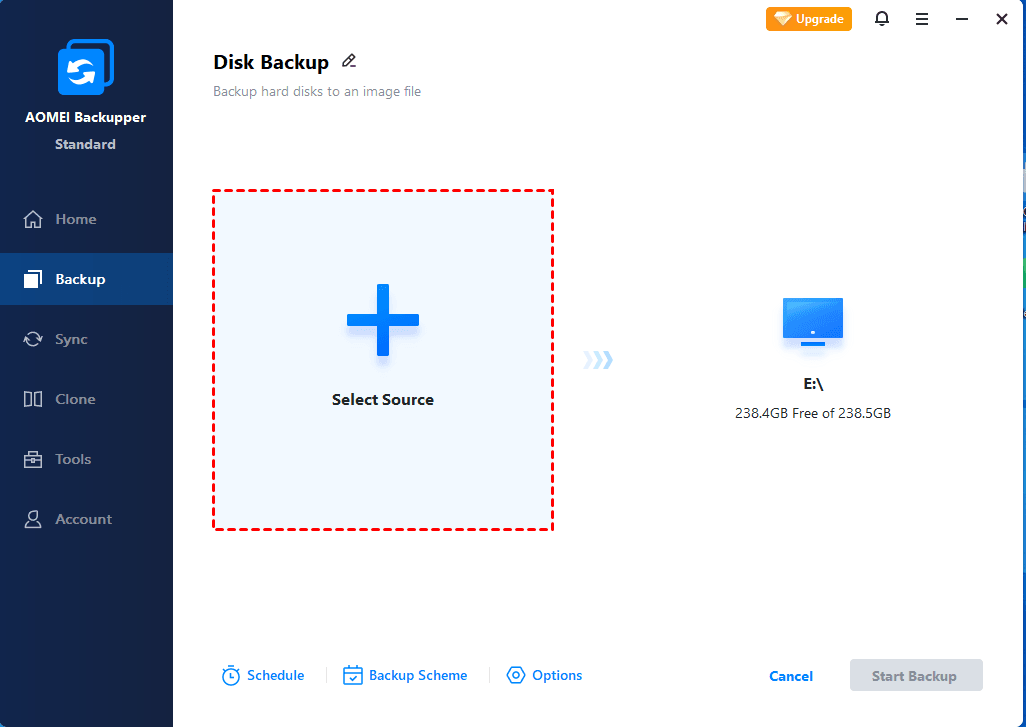
Step 2. Click Select Source to select the disk you want to back up. Then, choose a separate healthy destination drive for the backup image.
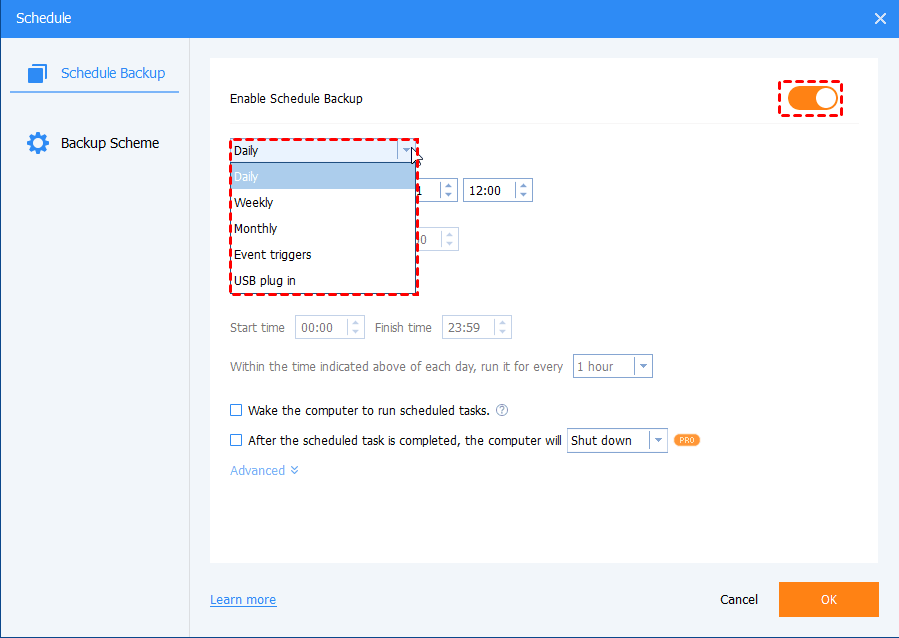
Step 3. Configure Schedule as necessary and click Start Backup to execute the backup.
FAQs About Recovering a Corrupted Hard Drive
1. Can I recover data from a corrupted hard drive?
Yes, recovery may be possible if the data remains readable and has not been overwritten. You can try recovery software, restore from an existing backup, or consult a professional recovery service. If the drive has physical damage, software-based recovery may not be appropriate.
2. How do I recover a corrupted hard drive without formatting it?
Avoid formatting the drive. If it is stable and detected by Windows, try recovering important files with suitable data recovery software or restoring them from a backup. Once your data is safe, you can investigate file system repairs. If the drive is physically failing, stop using it and seek professional help.
3. Can CHKDSK recover files from a corrupted hard drive?
CHKDSK primarily checks and repairs certain file system errors; it is not designed as a general-purpose file recovery tool. Its repair operations can modify disk structures, so recover important data first whenever possible. If the disk is physically failing, avoid running CHKDSK.
4. Should I repair the hard drive before recovering data?
Usually, if your files are important, recover the data or create a suitable disk image before attempting repairs. Repair utilities can change file system structures, and some operations may make damaged files harder to recover. If the drive shows signs of physical failure, stop using it and consult a professional.
Verdict
If you need to recover a corrupted hard drive, start by protecting the affected disk and identifying whether the problem is logical or physical. AOMEI FastRecovery can help recover accessible files with wide data recovery options.
Once important data is safe, Windows tools such as Error checking or CHKDSK may help address certain file system problems. Avoid formatting or running repair commands before protecting your data, especially if the drive is unstable. To reduce the impact of future failures, maintain regular backups and take warning signs seriously.

 as a preferred
source on Google
as a preferred
source on Google