




Recover Data from SATA Hard Drive in 4 Simple Steps
Accidentally deleted files from your SATA hard drive? Formatted the wrong drive? Lost data after a crash? You're not out of luck. This guide walks you through 4 simple steps to recover your data - no technical skills needed. Keep reading.

By Ivy Updated on July 7, 2026


Can I recover data from old SATA hard drive?
“I’m using an old computer with SATA hard drive installed. I recently found some files were lost. Can I recover data from an old SATA hard drive?” - Question from Quora
Your SATA hard drive holds years of documents, photos, memories, and more. Then one day, it stops working. Or a file simply disappears.
Before you panic, know this: recovering data from a SATA hard drive is often easier than it looks.
In this guide, you'll find 4 simple steps to get your files back, whether your drive is failing, formatted, or just not showing up.
What's Causing Your SATA Drive Data Loss?
Data loss on a SATA hard drive can happen in different ways. Your chances of recovery depend largely on what caused the data loss and the condition of the drive.
Here's a breakdown of the 3 most common scenarios and what you can expect from each.
#1: Accidental Deletion? Formatting? Virus? (Drive is Healthy)
🟢Recovery Success Rate: High
This is the best‑case scenario. The drive itself is physically fine and the data was simply removed or hidden.
🔍 Common causes include:
-
Accidental deletion
-
Quick formatting
-
Virus or malware attacks
💡 What it means: Your files are still on the drive, just marked as "available space". Recovery is straightforward with the a reliable software.
#2: Drive Is Corrupted or Failing (But Still Detected)
🟢 Recovery Success Rate: Medium
The drive may not mount or may show errors, but it still appears in Disk Management. This indicates logical or file system damage, not physical failure.
🔍Common causes:
-
Abrupt power outage during use
-
Faulty Windows updates corrupting the file system
-
Bad sectors from improper shutdowns or software errors
💡 What it means: Recovery is possible with professional data recovery software as long as the drive is still detectable by your system.
#3: Drive Is Physically Damaged (Not Detected) ⚠️
🟢 Recovery Success Rate: Low
If the drive is physically broken, DIY recovery is usually not an option. Don't attempt to power it on repeatedly, which may cause further damage.
🔍 Common causes:
-
Extreme temperatures (too hot or too cold)
-
Moisture or liquid damage
-
Physical shock (drops, bumps, or impacts)
-
Normal wear and tear (most mechanical drives last under 10 years)
💡 What it means: You'll likely need professional data recovery services. It can be expensive — but if your data is irreplaceable, it's often worth the cost.
📊 Quick Summary
| Scenario | Recovery Rate | Best Method |
|---|---|---|
| Accidental deletion, formatting, or virus | High | Use data recovery software |
| Corruption or logical failure | Medium | Use data recovery software |
| Physical damage | Low | Professional recovery service |
4 Steps to Recover Data from a SATA Hard Drive
If your SATA hard drive has lost data, whether through accidental deletion, disk formatting, or corruption, data recovery software is your best bet for getting it back.
But with so many options out there, which one should you choose?
AOMEI FastRecovery is a top choice. It's built specifically for Windows users, supports all SATA drives (HDDs/SSDs), and recovers files from a wide range of data loss scenarios quickly and reliably.
 AOMEI FastRecovery
- 🔎 Dual-Scan Modes: Quick Scan for recently deleted files, Deep Scan for complex data loss. Together, they give you the best chance of recovery.
- 🛡️ Wide Range of Scenarios: Recover files from accidental deletion, disk formatting, system crashes, unbootable drives, and more.
- 📁 1000+ Data Types: Recover deleted or lost documents (TXT, DOC, XLSX, CSV), images (JPG/JPEG, PNG, GIF), videos (MP4, MOV, AVI, WMV), audio, and more.
- 🚀 Find Your Files Fast: Browse by type or path, preview files, and recover only what you need. No more digging through endless lists.
- ✅ Safe & Easy to Use: Read-only, no data overwriting. simple, intuitve interface.
- 🎁 Try It with No Risk: Free edition recovers up to 500MB - no commitment, no quality compromise.
 100% Secure
Ready to get started? Download and install AOMEI FastRecovery to recover data from SATA hard drive in 4 simple steps.
-
Don't download and install AOMEI FastRecovery to the SATA hard drive you want to recover data. Otherwise, your lost data may be overwritten.
-
Be sure to connect the SATA hard drive using a USB 3.0 to SATA adapter and be sure it's recognized, at least showing up in Disk Management.
Step 1. Select a Recovery Scenario
Launch AOMEI FastRecovery on your computer. Then, click Deleted Files Recovery for fast recovery. You can also choose Disk Data Recovery to scan the SATA drive thoroughly and find more data.

Step 2. Scan for Recoverable Data
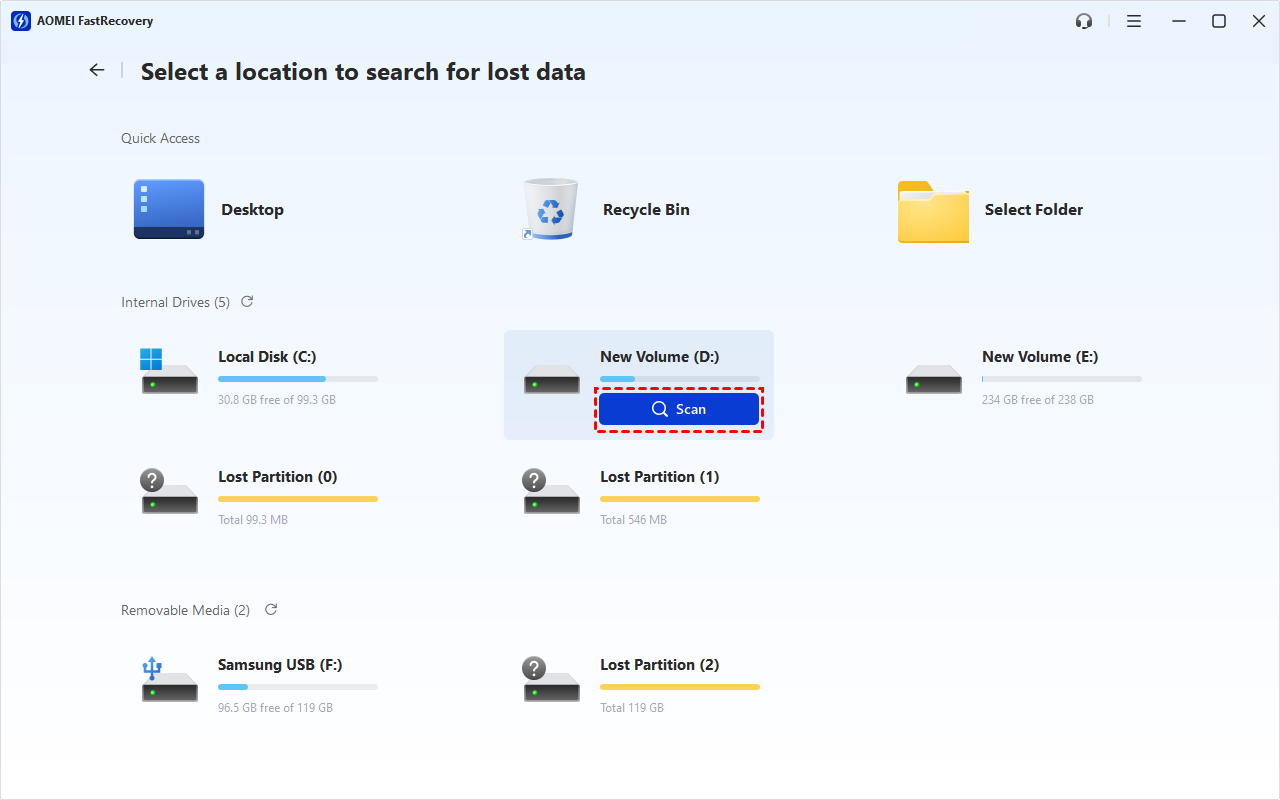
Hover the mouse over the SATA hard drive, and click Scan.
Step 3. Find Your Data Fast
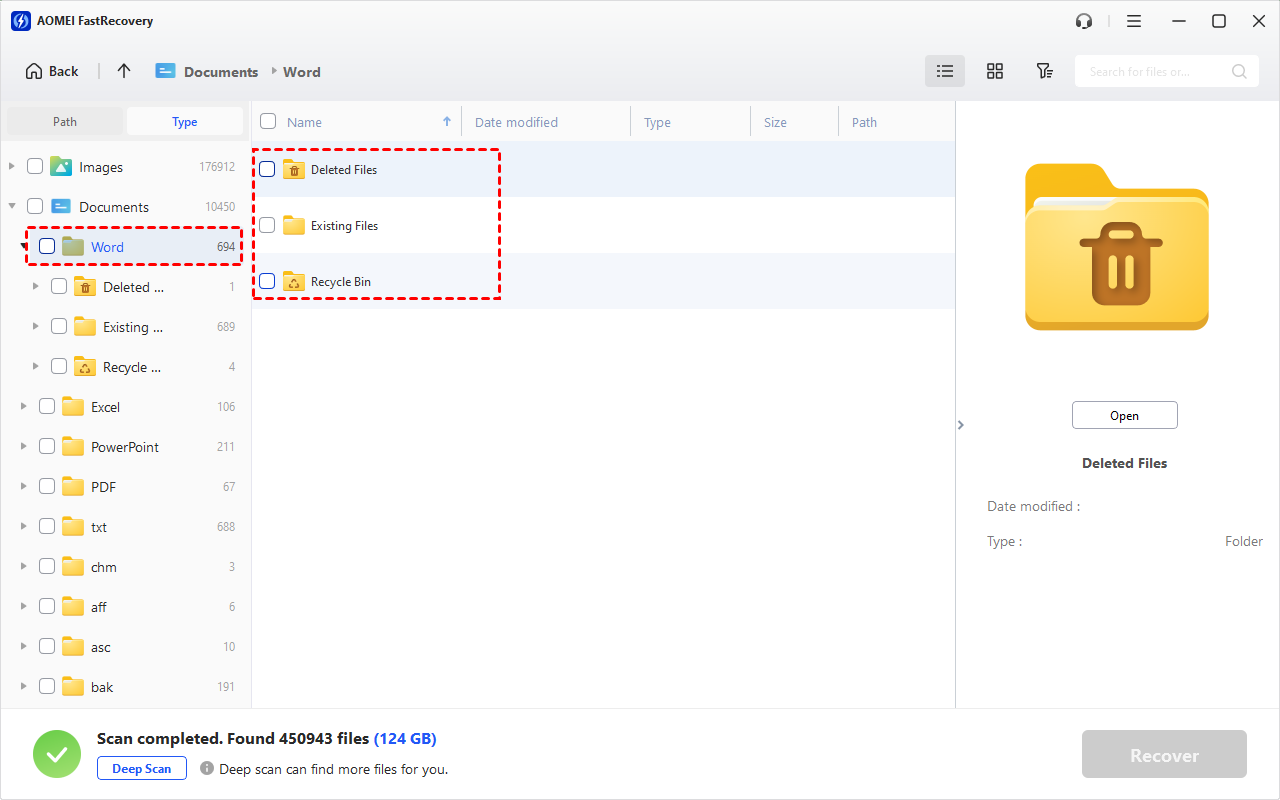
The quick scan starts automatically. Once it finishes, all recoverable files will be displayed. You can browse them by file type and expand Deleted Files, Recycle Bin, or ExistingFiles directories to find specific files.
Too many files to scroll through? Type a file name or extension (e.g., .docx) in the search box and sort the list by any column header. You can also filter by type or size.
-
Browse by path if you remember where the lost files were saved.
-
Click the Deep Scan to find more data if Quick Scan fails. It will scan every sector of the disk and take longer.
Step 4. Preview and Recover Your Data
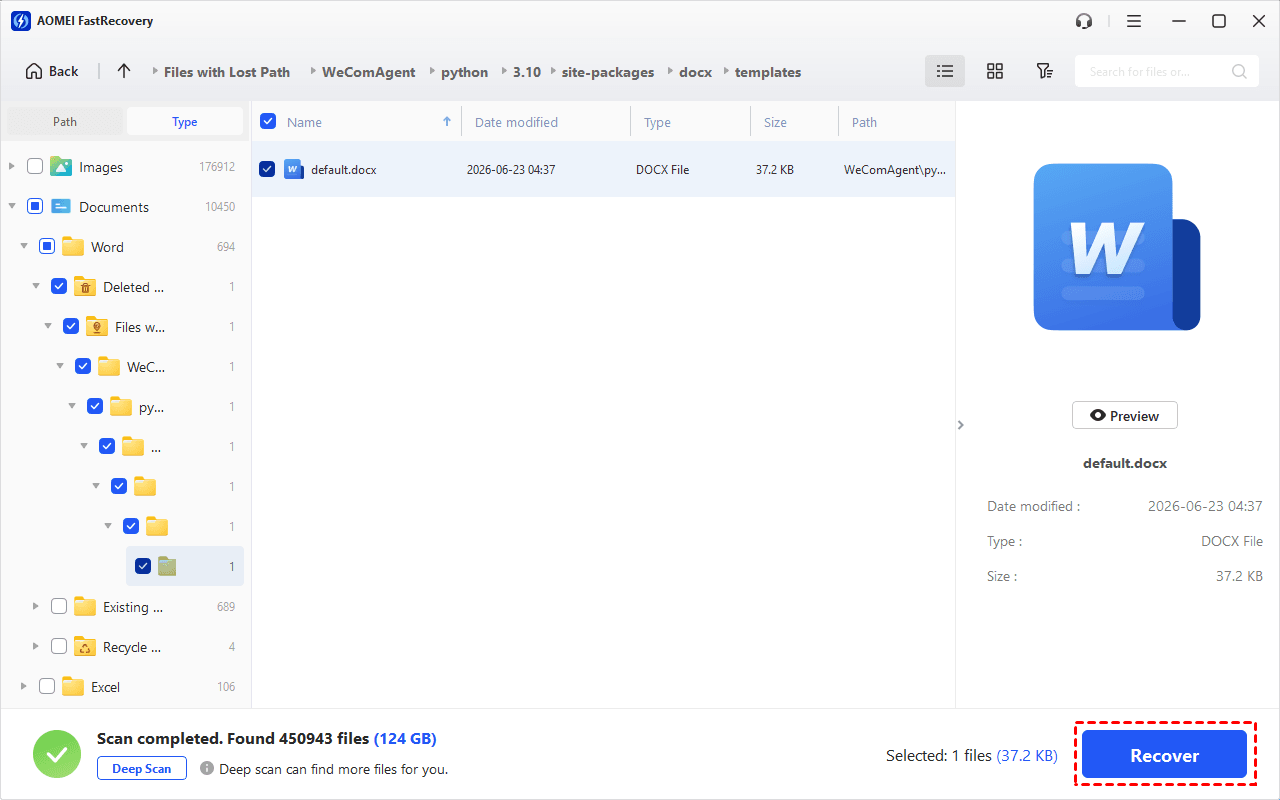
Once found, double-click the files to preview. Choose the desired data and click the Recover button to get it back quickly. Always select a new location to save them if you don't want to overwrite any data.
Closing words
This post primarily covers how to recover data from SATA hard drive. You can quickly and easily recover your files that are deleted or formatted accidentally from SATA hard drive by using the tool FastRecovery. If you're currently having this issue, give it a shot right away.
But that doesn't mean you can ignore protecting your data safety. I strongly recommend AOMEIBackupper Standard, a free backup tool, which can automatically back up your data daily/weekly/monthly.

 as a preferred
source on Google
as a preferred
source on Google