




How to Recover Data from Corrupted MBR Effectively
How to recover lost data from corrupted MBR? Read this page to gain 3 top and quick ways to recover data from corrupted MBR. Also, know the common symptoms, causes, and tips of MBR corruption.

By Ivy Updated on May 6, 2026


How Can We Recover MBR if It Gets Corrupted?
A master boot record (MBR) is a special type of boot sector at the beginning of partitioned computer storage devices. It provides important information about the disk's partitions and the bootloader and is used to identify the location of an operating system.
If the MBR is corrupted or damaged, it will prevent you from booting the Windows operating system and may result in the loss of all partitions on the syste as well as data.
How can we recover the MBR if it gets corrupted? With the knowledge provided in this detailed guide, you can recover data from a corrupted MBR in 3 top ways. Let’s find out more!
Causes and Symptoms of MBR Corruption
Before recovering data from damaged MBR, let us first explore why the MBR gets damaged and the common symptoms of MBR corruption.
Causes of MBR corruption
1️⃣ Accidentally deleted files related to the Windows operating system
2️⃣ MBR suffers from a virus/malware infection
3️⃣ BIOS does not detect the hard drive where the Windows operating system is installed
4️⃣ Hard drive or external HDD is physically damaged or contains bad sectors
5️⃣ Sudden power outage causes system crash
Symptoms of MBR Corruption
1️⃣ PC fails to boot from the Windows operating system and displays some error messages:
- Operating System not found
- Error loading operating system
- Invalid partition table
- No boot disk has been detected
- Reboot and select proper boot device, Or Insert Boot Media in Selected Boot Device
2️⃣ All volumes on the hard drive are not displayed properly
3️⃣ Hard drive/external drive not recognized in Windows
How to Recover Data from Corrupted MBR (2 Ways)
A corrupted or damaged MBR will cause disk boot failure. As a result, you will be unable to access the disk, let alone the data it contains. Here are two useful methods to repair MBR and recover data in the following.
Way 1. Use CMD to Repair Corrupted MBR and Recover Data
Repairing a corrupted Master Boot Record (MBR) using bootrec commands can help you repair the partition table and get back your lost files, allowing you to access your computer again.
Step 1. Connect the Windows installation media you create (bootable USB drive or DVD/CD) to your computer, and boot from it. Click Next.
Step 2. On the install Windows screen, click Repair your computer.
Step 3. Then, click Troubleshoot > Advanced options > Command Prompt.
Step 4. In the Command Prompt window, type the following commands and press Enter after each line.
- bootrec/fixmbr
- bootrec/fixboot
- bootrec/rebuildbcd
Step 5. Close this window. Restart the system and check whether it can boot or not.
Way 2: Recover Data from Hard Drive with Corrupted MBR
Since you will not be able to boot Windows and start the computer normally after MBR corruption, the most reliable method is to use a reliable data recovery tool - AOMEI FastRecovery. It allows you to create a bootable USB and then recover data from unbootable drive in Windows 7, 8, 10, 11, server, etc.
 AOMEI FastRecovery
-
Recover data for system crashes, accidental deletion, disk formatting, virus attacks, etc., with a high success rate.
- Recover 1000+ file formats, such as recover deleted Word, Excel, PPT, PDF, PPTX, ODP, CSV, WPS files, etc.
- Support file filter, search, preview, and crashed PC recovery, making recovery simple and efficient.
- Apart from MBR recovery, it can also recover formatted hard drives, SSDs, USB drives, SD cards, etc.
- Support Windows 11/10/8/7 SP 1 & Server, as well as NTFS/FAT32/exFAT/ReFS, and so on.
- 👍Free data recovery, supporting up to 500MB.
 100% Secure
- Free download and install AOMEI FastRecovery on a workable PC and connect a blank USB drive to it.
- During the creation process, all existing data on the media will be erased. Please use an empty drive or back up your data first.
Step 1. Create a bootable disk
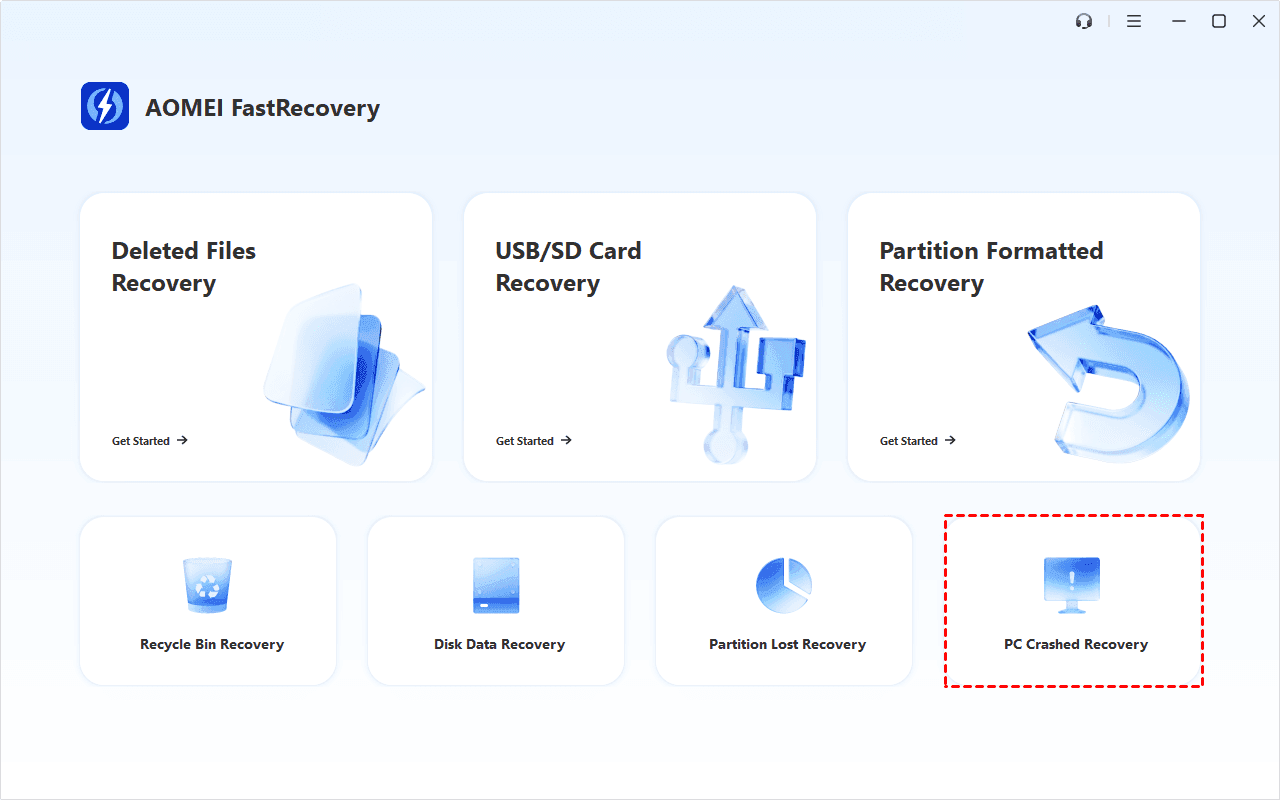
1. Commence FastRecovery on the workable PC. To create a bootable drive, click PC Crashed Recovery in the lower right corner.
2. Under the USB Boot Device menu, select an empty USB drive. Then, click Create to make a bootable USB.
It will erase all data saved in the USB drive. Click Yes to continue.
The creation operation will runand take a few minutes. You will see asuccess message, along withthe steps to boot from a bootable disk.
- Export ISO file requres you to burn ISO to USB manually.
- "Add Drivers" allows you to manually add other drivers to the bootable disk so that more devices are available after starting WinPE.
Step 2. Start PC from a Bootable USB
After creating a bootable disk, it is very simple to restore files off a damaged MBR.
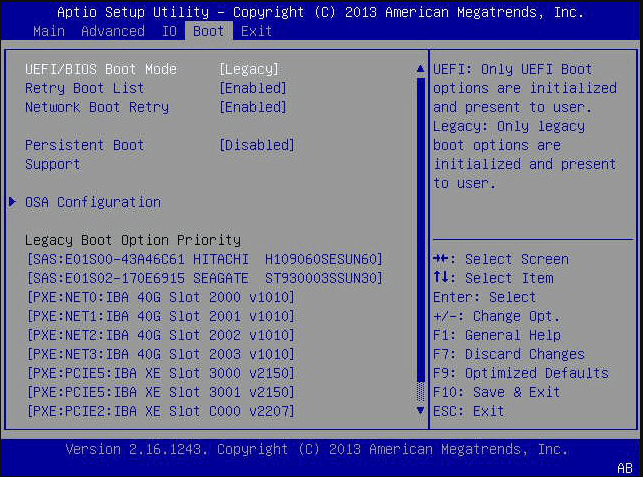
1. Insert the bootable USB into the PC that won't boot and press F12, F2, F10, F11, Del, or Esc to enter the BIOS.
2. Under the Boot section, select the previously created bootable USB and use +/_ to set it as the first boot option.
3. Then, press F10 to save changes and reboot from it.
Step 3. Recover data from hard drive that won't boot
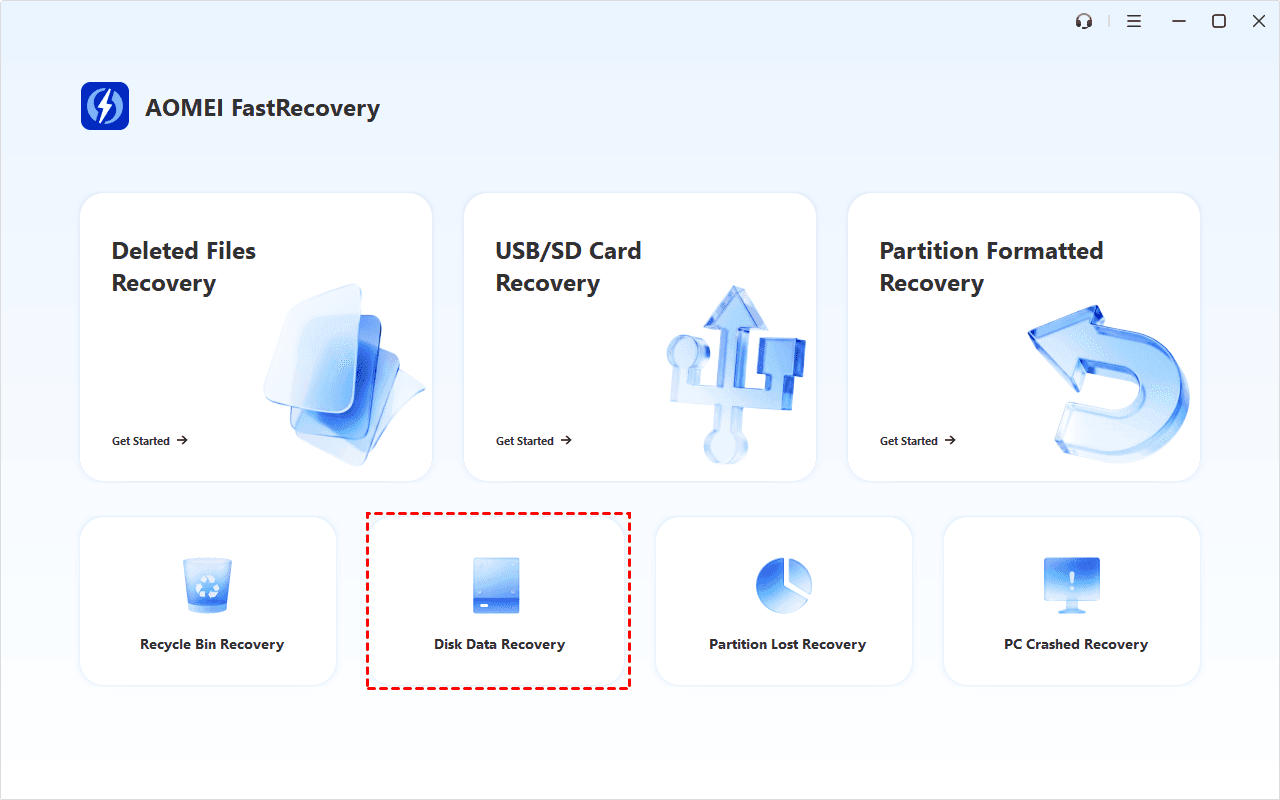
1. After loading, your PC will enter AOMEI FastRecovery. Click Disk Data Recovery at a lower location.
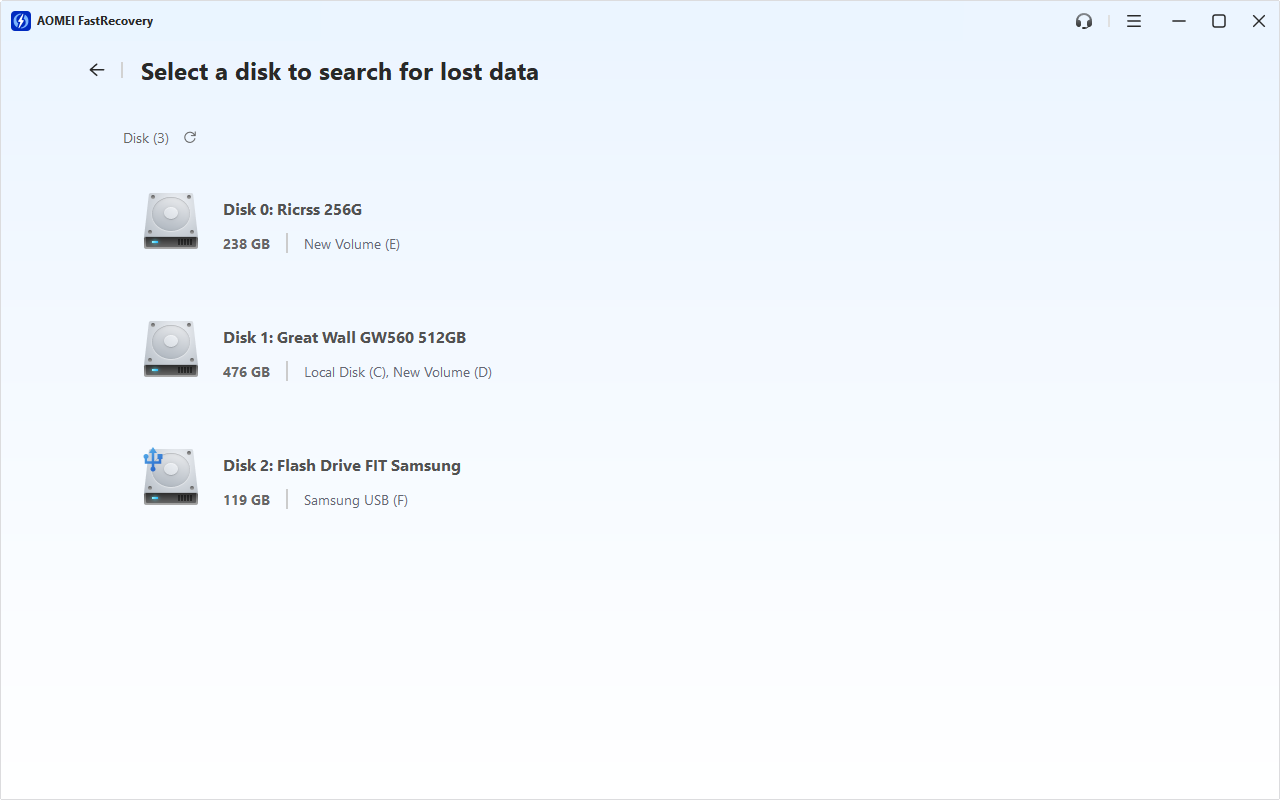
2. You'll see all available drives. Select the drive with a corrupted MBR and click Scan to start the deep scanning process and display all recoverable data.
3. Under the Type section, check all the data types. You can sort, filter, and preview them. For specific files or folders, directly the file name to narrow down.
4. Select your desired data and click the Recover button. Please choose a new location to save the recovered files. Otherwise, your data may be overwritten.
Way 3. Contact Data Recovery Services
If the above methods do not work, in case of severe MBR corruption, it is recommended to use data recovery services like Geek Squad, SalvageData, DriveSaver, etc. Efficiently recover your data from a damaged external hard drive or other device with personalized, experienced guidance.
4 Hot Tips to Avoid MBR Corruption
A corrupted Master Boot Record (MBR) can be a major hassle, but taking preventative measures can help you avoid this problem. Follow these 4 popular tips to protect your MBR:
1️⃣ Backup regularly: Create frequent backups of your important files and your entire system. If the MBR becomes corrupted, you can quickly restore your system. You can create a file backup with this free Windows backup tool, AOMEI Backupper Standard, to keep your data safe.
2️⃣ Use reliable anti-virus software: Viruses and malware can wreak havoc on your MBR. To prevent malicious attacks, use trustworthy antivirus software and keep it up-to-date.
3️⃣ Use Disk Management: Be careful when partitioning or formatting disks. Mismanagement of these procedures can lead to MBR problems.
4️⃣ Updated operating system and drivers: Make sure your operating system and hardware drivers are up-to-date. This will help address security vulnerabilities and improve system stability, thus reducing the risk of MBR corruption.
FAQs
1. What happens if the MBR is damaged or corrupted?
If the Master Boot Record (MBR) is damaged or corrupted, your computer is likely to face booting issues, and you may encounter various error messages indicating the problem.
2. Does fixing MBR erase data?
Fixing the MBR does not erase data. The process only affects the 0 sectors in the MBR, so data on the hard drive remains intact.
3. How do you correct a corrupt MBR or partition table?
To correct a corrupt MBR or partition table in Windows, you can use the AOMEI Partition Assistant Standard, a free partition tool. It offers a \"Rebuild MBR\" option to fix a damaged partition table.
4. How to rebuild MBR on USB?
To rebuild the MBR on a USB drive, follow these steps: Boot from the Windows installation disk, open Command Prompt, and use commands like \"bootrec /RebuildBcd\" to reconstruct the MBR structure.
5. How to convert MBR to GPT without data loss?
3 ways for you to convert MBR to GPT without data loss:
- Convert MBR to GPT via Diskpart.
- Convert MBR to GPT without data loss using MBR2GPT.exe.
- Use AOMEI Partition Assistant to convert MBR to GPT without data loss.
In the End
Hope the above 3 practical methods can help you recover data from corrupted MBR. Among these 3 methods, the most effective way is to use the data recovery software - AOMEI FastRecovery. It not only performs MBR recovery, but also recovers corrupted hard drives, SD cards, USB flash drives, etc.
If the hard drive contains vital files, data protection on the drive should be considered strongly. It’s never a bad idea to take file backups with the free Windows backup tool AOMEI Backupper Standard to protect your data. It can create a file/folder/entire system backup and help you restore files from backup quickly.

 as a preferred
source on Google
as a preferred
source on Google