



How to Fix Unallocated External Hard Drive Without Losing Data
Is your external hard drive showing as unallocated? This guide shows you how to fix it without losing data using safe repair methods – and how to create a new partition if you want.

By Lily Updated on November 17, 2026


Why Is Your External Hard Drive Showing as Unallocated?
When an external hard drive appears as Unallocated in Windows Disk Management, it means Windows cannot identify a usable partition in that space. The drive may still be detected by the computer, but its partition information may be missing, damaged, or unreadable.
Several issues can cause this:
- Accidental partition deletion: You may have deleted a volume while managing disk partitions, leaving its space unallocated.
- Partition table corruption: A damaged partition table can prevent Windows from recognizing existing partitions.
- Unsafe disconnection: Removing the external drive while data is being written may interrupt disk operations and damage file-system or partition information.
- File system or disk errors: Logical errors may make partition information inaccessible.
- Virus or malware activity: Certain malicious programs can damage disk structures or interfere with partition recognition.
- Hardware problems: A failing external hard drive, faulty USB cable, or unstable connection can cause detection issues.
What to Do Before Fixing an Unallocated External Hard Drive
Before trying to repair the unallocated external hard drive, take precautions to protect your data. Some Windows repair operations can overwrite the existing partition information or make recovery more difficult.
✅ Stop writing data to the drive. Do not copy new files, install software, or save recovered files to the unallocated disk.
✅ Do not format the unallocated space. Formatting or creating a new volume may overwrite information needed to recover the original partition.
✅ Check the physical connection. Try another USB port, cable, or computer to rule out a connection problem.
✅ Check the drive's condition. If it makes unusual clicking or grinding noises, repeatedly disconnects, or is not detected consistently, stop using it and consider professional data recovery.
How to Fix an Unallocated External Hard Drive Without Losing Data
This part will introduce two effective ways to address an unallocated external hard drive. Let’s dive in.
Method 1. Fix Unallocated External Hard Drive with Partition Recovery Software
If your external hard drive became unallocated after accidental partition deletion or partition table damage, partition recovery software may help locate the lost partition and recover its files. AOMEI FastRecovery is a solid choice.
 AOMEI FastRecovery
- Quick Scan and Deep Scan: Scan a drive for deleted and lost files using different scanning modes.
- Broad file type support: Recover Excel files, documents, photos, videos, audio files, compressed files, and other data formats.
- Search and Filter: Narrow down scan results by file name, type, size, and other available criteria.
- Varied recovery scenarios: Supports deleted file recovery, Recycle Bin recovery, formatted partition recovery, and recovery from SD cards or USB drives.
- Windows compatibility: Supports data recovery on Windows 11, 10, 8, 7, and Windows Server.
 100% Secure
Follow these steps to recover the unallocated external hard drive:
Step 1. Download and install AOMEI FastRecovery on your computer. Install it on your internal drive or another healthy disk, not on the unallocated external hard drive.
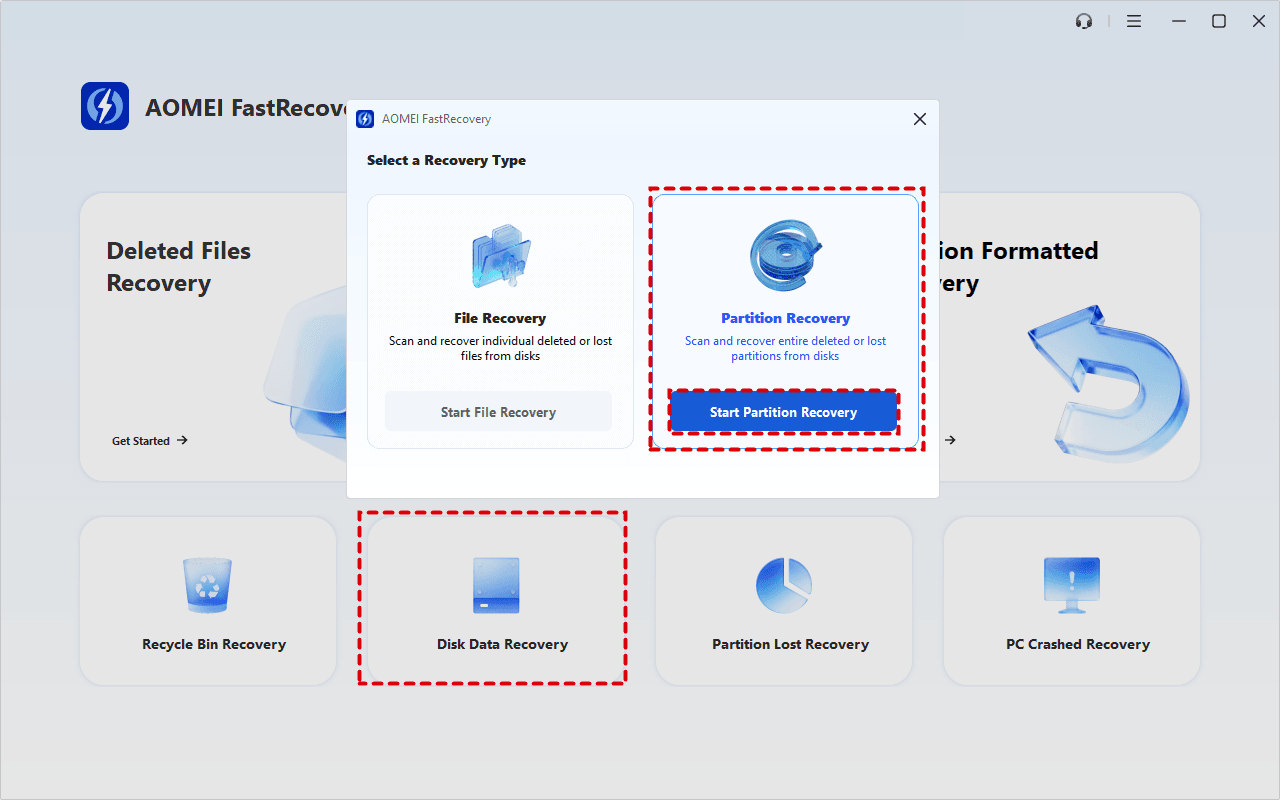
Step 2. Connect the external hard drive to your computer. Open AOMEI FastRecovery and navigate to Disk Data Recovery > Start Partition Recovery.
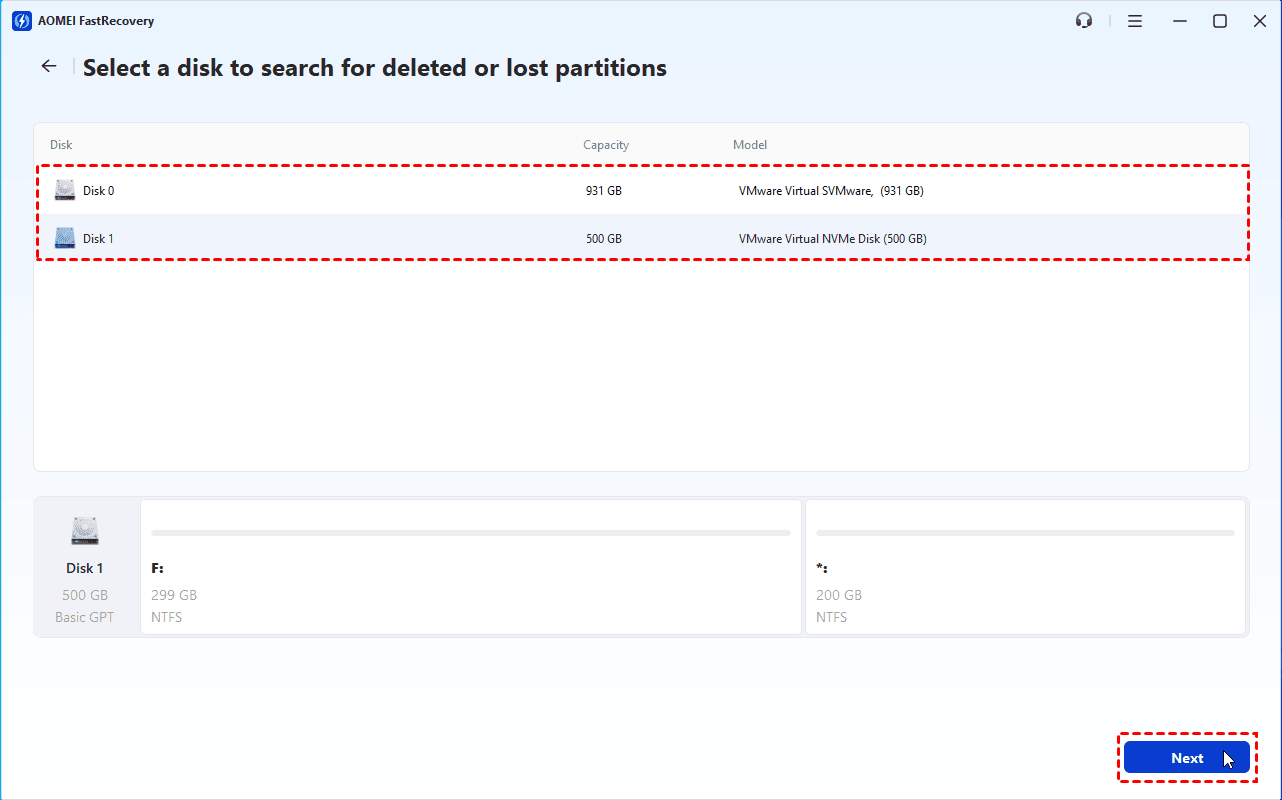
Step 3. Select the external hard drive based on its disk number, capacity, model, and partition layout. Make sure you select the correct disk, then click Next.
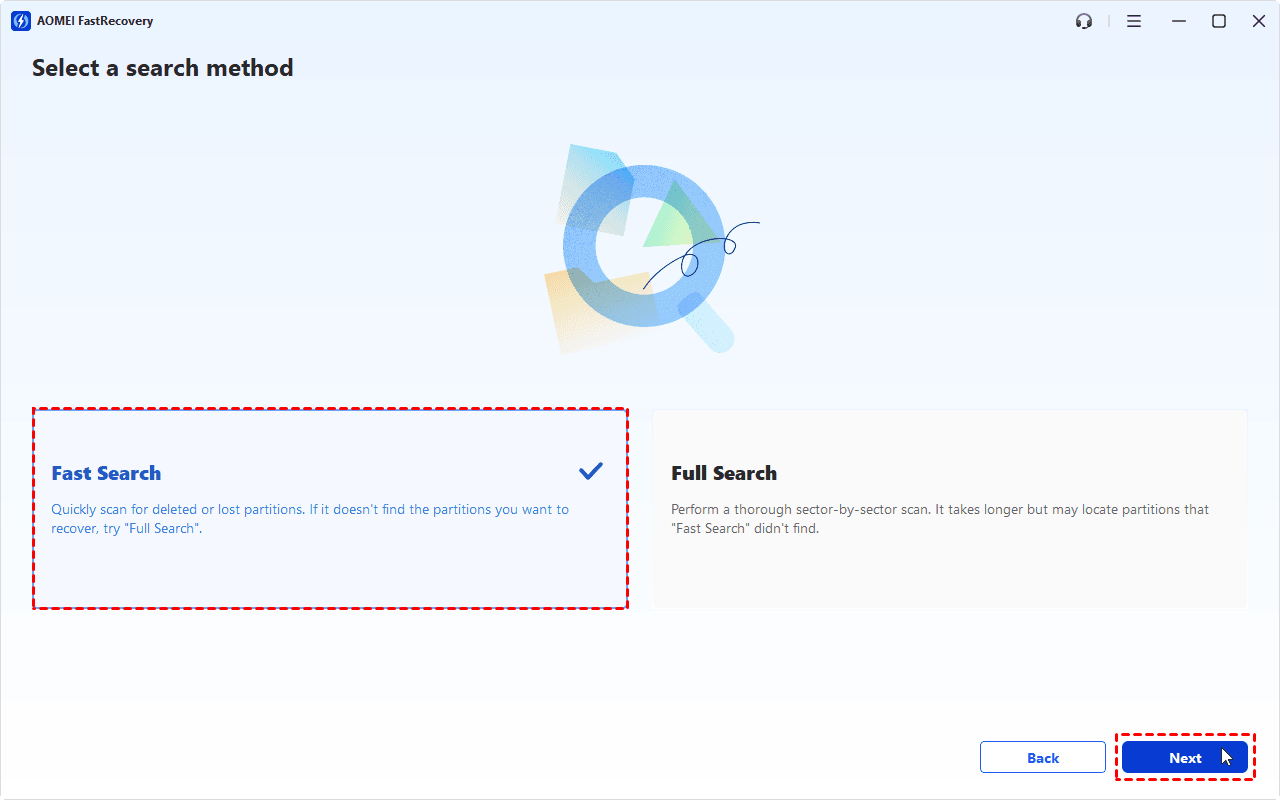
Step 4. Start Fast Search to look for recently lost or deleted partitions. If the target partition is not detected, run Full Search to perform a more thorough scan.
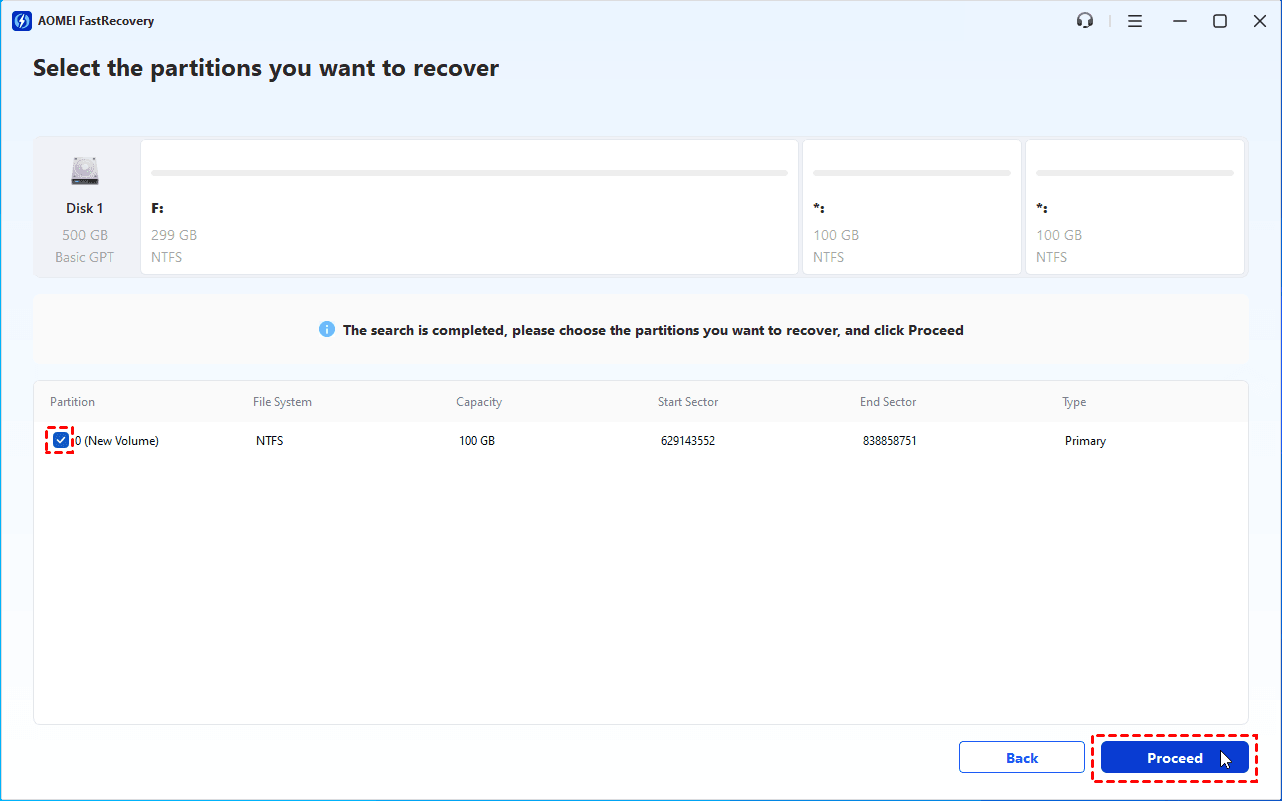
Step 5. Review the detected partitions and select the one that corresponds to your lost partition. Check its size and available file information to help identify the correct partition. Then click Proceed to start the recovery process.
Step 6. Wait for the recovery process to complete, then open File Explorer to check whether your external drive is accessible. If it does not appear, open Disk Management and check whether it needs assigning a drive letter.
Method 2. External Drive Unallocated Fix with Device Manager
Sometimes an external hard drive appears incorrectly or fails to load because of a USB connection or driver problem. In that case, checking Device Manager and refreshing the hardware connection may help Windows detect the drive correctly.
However, Device Manager cannot reconstruct a deleted partition or repair a damaged partition table. Use this method only when you suspect a driver or device-detection issue.
Step 1. Press Win + X and select Device Manager.
Step 2. Expand Disk drives and find your external hard drive. Check whether it appears with the correct model name.
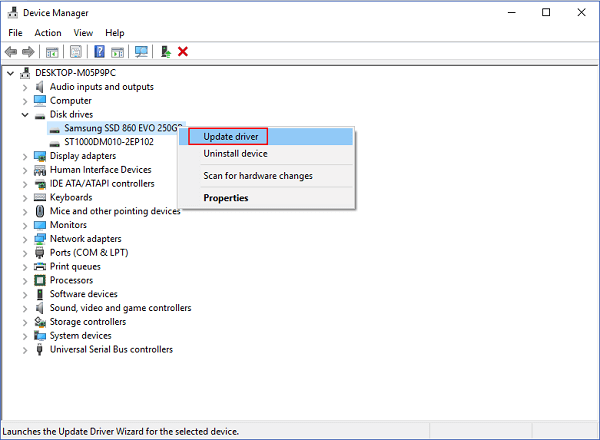
Step 3. Right-click the external drive and select Update driver.
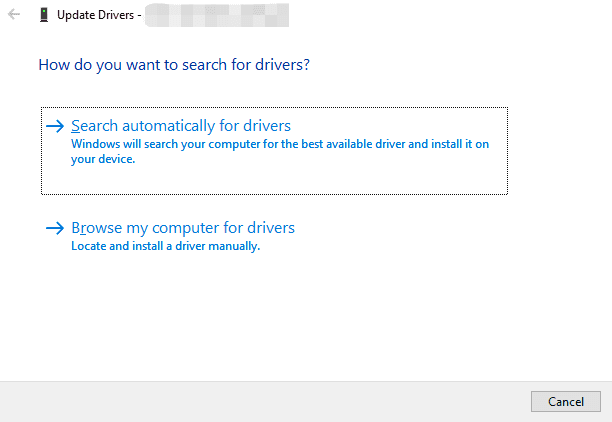
Step 4. Choose Search automatically for drivers and follow any available instructions.
Step 5. Open Disk Management and check whether the drive is now displayed correctly.
- If updating the driver does not help, right-click the external drive and select Uninstall device. Complete the remaining steps and restart your system to get new available drivers.
- If Windows still shows the drive as unallocated, the issue is likely related to its partition information rather than the device driver. Return to Method 1 to check for lost partitions.
Bonus: How to Create a New Partition on External Hard Drive After Recovering Data
You can also create a new partition on an unallocated external hard drive to make the drive usable again. However, creating a new volume changes the disk's partition structure and may make any remaining recoverable data harder to retrieve.
To avoid permanent data loss, make sure you have recovered all the important files before proceeding. Follow the instructions below:
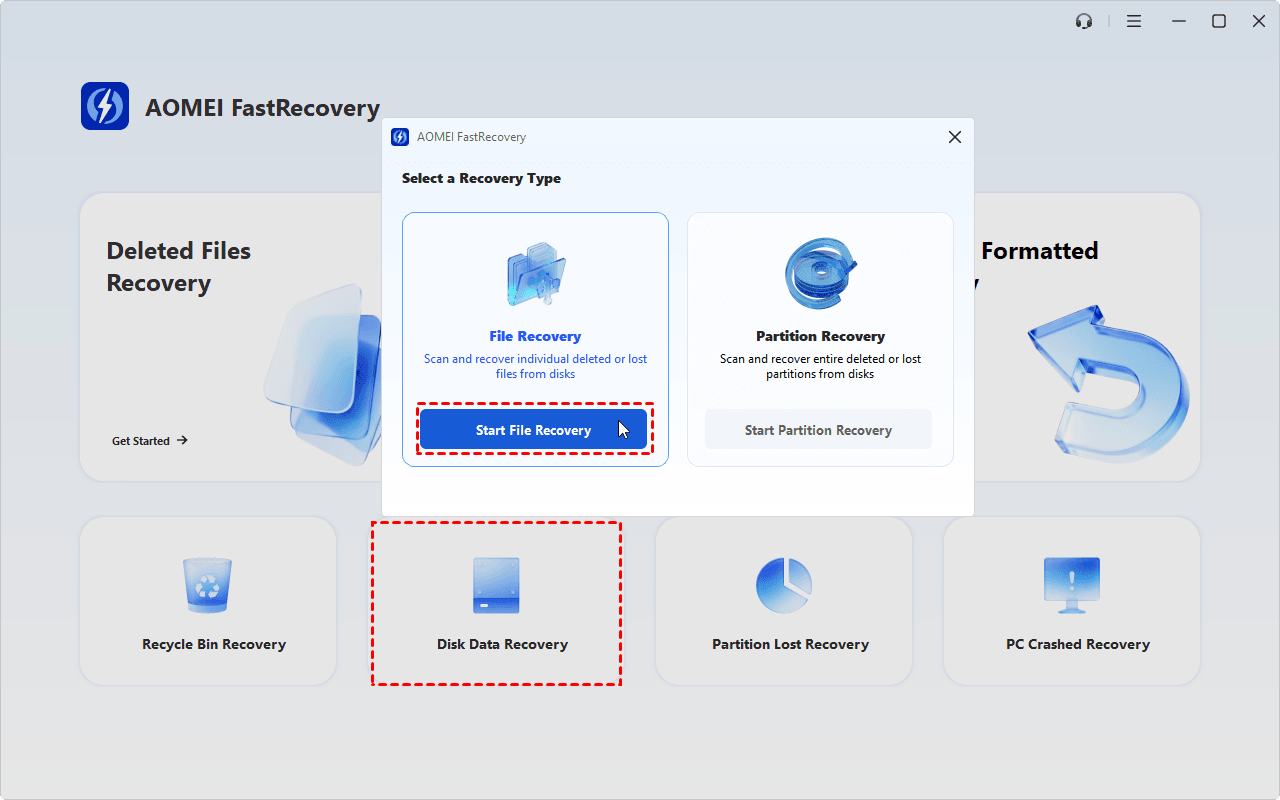
Step 1. Launch AOMEI FastRecovery and select Disk Data Recovery > Start File Recovery to recover data from unallocated external hard drive.
Step 2. After saving recovered data to a safe location, press Win + X and select Disk Management.
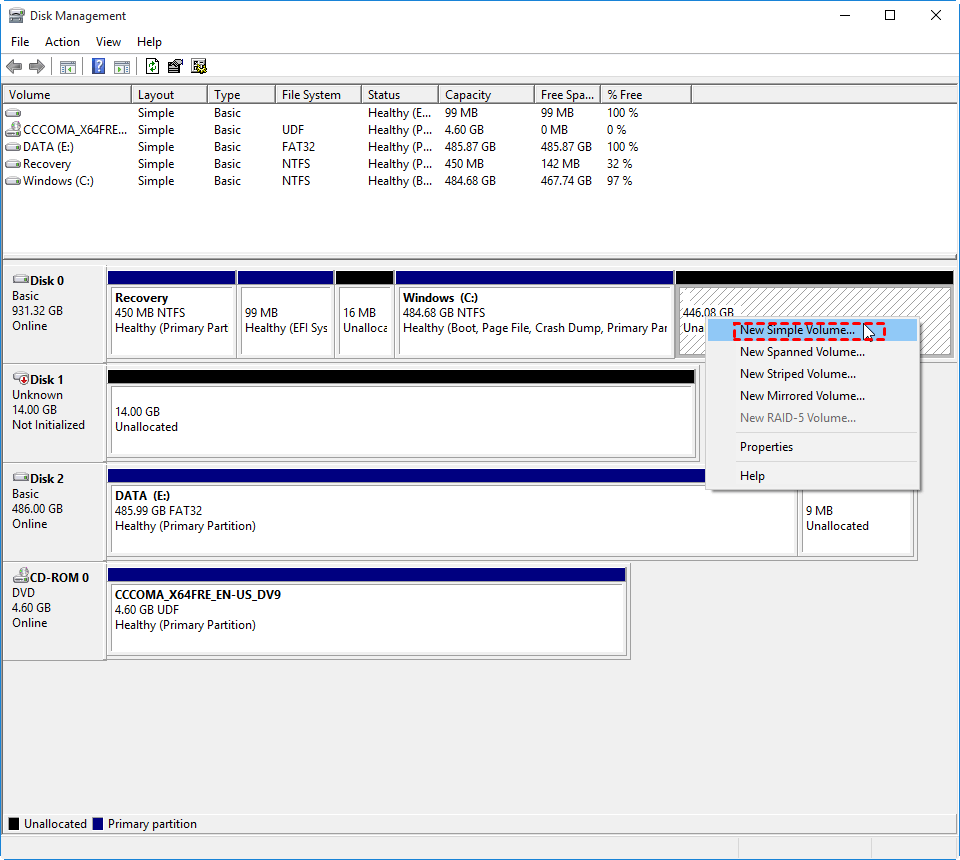
Step 3. Locate your external hard drive, right-click the Unallocated space and select New Simple Volume.
Step 4. In the New Simple Volume Wizard, click Next and specify the volume size. You can use the maximum available size to create one partition or choose a smaller size if you want multiple partitions.
Step 5. Assign an available drive letter and click Next.
Step 6. Choose a file system, such as NTFS or exFAT, enter a volume label, and select Perform a quick format if appropriate.
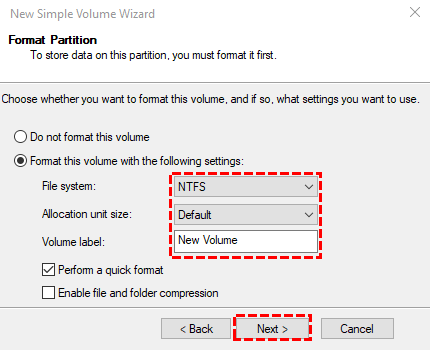
Step 7. Review the settings and click Finish. Windows will create the new volume, which should then appear in File Explorer.
Afterward, you can copy your recovered files back to the external hard drive. Keep another backup of important data to reduce the risk of losing it again.
FAQs About Fixing an Unallocated External Hard Drive
1. Can I fix an unallocated external hard drive without losing data?
Yes, in some cases. If the partition was accidentally deleted or its information became corrupted, partition recovery software like AOMEI FastRecovery may help locate the lost partition and recover its files. Avoid formatting or creating a new volume until you have recovered important data.
2. Does formatting an unallocated external hard drive fix it?
Yes, creating and formatting a new volume can make the unallocated space usable again, but it does not restore the original partition or its files. If you need the existing data, recover it before creating a new volume.
3. Can CHKDSK fix an unallocated external hard drive?
No, CHKDSK checks and repairs certain file-system errors on a recognized volume. If Windows shows the space as unallocated, there may be no accessible volume or drive letter for CHKDSK to scan. Recover the lost partition or files first rather than attempting to force a CHKDSK operation.
Summary
That’s all about how to fix unallocated external hard drive without losing data. First stop using it and check its physical connection. Then use partition recovery software such as AOMEI FastRecovery to scan for lost partitions and recover data on it. If the problem is related to a driver, refreshing the device through Device Manager may help Windows detect it correctly.
Actually, AOMEI FastRecovery applies to various data recovery scenarios, such as recover deleted photos from Sony camera. Go for it now!

 as a preferred
source on Google