




How to Recover Deleted Photos from Sony Camera in Windows
Lost photos from your Sony camera? Learn how to recover them using Sony Memory Card File Rescue and AOMEI FastRecovery – plus fixes for when your computer won't detect the camera SD card.

By Lily Updated on October 30, 2026


What to Do Before Recovering Deleted Sony Camera Photos
Accidentally deleting photos from a Sony camera does not necessarily mean they are gone forever. In many cases, the deleted data may remain on the SD card until new data overwrites it. However, continuing to use the card can reduce the chances of successful recovery.
Before trying any Sony camera photo recovery method, take these precautions:
- Stop using the camera immediately: Do not take more photos or record videos. New data may overwrite the space occupied by deleted photos.
- Remove the memory card carefully: Turn off your Sony camera before removing its SD card. Avoid repeatedly inserting and removing the card.
- Do not format the SD card: If the camera or Windows asks you to format the card, cancel the prompt. Formatting may make recovery more difficult.
- Avoid saving recovered files to the same card: Prepare another drive on your computer to store recovered photos.
- Check other storage locations: Look for copies on your computer, external hard drive, cloud storage, or previous backups before attempting recovery.
These precautions apply whether you use a Sony A6000, A6100, A6400, A7 series, or another Sony camera. The recovery process mainly depends on the memory card and the condition of its data.
Top 2 Tools to Recover Deleted Photos from a Sony Camera
Two options worth trying are Sony Memory Card File Rescue and AOMEI FastRecovery. Sony's utility is designed for supported Sony memory media, while AOMEI FastRecovery offers a broader recovery option for supported SD cards and other storage devices.
Tool 1: Sony Memory Card File Rescue
Sony Memory Card File Rescue is Sony's own recovery utility for retrieving deleted or damaged data from supported Sony memory media. It supports photo formats such as JPEG and RAW, including Sony ARW files, as well as various video formats such as MP4, MOV, and XAVC.
The software is designed for Sony memory products, including supported Sony SD cards, CFexpress cards, XQD cards, Memory Stick media, and certain Sony USB drives. It is not verified for non-Sony memory cards, so check the supported-device list before using it.
👉 How to use Sony Memory Card File Rescue:
Step 1. Remove the memory card from your Sony camera and connect it to your Windows computer using a compatible card reader.
Step 2. Visit the official Sony Memory Card File Rescue website and download Sony Memory Card File Rescue.
💡 Note: Depending on the card, you may need its model name and identification number or download code to obtain the software.
Step 3. Install Memory Card File Rescue on your computer. Launch the program and follow its instructions to select the connected Sony memory card. Click Next.
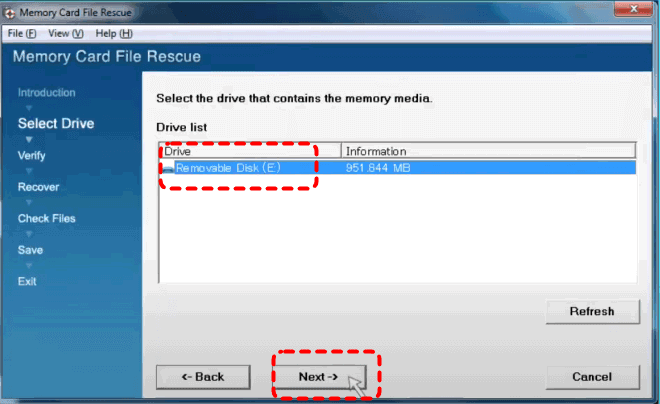
Step 4. Confirm the displayed information and click Run.
Step 5. Data recovery is in progress. When the process is complete, select the photos you want to restore and click Next.
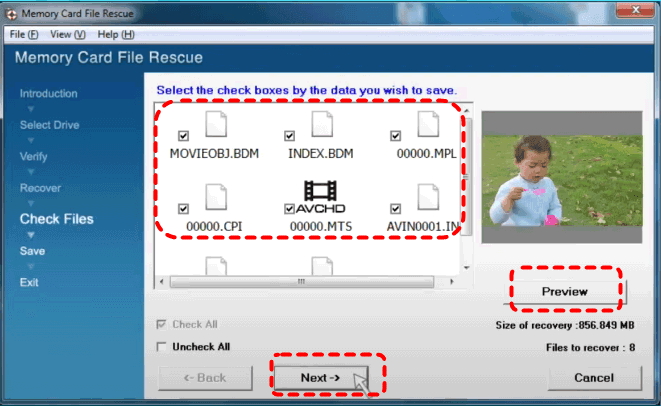
Step 6. Specify a safe location to save the recovered photos and click Save.
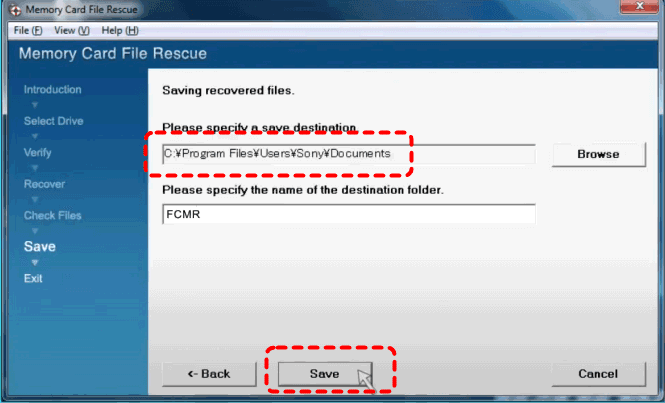
Step 7. Data saving is in progress. When the process is complete, click End and the file destination will be displayed.
❗ Limitations to know:
- The software is intended for supported Sony memory media. It may not work with SD cards from other manufacturers.
- Sony does not guarantee that all deleted files can be recovered.
- Some files may not be recoverable depending on their data condition or if the memory card was formatted.
- The software cannot repair a physically defective memory card.
Tool 2: AOMEI FastRecovery
If Sony Memory Card File Rescue is unavailable for your memory card or does not find the photos you need, you can try AOMEI FastRecovery. It is a Windows data recovery tool that can scan supported removable storage devices, including SD cards, for deleted or lost files.
 AOMEI FastRecovery
- It provides Quick Scan and Deep Scan to search for recoverable files.
- It supports many common file types. You can use it to recover 7Z, JPG, PNG, GIF, BMP, TIFF, MP4, MOV, AVI, PDF, DOCX, XLSX, and more.
- It allows you to search and filter results by file name, extension, type, and other information.
- You can select individual files instead of recovering everything.
- It supports SD, SDHC, SDXC, SDUC, and microSD cards from various manufacturers.
 100% Secure
👉 How to use Sony memory card recovery software - AOMEI FastRecovery:
Step 1. Remove the SD card from your Sony camera and connect it to your Windows computer using a card reader.
Step 2. Download and install AOMEI FastRecovery on your computer's internal drive. Launch the software and select USB/SD Card Recovery.
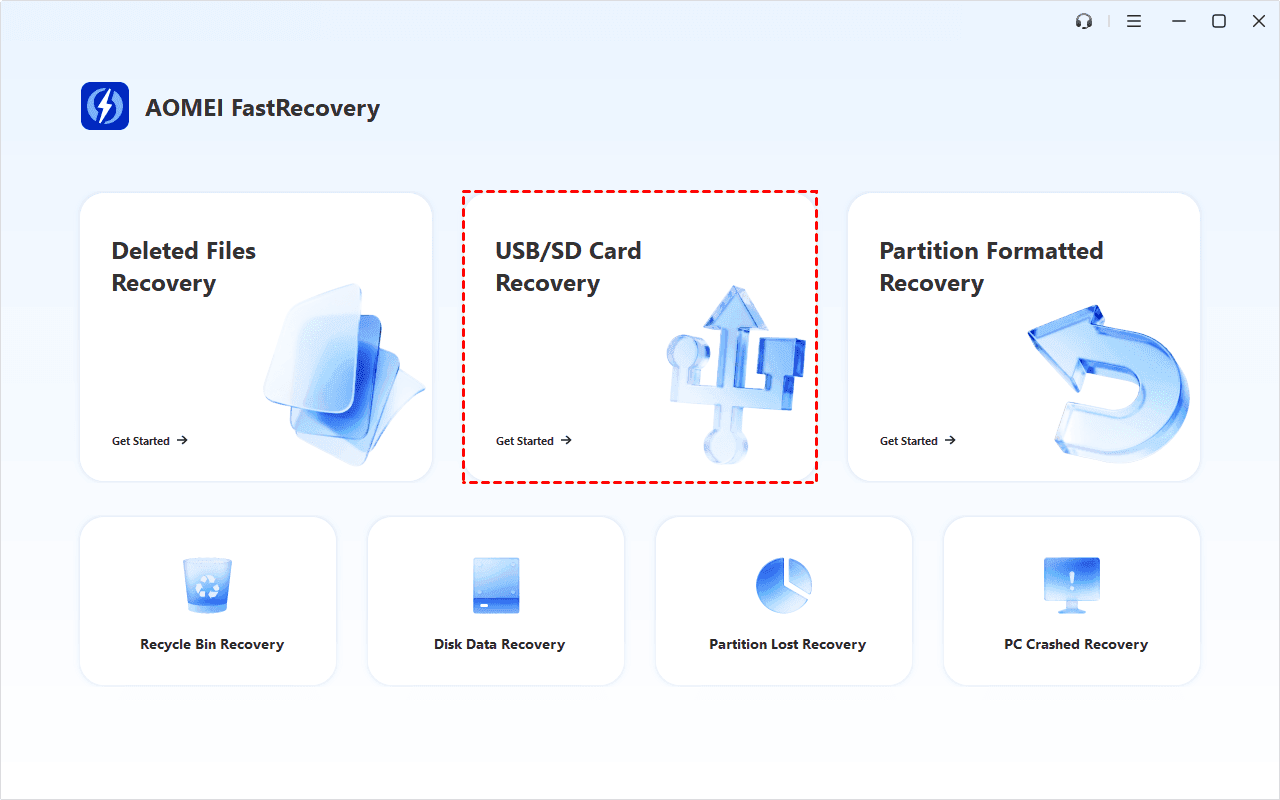
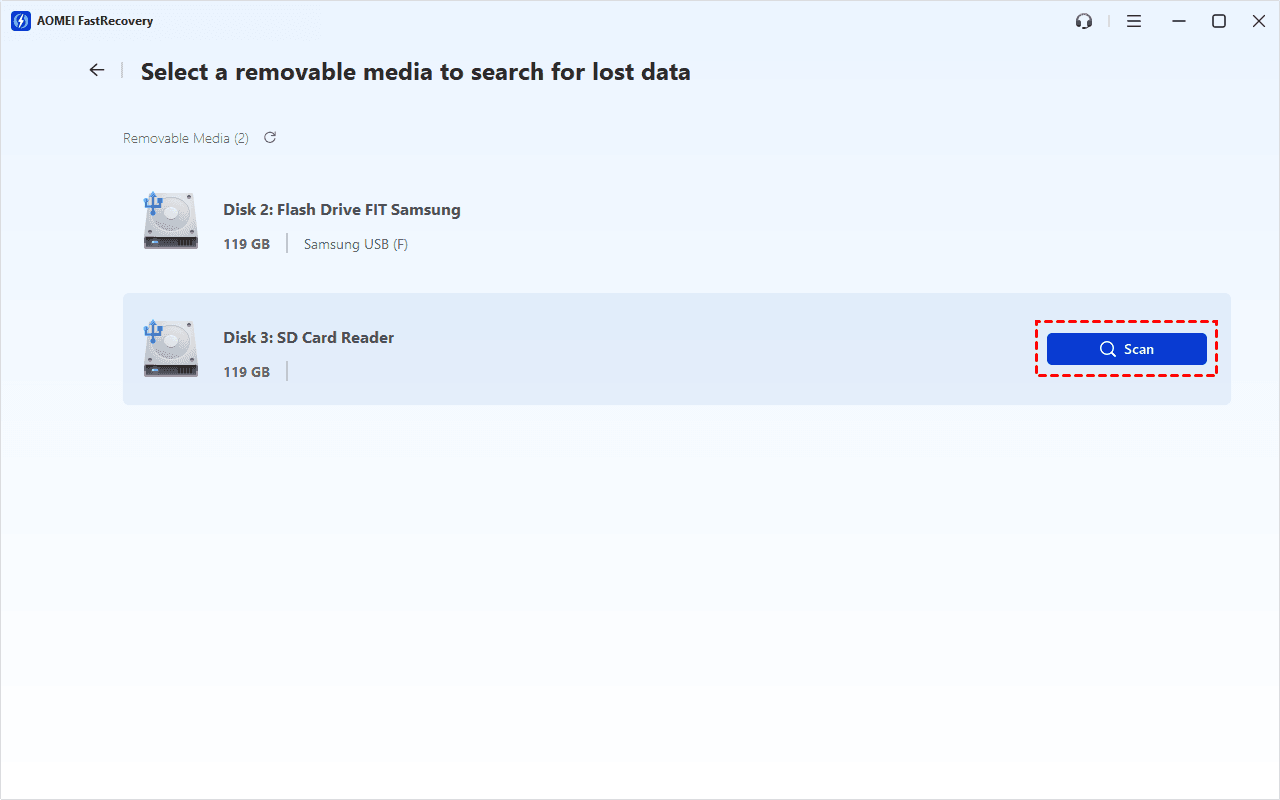
Step 3. Locate the Sony camera SD card from the list of detected removable devices. Then click Scan. AOMEI FastRecovery will begin searching the card for recoverable data with Deep Scan.
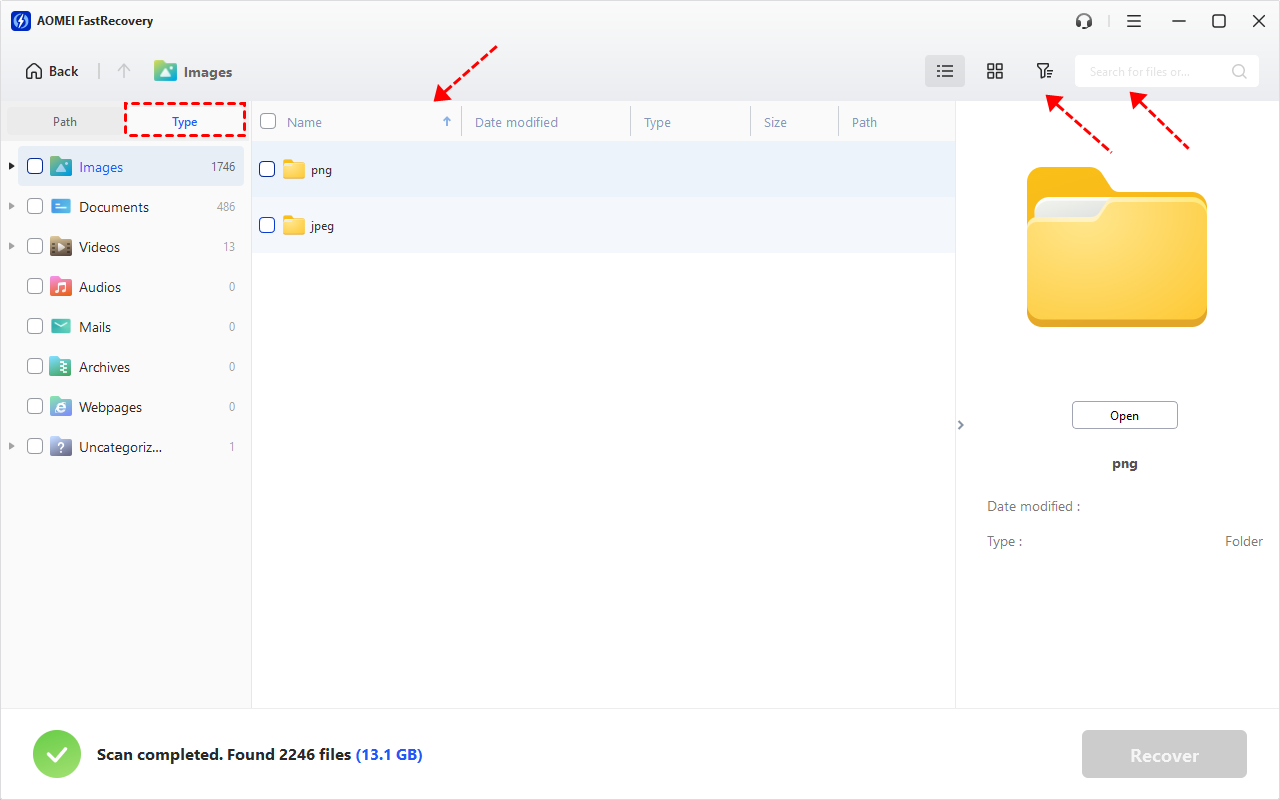
Step 4. After scanning finishes, use Type, Search, and Filter to locate the deleted photos. For example, you can:
- Select Images to display picture files.
- Search for a specific file name or extension, such as JPG or PNG.
- Use Filter to narrow files by size or other available criteria.
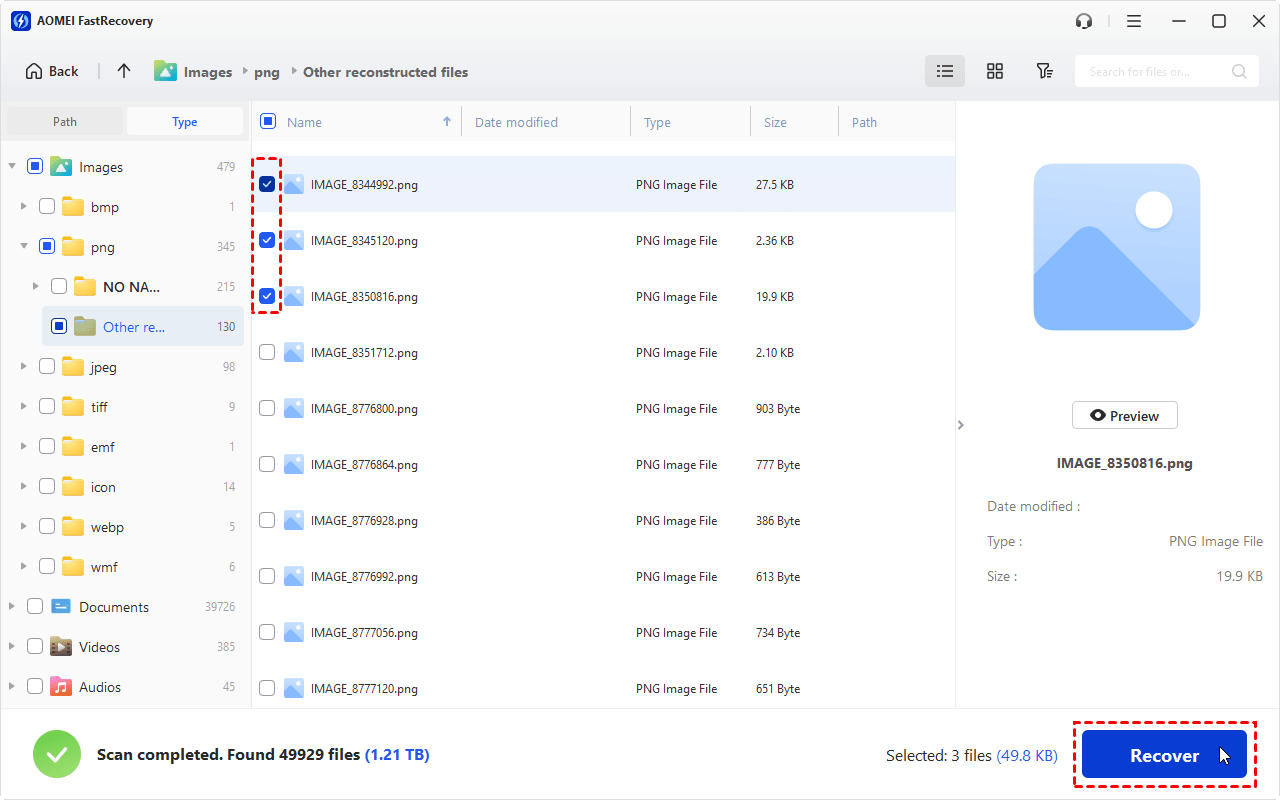
Step 5. Select the photos you want to restore and click Recover.
💡Notes:
- The free edition of AOMEI FastRecovery can recover up to 500 MB of data. If the amount of recoverable data exceeds the free limit, you may need to upgrade to a paid edition.
- Previewing the files is especially useful when file names have changed or when you are unsure whether a particular result is the photo you need. This is available in paid editions.
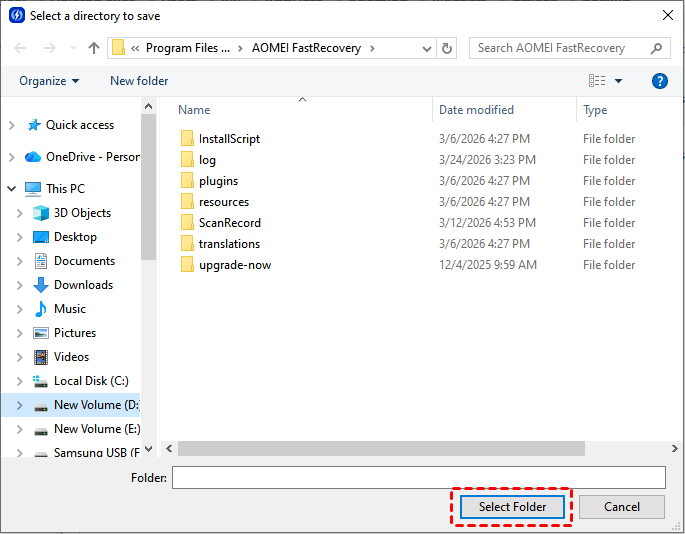
Step 6. Choose a destination on your computer or another physical drive and click Select Folder. Do not save recovered photos to the original SD card.
Step 7. Wait for the recovery process to finish. When you see "xx files have been recovered successfully!", click Browse to open the destination folder and check whether the recovered photos can be viewed.
Bonus: What If Your Sony Camera SD Card Is Not Recognized?
If your Sony camera SD card is not recognized by your computer, you may be unable to access or recover the photos stored on it. The cause could be a faulty card reader, connection issue, drive letter problem, file system error, or outdated driver. Try the following solutions based on your situation.
📍 Case 1. Check the Card Reader and USB Connection
A loose connection, damaged USB port, or faulty card reader may prevent Windows from detecting your SD card. The card itself may still be intact, so checking the connection or trying another card reader, USB port, or computer can help identify the problem.
📍 Case 2. Check the SD Card in Disk Management
If the SD card appears in Disk Management but not File Explorer, it may lack a drive letter or have a file system issue. A healthy partition without a drive letter may simply need one assigned. However, if the card appears as RAW or unallocated, avoid formatting or creating a new volume if you still need the photos.
📍 Case 3. Update or Reinstall the Card Reader Driver
An outdated, corrupted, or incompatible card reader driver can prevent Windows from recognizing the SD card. This is more likely if the card works on another computer but not on your current one. Updating or reinstalling the relevant driver may resolve the detection issue.
FAQs About Sony Camera Photo Recovery
1. Can I recover deleted photos from a Sony A6000?
Yes, you may be able to recover deleted photos from a Sony A6000's SD card. Stop taking new photos, remove the card, and connect it to a Windows computer using a card reader. You can then try Sony Memory Card File Rescue if your card is supported or scan it with AOMEI FastRecovery.
2. Can Sony Memory Card File Rescue recover photos from a non-Sony SD card?
Sony's official documentation states that Memory Card File Rescue is designed for supported Sony memory media and that operation with non-Sony SD cards has not been verified. If you use a SanDisk, Lexar, Kingston, or another non-Sony card, consider a general-purpose recovery tool instead.
3. Can I recover Sony ARW RAW photos?
Yes, Sony ARW is a supported RAW photo format in Sony Memory Card File Rescue. Other recovery tools may also detect ARW files if they support the card and file system. However, successful recovery depends on the condition of the original data.
To Sum Up
This page offers two tools to help you recover deleted photos from Sony camera. Start with Sony Memory Card File Rescue if you use a supported Sony memory card. If that utility is unavailable or cannot find your photos, try AOMEI FastRecovery to scan the SD card for recoverable images.
However, recovery is not guaranteed. To reduce the risk of permanent data loss, you may backup important files, photos, or videos regularly to a computer, external hard drive, or cloud storage service.

 as a preferred
source on Google