




Files Disappeared Windows 7: 5 Ways to Recover Missing Data
Files vanished on Windows 7? Find out why – and learn five effective methods to recover your deleted files.

By Lily Updated on October 28, 2026


Why My Files Disappeared in Windows 7?
Have your files suddenly disappeared from your Windows 7 computer? Missing documents, photos, videos, and desktop folders can be worrying, especially when you do not know what caused the problem.
Before attempting recovery, consider what might have happened to your files. The cause can help you choose the most appropriate solution.
- Files were accidentally deleted: You may have deleted files or folders unintentionally, or emptied the Recycle Bin.
- Files became hidden: Changes to Windows settings or file attributes can make files invisible in File Explorer.
- Files were moved: The missing items may have been moved to another folder or drive.
- A drive was formatted: Formatting can make files inaccessible and may leave data recoverable if it has not been overwritten.
- A partition became inaccessible: Partition errors or file system corruption can make stored files disappear from view.
- The storage device has problems: Drive errors or physical damage may prevent Windows from displaying files correctly.
If you suspect that files were deleted or a drive was formatted, stop saving new data to the affected storage device. New writes may overwrite data you want to recover.
How to Recover Deleted Files in Windows 7
If files disappeared in Windows 7, you can try the following methods to retrieve lost files.
Method 1. Check the Recycle Bin
If you accidentally deleted the file, Windows may have moved it to the Recycle Bin instead of permanently removing it.
Step 1. Double-click the Recycle Bin icon on the desktop to open it.
Step 2. Browse the deleted files or use the search function to find the missing item.
Step 3. Right-click the file and select Restore. Windows will return it to its original location.
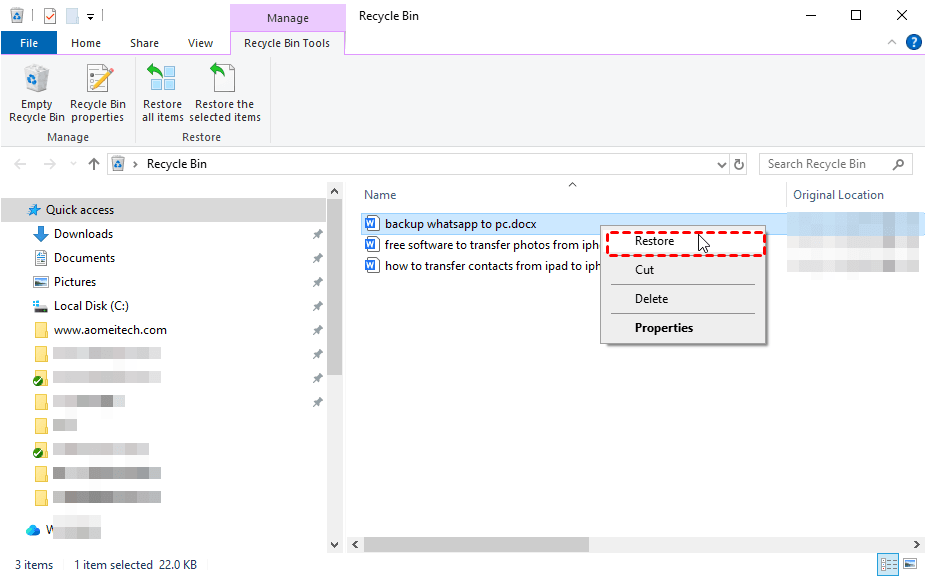
✍ Tip: This method won't work if you have already emptied the Recycle Bin or permanently deleted the file.
Method 2. Show Hidden Files and Folders
Sometimes, files have not been deleted but are simply hidden. Windows 7 allows you to display hidden files and folders through Folder Options. Follow these steps to check whether your missing files are hidden.
Step 1. Open Control Panel and select Appearance and Personalization.
Step 2. Click Folder Options and open the View tab.
Step 3. Under Hidden files and folders, select Show hidden files, folders, and drives. Click Apply, then OK, to save the changes.
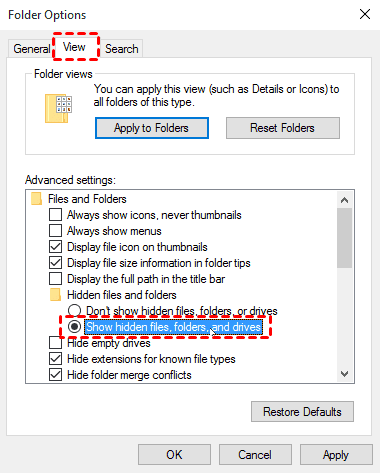
Step 4. Return to the folder where your files disappeared and check whether they are visible.
Method 3. Restore Missing Files from a Windows Backup
If you previously backed up your files using Windows Backup and Restore, you may be able to restore the missing items from an existing backup.
Step 1. Open Control Panel > System and Security > Backup and Restore.
Step 2. Under the Restore section, click Restore my files.
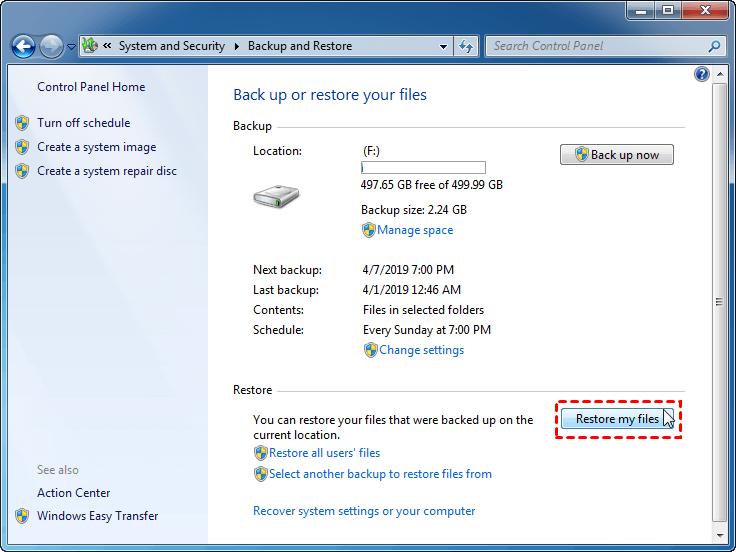
Step 3. Use Search, Browse for files, or Browse for folders to locate the files or folders you want to restore.
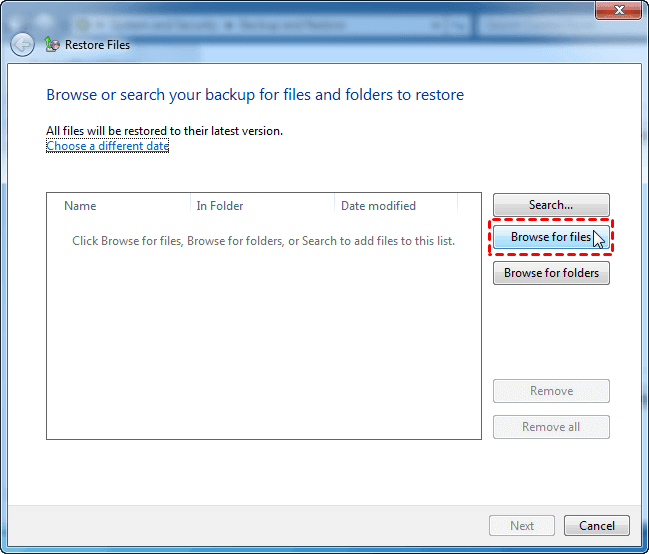
Step 4. Follow the prompts to select a destination and click Restore to begin the process.
Step 5. Once the restoration is complete, check the destination folder to confirm that your files are available.
Method 4. Recover Files Using Previous Versions
Windows 7 includes a Previous Versions feature that may let you restore earlier copies of files and folders. It relies on available restore points or shadow copies, so it will not work if no suitable previous version exists.
Step 1. Open Computer and navigate to the folder that originally contained the missing files.
Step 2. Right-click the folder and select Restore previous versions.
Step 3. In the Previous Versions tab, review the available versions and select one created before the files disappeared.
Step 4. Click Open to inspect the version first. If it contains the files you need, click Restore to replace the current folder with the selected version.
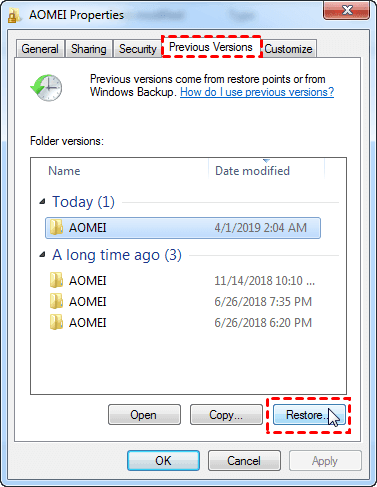
✍ Tip: To avoid overwriting the current contents, you can click Copy to copy the previous version of the folder to another place.
Step 5. Check the restored or copied files to confirm that they are accessible.
Method 5. Use Windows 7 Data Recovery Software
If your files disappeared because of accidental deletion, formatting, or certain other data loss scenarios, AOMEI FastRecovery may help you scan a supported storage device for recoverable files.
 AOMEI FastRecovery
- Perform a Quick Scan automatically and integrate Deep Scan to search for all recoverable files.
- Organize and display files by Type or Path, allowing you to sort, search, filter, and preview files before recovery.
- Support various file types, including Word documents, Excel spreadsheets, PowerPoint presentations, PDFs, ZIP files, JPG and JPEG images, PNG files, and more.
- Provide different recovery scenarios, such as deleted file recovery, Recycle Bin recovery, deleted partition recovery, and recovery from USB or SD cards.
- Support Windows 11/10/8/7 and Windows Server 2025/2022/2019, etc.
 100% Secure
Before proceeding, install the software on a different drive from the one containing the missing files. If the drive is physically damaged or making unusual noises, stop using it and consider professional recovery.
Follow these steps to recover permanently deleted files in Windows 7 via AOMEI FastRecovery.
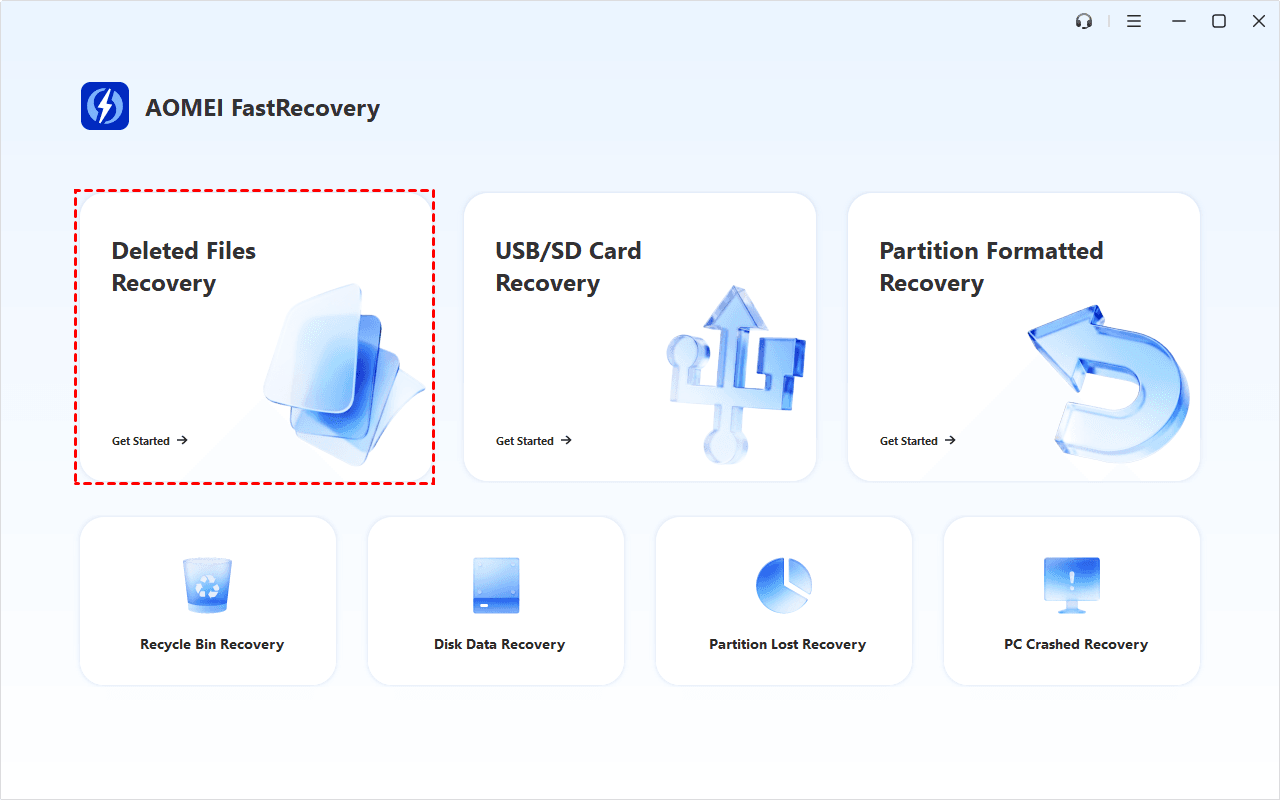
Step 1. Launch AOMEI FastRecovery. From the main interface, select Deleted Files Recovery.
Step 2. Select the drive or partition where the files disappeared and click Scan.
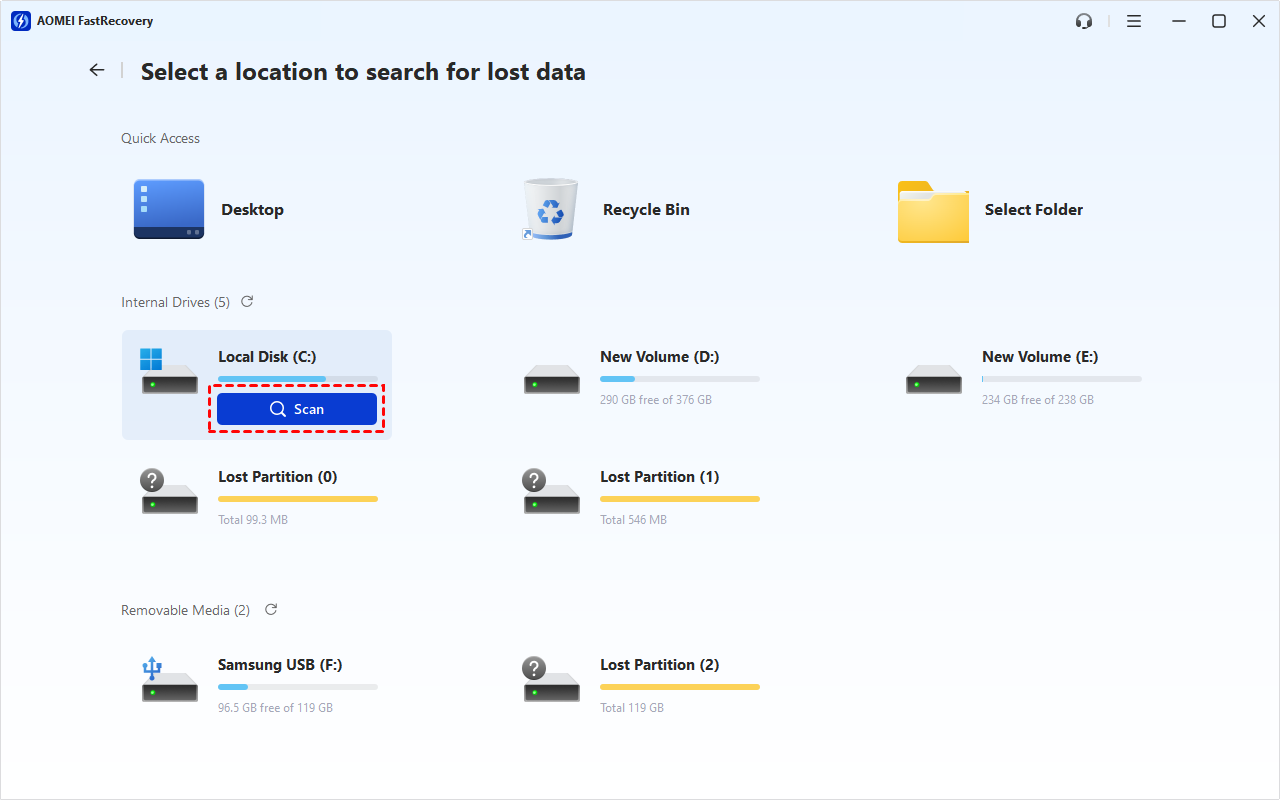
✍ Tip: If files disappeared from desktop in Windows 7, you can hover over Desktop and click Scan.
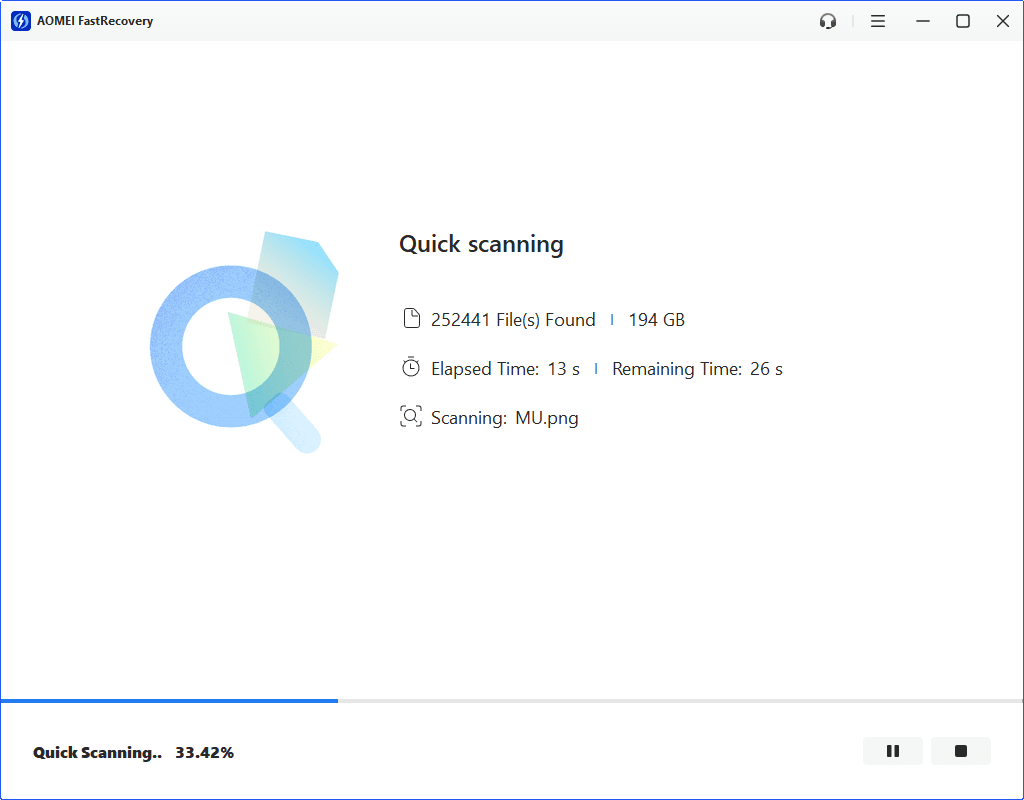
Step 3. Allow the software to scan the selected location for recoverable files. The time required depends on the drive's capacity, condition, and the amount of data being examined.
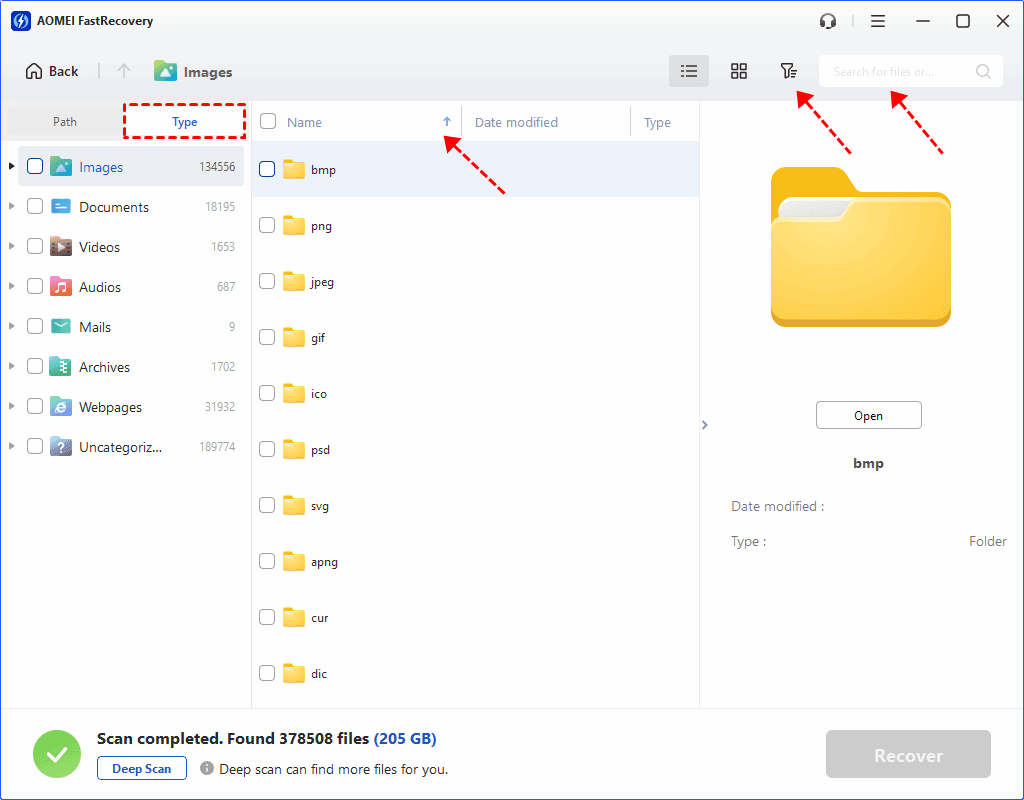
Step 4. Browse the scan results by Type or Path. You may use the search, filter, or sorting features to locate the missing files.
✍ Tips:
- If the desired files do not appear in the initial results, click the Deep Scan button at the bottom left to search for more files.
- You can double-click a supported file to preview it before recovery. This is a paid feature.
Step 5. Select the files you want to recover and click Recover. Then choose a different drive or storage location to save the recovered files.
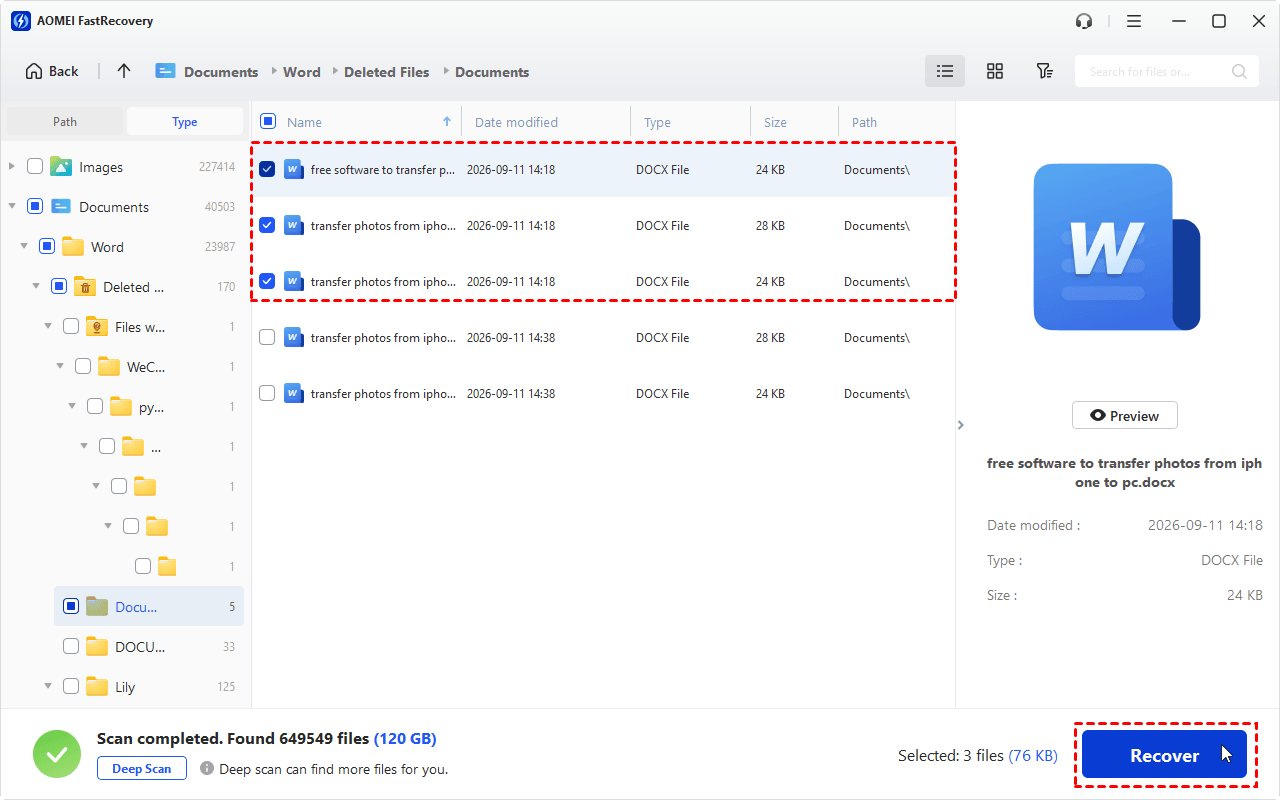
Step 6. After recovery finishes, open the destination folder and check the restored files.
How to Prevent Files from Disappearing Again
Once you have found or recovered your files, take steps to reduce the risk of future data loss.
- Back up important files regularly: Keep copies of your documents, photos, and other essential data on a separate drive or in reliable cloud storage.
- Double-check before deleting: Review selected files and folders before permanently deleting them or emptying the Recycle Bin.
- Keep multiple copies: Store important files in more than one location so that a single drive failure does not destroy every copy.
- Monitor drive health: Pay attention to disk errors, unusual noises, or frequent disconnections, and back up important data promptly if problems occur.
- Avoid unnecessary disk changes: If files suddenly disappear, do not immediately format, initialize, or repair the affected drive before considering recovery options.
- Verify your backups: Periodically check that backed-up files can be opened and restored.
To Sum Up
When files disappeared from Windows 7, they may be hidden, accidentally deleted, or inaccessible because of a storage or file system problem. Start by checking the Recycle Bin and showing hidden files. If that does not help, try restoring a Windows backup or using Previous Versions.
When no suitable backup is available, AOMEI FastRecovery may help scan compatible storage devices for recoverable files. It supports various storage devices. For example, you can use it to recover deleted photos from Seagate external hard drive. Try it now to retrieve your valuable data!

 as a preferred
source on Google