




How to Recover Deleted Partition in Windows 11/10/8/7: 3 Ways
Accidentally deleting a disk partition can make files inaccessible or cause the partition to disappear from File Explorer. This article explains how to recover a deleted partition in Windows 11/10/8/7 with three effective ways.

By Lily Updated on October 21, 2026


Can You Recover a Deleted Partition?
Yes, it is often possible to recover a deleted partition. Your chances of success depend on several factors:
- Whether the deleted space has been reused: Creating a new partition or copying files into the same space can overwrite information needed for recovery.
- The cause of the deletion: An accidentally deleted partition may be easier to recover than one affected by severe disk corruption or hardware failure.
- The storage type: SSDs may support TRIM, which can make deleted data unrecoverable after the relevant blocks are cleared.
- The file system and partition style: Recovery results may vary depending on whether the disk uses NTFS, FAT32, exFAT, MBR, or GPT.
- The condition of the drive: Physical damage or unreadable sectors can prevent successful recovery.
Before attempting recovery, stop writing data to the affected disk. Do not create a new volume, format the unallocated space, or reinstall Windows onto it. If the lost partition contains important files, recover them to a different physical drive whenever possible.
How to Recover a Deleted Partition in Windows
There are three approaches you can try to recover deleted partition in Windows 11/10/8/7. Pick one according to your situation.
Method 1: Recover with Deleted Partition Recovery Software
If you accidentally deleted a partition and need to recover it along with its files, the best partition recovery software - AOMEI FastRecovery can give you a hand.
 AOMEI FastRecovery
- Quick Scan and Deep Scan: Scan a drive for deleted and lost files using different scanning modes.
- Wide file type support: You can use it to recover photos, videos, audio files, documents, compressed files, and other data formats.
- Search and Filter: Narrow down scan results by file name, type, size, and other available criteria.
- Different recovery scenarios: Supports deleted file recovery, Recycle Bin recovery, formatted partition recovery, and recovery from SD cards or USB.
- Windows support: Supports data recovery on Windows 11, 10, 8, 7, and Windows Server.
 100% Secure
Learn how to recover data from deleted partition and the partition itself below:
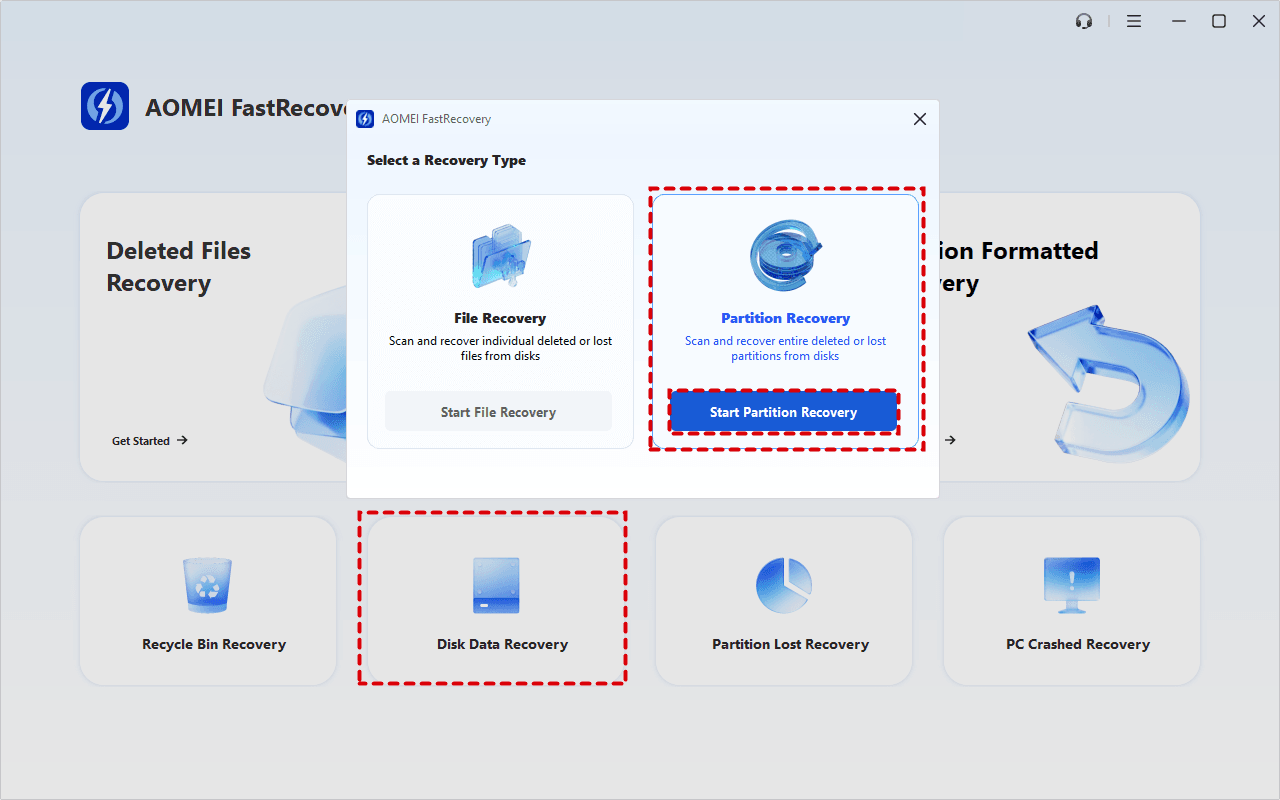
Step 1. Download AOMEI FastRecovery and install it on a different drive from the one containing the deleted partition. Launch the software and select Disk Data Recovery > Start Partition Recovery.
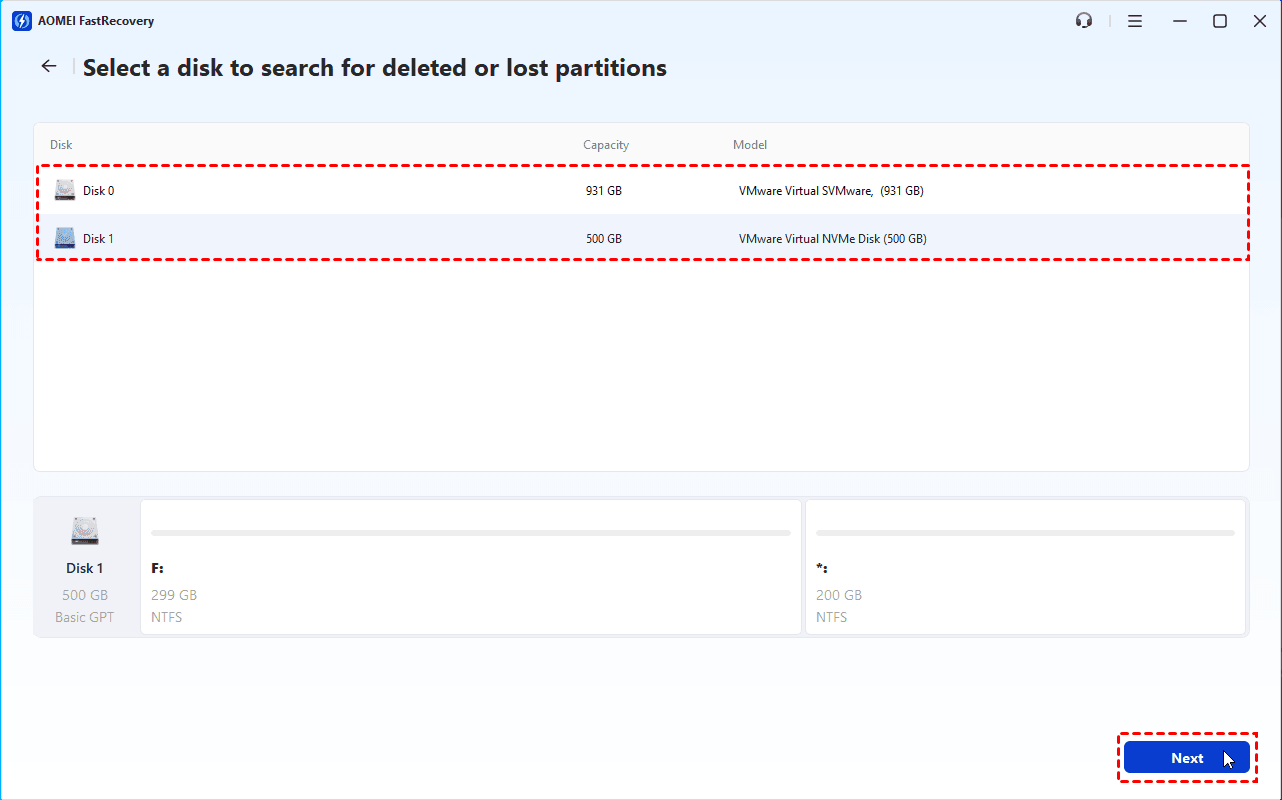
Step 2. Identify the disk containing the deleted partition by checking the disk number, capacity, model, and partition layout. Select the correct disk and click Next.
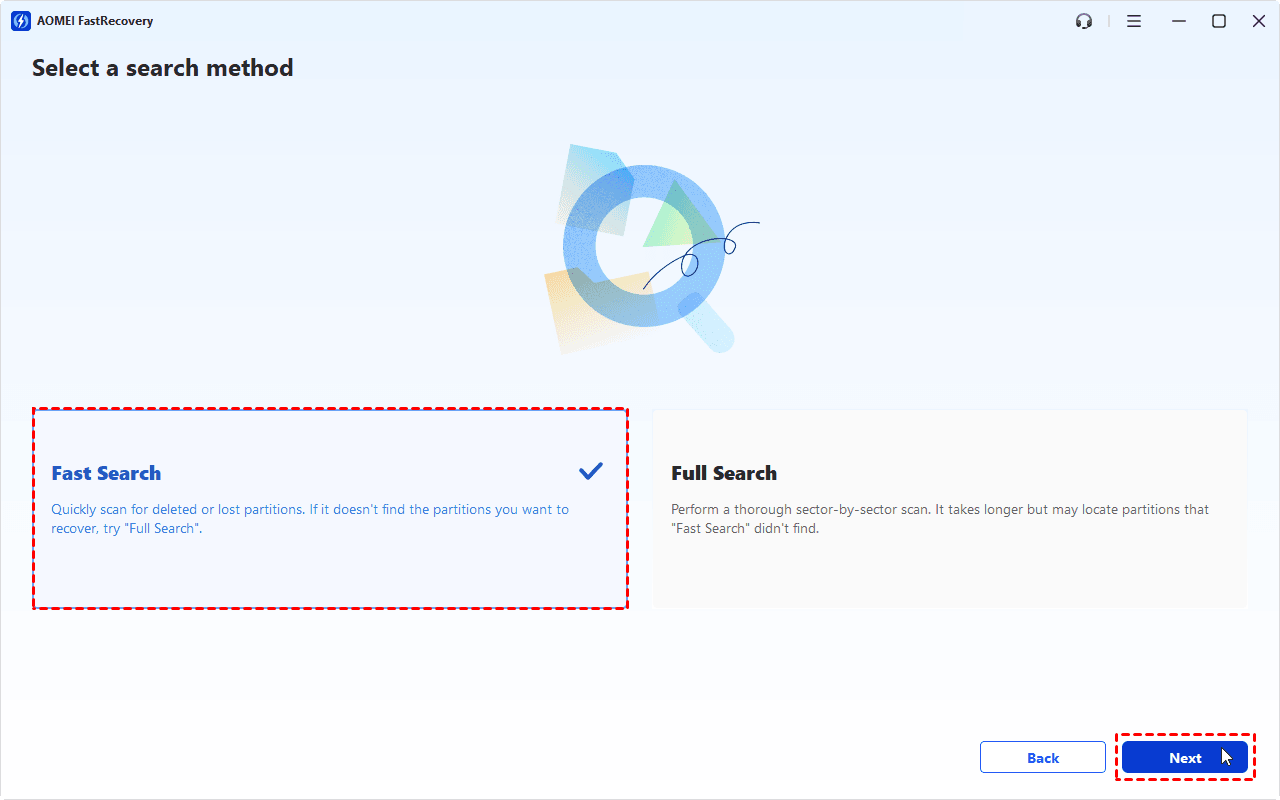
Step 3. Select a search method and click Next to begin the scanning process. Fast Search is recommended for quickly locating deleted or lost partitions.
Step 4. When the scan finishes, review the detailed information of the detected partitions. Check the partition you want to recover and click Proceed.
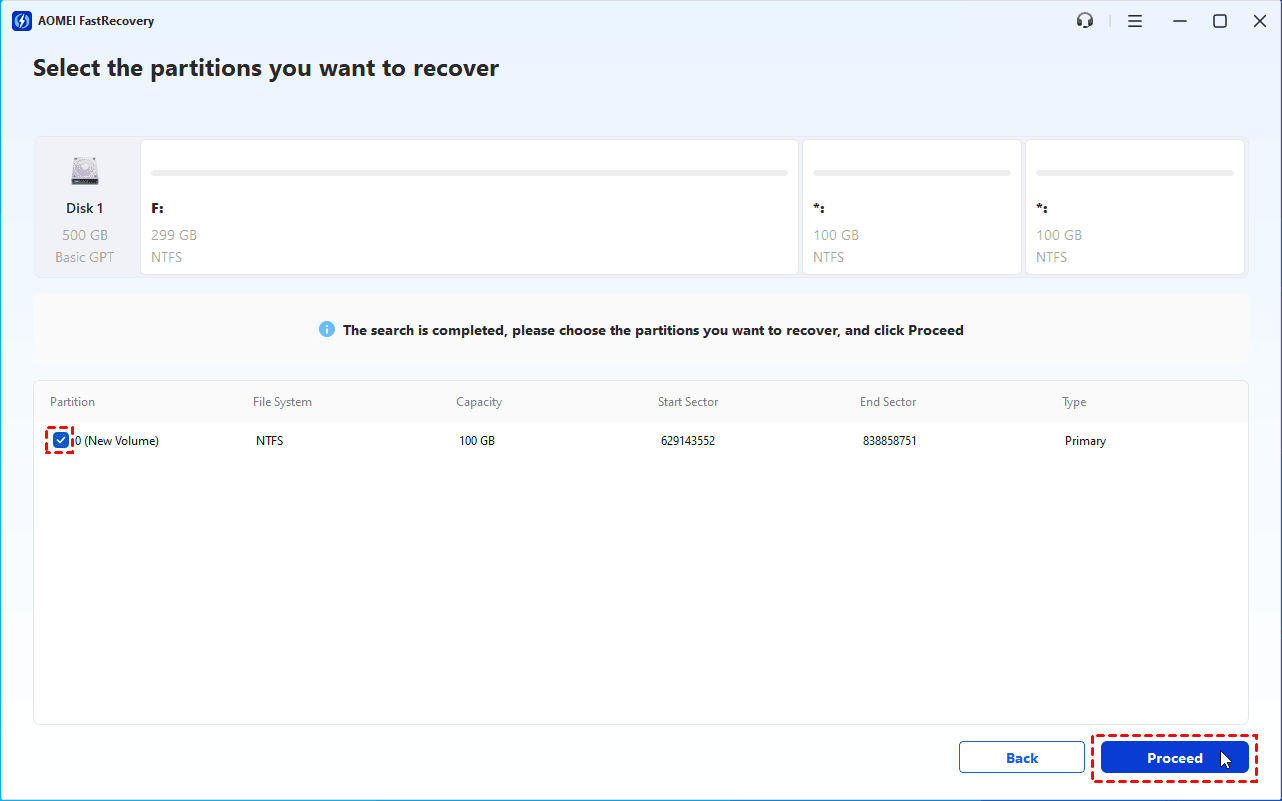
💡 Note: If you can’t find your needed partition in the list, click Back and try Full Search.
Step 5. After the recovery process completes, you can browse the recovered partition in File Explorer. If you can’t see the partition, please assign a drive letter for the partition or reboot your computer.
Method 2: Use TestDisk to Recover a Lost Partition
TestDisk is a free, open-source partition recovery utility that can search for lost partitions and, in suitable cases, restore partition entries. This method may be useful when a partition has disappeared from Windows but the underlying data is still present.
However, TestDisk is a command-line tool, so you should follow its prompts carefully. Incorrect partition-table changes can make a disk more difficult to recover.
Step 1. Visit the official TestDisk website and download the version compatible with your Windows computer.
Step 2. Extract the downloaded archive to a folder. Run testdisk_win.exe as administrator.
Step 3. On the opening screen, select Create to create a new log file.
Step 4. Select the physical disk containing the deleted partition. Verify the disk by its size and device information before continuing.
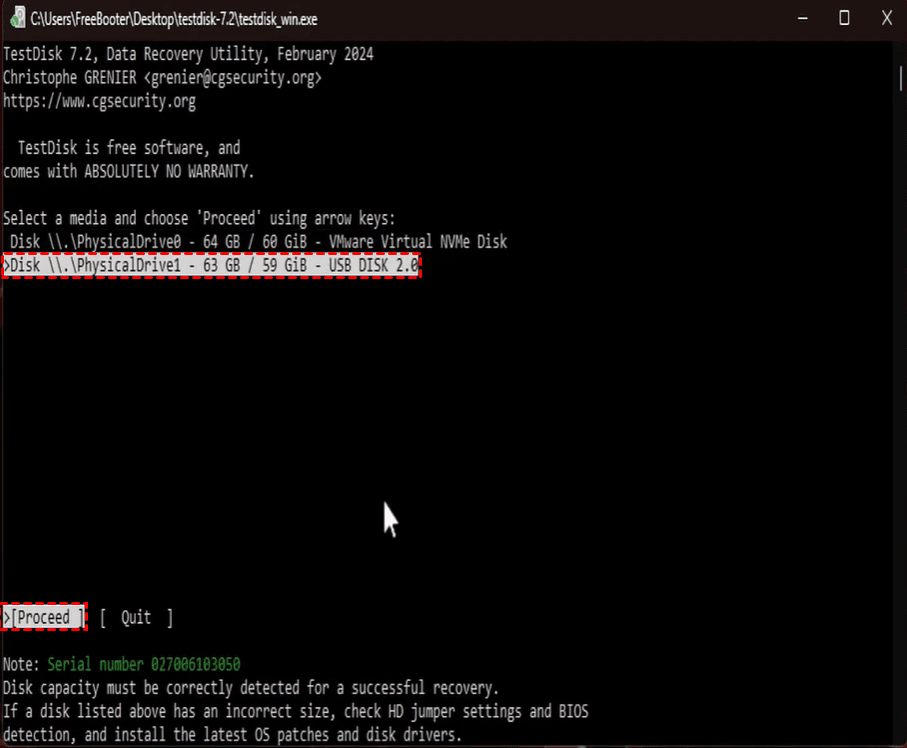
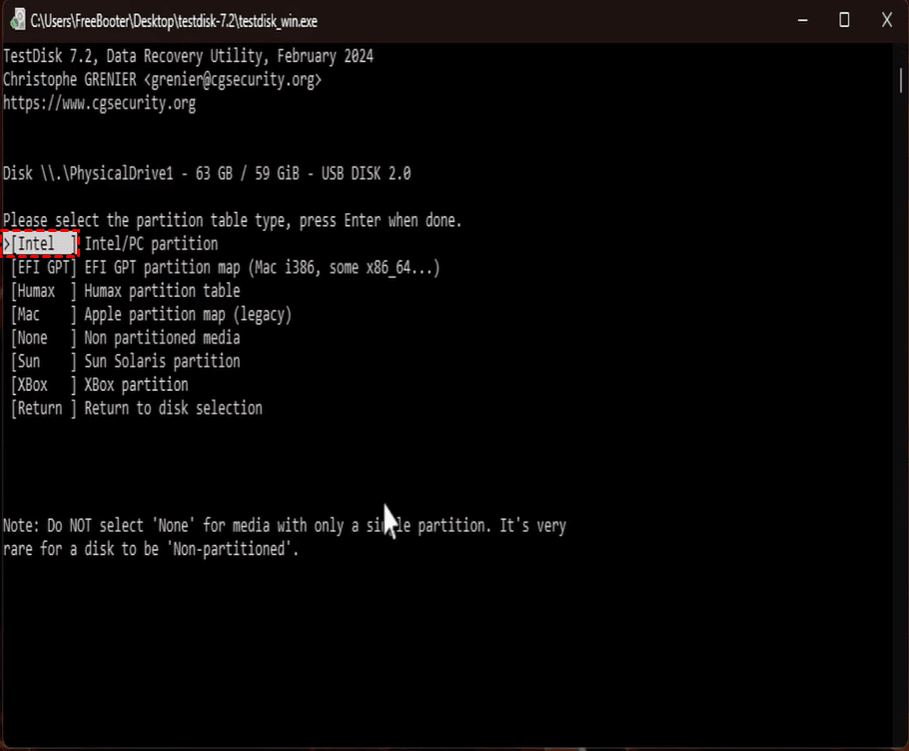
Step 5. Select the appropriate partition table type. TestDisk often detects the likely type automatically; common choices include Intel for MBR disks and EFI GPT for GPT disks.
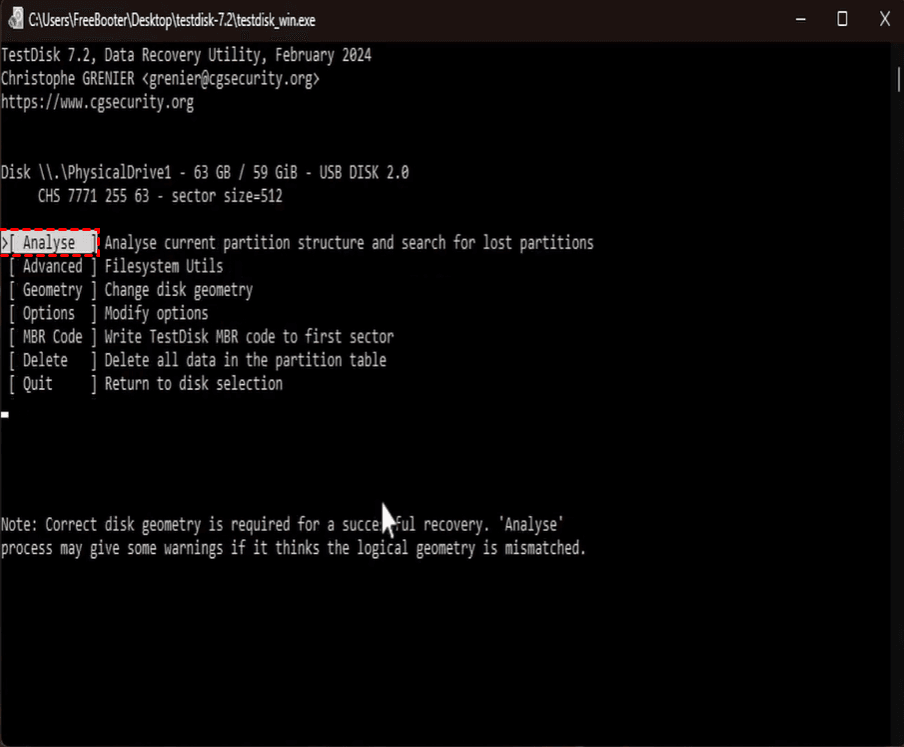
Step 6. Select Analyse and then Quick Search to look for lost partitions.
Step 7. If it finds your partition, select the partition and press P to list files.
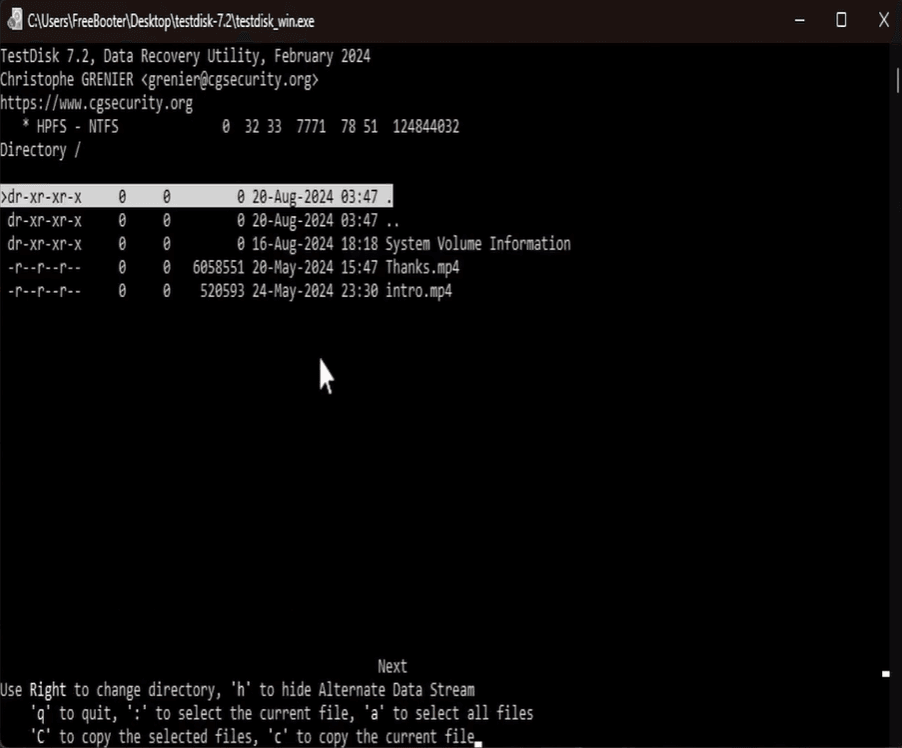
💡 Note: If your only goal is to retrieve files, use the keys shown at the bottom of the window to copy recoverable files to another drive.
Step 8. If the files look correct, press Q to return to the partition list. Confirm you have selected the right partition and press Enter to continue.
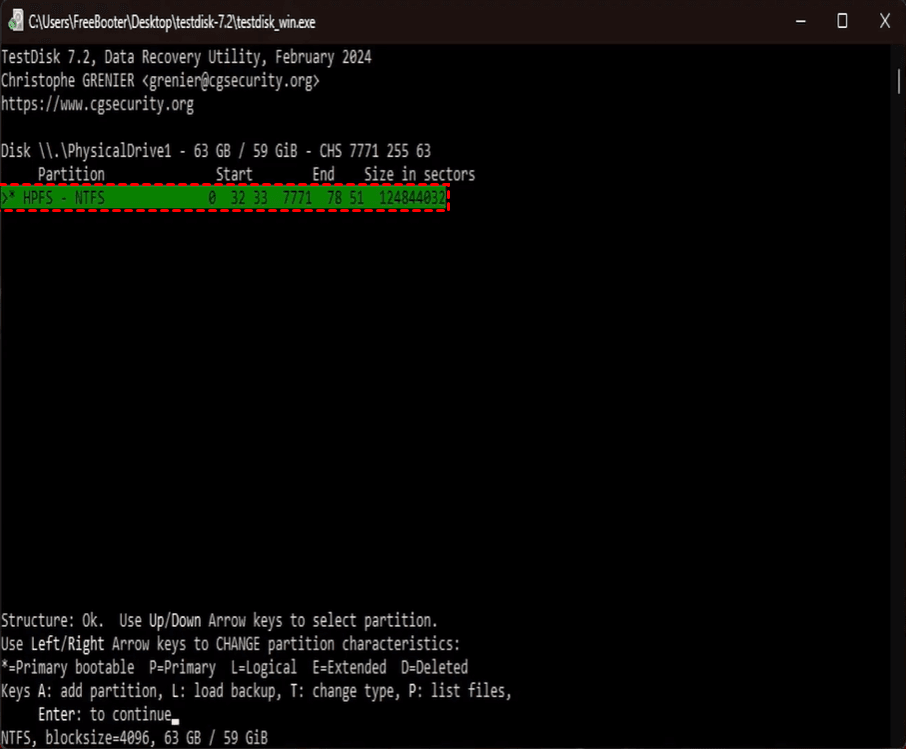
Step 9. Select Write and press Y to begin writing partition structure to the disk. This restores access to the partition.
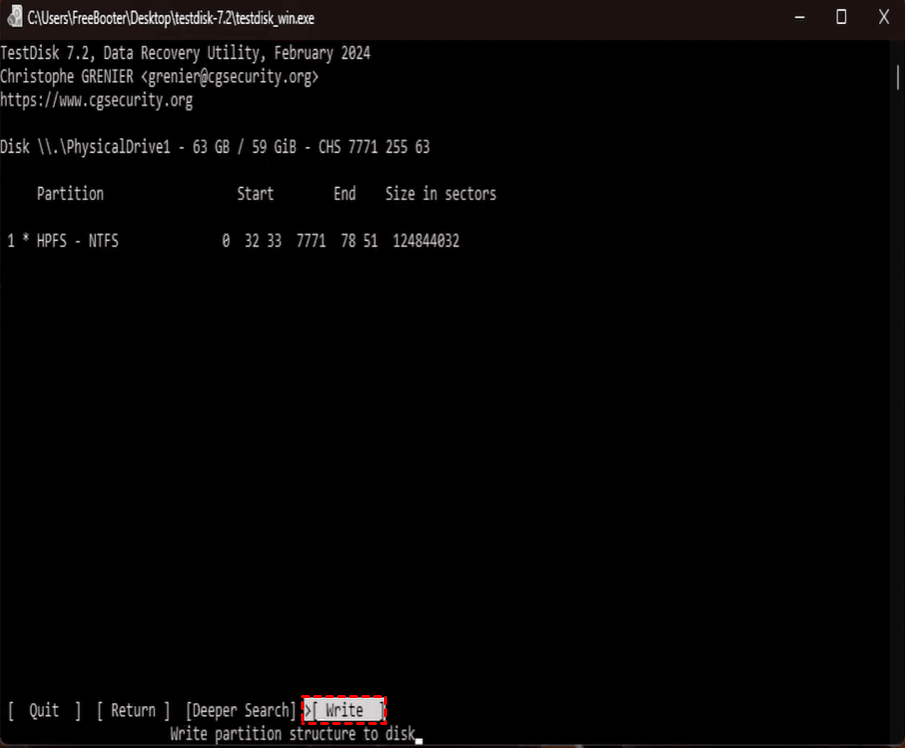
💡 Note: If the partition is not found, select Deeper Search to conduct a more thorough search.
Method 3: Restore Deleted Partition from a Backup
If you created a partition backup or disk backup with AOMEI Backupper before deleting the partition, you can use it to restore the lost data and partition structure. Learn how to restore deleted partition from a partition backup using AOMEI Backupper below:
Step 1. Download, install, and launch AOMEI Backupper.
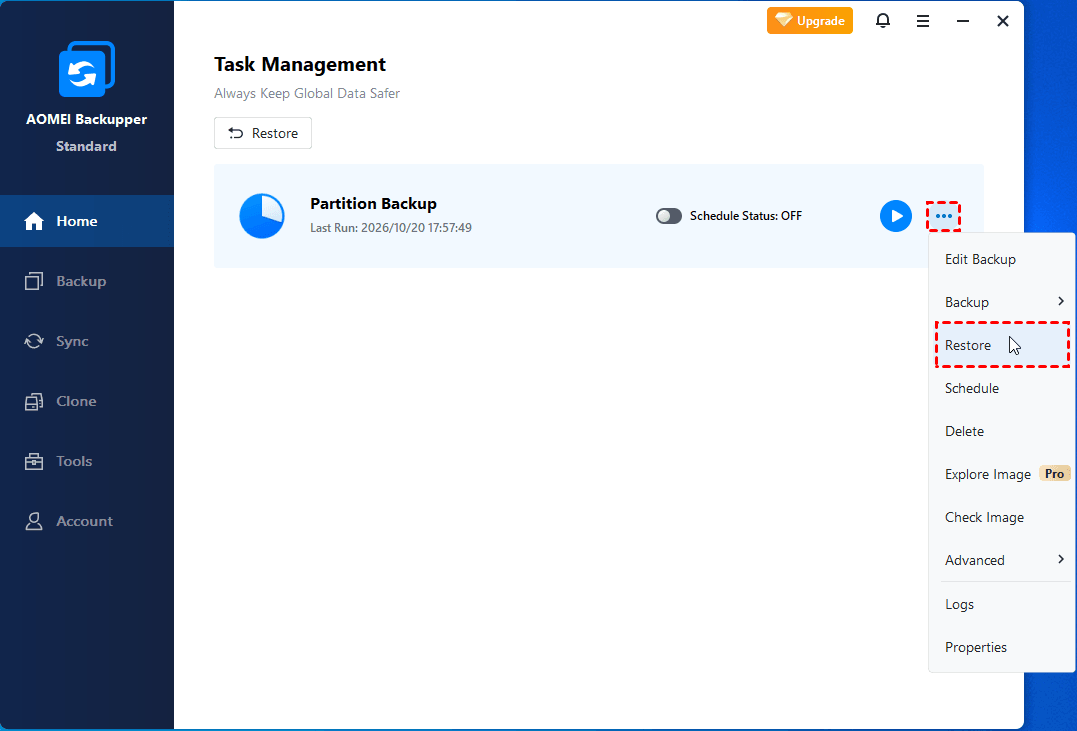
Step 2. Go to Home and locate the partition backup task from the list. Then click the three-dot menu and select Restore.
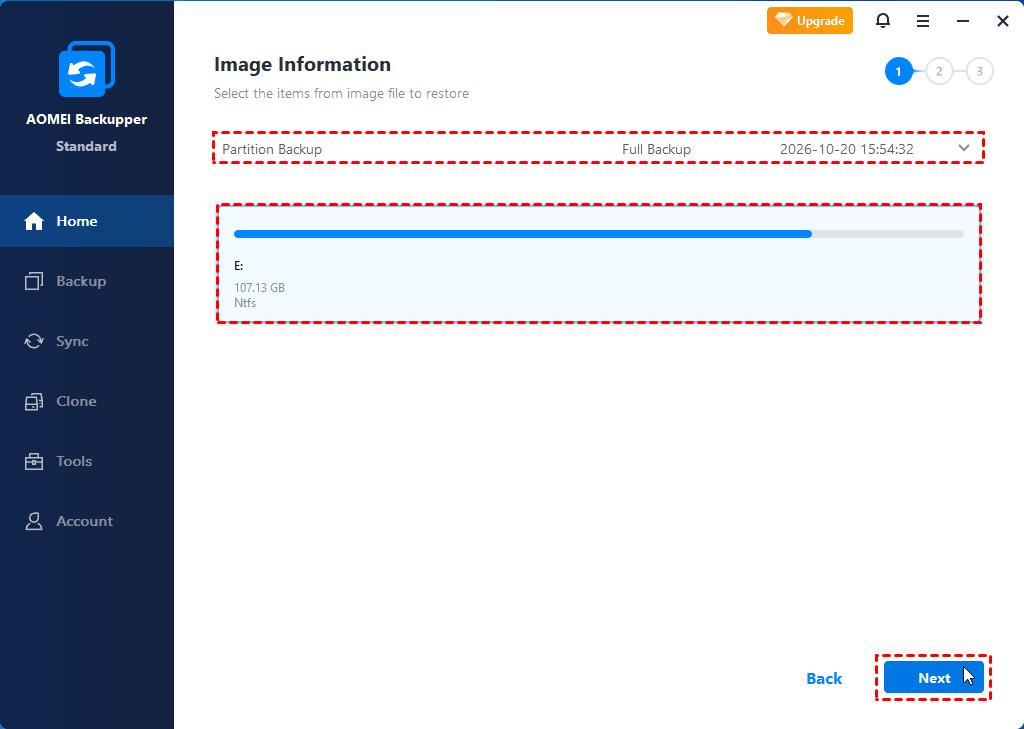
Step 3. Select a backup point and the partition you want to restore, then click Next.
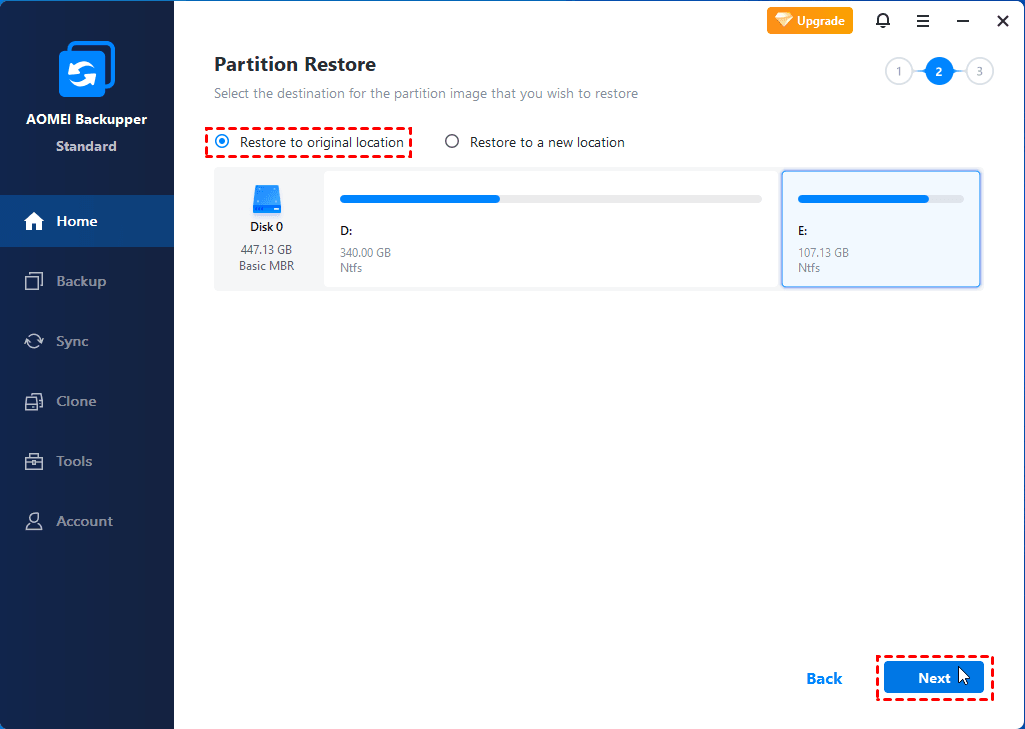
Step 4. Select Restore to original location or Restore to a new location based on your needs.
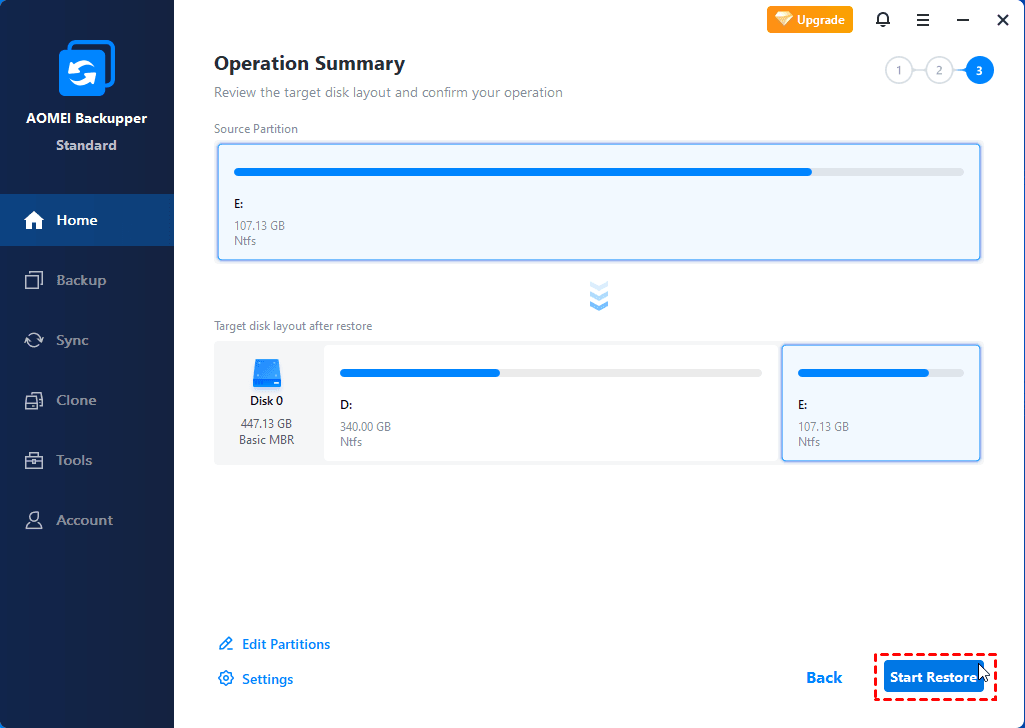
Step 5. Preview the restore operation to be executed and click Start Restore. You may click Edit Partitions and Settings for more configurations.
Related Guides to Deleted Partition Recovery
Looking for a solution to a specific partition loss problem? Explore these guides to find the right recovery method for your situation.
- Accidentally Deleted Volume in Disk Management – If you accidentally selected Delete Volume in Disk Management and your partition became unallocated space, learn what to do next and how to recover your files or restore the deleted volume without overwriting recoverable data.
- Recover Lost Partition in Windows 10 – If a partition has disappeared from your Windows 10 PC and no longer appears in File Explorer or Disk Management, learn how to identify the cause and recover the lost partition.
FAQs about Recovering a Deleted Partition
1. Does deleting a partition erase all the data on it?
Not necessarily. Deleting a partition generally removes its entry from the partition table and makes the space available for reuse. Some of the underlying file data may remain until overwritten or cleared by storage-device operations. The longer you continue using the affected disk, the greater the risk of losing recoverable information.
2. Can I recover a deleted partition on an SSD?
Sometimes. Recovery depends on whether the partition metadata and file data remain available. SSDs may use TRIM and garbage collection to clear blocks after deletion, which can significantly reduce recovery chances. Stop using the SSD and avoid creating new partitions or copying files to it.
3. Is it possible to recover a deleted partition after creating a new one?
It may be possible, but the outcome depends on whether the new partition overwrote the old partition's metadata or file contents. Stop writing to the disk and assess the situation before attempting recovery. If the data is important, consider creating a disk image before using partition recovery tools.
Bottom Line
This page offers 3 ways to recover a deleted partition in Windows. Both AOMEI FastRecovery and TestDisk can help you recover the original partition structure along with the data on it. However, the recovery success rate depends on whether the partition metadata and file data remain available.
If you have a backup that contains the partition image, you are able to restore it without using dedicated recovery software. In this case, AOMEI Backupper can do you a favor. It offers continuous backup solutions for long-term data protection. Go for it now!

 as a preferred
source on Google
as a preferred
source on Google