




How to Recover Permanently Deleted Files in Windows 7
To recover permanently deleted files in Windows 7, stop writing to the affected drive. Check whether a backup or previous version contains your files, or scan the original drive for recoverable data.

By Ivy Updated on October 14, 2026


Your folder has disappeared after Shift+Delete, and the Windows 7 Recycle Bin has nothing to restore. Permanent deletion removes the normal restore option, but it doesn’t always erase the file’s contents immediately.
You may recover permanently deleted files in Windows 7 from an existing backup or previous version. AOMEI FastRecovery can also scan the original drive for recoverable files. What you get back depends on whether the data is still there.
Choose a Recovery Method for Your Situation
Briefly check the Recycle Bin before proceeding. If your file is still there, right-click it and select Restore. The methods below address files that are no longer available in the Recycle Bin.
| 🧩 Your situation | 👍 Recovery method | 🔑 Key requirement |
|---|---|---|
| Files were permanently deleted | AOMEI FastRecovery | Recoverable data must remain on the drive |
| A backup contains the missing files | Backup and Restore | A usable backup from before deletion |
| An earlier folder copy is available | Previous Versions | An existing backup or suitable shadow copy |
A usable backup can provide a straightforward restore. Scanning is another option when the backup is missing or lacks the required files. Note deleted files too big for the Recycle Bin can bypass the Recycle Bin.
Method 1: Recover Permanently Deleted Files in Windows 7 with AOMEI FastRecovery
👍 Best for: Scan the original drive for permanently deleted files. 500MB free data recovery.
AOMEI FastRecovery is easy-to-use Windows file recovery software for retrieving deleted documents, photos, and other files in Winddows 7, 8/8.1, 10, 11, and Windows Server.
 AOMEI FastRecovery
- 🔎 Dual Scan Mode: Quick Scan looks for deleted files; switch to Deep Scan for a more thorough search.
- 📚 1000+ Data Types: Recover documents, images, videos, audio, archives, and more.
- 📂 Pinpoint What You Need: Browse by type or path, then combine search, sort, filters, and thumbnail previews to narrow results.
- ✅ Selective Recovery: Choose only the files you need instead of restoring every result. Save to an external drive, USB drive, SD card, NAS, or other location.
- 💰 Free Tier: Recover up to 500MB for free. Need more? Upgrade for unlimited recovery.
 100% Secure
Step 1. Download and install AOMEI FastRecovery on a different drive from the one containing deleted files. Open it and select Deleted Files Recovery.

Step 2. Choose the drive where the files were originally stored, then click Scan. A Quick Scan starts automatically to find deleted or missing files.
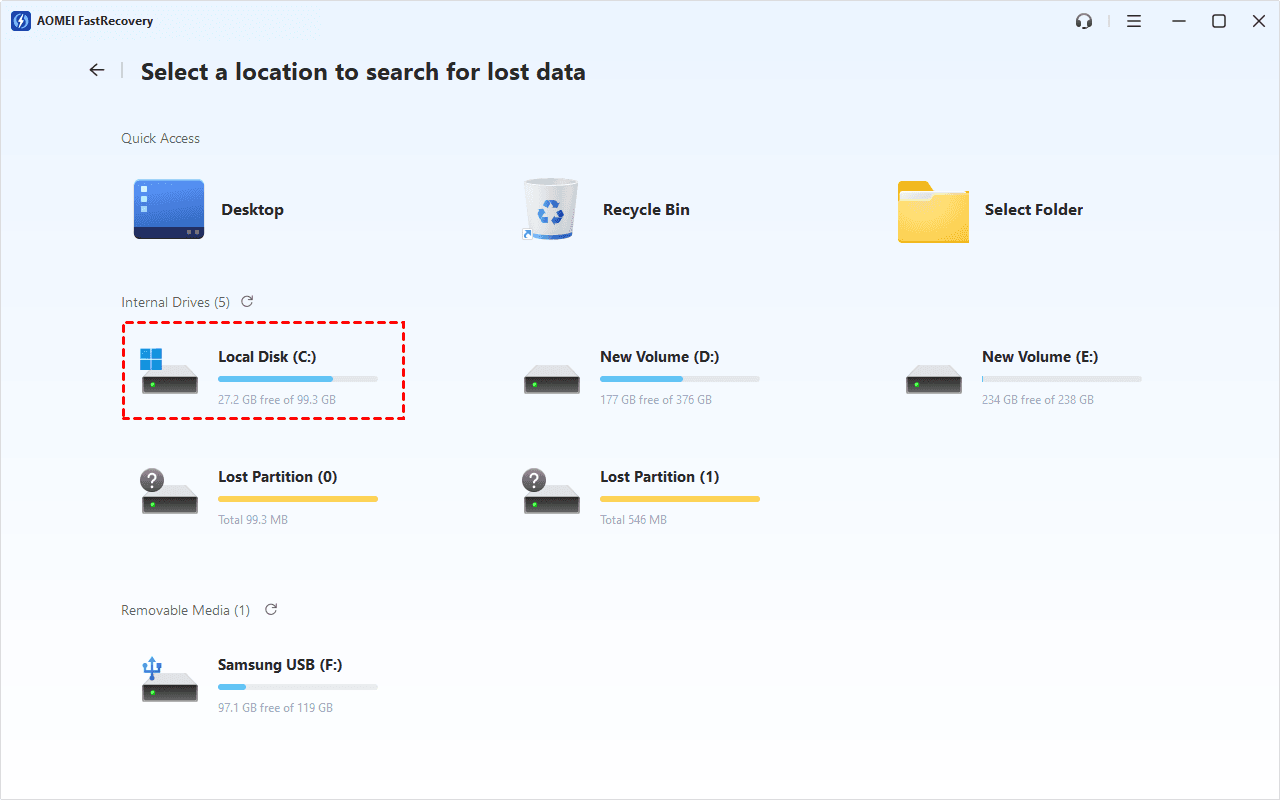
Step 3. Browse by Path to find the original folder, or use Type to narrow the results. Search by filename or extension, filter file size or type, or sort to zero in on what you need.
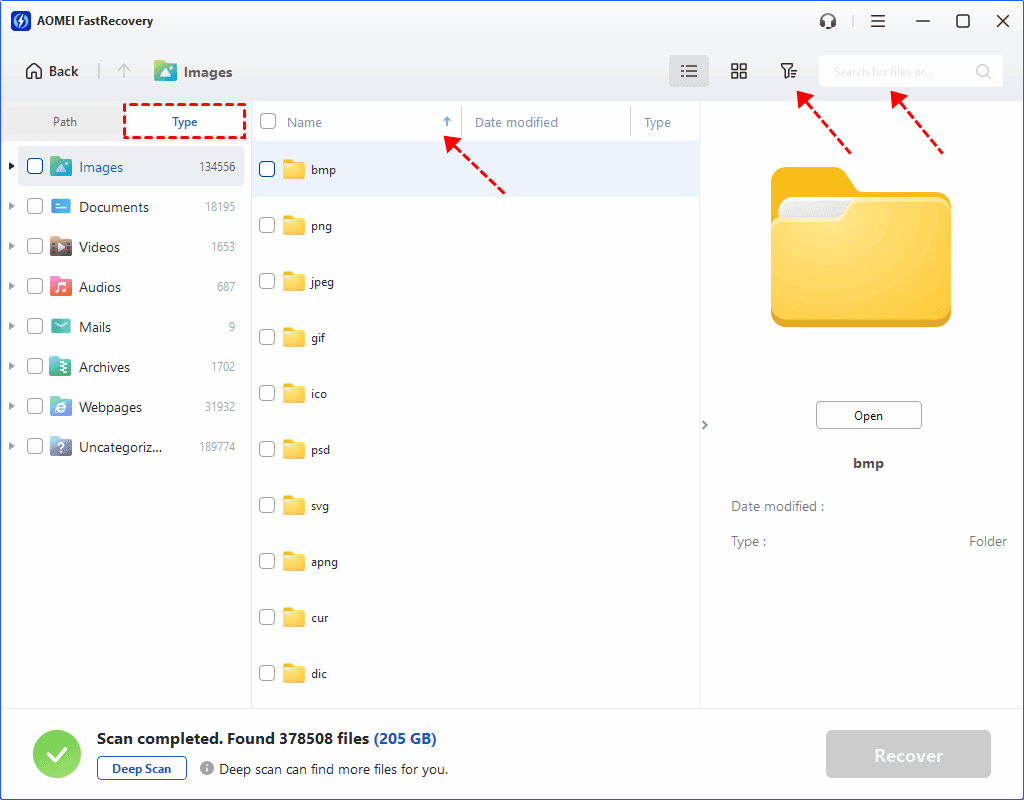
Step 5. Choose the files you want and click Recover. Save recovered files to a different drive. This significantly reduces the risk of overwriting the files you're trying to recover.
- Select Deep Scan if you still can't find deleted or lost files.
- The free edition can recover up to 500 MB. Recovery beyond that allowancerequires a paid edition.
- For a missing spreadsheet, check: recovering a permanently deleted Excel file from the desktop.
Method 2: Restore Files from a Windows 7 Backup
👍 Best for: Restore a saved copy when an existing Windows backup includes the missing files.
Backup and Restore is a free backup software that creates ciopies of user data in Windows 7. So you can choose to retrieves files from a backup rather than searching the drive for deleted data.
Step 1. Connect the drive containing your Windows 7 backup. Open Start > Control Panel > System and Security > Backup and Restore.
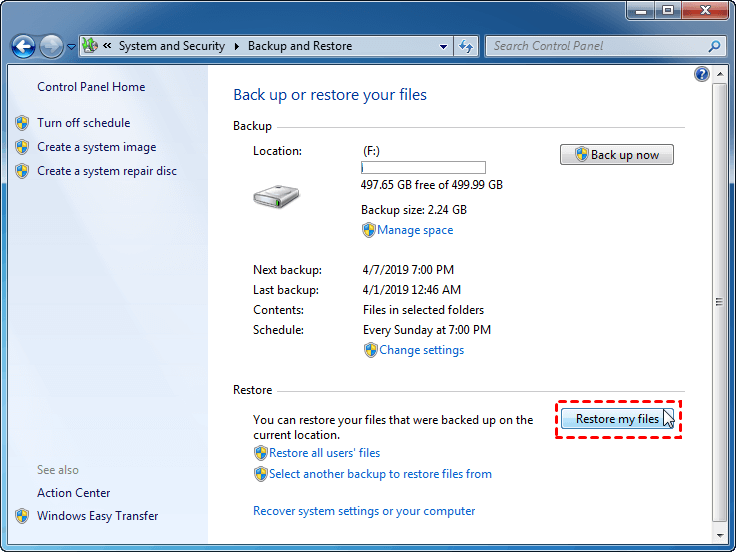
Step 2. Select Restore my files. To use another available backup, select Select another backup to restore files from.
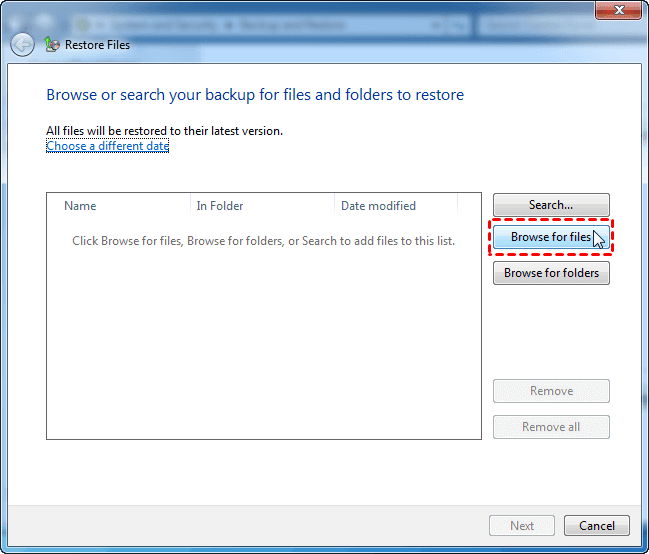
Step 3. Click Browse for files, Browse for folders, or Search to find missing files. Check the backup date before clicking Next.
Step 4. Then, choose a new location and click Restore to recover permanently deleted files in Windows 7.
Method 3: Copy Files from Windows 7 Previous Versions
👍 Best for: Retrieve a missing file from an available earlier version of its parent folder.
In Windows 7, Previous Versions can bring up earlier copies, including shadow copies and backups.
Step 1. In File Explorer, navigate to the folder containing deleted files, right-click it and select Restore previous versions.
Step 2. Choose a version dated before deletion. Click Open to check whether it contains the required file.
Step 3. Where available, use Copy to save the earlier folder separately. Or back to Previous Versions, click Restore.
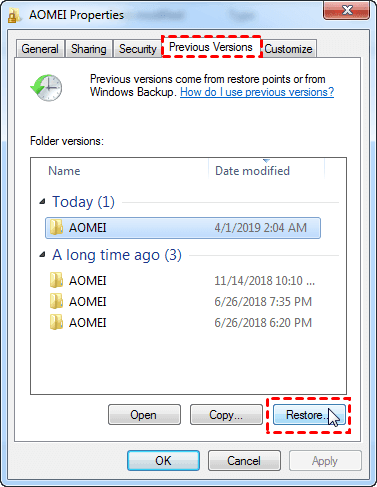
An empty list means no previous version is accessible. Turning on System Protection now cannot create a copy from before deletion.
Why Recovery Can Fail
- Incomplete files: Scanning may find a filename even when some file contents are missing. After recovery, open documents and check their contents. For photos or videos, confirm that they display or play correctly.
- Overwritting: Continued disk use can overwrite deleted data. SSD TRIM can also make deleted files unavailable. Deep Scan cannot reconstruct data that no longer exists.
- Hardware failure: A clicking drive or repeated disconnections suggest a different problem. Stop repeated scans and consider professional recovery assistance for important files.
FAQs
Can System Restore recover deleted personal files?
System Restore rolls back system files and settings. It should not be used to recover deleted documents or photos. Windows 7 Previous Versions is a separate file-recovery route.
Can I recover files deleted months ago?
Possibly, but elapsed time alone doesn’t determine the result. Continued writes and storage behavior matter. Check older backups as well as scan results.
Can I recover permanently deleted files without software?
Yes, if an existing backup or accessible previous version contains them. Without a saved copy, built-in restore features cannot recreate the missing files.
Can I use Windows File Recovery on Windows 7?
No. Microsoft’s Windows File Recovery supports Windows 10 and 11, not Windows 7. For Windows 7, use an existing backup, an accessible previous version, or compatible recovery software such as AOMEI FastRecovery.
In the End
To recover permanently deleted files in Windows 7, restore an available copy or scan the original drive with AOMEI FastRecovery. Choose the route that matches your available files and backups.
After checking the recovered files, save a second copy on another device. Schedule regular file backups so a future deletion has a simpler recovery path.

 as a preferred
source on Google
as a preferred
source on Google