




How to Recover Deleted Photos from Seagate External Hard Drive
Lost photos on your Seagate external hard drive? Learn how to recover them – with or without backups – plus fixes for when the drive isn't detected.

By Lily Updated on October 27, 2026


Can You Recover Deleted Photos from a Seagate External Hard Drive?
Yes, recovery may be possible if the photo data has not been overwritten and the drive is functioning properly. Your chances depend on the cause of the loss, the condition of the drive, and whether you have a backup.
To improve your chances, stop saving new files to the affected drive. Avoid formatting it or running repair utilities before recovering important data. If the drive makes unusual clicking sounds, repeatedly disconnects, or appears physically damaged, stop using it and consider professional data recovery.
How to Recover Data from Seagate External Hard Disk
You can try the following two methods, depending on whether you have a backup of your photos.
Method 1. Recover Deleted Photos from Seagate External Hard Drive Without a Backup
If you do not have a backup, data recovery software may help you find deleted photos that remain recoverable on the drive. AOMEI FastRecovery is a Windows data recovery tool that can scan supported internal and external storage devices for deleted or missing files.
 AOMEI FastRecovery
- Quick Scan and Deep Scan: Perform an initial scan quickly and use a deeper scan when more extensive searching is needed.
- Wide file support: Recover more than 1,000 supported file types, such as Word documents, Excel spreadsheets, presentations, photos, videos, and compressed files. You can use it to recover deleted 7Zip files easily.
- Search and Filter: Narrow results by file name, extension, file type, size, and other available criteria.
- Selective recovery: Recover only the files or folders you need instead of restoring everything.
- Multiple storage devices: Scan internal and external HDDs, SSDs, USB drives, SD cards, and other supported storage media.
- File-system support: Supports common file systems such as NTFS, FAT32, exFAT, and ReFS.
 100% Secure
👉 Steps to recover photos with AOMEI FastRecovery
Before you begin, connect the Seagate external hard drive to your computer and make sure it is detected. Install AOMEI FastRecovery on your computer's internal drive or another storage device, not on the Seagate drive containing the lost photos.
Step 1. Launch AOMEI FastRecovery and select Deleted Files Recovery from the main interface.

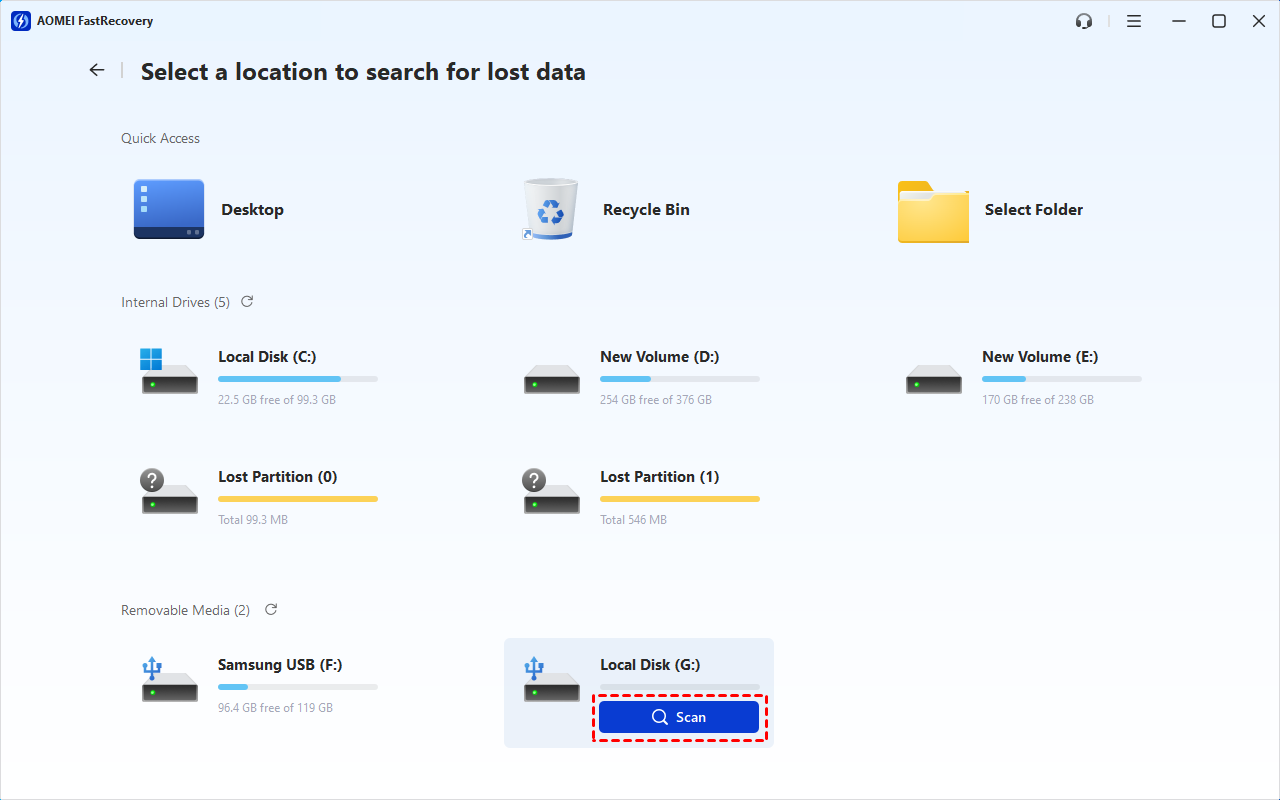
Step 2. Locate the Seagate external hard drive or the partition where the deleted photos were stored. Check its drive letter and capacity to make sure you select the correct device, then click Scan.
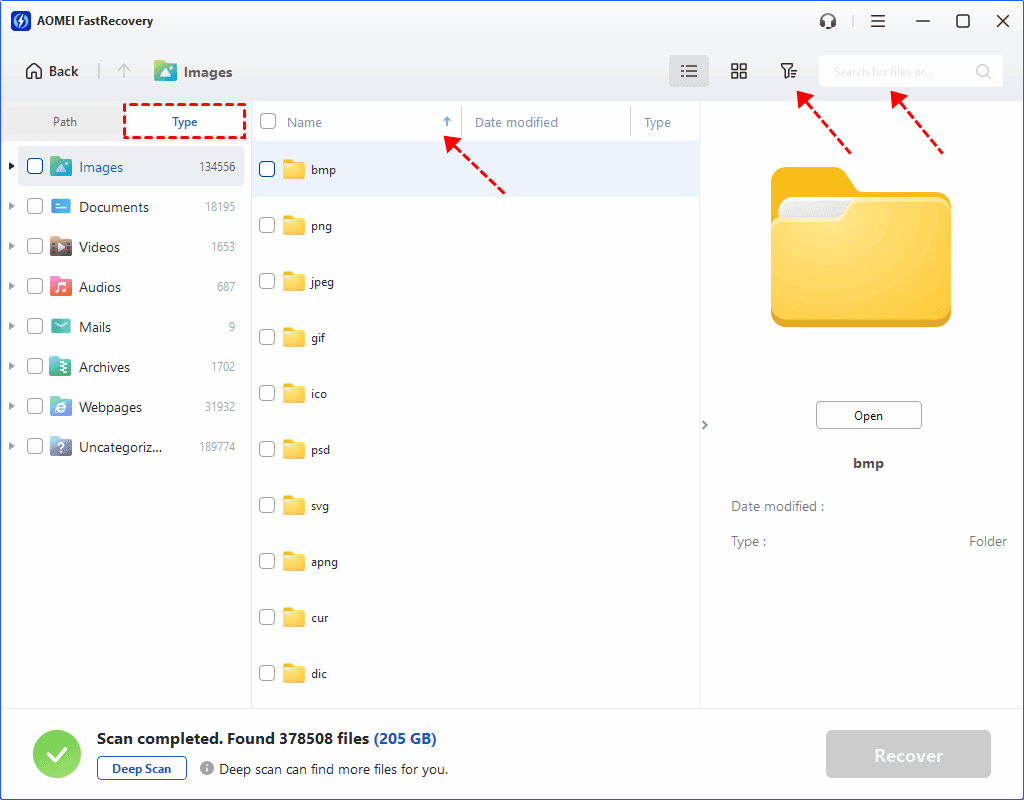
Step 3. After scanning finishes, use Type, Search, and Filter to narrow down the results. For example, you can:
- Select Images to display picture files.
- Search for a specific file name or extension, such as JPG or PNG.
- Use Filter to narrow files by size or other available criteria.
💡 Notes:
- Previewing the files is especially useful when file names have changed or when you are unsure whether a particular result is what you need. This is available in paid editions.
- If the initial Quick Scan does not locate your photos, click the Deep Scan button at the bottom left. It performs a more thorough scan and may take considerably longer.
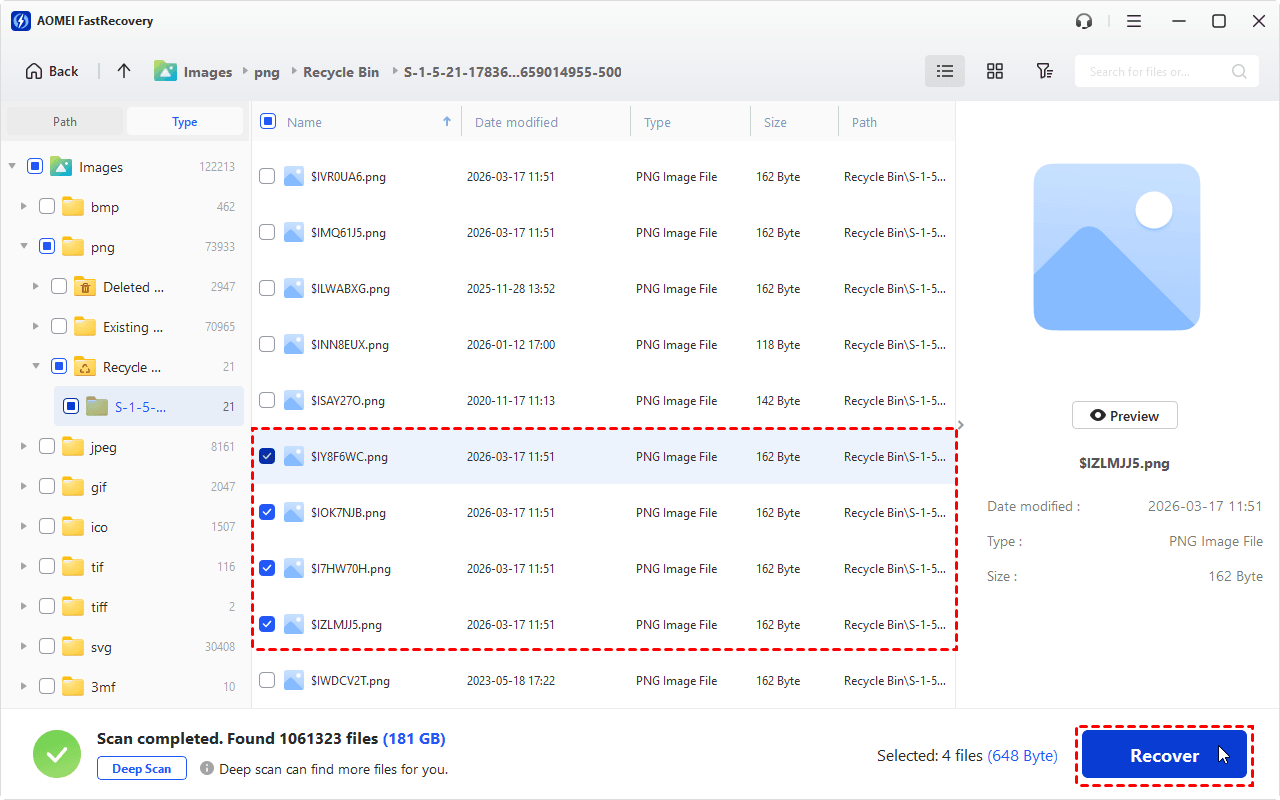
Step 4. Select the photos you want to recover and click Recover. Then choose a different destination, such as your computer's internal drive or another external drive, to save the recovered photos.
Step 5. After recovery, open several photos to check that they are intact. Keep another copy of important pictures on separate storage.
Method 2. Restore Deleted Photos from a Seagate Backup
As Seagate hard drive backup software - Seagate Toolkit only backs up local computer folders, not folders on the Seagate external hard drive, you may need third-party backup software to backup your Seagate hard drive.
The best free backup software - AOMEI Backupper Standard comes to help.
- System backup: Back up Windows 11/10/8/7 along with the system-related partitions required to restore your operating system.
- Disk backup: Back up an entire hard drive, including all its partitions and stored data, into a single backup image.
- File and partition backup: Back up specific files, folders, or individual partitions without copying the entire hard drive.
- Automatic scheduled backups: Schedule backups to run daily, weekly, or monthly to keep your important data up to date.
- Flexible backup destinations: Store backup images on an external hard drive, USB drive, NAS, or other supported storage locations.
If you previously backed up your photos on Seagate external hard drive to another location, restoring a backup is usually the first option to try.
👉 Steps to restore photos using AOMEI Backupper:
Step 1. Launch AOMEI Backupper and go to Home > Restore.
Step 2. Select the backup task that contains your Seagate external hard drive photos. Click Next.

Step 3. Choose the appropriate backup version, then select the photos or folders you want to restore. Click Next to continue.

Step 4. Check Restore to a new location. Then choose a destination folder on your computer and click Start Restore to begin restoring the selected files.

💡 Note: If you are sure your Seagate external hard drive is healthy, you can connect it to your computer and choose Restore to original location.
Step 5. After the process finishes, open the destination folder and check whether your photos are accessible.
What If Your Seagate External Hard Drive Is Not Detected?
If the Seagate drive does not appear in File Explorer, first determine whether the problem is caused by the connection or the drive itself.
- Check the connection: Try a compatible USB cable and another USB port. If possible, connect the drive directly to the computer instead of through a hub.
- Try another computer: This can help determine whether the issue is specific to your current system.
- Check Disk Management: Right-click Start and open Disk Management to see whether Windows detects the drive. Do not initialize, format, or create a new volume if the drive contains important lost photos.
- Stop if physical damage is suspected: Unusual noises, repeated disconnections, or a drive that becomes extremely slow can indicate hardware trouble. Disconnect it and seek professional assistance if the data is valuable.
If Windows detects the drive but it has a missing drive letter, an unsupported file system, or a RAW status, avoid making changes until you have considered data recovery. Repairing the file system or formatting the drive may complicate the recovery process.
FAQs About Seagate External Hard Drive Data Recovery
1. Can I recover data from a formatted Seagate external hard drive?
Yes, recovery may be possible after a quick format if the original data has not been overwritten. Avoid saving new files to the drive, and scan it with suitable data recovery software. If the drive underwent a full format or has been used extensively afterward, the chances of recovery may be lower.
2. Can I recover data from a Seagate external hard drive that is not detected?
It depends on the cause. If the problem is related to the cable, port, or connection, resolving it may allow Windows to recognize the drive. If the drive is detected in Disk Management but its files are inaccessible, recovery software may help. If the drive makes clicking noises, repeatedly disconnects, or appears physically damaged, stop using it and consider professional data recovery.
3. Does Seagate Toolkit recover permanently deleted files?
Seagate Toolkit may help restore files included in a backup created before the data loss. However, it does not automatically recover every permanently deleted file from the original drive. If no suitable backup is available, you can try compatible data recovery software.
4. How can I prevent data loss on a Seagate external hard drive?
Back up important files regularly and keep at least one additional copy on a separate storage device or in reliable cloud storage. Verify that your backups are accessible, safely eject the drive before disconnecting it, and avoid formatting or modifying the drive when files go missing or errors appear.
To Sum Up
Now you know how to recover deleted photos from Seagate external hard drive. If no backup exists, AOMEI FastRecovery can help scan the drive for deleted or missing photos. If you have a good habit of backing up, restoring deleted photos from a backup is the preferred solution.
You must know that no recovery tool can guarantee a 100% recovery rate. Your chances of success depend on whether the data remains recoverable and whether the drive is functioning properly. For a physically damaged drive or irreplaceable pictures, professional data recovery may be the safest option.

 as a preferred
source on Google
as a preferred
source on Google