




How to Restore Backup from Seagate External Hard Drive
To restore a backup from a Seagate external hard drive, first identify how it was created. Follow the matching Windows procedure, check incomplete restores, and choose a recovery option if the files were deleted.

By Ivy Updated on September 8, 2026


Your Seagate drive is connected, but getting your files back isn’t as simple as finding a Restore button. Perhaps you’ve replaced your PC, or the backup opens without showing the folders you expected.
To restore a backup from a Seagate external hard drive, use the application that created it. Ordinary file copies can be copied back directly. If files were deleted from the Seagate drive itself, AOMEI FastRecovery helps a lot.
First, identify which situation matches yours. If files have disappeared, stop adding data to the affected drive, and don’t format it or create a new volume with it.
Choose the Right Restore Method
| 📦 What you have | 🚀 Where to start | 📌 What to know |
|---|---|---|
| Ordinary folders you copied manually | Copy files back with File Explorer | Files must still be readable |
| A Toolkit Backup plan | Use Toolkit’s Restore activity | Only backed-up files and versions are available |
| A File History or an older Windows backup | Use the tool that created the backup | Requires an accessible, matching backup |
| Deleted files with no usable copy | Scan with AOMEI FastRecovery | Recovery depends on whether the data remains recoverable |
| Clicking noises or repeated disconnections | Stop using the drive and seek professional assessment | Software cannot repair physical damage |
How to Restore an Existing Backup from Seagate Hard Drive
Here are 4 ways to restore backup from a Seagate external hard drive. If you only need to transfer a few files, start with the manual copy method.
Method 1: Copy Back Files You Saved Manually
👍 Best for: Retrieving files that you copied to the drive yourself; this does not recover deleted files.
Prepare a folder on your PC with enough space for the files.
Step 1. Connect the Seagate hard drive. Press Win + E to open File Explorer, navigate to This PC, and select the drive.
Step 2. Open the folders you created, select the files you need and press Ctrl + C to copy them.
Step 3. Open your destination folder and press Ctrl + V. If Windows reports duplicate names, compare the files before replacing anything.
Open several copied documents, photos, and videos before removing the originals. If the drive contains a backup archive rather than ordinary files, use its original backup software.
Method 2: Restore Files with Seagate Toolkit
👍 Best for: Retrieving files from an existing Toolkit Backup plan, including moving files to another PC.
Toolkit backs up data files, not Windows or installed applications. Connect the backup drive and open Toolkit on the destination computer.
Step 1. On Toolkit’s main menu, Go to Activities and select Restore.
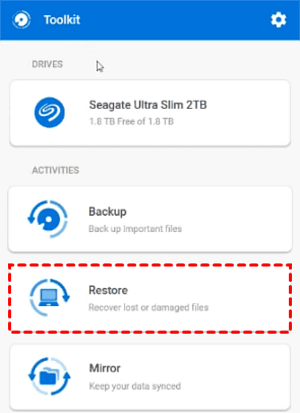
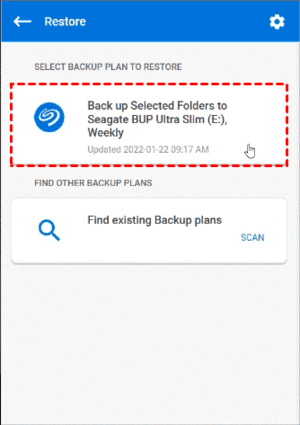
Step 2. Choose the recommended backup plan to restore files. You can also try to scan and find other backup plans.
Step 3. Select the backup version you need, then click Next > Restore. Toolkit will restore the files to their original location by default.
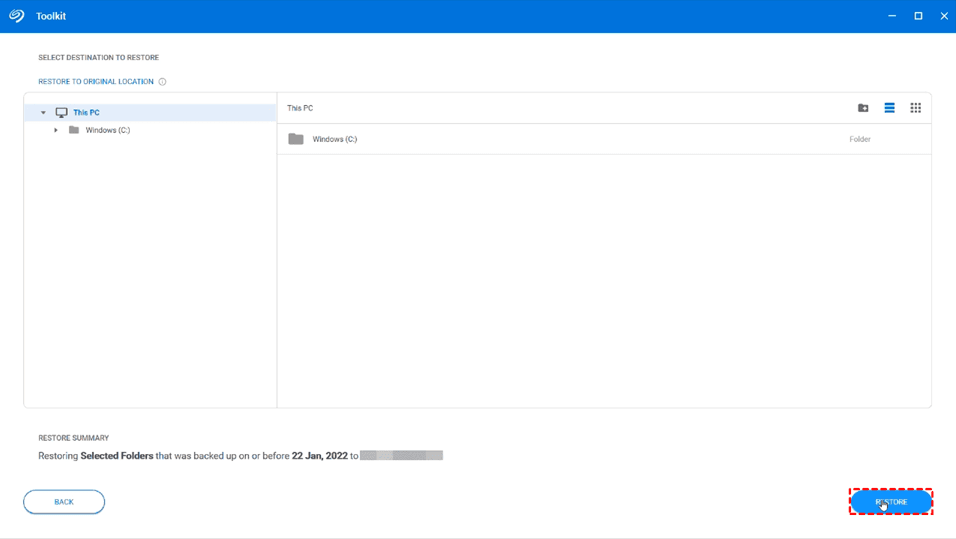
Toolkit restores the selected version, not every version stored on the drive. On a different PC, it may recreate the old folder structure inside the destination, so check nested folders before assuming files are missing.
Method 3: Restore Files with File History
👍 Best for: Retrieving previous versions on a PC where the corresponding File History backup is available.
File History can only restore files that were backed up before they were lost. It offers two recovery paths: the standard restore window and the quicker Previous Versions option.
Step 1. Connect the Seagate drive containing your File History backup. In File Explorer, locate the folder with missing file, right-click it and select Restore previous versions.
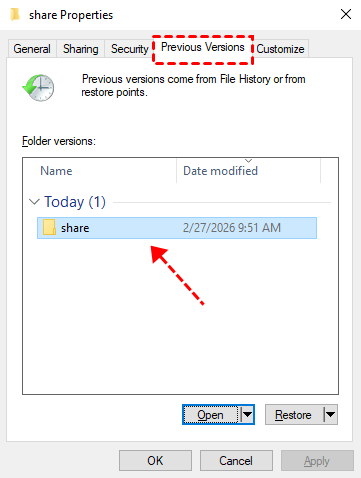
Step 2. Under Previous Versions, select a folder version and click Open > Open in File History to inspect it.
Step 3. Once confirm, expand Restore and choose Restore to… to save the selected version elsewhere without replacing the current folder.
An empty list does not prove that the Seagate drive is empty. Check that you connected the correct backup drive and selected a folder included in the backup.
Method 4: Restore Files from Backup and Restore (Windows 7)
👍 Best for: Retrieving file backups created with Backup and Restore (Windows 7), including backups from another computer.
Try this method if you previously created a backup using Backup and Restore (Windows 7). This older tool originated in Windows 7 and is still available in Windows 10 and 11.
Step 1. Connect the backup drive containing deleted files. Search for Backup and Restore (Windows 7) and select it.
Step 2. Choose Select another backup to restore files from and select the backup on your Seagate drive.
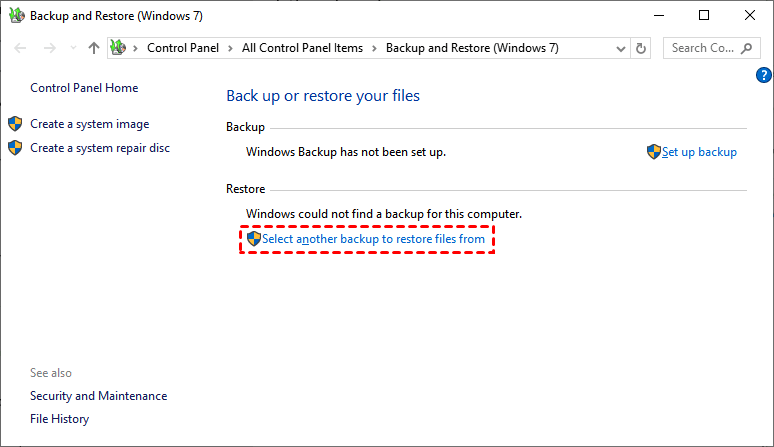
Step 3. Follow the wizard to browse the files or folders and the destination for recovery.
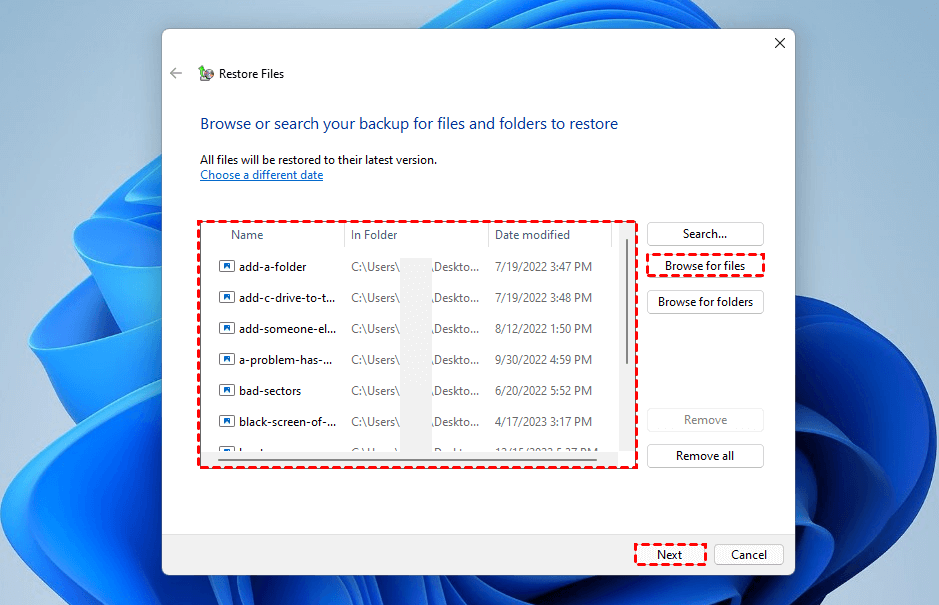
If you have only a system image, use the appropriate system-image recovery workflow instead of expecting it to appear as a regular file backup.
How to Recover Deleted Files without a Backup
Best for: Recovering deleted files from a detected, stable Seagate external hard drive when no usable backup or other copy is available.
If the files you need were deleted from your Seagate external hard drive and you don’t have a usable backup, AOMEI FastRecovery can scan the drive for recoverable files. These may include documents, photos, videos, audio files, archives, and more.
Its straightforward interface helps you quickly find the drive and select the files you need. Deleted Files Recovery starts with a Quick Scan. If the initial results don't include what you're looking for, you can run a Deep Scan for a more thorough search.
-
Recovery depends on factors like overwriting, time elapsed, SSD TRIM, and drive condition.
-
Do not download install AOMEI FastRecovery or save recovered files to the same Seagate drive as this may overwrite the data you're trying to recover.
-
The free edition supports dual‑scan modes, thumbnail previews, and up to 500MB of recovery. Recovering more requires an upgrade.
Step 1. Connect the Seagate external hard drive to your Windows PC. Prepare another drive as the destination for recovered files. Download and install AOMEI FastRecovery on a different drive, then launch it.
Step 2. In AOMEI FastRecovery, select Deleted Files Recovery. If the partition itself is missing, selec Partition Lost Recovery. For more, see our guide on recovering lost partition on external hard drive.

Step 3. Select the Seagate drive and click Scan. Deleted Files Recovery starts with Quick Scan.

Step 4. Browse results by Path or Type. Search by filename or extension, sort the results, or apply filters to narrow the list.
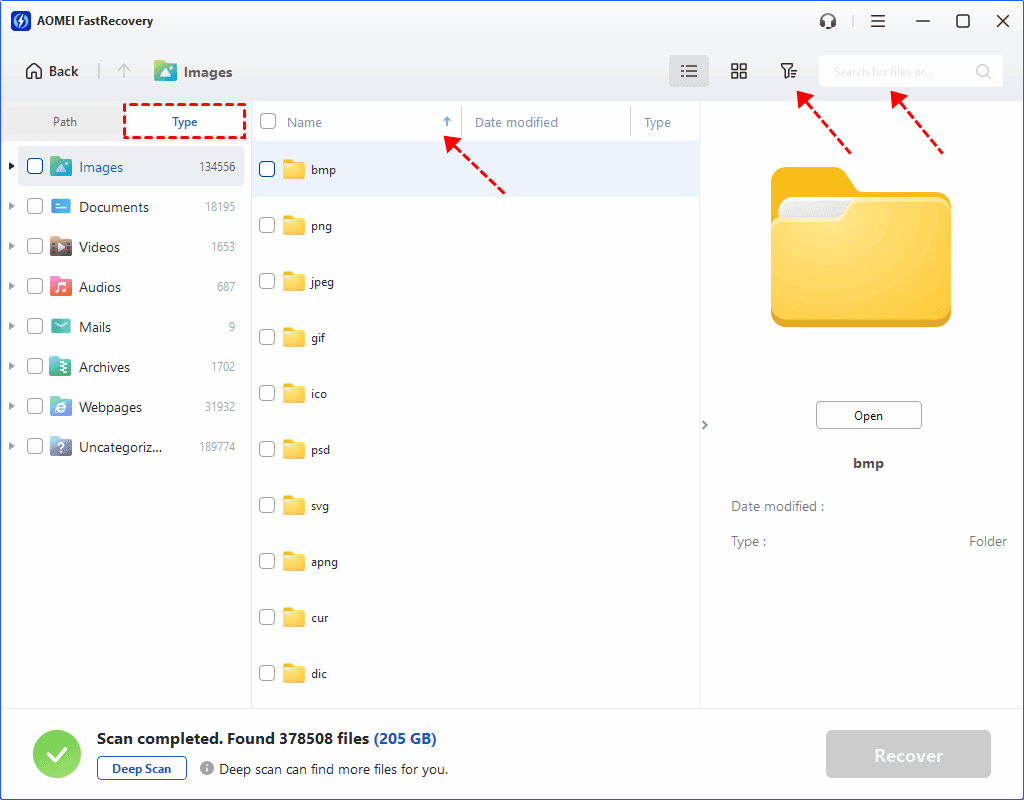
Step 5. If Quick Scan doesn't find your files, run Deep Scan for a deeper search.
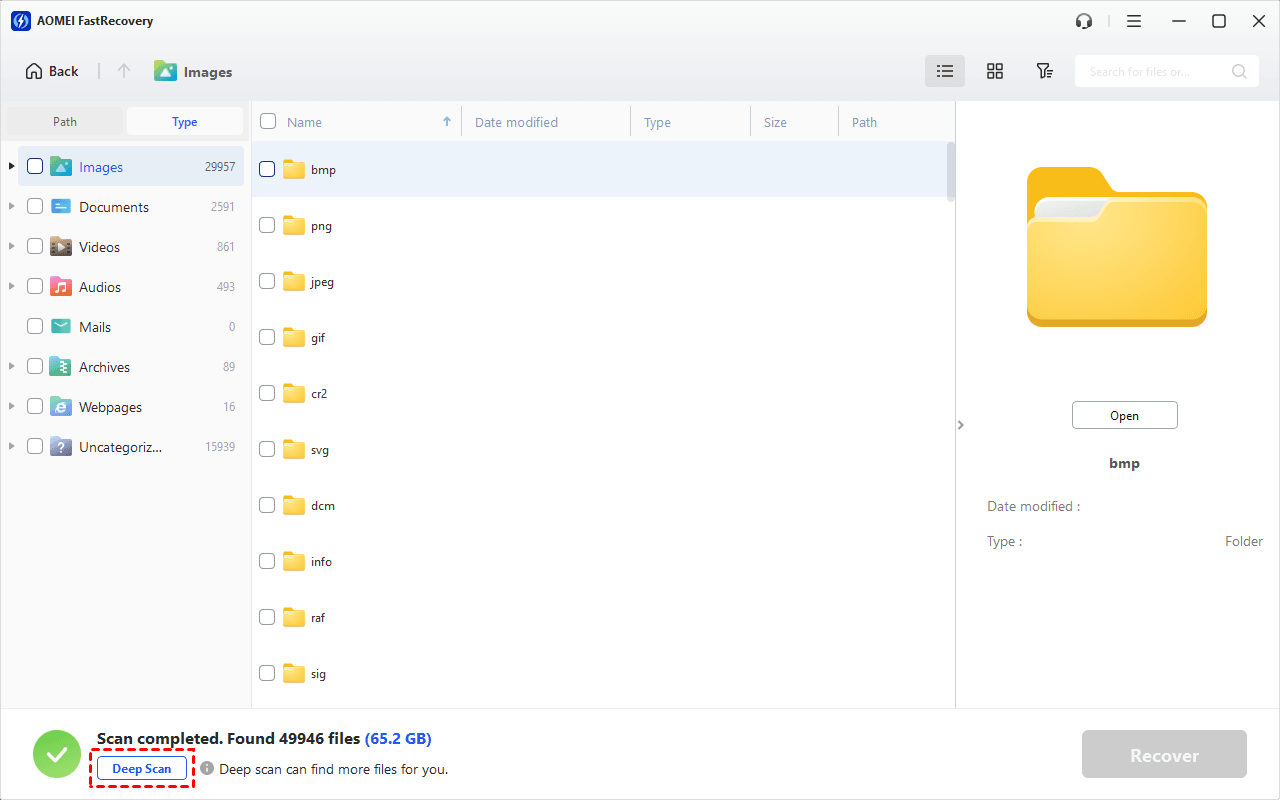
Step 6. Select the files you want and click Recover. Remember to save the recovered data to a different drive.
Open the recovered files to check their contents. Recovering more than 500MB requires an upgraded edition.
Check Missing Backups and Incomplete Restores
The backup plan is missing. Confirm which application created it. A Dashboard backup is not automatically a Toolkit plan. For Toolkit, inspect the drive’s Toolkit folder and the relevant computer’s files without renaming or deleting backup components.
Only some files returned. Check the selected date, source folders, and restore destination. Toolkit excludes operating-system files, programs, and hidden files, so an absent file may never have been backed up.
The drive opens but looks empty. Search for a known filename and check hidden-file visibility. If the cause is unclear, review the guidance on files disappearing from an external hard drive. Avoid formatting or repair operations before protecting important files.
The drive clicks or repeatedly disconnects. Stop repeated scanning attempts. Contact Seagate to check Rescue service eligibility or seek a professional assessment. An active hardware warranty alone does not establish recovery coverage.
FAQs
Can I restore my Seagate backup to a new computer?
Yes, when the backup is accessible and the appropriate software supports it. Select the old computer’s backup and review the destination. Restoring personal files does not necessarily reinstall applications or recreate Windows settings.
Do I need Toolkit to retrieve every file?
No. Ordinary files copied manually can be retrieved through File Explorer. For a Toolkit backup, its Restore activity helps select the intended backup version and destination.
What if a deleted folder never appeared in the Recycle Bin?
Check other copies before scanning. Windows can permanently delete files that exceed the bin’s limit; see the guide to recover deleted files too large for the Recycle Bin.
Will recovered files keep their original names and folders?
Recovery depends on the file system. Original file paths are not always preserved. Verify the actual content, not just the filenames.
To restore a Seagate backup, first identify how it was created, then use the matching method. For deleted files, use recovery software. Before wiping the old drive, verify your files and keep an extra copy elsewhere.

 as a preferred
source on Google
as a preferred
source on Google