




Best Free File Recovery Software for Windows: Which Fits Your Needs?
Choosing the best free file recovery software for Windows starts with knowing what each tool offers. Compare five options by free allowance, interface, and recovery tradeoffs, then follow a practical workflow to retrieve deleted files.

By Ivy Updated on November 2, 2026


You’ve found a recovery tool, and it lists your deleted files. Then you click Recover and meet a payment screen. A free download doesn’t always include free file recovery.
The best free file recovery software for Windows depends on your recovery size and comfort with technical tools. AOMEI FastRecovery is our top pick for beginners recovering up to 500MB through a graphical interface. Recuva, PhotoRec, and Windows File Recovery offer options without this limite.
Before downloading anything, check the Recycle Bin and any existing backup containing your files. Otherwise, stop saving data to the drive where the files disappeared. The comparison below will help you choose a suitable tool.
Best Free File Recovery Software for Windows at a Glance
Start with this comparison to find a tool that suits your recovery task. Compare free recovery allowances, interfaces, and practical tradeoffs before exploring each review.
| Software | Rating | Free allowance | Interface | Best For & The Catch |
|---|---|---|---|---|
| AOMEI FastRecovery 🏆 | ★★★★★ | Up to 500MB | Graphical | Easy for beginners, but bigger jobs cost money |
| Wondershare Recoverit | ★★★★☆ | Up to 500MB | Graphical | Good for media files, but 500MB fills up fast |
|
Recuva |
★★★★☆ | No cap | Graphical | Great for everyday files, but some features cost extra |
|
PhotoRec |
★★★☆☆ | No cap | Text / GUI | Completely free, but you lose original file names and folders |
|
Windows File Recovery |
★★★☆☆ | No cap | Command line | Official Microsoft tool, but you must know how to use commands |
The size of your lost files might make this decision for you. If you're trying to recover a single 800MB video, a 500MB free limit won't help you. A small collection of documents may fit comfortably.
1. AOMEI FastRecovery - 🏆 Our Top Pick
👍 Best for: Beginners who just need to recover a few deleted files.
AOMEI FastRecovery is easy-to-use Windows file recovery software for retrieving deleted documents, photos, audio files, videos, and more through a user-friendly interface.
 AOMEI FastRecovery
- 🧩 Scenario matching: Pick the mode that fits your problem, whether it's deleted files, USB/SD cards, formatted drives, or something else.
- ⚡ Two Scan Modes: Quick Scan finds deleted files fast, while Deep Scan offers a more thorough search.
- 🗂️ Flexible browsing: Browse by Type or Path, and use search or sort to narrow down the results.
- 📚1000+ file types: Recover deleted images (JPG, PNG, TIF), videos (MP4, MOV, AVI), audio files (MP3, CDA, WAV), and more.
- 💰 Free recovery: The Free edition provides thumbnail preview and saves up to 500MB.
 100% Secure
✅ Pros
- Handles multiple data los s scenarios
- Recover individual files selectively.
- Smart, automatic scan matching - fast and effortless
- Supports internal drives and external storage devices.
❌ Cons
- Free recovery is limited to 500MB.
- Full preview requires an upgrade.
- No macOS or Linux app is available.
AOMEI FastRecovery is our top pick because it's incredibly easy to use and keeps your recovered files neatly organized. It’s a great starting point if you only need to recover a small number of files. However, if you're trying to recover several gigabytes of data, you'll need to look at Recuva, PhotoRec, or Windows File Recovery
2. Wondershare Recoverit
👍 Best for: Users considering a visual recovery tool with photo and video features.
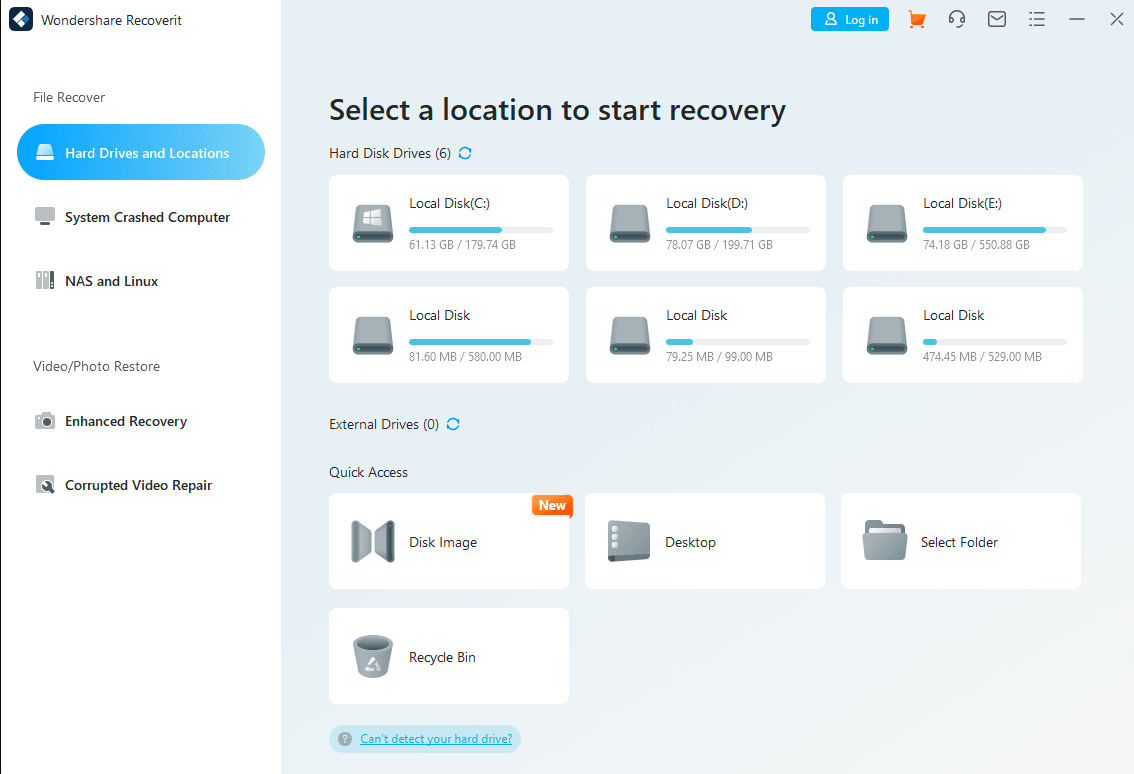
If you deal with a lot of video and photos, Wondershare Recoverit is worth a look. It provides location selection, scanning, and file previews.
The current Free edition saves up to 500MB. That may cover a few documents or photos, but larger media files can quickly exceed the allowance.
✅ Pros
- Supports a broad range of file types.
- Works with internal drives and removable devices.
- Offers dedicated photo and video recovery features.
❌ Cons
- Free recovery is limited to 500MB.
- Defaults to both Quick and Deep scans (slower process).
- Full preview, bootable recovery, corrupt video repair, etc., requires an upgrade.
Recoverit is a solid choice if you need specialized video repair features. However, since its free limit is also 500MB, you'll want to make sure those specific media tools are worth the upgrade before choosing it over a simpler option.
3. Recuva
👍 Best for: Everyday file recovery without hitting a size limit.
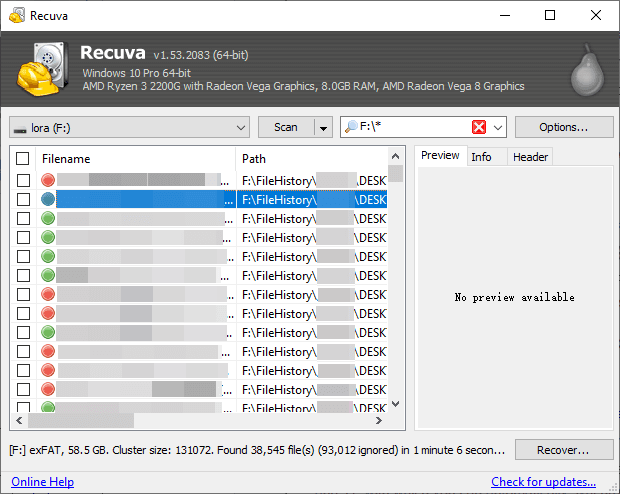
For a larger recovery job on a tight budget, Recuva deserves a place on your shortlist. Its Free edition includes advanced file recovery through a graphical interface.
You can use it with Windows computer drives, memory cards, and USB storage. The recovery wizard helps you choose what to search for and where to look.
✅ Pros
- The Free edition has no recovery cap.
- Provides a graphical recovery wizard.
- Offers Deep Scan for a more thorough search.
- Supports recovery from newly formatted drives.
❌ Cons
- Virtual hard drive support recovery requires Professional.
- Automatic updates require an advanced edition.
- Priority support is unavailable in the Free edition.
Consider Recuva when a small free allowance would interrupt your task. You can attempt a larger recovery without upgrading for capacity alone. That still depends on the deleted data remaining available; an unlimited allowance cannot restore overwritten files.
4. PhotoRec
👍 Best for: Free file extraction when original names and folders are less important.
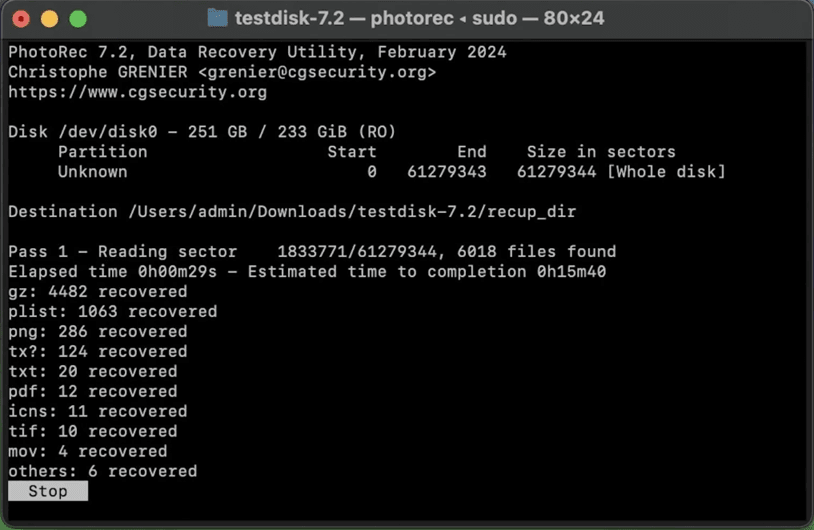
PhotoRec takes a different approach: it searches underlying storage for recognizable file data. It can work without relying on an intact file system, making it relevant to some formatted or logically damaged storage.
Despite its name, PhotoRec recovers more than photographs. Supported files also include documents, videos, and archives.
✅ Pros
- Free and open source.
- No recovery cap.
- Extract files without relying on an intact file system.
- Offer a graphical interface through QPhotoRec.
❌ Cons
- Original filenames generally aren’t preserved.
- Original folder structures generally aren’t retained.
- Recovered files may require substantial manual sorting.
PhotoRec belongs among the best free file recovery software for Windows for its unrestricted recovery model. Choose it when retrieving files matters more than preserving their organization. For specific photos, see recovering deleted photos in Windows.
5. Windows File Recovery
👍 Best for: Users comfortable running Microsoft’s command-line recovery utility.
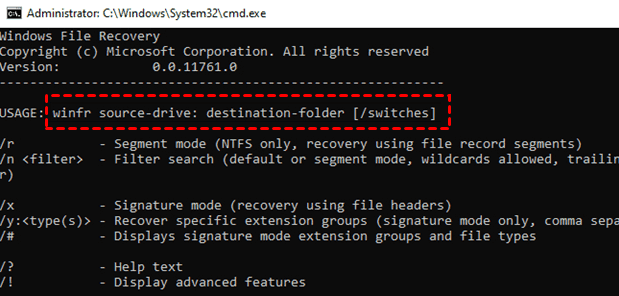
Microsoft offers its own free recovery tool, but you’ll need to type commands to use it. Windows File Recovery retrieves files on Windows 10 and 11 and supports internal drives, USB drives, SD cards, and more.
Regular mode suits recently deleted files on healthy NTFS volumes. Extensive mode covers broader cases, including FAT and exFAT recovery.
✅ Pros
- Has no paid tier.
- Offer recovery modes for different file systems.
- Filter and target specific files.
❌ Cons
- Requires command-line input.
- Has no graphical file-preview interface.
- Not recover files from cloud storage and network shares.
Choose this tool only if you are comfortable typing commands. While it's completely free and powerful, its lack of a visual interface makes it a poor choice for beginners.
How to Recover Deleted Files with AOMEI FastRecovery
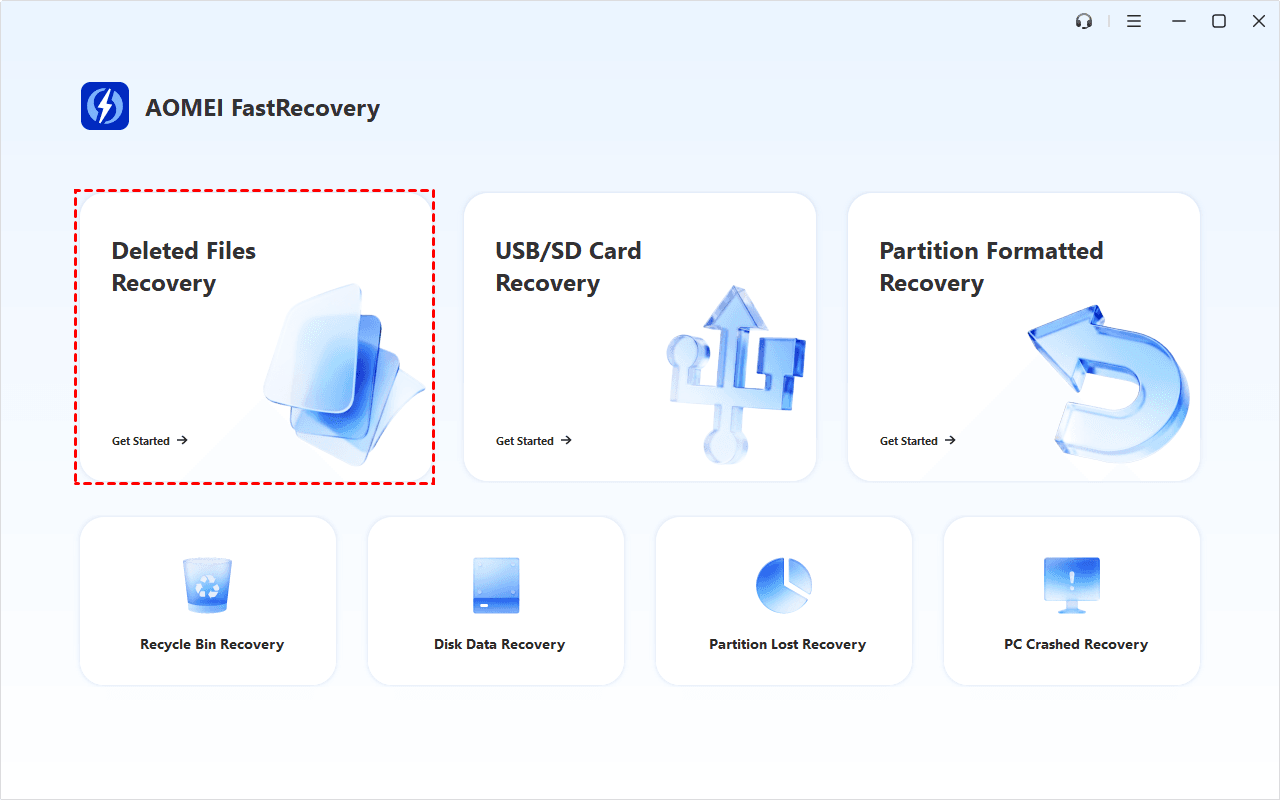
AOMEI FastRecovery provides a dedicated Deleted Files Recovery feature for this task. It searches and recover deleted files in Windows 11, 10, 8, 7, and Windows Server.
Step 1. Downloa and install AOMEI FastRecovery to a different drive from the one containing deleted files. Downloading the installer also writes data and may overwrite deleted files. Then, open this software and select Deleted Files Recovery.
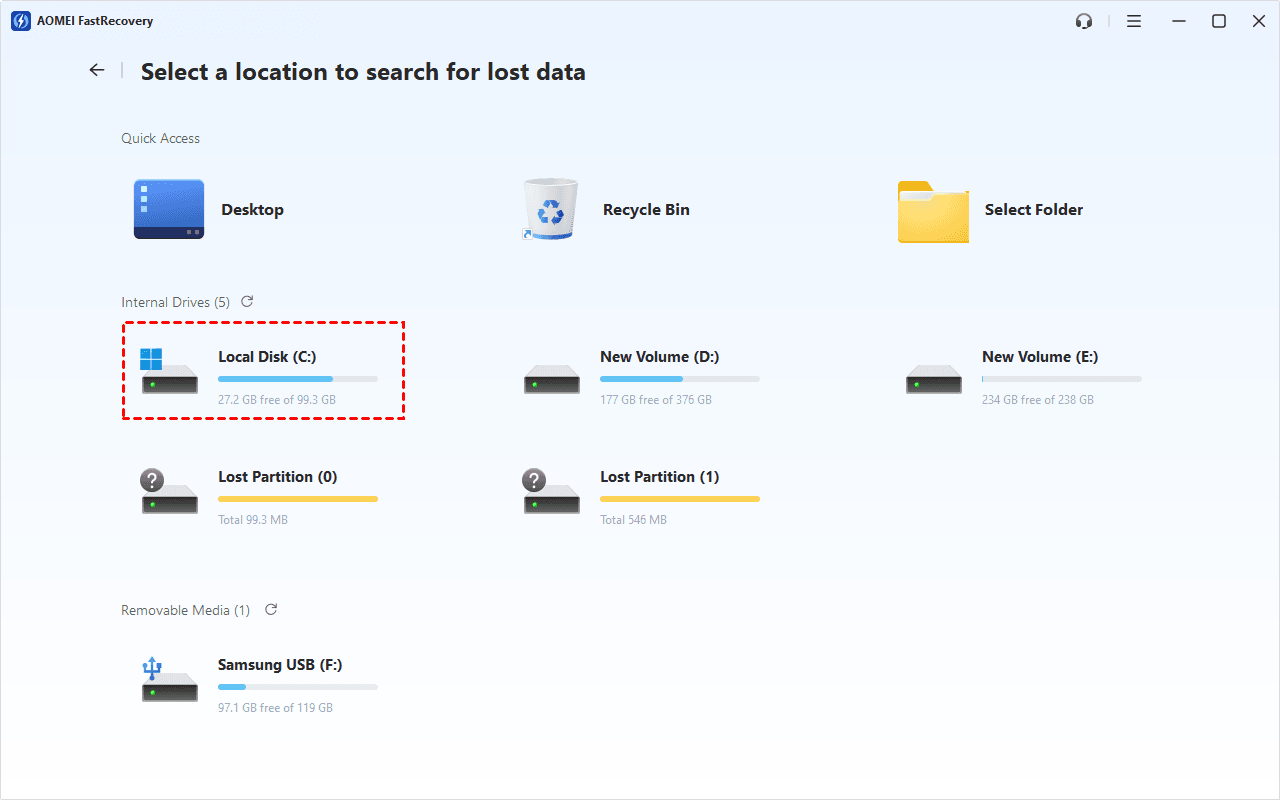
Step 2. Locate the drive where the files were stored, then click Scan.
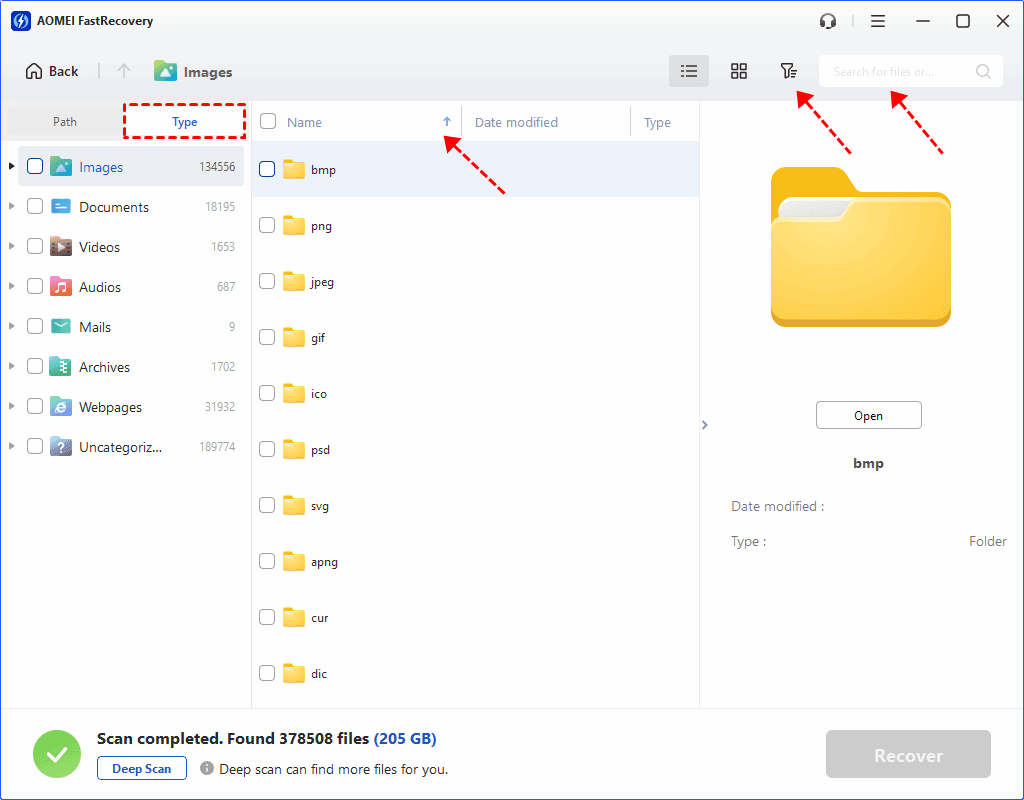
Step 3. Review the Quick Scan results through Type or Path. Search by filename or extension, or click the arrow next to Date modified, type, size, etc., narrow the list. The Free edition provides thumbnail previews.
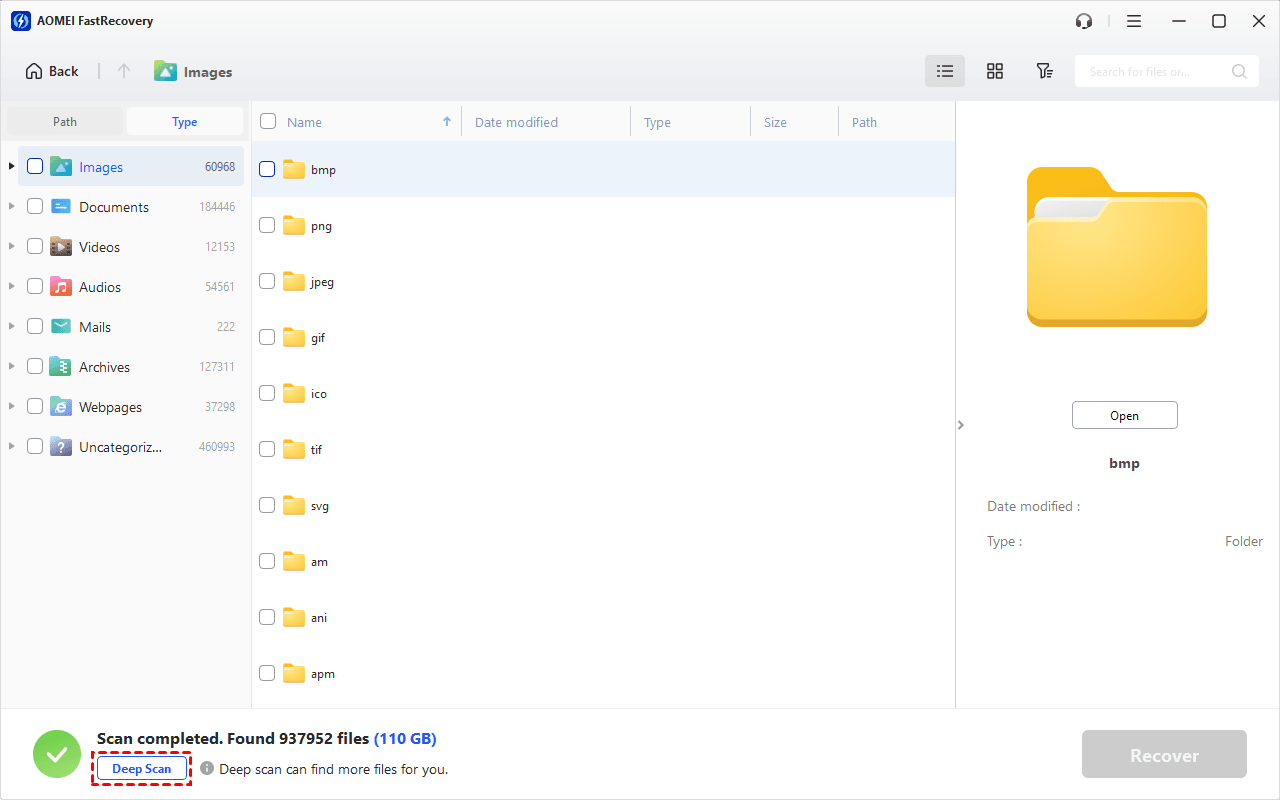
Step 4. Click Deep Scan if Quick Scan does not locate deleted files. This searches more thoroughly and can take longer.
Step 5. Select the deleted files and click Recover. Save them to a different, healthy drive. Another folder on the original drive is not a safe destination.
- The Free edition recovers up to 500MB; larger recoveries require an upgrade.
- For specific Excel files, see recovering permanently deleted Excel files from desktop.
Open important recovered files afterward to check completeness. For spreadsheets, confirm the expected sheets and data are present.
FAQs
Which tools can recover more than 500MB for free?
Recuva does not advertise a free recovery data cap. PhotoRec has no recovery-volume limit, and Windows File Recovery has no paid recovery tier. Their interfaces and handling of recovered files differ.
Can free software recover deleted files from an SSD?
Sometimes, but SSD TRIM can make deleted data unavailable. Continued writes can also overwrite it. Paying for another tool cannot guarantee recovery of data that no longer exists.
Why won’t some recovered files open?
The file may be incomplete or partly overwritten. A scan result does not establish successful recovery. Check documents for missing pages and videos for playback problems before relying on them.
Conclusion
The best free file recovery software for Windows should fit both your files and your budget. AOMEI FastRecovery is our editorial first choice for straightforward, small recovery tasks. Consider Recuva, PhotoRec, or Windows File Recovery when free capacity matters more.
Stop writing to the original drive, choose a suitable tool, and save recovered files elsewhere. If the drive clicks or repeatedly disconnects, stop scanning and seek professional recovery help.

 as a preferred
source on Google