



How to Move Windows SSD to New PC | 2 Methods
Need to move your Windows SSD to a new PC? This guide walks you through two safe ways to do it: either by putting the old drive inside the new computer, or by copying everything from it to a new, better SSD.

By Lily Updated on August 13, 2026


Can You Move a Windows SSD to a New PC?
Yes, you can move a Windows SSD to a new PC—but whether it works smoothly depends on several technical factors. Unlike copying files or reinstalling Windows from scratch, moving an existing Windows SSD means transferring an operating system that’s already configured for a specific set of hardware.
Sometimes Windows adapts just fine. Other times, it refuses to boot or runs into activation issues. Common conflict areas include:
- SATA/AHCI vs. NVMe storage controllers
- Legacy BIOS vs. UEFI boot modes
- Major CPU platform changes (Intel ↔ AMD)
🌟 To check more scenarios about moving Windows, please refer to this complete guide: Move Windows.
Before Moving SSD with Windows to a New Computer
Moving an SSD that already contains Windows to a new computer can save hours of setup time—but only if you prepare properly. Before you transfer Windows 10/11 SSD to new PC, take a few minutes to get the system ready.
📍 Check the New PC's Drive Bay
Check your new computer's drive bay specifications:
- Form Factor: 2.5-inch or M.2
- Interface: SATA or NVMe
📍 Check the New PC’s BIOS Settings
Enter the BIOS/UEFI setup on the new PC and check:
- Boot mode: UEFI or Legacy (CSM)
- Storage controller: AHCI is preferred over RAID for compatibility
📍 Verify Your Windows License and Activation Type
Check whether your current Windows license is Retail or OEM.
- Retail licenses are transferable and usually easy to reactivate
- OEM licenses are often locked to the original motherboard
📍 Back Up Important Data First
Even when everything goes right, there’s always some risk involved in system migration. A full disk image is strongly recommended so you can restore your system if something goes wrong.
 AOMEI Cloner
A reliable disk clone software can help you easily clone system, disk, partition with secure boot.
How to Move Windows 10/11 SSD to New Computer Safely
Generally, there are two ways to move a Windows SSD to a new PC. Check the following table to find out the most suitable method for you.
|
Aspect |
||
|
Basic Idea |
Remove the old SSD and install it directly into the new PC |
Copy all data (OS, apps, files) from old SSD to a new SSD |
|
Best Use Case |
When both PCs support the same SSD form factor and interface |
When hardware differs or you want to upgrade storage |
|
Compatibility |
Requires identical or compatible interface (e.g., SATA, NVMe) |
Works across different SSD types and hardware setups |
|
Ease of Use |
Easiest and fastest method if compatible |
Requires cloning software and a few extra steps |
|
Hardware Requirements |
No additional hardware needed |
May need adapter, enclosure, or extra slot |
|
Risk of Boot Issues |
Higher risk due to driver/hardware mismatch |
Lower risk if cloning tool supports system migration |
I’ll show you both ways in detail below.
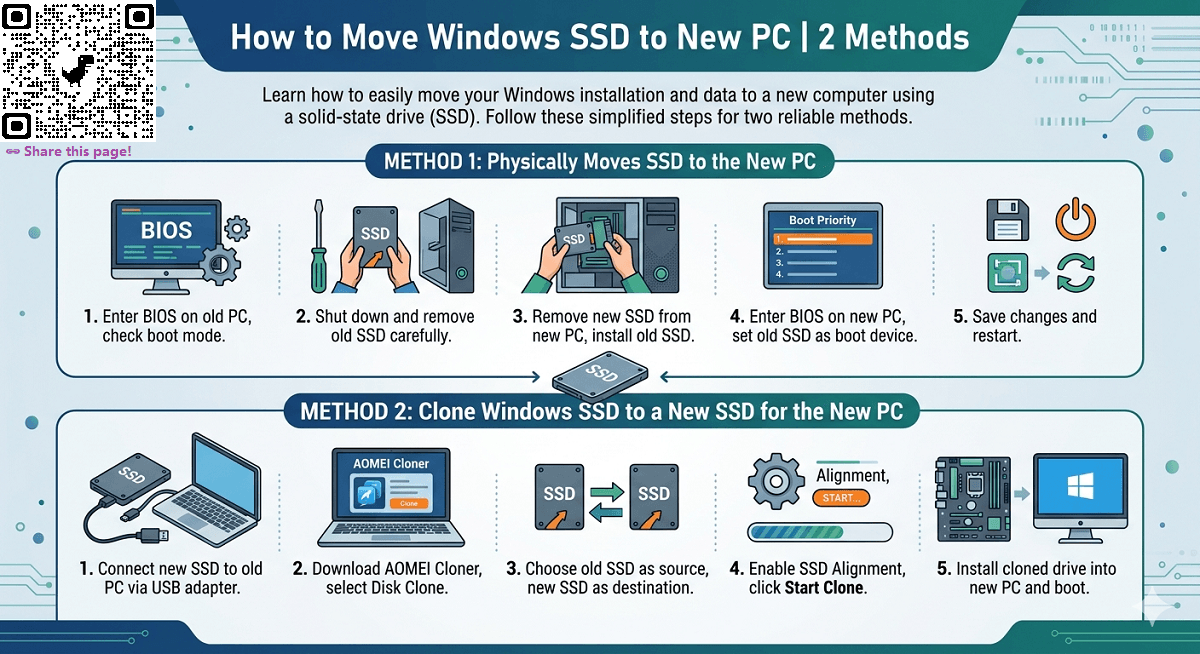
Method 1: Physically Move the SSD to the New PC
Physically moving the SSD is the most straightforward way to move Windows 10/11 to a new computer. You take the SSD out of the old PC, install it into the new one, and attempt to boot. Follow the instructions below:
Step 1. Enter the BIOS/UEFI setup on the old computer and check if its boot mode is the same as the new computer’s.
Step 2. Shut down and unplug the old computer. Remove the old SSD carefully.
Step 3. Remove the new SSD on the new computer and install the old SSD there.
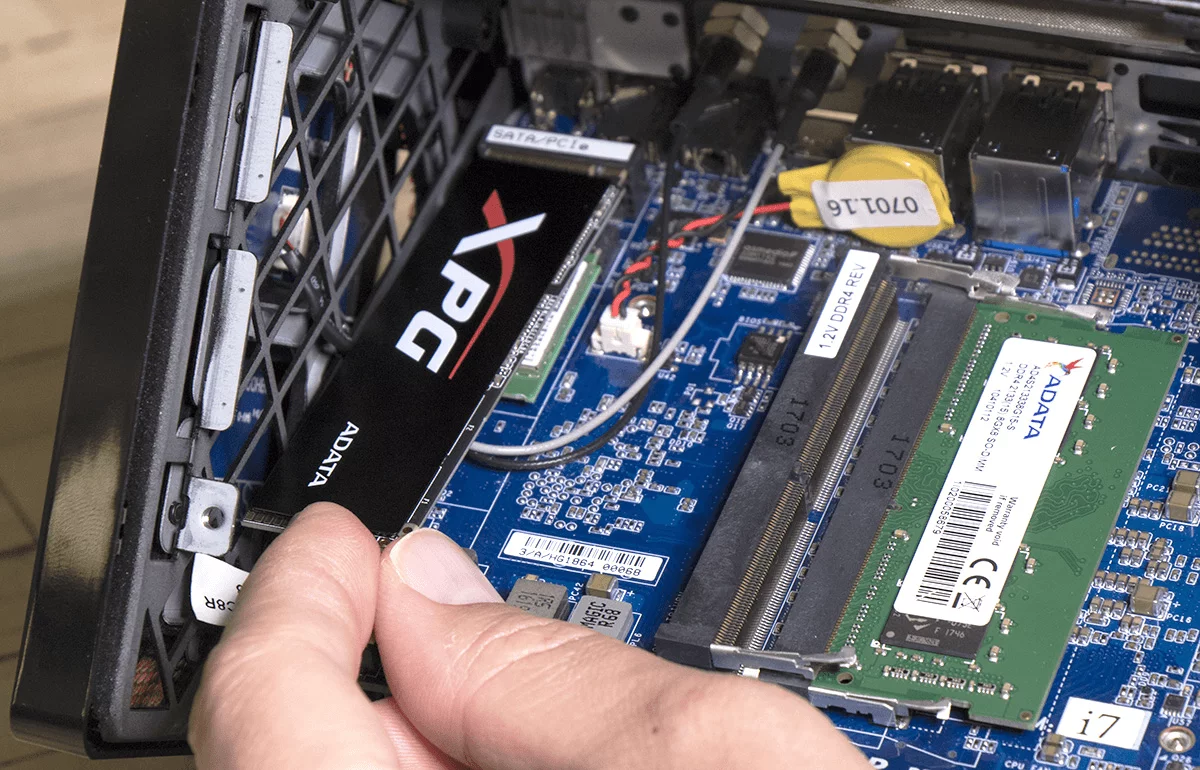
Step 4. Enter the BIOS/UEFI setup on the new computer.
- Set the old SSD as the primary boot device.
- Match the boot mode (UEFI or Legacy) used on the old PC if necessary.
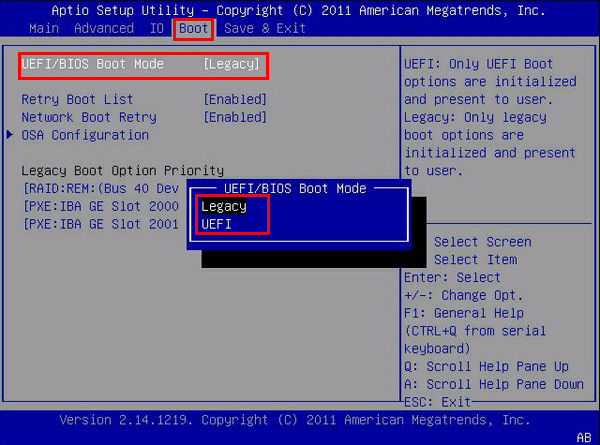
Step 5. Save changes and restart. Be patient—first boot may take longer. Windows will detect new hardware and install generic drivers.
💡 Note: If your new computer has two SSD slots, you can keep the new SSD installed and use it as second storage. Wipe the new SSD to release storage space if needed.
Method 2: Clone Windows SSD to a New SSD for the New PC
If you want the safest way to move Windows SSD to a new PC, cloning is the better solution. AOMEI Cloner is specifically designed for system and disk migration scenarios.
 AOMEI Cloner
- System Clone – Clone only OS to a new SSD without losing your current system configuration.
- Disk Clone – Copy the entire SSD, including system, apps, and data.
- Intelligent Sector Clone – Copies only used sectors, allowing migration to smaller SSDs.
- SSD Alignment – Optimizes performance and lifespan of the target SSD.
- Bootable Media Creation – Creates a bootable USB/CD/DVD to clone disks without booting Windows.
 100% Secure
Follow the steps below to transfer Windows 10/11 SSD to new PC with AOMEI Cloner:
💡 Notes:
◆ For modern Windows (11/10, Server 2025/2022/2019/2016), the cloned drive will be bootable on the new computer, regardless of whether the hardware is identical or different.
◆ For older Windows versions with different hardware, you may use AOMEI Backupper to backup Windows and restore on another computer to ensure a successful boot.
Step 1. Remove the SSD from the new computer. Connect it to your old computer using a USB adapter or enclosure. Make sure the SSD has enough capacity to hold all your data.
Step 2. Download and install AOMEI Cloner on your old computer, then open the program. Select Disk Clone.
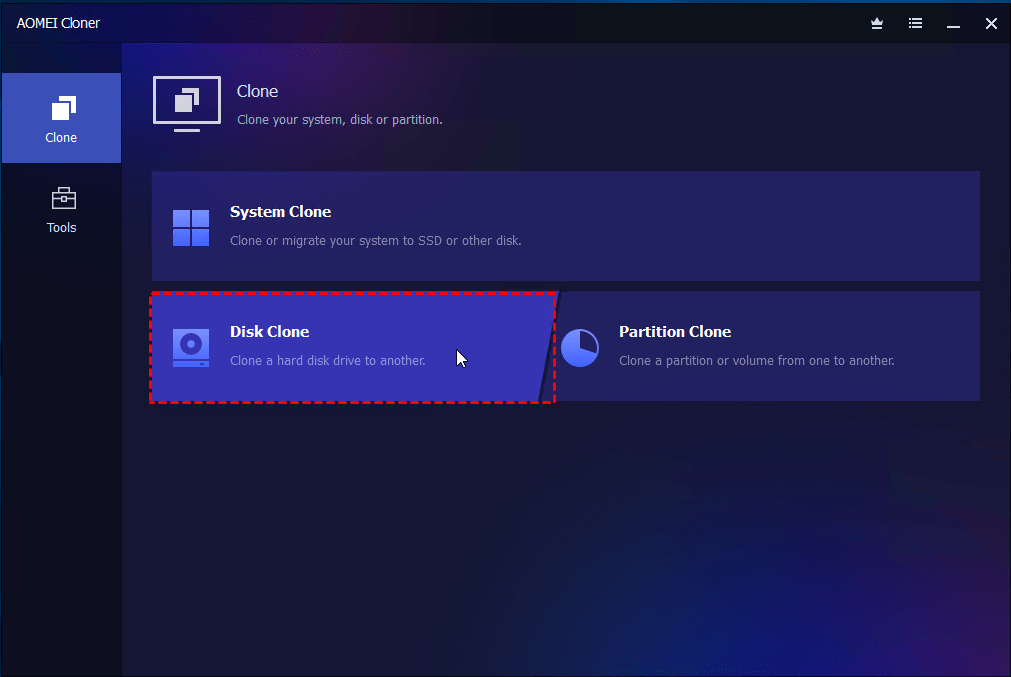
Step 3. Click Select Source Disk to choose the old SSD as the source disk, and click Select Destination Disk to select the new SSD as the destination disk.
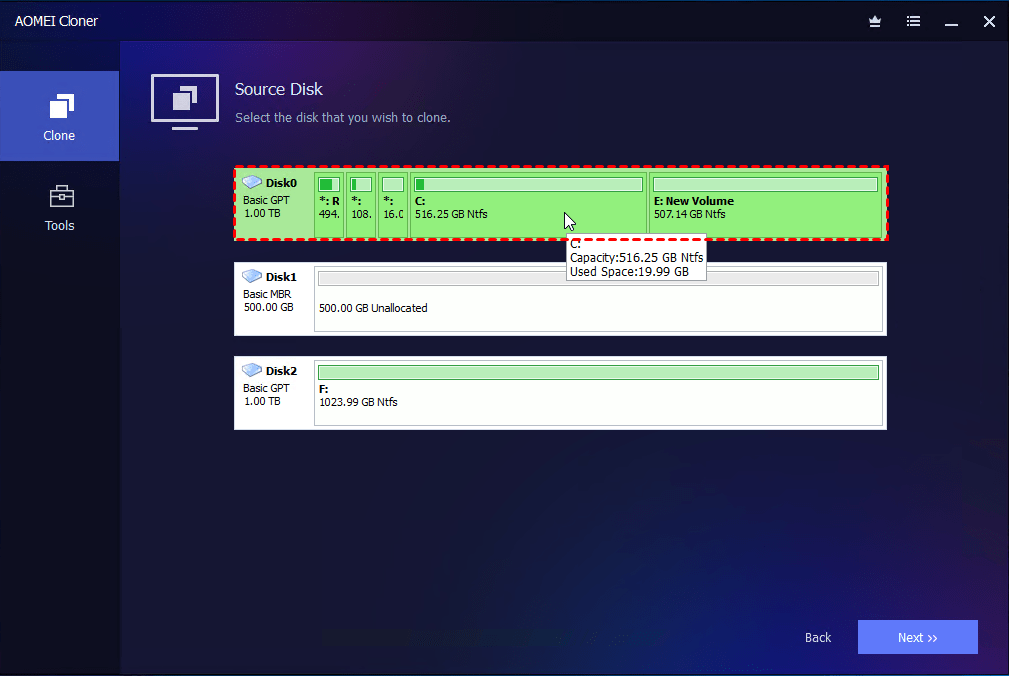
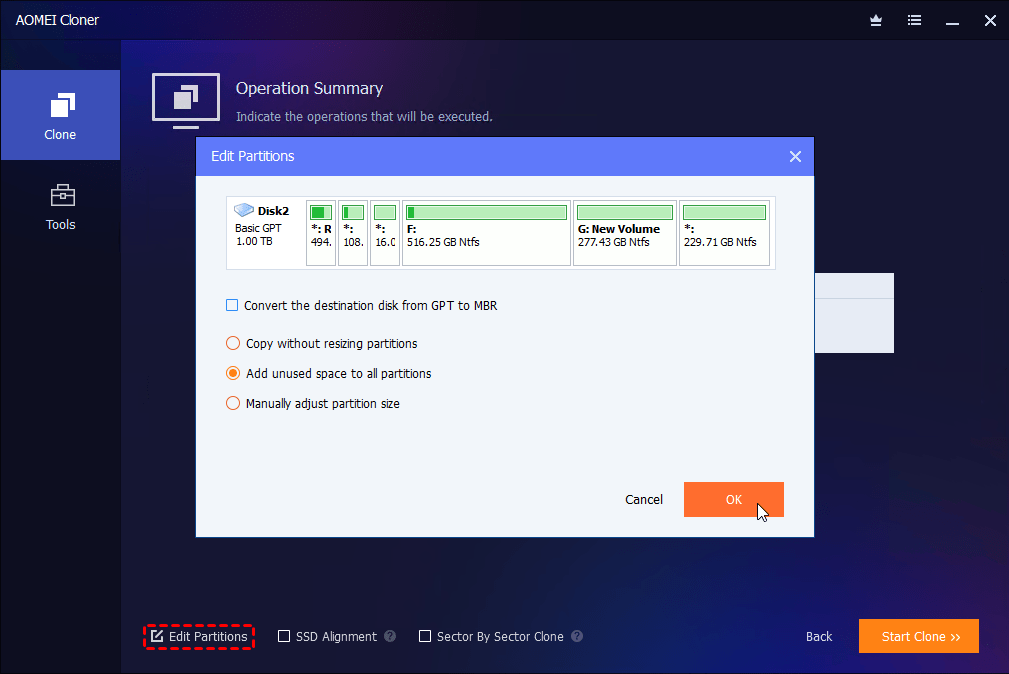
Step 4. (Optional) If the new SSD is larger than the old SSD, click Edit Partitions → Add unused space to all partitions to make full use of disk capacity.
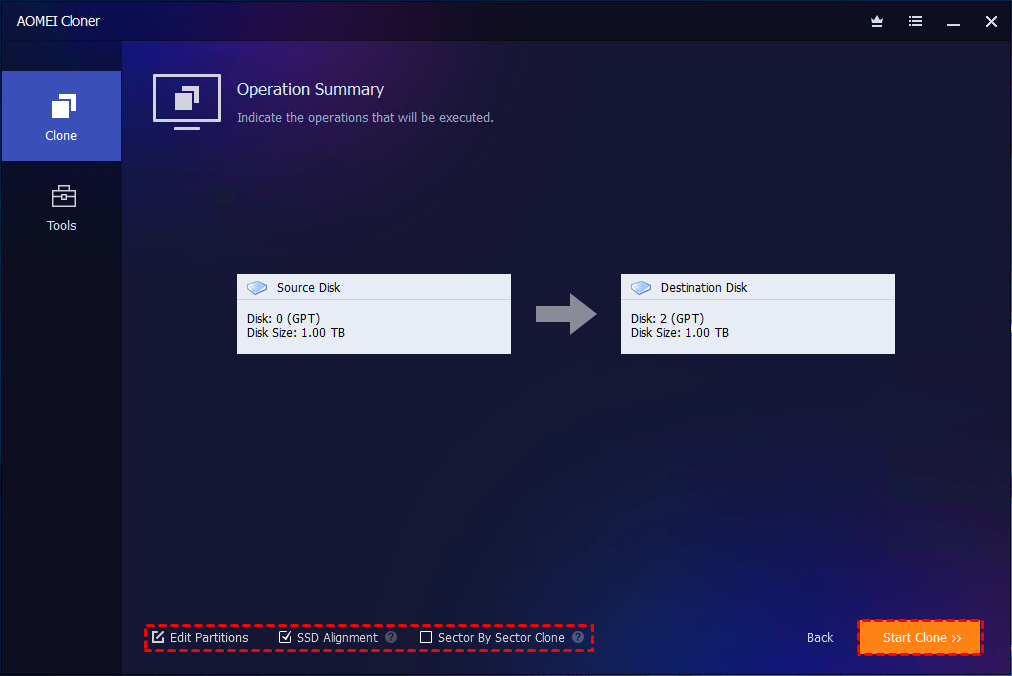
Step 5. Enable SSD Alignment for optimal performance and click Start Clone.
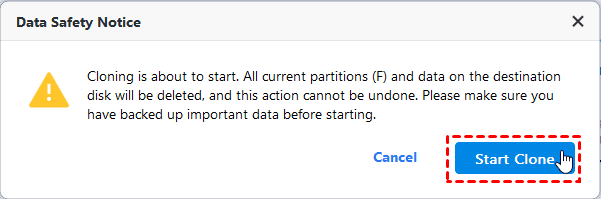
Step 6. You'll be prompted that all partitions and data on the destination disk will be deleted. If you have already made a backup, click Start Clone to launch the cloning process.
Step 7. Once completed, install the cloned drive into the new computer and boot. Windows should load exactly as it did on the old computer.
Fix Common Problems After Moving Windows SSD
Even if the transfer process goes smoothly, you may still run into issues after you move Windows SSD to a new PC. Here’s how to fix the most common problems quickly.
1. Blue Screen (BSOD) After Hardware Change
🛠 Fix:
- Boot into Safe Mode if possible.
- Uninstall old chipset and storage drivers.
- Install the latest drivers from the new PC manufacturer.
- Update BIOS if required.
2. Windows Is Not Activated
🛠 Fix:
- Go to Settings → System → Activation.
- Click Troubleshoot.
- Sign in with your Microsoft account.
- Select “I changed hardware on this device recently.”
If you’re using an OEM license, you may need to purchase a new Windows license for the new PC.
3. Slow Performance After Moving SSD
🛠 Fix:
- Update storage and chipset drivers.
- Check Task Manager for excessive background processes.
Performance usually stabilizes after Windows completes hardware detection and driver setup.
FAQs about Moving Windows SSD to New PC
1. What is the best way to transfer existing Windows SSD between PCs?
The best way to transfer existing Windows SSD between PCs depends on your hardware and goals:
- Physically move the SSD: Simplest and fastest if both PCs use the same SSD form factor and interface (e.g., SATA or NVMe).
- Clone the SSD: More reliable if the new PC has different hardware, or if you want a larger/faster drive for better performance.
2. Can I use my old Windows SSD in new PC?
Yes, you can use your old Windows SSD in new PC, but success depends on hardware compatibility. Modern Windows (10/11) automatically installs needed drivers on first boot. However, major hardware changes like a new motherboard or CPU can cause boot issues or instability.
3. How to avoid activation issues moving Windows SSD?
To avoid activation issues moving Windows SSD, make sure your Windows license is properly linked to your Microsoft account. Retail licenses are transferable, while OEM licenses are typically tied to the original hardware and may not activate on a new PC. After the transfer, you can use the Windows Activation Troubleshooter to reactivate the system.
Wrapping Things Up
Now you know how to move a Windows SSD to a new PC securely. If your old and new SSDs share the same form factor and interface, a direct SSD swap is the simplest method. If you are upgrading to a larger/faster SSD or if the new PC has significantly different hardware, you may clone to a new SSD with AOMEI Cloner. What’s more, it is able to clone USB drives and SD cards. Why not give it a shot?

 as a preferred
source on Google
as a preferred
source on Google