



How to Use Windows Server 2012 Recovery Mode to Repair System
Stuck with a problematic Windows Server 2012? This guide shows you how to access and use Recovery Mode to troubleshoot issues – plus the best tool for building a custom recovery environment.

By Lily Updated on April 27, 2026


When You Should Use Windows Server 2012 Recovery Mode
Windows Server 2012 Recovery Mode (also known as the Windows Recovery Environment or WinRE) is a critical troubleshooting tool designed to help administrators diagnose and fix serious system issues. Below are the most common scenarios where entering recovery mode is necessary:
🚩 Boot failures – Fix boot loops or startup errors with Startup Repair.
🚩 Corrupted system files or registry – Restore integrity using System Restore or SFC/DISM in recovery mode.
🚩 Failed updates or driver installs – Roll back to a restore point or uninstall problematic updates.
🚩 Disk or file system corruption – Run CHKDSK to scan and repair disk errors.
🚩 Restore a system image backup – Quickly recover from severe damage or compromise.
🚩 Malware or security breach – Perform offline scanning or restoration without booting the infected OS.
🚩 Advanced troubleshooting – Use Command Prompt, bootrec, and other low-level tools for manual repairs.
 AOMEI Backupper
The built-in recovery environment may not always be enough. You may combine recovery mode with the best server backup software.
How to Boot Windows Server 2012 in Recovery Mode
Below are three effective methods to enter Windows 2012 Recovery Mode, depending on your system condition.
Method 1: Using the Shift + Restart (If Server is Booted)
If you can still log in to the Windows interface, this is the quickest way to jump straight into the recovery menu.
1. Log in as an Administrator.
2. Hover in the bottom-right corner or press Win + C to bring up the Charms Bar.
3. Click Settings and then click Power.
4. Hold down the Shift key on your keyboard and click Restart.
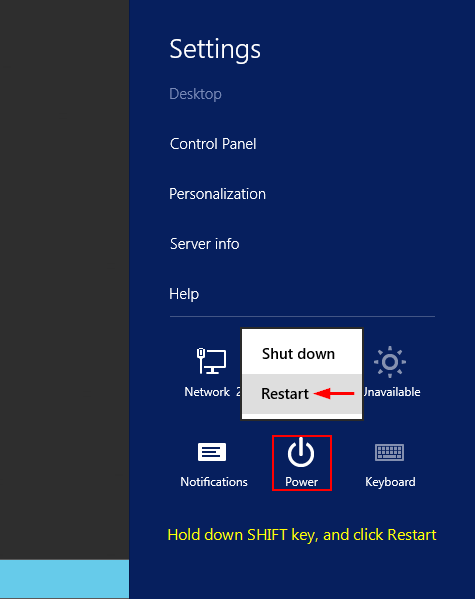
5. The server will reboot directly into the Choose an option screen.
🌟 Best for: Planned maintenance or troubleshooting non-critical issues while the OS is still functional.
Method 2: Using the Installation Media (The "Clean" Way)
This is the most reliable method, especially if your server cannot boot normally. Follow the steps below:
1. Insert the Windows Server 2012 installation DVD or bootable USB into your server.
2. Restart the system and boot from the installation media (you may need to change the boot order in BIOS/UEFI).
3. When the Windows Setup screen appears, select your language and keyboard preferences, then click Next.
4. Click Repair your computer instead of Install now.
.png)
5. Select Troubleshoot → Advanced options.
6. Choose the appropriate recovery tool, such as Startup Repair, System Restore, or Command Prompt.
🌟 Best for: Systems that fail to boot or when recovery options are not accessible internally.
Method 3: Forcing the Recovery Menu (The "Fail" Method)
Windows Server 2012 can automatically trigger recovery mode after repeated failed startups. Follow the guidance below:
1. Power on your server. As soon as Windows begins to load, force shutdown the system (press and hold the power button).
2. Repeat this process 2–3 times.
3. On the next startup, Windows should enter the Automatic Repair screen. Click Advanced options to access recovery tools.

🌟 Best for: Situations where you don’t have installation media and cannot access boot options.
How to Use Windows Server 2012 (R2) Recovery Mode to Fix Common Issues
Once you’ve entered Windows Server 2012 Recovery Mode (WinRE), you can use several built-in tools to diagnose and fix critical system problems. Below are step-by-step solutions for the most common issues.
Case 1: Fix Boot Failure or Startup Errors
If your server won’t start or is stuck in a boot loop, Startup Repair is the first tool you should try. Learn how to use it below:
1. In recovery mode, click Troubleshoot → Advanced options → Startup Repair.
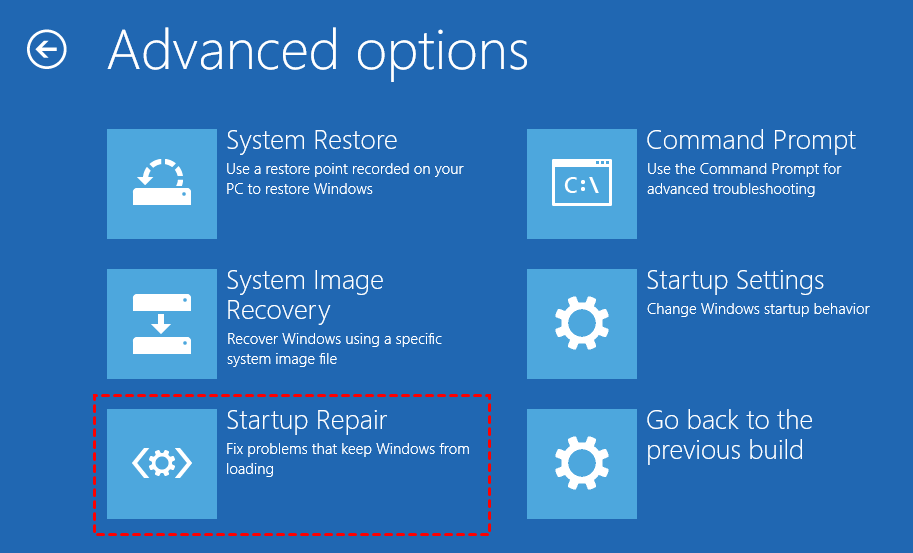
2. Choose the target operating system (Windows Server 2012 or R2).
3. Allow the tool to scan and automatically fix startup issues. Restart the server after the process completes.
Case 2: Restore System to a Previous Working State
If recent changes (updates, drivers, or software installations) caused instability, System Restore can roll back your system to a stable point. Follow the instructions below:
1. In Advanced options, click System Restore.
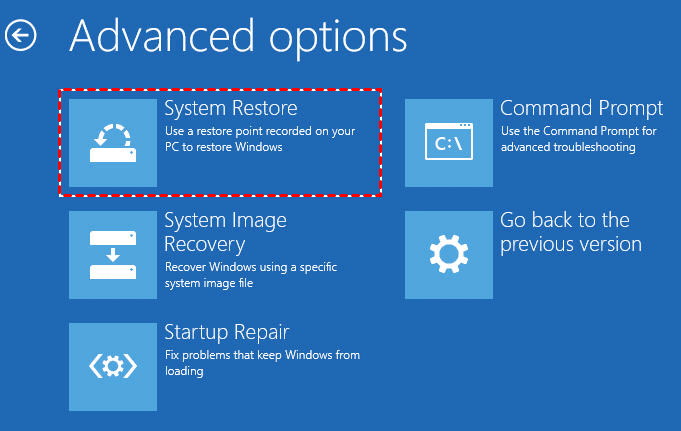
2. Select your administrator account and enter credentials if prompted.
3. Choose a restore point created before the issue occurred.
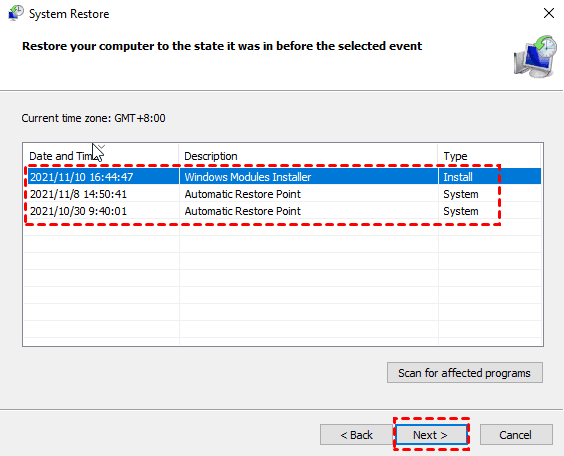
4. Follow the on-screen instructions to start the restoration process.
5. Restart the server once the restore is complete.
Case 3: Repair Disk Errors Using Command Prompt
Disk corruption or bad sectors can cause crashes, slow performance, or boot failures. You can fix these issues using Command Prompt in recovery mode.
1. Go to Troubleshoot → Advanced options → Command Prompt.
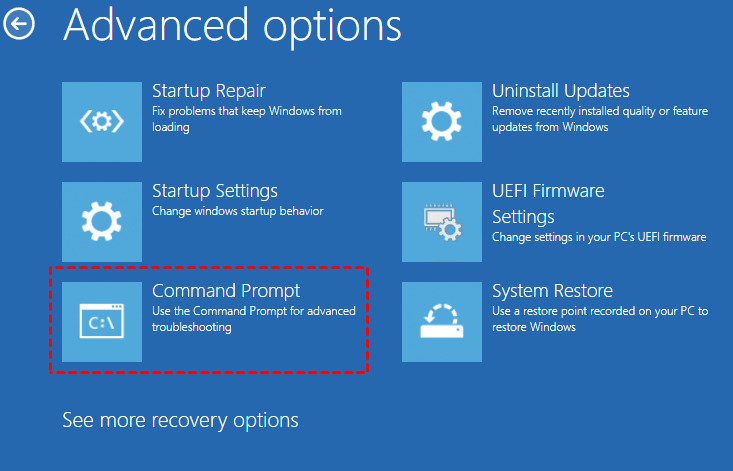
2. In the command window, type chkdsk C: /f /r and press Enter.
3. Wait for the scan to complete (this may take some time depending on disk size).
4. Restart your server after the process finishes.
Bonus: Best Server Backup Software to Create Recovery Environment
While Windows Server 2012 Recovery Mode provides essential repair tools, it has limitations and you may encounter problems like “Could not find the recovery environment”. That’s where powerful backup software like AOMEI Backupper Server comes in.
 AOMEI Backupper
- Complete Coverage – Full system, disk, partition, file, and email backups for total peace of mind.
- Smart Storage – Incremental and differential backups save valuable disk space.
- Set It and Forget It – Automatic scheduled backups deliver ongoing protection effortlessly.
- Flexible Destinations – Backup to NAS, network shares, external drives, or the cloud.
- Create Recovery Environment – Enter the recovery interface before loading Windows. You can also create a bootable USB/CD/DVD that can be used on different computers.
 100% Secure
Download AOMEI Backupper and follow the steps below to create AOMEI Backupper recovery environment:
Step 1. Install and launch AOMEI Backupper. Click Tools > Recovery Environment.
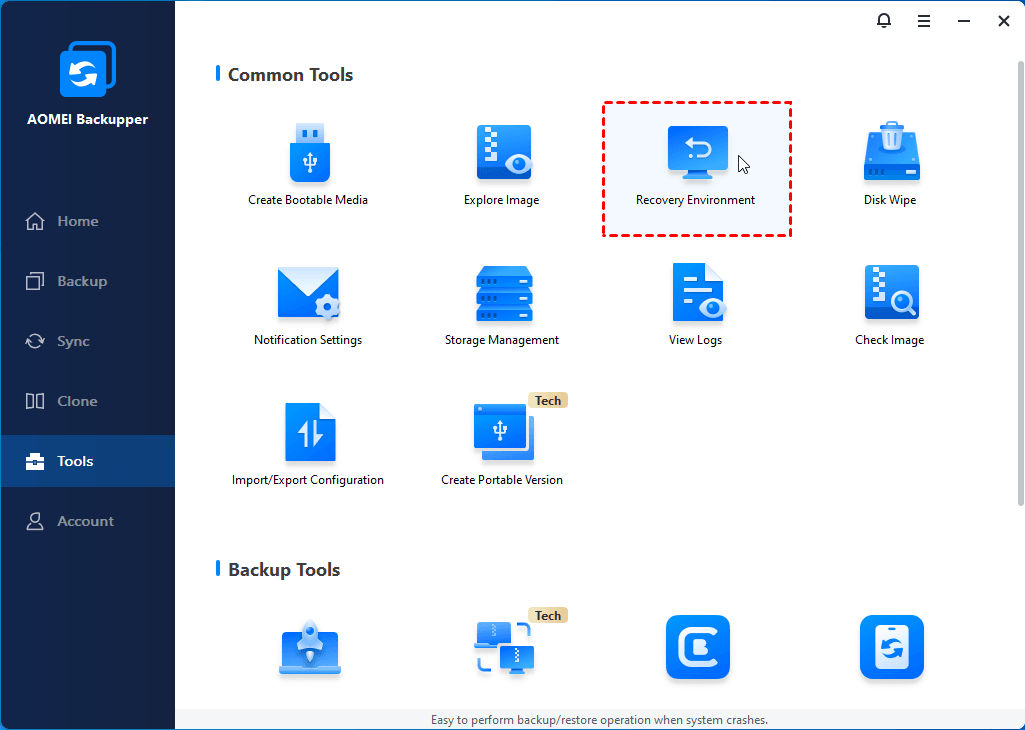
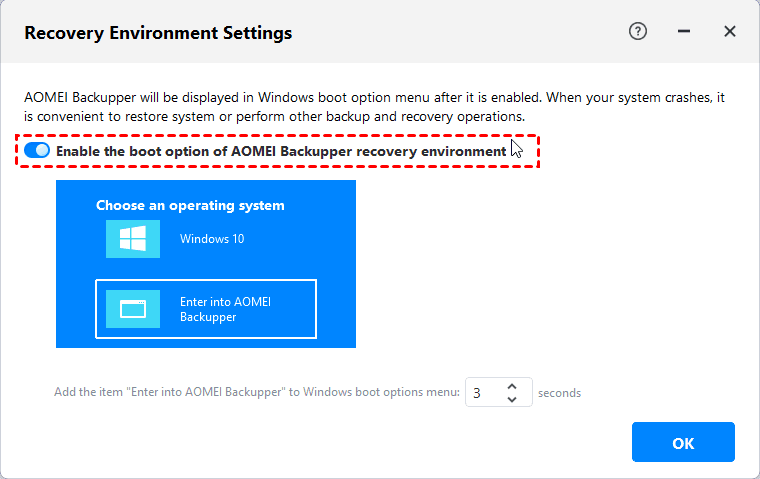
Step 2. In the Recovery Environment Settings window, switch on Enable the boot option of AOMEI Backupper recovery environment. Then set the standing time of the boot menu and click OK.
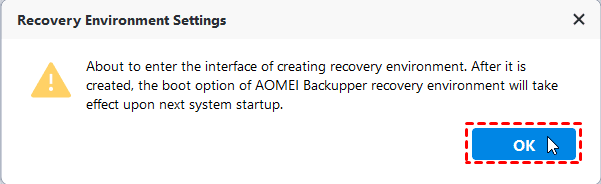
Step 3. A confirmation window will pop up. Please click OK to continue.
💡 Notes:
- To restore your computer in case of system errors, please go to Backup > System Backup to create a Windows Server image backup in advance.
- The recovery environment created by AOMEI Backupper will become invalid if your C drive is wiped or damaged. You may go to Tools > Create Bootable Media to make a spare bootup USB.
Conclusion
Windows Server 2012 Recovery Mode is an essential tool for diagnosing and fixing critical system issues, from boot failures to disk errors and system corruption. However, relying solely on the built-in recovery environment may not always be enough, especially in severe failure scenarios.
That’s why combining recovery mode with a reliable backup strategy is crucial. AOMEI Backupper Server provides an added layer of protection by enabling full system backups and creating a custom recovery environment for faster, more flexible restoration. Don’t hesitate to try it out!

 as a preferred
source on Google
as a preferred
source on Google