




WD My Cloud Auto Backup Windows 10/11 - 2 Simple Ways
In this guide, you will learn how to perform WD My Cloud auto backup on Windows 10 and Windows 11 computers with 2 simple and free ways.

By Jonna Updated on June 3, 2026


Part 1. What is WD My Cloud?
WD My Cloud is a network-attached storage (NAS) device developed by Western Digital. It connects directly to the home or office network and serves as a centralized storage hub. Instead of connecting and disconnecting external drives repeatedly, files remain available through the network rather than on a single computer. Family members, team members, or multiple devices can access the same storage location simultaneously.
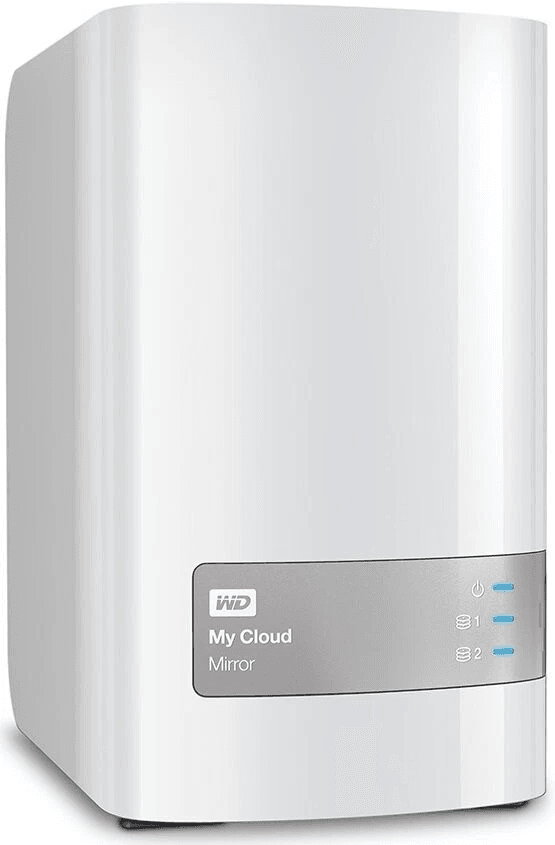
WD My Cloud enables access to files from virtually anywhere using internet connectivity. This feature is particularly useful for business travel, remote work, and off-site collaboration. So for users concerned about data protection, configuring WD My Cloud auto backup ensures files remain protected automatically without requiring constant manual intervention.
In the following, we will present 2 solutions on how to perform WD My Cloud auto backup on Windows 10/11.
Part 2. WD My Cloud Auto Backup Windows 10/11 using Desktop App
One of the simplest ways to configure automatic backups is by using WD's desktop software or built-in synchronization applications associated with My Cloud devices. The exact software available may vary depending on the generation of the My Cloud device. Some models support WD Discovery, while others use My Cloud Home applications or web-based management interfaces.
The goal remains the same - automate file protection between Windows PC and the WD My Cloud storage device. Before configuring automatic backups, please ensure that the WD My Cloud is connected to the network and the device is powered on. Once the device is accessible, you can configure WD My Cloud Home auto backup PC for important files and folders with these steps:
Step 1. Download & install the appropriate WD My Cloud desktop software; here we take WD Discovery as an example.
Step 2. Follow the on-screen guide to launch the program, and sign in when required. When prompted, select the "OPEN IN EXPLORER" or "OPEN IN BROWSER" option to access the My Cloud Home device.
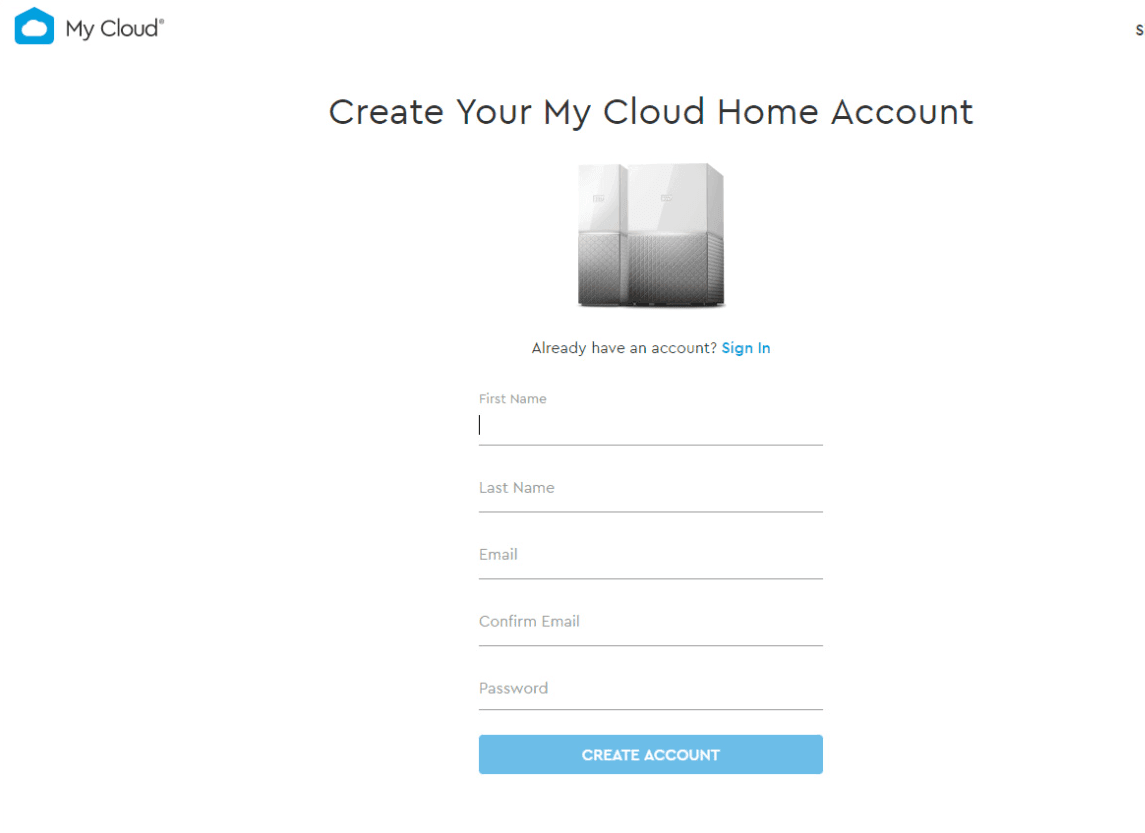
Step 3. Next, locate and open the folder containing the files you want to copy on your Windows system.
Step 4. Click and hold the left mouse button on the selected file or folder.
Step 5. Drag the file or folder to the destination, then release the left mouse button; the file or folder will then be copied or moved from your computer to My Cloud.
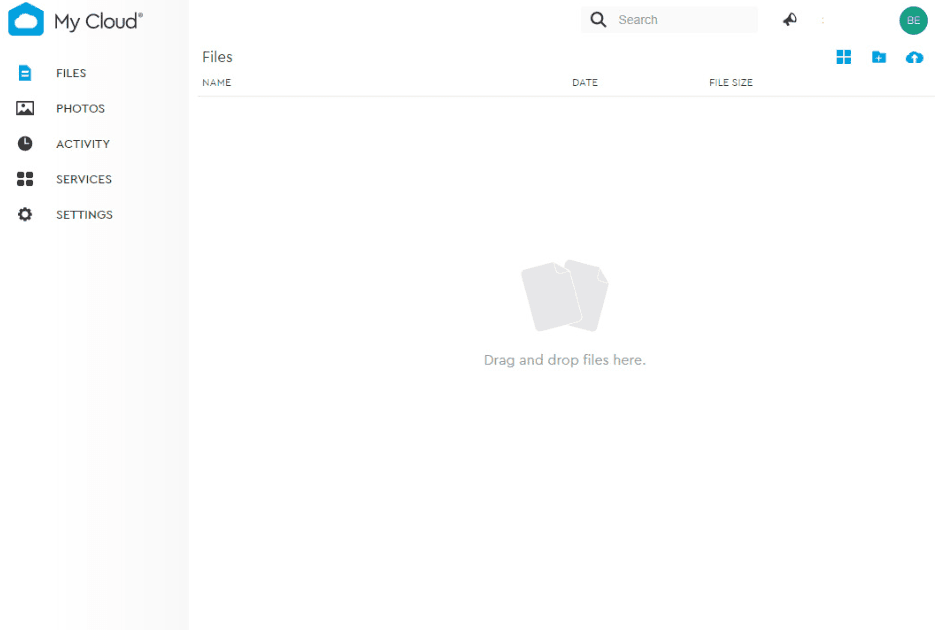
Part 3. Auto Backup PC to WD My Cloud with 3rd-Party Backup Software
For users seeking a more professional and flexible WD My Cloud auto backup solution, AOMEI Backupper Standard is frequently recommended. Except for simple synchronization tools, this comprehensive backup and recovery solution also provides multiple backup methods that help protect data against a wide range of failure scenarios. Here are the key features that make it suitable for WD My Cloud backups:
 AOMEI Backupper
- Complete backup options: It provides System Backup, Disk Backup, Partition Backup, and File/Folder Backup. You are able to create complete system images containing OS, installed applications, user settings, etc., or backup entire C drive with one-click.
- Various destinations: It supports multiple backup destination paths like local/external disks, cloud services, USB drives, NAS, etc. You can use it to backup PC to WD My Cloud, backup PC to cloud like Google Drive, or backup WD My Cloud to another location.
- Scheduled backup: It offers flexible auto backup options, including daily backups, weekly backups, monthly backups, event-triggered backups, and USB plug-in backups.
- Full support: It works perfectly on Windows 11, 10, 8, and 7 systems, and offers a Server version for server users.
 100% Secure
Here is how to perform Western Digital My Cloud automatic backup on Windows PCs using AOMEI Backupper:
Step 1. Run this free WD backup software, select Backup > System Backup to create an OS image.
- Notes: You can also use its Sync function to transfer files from Windows to WD directly, without creating a backup image.
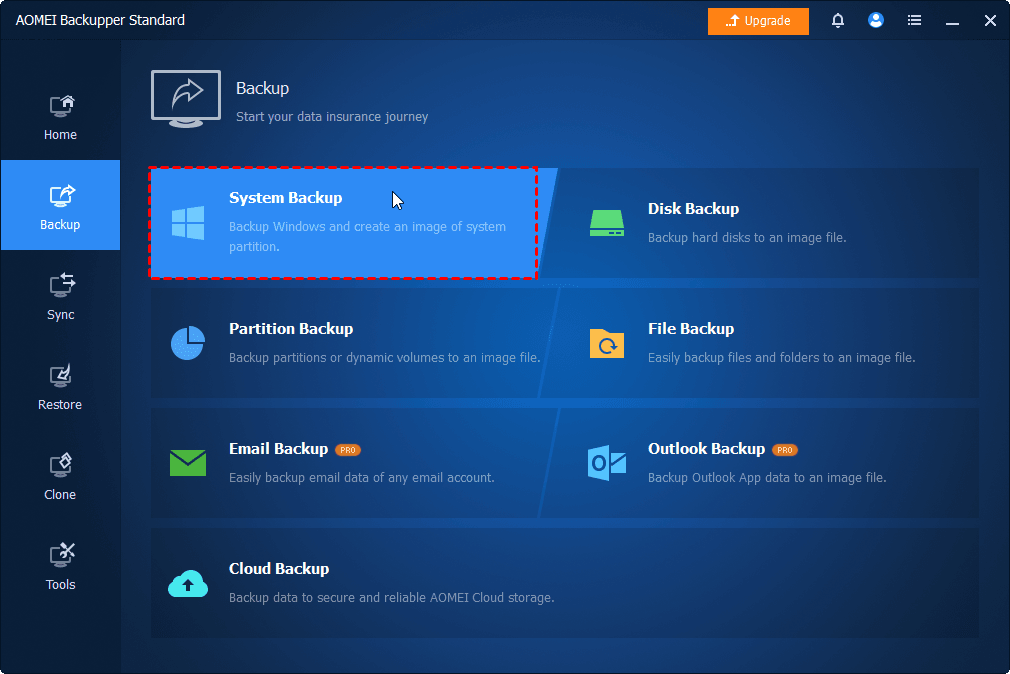
Step 2. It will select system partition(s) to back up automatically. You only need to click on the PC icon, and then click Network Share > Add Network Share to type the IP address of the My Cloud, and then select a shared folder on it as the destination path.
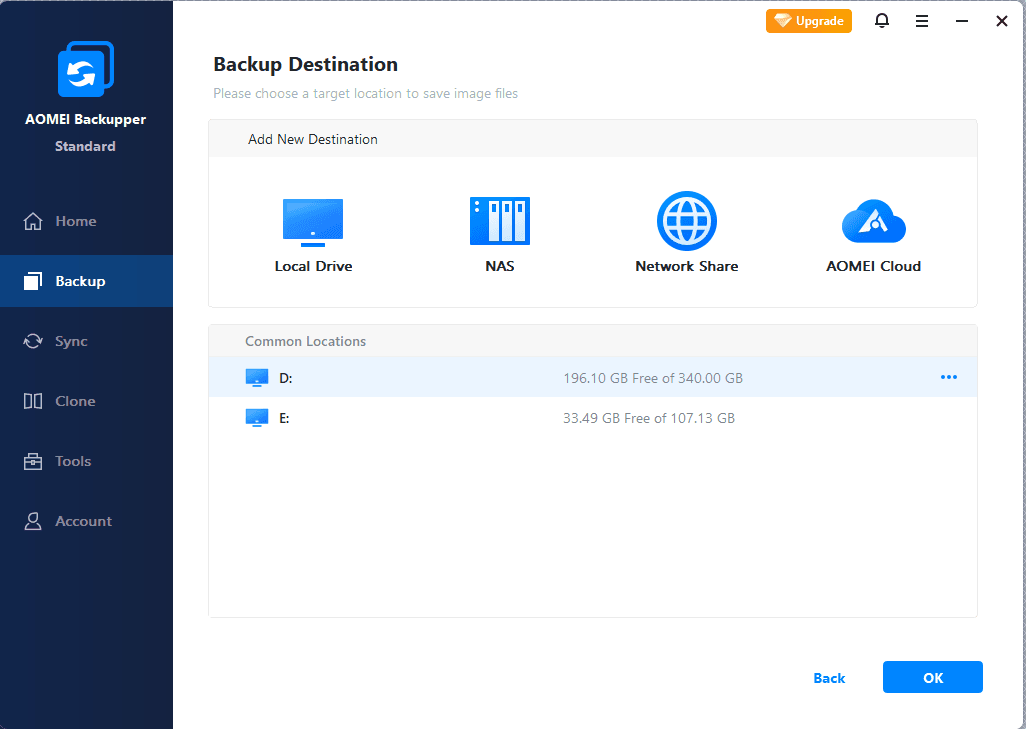
Step 3. Click Schedule and enable it, then select an auto backup mode as needed.
- Backup Scheme - Here are Incremental Backup and Differential Backup methods to backup only changes (the latter is available in the Professional version). And it allows to remove old backup images automatically to free up storage space.
- Options - It allows to add comments for your task and enable encryption for the backup.

Step 4. Confirm the settings and click Start Backup to begin WD My Cloud auto backup on Windows 11.
FAQs on WD My Cloud Auto Backup
#1. Is WD My Cloud discontinued?
Some older WD My Cloud models have reached end-of-life status, while newer My Cloud and My Cloud Home products continue to be supported. Support availability depends on the specific model and generation of the device. You should check Western Digital support resources to verify the current status of their product.
#2. Can I still use WD MyCloud?
Yes. Many WD My Cloud devices remain fully functional and continue to provide file storage, sharing, and backup capabilities. Even older units can often serve as valuable network storage solutions if maintained properly.
#3. Can I connect my WD My Cloud directly to my computer?
Generally, no. WD My Cloud devices are designed as network-attached storage systems rather than USB external drives. They typically connect to a router through an Ethernet connection and are then accessed over the network.
#4. Why can't I access my WD My Cloud?
Several factors may prevent access to a WD My Cloud device. Common causes include:
- Network connection issues
- Router configuration problems
- Firmware issues
- Incorrect login credentials
- Windows network discovery settings
- SMB protocol configuration problems
- Device hardware failures
#5. Can I use my WD My Cloud as an external hard drive?
Not in the traditional sense. WD My Cloud is designed as network storage rather than direct-attached storage. While it serves a similar purpose by storing files, it operates through network protocols rather than USB connections. This distinction allows multiple devices to access stored data simultaneously.
Summary
Whether you are safeguarding personal photos, business records, creative projects, or operating system data, choosing a reliable backup method is essential. Configuring WD My Cloud auto backup for Windows PCs helps ensure your files remain protected against accidental deletion, hardware failures, malware attacks, and unexpected system crashes.
Free backup software such as AOMEI Backupper provides great flexibility for PC backup. It offers features like system imaging, incremental backups, scheduling backups, and system recovery, which offer strong protection and broad backup capabilities.

 as a preferred
source on Google
as a preferred
source on Google