




Backup Software That Only Copies Changes [Faster & Smarter]
AOMEI Backupper Standard is one of the best free backup software that only copies change, which allows you to create backup images faster and more intelligently with less effort. Scroll down to get more!

By Ivy Updated on April 13, 2026


Full backups copy everything every time, which takes a lot of time, storage space, and system resources. This results in data redundancy, especially when your data changes frequently. Thus, some users wonder if there is a type of backup software that only copies changes. Instead of backing up all files again, it saves only new or modified files, making the process much faster and more efficient.
Below, we’ll explain what it is, key features, recommended software, and how to use it. Scroll down to learn more!
What Does “Backup Software That Only Copies Changes” Mean?
Backup software that only copies changes refers to tools that avoid duplicating all data during every backup. Instead, they focus on saving only newly added or modified files. This is commonly known as incremental or differential backup, thereby addressing the shortcomings of full backups.
📌 Incremental backup copies only the data that has changed since the last backup (whether it was full or incremental). This means each backup is smaller and faster, making it ideal for frequent backups. However, restoring data may require multiple backup files in sequence.
📌 Differential backup, on the other hand, copies all changes made since the last full backup. While each differential backup grows larger over time, it simplifies recovery because you only need the full backup and the latest differential backup to restore data.
📌 Unlike incremental or differential backup, full backup copies every file every time, which can take hours when dealing with large disks or systems. Repeatedly storing the same data quickly fills up storage space, especially for daily backups, and also results in redundant data copies.
Top Features to Look for in Change-based Backup Software
When choosing backup software that only copies changes, the best solution is free and goes beyond simple file copying and provides incremental backup, schedule backup, fast recovery, etc., making the process simple and efficient.
| Incremental or Differential Backup | Incremental backups are ideal for frequent, lightweight backups, while differential backups simplify recovery, balance speed, storage efficiency, and restore convenience depending on the situation. |
| Automatic Backup | Automatic backup is essential for maintaining consistent data protection without manual effort, usually based on daily, weekly, monthly, or event trigger. |
| Backup Compression and Encryption | Compression reduces the size of backup files, thereby saving disk space, while encryption safeguards data against unauthorized access. |
| Simple Recovery | Restore files, folders, or entire systems easily and quickly, with fewer errors. |
Best Free Backup Software That Only Copies Changes
When it comes to backup software that only copies changes, choosing a reliable tool is essential for balancing speed, storage efficiency, and data safety. The best solutions typically combine incremental or differential backup support, ease of use, and stable performance.
Among free options, AOMEI Backupper Standard is widely recognized as a practical and dependable choice for everyday users and small-scale backup needs.

 AOMEI Backupper
- User-friendly interface: The straightforward interface makes it easy for non-technical users to set up and manage backup tasks without confusion.
- Flexible backup solutions: Backup individual files, system, disk, or partition, depending on what you want to protect.
- Free incremental backups: Back up only new or modified data since the last backup, significantly reducing backup time and saving storage space.
- Set and forget scheduling: Set up continuous backup based on daily/weekly/monthly, etc., or event triggers.
- Complete backup suite: Not only incremental backup, but it also includes compression, splitting, intelligent sector backup, etc., to optimize storage and encryption for data security.
 100% Secure
In addition, it still provides users with advanced editions, such as AOMEI Backupper Professional, which includes differential backup, automatic backup cleanup, etc.
How to Use AOMEI Backupper to Backup Only New or Changed Files
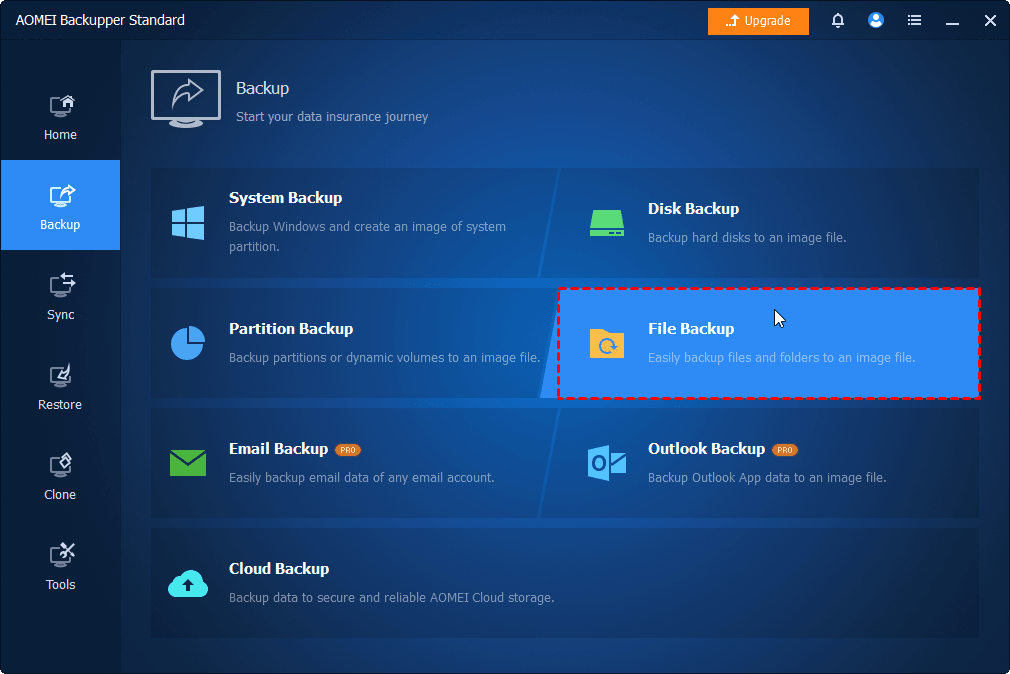
Step 1. Download and install AOMEI Backupper Standard. Then, go to Backup > File Backup. You can also select other backup solutions (if needed).
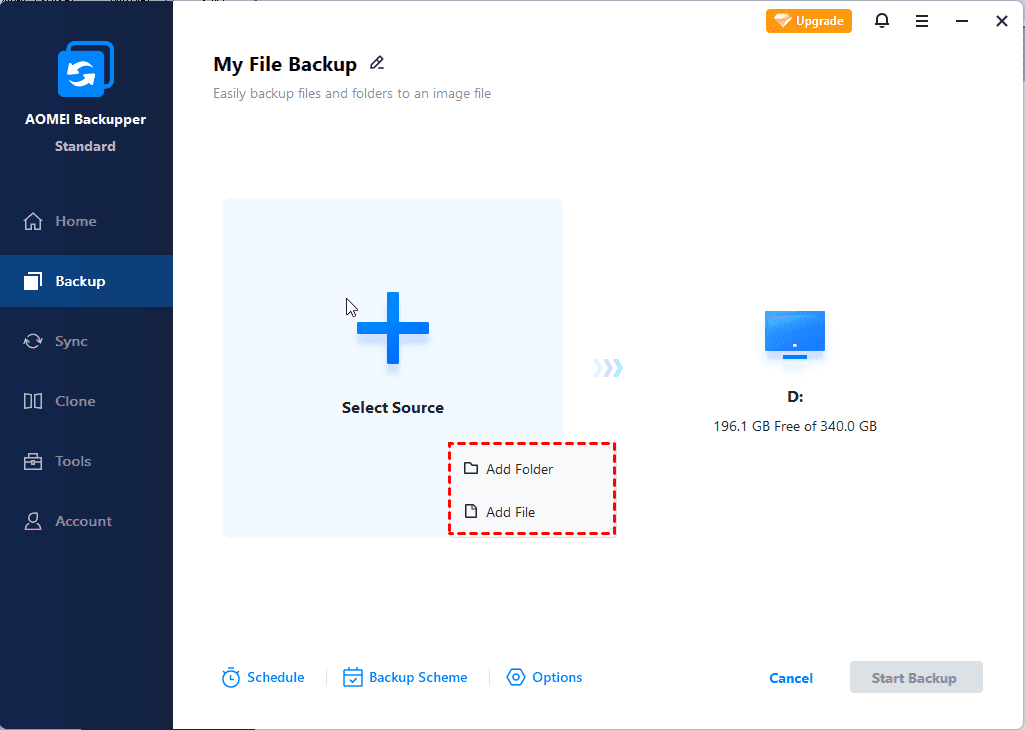
Step 2. Click Select Source to add any file and folder you want to protect. To add two or more files or folders, click Add Source. Then, click the PC icon to select a destination, from local drives to network share, NAS, or AOMEI Cloud.
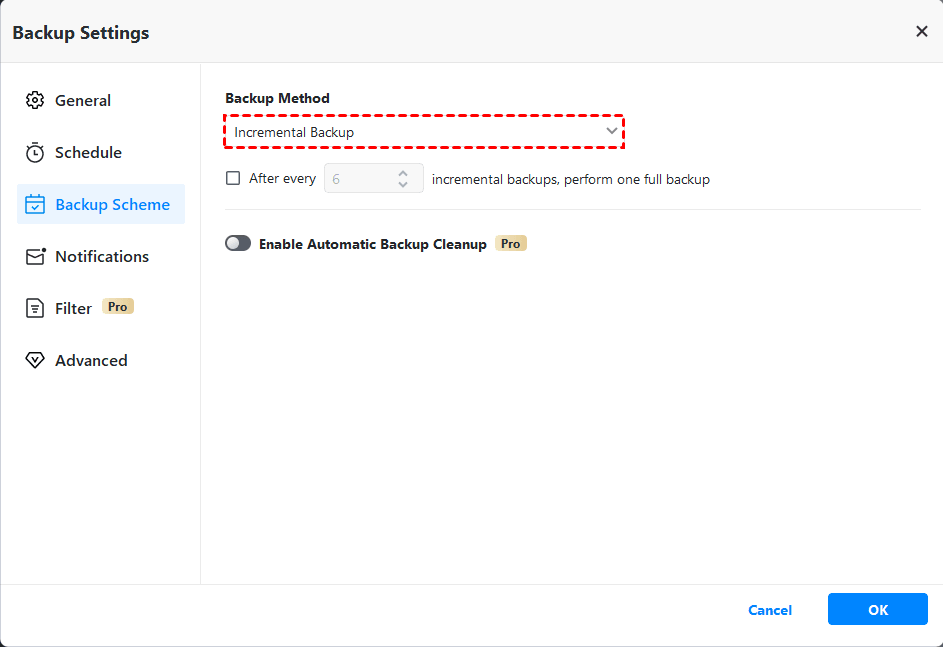
Step 3. Incremental backups are enabled by default to back up only new or changed files. It will create a full backup after 6 incremental backups, forming a set of full backups. Click Backup Scheme to confirm it.
Step 4. Click Schedule > Enable Schedule Backup to set a backup frequency, such as Daily, Weekly, Monthly(By Date), etc., or Event Triggers. At last, click Start Backup to backup only new or changed files.

- Normal Compression and Automatic Splitting are also enabled. Click Options to confirm or change it.
- Enable Email notification to send notifications when backup tasks succeed, fail, or user interaction is required.
For more advanced features, upgrade to AOMEI Backupper Professional. Try Differential Backup for fast recovery, while Automatic Backup Cleanup to proactively delete backups.
Conclusion
Backup software that only copies changes offers a smarter, more efficient way to protect data. By focusing on newly added or modified files instead of duplicating everything, it significantly reduces backup time, lowers storage usage, and minimizes system impact.
For users looking for a practical and free solution, AOMEI Backupper Standard is a strong choice. With built-in incremental backup support, a user-friendly design, and a wide range of backup features, it helps you implement an efficient backup strategy with minimal effort.

 as a preferred
source on Google
as a preferred
source on Google