




Best FREE Daily Backup Software for Windows
This article describes the best daily backup software - AOMEI Backupper and how to perform Windows 10/11 auto backup, along with step by step instructions. Scroll down to learn more!

By Ivy Updated on March 25, 2026


How Does Daily Backup Software Work?

Daily backup software lets you set a backup time once, and it runs automatically every day. You don’t need to start backups manually. This ensures your backups are consistently without being forgotten due tobusy schedules or simple oversight.
To save time and storage space, especially when dealing with large amounts of data, incremental backup will be enabled automaticallyafter the first full backup. It backs up only new or changed files, not all files.
Meanwhile, it will run backups silently in the background without interrupting yourwork. It uses minimal system resources, ensuring your computer stays responsive while your data stays protected at all times.
Key Features of Daily Backup Software
| 🕐 Consistent Schedule | Set up backups to run automatically at the time that works best for you. Whether daily or during off-hours, the schedule Windows backup ensures your data is always protected without manual effort. |
| 💾 ☁ Multiple Backup Destinations | Store your files on local drives, external hard drives, network-attached storage (NAS), network location, or in the cloud (e.g., Google Drive, OneDrive, Dropbox)for added security and convenience. |
| 💻 Full Backup Solutions | Backup exactly what you need for secure protection, whether it’s individual files, specific partitions, entire systems, or full disk images. |
| 📚 Multiple Versioning | Perform a full backup first, then save time and space with faster incremental backup - save multiple backup versions. |
| 🔎 More Useful features | Include compression, splitting, etc., toautomatically reduces storage space without set up. Enable Email Notification to get the backup status and intervene when necessary, ensuringyour data is recoverable. |
Best Daily Backup Software Free Download
AOMEI Backupper Standard is one of the best free daily backup software for Windows 7, 8/8.1, 10, 11, trusted by over 100 million users. It enables you to backup files, partitions, OS, or entire disk automatically.
 AOMEI Backupper
💕 It offers comprehensive and powerful backup and restore options.
💕 You can get started quickly and enable daily auto backup without complex configuration.
💕 Some features of this software are auto-enabled and adjustable, such as incremental backup, compression, splitting, etc. You can even wake the computer to run scheduled task.
💕 In addition, it optimizes efficiency, allowing backup tasks to run smoothly in the background while you work, without affecting system responsiveness.
How to Perform Daily Auto Backup in Windows 10 or 11
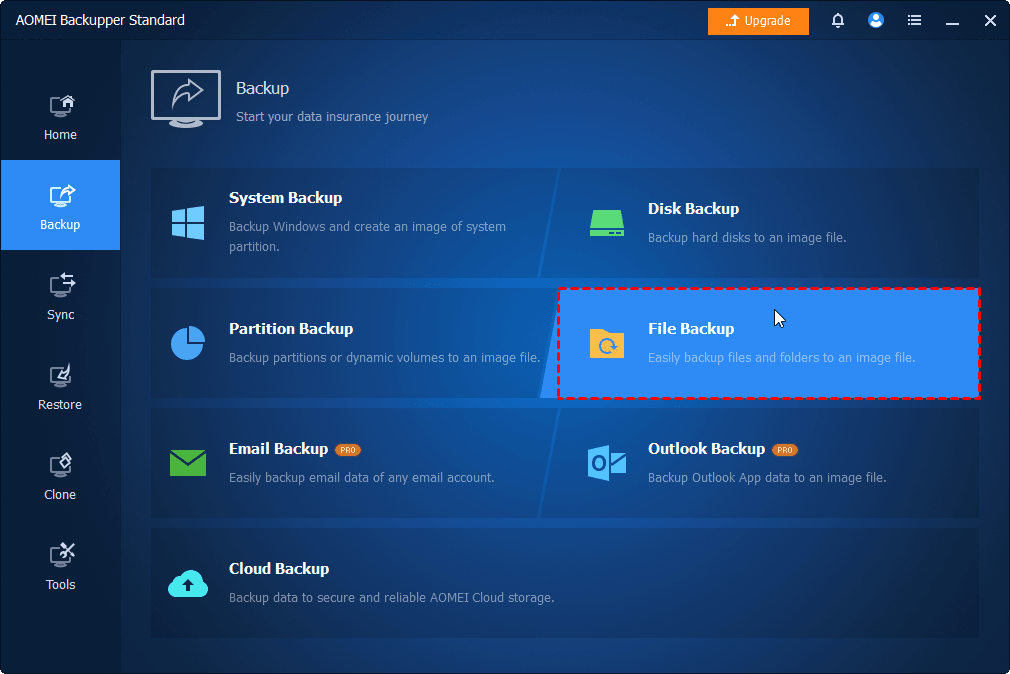
Step 1. Open AOMEI Backupper Standard after installing. Then, go to Backup > File Backup. You can also select System Backup, Disk Backup, etc.
Step 2. Click Select Source > Add File/Folder.
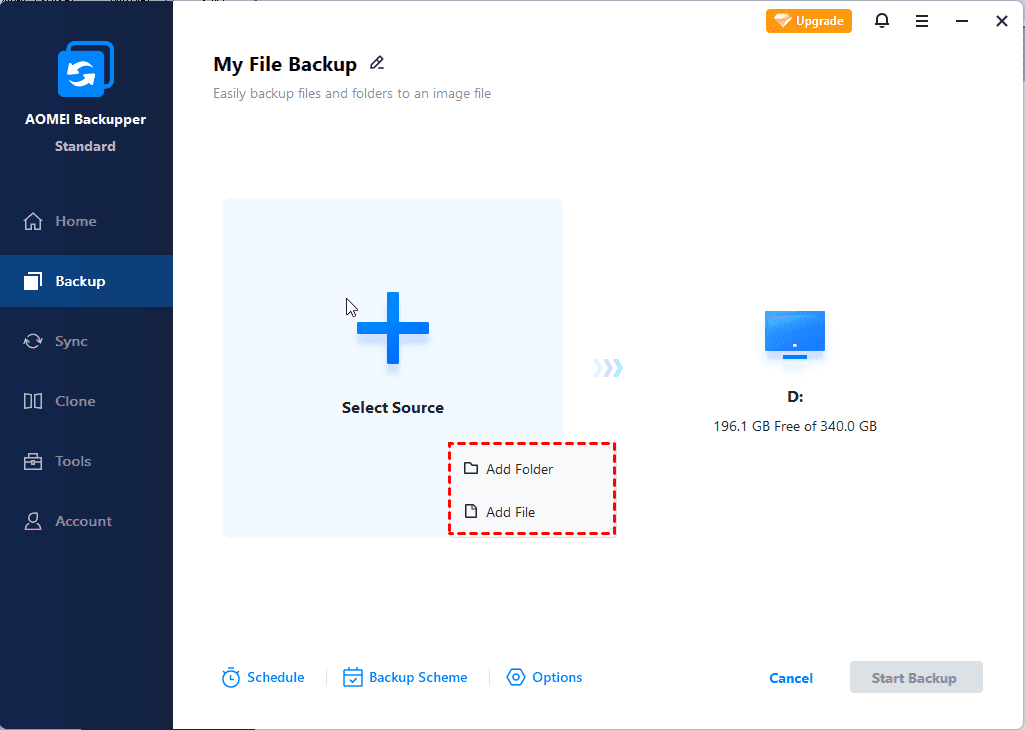
In the Open window, click Desktop, Libraries, This PC, or Share/NAS to browse and select any files and folders.
⚠️Notes:
◾ To add two or more folders, click Add Source.
◾ You need to manually add the device to backup files on a network drive or NAS.
Step 3. Click the PC icon on the right.
In the Backup Destination window, select a common location (if it exists) or click Local Drive, Network Share, etc., to add a new one.
Step 4. Click Schedule and enable it. Select Daily or Daily (Interval) from the drop-down menu. It allows you to set up backup time or interval and enable the option to wake the computer to run scheduled tasks.
✅Pro Tip: By default, this software enables compression, incremental backup, and splitting to reduce the size of the backup image. You can also click Options to comment, enable notifications, change compression, and more.
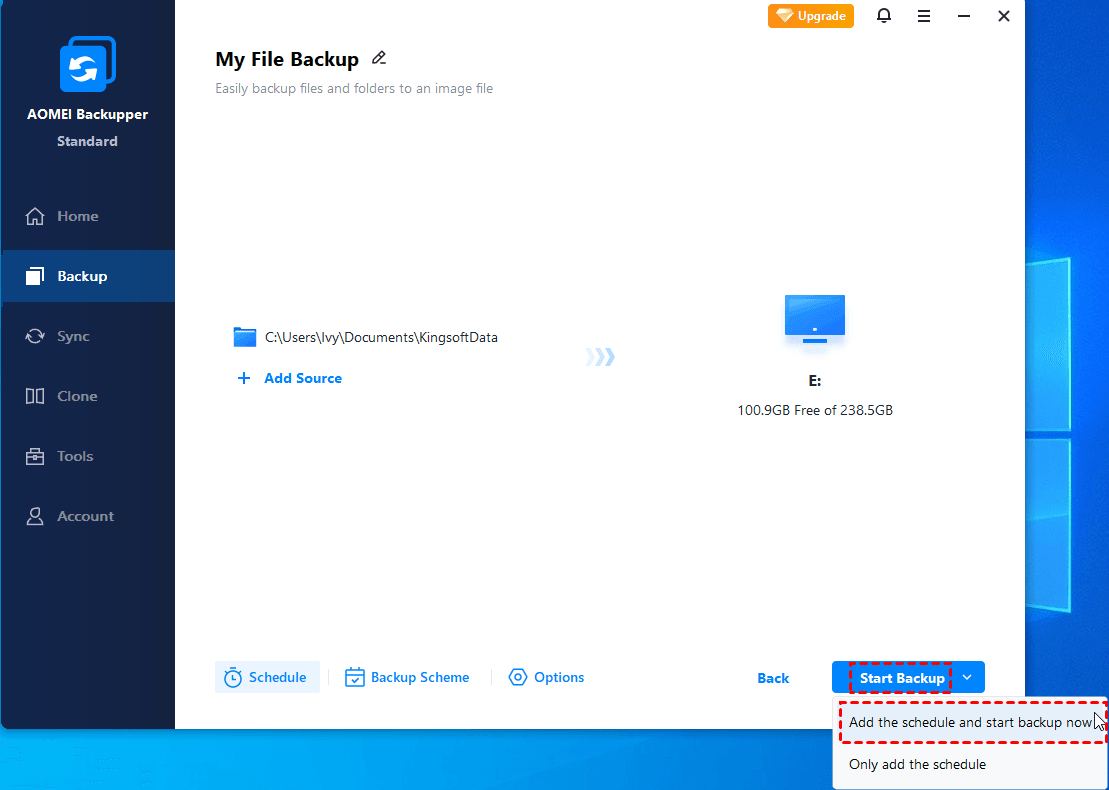
Step 5. At last, confirm the backup settings and click Start Backup to perform daily auto backup in Windows 10 or 11.
In addition, you can still upgrade to the advanced version of AOMEI Backupper and unlock features like differential backup, automatic backup cleanup methods, filter, explore image, universal restore, etc.
Why You Need Daily Backup Software?
Whether you’re a home or business user, it’s necessary to employ a daily backup software, which ensures your important data is always protected and ready when you need it most. Here are 3 highlights behind it:
- Updated backup: It takes daily backups to track all data changes and ensure they are up-to-date, minimizing the gap between data change and last backup.
- Set and forget: Once configured, it works quietly in the background, protecting your files without interrupting your workflow. No human intervention is required.
- No downtime: It always saves multiple backups, allowing you to quickly restore files from backups when something unexpected happens, e.g., accidental deletions, malware, etc.
Conclusion
AOMEI Backupper Standard is one of the best daily backup software for Windows that enables you to backup files, partitions, OS, or disks automatically while offering a range of useful features. During backup, you can use your computer as normal. Or set a up backup task during off-peak hours.

 as a preferred
source on Google
as a preferred
source on Google