




Best Free Network Backup Software for Windows 11/10/8/7
Want to create a network backup in Windows? Scroll down to get the best free network backup software to help you.

By Lily Updated on December 16, 2025


Data stored on network shared folders is often the backbone of daily work, whether in a home office or a small business environment. However, files saved on a network drive are not always safe. They can be lost due to accidental deletion, hardware failure, ransomware, or network outages. This is where network backup software becomes essential.

Best Free Windows Network Backup Software
When it comes to backing up network shared files on Windows without extra cost, AOMEI Backupper Standard stands out as a reliable and beginner-friendly solution.

 AOMEI Backupper
- Multiple Backup Types: You are able to backup Windows, disks, partitions, or specific files by choosing the corresponding backup type.
- Automated Backup Scheduling: Schedule daily, weekly, or monthly backups to ensure your data is protected without manual intervention.
- Incremental Backup: After the first full backup, only changed files are backed up, reducing backup time and saving storage space.
- Network Share Backup Support: Easily add network paths or shared folders using IP addresses and login credentials, making it easy to backup files from/to network share.
 100% Secure
Don’t hesitate to download AOMEI Backupper and install it on your PC!
Case 1: Backup Network Shared Files to PC
Backing up network shared files to a local PC is a practical way to protect network data. Here’s how to do it:
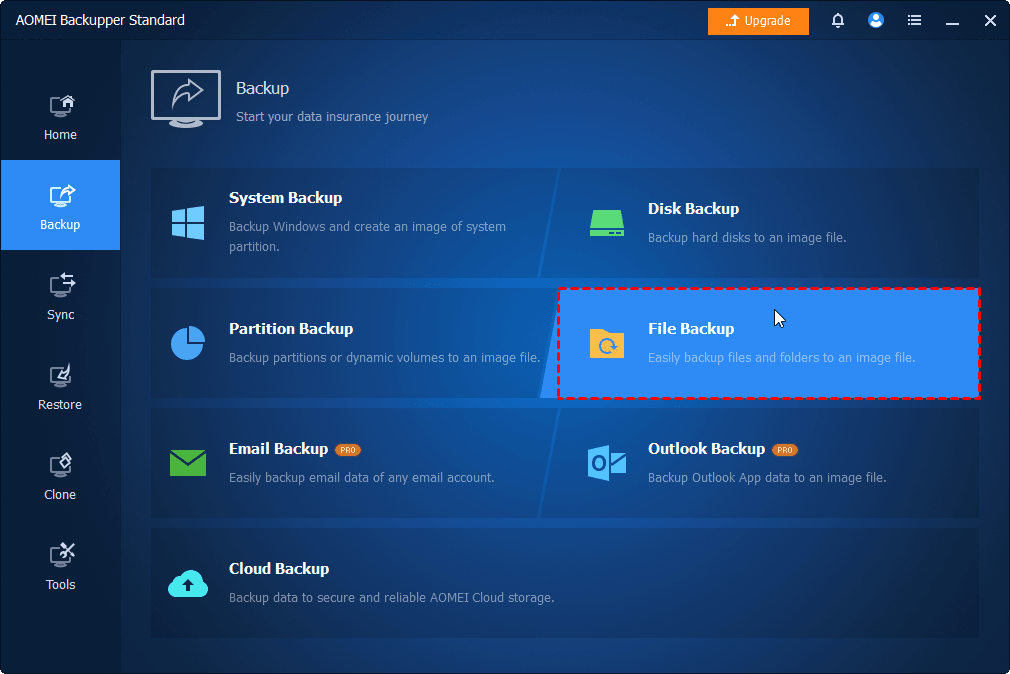
Step 1. Run AOMEI Backupper. Go to the Backup tab and select File Backup.
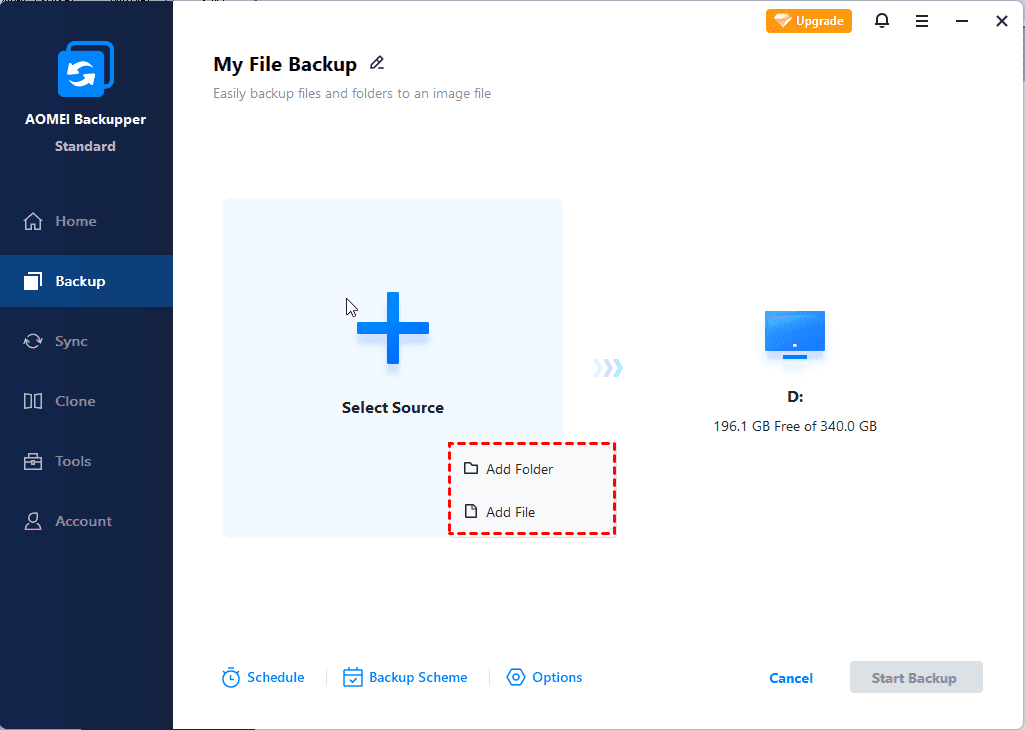
Step 2. Click Select Source > Add Folder > Share/NAS.
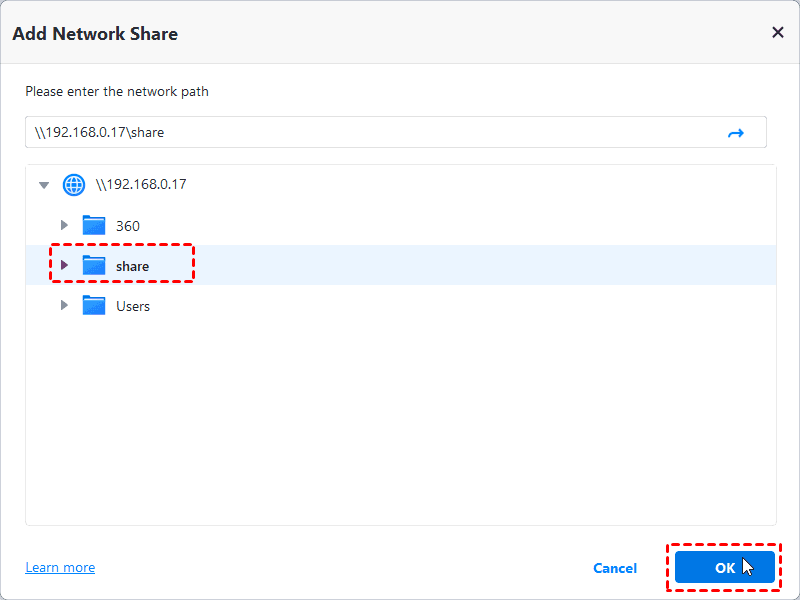
Step 3. In the Select Share/NAS Device window, click Add Network Share. Then enter your network path, select a shared folder you want to backup and click OK.
Step 4. You’ll be back on the Select Share/NAS Device window. Check the folder you added and click OK.
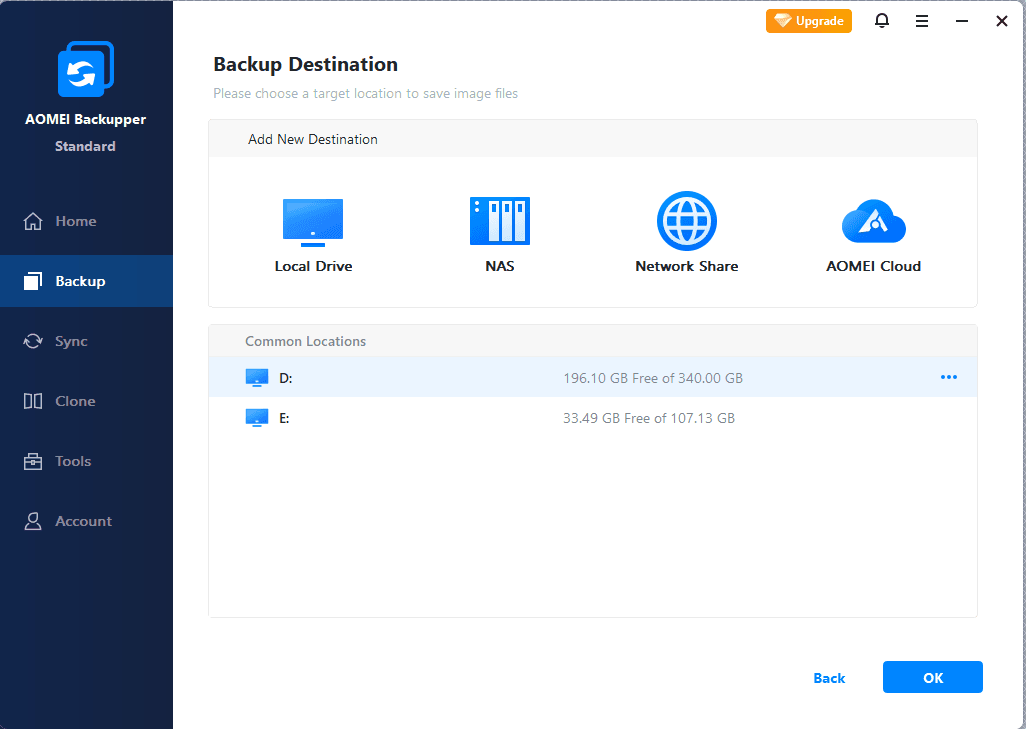
Step 5. Click the destination box > Local Drive to choose a local disk, external drive, or other connected storage on the PC as the backup destination.
Step 6. (Optional) Set Schedule if you want the backup task to run regularly. Click Options to enable compression, encryption (paid), or image splitting as necessary.

Step 7. Click Start Backup to begin the process. The software will back up the selected network shared files in the background, allowing you to continue working on the PC.
Case 2: Backup PC Files to Network Share
Backing up files from a local PC to a network share is an effective way to centralize data protection and keep important files safe on a dedicated storage device or file server. Follow the instructions below to create a Windows backup to network share:
Step 1. Launch AOMEI Backupper and click Backup > File Backup.
Step 2. Click Select Source > Add Folder/Add File to choose the PC files or folders you want to back up.
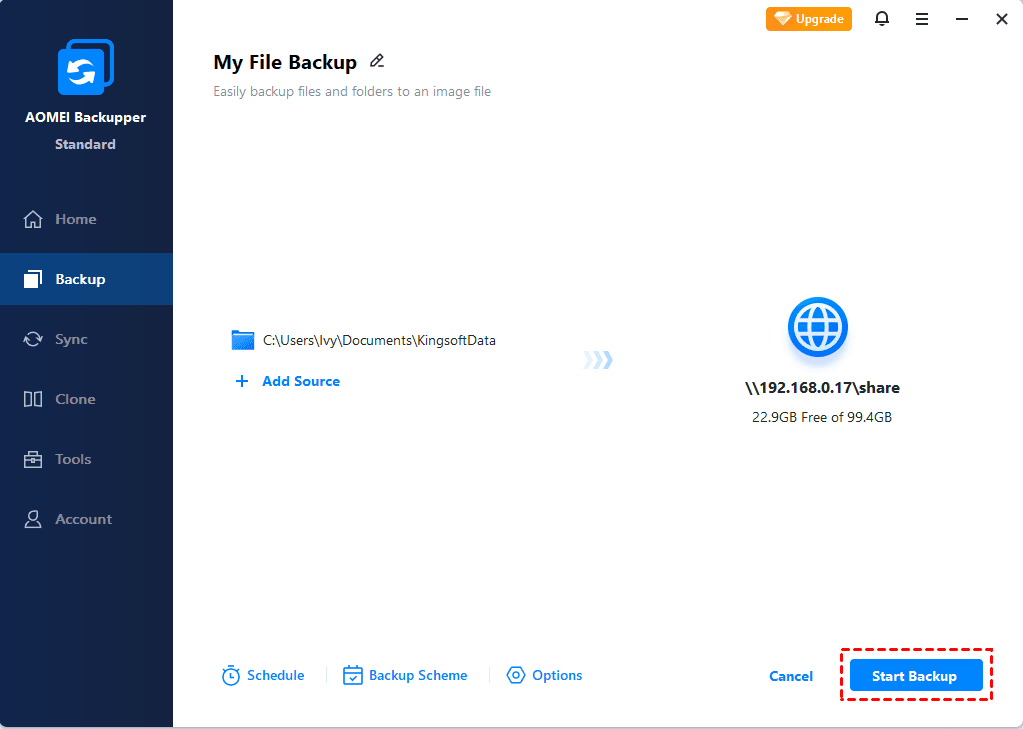
Step 3. Click the destination box > Network Share to add a shared folder as the destination path.
Step 4. Enable Schedule as necessary and click Start Backup to begin the process.
Troubleshooting Network Backup Errors
Network backups can occasionally fail due to connectivity issues, permission settings, or configuration problems. Here are the most common network backup errors and how to resolve them:
🎯 Network Path Not Found or Cannot Access Network Share
This error usually occurs when the network path is incorrect or the target device is offline. Double-check the network address (for example, \\IP-address\shared-folder) and ensure the PC can reach the network device. Verifying that the shared folder is accessible in File Explorer is a quick way to confirm connectivity.
🎯 Authentication or Permission Errors
If the backup task cannot connect to the network share, incorrect credentials or insufficient permissions are often the cause. Make sure the username and password entered in the backup task are correct and that the account has read or write access to the shared folder, depending on the backup direction.
🎯 Backup Task Fails or Stops Unexpectedly
Unstable network connections can interrupt backups, especially when transferring large files. To reduce failures, try running backups during off-peak hours and use incremental backups to minimize data transfer. Ensuring both the PC and network device remain powered on during the task is also essential.
🎯 Slow Network Backup Speed
Slow backups are commonly caused by limited network bandwidth or large file sizes. Connecting devices through a wired LAN instead of Wi-Fi, excluding unnecessary files, and scheduling backups during low-traffic periods can significantly improve performance.
Wrapping Things Up
Network shared files play a critical role in everyday work, but they are also vulnerable to data loss caused by hardware failure, human error, malware, or network issues. Using reliable network backup software is essential to ensure these files remain protected and recoverable.
AOMEI Backupper Standard provides a free and practical network backup solution. It enables you to backup network shared files to a local PC or backup PC files to a network share. What’s more, it supports cloud services, so you can use it to create OneDrive full backup. Try it now to discover more!

 as a preferred
source on Google
as a preferred
source on Google