



How to Transfer Files to WD My Passport from Windows (3 Ways)
Want to transfer files to your WD My Passport from Windows but not sure which method is best? This guide covers manual and automatic options – plus best practices for file safety.

By Lily Updated on May 12, 2026


External hard drives like WD My Passport are widely used for storing photos, videos, documents, and system backups because they are portable, reliable, and easy to use. Whether you want to free up space on your computer, create a backup of important files, or transfer large amounts of data, knowing how to move files correctly can help you avoid data loss and save time.
Preparations Before Transferring Files to WD My Passport
Before you transfer files to your WD My Passport drive, it is important to make sure the device is properly connected and ready to use. Follow the simple checks below:
📍 Connect WD My Passport to Your Windows PC Properly
Start by connecting your WD My Passport external hard drive to your computer using the original USB cable if possible. Plug the drive directly into a USB port on your PC instead of using an unstable USB hub.
Once connected, wait a few seconds for Windows to recognize the device automatically. If the drive has a power indicator, confirm that the light is on and stable.
📍 Ensure Enough Free Space on the External Drive
Before copying files, verify that your WD My Passport has enough available storage space for the data you want to transfer. You can check this by:
- Right-clicking the WD My Passport drive in File Explorer.
- Selecting Properties.
- Viewing the used and free space information.
If the drive is nearly full, delete unnecessary files or move old data to another storage device.
How Do I Transfer Files to My Passport from PC?
After preparing your WD My Passport drive, you can start transferring files from your Windows computer. Depending on your needs, you can manually copy files or use an automatic sync tool for continuous backup and file protection. Below are the 3 most effective methods.
|
|
|||
|
Ease of Use |
Easy |
Very Easy |
Easy |
|
Automation |
No |
No |
Yes |
|
Advantages |
Simple and built into Windows |
Quick shortcut access |
Continuous file protection and automation |
|
Limitations |
Must manually repeat transfers every time |
Not suitable for large or frequent backups |
Requires software installation |
|
Best For |
One-time file transfers |
Quickly sending small files or folders |
Regular backup and sync |
Method 1: Copy and Paste Files to WD My Passport
The easiest way to transfer files to WD My Passport is by using the traditional copy-and-paste method in File Explorer.
1. Open File Explorer and locate the files or folders you want to transfer.
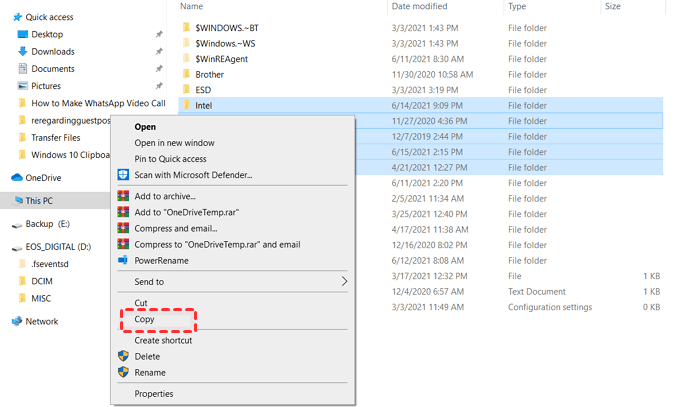
2. Right-click the selected files and choose Copy.
3. Open the WD My Passport drive under This PC.
4. Right-click an empty area inside the drive and select Paste.
5. Windows will begin transferring the files to the external hard drive. The transfer speed depends on the file size, USB version, and drive performance.
Method 2: Send Files to WD My Passport via Right-Click Menu
Windows also provides a faster shortcut called Send to, which allows you to move files directly to your external drive.
1. Open File Explorer and locate the files or folders you want to transfer.
2. Right-click the selected items and choose Send to > My Passport.
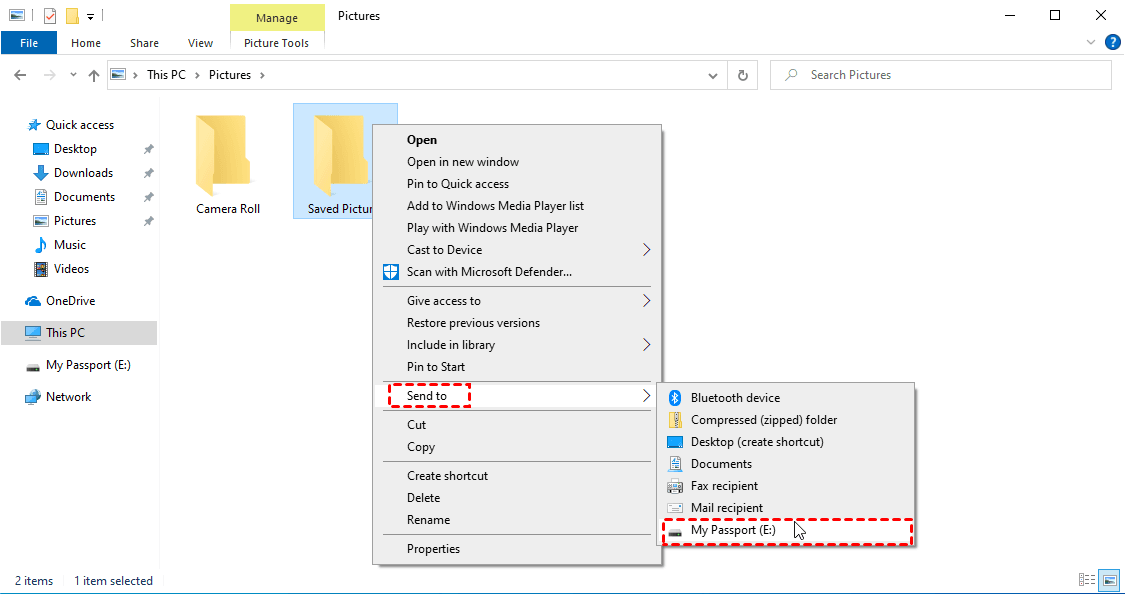
3. The selected files will automatically be copied to the drive.
Method 3: Auto Sync Files to WD My Passport with a Free Tool
Manual transfers work well for occasional use, but they can become time-consuming if you frequently update files. In this case, automatic synchronization software - AOMEI Backupper Standard can help keep your files continuously updated on WD My Passport.
 AOMEI Backupper
- Batch sync: Sync multiple folders at once to work more efficiently and intelligently.
- Schedule automatic sync: Configure tasks to run daily, weekly, monthly, or trigger on specific events (e.g., system startup or shutdown).
- Versatile sync destinations: Compatible with local disks, external drives, NAS, and network paths. You can also sync local folders to Dropbox and other cloud storage.
- Supported file types: Ideal for personal files, work documents, photos, and other media files.
 100% Secure
Download AOMEI Backupper and follow the steps below to auto sync files to WD My Passport:
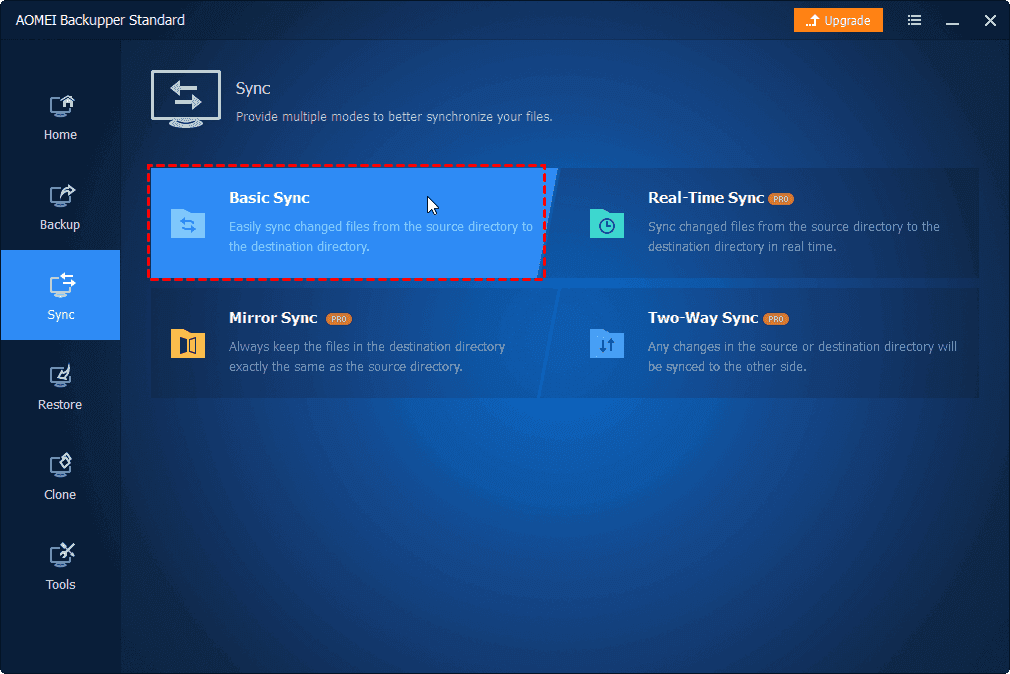
1. Install and launch AOMEI Backupper. Then click Sync > Basic Sync.
2. Click Select Source. In the pop-up window, check the box in front of the folder you want to transfer. You can check multiple boxes as you want.
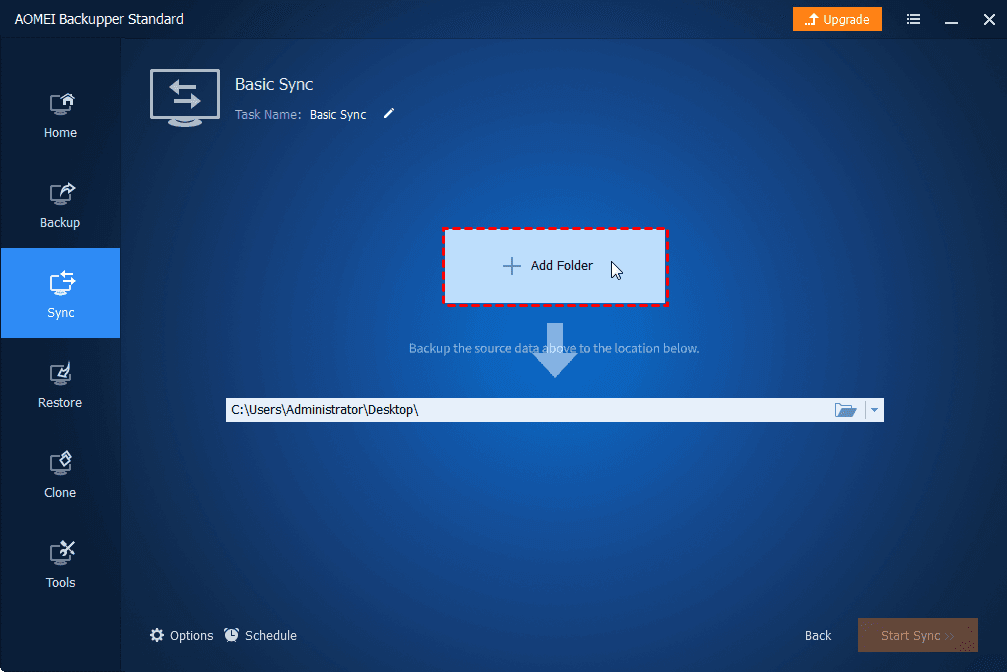
3. Click the destination area and select your WD My Passport drive as the target path.
4. Click Schedule Sync and configure automatic synchronization settings based on your needs.
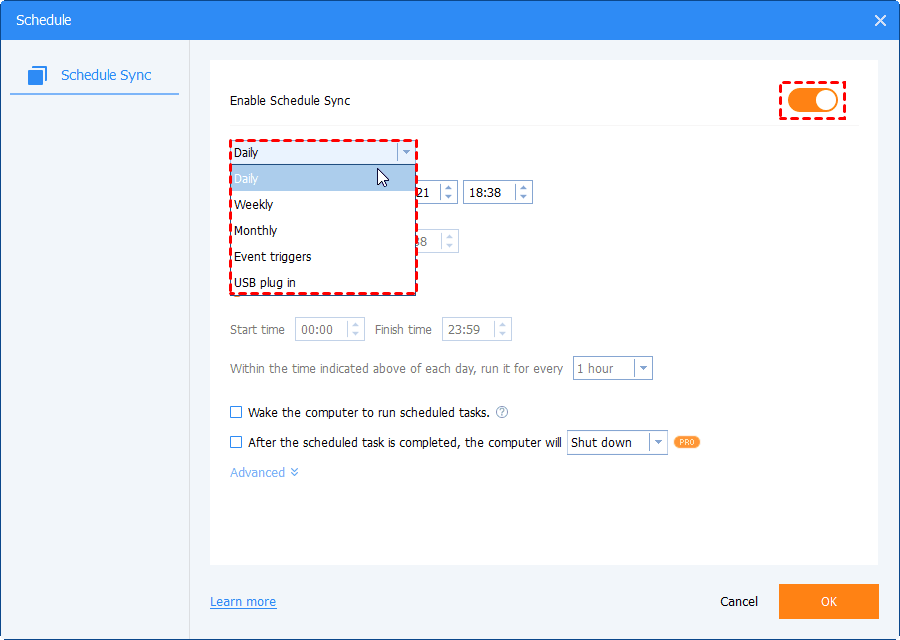
5. Click Start Sync to begin transferring files from PC to WD My Passport.
Best Practices for Managing Files on WD My Passport
Good file management boosts data security, prevents transfer issues, and extends drive life. Follow these tips:
- Organize files logically – Use clear folders and naming conventions.
- Eject safely – Always use "Safely Remove Hardware" to prevent corruption.
- Keep firmware updated – Install WD Drive Utilities or Dashboard updates.
- Enable encryption – Use WD Security or BitLocker to protect sensitive data.
- Avoid overfilling – Leave at least 10–15% free space for performance.
- Handle physically gently – External drives are shock-sensitive; avoid drops.
- Scan for errors regularly – Use CHKDSK or WD Drive Utilities.
- Backup external drive – Don’t rely on a single drive; follow the 3-2-1 rule.
FAQs About Transferring Files to WD My Passport from Windows
1. How to use WD My Passport on Windows 10/11?
Using WD My Passport on Windows 10/11 is simple. After connecting the external drive to your computer with a USB cable, Windows should automatically detect it and assign a drive letter. Then you can open it in File Explorer to store, copy, move, or back up files.
2. How do I transfer large files to WD My Passport?
To transfer large files successfully, make sure your WD My Passport is formatted with NTFS or exFAT. If the drive uses FAT32, files larger than 4GB cannot be copied.
For better performance when moving large videos, system images, or backup files:
- Use a USB 3.0 or newer port
- Avoid running heavy programs during transfer
- Keep enough free space on the drive
3. Why can’t I transfer files to my WD My Passport?
There are several possible reasons why file transfers may fail. Common causes include:
- The drive is not properly connected
- The USB cable or port is damaged
- The drive is write-protected
- The file system is incompatible
- The drive does not have enough free space
You can try reconnecting the drive, changing USB ports, restarting your computer, or checking the drive status in Disk Management.
Wrapping Things Up
Now you know how to transfer files to WD My Passport from Windows. Microsoft provides several simple ways to move files, including copy-and-paste and the Send to shortcut menu for quick manual transfers.
If you regularly back up files or want better protection against data loss, the automatic sync tool - AOMEI Backupper Standard offers a more efficient solution. It enables you to sync files between various locations, such as transfer data from one laptop to another. Don’t hesitate to try it out!

 as a preferred
source on Google
as a preferred
source on Google