




How to Transfer Data from One Laptop to Another (Best Ways)
Need to move your data to a new laptop? Learn the safest and easiest ways to do it. This guide compares different methods and gives clear instructions.

By Lily Updated on January 21, 2026


Getting a new laptop is exciting—but figuring out how to transfer files from one laptop to another can quickly become overwhelming. Your old device may hold years of important files, work documents, photos, and personal data that you don’t want to lose or manually rebuild.
Whether you’re upgrading to a faster machine, replacing a failing laptop, or setting up a new work computer, choosing the right transfer method is essential to save time and avoid costly mistakes.
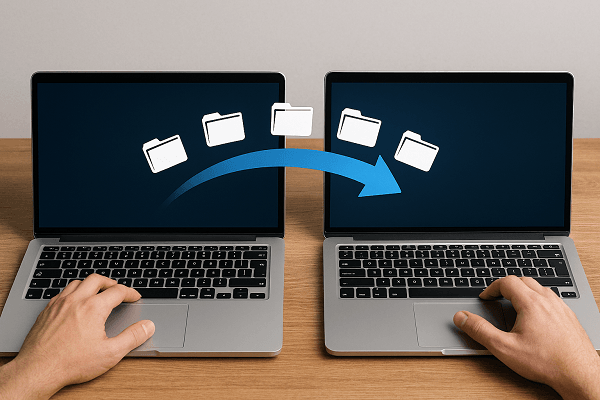
Best Ways to Transfer Data from One Laptop to Another
In general, there are four common methods you can use to transfer data from one laptop to another. Choose the right method depending on how much data you have, how fast you need the transfer to be, and whether you want to move only files or create a more complete data backup.
|
Comparison Item |
Method 1: External Storage |
Method 2: LAN |
Method 3: Cloud Storage |
Method 4: File Sync Tool |
|
Required tools |
USB flash drive or external hard drive |
Stable Wi-Fi network or LAN |
Cloud account + internet |
AOMEI Backupper Standard |
|
Internet needed |
❌ No |
❌ No (local network only) |
✅ Yes |
❌ No |
|
Transfer speed |
⭐⭐⭐⭐ Fast (USB 3.0/SSD) |
⭐⭐⭐ Medium (depends on network) |
⭐⭐ Slow to medium (upload limits) |
⭐⭐⭐⭐ Fast and stable |
|
Data types supported |
Selected files/folders |
Selected files/folders |
Selected files/folders |
Files, folders, system, disk, partitions |
|
Ease of use |
Easy |
Moderate |
Easy |
Easy |
|
Best for |
Quick offline file copy |
Direct laptop-to-laptop transfer |
Remote or cross-location transfer |
Full data migration & long-term protection |
|
Typical limitations |
Needs extra hardware |
Slower, network issues |
Limited free space, privacy concerns |
Software installation required |
How to Transfer Data from Laptop to Laptop Step by Step
In this part, you’ll learn how to transfer files from old laptop to new laptop using different methods. Pick one way that best fits your needs.
👉 Method 1: Transfer files using external storage
👉 Method 2: Transfer data over LAN
👉 Method 3: Transfer files via cloud storage
👉 Method 4: Transfer data with a free sync tool🔥
Method 1: Transfer files using external storage
Step 1. Plug a USB flash drive or external hard drive into your old laptop. Make sure it has enough free space to hold all the data you plan to transfer.
Step 2. Open File Explorer, browse to the data you want to move (Documents, Desktop, Pictures, Videos, project folders, etc.), then select them.
Step 3. Right-click the selected files and choose Copy, or press Ctrl + C.
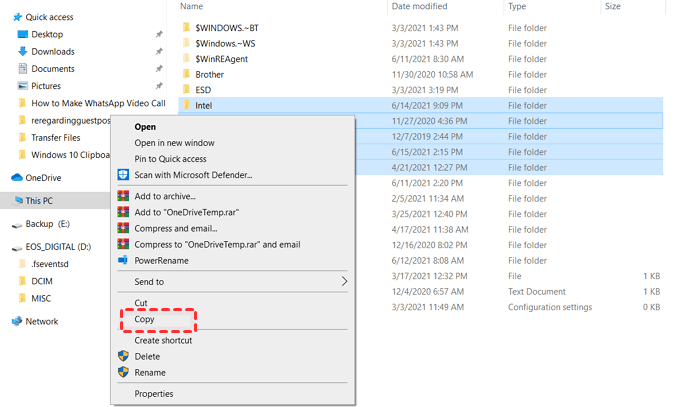
Step 4. Open the external drive, right-click inside it, and choose Paste (or press Ctrl + V).
Step 5. Once the transfer finishes, right-click the USB drive or external drive and select Eject to avoid data corruption.
Step 6. Plug the drive into your new laptop and open File Explorer.
Step 7. Copy the files from the external drive and paste them into the appropriate folders on your new laptop (Documents, Downloads, Pictures, or a custom location).
💡 Tips for Better Results
- Use an external SSD for much faster transfer speeds.
- Organize files into folders before copying to avoid missing important data.
- Don’t interrupt the process, especially when transferring large files.
Method 2: Transfer data over LAN
Step 1. Connect both laptops to the same Wi-Fi network or LAN.
Step 2. On both laptops, go to:
- Settings → Network & Internet → Advanced network settings → Advanced sharing settings
- Turn on Network discovery and File and printer sharing.
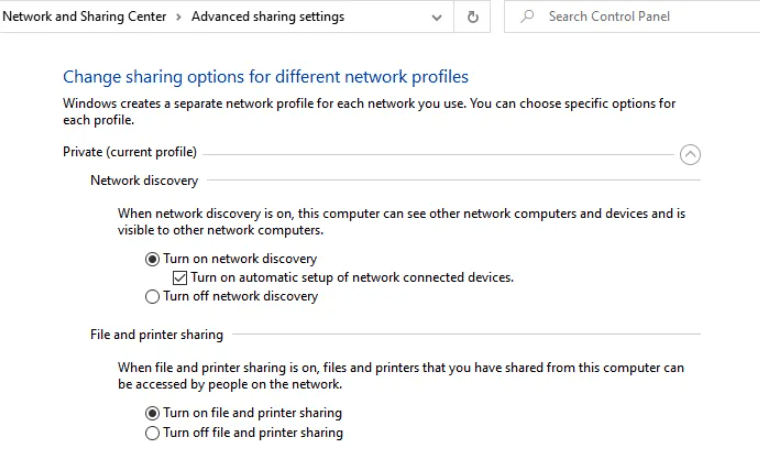
Step 3. Share a folder on the source laptop.
- Right-click the folder you want to transfer.
- Select Properties → Sharing → Advanced Sharing.
- Check Share this folder, click Permissions, and allow Read or Full Control.
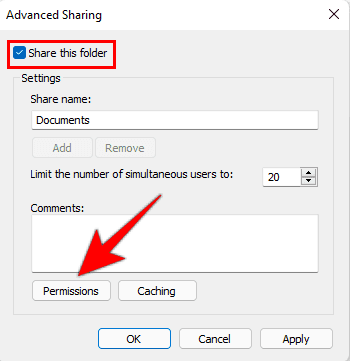
- Click OK to confirm.
Step 4. Access the shared folder from the target laptop.
- Open File Explorer on the new laptop.
- Click Network in the left panel.
- Find the old laptop’s name and open the shared folder. Enter the login credentials of the source laptop if prompted.
Step 5. Drag and drop the shared files to a local folder on the new laptop, or use copy and paste.
💡 Tips for Faster and Safer Transfers
- Use wired Ethernet connections if possible for higher speed and stability.
- Keep both laptops plugged into power during large transfers.
- Temporarily disable sleep mode to avoid interruptions.
Method 3: Transfer files via cloud storage
Step 1. On the old laptop, open your cloud storage app or website and log in.
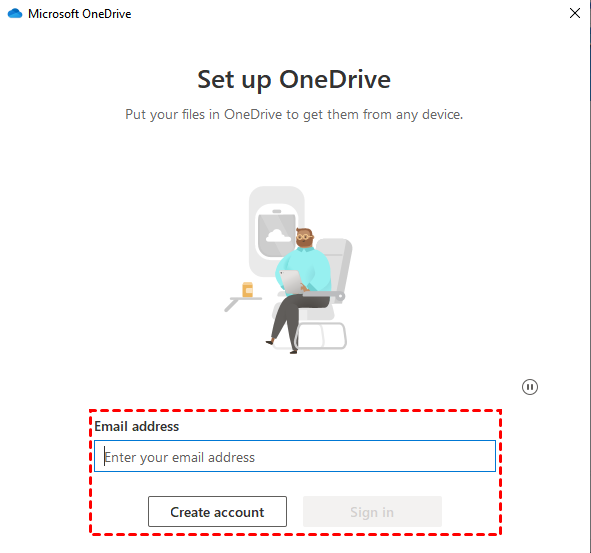
✍Note: OneDrive offers 5GB of free storage, Google Drive offers 15GB of free storage, while Dropbox offers 2GB of free storage. Upgrade your plan as necessary.
Step 2. Select the folders or files you want to move and upload them to the cloud. Wait for the upload process to finish completely.
Step 3. On the new laptop, log in to the same cloud service using the same account.
Step 4. Locate the uploaded data and download it to your preferred local folders.
💡 Tips for Using Cloud Storage Efficiently
- Upload large folders overnight to avoid network interruptions.
- Organize data into folders before uploading for easier downloading.
- Enable two-factor authentication to protect sensitive files.
Method 4: Transfer data with a free sync tool
For a fast, reliable, and complete data transfer, you may use a free file sync tool - AOMEI Backupper Standard. It lets you transfer files from one laptop to another with minimal effort.

 AOMEI Backupper
- Multiple Sync Paths: Sync files between local folders, across different drives, or even between two computers.
- Automated Sync: Set up sync tasks to run automatically—daily, weekly, monthly, or triggered by specific system events.
- Batch Processing: Transfer multiple folders at once, eliminating repetitive manual work.
 100% Secure
Download AOMEI Backupper and follow the steps below to transfer data from laptop to laptop:
Step 1. Create a new folder on the source laptop and share it over network as mentioned in method 2.
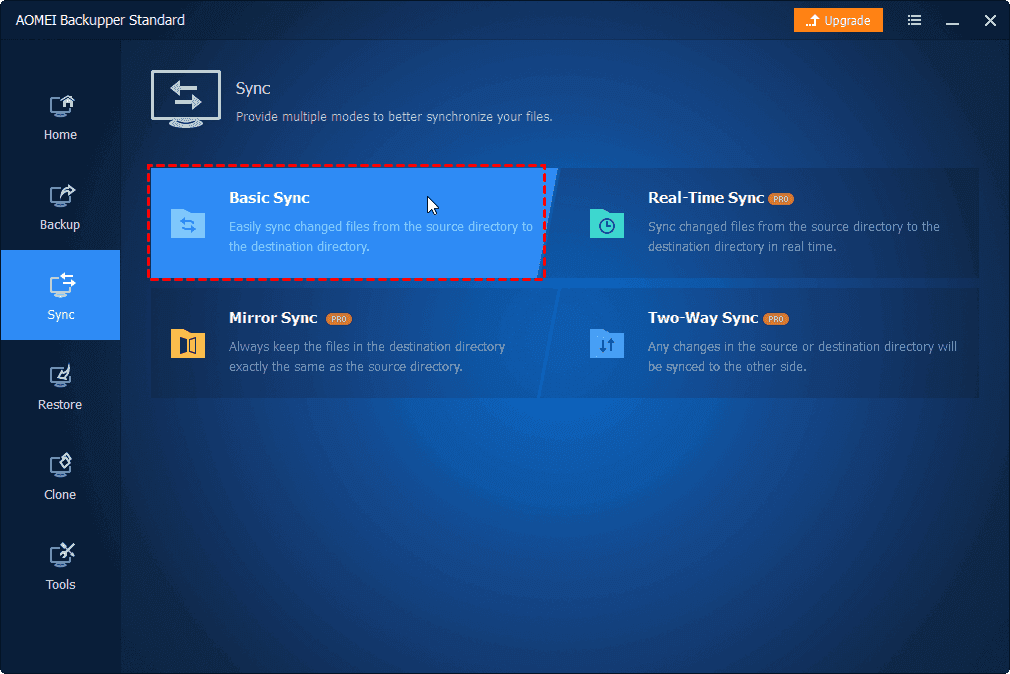
Step 2. Install and launch AOMEI Backupper on your source laptop. Click Sync and select Basic Sync.
Step 3. Click Select Source to select the folder(s) you want to transfer to the new laptop.
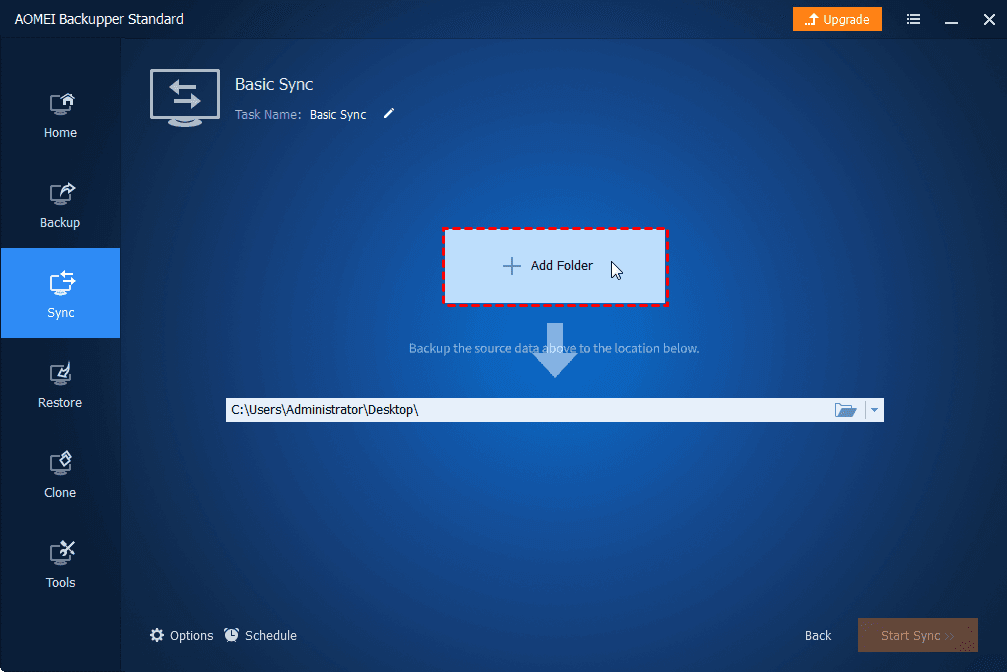
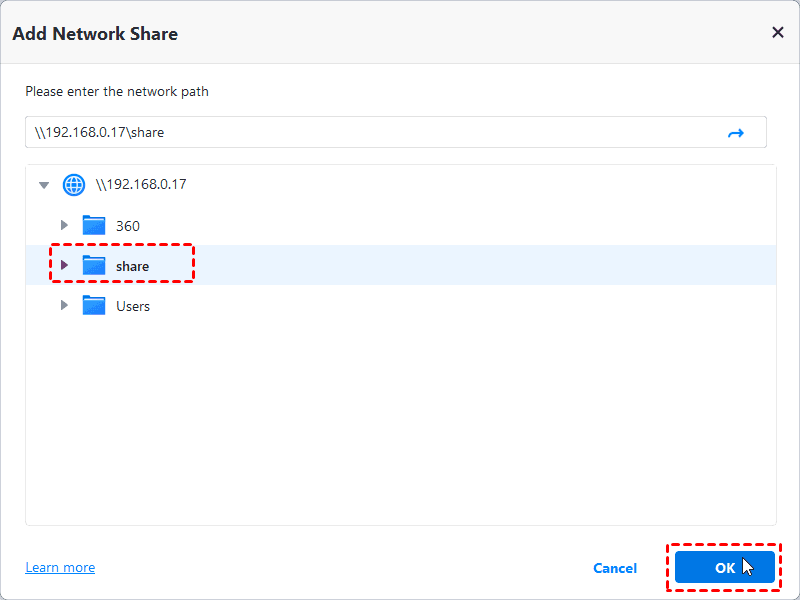
Step 4. Click the destination box and select Add Network Share in the next window. Then enter the IP address of your source laptop, select the shared folder just created and click OK.
Step 5. Enable Schedule Sync and choose your preferred frequency as necessary. Finally, click Start Sync to begin file sync.
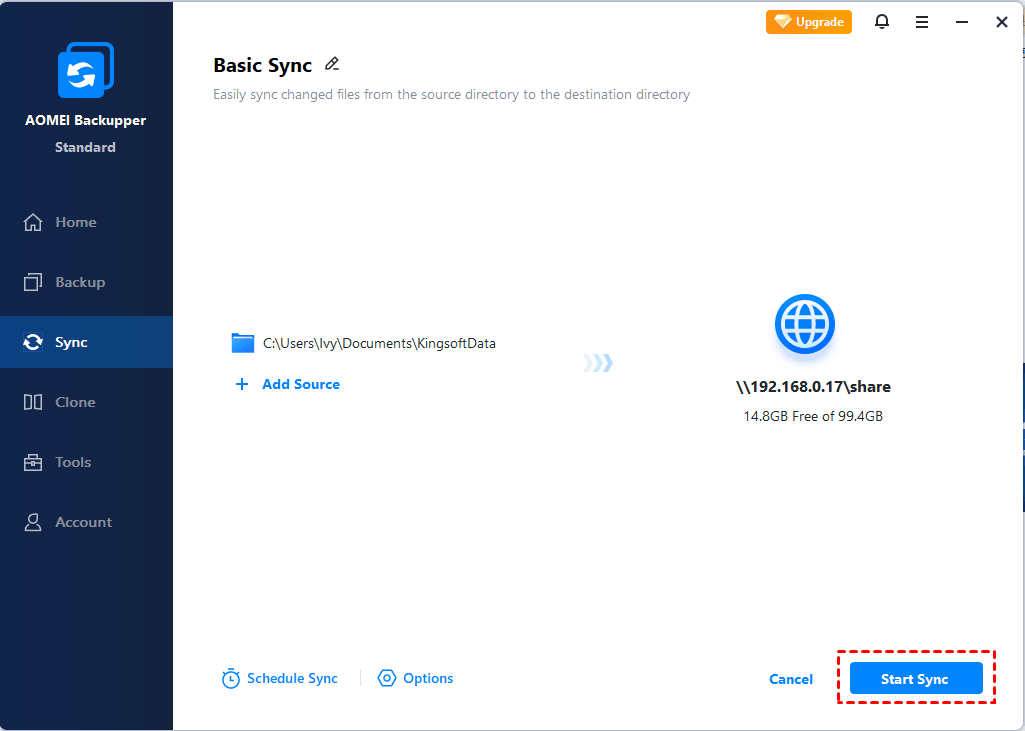
Step 6. After the sync process is finished, type the network path (e.g., \\192.168.0.17\share) in the search box on your target laptop. Then you can see all the synced files. Copy those files elsewhere on your new laptop as necessary.
✍Notes:
● To enjoy advanced sync modes like Mirror Sync, Two-Way Sync, and Real-Time Sync, please upgrade to AOMEI Backupper Professional or higher.
● To transfer everything from one laptop to another, please check this guide: Clone Old Computer to New Computer.
FAQs About Transferring Data from One Laptop to Another
1. Can I transfer programs and system settings, or just files?
Manual methods like USB drives, LAN, and cloud storage only transfer files and folders. To move programs, system settings, or the entire operating system, use a backup and migration tool like AOMEI Backupper.
2. Is it safe to transfer data over Wi-Fi or cloud storage?
Yes, if you follow security best practices. For LAN transfers, use a trusted network. For cloud storage, enable encryption and two-factor authentication to protect your files.
3. What should I do if some files don’t transfer correctly?
Check file permissions, ensure sufficient storage on the target laptop, and verify network stability if transferring over LAN or cloud. Using professional software like AOMEI Backupper can minimize errors and ensure a complete transfer.
Summary
Transferring data from one laptop to another doesn’t have to be complicated. External storage is simple and works without internet, LAN transfers are convenient on local networks, and cloud storage is ideal for remote or lightweight transfers.
However, if you are dealing with large volumes of data or want a more stable and organized way to move and protect your files, AOMEI Backupper is the recommended solution. It can not only transfer files but also create a continuous backup solution. Don’t hesitate to try it out!

 as a preferred
source on Google
as a preferred
source on Google