



How to Clone Old Computer to New Computer (No Reinstalling)
Learn how to clone old computer to new computer with AOMEI Cloner, ensuring all data, settings, and applications are transferred effortlessly.

By Lily Updated on August 10, 2026


When upgrading to a new computer, transferring all your data, settings, applications, and system configurations can be a challenging task. Instead of manually reinstalling everything, cloning your old computer to a new one allows you to create an exact copy of your system and migrate it seamlessly. This ensures that your new PC retains the same operating system, files, and preferences without any data loss or reinstallation hassles.
Whether you're migrating to a new PC with the same hardware or a different hardware configuration, the right cloning method will ensure a smooth transition. In this guide, we will walk you through the preparations and provide detailed steps for cloning old PC to new PC.
Preparations Before Cloning a Computer
Before you begin the cloning process, follow these essential preparation steps to avoid errors and ensure a smooth migration.
1. Check Storage and Compatibility
Ensure your new computer's disk has enough space to accommodate all data from the old system. If the new disk is smaller, consider deleting unnecessary files or choosing a selective cloning method.
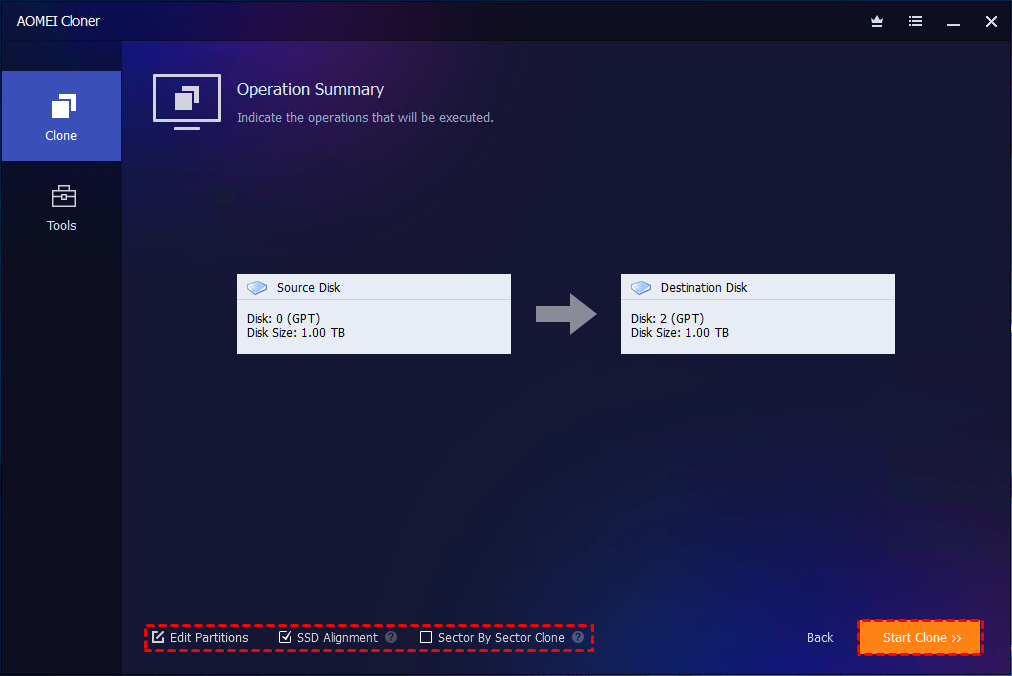
If your new PC uses an SSD, enable SSD Alignment during the cloning process to optimize performance and extend lifespan.
2. Backup Important Data
Although cloning is safe, unexpected errors can occur. You’d better backup important files to an external drive or a cloud storage service before proceeding.
3. Choose a Reliable Cloning Tool
Windows 11/10 does not have a built-in cloning tool, so third-party software is required. AOMEI Cloner is a recommended choice because it supports:
 AOMEI Cloner
- Disk Clone – Clones the entire hard drive, including the OS, applications, and files.
- System Clone – Migrates only the operating system to a new disk.
- Intelligent Clone – Copies only the sectors that contain data, making it easy to clone a larger drive to a smaller drive.
- Offline Clone – Performs cloning even when the system won’t boot by using a bootable USB/CD/DVD.
- SSD Alignment – Automatically aligns partitions during cloning to optimize SSD performance and extend its lifespan.
- Edit Partitions – Adjusts partition sizes and types of the destination disk as you want.
 100% Secure
4. Prepare Necessary Equipment
- Prepare a USB-to-SATA adapter or an external SSD/HDD enclosure to connect a drive for cloning.
- Prepare a USB drive (at least 8GB) for bootable media creation.
5. Update System and Drivers
Ensure Windows and all drivers on your old PC are up to date to prevent compatibility issues after cloning.
Once you've completed these preparations, proceed with the appropriate cloning method based on your situation.
How to Clone an Old Computer to a New Computer (Step-by-Step Guide)
Generally speaking, there are two ways to clone old hard drive to new computer:
👉 Method 1: Clone on the Old Computer (Easier 🔥)
👉 Method 2: Clone on the New Computer
💡 Notes:
◆ If the old computer is running Windows 11/10 or Server 2025/2022/2019/2016, the cloned drive will remain bootable whether the new computer has same hardware or different hardware.
◆ If the old computer is running Windows old versions and the new computer has dissimilar hardware, you may use AOMEI Backupper to backup Windows and restore on another computer to ensure a successful boot.
Method 1: Clone on the Old Computer (Easier 🔥)
Step 1: Connect the New PC’s Hard Drive to Old PC
Remove the hard drive on the new computer and connect it to your old computer using a USB-to-SATA adapter or an enclosure. Make sure it is detected on the old computer.
Step 2: Start the Cloning Process
- Download and install AOMEI Cloner on your old computer.
- Open AOMEI Cloner and go to Disk Clone.
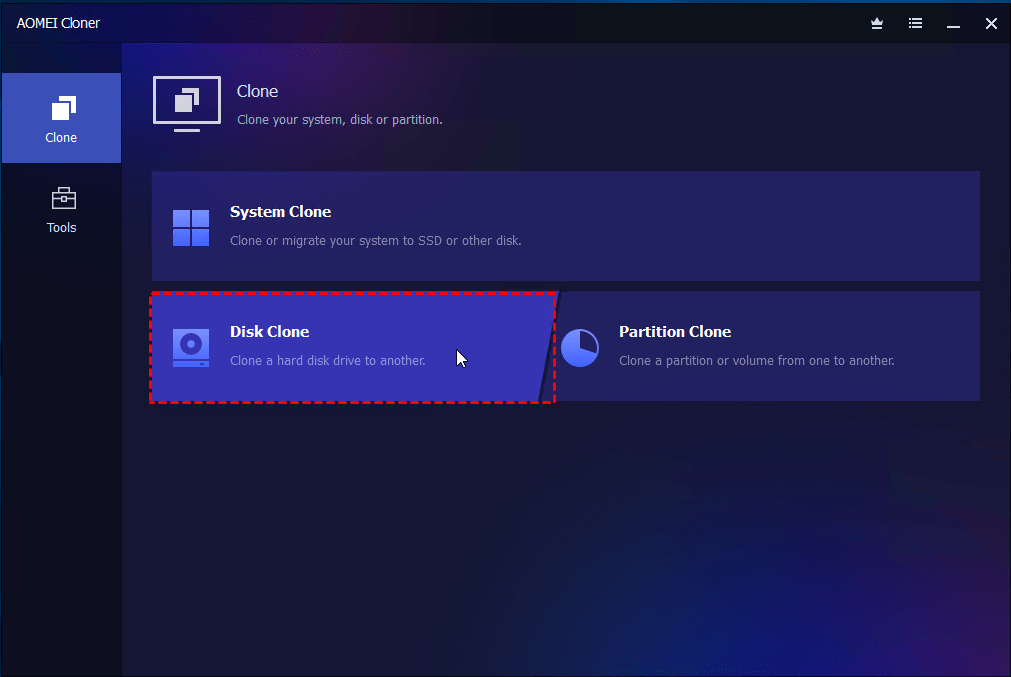
- Select your old computer’s hard drive as the source disk.
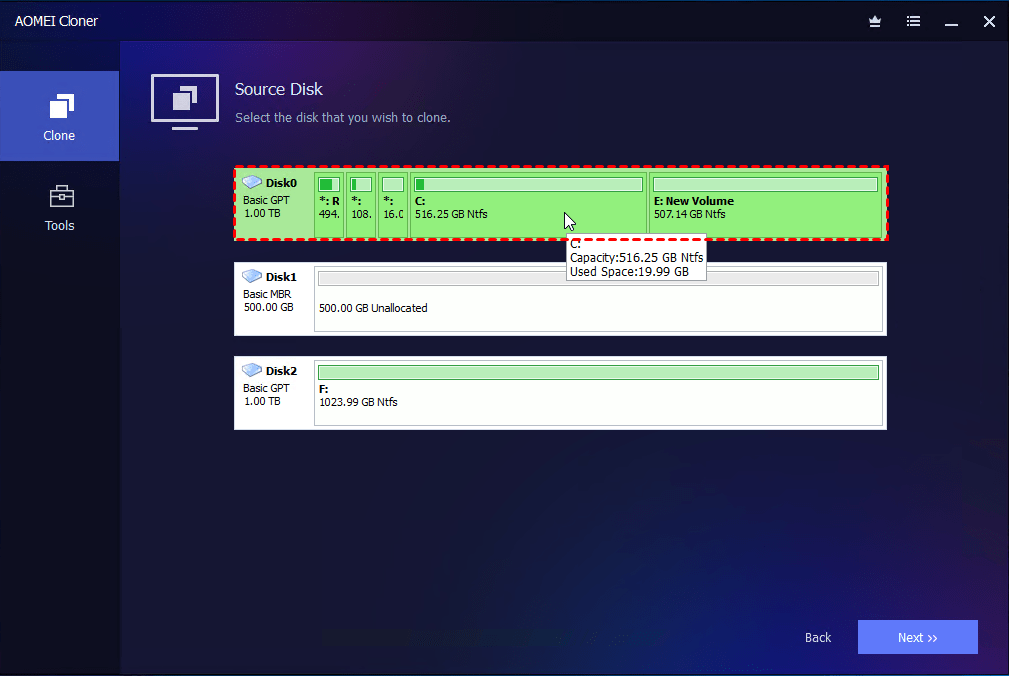
- Choose the new drive (SSD/HDD) as the destination disk.
- Enable SSD Alignment if cloning to an SSD for better performance and click Start Clone.
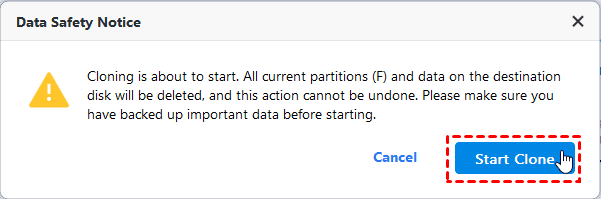
- In the Data Safety Notice window, click Start Clone again. Wait for the process to complete.
Step 3: Install the Cloned Drive in the New PC
- Disconnect the cloned drive from the old PC.
- Install it into the new computer’s drive slot.
- Boot into BIOS/UEFI (press F2/F12/Delete during startup).
- Set the cloned drive as the boot disk.
- Save changes and restart the computer.
Your new PC should now boot into Windows exactly as it was on your old computer, with all settings and applications intact.
Method 2: Clone on the New Computer
Step 1: Create a Bootable USB Drive
- Connect a USB drive to your old computer.
- Download and install AOMEI Cloner on the old PC.
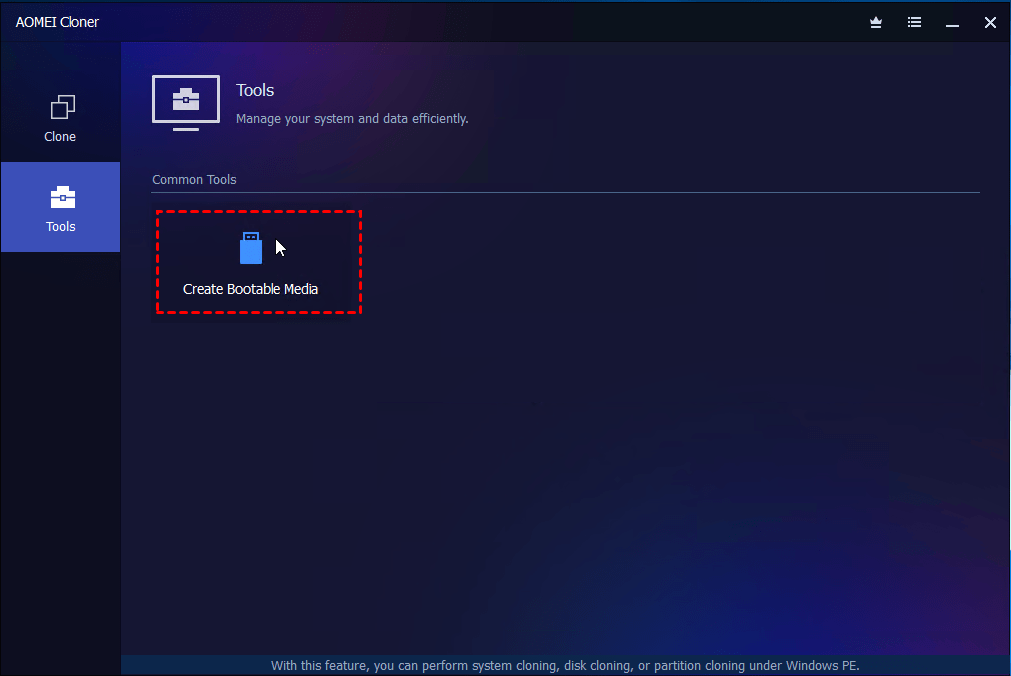
- Open AOMEI Cloner and go to Bootable Media. Follow the wizard to create a bootable USB drive.
Step 2: Connect the Bootable USB and Old Hard Drive to New PC
- Connect the bootable USB drive to your new computer.
- Remove the hard drive on the old computer and connect it to the new PC.
Step 3: Start the Cloning Process
- Power on the new computer. Press the key for the BIOS menu (usually F2, F12, or Esc, depending on brand) and change boot order to prioritize the USB drive.
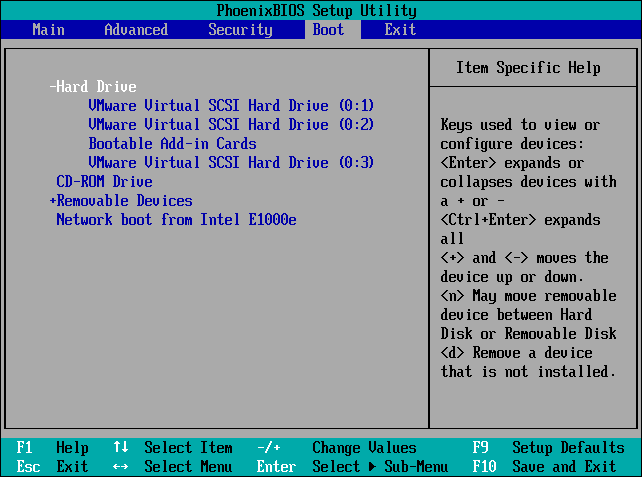
- After booting from the USB drive, AOMEI Cloner will load up automatically. Go to Clone > Disk Clone to clone the old drive to the new drive as mentioned in method 1.
Step 4: Boot and Configure the New Computer
- Remove the bootable USB and restart the new computer.
- Windows should now boot with all your old settings, files, and applications.
- Update drivers via Windows Update or the manufacturer's website.
FAQs about Cloning Old PC to New PC
1. Do I need to reinstall Windows after cloning?
No. Cloning copies Windows, applications, settings, and files exactly as they are. However, you may need to reactivate Windows and install new drivers after moving the cloned drive to a different PC.
2. What should I do if the cloned drive won’t boot on the new PC?
You can try:
- Adjusting BIOS/UEFI boot mode (Legacy vs. UEFI)
- Setting the cloned drive as the first boot device
- Running startup repair
Learn detailed repair steps from this guide: Cloned SSD Won’t Boot.
3. How long does it take to clone an old PC to a new PC?
The time depends on data size, disk speed, and connection type. Typically:
- 256GB drive: 20–40 minutes
- 1TB drive: 1–2 hours
SSD cloning is generally much faster than HDD.
4. Is cloning better than setting up a new PC from scratch?
If you want to keep everything exactly the same—apps, settings, and workflow—cloning is the fastest option. If you prefer a clean system and only need personal files, a fresh install may be better.
Conclusion
Cloning your old computer to a new one is the most efficient way to transfer all your data, settings, and applications without reinstalling everything manually. By following the steps outlined in this guide, you can ensure a seamless transition.
For a hassle-free experience, AOMEI Cloner is highly recommended. It offers disk cloning, system migration, and intelligent cloning, making it an ideal tool for both beginners and advanced users. Download AOMEI Cloner and use it to clone old PC to new PC now!

 as a preferred
source on Google
as a preferred
source on Google