




Free WD Elements Backup Software That Actually Works
Official WD backup tools don't work with Elements. GoodSync is gone. Acronis? Not compatible. This guide will show you afree alternative that actually works – in 5 minutes. Keep reading.

By Ivy Updated on June 8, 2026


You bought a WD Elements drive expecting reliable backups, but now you find out the official WD backup tools won't work with it. Frustrating, right?
WD Elements is explicitlyexcludedfrom compatibility with Acronis True Image for Western Digital. GoodSync for WD is no longer provided by Western Digital.
This guide cuts through the confusion, explains exactly what works and what doesn't, and shows you the best free, fully compatible backup software for your WD Elements drive.
Does WD Provide Any Backup Software for WD Elements?
Short answer: No official software works with WD Elements.
The official software download page offers two backup software options for Western Digital (WD) hard drives: Acronis True Image for Western Digital and GoodSync for WD. However, neither of those software mentions WD Elements.
👉 Acronis True Image for Western Digital:
- Officially supported drives: My Passport, My Book, WD Black, WD Blue, SanDisk Professional, and G-Tech.
- WD Elements is explicitly NOT supported, including Elements SE and Portable.
- You cannot activate Acronis True Image for Western Digital even if you have a software license.
👉 GoodSync for WD:
- Originally designed for “WD NAS devices only”, not for external drives like WD Elements.
- Western Digital no longer distributes or supports this tool.
- You can’t use it to backup filesto external drive.
WD Elements is sold as a basic external storage deviceand there isno built-in or official backup software available for it. You must use third-party backup softwareto backup WD Elements drive.
What to Look for in WD Elements Backup Software?
Not all backup tools are created equal. Here's exactly what your WD Elements drive needs.
- Automatic scheduling: You shouldn't have to remember to back up. Look for daily, weekly, monthly (by date), event triggers, etc., to create continuous backup for disaster recovery.
- File backup: This is the bare minimum. Your software must protect your documents, photos, videos, etc., without exceptions.
- System/Disk backup: Optional, but a lifesaver, especially when your PC is not bootable. It allows you to restore Windows, programs, and settings easily and quickly. Most free tools skip this – don't overlook it.
- Email notifications: Silent failures are the enemy. If a backup fails, you'll receive an alert immediately so you can address the problem before it's too late. Similarly, backup completion and requests for user intervention will trigger notifications.
- No hardware restrictions: Your software should work with any drive, not just expensive "premium" models. WD Elements users experienced issues with this in the past.
If you're looking for a tool that meets all of these requirements, AOMEI Backupper Standard is one option worth considering.
What’s more, it provides users with more backup solutions, along with a complete suite of backup features, such as incremental backup, compression, splitting, etc., allowing you to maintain multiple backups while saving time and disk space.
How to Backup Files to WD Elements Easily
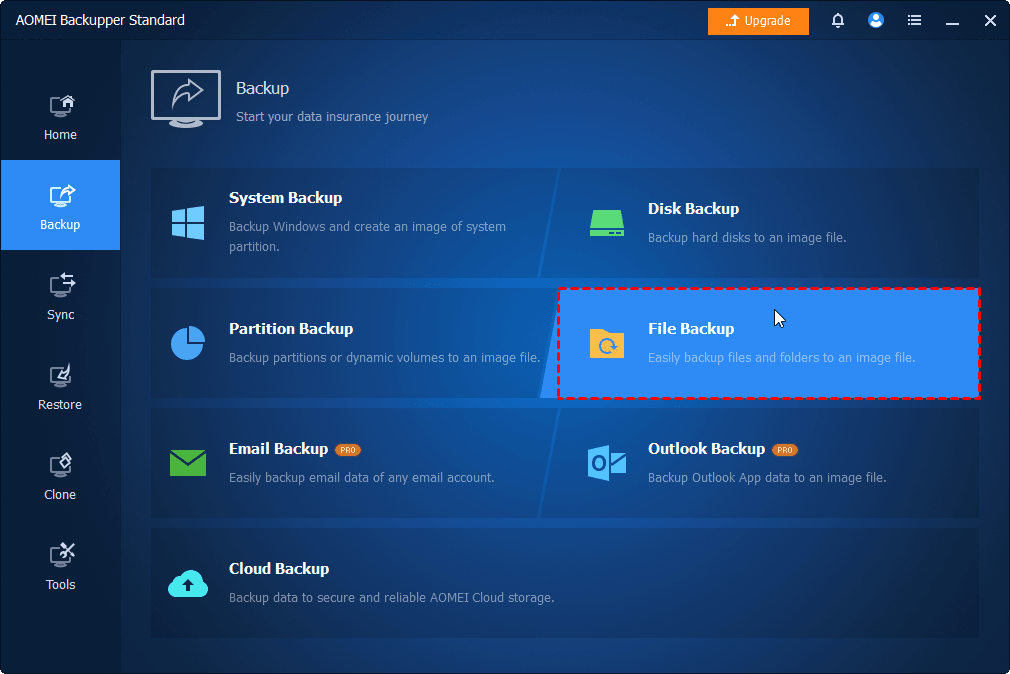
Step 1. Connect your WD Elements drive to your computer and be sure it’s recognized. Open AOMEI Backupper Standard after installing. Then, go to Backup > File Backup. You can also select other backup solutions (if needed).
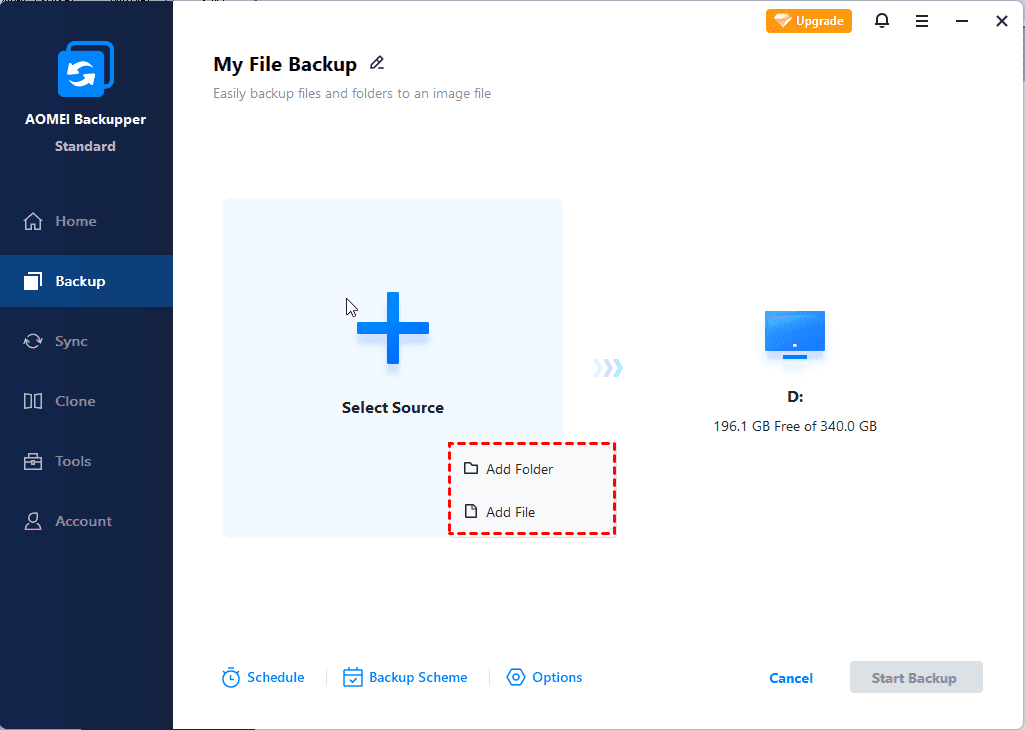
Step 2. Click Select Source > This PC to add any file and folder you want to protect. To add two or more files or folders, click Add Source.
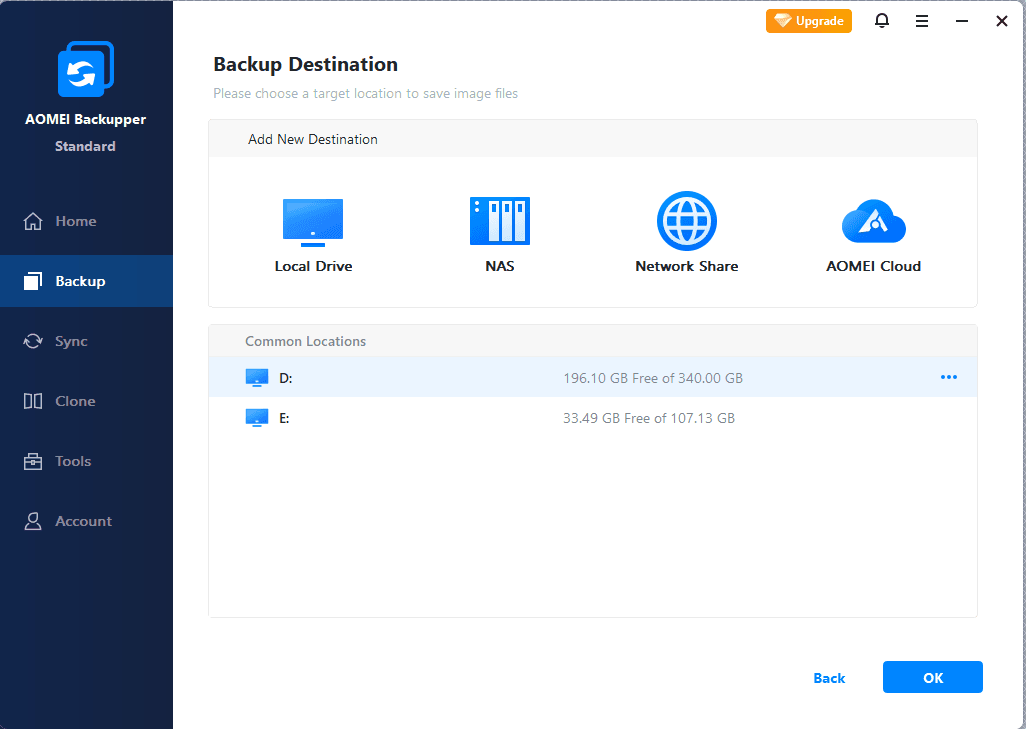
Step 3. Then, click the PC icon, expand This PC to find your WD Elements drive, and select it as the destination.
Step 4. For continuous data protection, click Schedule to enable Daily, Weekly, Monthly(By Date), Event Triggers, etc., backup, and click OK. At last, click Start Backup.

- By default, the incremental backup is enabled to back up only new or changed files.
- To free up more space, you can adjust the level of compression or splitting in Options. This will take longer, of course.
- To avoid unexpected issues, click Options to enable email notification. You can receive notifications when backup tasks succeed, fail, or user interaction is required.
For more advanced features, upgrade to AOMEI Backupper Professional. Try Differential Backup for fast recovery and Automatic Backup Cleanup to proactively delete backups.
Conclusion
WD does not offer users a free WD Elements backup software. From the official website, you can see: WD Elements isnot compatiblewith Acronis True Image for Western Digital, while GoodSync for WD is no longer provided by WD and only worked for NAS devices.
Instead of chasing unsupported or incompatible tools, consider AOMEI Backupper Standard. It works with WD Elements, includes file backup, system backup, disk backup, email notification, incremental backup, etc., and the standard edition is free without time limit.
If you'd like to try it, download AOMEI Backupper Standard, connect your WD Elements drive, and set up a scheduled backup in about5minutes. No more guessing, no more compatibility issues.

 as a preferred
source on Google
as a preferred
source on Google