




Best Synology Data Replicator Alternative - Full Guide
In this article, you will get the best Synology Data Replicator alternative - AOMEI Backupper, and learn how to do PC backup and file sync step by step.

By Jonna Updated on June 5, 2026


What is Synology Data Replicator?
Synology Data Replicator, specifically Data Replicator 3 here, is a legacy, Windows-only desktop backup utility created by Synology to let Windows users automatically backup files, folders, and emails from their PC to a Synology DiskStation. Data Replicator was designed to simplify data protection for home users and small businesses. Instead of manually copying files to a NAS, users could automate backup tasks and synchronize important folders.
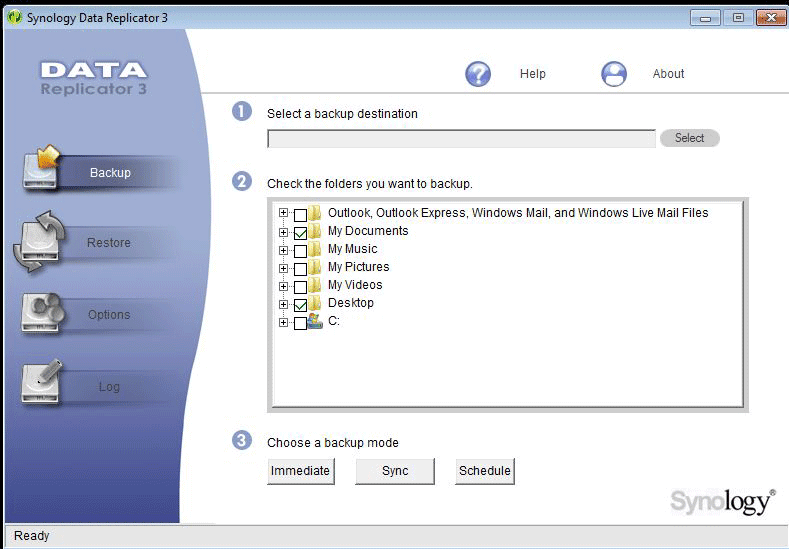
The software offered several useful functions, including immediate backup, file synchronization, and scheduled backup. And it allows you to back up desktop files, documents, and user data, and backup Outlook/Outlook Express emails. However, it was supported on older systems (Windows XP / Vista / 7 / 8), and was end-of-life (EOL) and no longer supported or available for download from Synology. The last version was Synology Data Replicator 3 to download in 2013.
So, finding a capable Synology Data Replicator alternative is increasingly important for users who want continued backup protection on newer Windows 11 and 10 systems.
Download Synology Data Replicator Alternative - Simple & Comprehensive
AOMEI Backupper is a dependable alternative to Synology Data Replicator software that combines backup, synchronization, and recovery features within a single platform. It supports everything from simple file backups to full system imaging and disk cloning. Rather than focusing on file or folder backup like Synology Data Replicator, this software offers multiple backup and sync options that address different data protection scenarios. What's more, it is widely supported on Windows 11, 10, 8, and 7.
 AOMEI Backupper
- Comprehensive backup: It offers System Backup, Disk Backup, Partition Backup, File/Folder Outlook Backup, and Email Backup.
- File sync: Basic Sync performs one-way sync from the source location to the destination location, and Real-Time Sync to sync files from source to destination as long as the change is detected.
- Scheduled backup: You can set up scheduled backup tasks to run daily, weekly, monthly, at a specific time, or based on a special event.
- Incremental backup & differential backup: You are allowed to choose from full, incremental, and differential backups. The last two options help to save storage space.
- Fully supported devices: Apart from backing up to Synology NAS, it is also capable of backing up files to external hard drive, network drive, USB, and NAS from other popular brands.
 100% Secure
Get this alternative to Data Replicator Synology downloaded and installed on your computer. For Windows Server users, please try AOMEI Backupper Server.
How to Create PC Backup & File Sync Easily
You can either choose to create backup images for Windows computer or do data sync from Windows to Synology NAS and other network locations.
Part 1. Create PC Backup to Synology NAS
Step 1. Select the Backup tab from the main dashboard, then choose System Backup to create a backup image for OS and other user settings.
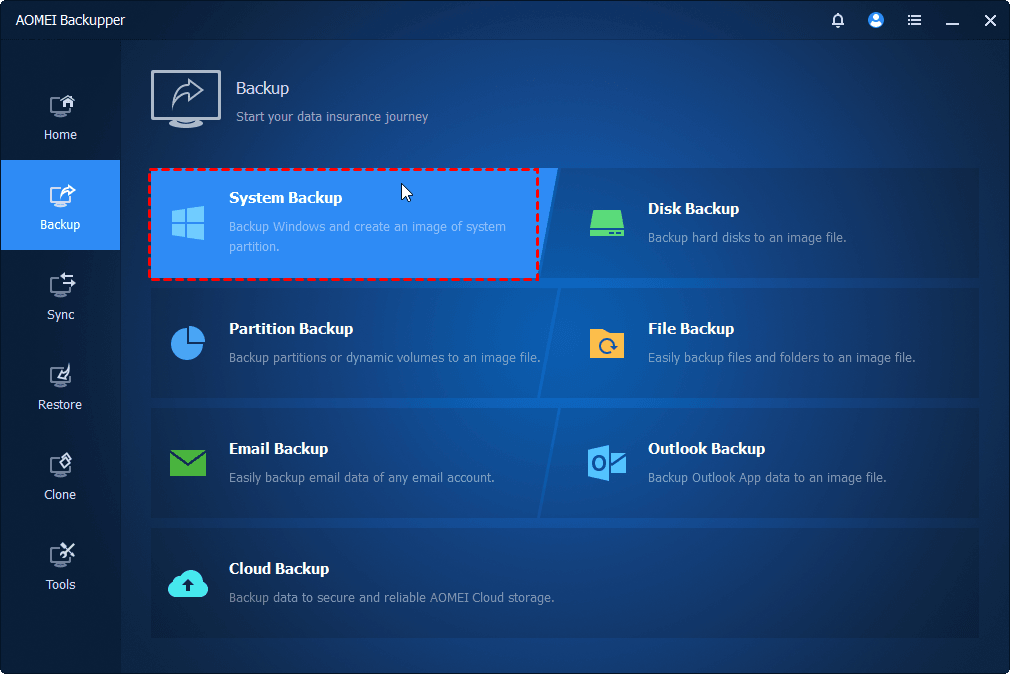
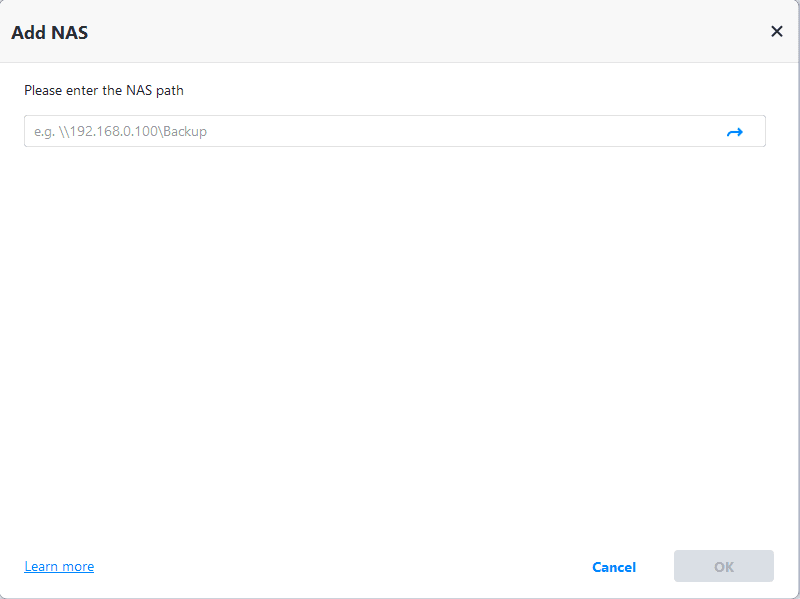
Step 2. Boot-related partitions are selected by default. Click on the destination box and select NAS > Add NAS in turn.
Step 3. Then, type your Synology NAS path, input your username and password if it is required, and then choose a folder on the Synology NAS as the destination path to store the backup image.
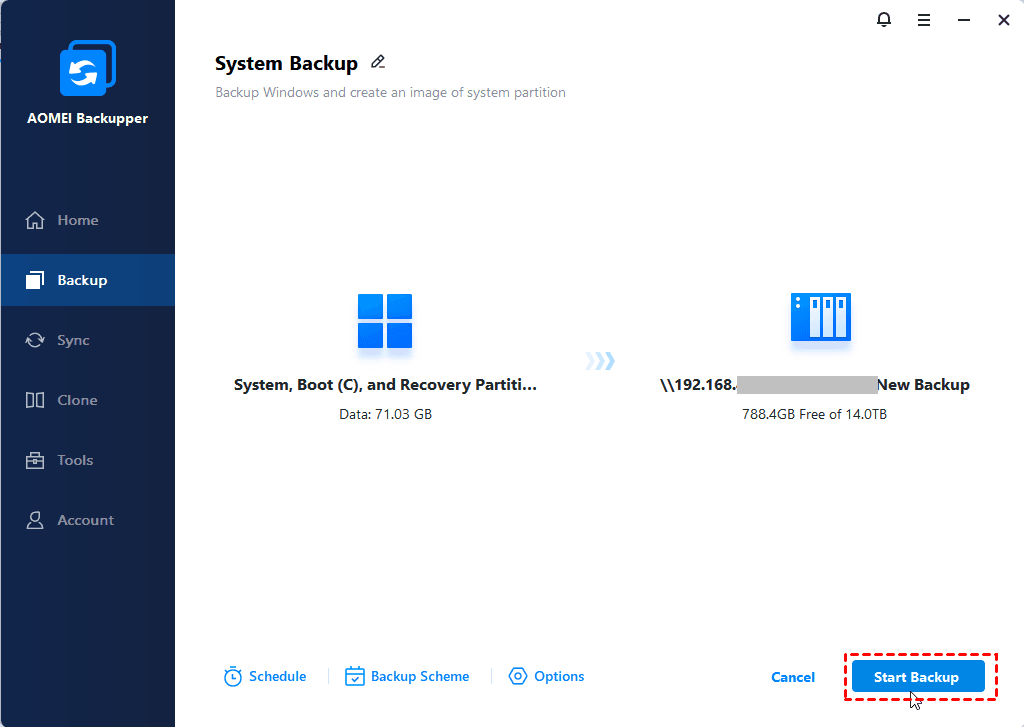
Step 4. Click Schedule to enable auto backup (One Time, Daily, Weekly, Monthly, or Event triggers) on Windows.

Step 5. Finally, click Start Backup to backup Windows to Synology NAS.
Part 2. Sync PC Files to Synology NAS
Step 1. Select Sync from the left panel and select Real-Time Sync.
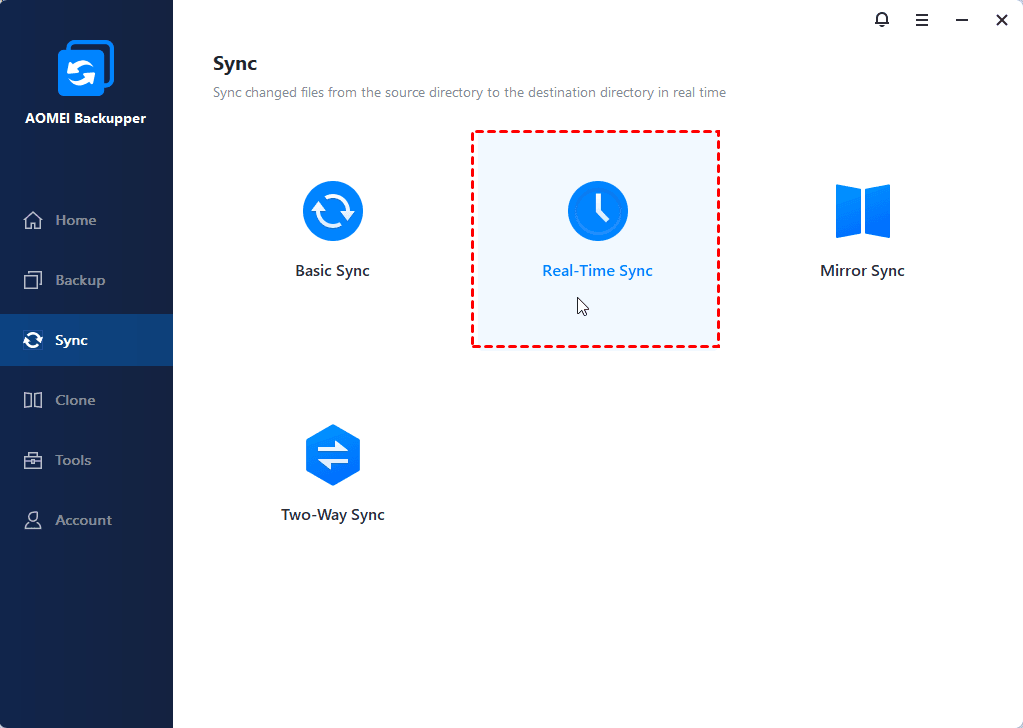
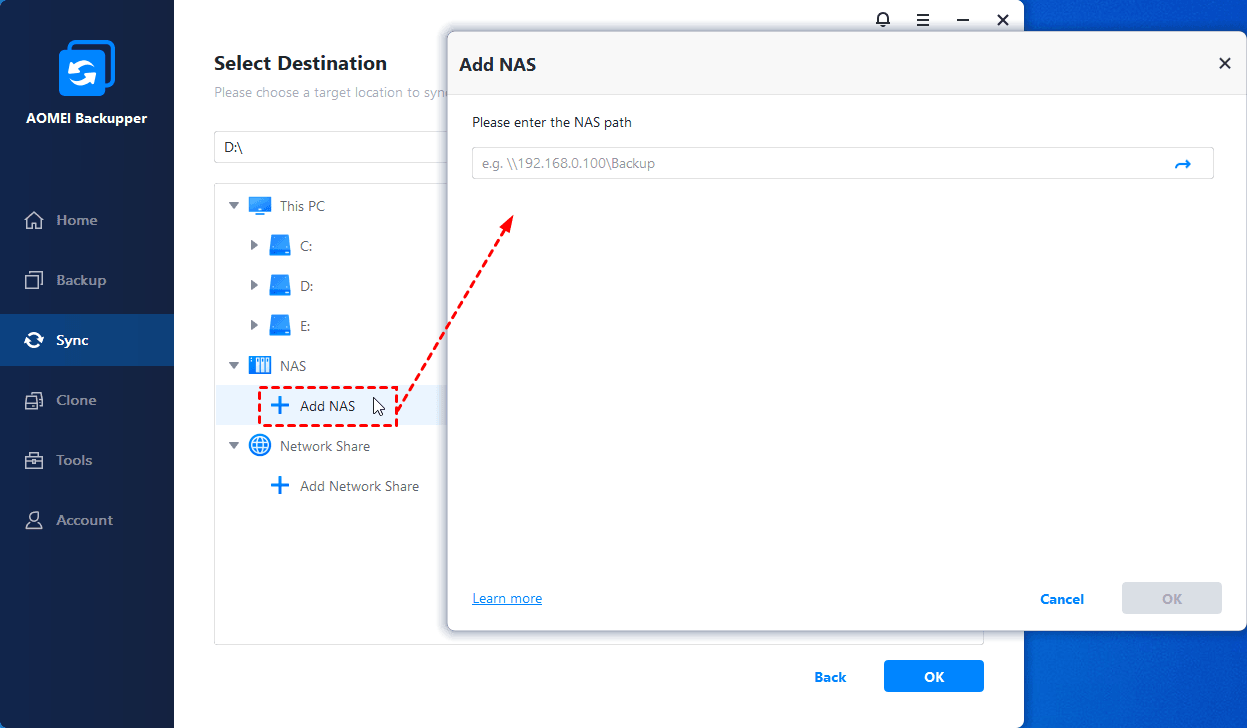
Step 2. Click Select Source to add PC files for sync, and then add the destination by clicking NAS > Add NAS > entering the Synology NAS path and selecting a target folder on it.
Step 3. Click Start Sync to sync data from the computer to the Synology NAS.
FAQs on Synology Data Replicator Synology NAS
#1. How can I restore files with Synology Data Replicator?
If you previously created backups using Synology Data Replicator, you can typically restore files by accessing the backup repository and selecting the desired backup version. The exact restoration process depends on the backup method originally configured. Users should verify that backup archives remain accessible and compatible with their current environment.
#2. Can a Synology Data Replicator alternative back up network folders?
Yes. Most modern backup applications support network folders as both source and destination locations. Advanced backup software can protect shared network folders, NAS devices, SMB shares, mapped drives, and remote storage locations.
#3. Is Synology Drive Client a Data Replicator alternative?
Yes. Synology Drive Client is often considered the official successor to Data Replicator. It provides file synchronization, scheduled backups, version history, NAS integration, and cross-device access.
However, it primarily focuses on file synchronization rather than comprehensive backup and disaster recovery.
Conclusion
Synology Data Replicator played an important role in helping users protect files on Synology NAS devices. However, modern computing environments require more advanced backup technologies than the original software was designed to provide. For a dependable Synology Data Replicator alternative, AOMEI Backupper is a powerful and easy-to-use solution.
Whether you need auto PC backups, file sync, email backup, it provides a complete data protection strategy for all data on Windows PCs.

 as a preferred
source on Google
as a preferred
source on Google