



Fixed: Norton Ransomware Protection Not Activated
On this page, we will show you how to troubleshoot Norton ransomware protection not activated and the best PC ransomware protection alternative.

By Jonna Updated on May 13, 2026


Overview of Norton Ransomware Protection
Norton is a widely used suite of cybersecurity software designed to protect devices and personal information from digital threats. And Norton Ransomware Protection is designed to safeguard files against unauthorized encryption attempts. Once ransomware infects a system, it locks files and demands payment for their release.
Norton integrates ransomware protection into its broader security suite to proactively block such threats before they cause harm. Norton’s ransomware protection relies on behavioral monitoring. Instead of only detecting known threats, it watches for suspicious activity patterns, like programs attempting to modify large numbers of files quickly. When such behavior is detected, the system intervenes.
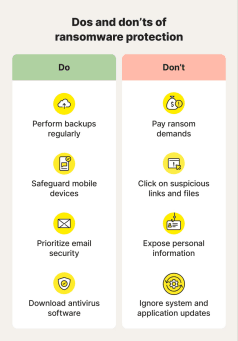
However, some users sometimes encounter the "Norton Ransomware Protection not activated" prompt. This message typically stems from an invalid/expired subscription, activation failure, or system-level issues like corrupted installation/outdated software that prevent the feature from initializing properly.
Troubleshoot: Norton Ransomware Protection Not Activated
If you don't want to enable Norton antivirus for ransomware protection, you can just ignore the prompt.
If you are troubled by Norton not working for ransomware protection, you can try the solution below to fix it.
Fix 1. Verify Subscription & Activation Status
An inactive or expired subscription can disable certain features.
- Check whether your subscription is active and has not expired.
- Make sure you are signed in with the correct Norton account linked to your plan.
- Confirm your plan includes Ransomware Protection (some basic editions do not support this feature).
Fix 2. Enable Ransomware Protection Manually
Sometimes Norton Antivirus not working for ransomware protection because the feature is simply turned off.
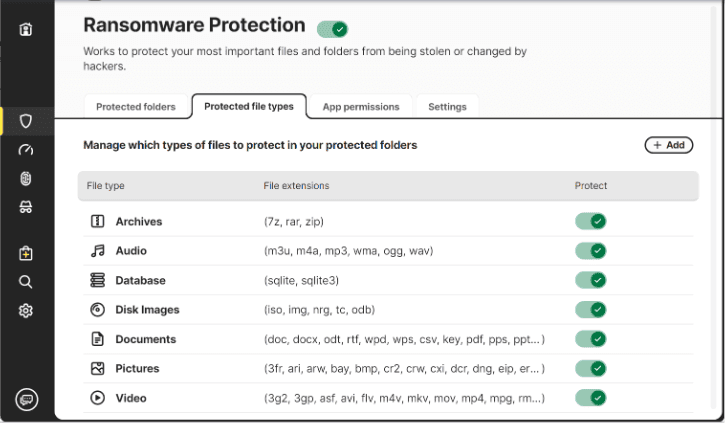
Step 1. Launch Norton and go to Settings > Security > Advanced.
Step 2. Find and enable Ransomware Protection.
Step 3. Then, you can click Add to add folders you wish to protect.
Fix 3. Update Norton & Run LiveUpdate
Norton LiveUpdate is a security utility that automatically downloads and installs protection updates, virus definition files, and software patches for Norton device security products. It ensures your software can detect the latest threats by running checks on a regular basis, usually automatically.
Step 1. Open Norton device security by heading to Device Security and clicking Open.
Step 2. In the Norton product main window, double-click Security and then LiveUpdate, and it will download and install all available updates.
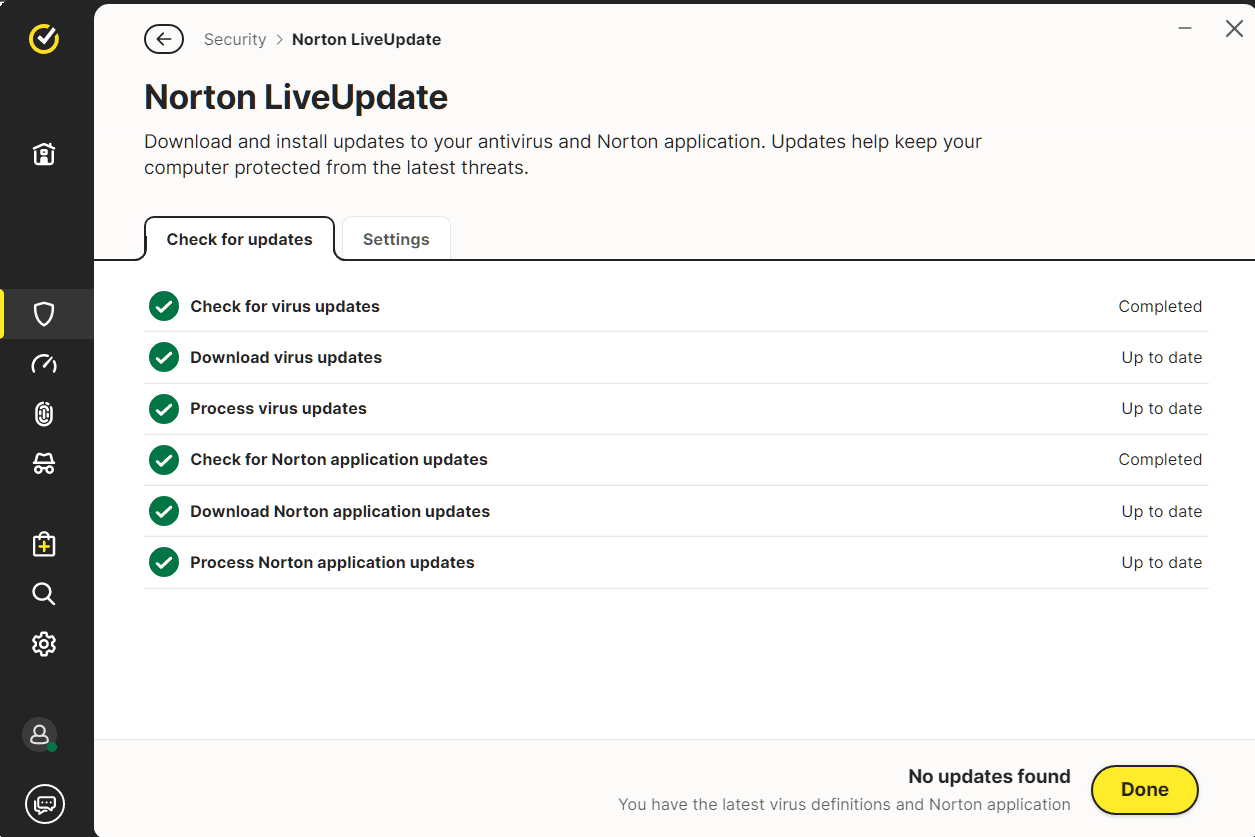
If LiveUpdate failed for some reason, you can also run Intelligent Updater to get the needed updates.
Alternative Ransomware Protection Solution for Windows PCs
Even though Norton is a strong antivirus solution, relying on a single layer of protection isn't always enough. That's where backup-based ransomware protection comes into play. One such solution is AOMEI Backupper, which focuses on data security through intelligent backup and recovery features, embedded with ransomware protection.
Unlike traditional antivirus tools, backup software doesn’t try to block ransomware directly. Instead, it ensures that your data can be restored quickly without paying a ransom. This tool offers a comprehensive set of features designed to protect your data against ransomware and other threats.
 AOMEI Backupper
- Full backup options: It allows you to back up system OS, disk, partition, and backup files to external hard drive, local drive, NAS, cloud storage, and so on.
- Automatic backup: It can automate daily/weekly backups for continuous data protection.
- Easy restore: It lets you restore entire systems, disks, partitions, or individual files/folders quickly after a ransomware attack.
- Create bootable media: It is able to create bootable rescue disk (USB/CD) that enables you to perform data recovery even if the OS is infected.
- Ransomware protection: Protect backup images you have created using this tool, and specified file types & file/folder paths from ransomware for quick recovery.
 100% Secure
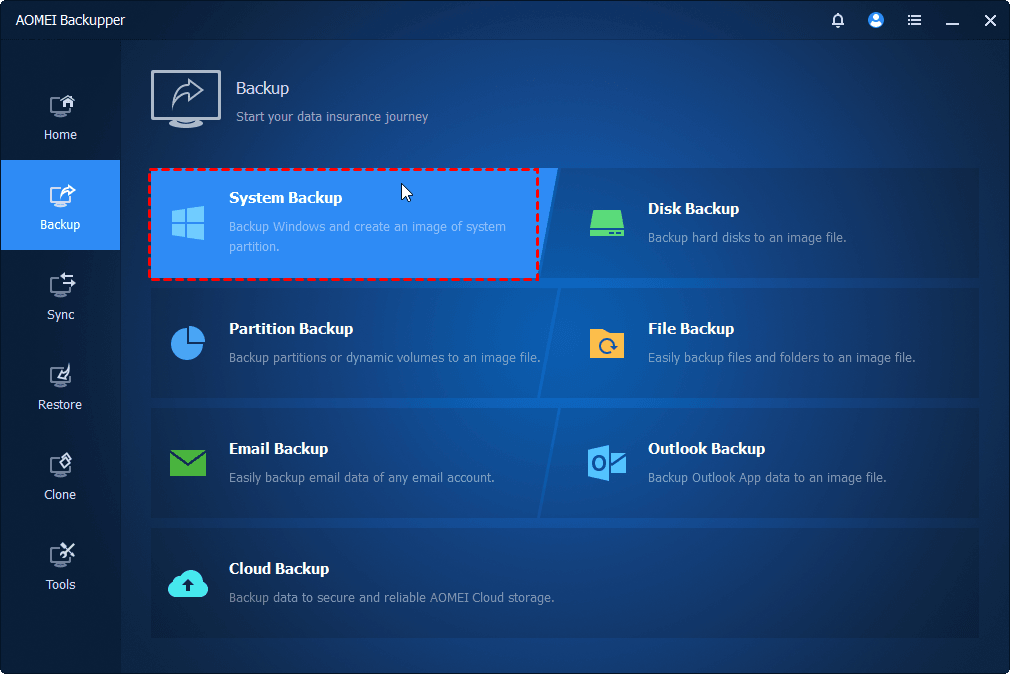
Step 1. Download and run AOMEI Backupper, go to Backup and choose the desired backup option, like System Backup, to create a system image.
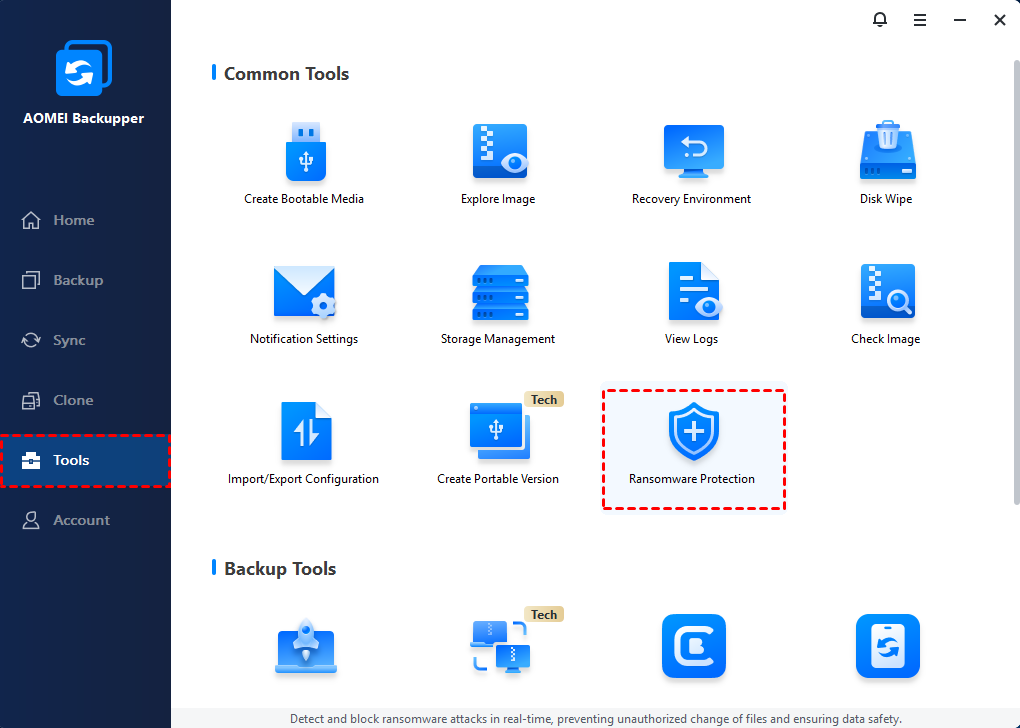
Step 2. After that, go ahead to Tools > Ransomware Protection.
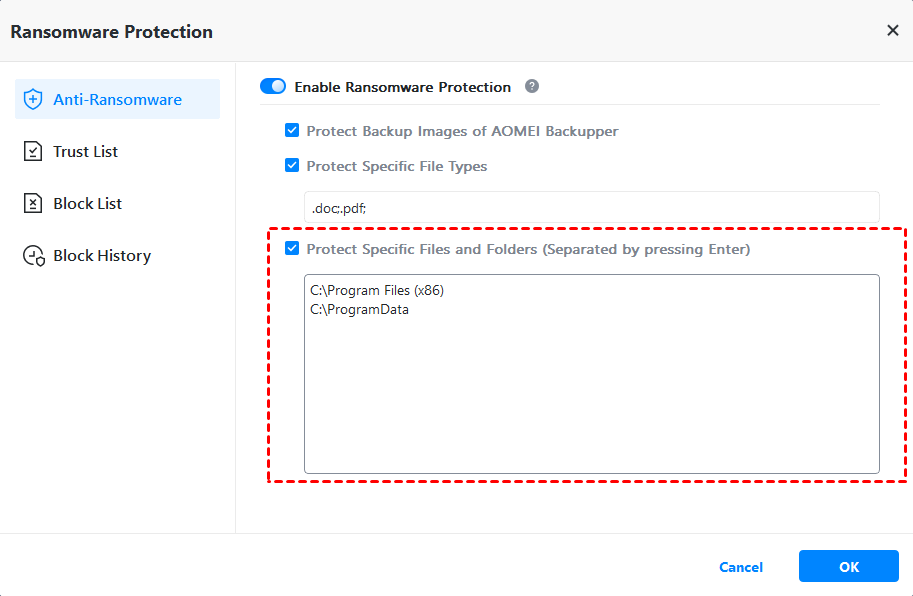
Step 3. Turn on the option for Enable Ransomware Protection. 3 sub-options are available here:
- Protect Backup Images of AOMEI Backupper: Ticked by default to protect backup image files you have created with AOMEI Backupper.
- Protect Specific File Types: Protect specific file types by adding file extensions like .doc, .pdf, .ppt, etc.
- Protect Specific Files and Folders: Protect some important files or folders by adding their paths, like C:\ProgramData, etc.
After that, click OK to save the changes. And you can go to Block History, check the apps that attempt to modify these protected files.
Conclusion
In this article, we have covered how to troubleshoot Norton Ransomware Protection not activated. This issue is usually fixable with a systematic approach, checking settings, updating software, resolving conflicts, and ensuring proper configuration.
Ransomware threats are constantly evolving, and no single solution can guarantee complete protection. That’s why combining antivirus tools with backup solutions is the smartest strategy. Norton provides strong proactive defense, but tools like AOMEI Backupper offer reactive resilience. Together, they create a comprehensive shield against data loss. Also, AOMEI Backupper comes with other powerful features like file sync from one PC to another, disk cloning, etc.

 as a preferred
source on Google
as a preferred
source on Google